How To Install iTOP - IT Operational Tool in Centos
To Install iTOP IT Operational Tool in Centos 6.7
iTop stands for IT Operations Portal. It is a complete open source, ITIL, web-based service management, which is designed with helpdesk system and a document management tool. Instead of PHP and MySQL, you can run iTop. Installation of iTOP tool in Centos 6.7 is explained in this article.
Features
- Manage incidents, user requests, planned outages
- Export all the information in a manual or scripted manner
- Document IT services and contracts with external providers including service level agreements
- Mass import or synchronize any data from external systems
To Install iTOP IT Operational Tool
Use the following command to install the required php packages.
[root@linuxhelpDesktop]# yum install php-mysql php-mcrypt php-xml php-cli php-soap php-ldap graphviz
Loaded plugins: aliases, changelog, fastestmirror, kabi, presto, refresh-packagekit, security, tmprepo, verify, versionlock
Loading support for CentOS kernel ABI
Setting up Install Process
Determining fastest mirrors
epel/metalink                                                                                             | 3.9 kB     00:00
 * base: centos.excellmedia.net
 * epel: mirror.premi.st
.
.
.
Dependency Updated:
  php.x86_64 0:5.6.24-1.el6.remi             php-common.x86_64 0:5.6.24-1.el6.remi      php-gd.x86_64 0:5.6.24-1.el6.remi
  php-mysqlnd.x86_64 0:5.6.24-1.el6.remi     php-odbc.x86_64 0:5.6.24-1.el6.remi        php-pdo.x86_64 0:5.6.24-1.el6.remi
  php-pgsql.x86_64 0:5.6.24-1.el6.remi       php-process.x86_64 0:5.6.24-1.el6.remi     php-xmlrpc.x86_64 0:5.6.24-1.el6.remi
Complete!
Open the php configuration file and change the post_max_size.
[root@linuxhelp Desktop]# vim /etc/php.ini
Next download the iTop package by using the wget command.
[root@linuxhelp Desktop]# wget http://sourceforge.net/projects/itop/files/itop/2.0.2/iTop-2.0.2-1476.zip
--2016-08-03 15:03:59--  http://sourceforge.net/projects/itop/files/itop/2.0.2/iTop-2.0.2-1476.zip
Resolving sourceforge.net... 216.34.181.60
Connecting to sourceforge.net|216.34.181.60|:80... connected.
.
.
.
2016-08-03 15:06:06 (48.7 KB/s) - “ iTop-2.0.2-1476.zip”  saved [6012740/6012740]
After downloaded the package, extract it using unzip command.
[root@linuxhelp Desktop]# unzip iTop-2.0.2-1476.zip
Archive:  iTop-2.0.2-1476.zip
  inflating: INSTALL
  inflating: LICENSE
  inflating: README
.
.
.
  inflating: web/webservices/webservices.basic.php
  inflating: web/webservices/webservices.class.inc.php
Now copy the extracted package into root directory of iTop /var/www/html/
[root@linuxhelp Desktop]# cp -fr web/ /var/www/html/itop
For configuration purpose create the following directories.
[root@linuxhelp itop]# mkdir conf data env-production log
Here give full access permission for created directory.
[root@linuxhelp itop]# chmod 777 conf/ data/ env-production/ log/
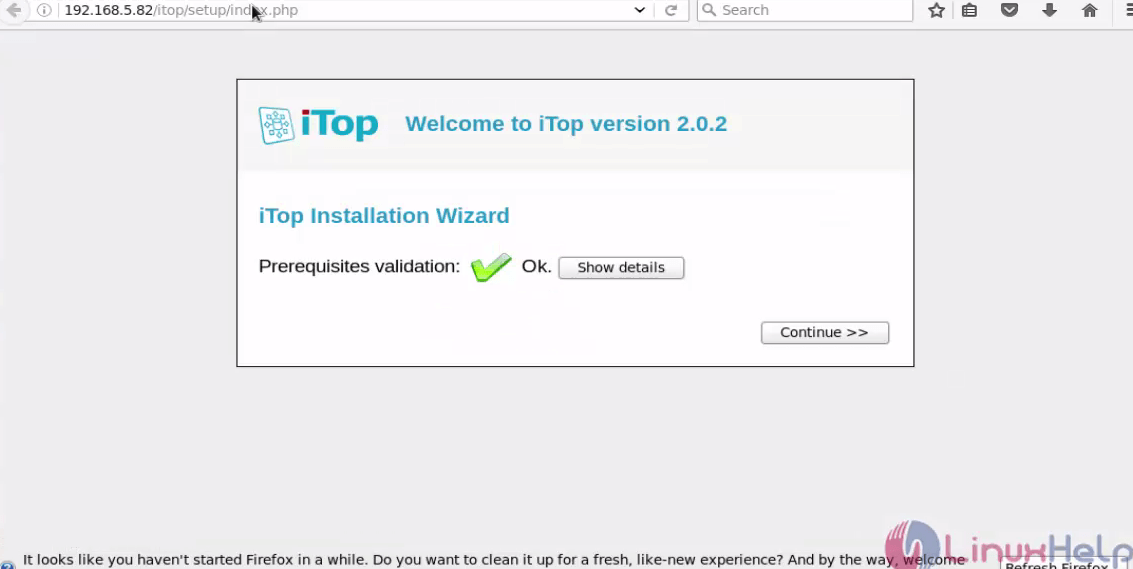
Now the directory created successfully. Next, open the web browser and enter the URL http://< IP_ADDR> /itop/
Click continue option.
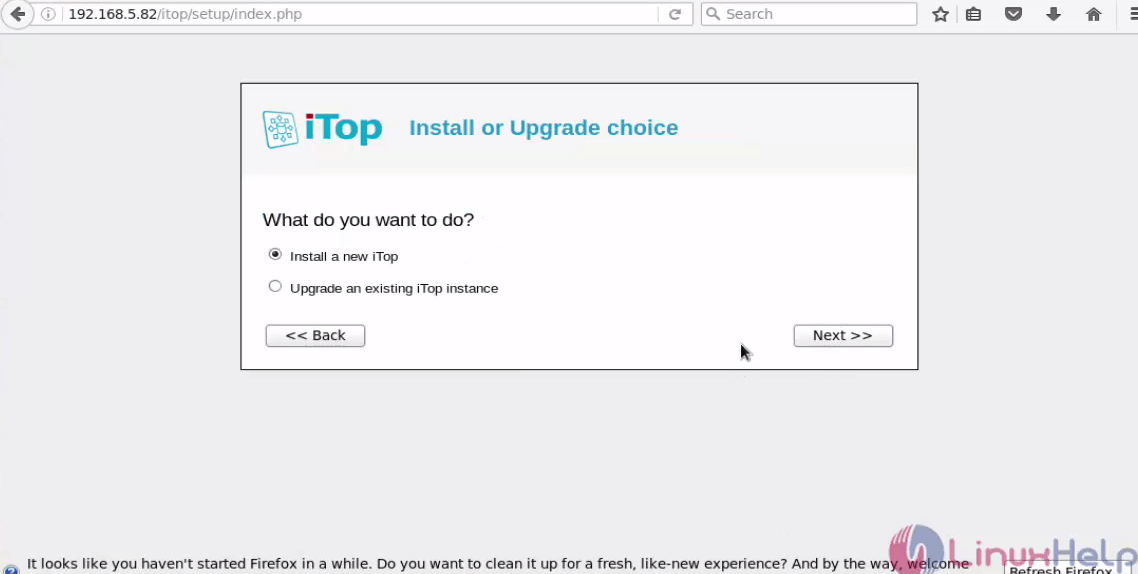
Select installation option and click Next.
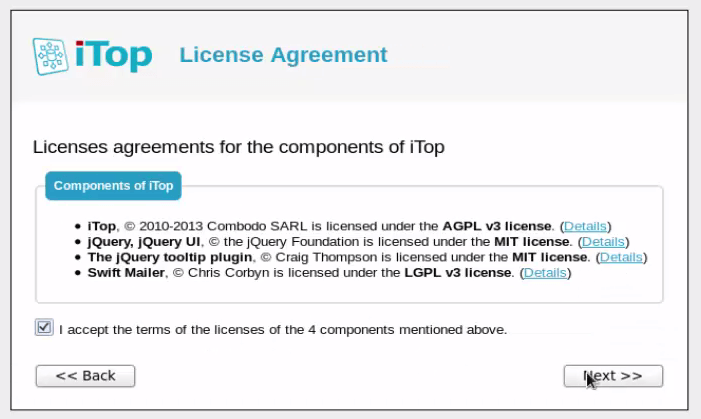
Here accept the license policy and click Next.
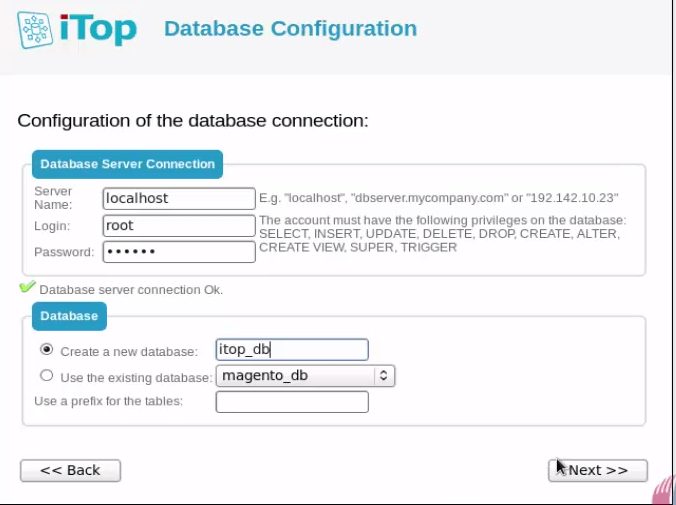
Enter the database details and click Next.
Here enter the Administrative details in the following fields.
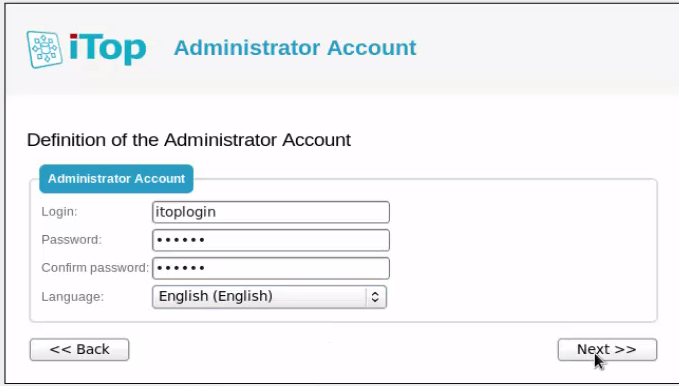
Select the default language and click Next.
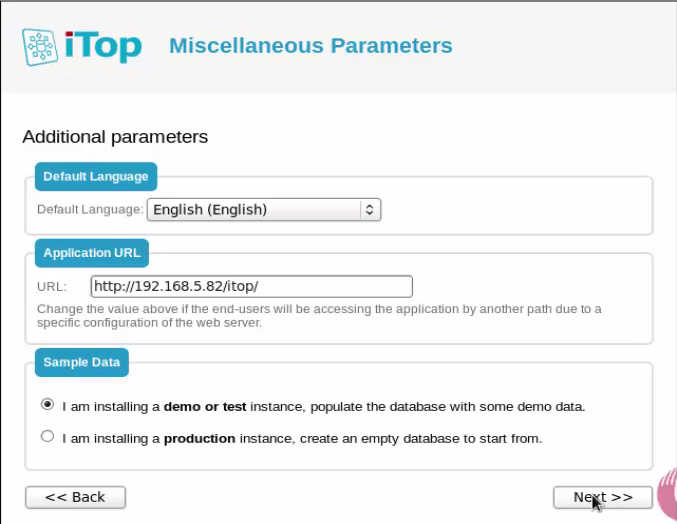
Pick the following configuration management options as required and click Next.
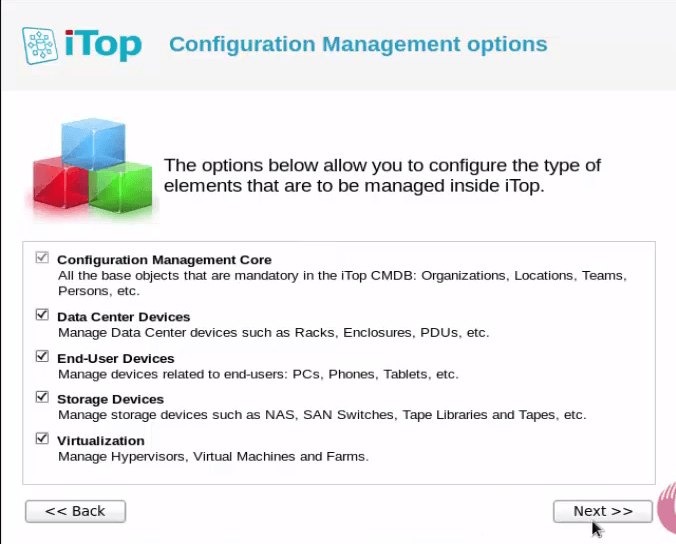
Choose the management option and click Next.
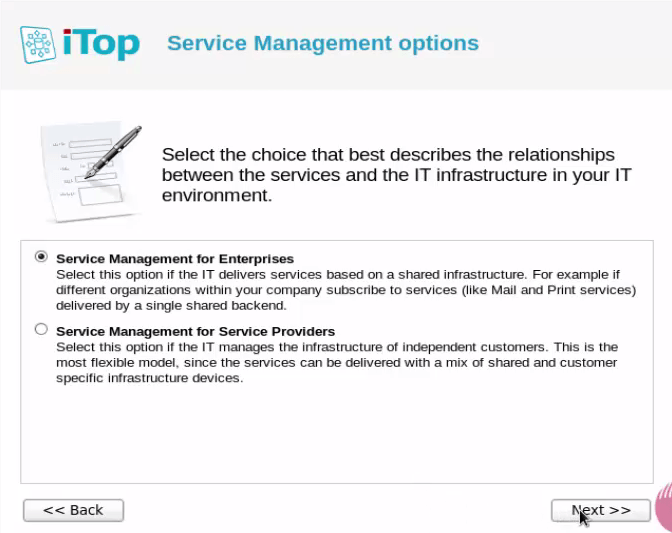
Select the Tickets option and click Next.
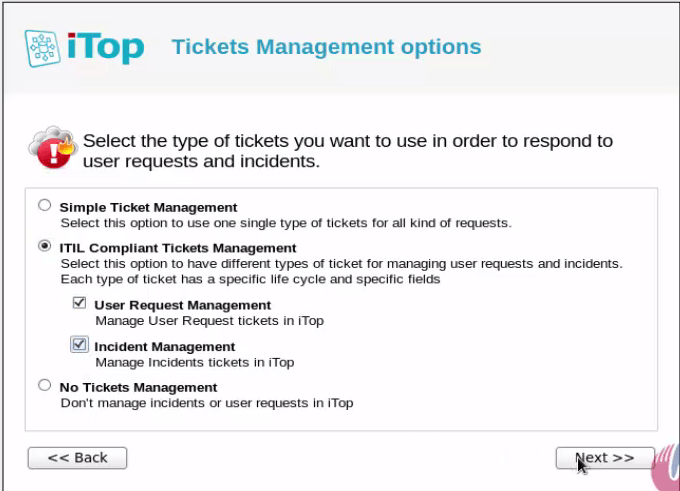
Here, select the Tickets type and click Next.
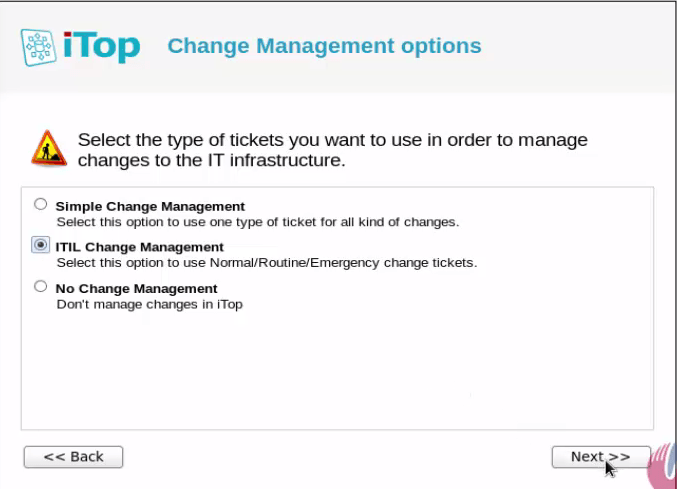
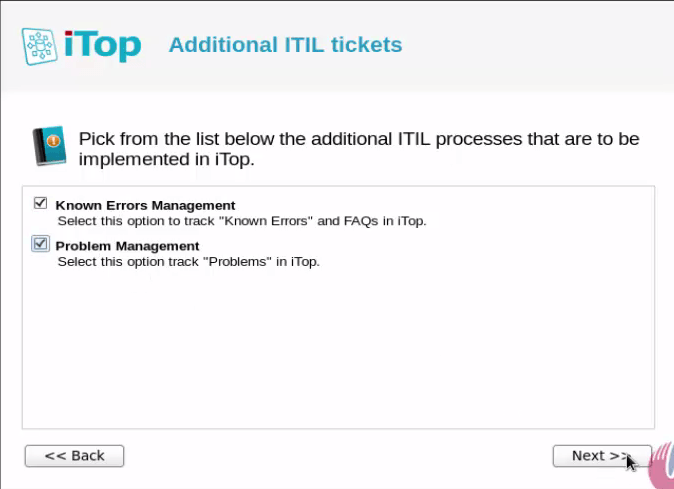
Additionally, select the ITIL tickets and click Next.
Click Install to start installation process.
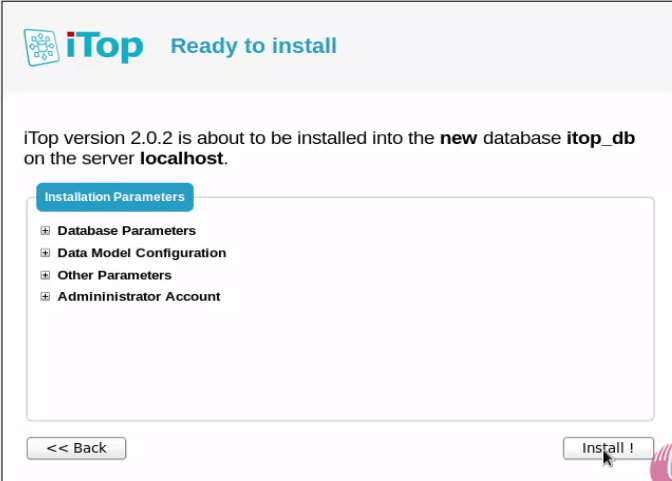
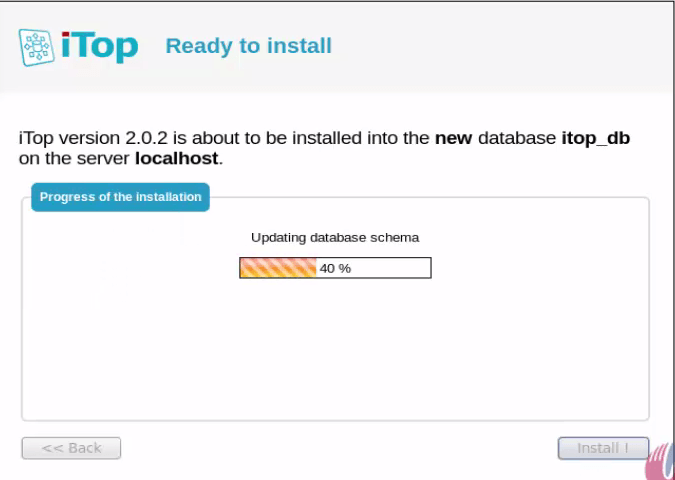
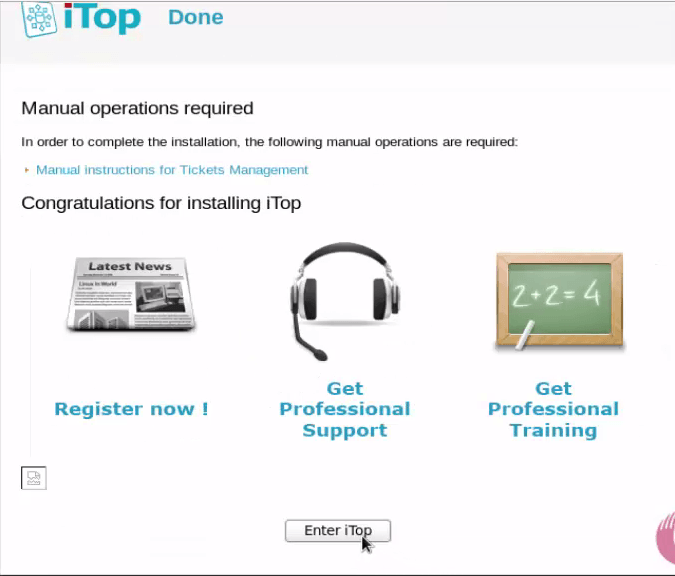
After installation, click Enter iTop option.
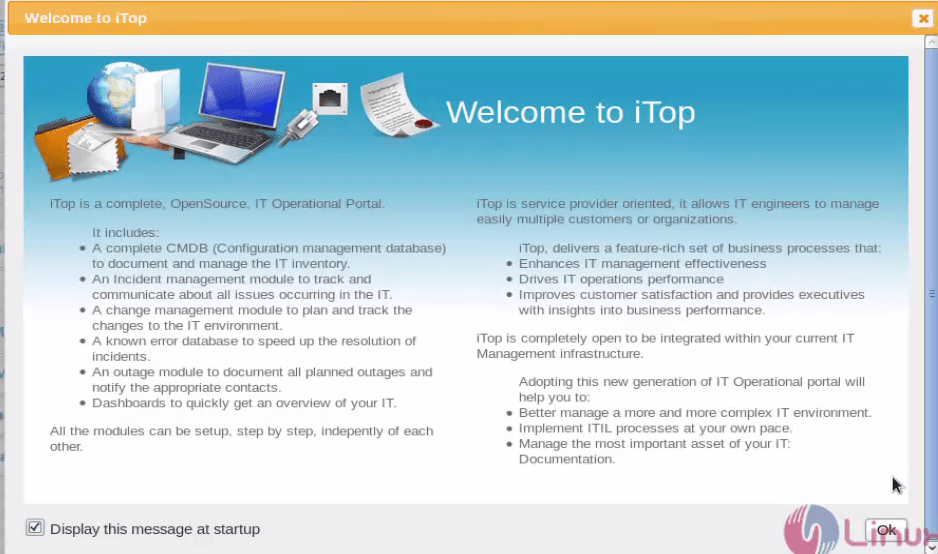
In the below welcome screen, click ok option to view iTOP dashboard.
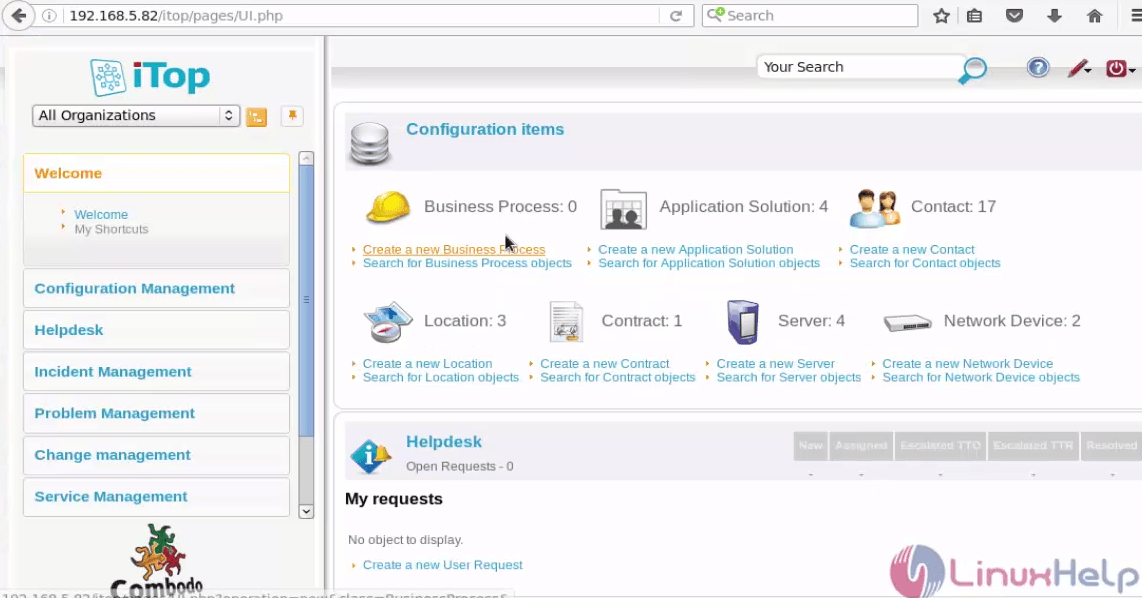
Here configure the iTop depends on your needs.
Comments ( 0 )
No comments available