How to Install Java 9 in Linux Mint 18.3 Using PPA and Source
To Install Java 9 in Linux Mint 18.3
The Java Development Kit (JDK) is a software development environment used for developing Java applications and applets. The environment includes Java Runtime Environment (JRE), an interpreter/loader (java), a compiler (javac), an archiver (jar) and many other tools needed in Java development. This tutorial will guide you on how to install Java 9 Standard Edition Development Kit in Linux Mint 18.3 using PPA and through its source.
Installing Java 9
To install latest Java 9 version, first, add following webupd8team/java PPA to your system and update the repository package.
linuxhelp ~ # add-apt-repository ppa:webupd8team/java
You are about to add the following PPA:
 Oracle Java (JDK) Installer (automatically downloads and installs Oracle JDK7 / JDK8 / JDK9). There are no actual Java files in this PPA.

Important ->  Why Oracle Java 7 And 6 Installers No Longer Work: http://www.webupd8.org/2017/06/why-oracle-java-7-and-6-installers-no.html

Ubuntu 16.10 Yakkety Yak is no longer supported by Canonical (and thus, Launchpad and this PPA). The PPA supports Ubuntu 17.10, 17.04, 16.04, 14.04 and 12.04.

More info (and Ubuntu installation instructions):
- for Oracle Java 7: http://www.webupd8.org/2012/01/install-oracle-java-jdk-7-in-ubuntu-via.html
- for Oracle Java 8: http://www.webupd8.org/2012/09/install-oracle-java-8-in-ubuntu-via-ppa.html
.
.
gpg: requesting key EEA14886 from hkp server keyserver.ubuntu.com
gpg: key EEA14886: public key " Launchpad VLC"  imported
gpg: Total number processed: 1
gpg:               imported: 1  (RSA: 1)
Now you need to update your system by making use of the following command.
linuxhelp ~ # apt-get update
Hit:1 http://archive.ubuntu.com/ubuntu xenial InRelease
Hit:2 http://archive.canonical.com/ubuntu xenial InRelease
Ign:3 http://packages.linuxmint.com sylvia InRelease
Get:4 http://ppa.launchpad.net/webupd8team/java/ubuntu xenial InRelease [17.5 kB]
Get:5 http://ppa.launchpad.net/webupd8team/java/ubuntu xenial/main Sources [1,408 B]
Get:6 http://packages.linuxmint.com sylvia Release [24.2 kB]
Get:7 http://archive.ubuntu.com/ubuntu xenial-updates InRelease [102 kB]
Get:8 http://packages.linuxmint.com sylvia Release.gpg [819 B]
Get:9 http://ppa.launchpad.net/webupd8team/java/ubuntu xenial/main amd64 Packages [2,908 B]
Get:10 http://security.ubuntu.com/ubuntu xenial-security InRelease [102 kB]
.
.
Get:24 http://archive.ubuntu.com/ubuntu xenial-updates/universe Translation-en [239 kB]
Get:25 http://security.ubuntu.com/ubuntu xenial-security/universe amd64 Packages [320 kB]
Get:26 http://security.ubuntu.com/ubuntu xenial-security/universe i386 Packages [279 kB]
Get:27 http://security.ubuntu.com/ubuntu xenial-security/universe Translation-en [119 kB]
Fetched 5,280 kB in 10s (494 kB/s)
Reading package lists... Done
Once PPA has been added and updated, Java 9 is available to install using the following command
linuxhelp ~ # apt-get install oracle-java9-installer
Reading package lists... Done
Building dependency tree
Reading state information... Done
Suggested packages:
  visualvm ttf-baekmuk | ttf-unfonts | ttf-unfonts-core ttf-kochi-gothic | ttf-sazanami-gothic ttf-kochi-mincho | ttf-sazanami-mincho
  ttf-arphic-uming
Recommended packages:
  gsfonts-x11 oracle-java9-set-default
The following NEW packages will be installed:
  oracle-java9-installer
.
.
update-alternatives: using /usr/lib/jvm/java-9-oracle/bin/wsimport to provide /usr/bin/wsimport (wsimport) in auto mode
update-alternatives: using /usr/lib/jvm/java-9-oracle/bin/xjc to provide /usr/bin/xjc (xjc) in auto mode
update-alternatives: using /usr/lib/jvm/java-9-oracle/lib/jexec to provide /usr/bin/jexec (jexec) in auto mode
update-alternatives: using /usr/lib/jvm/java-9-oracle/bin/javaws.real to provide /usr/bin/javaws.real (javaws.real) in auto mode
Oracle JDK 9 installed
If you have more than one Java installed on your system, you can install Oracle Java9 Set default package to set Java 9 as default.
linuxhelp ~ # apt install oracle-java9-set-default
Reading package lists... Done
Building dependency tree
Reading state information... Done
The following NEW packages will be installed:
  oracle-java9-set-default
0 upgraded, 1 newly installed, 0 to remove and 261 not upgraded.
Need to get 4,482 B of archives.
After this operation, 16.4 kB of additional disk space will be used.
Get:1 http://ppa.launchpad.net/webupd8team/java/ubuntu xenial/main amd64 oracle-java9-set-default amd64 9.0.4-1~webupd8~0 [4,482 B]
Fetched 4,482 B in 0s (8,542 B/s)
Selecting previously unselected package oracle-java9-set-default.
(Reading database ... 223917 files and directories currently installed.)
Preparing to unpack .../oracle-java9-set-default_9.0.4-1~webupd8~0_amd64.deb ...
Unpacking oracle-java9-set-default (9.0.4-1~webupd8~0) ...
Setting up oracle-java9-set-default (9.0.4-1~webupd8~0) ...
Now, that Java is installed, you can verify it by using the following command.
linuxhelp ~ # java --version
java 9.0.4
Java(TM) SE Runtime Environment (build 9.0.4+11)
Java HotSpot(TM) 64-Bit Server VM (build 9.0.4+11, mixed mode)
===========================================================
Installing Java 9 from Sources
You can always install java latest version from the source from their official download page
http://www.oracle.com/technetwork/java/javase/downloads/jdk9-downloads-3848520.html
Now, open your browser and browse the link and choose your operating system and the corresponding package.
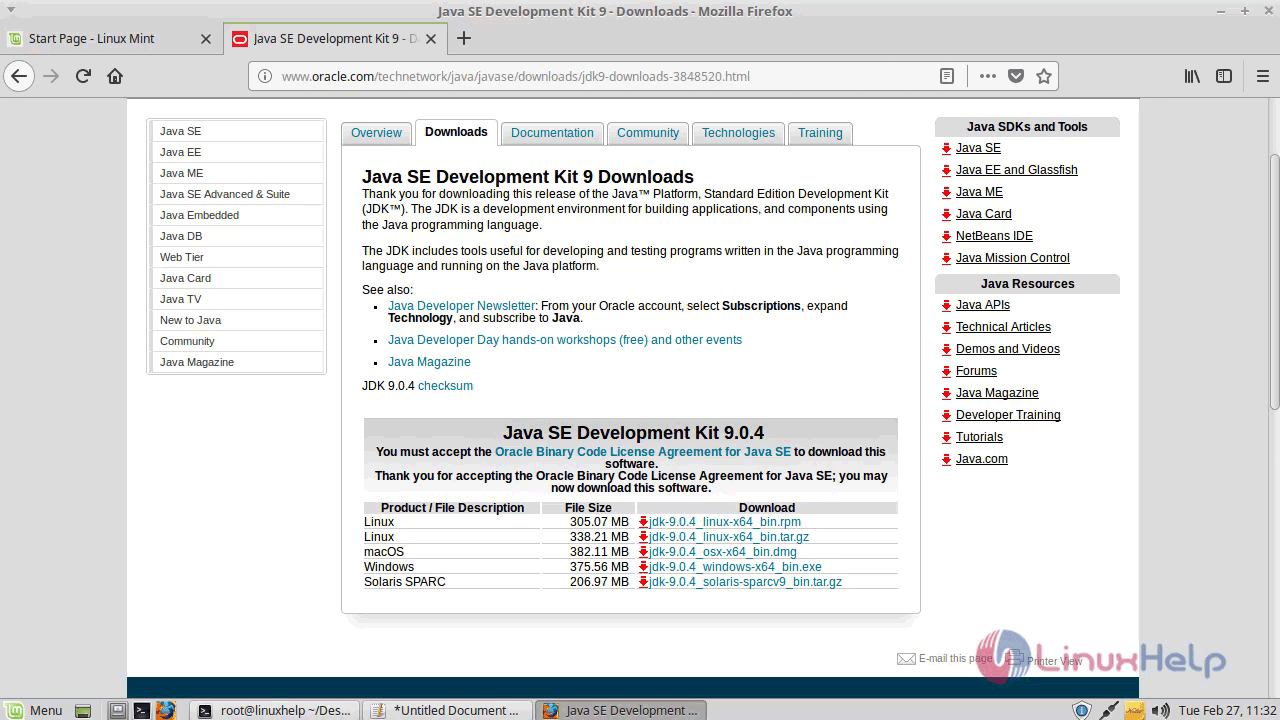
If you use a server machine or desktop without GUI you can run the following to download from the terminal.
$ wget --no-cookies --no-check-certificate --header " Cookie: oraclelicense=accept-securebackup-cookie" http://download.oracle.com/otn-pub/java/jdk/9.0.4+11/c2514751926b4512b076cc82f959763f/jdk-9.0.4_linux-x64_bin.tar.gz
After the Download, completion navigate the directory and extract
Linuxhelp # cd /home/user/Desktop
linuxhelp Desktop # ls
jdk-9.0.4_linux-x64_bin.tar.gz
linuxhelp Desktop # tar  xfz jdk-9.0.4_linux-x64_bin.tar.gz  -C  /opt/
linuxhelp Desktop # cd /opt/jdk-9.0.4/
linuxhelp jdk-9.0.4 #   ls
bin    conf    include   jmods   legal   lib   README.html   release
Next, insert Java environment variables and the executable files path into your system $PATH variable, by issuing the below commands that will create a new file named java.sh into system profile.
linuxhelp Desktop # echo ' export JAVA_HOME=/opt/jdk-9.0.4/'  | sudo tee /etc/profile.d/java.sh
export JAVA_HOME=/opt/jdk-9.0.4/

linuxhelp Desktop # echo ' export PATH=$PATH:/opt/jdk-9.0.4/bin'  | sudo tee -a /etc/profile.d/java.sh
export PATH=$PATH:/opt/jdk-9.0.4/bin
Finally, log out and log in back again to apply the settings. And then, issue the below command to verify Java installed version on your system.
user@linuxhelp ~ $ java --version
java 9.0.4
Java(TM) SE Runtime Environment (build 9.0.4+11)
Java HotSpot(TM) 64-Bit Server VM (build 9.0.4+11, mixed mode)
The latest version of Java 9 SE SDK is now installed in Linux Mint 18.3.
Comments ( 0 )
No comments available