How to Install Joomla CMS on Oracle Linux 8.5
- 00:37 cat /etc/os-release
- 01:06 httpd –v
- 01:18 mysql –V
- 01:30 php –v
- 01:45 systemctl disable firewalld
- 01:55 systemctl status firewalld
- 02:11 setenforce 0
- 02:39 Mysql -u root -p
- 02:55 create database joomla;
- 03:07 use joomla;
- 03:16 CREATE USER 'user1'@localhost identified by '123456';
- 03:20 GRANT ALL PRIVILEGES ON joomla.* TO 'user1'@'localhost';
- 03:43 flush privileges;
- 03:50 wget https://downloads.joomla.org/cms/joomla3/3-9-4/Joomla_3-9-4-Stable-Full_Package.zip?format=zip
- 04:00 unzip Joomla_3-9-4-Stable-Full_Package.zip?format=zip -d joomla
- 04:08 mv joomla /var/www/html/
- 04:13 vim /etc/httpd/conf.d/joomla.conf
- 04:24 vi /etc/hosts
- 04:32 systemctl restart httpd
To Install Joomla on Oracle Linux 8.5
Introduction
The Joomla content management system is a free and open-source way to publish content on websites. Applications for web content include discussion forums, photo galleries, e-commerce, user communities, and numerous other applications.
Installation Procedure:
Note: Install the LAMP Setup before installing Joomla CMS
Step 1: Check the OS Version by using the below command
[root@linuxhelp linuxhelp]#    cat  /etc/os-release
NAME="Oracle Linux Server"
VERSION="8.5"
ID="ol"
ID_LIKE="fedora"
VARIANT="Server"
Step 2: Find version of Apache by using the below command
[root@linuxhelp linuxhelp]#    httpd –v
Server version: Apache/2.4.37 (Oracle Linux)
Step 3: Check the MySQL Version by using the below command
[root@linuxhelp linuxhelp]# Mysql –V
mysql  Ver 15.1 Distrib 10.3.32-MariaDB, for Linux (x86_64) using readline 5.1
Step 4: Check the PHP version by using the below command
[root@linuxhelp linuxhelp]#  Php –v
PHP 7.4.29 (cli) (built: Apr 12 2022 10:55:38) ( NTS )
Step 5: Disable firewall and selinux by using the below command
[root@linuxhelp linuxhelp]# systemctl disable firewalld
[root@linuxhelp linuxhelp]# setenforce 0
Step 6: Create a user and Grant all privileges by using the below command
Mysql -u root -p
MariaDB [(none)]> create database joomla;
Query OK, 1 row affected (0.00 sec)
MariaDB [(none)]> use joomla;
Database changed
MariaDB [joomla]> CREATE USER 'user1'@localhost identified by '123456';
Query OK, 0 rows affected (0.00 sec)
MariaDB [joomla]> GRANT ALL PRIVILEGES ON joomla.* TO 'user1'@'localhost';
Query OK, 0 rows affected (0.00 sec)
MariaDB [joomla]> flush privileges;
Query OK, 0 rows affected (0.00 sec)
MariaDB [joomla]> exit
Step 7: Using Wget to Download Joomla
[root@linuxhelp linuxhelp]#  wget https://downloads.joomla.org/cms/joomla3/3-9-4/Joomla_3-9-4-Stable-Full_Package.zip?format=zip
--2022-05-17 18:23:28--  https://downloads.joomla.org/cms/joomla3/3-9-4/Joomla_3-9-4-Stable-Full_Package.zip?format=zip
Resolving downloads.joomla.org (downloads.joomla.org)... 104.26.14.15, 104.26.15.15, 172.67.74.86, ...
Connecting to downloads.joomla.org (downloads.joomla.org)|104.26.14.15|:443... connected.
HTTP request sent, awaiting response... 303 See Other
Location: https://s3-us-west-2.amazonaws.com/joomla-official-downloads/joomladownloads/joomla3/Joomla_3.9.4-Stable-Full_Package.zip?X-Amz-Algorithm=AWS4-HMAC-SHA256&X-Amz-Credential=AKIA6LXDJLNUINX2AVMH%2F20220517%2Fus-west-2%2Fs3%2Faws4_request&X-Amz-Date=20220517T222329Z&X-Amz-Expires=60&X-Amz-SignedHeaders=host&X-Amz-Signature=2186aaa045d93dd9f75842f538070ebb26bc54283ab1457c4af89381b714e99c [following]
Resolving s3-us-west-2.amazonaws.com (s3-us-west-2.amazonaws.com)... 52.218.204.120
Connecting to s3-us-west-2.amazonaws.com (s3-us-west-2.amazonaws.com)|52.218.204.120|:443... connected.
HTTP request sent, awaiting response... 200 OK
Length: 13869429 (13M) [application/zip]
Saving to: ‘Joomla_3-9-4-Stable-Full_Package.zip?format=zip’

Joomla_3-9-4-Stable-Fu 100%[=========================>]  13.23M  3.66MB/s    in 3.6s

2022-05-17 18:23:34 (3.66 MB/s) - ‘Joomla_3-9-4-Stable-Full_Package.zip?format=zip’ saved [13869429/13869429]
Step 8: unzip the downloaded file
unzip Joomla_3-9-4-Stable-Full_Package.zip?format=zip -d joomla
Archive:  Joomla_3-9-4-Stable-Full_Package.zip?format=zip
  inflating: joomla/LICENSE.txt
  inflating: joomla/README.txt
   creating: joomla/administrator/
   creating: joomla/administrator/cache/
  inflating: joomla/administrator/cache/index.html
   creating: joomla/administrator/templates/
extracting: joomla/templates/protostar/template_thumbnail.png
   creating: joomla/tmp/
  inflating: joomla/tmp/index.html
  inflating: joomla/web.config.txt
Step 9: Move the Joomla directory to html directory by using the below command
[root@linuxhelp linuxhelp]# mv joomla /var/www/html/
Step 10: Create Virtual host configuration by using the below command
root@linuxhelp linuxhelp]# vim /etc/httpd/conf.d/joomla.conf
<virtualhost *:80>
servername www.linuxhelp1.com
documentroot /var/www/html/joomla/
<directory /var/www/html/joomla/>
allowoverride all
allow from all
</directory>
</virtualhost>
Step 11: Create Host Entry by using the below command
[root@linuxhelp linuxhelp]# Vi /etc/hosts
127.0.0.1   localhost localhost.localdomain localhost4 localhost4.localdomain4
::1         localhost localhost.localdomain localhost6 localhost6.localdomain6
192.168.6.121 www.linuxhelp1.com
~
Step 12: Restart the apache service by using the below command
[root@linuxhelp linuxhelp]# systemctl restart httpd
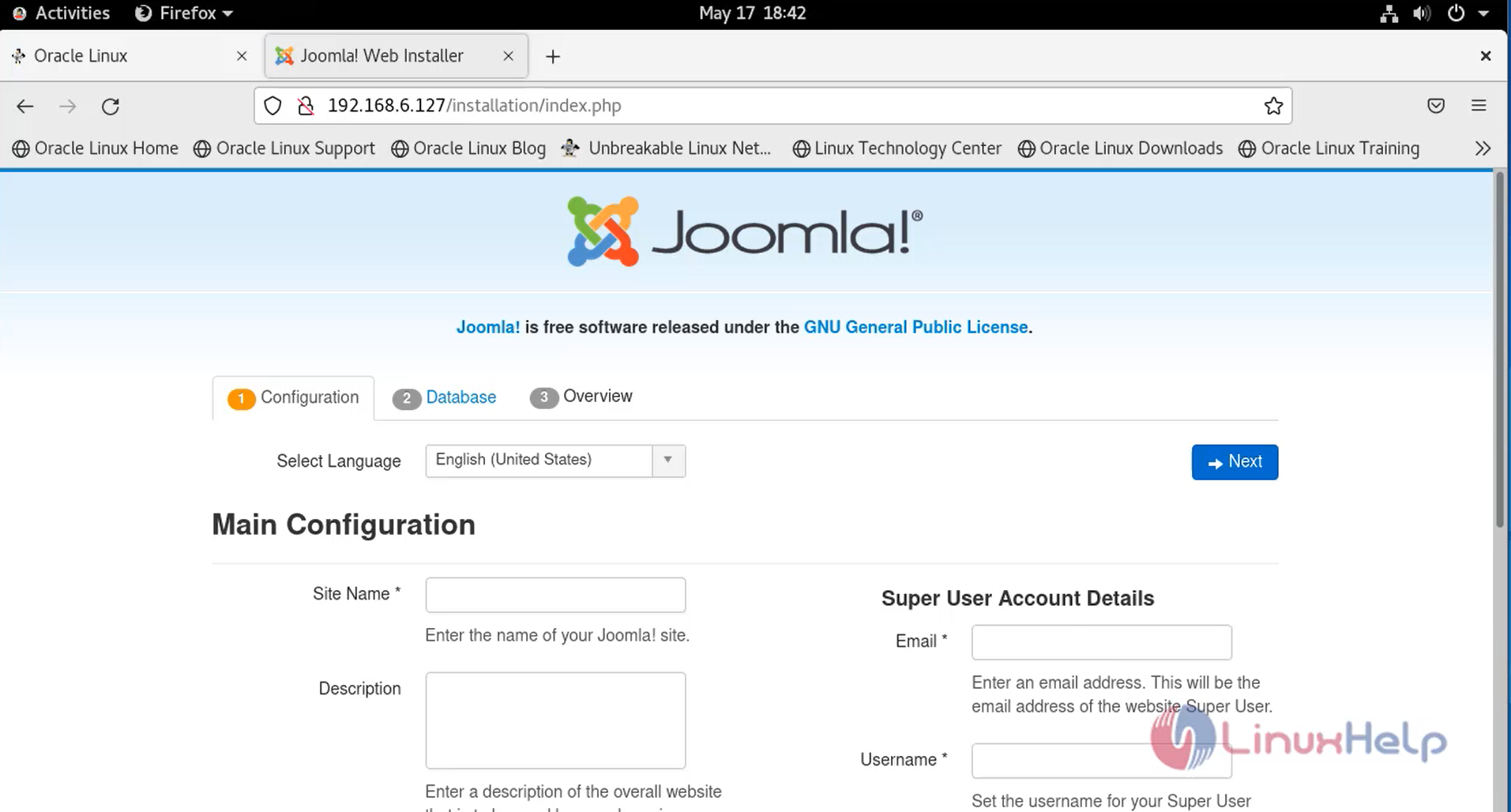
Step 13: Once completed the above step go to the browser type URL as shown in the below image
Create account
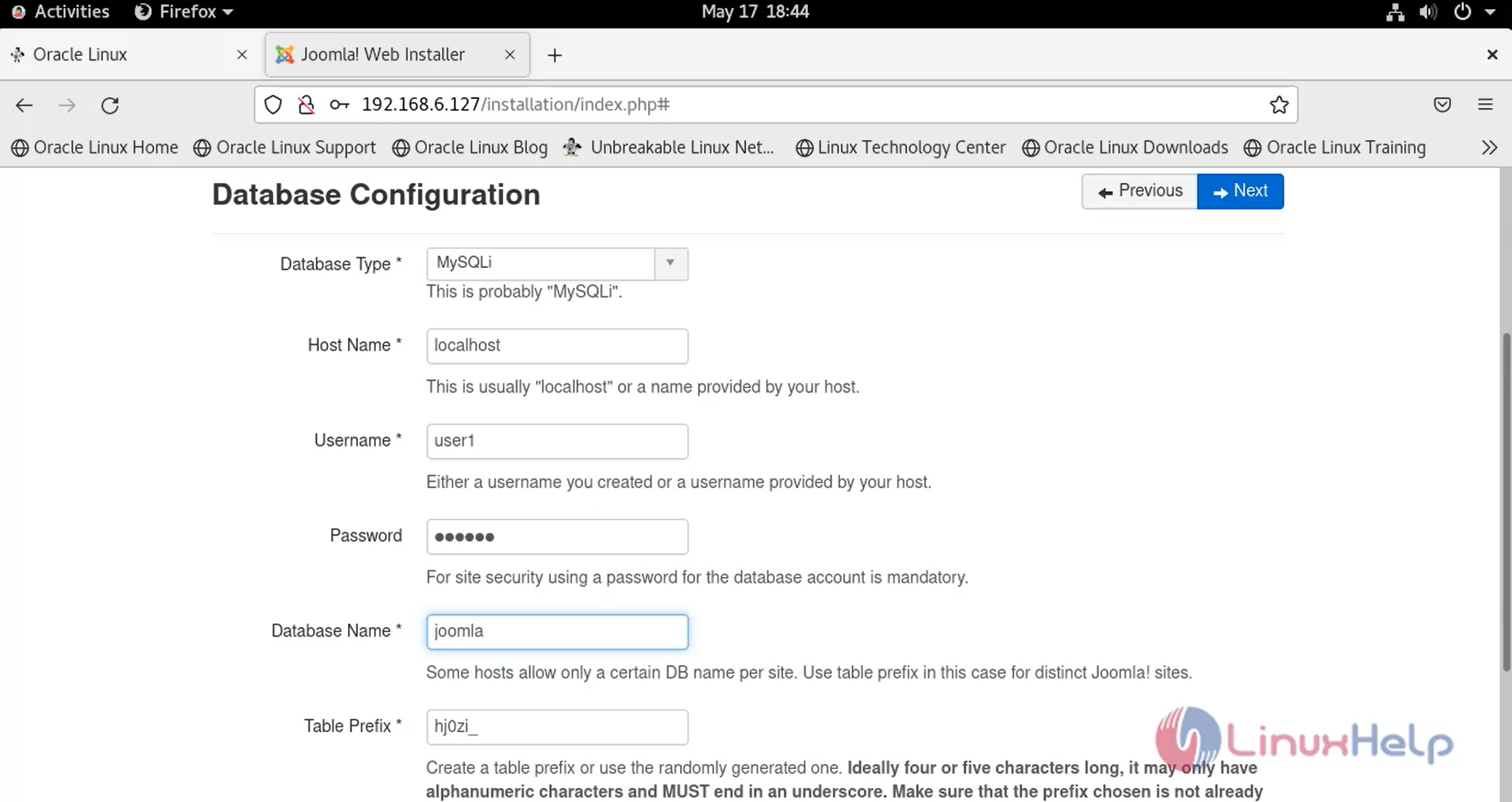
Configure database
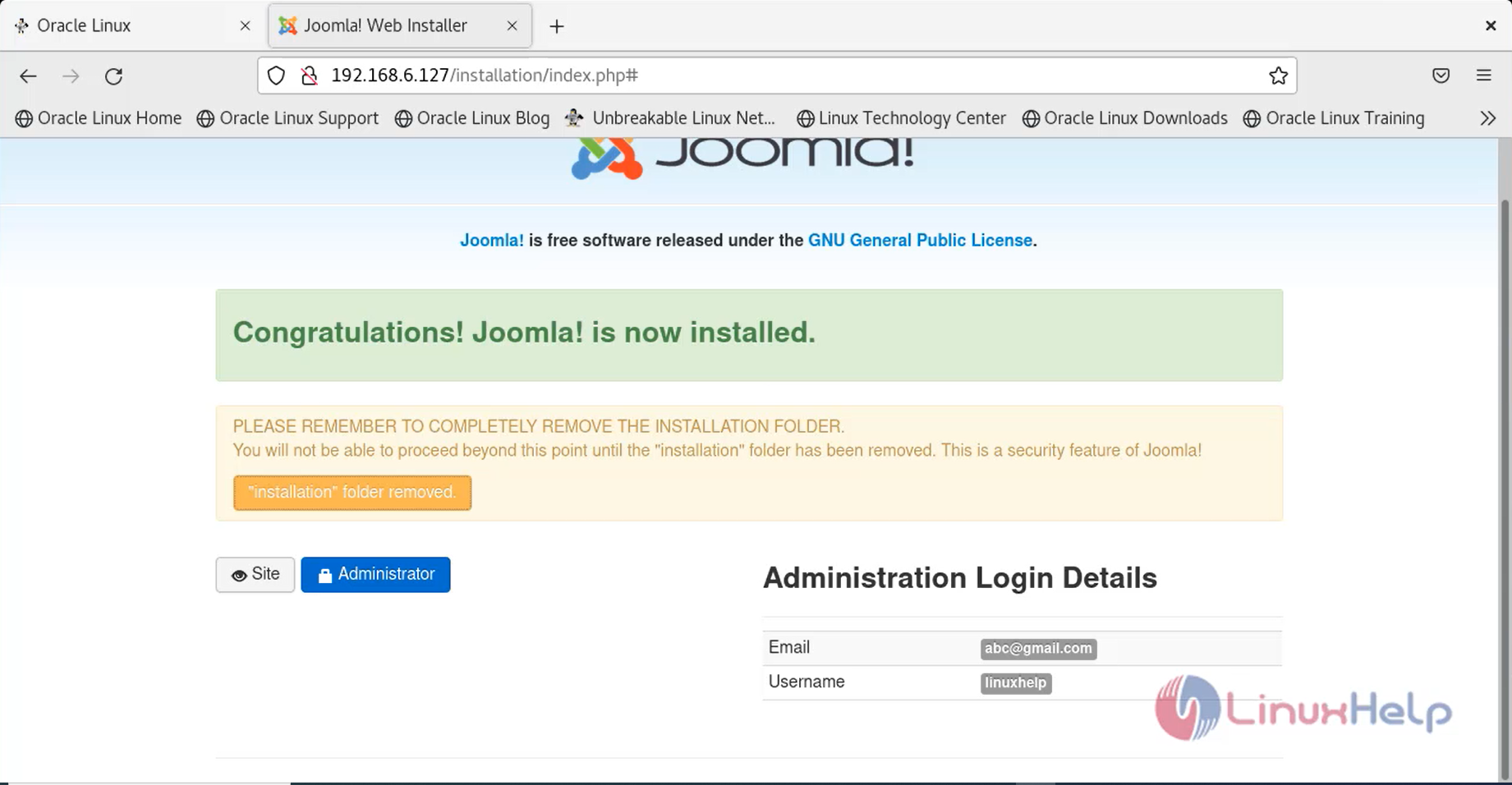
Overview and Click Install

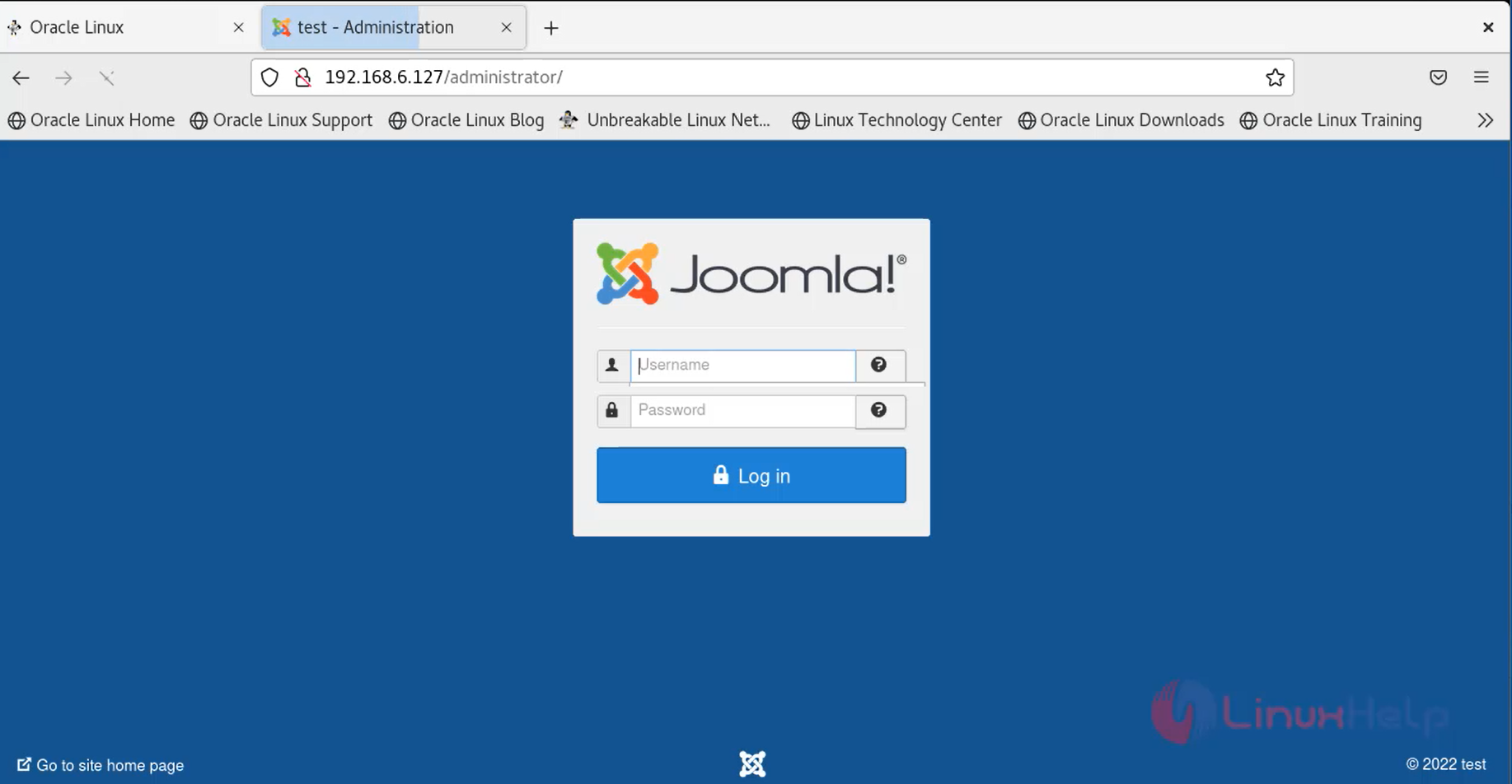
Login as administrator
This is the dashboard of Joomla CMS
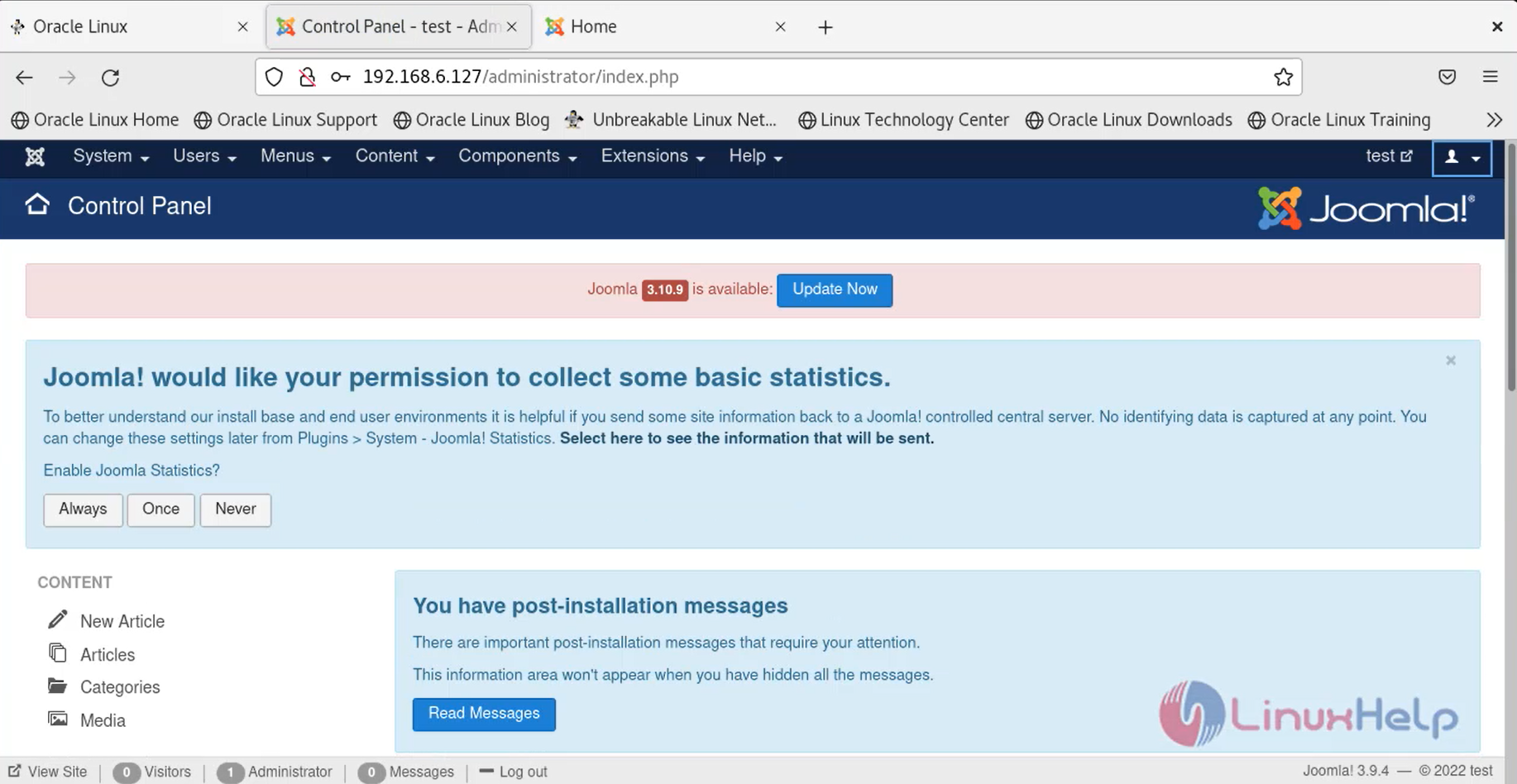
With this the process of installing Joomla on oracle linux 8.5 has come to an end.
Comments ( 0 )
No comments available