How to Install Jupyter on Ubuntu 16.04
To Install Jupyter on Ubuntu 16.04
Jupyter Notebook is an open-source web application used for creating and sharing documents which has live code, equations, visualizations and explanatory text. It includes data cleaning and transformation, numerical simulation, statistical modeling, machine learning, etc. It is very simple to install Jupyter and this article covers the method to install Jupyter on Ubuntu 16.04.
Installing Jupyter
The foremost thing to do before installing Jupyter is to add all the required dependency packages to your system, so run the following command to install those dependencies.
root@example:/home/user1/Desktop# apt-get install python2.7 python-pip python-dev
Reading package lists... Done
Building dependency tree
Reading state information... Done
&hellip
&hellip
&hellip
Setting up python-pkg-resources (20.7.0-1) ...
Setting up python-setuptools (20.7.0-1) ...
Setting up python-wheel (0.29.0-1) ...
Processing triggers for libc-bin (2.23-0ubuntu3) ...
root@example:/home/user1/Desktop# apt-get install ipython ipython-notebook
Reading package lists... Done
Building dependency tree
Reading state information... Done
&hellip
&hellip
&hellip
Setting up ipython-notebook (2.4.1-1) ...
Setting up javascript-common (11) ...
apache2_invoke: Enable configuration javascript-common
Processing triggers for libc-bin (2.23-0ubuntu3) ...
Once done, upgrade the pip as follows.
root@example:/home/user1/Desktop# pip install --upgrade pip
Collecting pip
Downloading pip-9.0.1-py2.py3-none-any.whl (1.3MB)
100% |????????????????????????????????| 1.3MB 162kB/s
Installing collected packages: pip
Found existing installation: pip 8.1.1
Not uninstalling pip at /usr/lib/python2.7/dist-packages, outside environment /usr
Successfully installed pip-9.0.1
Now is the time to install Jupyter.
root@example:/home/user1/Desktop# pip install jupyter
Collecting jupyter
Downloading jupyter-1.0.0-py2.py3-none-any.whl
Collecting ipykernel (from jupyter)
Downloading ipykernel-4.6.1-py2-none-any.whl (104kB)
100% |????????????????????????????????| 112kB 772kB/s
Collecting jupyter-console (from jupyter)
&hellip
&hellip
&hellip
Successfully installed backports.shutil-get-terminal-size-1.0.0 bleach-2.0.0 configparser-3.5.0 entrypoints-0.2.3 enum34-1.1.6 functools32-3.2.3.post2 html5lib-0.999999999 ipykernel-4.6.1 ipython-5.4.1 ipython-genutils-0.2.0 ipywidgets-6.0.0 jsonschema-2.6.0 jupyter-1.0.0 jupyter-client-5.1.0 jupyter-console-5.1.0 jupyter-core-4.3.0 mistune-0.7.4 nbconvert-5.2.1 nbformat-4.3.0 notebook-5.0.0 pandocfilters-1.4.1 pathlib2-2.3.0 pickleshare-0.7.4 prompt-toolkit-1.0.15 pygments-2.2.0 python-dateutil-2.6.1 qtconsole-4.3.0 scandir-1.5 six-1.10.0 terminado-0.6 testpath-0.3.1 traitlets-4.3.2 wcwidth-0.1.7 webencodings-0.5.1 widgetsnbextension-2.0.0
Jupyter has been installed, run the following command to start Jupyter notebook.
root@example:/home/user1/Desktop# jupyter notebook --allow-root
[I 00:30:35.266 NotebookApp] Serving notebooks from local directory: /home/user1/Desktop
[I 00:30:35.267 NotebookApp] 0 active kernels
[I 00:30:35.267 NotebookApp] The Jupyter Notebook is running at: http://localhost:8888/?token=1f1ddd0b19a07cc0db82a867bfde2bbfc7dd99808de26e36
[I 00:30:35.267 NotebookApp] Use Control-C to stop this server and shut down all kernels (twice to skip confirmation).
[C 00:30:35.268 NotebookApp]
root@example:/home/user1/Desktop# jupyter notebook --ip=' *'
[W 00:31:12.665 NotebookApp] WARNING: The notebook server is listening on all IP addresses and not using encryption. This is not recommended.
[C 00:31:12.672 NotebookApp] Running as root is not recommended. Use --allow-root to bypass.
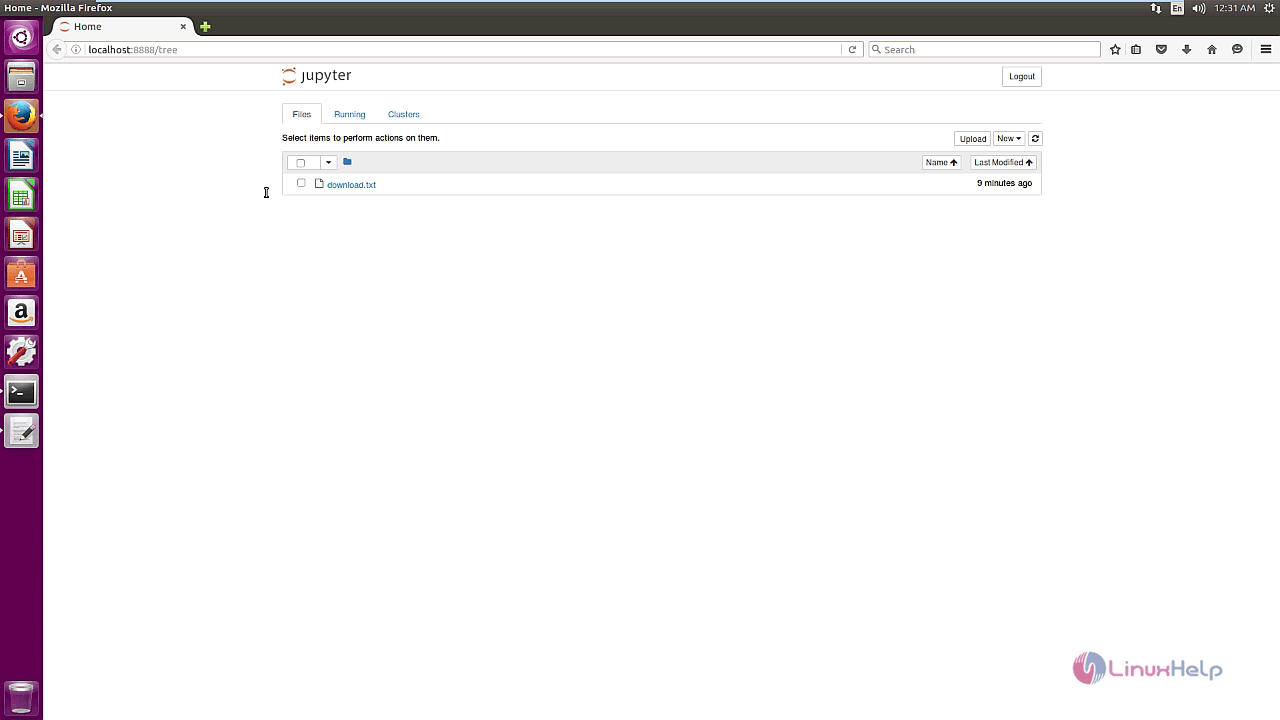
Once the Jupyter notebook launches in web browser, your screen may look like the following image.
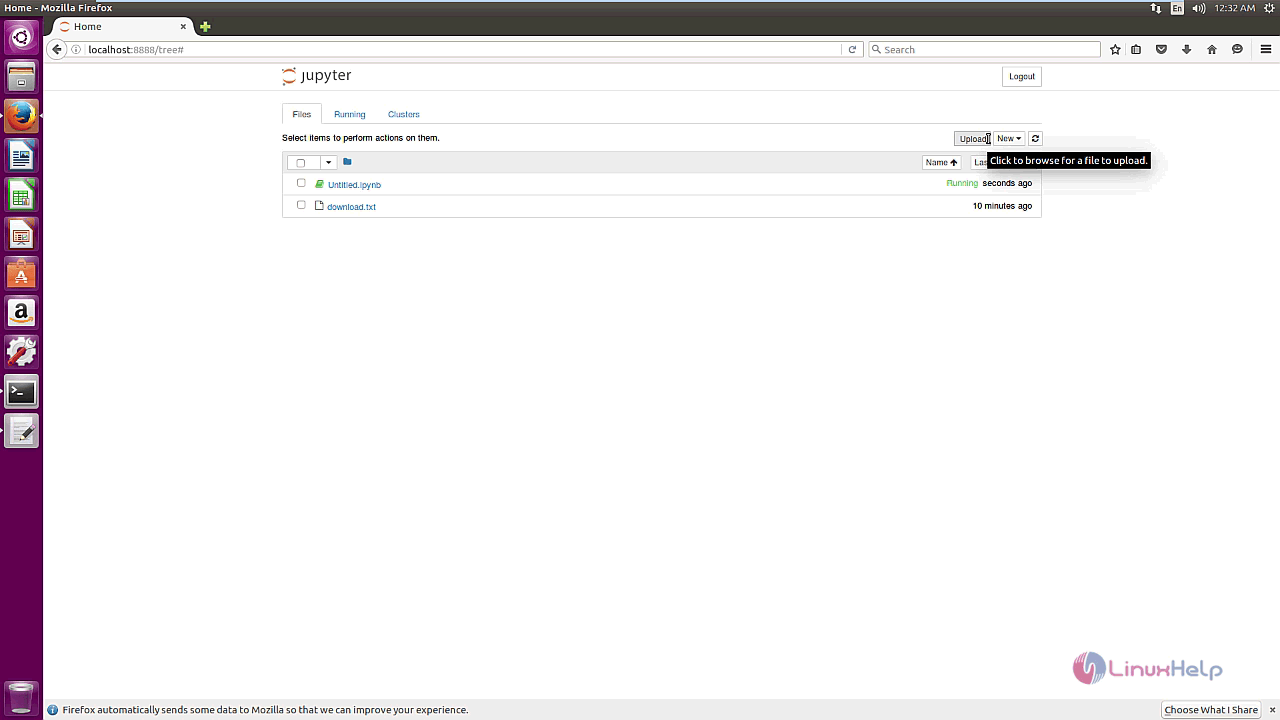
You can create new notebook by clicking on New button available on the top right corner.
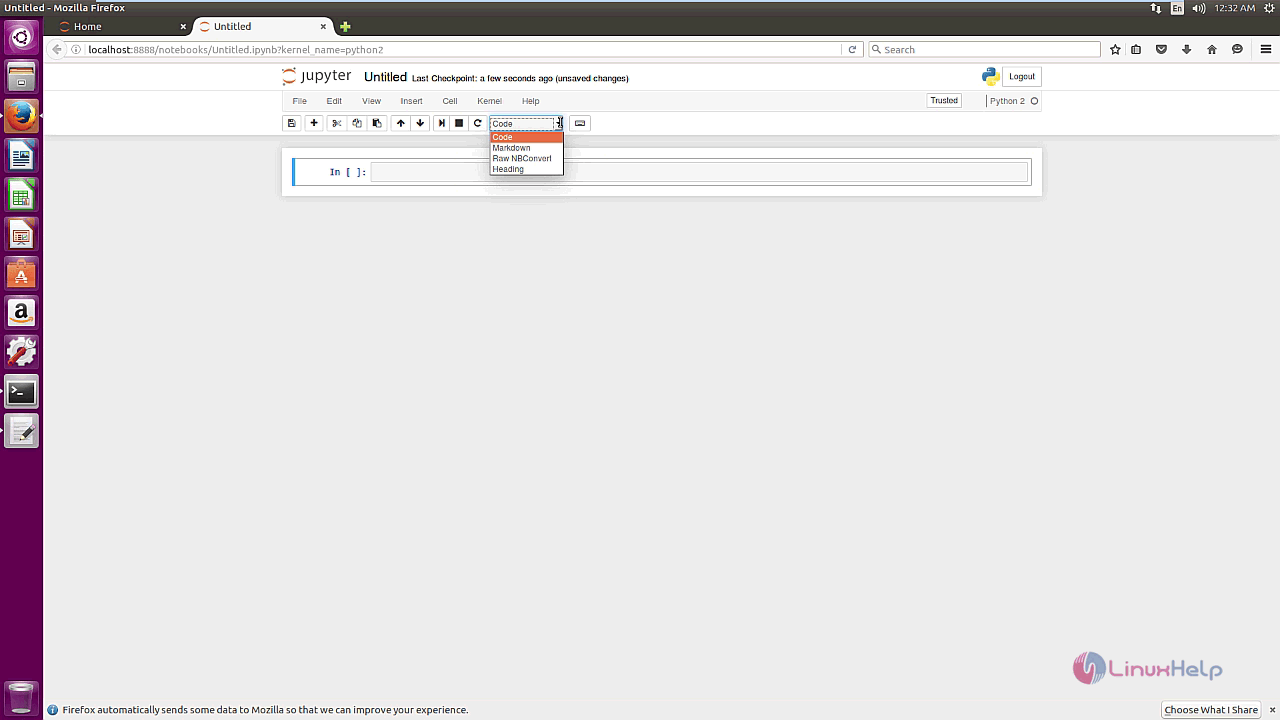
Then enter your codes.
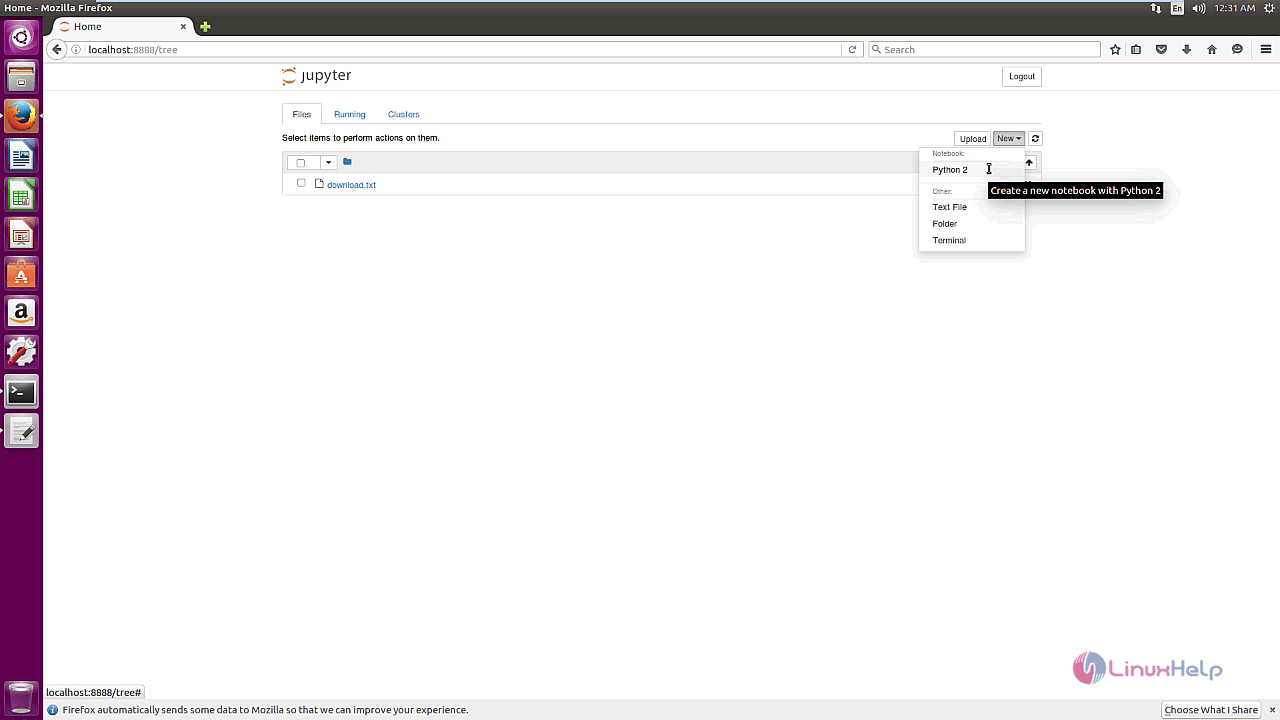
You can also upload your files to the notebook easily.
That was all. Installing Jupyter is pretty simple and easy. Using it is also as easy as its installation. Moreover, Jypyter has support for over 40 programming languages, including those popular in Data Science such as Python, R, Julia and Scala, so it is considered a handy tool.
Comments ( 1 )