How to Install KdenLive on Linux Mint 20
To Install KdenLive on Linux Mint 20
Introduction:
Kdenlive is an open-source video editing application that is a cross-platform package applicable for all major OS including Linux, Microsoft Windows, macOS, etc. It was first developed by a small team in the year 2003 but now it's becoming a licensed video editing software. In this tutorial, we will cover the installation of KdenLive on Linux Mint 20.
Installation Procedure:
First, check the version of the Linux mint version by executing the following command
root@LinuxHelp:~# lsb_release -a
No LSB modules are available.
Distributor ID:	Linuxmint
Description:	Linux Mint 20
Release:	20
Codename:	ulyana
Now add the KdenLive repository by using the PPA
root@LinuxHelp:~# add-apt-repository ppa:kdenlive/kdenlive-stable
You are about to add the following PPA:
 Enjoy latest Kdenlive release!
 More info: https://launchpad.net/~kdenlive/+archive/ubuntu/kdenlive-stable
Press Enter to continue or Ctrl+C to cancel
Executing: /tmp/apt-key-gpghome.sCExptrpKO/gpg.1.sh --keyserver hkps://keyserver.ubuntu.com:443 --recv-keys A59E5EBFCCC61564D6D4365B2763B0EE7709FE97
gpg: key 2763B0EE7709FE97: public key "Launchpad PPA for Kdenlive" imported
gpg: Total number processed: 1
gpg:               imported: 1
once the repository is add then update the packages by using the following command
root@LinuxHelp:~# apt-get update
Hit:1 http://archive.ubuntu.com/ubuntu focal InRelease
Get:2 http://security.ubuntu.com/ubuntu focal-security InRelease [109 kB]
Get:3 http://ppa.launchpad.net/kdenlive/kdenlive-stable/ubuntu focal InRelease [18.1 kB]
Get:4 http://archive.ubuntu.com/ubuntu focal-updates InRelease [114 kB]
.
.
.
Get:32 http://archive.ubuntu.com/ubuntu focal-backports/universe i386 Packages [2,904 B]
Get:33 http://archive.ubuntu.com/ubuntu focal-backports/universe amd64 DEP-11 Metadata [1,768 B]
Get:34 http://security.ubuntu.com/ubuntu focal-security/universe amd64 DEP-11 Metadata [56.6 kB]
Fetched 5,286 kB in 9s (613 kB/s)
Reading package lists... Done
Once the update is completed. Install the kdenlive application by executing the following command
root@LinuxHelp:~# apt-get install kdenlive -y
Reading package lists... Done
Building dependency tree
Reading state information... Done
The following additional packages will be installed:
  breeze breeze-cursor-theme breeze-icon-theme catdoc ffmpeg frei0r-plugins kaccounts-providers kactivities-bin
  kactivitymanagerd kde-cli-tools kde-cli-tools-data kde-style-breeze kdeconnect kded5 kdenlive-data keditbookmarks
.
.
.
Processing triggers for gnome-menus (3.36.0-1ubuntu1) ...
Processing triggers for libc-bin (2.31-0ubuntu9) ...
Processing triggers for man-db (2.9.1-1) ...
Processing triggers for dbus (1.12.16-2ubuntu2) ...
Processing triggers for shared-mime-info (1.15-1) ...
Processing triggers for libvlc-bin:amd64 (3.0.9.2-1) ...
Once the installation is completed. Open the KdenLive application
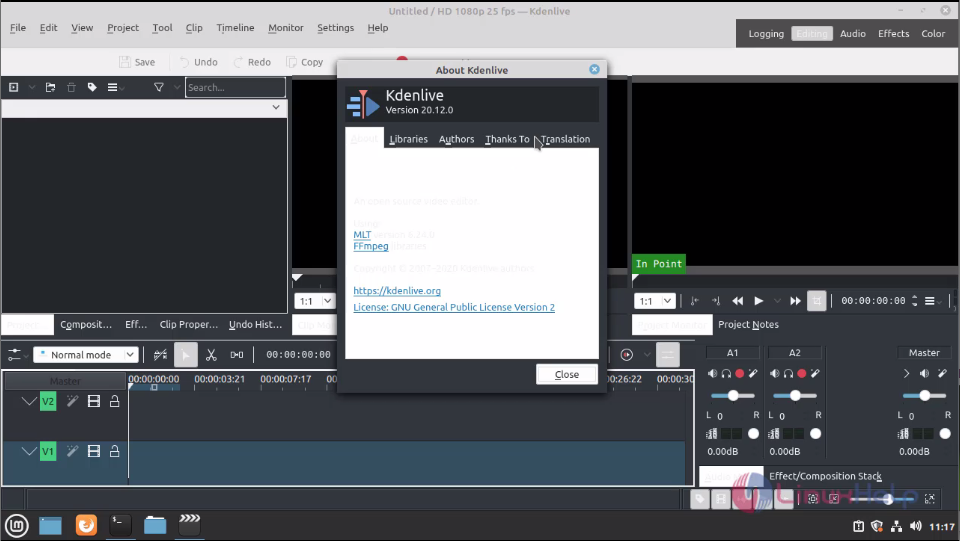
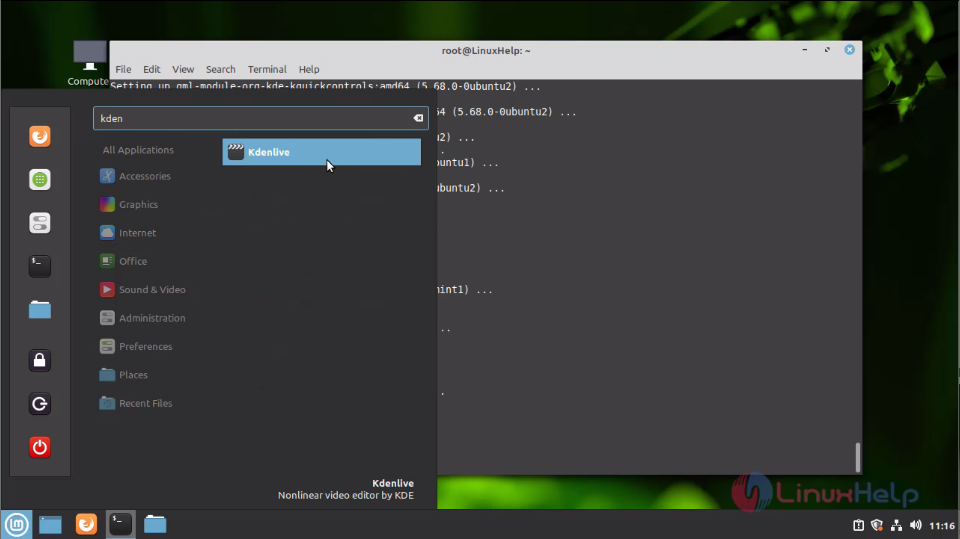 **This is the console of KdenLive **
 The KdenLive version is 20.12.0
 With this method, the installation of KdenLive on Linux Mint 20 is comes to an end.
Comments ( 0 )
No comments available