• Categories
    Category
    {{ postCtrl.tags }}
    • {{ category.tag_type }}

      • {{tag.tag_name}}
      • View more
  • Categories
    Category
    {{ postCtrl.tags }}
    • {{ category.tag_type }}

      • {{tag.tag_name}}
      • View more
  • News
  • Tutorials
  • Forums
  • Tags
  • Users
Tutorial News Comments FAQ Related Articles

How to install Lightworks in Ubuntu 16.04

{{postValue.id}}

To install Lightworks in Ubuntu 16.04

Lightworks is a full-featured non-linear fast editing app with all the power and performance. Lightworks support several formats and is its Pro version is used by several top professional editors. It is very simple to install Lightworks and this tutorial covers the installation process involved with Lightworks on Ubuntu.

Installing Lightworks

First, make sure you download the Lightworks installation package with the help of the following command.

root@linuxhelp:/home/user1# wget http://downloads.lwks.com/v14/lwks-14.0.0-amd64.deb
--2017-06-16 13:28:26--  http://downloads.lwks.com/v14/lwks-14.0.0-amd64.deb
Resolving downloads.lwks.com (downloads.lwks.com)... 64.64.4.94
Connecting to downloads.lwks.com (downloads.lwks.com)|64.64.4.94|:80... connected.
HTTP request sent, awaiting response... 200 OK
Length: 65869132 (63M) [application/x-debian-package]
Saving to: ‘ lwks-14.0.0-amd64.deb’ 
100%[===================================================================================================================================================================> ] 6,58,69,132  241KB/s   in 9m 39s 
2017-06-16 13:38:26 (111 KB/s) - ‘ lwks-14.0.0-amd64.deb’  saved [65869132/65869132]

Once the package is downloaded, install it as follows.

root@linuxhelp:/home/user1# dpkg -i lwks-14.0.0-amd64.deb
Selecting previously unselected package lightworks.
(Reading database ... 168112 files and directories currently installed.)
Preparing to unpack lwks-14.0.0-amd64.deb ...
Unpacking lightworks (14.0.0.0) ...
dpkg: dependency problems prevent configuration of lightworks:
 lightworks depends on nvidia-cg-toolkit  however:
  Package nvidia-cg-toolkit is not installed.
&hellip 
&hellip 
&hellip 
Processing triggers for mime-support (3.54ubuntu1.1) ...
Processing triggers for fontconfig (2.11.0-0ubuntu4.1) ...
Errors were encountered while processing:
 Lightworks

During the installation process, you will come accross to solve the dependency error, use the following command to sort it out.

root@linuxhelp:/home/user1# apt-get -f install
Reading package lists... Done
Building dependency tree       
Reading state information... Done
Correcting dependencies... Done
&hellip 
&hellip 
&hellip 
Setting up nvidia-cg-toolkit (3.1.0013-1) ...
Setting up libportaudiocpp0:amd64 (19+svn20140130-1) ...
Setting up lightworks (14.0.0.0) ...
Processing triggers for libc-bin (2.19-0ubuntu6.9) ...

Lightworks has been installed, run the following command to access it.

root@linuxhelp:/home/user1# lightworks

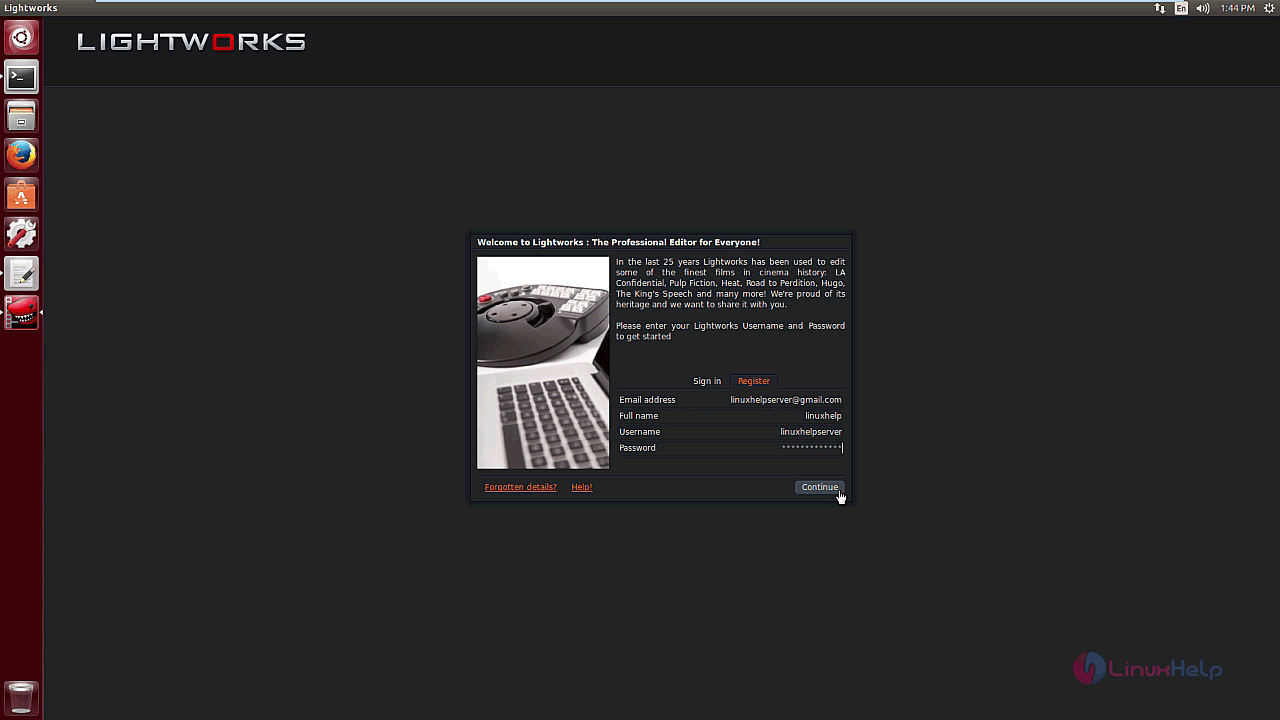
Once the application is opened, register an account in Lightworks
1
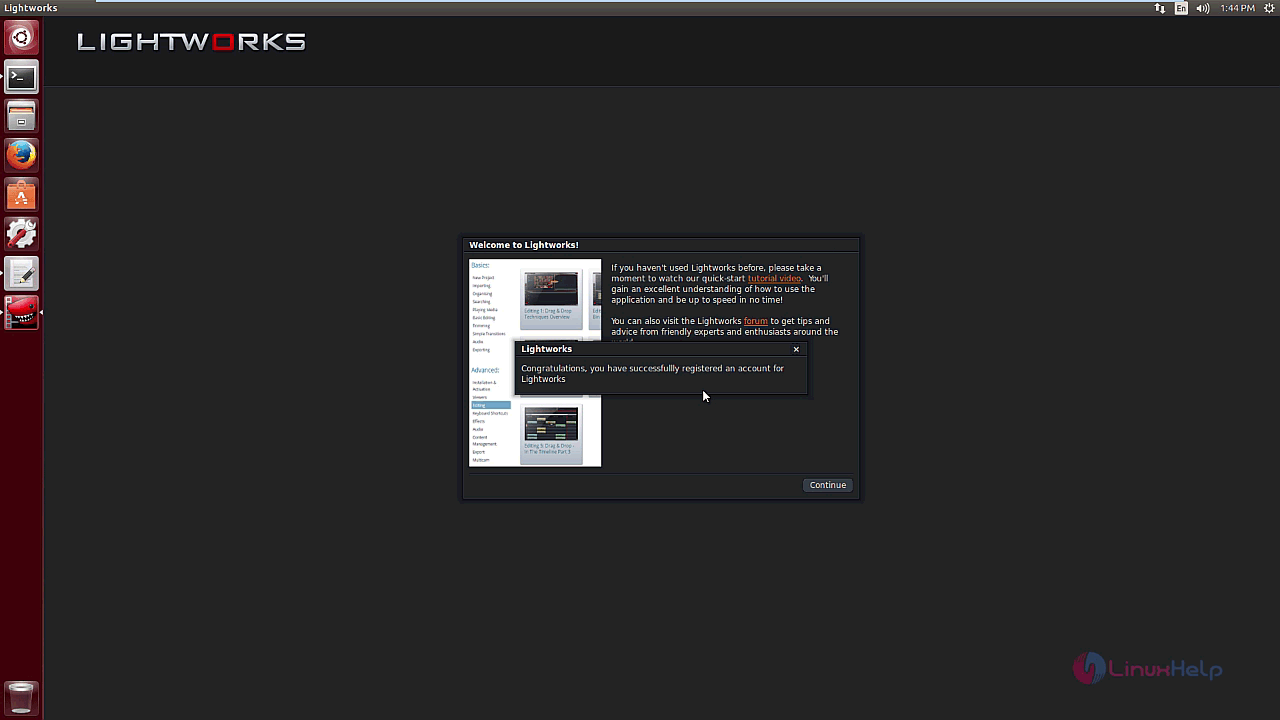
Account has been created.
2
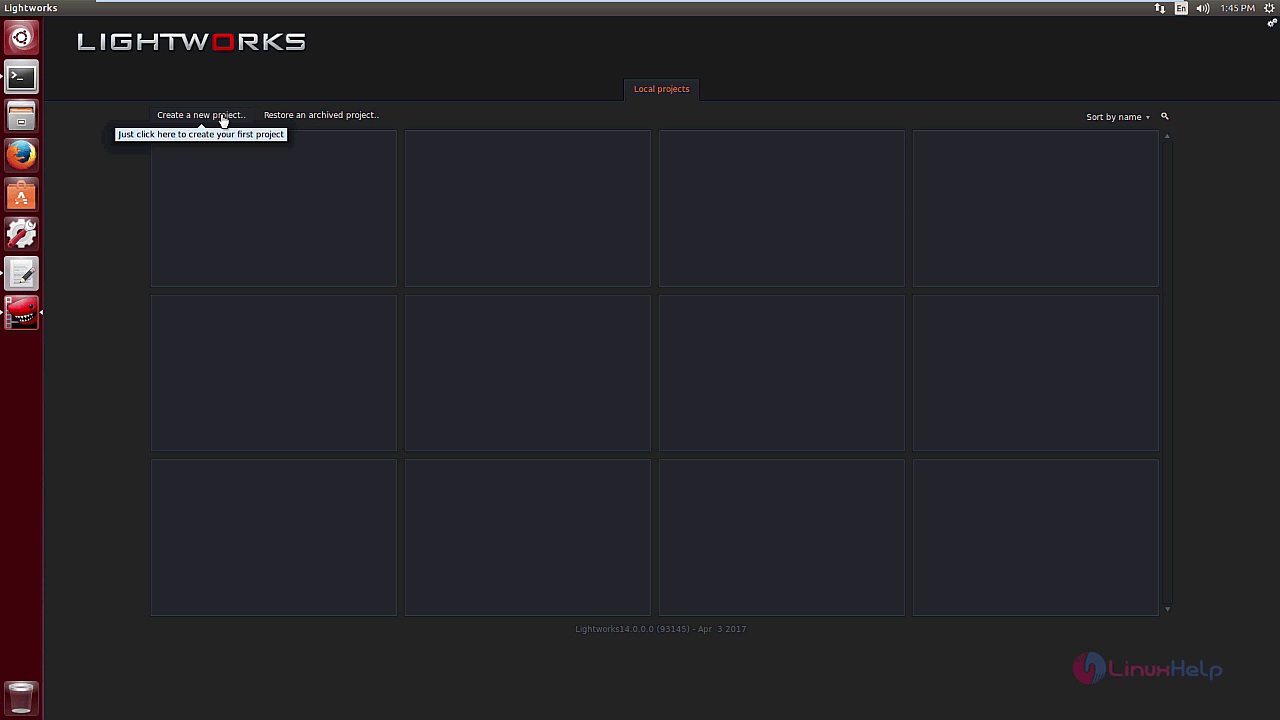
Once you are inside the application, create a new project to produce a new one.
3
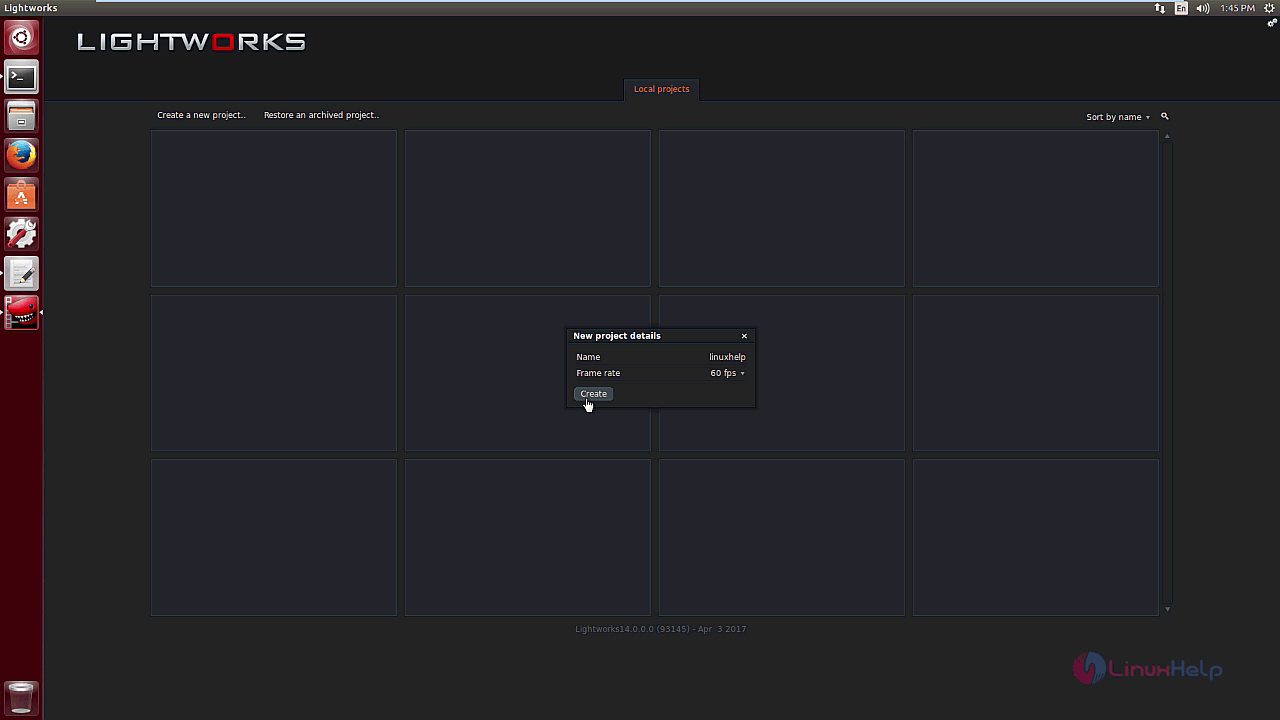
Give name and choose a frame rate for your new project.
4
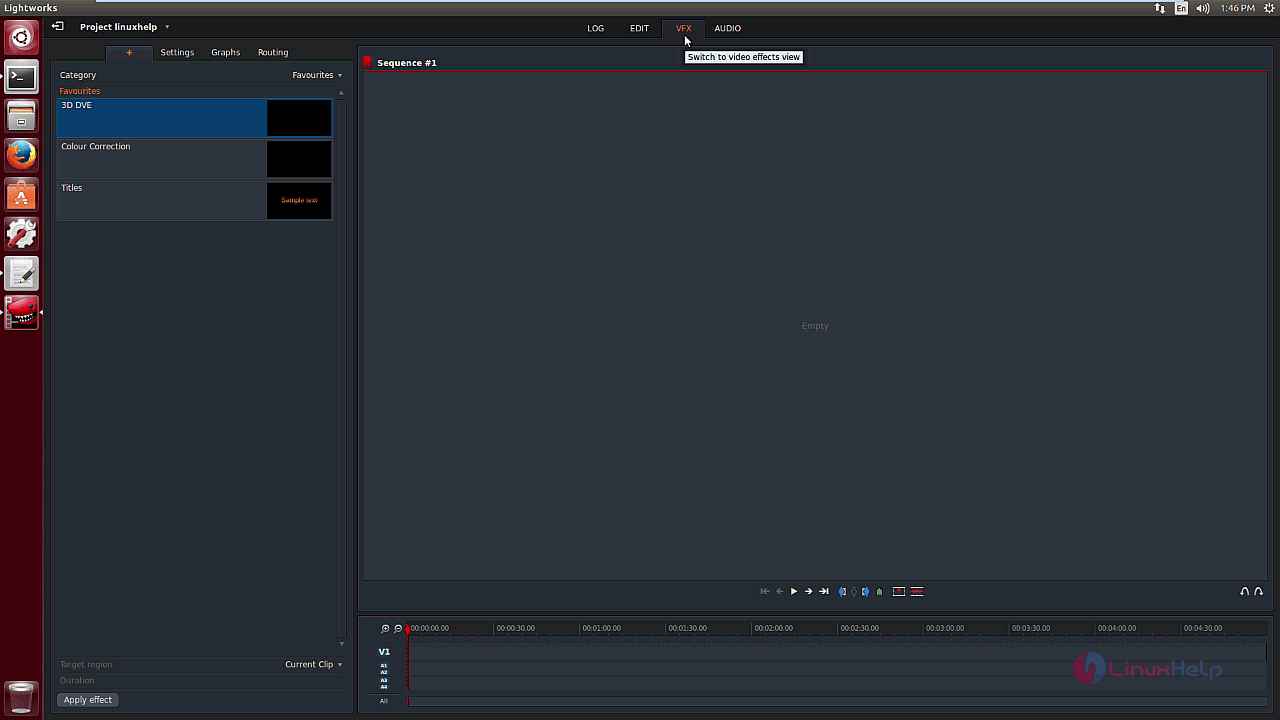
You can also add VFX to your videos.
5
Hope it was a helpful tutorial.

Tags:
mason
Author: 

Comments ( 1 )

linuxhelpvisitor
I specially registered only to comment. Thanks much for giving proper installation instructions and to the point. Previously I uninstalled Lightworks as it didn't start. But now it started. Let's see what it has...
Add a comment
{{postCtrl.cmtErrMsg}}

Frequently asked questions ( 5 )

Q

Can I activate Lightworks without an internet connection?

A

Yes. If an internet connection is not present then you will be asked to start the offline activation procedure. Offline activation instructions can be found in the "Installation and Activatio

Q

How do I uninstall Lightworks?

A

On Linux Debian distros open a Terminal window and type: sudo apt-get remove lightworks
On RPM distros open a Terminal Window and type: yum remove lightworks (you will need to have the corre

Q

How do I activate Lightworks?

A

In order to start using Lightworks, you will first need to have registered on http://www.lwks.com and created a user account. Once you have confirmed your Lightworks account via email, you can use your Username and Password to sign in to Lightworks.

Q

Can I activate Lightworks without an internet connection?

A

Yes. If an internet connection is not present then you will be asked to start the offline activation procedure. Offline activation instructions can be found in the "Installation and Activation Guide" on the Downloads page: http://www.lwks.com/downloads

Q

What is Lightworks?

A

Lightworks is a full-featured non-linear fast editing app with all the power and performance. Lightworks supports several formats and is its Pro version is used by several top professional editors. It is very simple to install Lightworks and this tutorial covers the installation process involved with Lightworks on Ubuntu.

Back To Top!
Rank
User
Points

Top Contributers

userNamenaveelansari
135850

Top Contributers

userNameayanbhatti
92510

Top Contributers

userNamehamzaahmed
32150

Top Contributers

1
userNamelinuxhelp
31040

Top Contributers

userNamemuhammadali
24500
Can you help Luk Van De Looverbosch ?
How to create a root ?

Hello,
How to create root@linuxhelp in Linux Mint 20.1 64-bit ?
Thanks in advance for your reply.
Best regards.

Networking
  • Routing
  • trunk
  • Netmask
  • Packet Capture
  • domain
  • HTTP Proxy
Server Setup
  • NFS
  • KVM
  • Memory
  • Sendmail
  • WebDAV
  • LXC
Shell Commands
  • Cloud commander
  • Command line archive tools
  • last command
  • Shell
  • terminal
  • Throttle
Desktop Application
  • Linux app
  • Pithos
  • Retrospect
  • Scribe
  • TortoiseHg
  • 4Images
Monitoring Tool
  • Monit
  • Apache Server Monitoring
  • EtherApe 
  • Arpwatch Tool
  • Auditd
  • Barman
Web Application
  • Nutch
  • Amazon VPC
  • FarmWarDeployer
  • Rukovoditel
  • Mirror site
  • Chef
Contact Us | Terms of Use| Privacy Policy| Disclaimer
© 2025 LinuxHelp.com All rights reserved. Linux™ is the registered trademark of Linus Torvalds. This site is not affiliated with linus torvalds in any way.