How to Install LightZone V4.1.8 on Linuxmint 18.03
{{postValue.id}}
To Install LightZone V4.1.8 on Linuxmint 18.03
LightZone is a free, open source digital photo editor software application. It is supports for all major operating system such us Linux, micro soft windows and mac os. In this tutorial, we will see the installation of Light zone on Linux mint 18.3
Installation
Add the repository of LightZone by using PPA.
linuxhelp ~ # add-apt-repository ppa:lightzone-team/lightzone
You are about to add the following PPA:
 Official PPA for LightZone digital darkroom software.
 More info: https://launchpad.net/~lightzone-team/+archive/ubuntu/lightzone
Press Enter to continue or Ctrl+C to cancel

Executing: /tmp/tmp.Sm4harp2Sb/gpg.1.sh --keyserver
hkp://keyserver.ubuntu.com:80
--recv-keys
9A711C63
gpg: requesting key 9A711C63 from hkp server keyserver.ubuntu.com
gpg: key 9A711C63: public key "Launchpad PPA for LightZone" imported
gpg: Total number processed: 1
gpg:               imported: 1  (RSA: 1)
Let's first start with updating the system repositories
linuxhelp ~ # apt-get update
Hit:1 http://archive.ubuntu.com/ubuntu xenial InRelease
Get:2 http://ppa.launchpad.net/lightzone-team/lightzone/ubuntu xenial InRelease [18.0 kB]
Ign:3 http://packages.linuxmint.com sylvia InRelease
Get:4 http://archive.canonical.com/ubuntu xenial InRelease [11.5 kB]
Get:5 http://archive.canonical.com/ubuntu xenial/partner amd64 Packages [3,128 B]
Get:6 http://ppa.launchpad.net/ondrej/php/ubuntu xenial InRelease [23.9 kB]
Get:7 http://archive.ubuntu.com/ubuntu xenial-updates InRelease [109 kB]
Get:8 http://packages.linuxmint.com sylvia Release [24.2 kB]
.
.
.
Get:48 http://archive.ubuntu.com/ubuntu xenial-backports/universe amd64 Packages [7,412 B]
Get:49 http://archive.ubuntu.com/ubuntu xenial-backports/universe i386 Packages [7,104 B]
Get:50 http://security.ubuntu.com/ubuntu xenial-security/multiverse amd64 Packages [3,456 B]
Get:51 http://archive.ubuntu.com/ubuntu xenial-backports/universe Translation-en [3,996 B]
Get:52 http://security.ubuntu.com/ubuntu xenial-security/multiverse i386 Packages [3,620 B]
Get:53 http://security.ubuntu.com/ubuntu xenial-security/multiverse Translation-en [1,744 B]
Fetched 6,114 kB in 11s (510 kB/s)
Reading package lists... Done
Finally, install the LightZone application run the following command.
linuxhelp ~ # apt-get install lightzone -y
Reading package lists... Done
Building dependency tree
Reading state information... Done
The following additional packages will be installed:
  ca-certificates-java javahelp2 libxml2-utils openjdk-8-jre openjdk-8-jre-headless
Suggested packages:
  javahelp2-doc icedtea-8-plugin fonts-ipafont-gothic fonts-ipafont-mincho fonts-wqy-zenhei
The following NEW packages will be installed:
  ca-certificates-java javahelp2 libxml2-utils lightzone openjdk-8-jre openjdk-8-jre-headless
0 upgraded, 6 newly installed, 0 to remove and 402 not upgraded.
.
.
.
Setting up lightzone (4.1.8-0ppa1xenial1) ...
Processing triggers for ca-certificates (20170717~16.04.1) ...
Updating certificates in /etc/ssl/certs...
0 added, 0 removed; done.
Running hooks in /etc/ca-certificates/update.d...

done.
done.
Processing triggers for libc-bin (2.23-0ubuntu9) ...
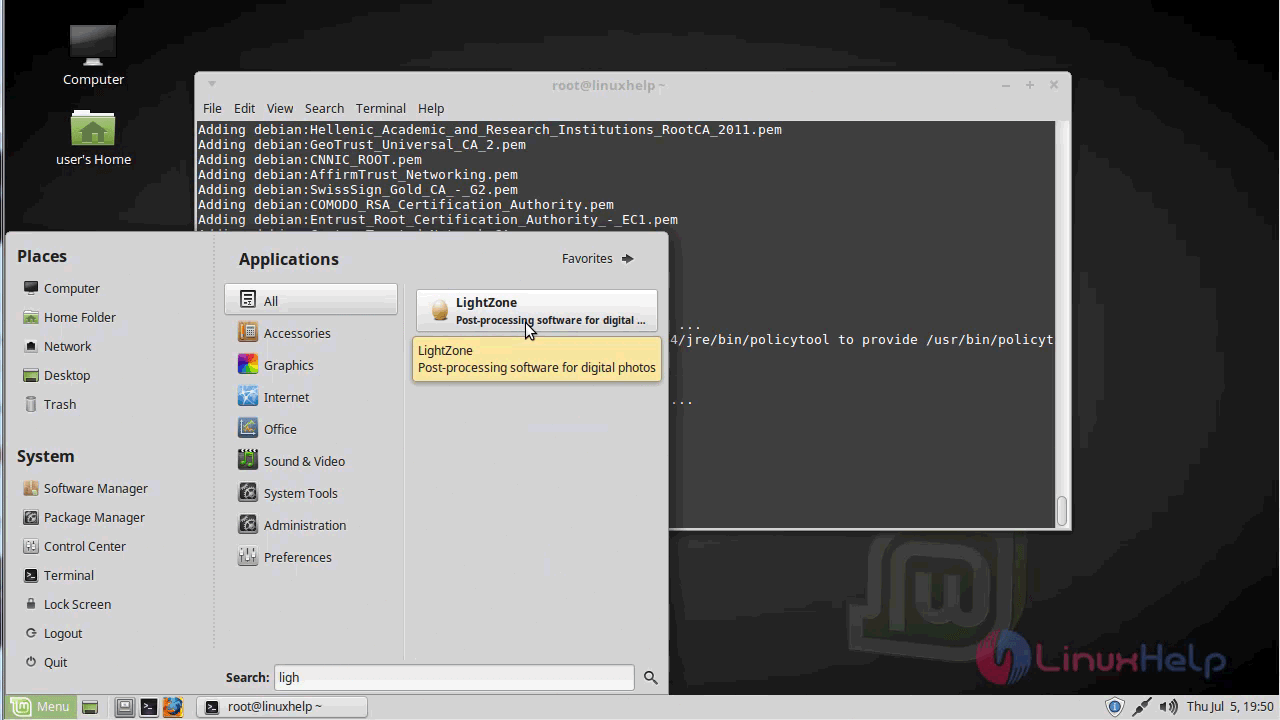
Once Installation is done you can access the application from the Menu as shown here
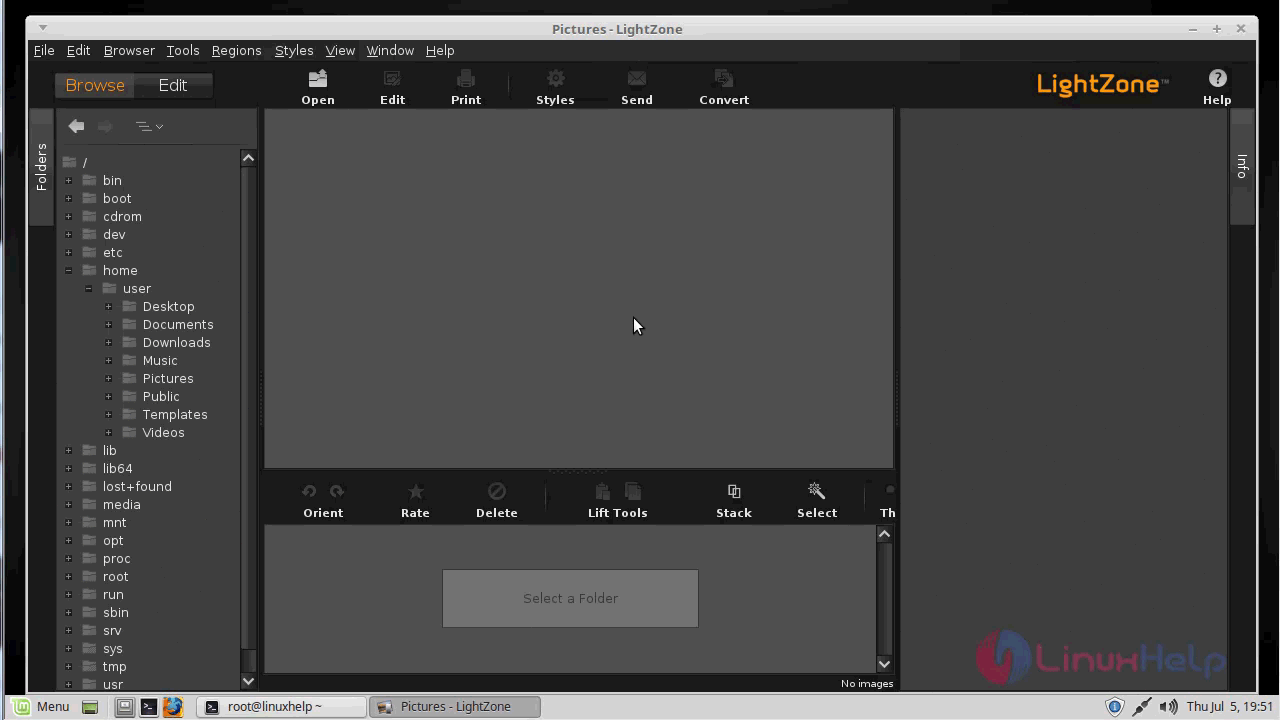
Now, you can able to use the LightZone application.
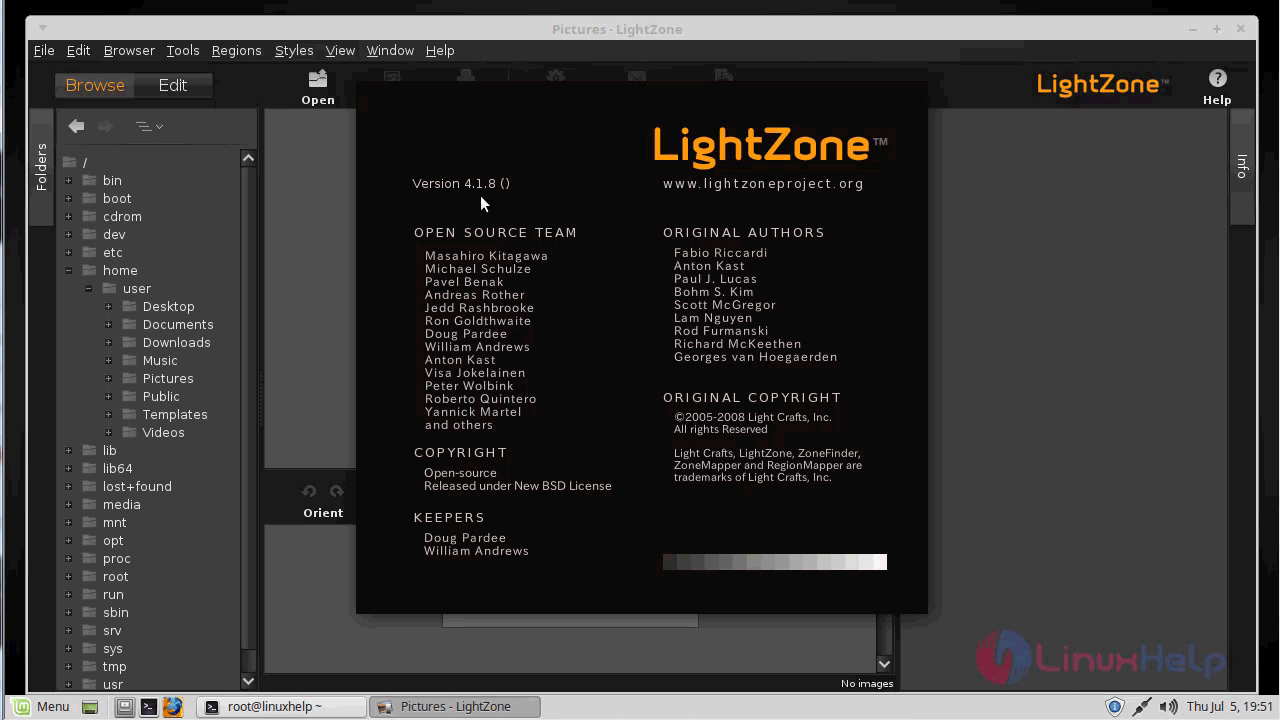
The version of LightZone.
with this, the method to install Lightzone on Linuxmint-18.03 comes to an end.
Comments ( 0 )
No comments available