• Categories
    Category
    {{ postCtrl.tags }}
    • {{ category.tag_type }}

      • {{tag.tag_name}}
      • View more
  • Categories
    Category
    {{ postCtrl.tags }}
    • {{ category.tag_type }}

      • {{tag.tag_name}}
      • View more
  • News
  • Tutorials
  • Forums
  • Tags
  • Users
Tutorial News Comments FAQ Related Articles

How to install Linux Mint 18.1

{{postValue.id}}

How to install Linux Mint 18.1

Linux Mint 18.1 is a new upgrade from the series of Linux Mint Operating system which contains the long term support release. It comes with many updated features and the screen saver is written in Python, and contains a score of features in the OS. This tutorial will explain the installation procedure of Linux Mint 18.1.

Installation procedure

To start the installation procedure, boot into Linux Mint installation with bootable media of the user' s choice (USB or DVD). Select Start Linux Mint option.
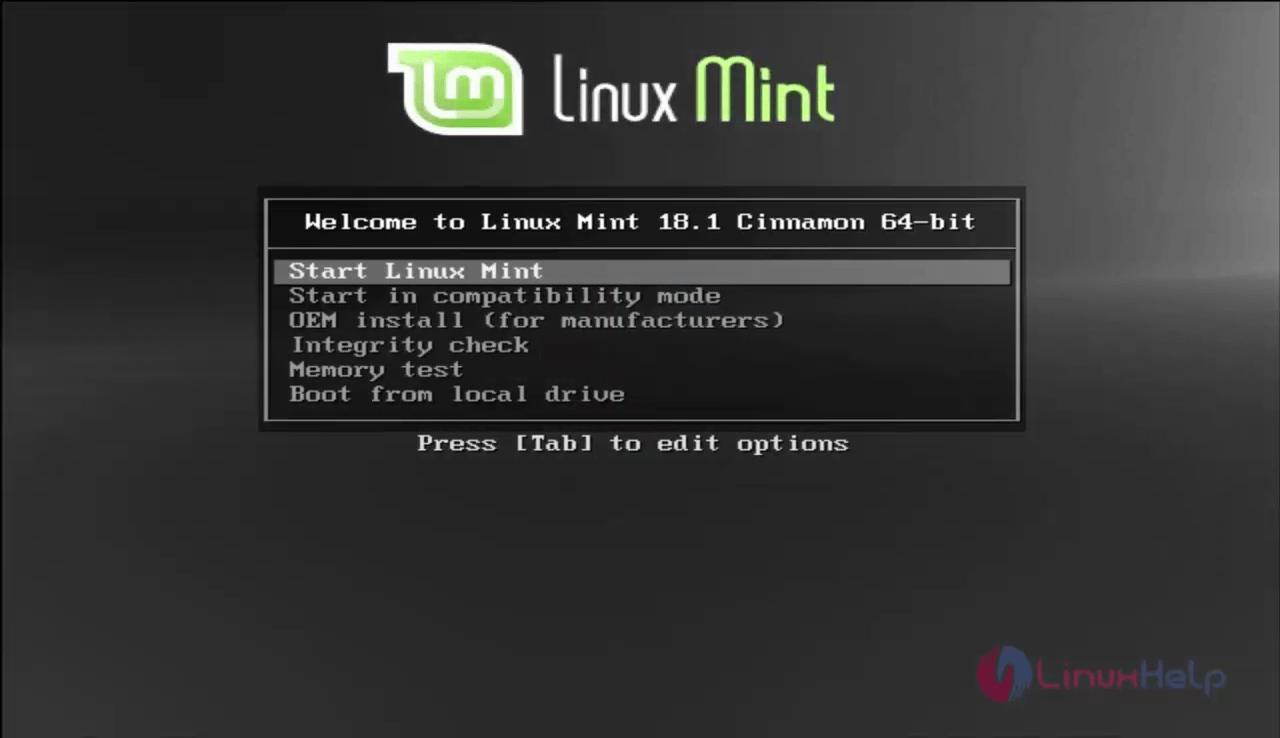
linux mint

Boot into the live OS and choose Install Linux Mint option. The ISO image is downloaded.
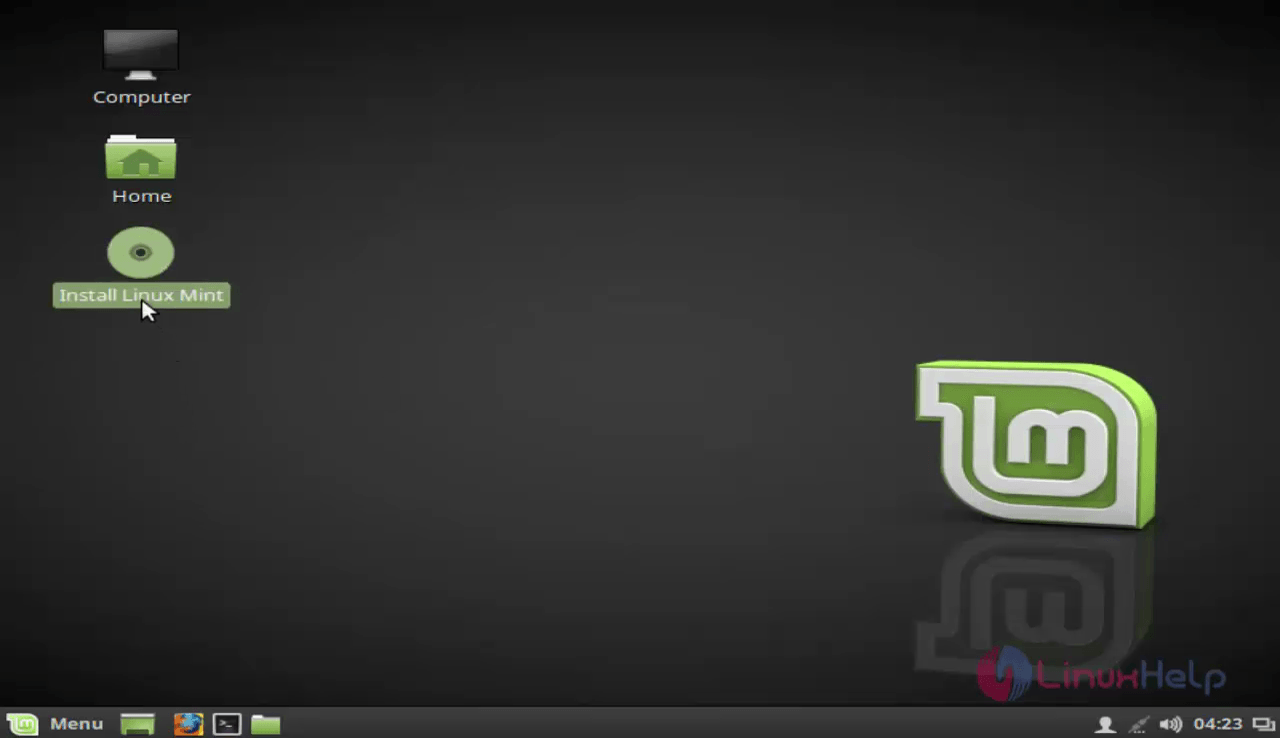
live OS

Choose the required language from the list of options.
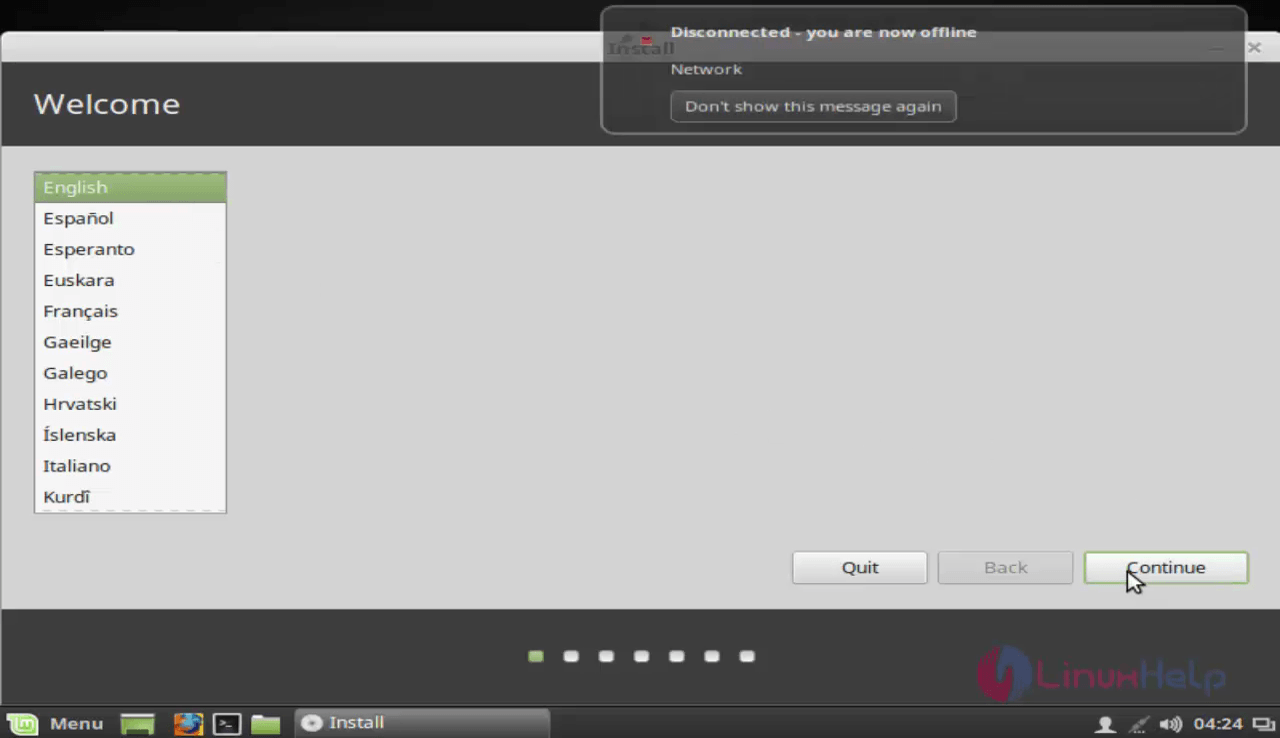
language

This window shows the permission to install third party software and other media.
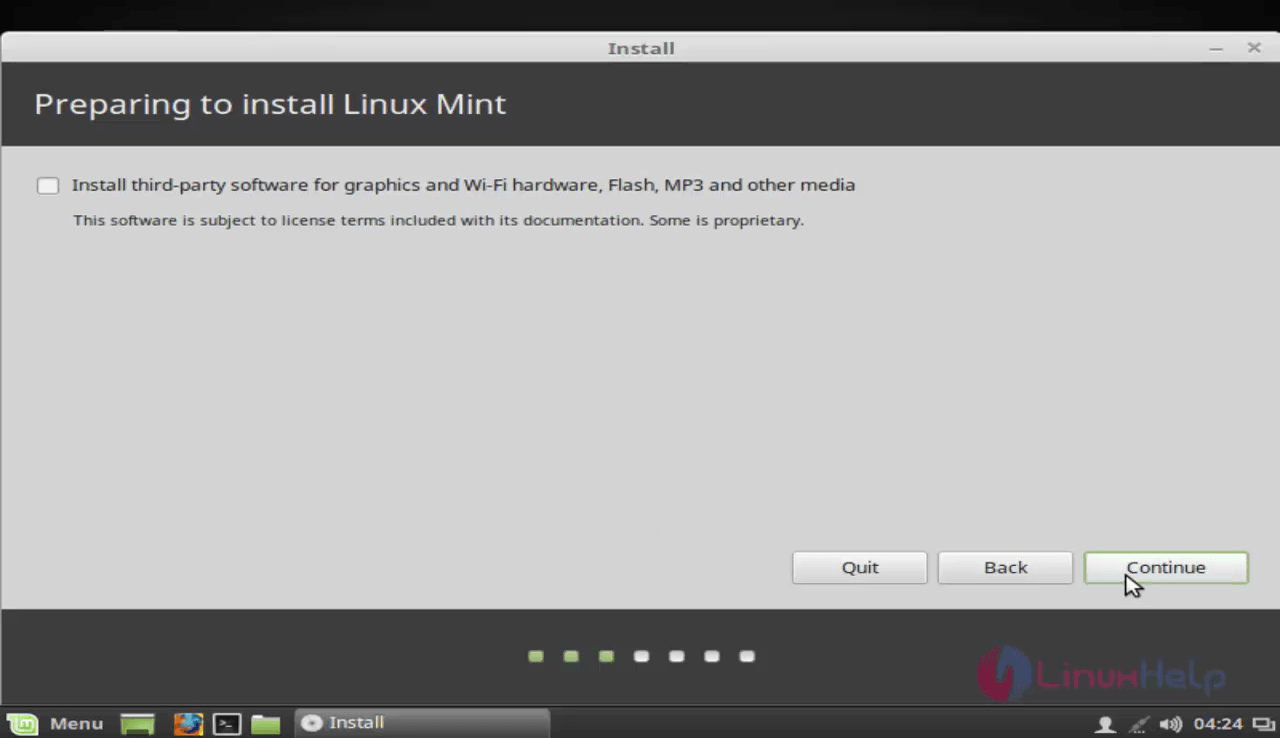
third party software

The user can manually partition the disk drives. Choose something else option if the user wants to configure the partition manually.
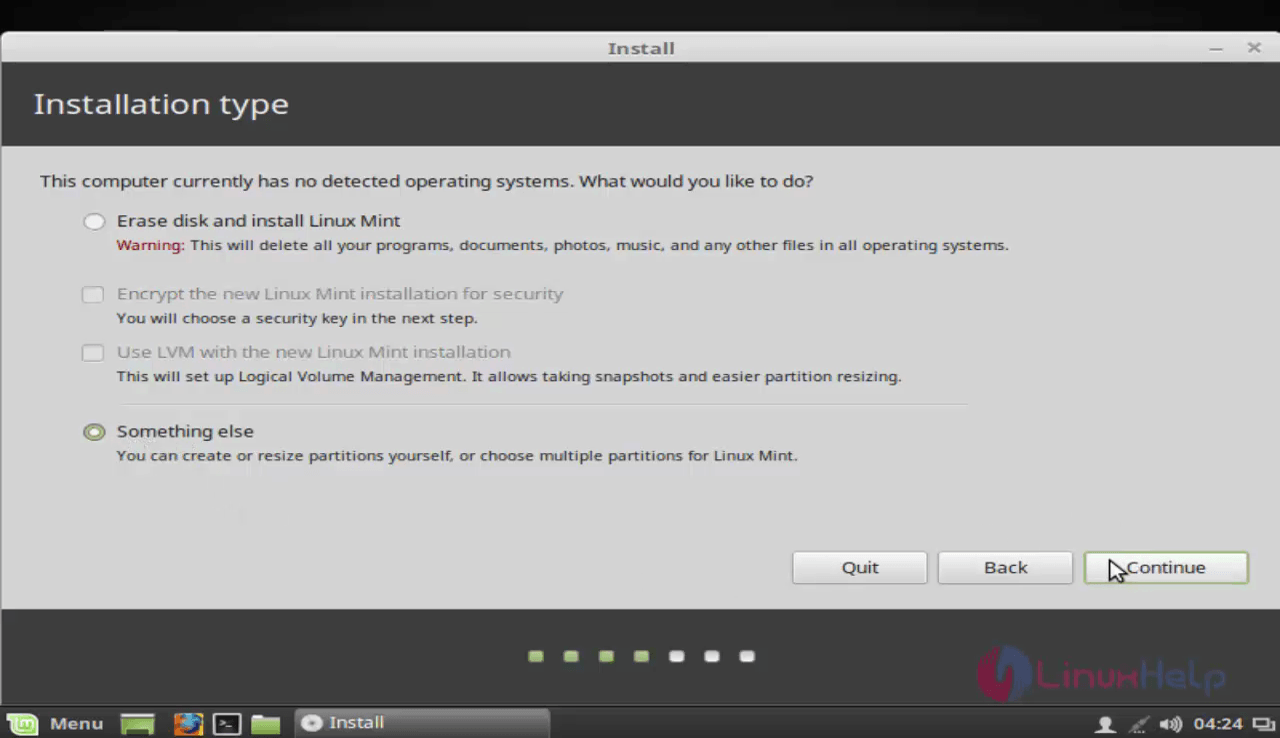
manual partition

Create new partition table option to manually partition the disk drives.
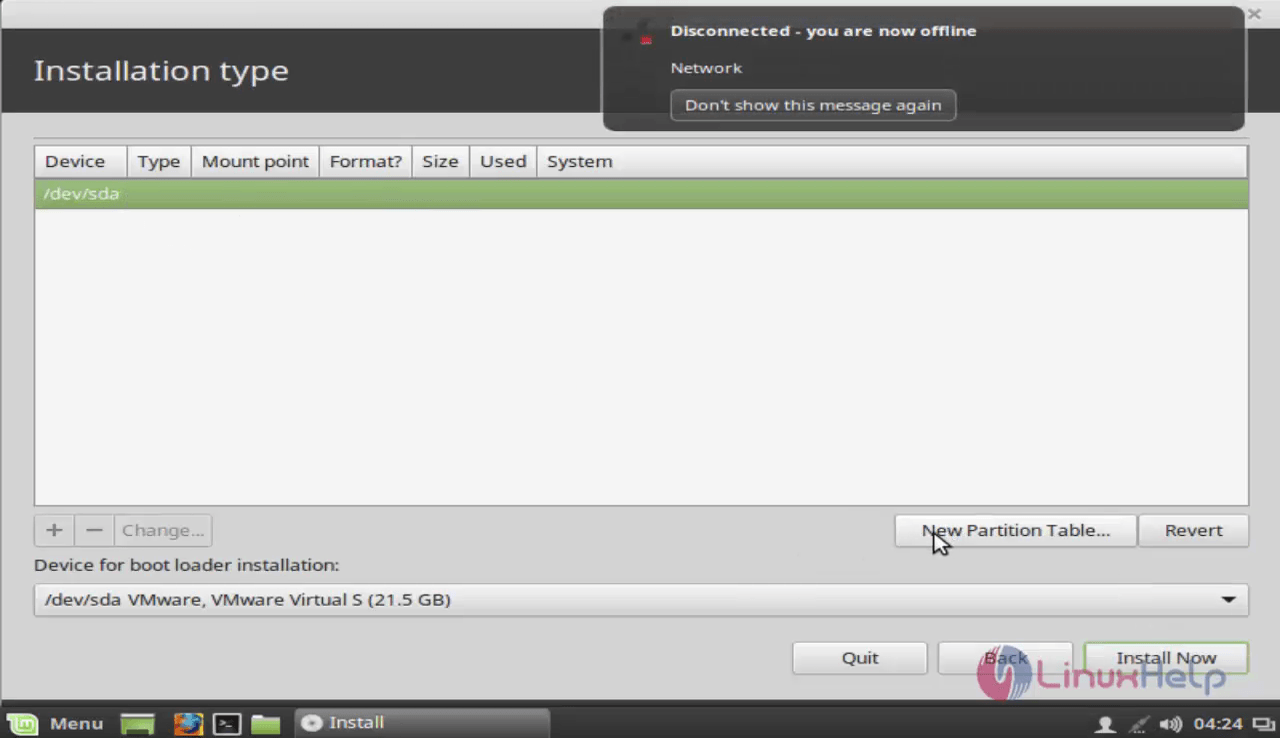
new partition table

To create the partitions, there would be three partitions namely:

  1. Boot partition &ndash mounted on /boot
  2. Swap partition &ndash mounted on swap
  3. Root partition &ndash mounted on /

Click “ +” symbol to create those partition
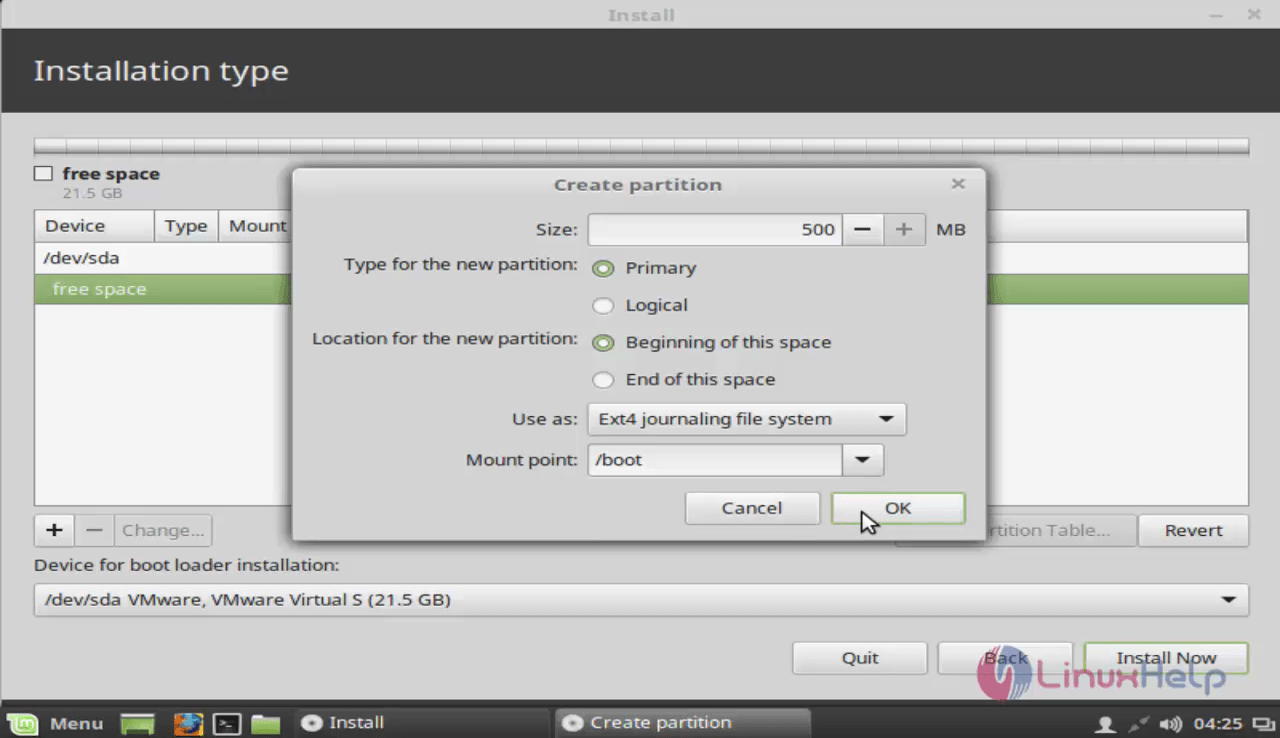
boot partition

The three partitions are created successfully and then click Install now option.
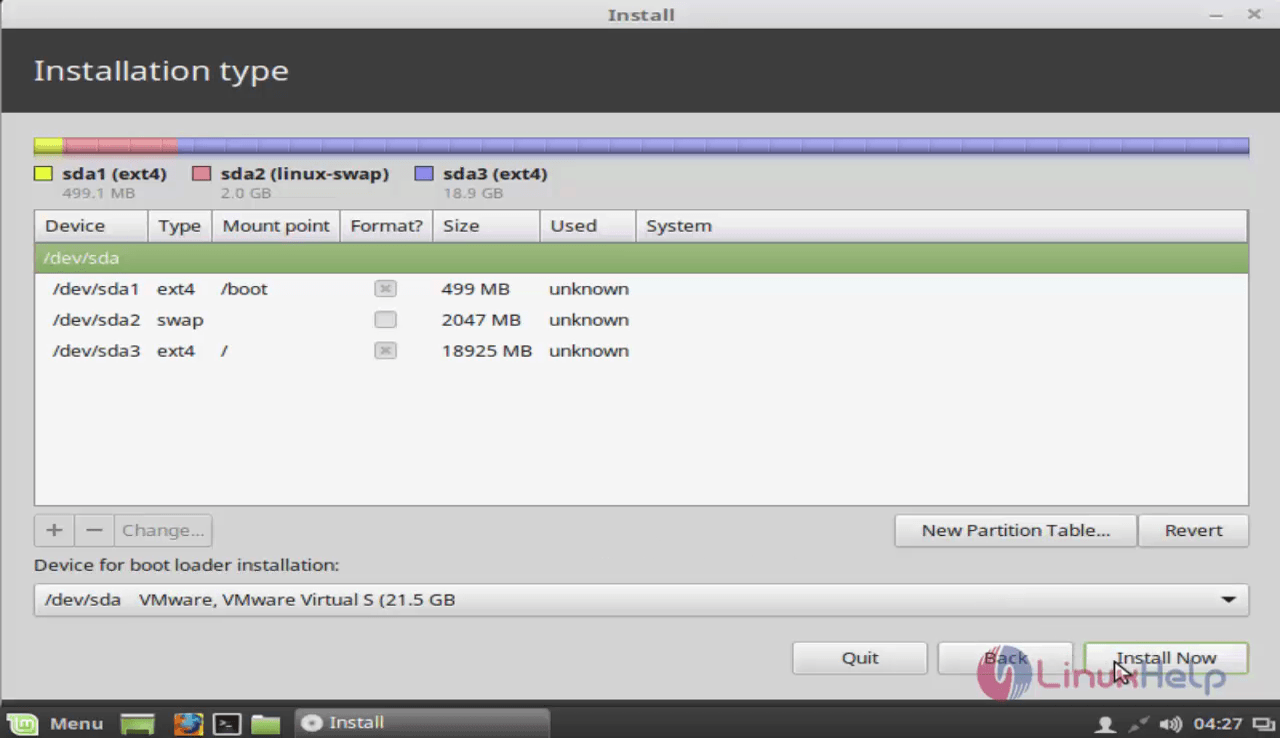
swap partition

There will be a pop-up window to confirm the partition changes that will be written in the disk. click continue option to write these changes.
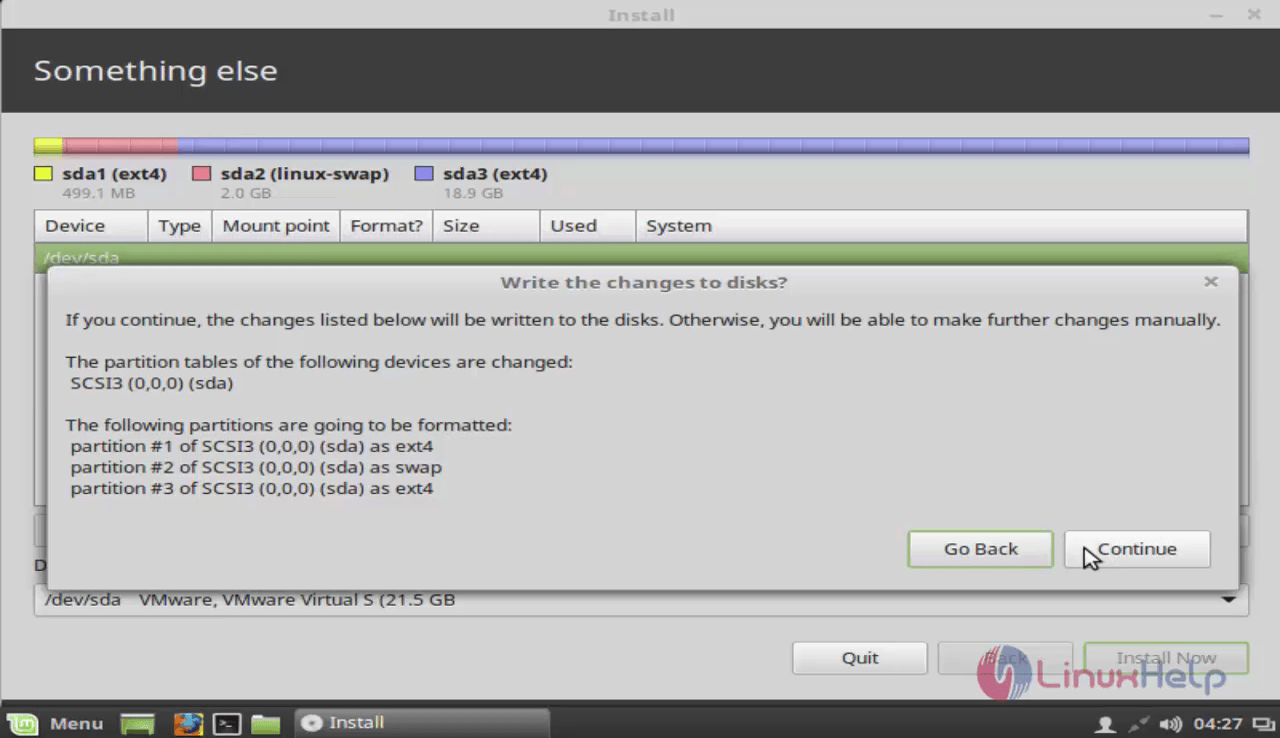
root partition

Choose the time zone where the user desires and click continue.
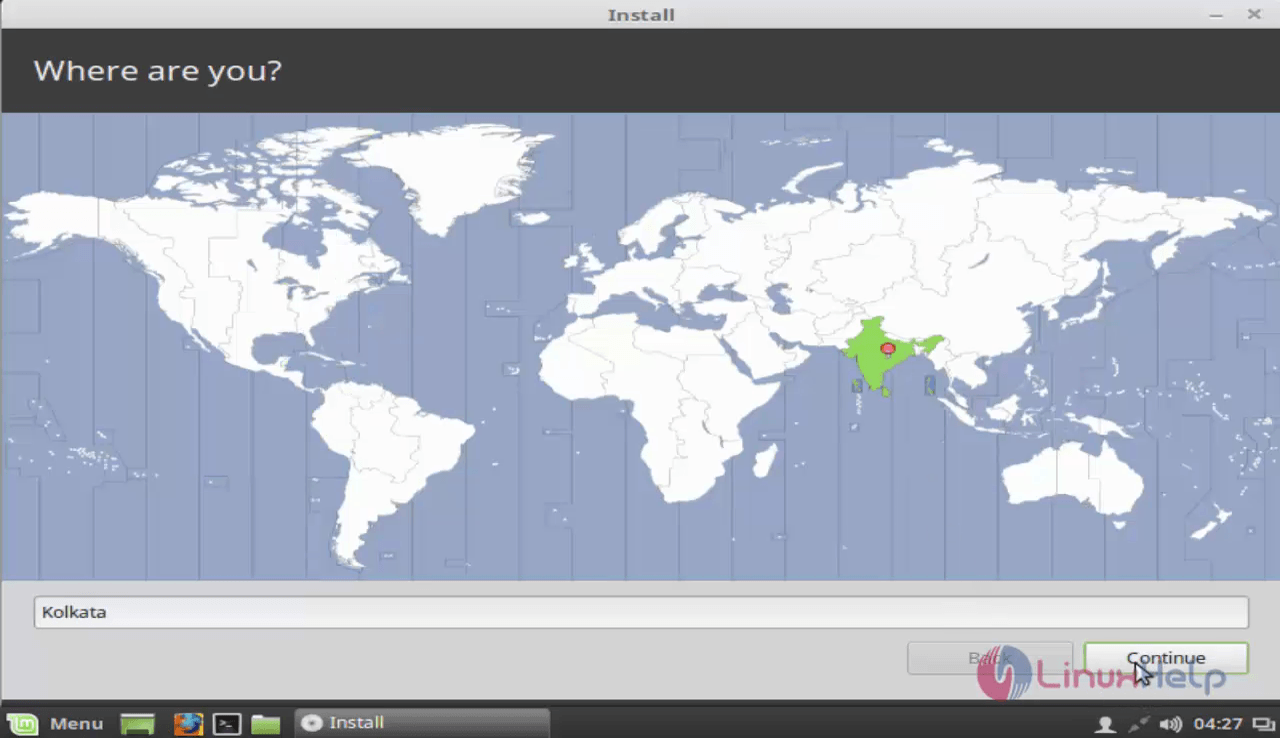
timezone

Then select the keyboard layout and click continue.
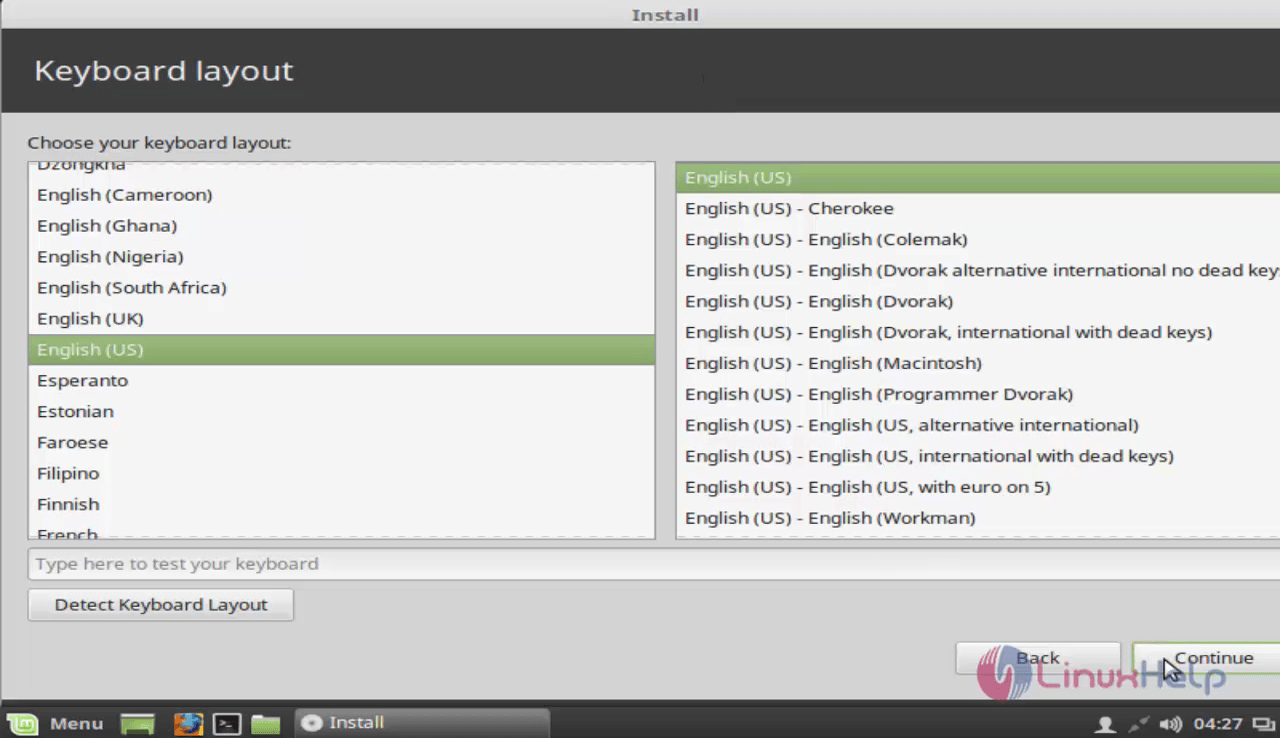
keyboard layout

Create the user details and choose a password for the Linux Mint.
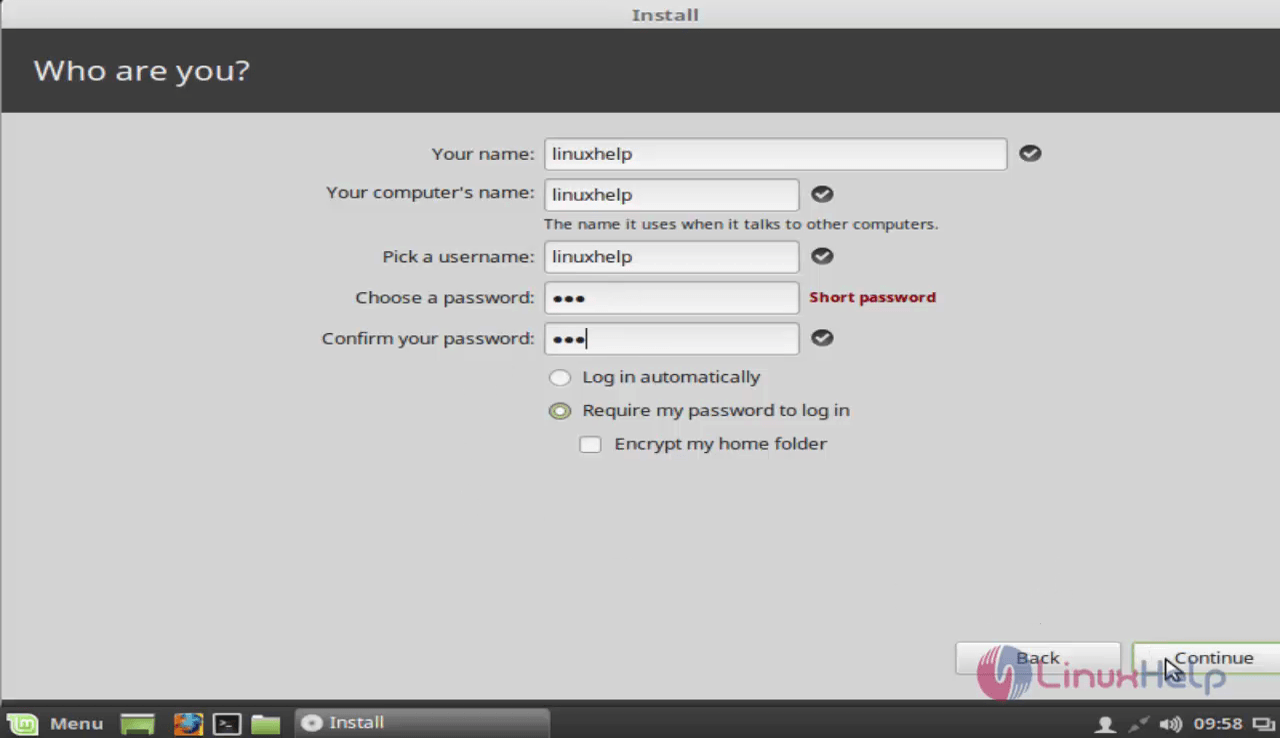
user details

The installation is in progress and the user has to wait for some time.
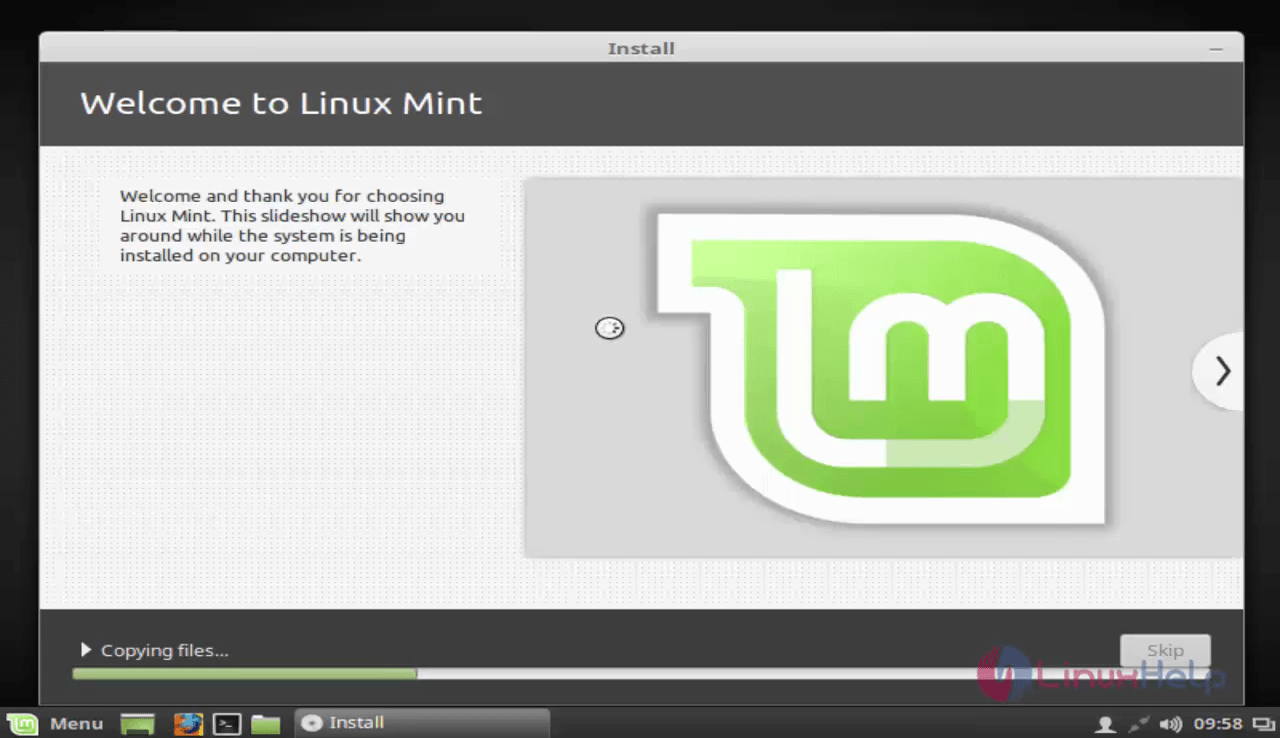
installation in progress

Restart once the installation is finished. Click Restart now option.
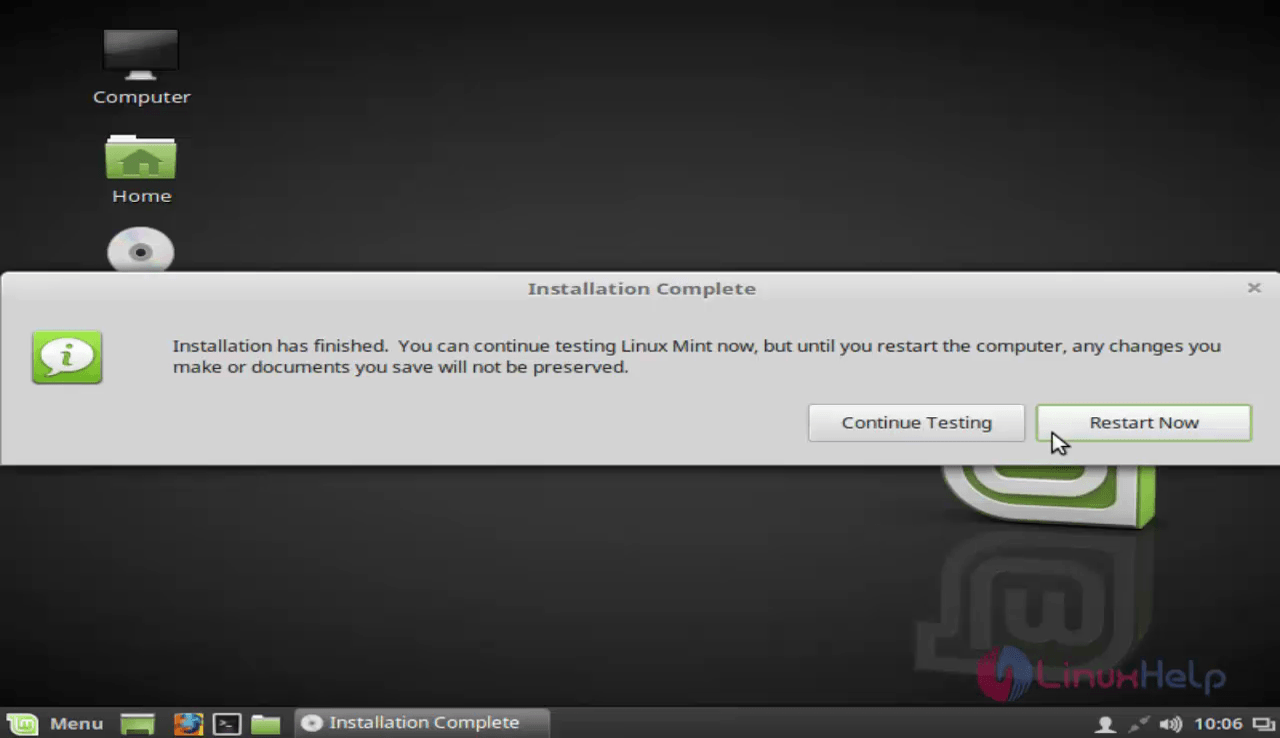
restart

The Linux Mint 18.1 serena is ready to use.
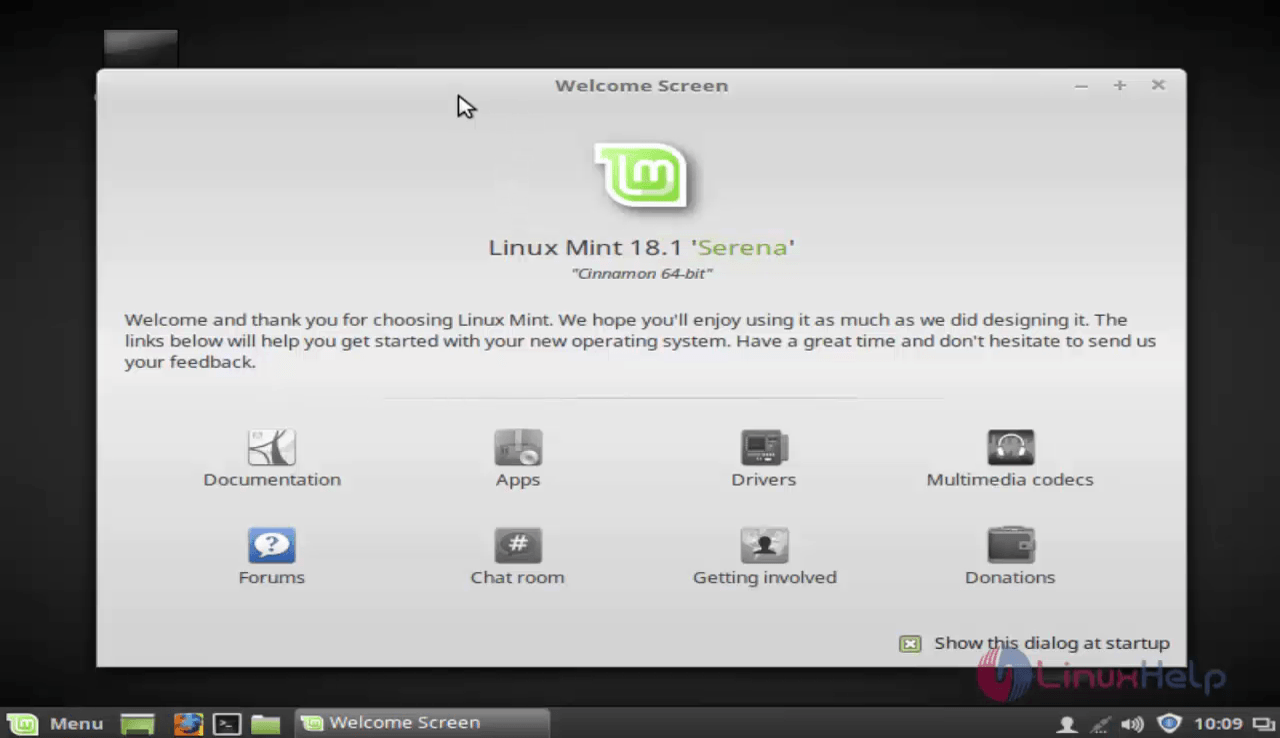
linux mint home

Wasn' t that an easy installation procedure? Linux Mint contains the removal of box pointers.

Tags:
julian
Author: 

Comments ( 0 )

No comments available

Add a comment
{{postCtrl.cmtErrMsg}}

Frequently asked questions ( 5 )

Q

What is Linux Mint 18.1?

A

Linux Mint 18.1 is a new upgrade from the series of Linux Mint Operating system which contains the long-term support release. It comes with many updated features and the screen saver is written in Python and contains a score of features in the OS.

Q

What are Linux Distributions or Distros?

A

Run the following command:
sudo apt-get install alien dpkg-dev debhelper build-essential
As I’ve said earlier, Linux is just the Kernel and a Linux Distribution is the complete OS which contains Linux as their Kernel with added programs and other software based on what the OS is targeted towards. Distributions, in short, are referred to as Distros.

Q

Does Linux Mint include proprietary drivers?

A

No. Proprietary drivers such as the ATI or Nvidia drivers are easy to install but not installed by default.

Q

Is Linux Mint suitable for individuals?

A

Yes, definitely. Linux Mint is designed to be comfortable and easy to use but also powerful and configurable. Everything is done to make the user experience better.
Linux Mint is one of the most popular desktop Linux distributions and used by millions of people.

Q

Can I get a virus from an infected console?

A

Depending on the nature of the malware it may be possible to infect a USB key when it is inserted into an infected system.

Back To Top!
Rank
User
Points

Top Contributers

userNamenaveelansari
135850

Top Contributers

userNameayanbhatti
92510

Top Contributers

userNamehamzaahmed
32150

Top Contributers

1
userNamelinuxhelp
31040

Top Contributers

userNamemuhammadali
24500
Can you help Lucas ?
Various options in Top command

Am using Top command only to view the load average, what are the various options in Top command..??

Networking
  • Routing
  • trunk
  • Netmask
  • Packet Capture
  • domain
  • HTTP Proxy
Server Setup
  • NFS
  • KVM
  • Memory
  • Sendmail
  • WebDAV
  • LXC
Shell Commands
  • Cloud commander
  • Command line archive tools
  • last command
  • Shell
  • terminal
  • Throttle
Desktop Application
  • Linux app
  • Pithos
  • Retrospect
  • Scribe
  • TortoiseHg
  • 4Images
Monitoring Tool
  • Monit
  • Apache Server Monitoring
  • EtherApe 
  • Arpwatch Tool
  • Auditd
  • Barman
Web Application
  • Nutch
  • Amazon VPC
  • FarmWarDeployer
  • Rukovoditel
  • Mirror site
  • Chef
Contact Us | Terms of Use| Privacy Policy| Disclaimer
© 2025 LinuxHelp.com All rights reserved. Linux™ is the registered trademark of Linus Torvalds. This site is not affiliated with linus torvalds in any way.