How to install LiteCart on CentOS 7
To install LiteCart on CentOS 7
LiteCart is a free e-commerce, feature rich e-commerce solution. The framework is constructed to be lightweight and easy for developers to modify and build upon. LiteCart relies on the latest HyperText standard HTML 5, the latest CSS 3 for styling, the amazing jQuery framework for client-side dynamics, and the popular web scripting language PHP for server-side dynamics. In this tutorial, you will learn about the method to install LiteCart on CentOS 7.
Pre-requirement
Install LAMP(apache, mariadb, php7)
For MariaDB
Create database and user. Also give privilages to that user
For php
rpm -Uvh https://dl.fedoraproject.org/pub/epel/epel-release-latest-7.noarch.rpm
rpm -Uvh https://mirror.webtatic.com/yum/el7/webtatic-release.rpm
php modules (yum install -y mod_php71w php71w-cli php71w-common php71w-gd php71w-mbstring php71w-mcrypt php71w-mysqlnd php71w-xml)
Installing LitCart
If you want to download an installation package for LiteCart, make sure you download it from the official website. Here is the link: https://www.litecart.net/download. Once it is downloaded, get into the html location with the help of the following command.
[root@linuxhelp ~]# cd /var/www/html/
List the directory and view the downloaded package.
[root@linuxhelp html]# ll
total 2544
-rwxrw-rw- 1 root root 2604063 Nov  9 13:48 litecart-2.0.2.zip
Once you have downloaded the package, extract the downloaded file by running the following command.
[root@linuxhelp html]# unzip litecart-2.0.2.zip -d litecart
Archive:  litecart-2.0.2.zip
  inflating: litecart/STANDARD.md
  inflating: litecart/UPGRADE.md
   creating: litecart/art/
  inflating: litecart/art/cart.svg
  inflating: litecart/art/loader.svg
  inflating: litecart/art/logotype.svg
  inflating: litecart/art/noimage.svg
   creating: litecart/public_html/
.
.
extracting: litecart/public_html/vqmod/xml/index.html
  inflating: litecart/CREDITS.md
  inflating: litecart/LICENSE.md
  inflating: litecart/README.md
Next, you need to change the ownership of Litecart directory.
[root@linuxhelp html]# chown apache:apache -R litecart/
Configuration of Apache' s VirtualHost is one of the most important steps in this installation process. So create a .conf file as follows.
[root@linuxhelp html]# vim /etc/httpd/conf.d/litecart.conf
In that file, add the following lines.
< virtualHost *:80>
ServerAdmin admin@litecart.abc
DocumentRoot /var/www/html/litecart/
ServerName litecart.abc
ServerAlias www.litecart.abc
< Directory /var/www/html/litecart/>
Options FollowSymLinks
AllowOverride All
Order allow,deny
allow from all
< /Directory>
ErrorLog /var/log/httpd/litecart.abc-error_log
CustomLog /var/log/httpd/litecart.abc-access_log common
< /VirtualHost>
Once it is done, make an entry in the host file. Open it with the help of the following command.
[root@linuxhelp html]# vim /etc/hosts
And in that file, add the following.
< machine ip > domain-name
Once it is done, restart the Apache service by running the following command.
[root@linuxhelp html]# systemctl restart httpd
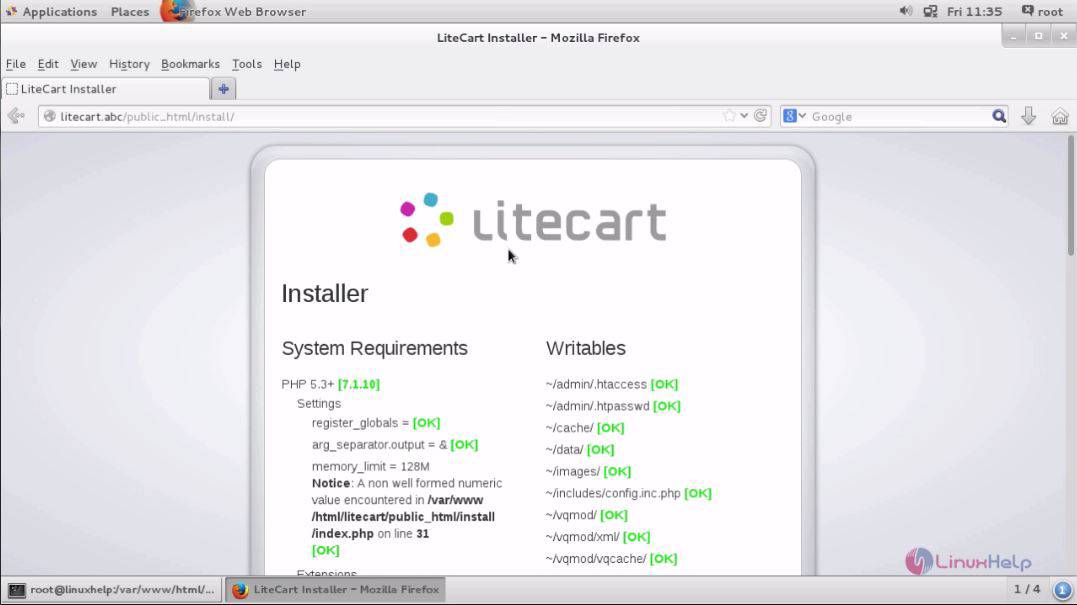
Let us now continue the process via GUI. Open your browser, and enter http://litecart.abc/public_html as your URL. The installation page appears on your screen.
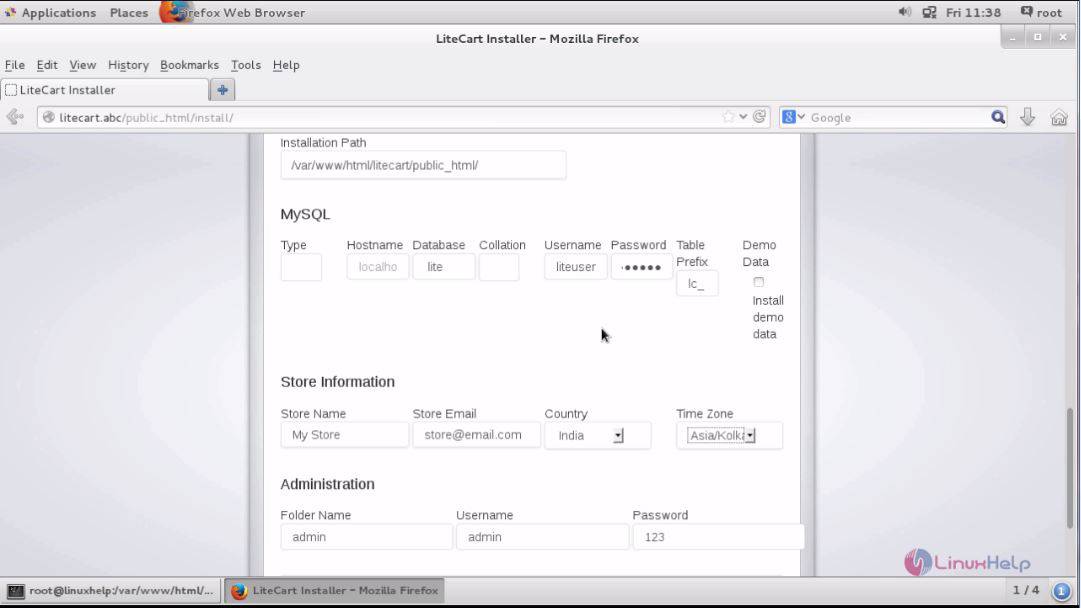
Once it is done, scroll down and fill the database, admin, store details
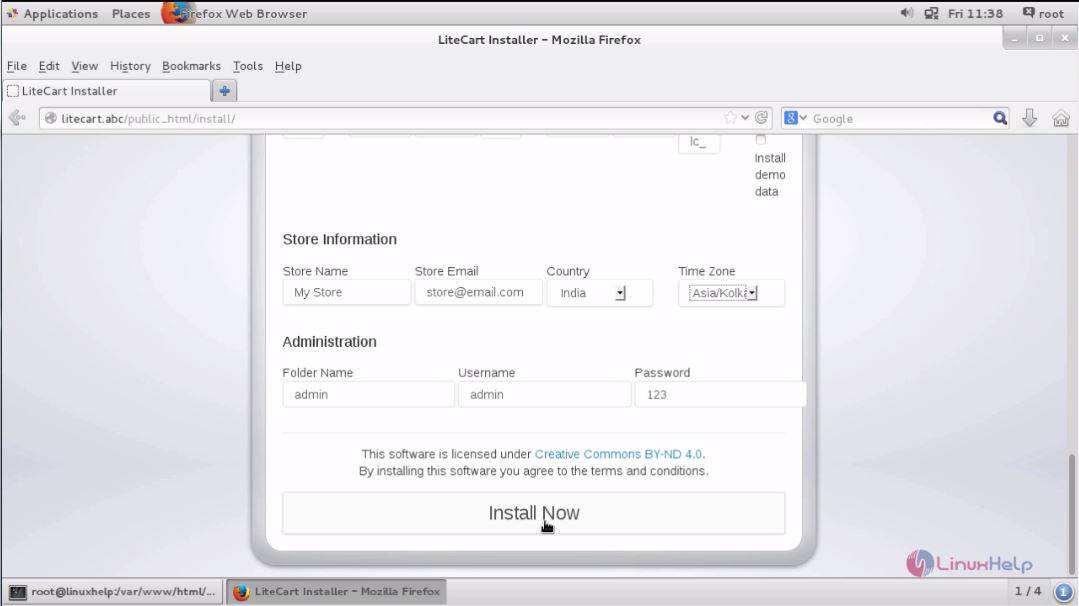
Now click on the install option.
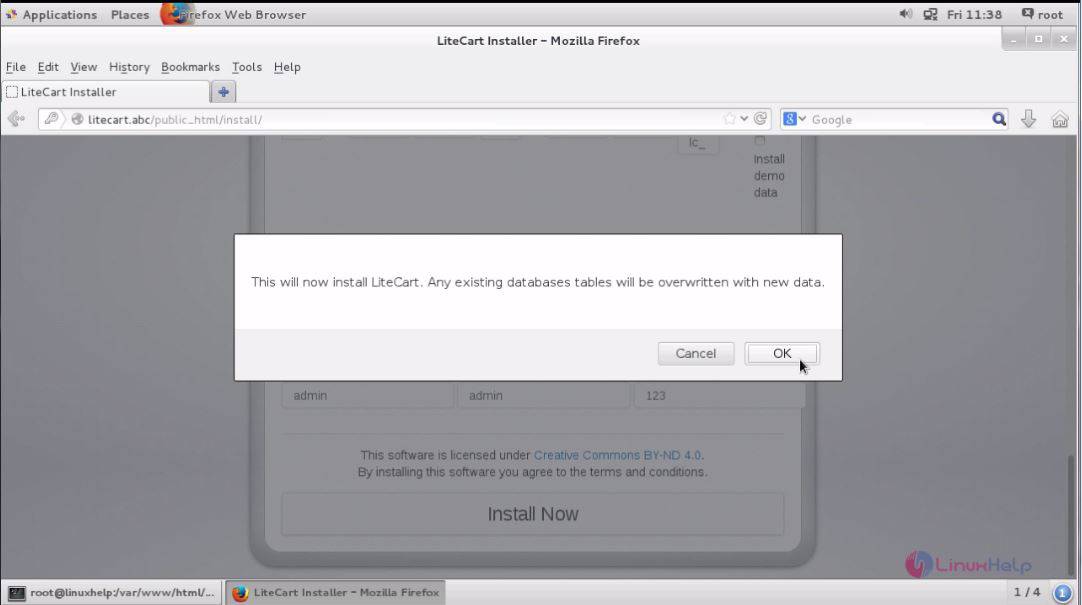
Then proceed by clicking the ok option.
The installation is now complete, click admin area to open admin panel.
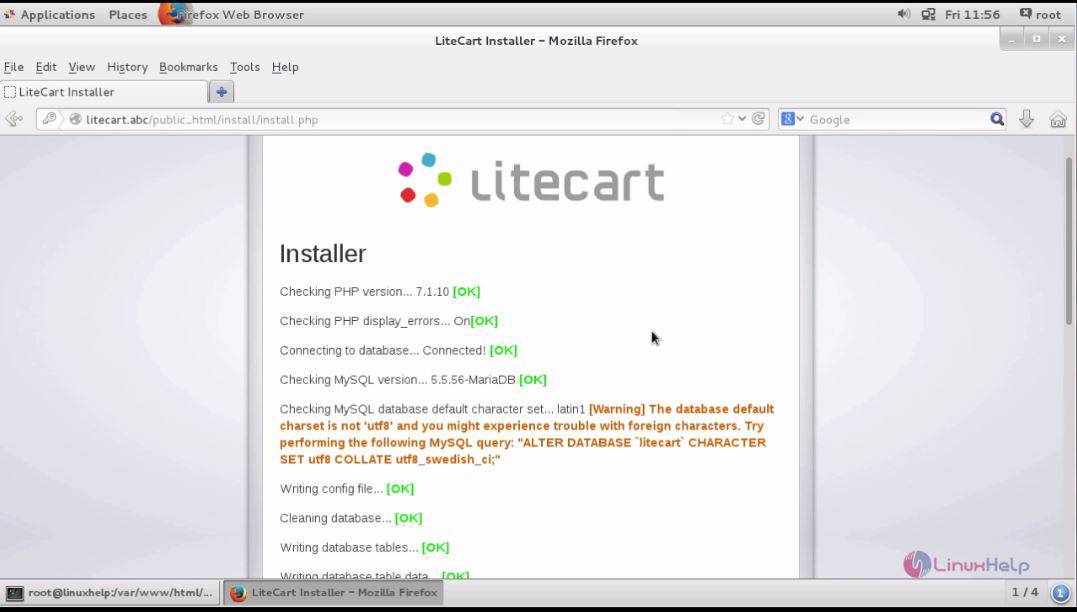
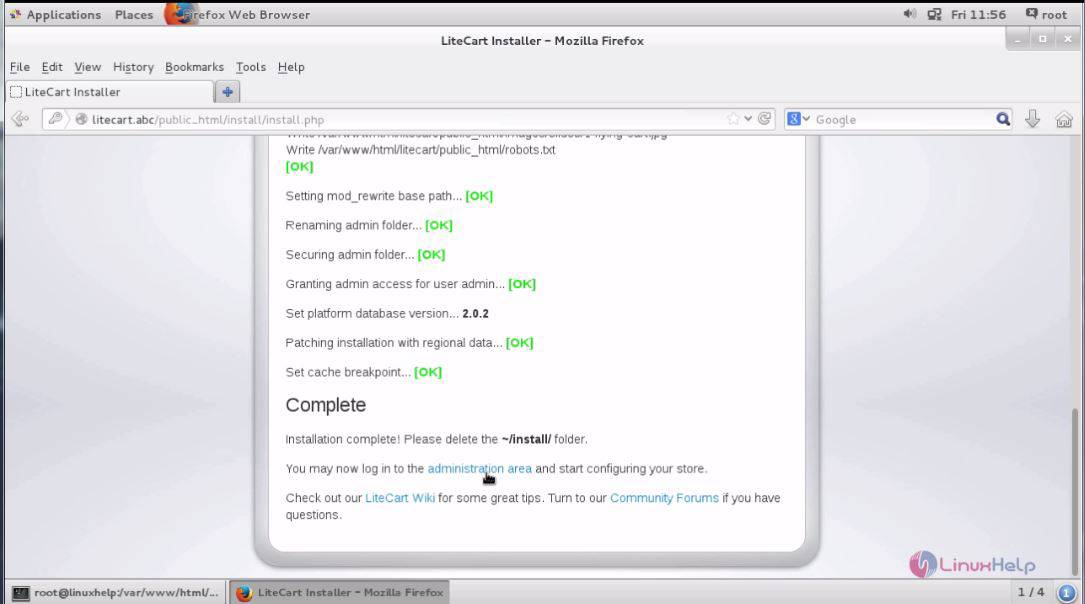
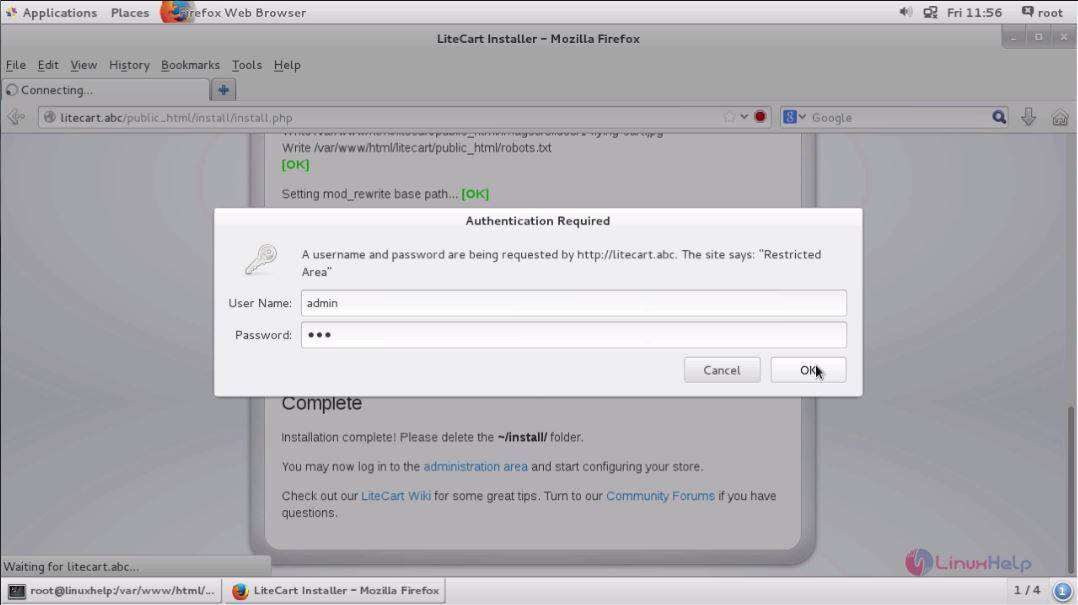
Enter your admin credentials and click ok.
Again, give your admin credentials and click login
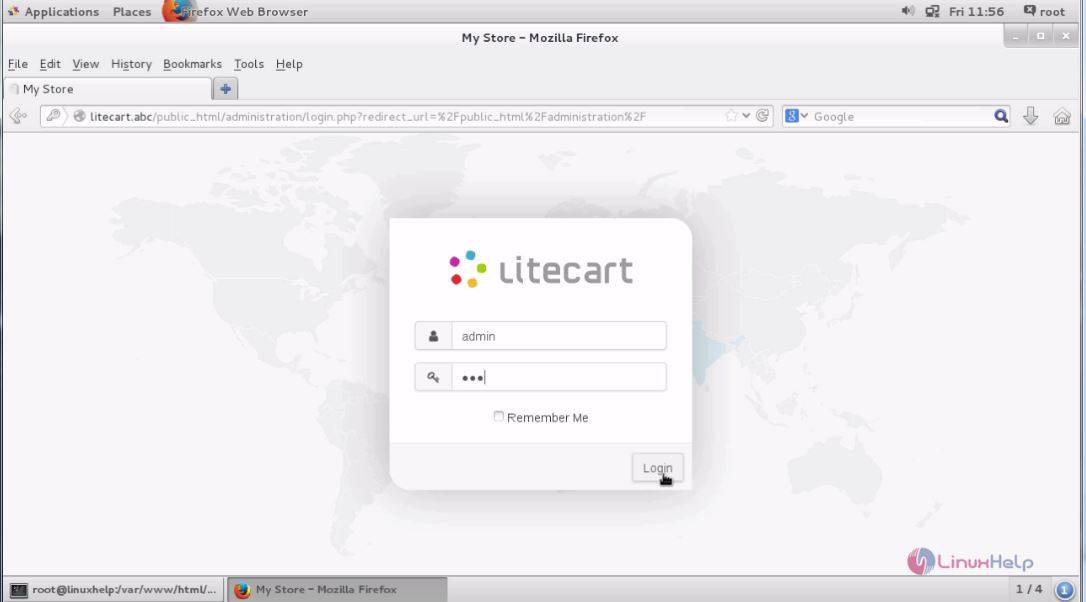
You are now logged in as an Admin.
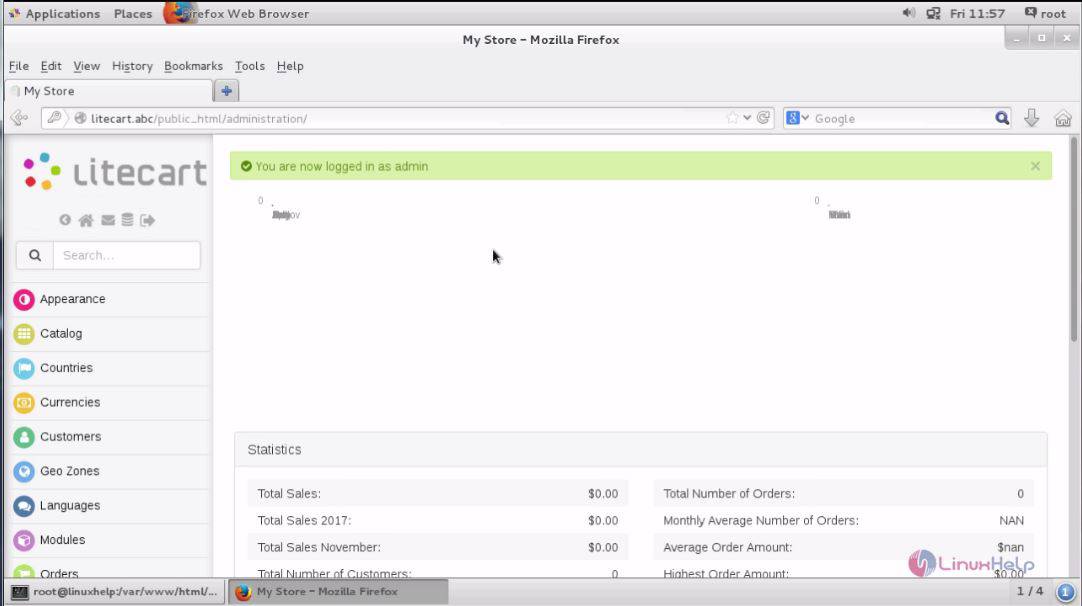
With this, the installation of LiteCart gets completed.
Comments ( 0 )
No comments available