How To Install “Log.io” Monitoring Tool in Linux
To Install “ Log.io” Tool and Monitor Server Logs in Real-Time in RHEL/CentOS 7/6
Installation and monitoring any local log files in real time with Log.io is explained in this article. It is simple and effective application build on top of Node.js and Socket.io that monitors Linux servers log files in real time through web interface screen widgets.
To Add Epel Repositories
Download the rpm packages for Epel repositories.
[root@linuxhelp Desktop]# wget https://dl.fedoraproject.org/pub/epel/epel-release-latest-7.noarch.rpm
--2016-06-14 04:06:45--  https://dl.fedoraproject.org/pub/epel/epel-release-latest-7.noarch.rpm
Resolving dl.fedoraproject.org (dl.fedoraproject.org)... 209.132.181.24, 209.132.181.25, 209.132.181.26, ...
Connecting to dl.fedoraproject.org (dl.fedoraproject.org)|209.132.181.24|:443... connected.
HTTP request sent, awaiting response... 200 OK
Length: 14432 (14K) [application/x-rpm]
Saving to: ‘ epel-release-latest-7.noarch.rpm’

100%[========================================================> ] 14,432      58.5KB/s   in 0.2s

2016-06-14 04:06:47 (58.5 KB/s) - ‘ epel-release-latest-7.noarch.rpm’  saved [14432/14432]
Then install that repository using the following command.
[root@linuxhelp Desktop]# rpm -ivh epel-release-latest-7.noarch.rpm
Preparing...                          ################################# [100%]
Updating / installing...
   1:epel-release-7-6                 ################################# [100%]
To Install Node.js and NPM Packages
Node.js is a Javascript that creates network applications with backend functionality. NPM is the package manager for Node.js. Run the following command to install Node.js and NPM.
[root@linuxhelp Desktop]# yum install npm nodejs
Loaded plugins: fastestmirror, langpacks
Loading mirror speeds from cached hostfile
* base: centos.excellmedia.net
* epel: epel.mirror.net.in
* extras: centos.excellmedia.net
* updates: centos.excellmedia.net
Resolving Dependencies
-->  Running transaction check
--->  Package nodejs.x86_64 0:0.10.42-4.el7 will be installed
--->  Package npm.noarch 0:1.3.6-5.el7 will be installed
.
.
.
nodejs-slide.noarch 0:1.1.5-1.el7
nodejs-sntp.noarch 0:0.2.4-1.el7
nodejs-tar.noarch 0:0.1.18-1.el7
nodejs-tunnel-agent.noarch 0:0.3.0-1.el7
nodejs-uid-number.noarch 0:0.0.3-7.el7
nodejs-which.noarch 0:1.0.5-8.el7

Complete!
To Install and Configure Log.io Application
Login with root account and install Log.io application by using the following command.
[root@linuxhelp Desktop]# npm install -g log.io --user " root"
npm http GET https://registry.npmjs.org/log.io
npm http 304 https://registry.npmjs.org/log.io
npm http GET https://registry.npmjs.org/backbone
npm http GET https://registry.npmjs.org/jquery-browserify
npm http GET https://registry.npmjs.org/socket.io
npm http GET https://registry.npmjs.org/socket.io-client
.
.
.
.
log.io@0.3.4 /usr/lib/node_modules/log.io
??? backbone@0.9.10
??? underscore@1.4.4
??? coffee-script@1.4.0
??? jquery-browserify@1.8.1
??? winston@0.6.2 (cycle@1.0.3, stack-trace@0.0.9, eyes@0.1.8, colors@0.6.2, pkginfo@0.2.3, async@0.1.22, request@2.9.203)
??? express@3.0.6 (methods@0.0.1, fresh@0.1.0, range-parser@0.0.4, cookie-signature@0.0.1, buffer-crc32@0.1.1, cookie@0.0.5, commander@0.6.1, mkdirp@0.3.3, debug@2.2.0, send@0.1.0, connect@2.7.2)
??? jquery@1.8.3 (navigator@1.0.1, location@0.0.1, xmlhttprequest@1.4.2, contextify@0.1.15, htmlparser@1.7.6, jsdom@0.2.19)
??? socket.io-client@0.9.17 (xmlhttprequest@1.4.2, ws@0.4.32, uglify-js@1.2.5, active-x-obfuscator@0.0.1)
??? socket.io@0.9.17 (base64id@0.1.0, policyfile@0.0.4, redis@0.7.3, socket.io-client@0.9.16)
Now change the working directory to Log.io folder and list the directory to visualize folder content in order to configure the application for further process.
[root@linuxhelp Desktop]# pwd
[root@linuxhelp Desktop]# cd .log.io/
[root@linuxhelp Desktop]# ls
To Configure the Log.io
Open the harvester.conf file located in " ~/.log.io/" for editing. Check theApache log files path and replace nodeName to match your hostname and the IP address of the server.
[root@linuxhelp Desktop]# vi ~/.log.io/harvester.conf
Define the log Streams statements with the internal log files to monitor. Follow the below file excerpt as a guide.
exports.config = {
  nodeName: " linuxhelp_server" ,
  logStreams: {
    apache: [
      " /var/log/httpd/access_log" ,
      " /var/log/httpd/error_log"
    ],
message:
[
" /var/log/messages"
],
  },
  server: {
    host: ' 192.168.7.125' ,
    port: 28777
  }
}
Open the log_server.conf and web_server.conf file to check the host and port number.
[root@linuxhelp Desktop]# vi ~/.log.io/log_server.conf
exports.config = {
  host: ' 0.0.0.0' ,
  port: 28777
}
[root@linuxhelp Desktop]# vi ~/.log.io/web_server.conf
exports.config = {
  host: ' 0.0.0.0' ,
  port: 28778,
To Add Firewall Rule
Use the following command to add a rule on RHEL/CentOS 7 Firewall to open TCP 28778 / TCP 28777 port.
[root@linuxhelp Desktop]# firewall-cmd --add-port=28778/tcp --permanent
success
[root@linuxhelp Desktop]# firewall-cmd --add-port=28777/tcp --permanent
success
[root@linuxhelp Desktop]# firewall-cmd &ndash reload
success
RHEL/CentOS 6.x users can open the port 28778 on iptable firewall.
To Start Log.io Application
Use the following commands to start application.
[root@linuxhelp Desktop]#  log.io-server &
[root@linuxhelp Desktop]#  log.io-harvester &
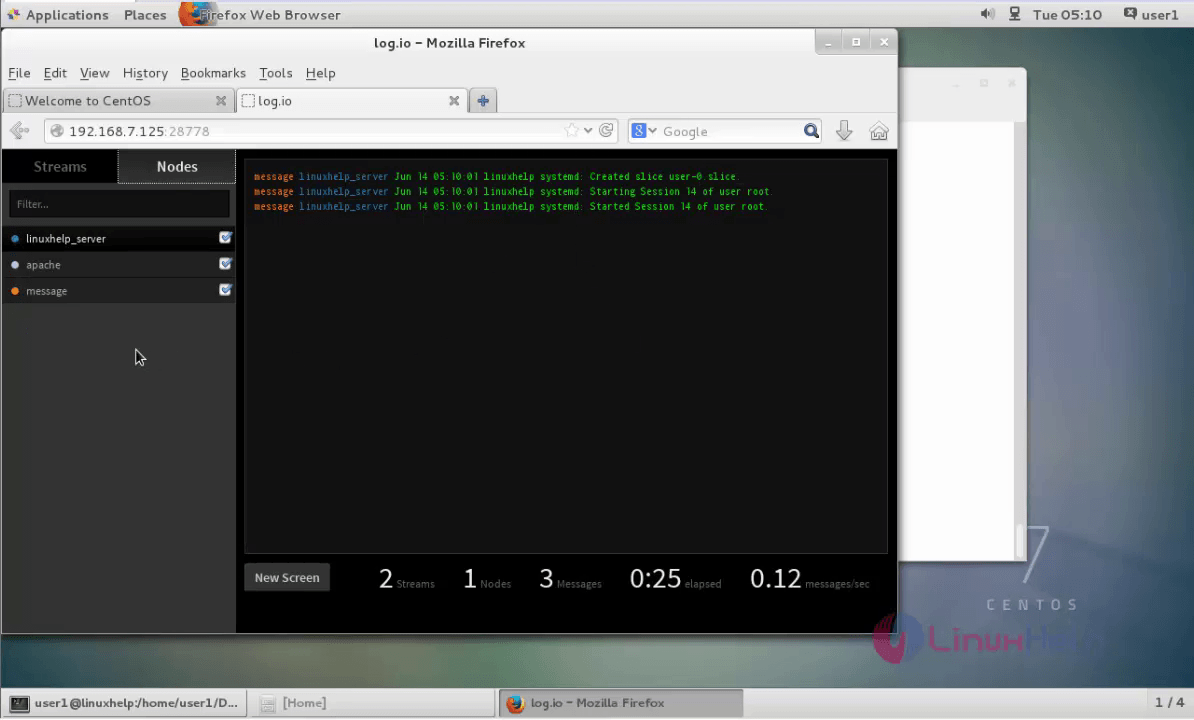
Open a browser and navigate to http://192.168.7.125.20:28778
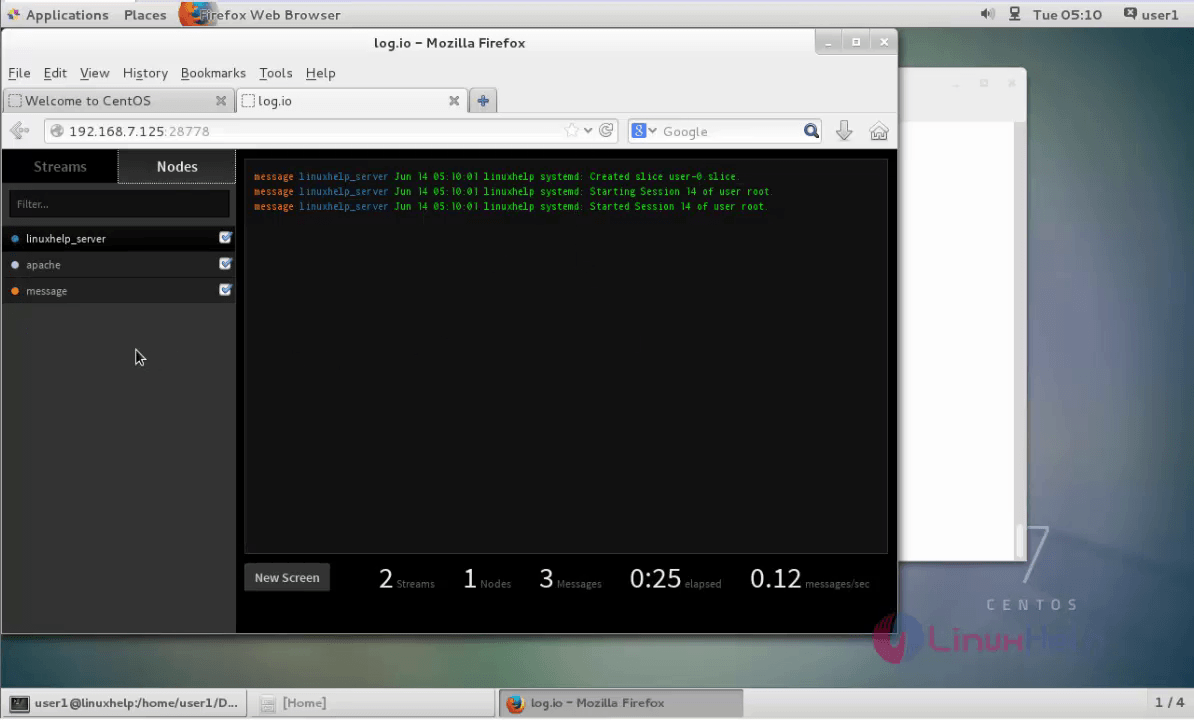
In the Web interface add new screens to organize our streams or nodes accordingly.
Comments ( 0 )
No comments available