• Categories
    Category
    {{ postCtrl.tags }}
    • {{ category.tag_type }}

      • {{tag.tag_name}}
      • View more
  • Categories
    Category
    {{ postCtrl.tags }}
    • {{ category.tag_type }}

      • {{tag.tag_name}}
      • View more
  • News
  • Tutorials
  • Forums
  • Tags
  • Users
Tutorial News Comments FAQ Related Articles

How to install LXDE Light Weight Desktop Environment in Linux

{{postValue.id}}

To install LXDE Light Weight Desktop Environment on Ubuntu

LXDE is a light weight desktop environment for Linux distributions. This article will explain you how to install LXDE Desktop on Ubuntu.

To update the repositories, run the following command.

root@linuxhelp:~# apt-get update
Hit http://in.archive.ubuntu.com wily InRelease
Get:1 http://in.archive.ubuntu.com wily-updates InRelease [65.9 kB]           
Hit http://in.archive.ubuntu.com wily-backports InRelease                     
Hit http://in.archive.ubuntu.com wily/main Sources                            
.
.
.
Hit http://in.archive.ubuntu.com wily-backports/universe i386 Packages        
Hit http://in.archive.ubuntu.com wily-backports/multiverse i386 Packages      
Hit http://in.archive.ubuntu.com wily-backports/main Translation-en           
Hit http://in.archive.ubuntu.com wily-backports/multiverse Translation-en     
Hit http://in.archive.ubuntu.com wily-backports/restricted Translation-en     
Hit http://in.archive.ubuntu.com wily-backports/universe Translation-en       
Fetched 1,520 kB in 49s (30.7 kB/s)                                           
Reading package lists... Done

Run the following command to install LXDE.

root@linuxhelp:~# apt-get install dialog xorg lxde-core -y
Reading package lists... Done
Building dependency tree       
Reading state information... Done
dialog is already the newest version.
dialog set to manually installed.
xorg is already the newest version.
The following extra packages will be installed:
  giblib1 gksu libfm-data libfm-extra4 libfm-gtk-data libfm-gtk4 libfm-modules
  libfm4 libgif4 libgksu2-0 libglade2-0 libid3tag0 libimlib2 libjpeg-progs
  libjpeg-turbo-progs libkeybinder0 libmenu-cache-bin libmenu-cache3
.
.
.
Setting up xscreensaver (5.30-1ubuntu1) ...
Processing triggers for gconf2 (3.2.6-3ubuntu5) ...
Setting up gksu (2.0.2-9ubuntu1) ...
Processing triggers for libc-bin (2.21-0ubuntu4) ...

After installation, logout from your current desktop.
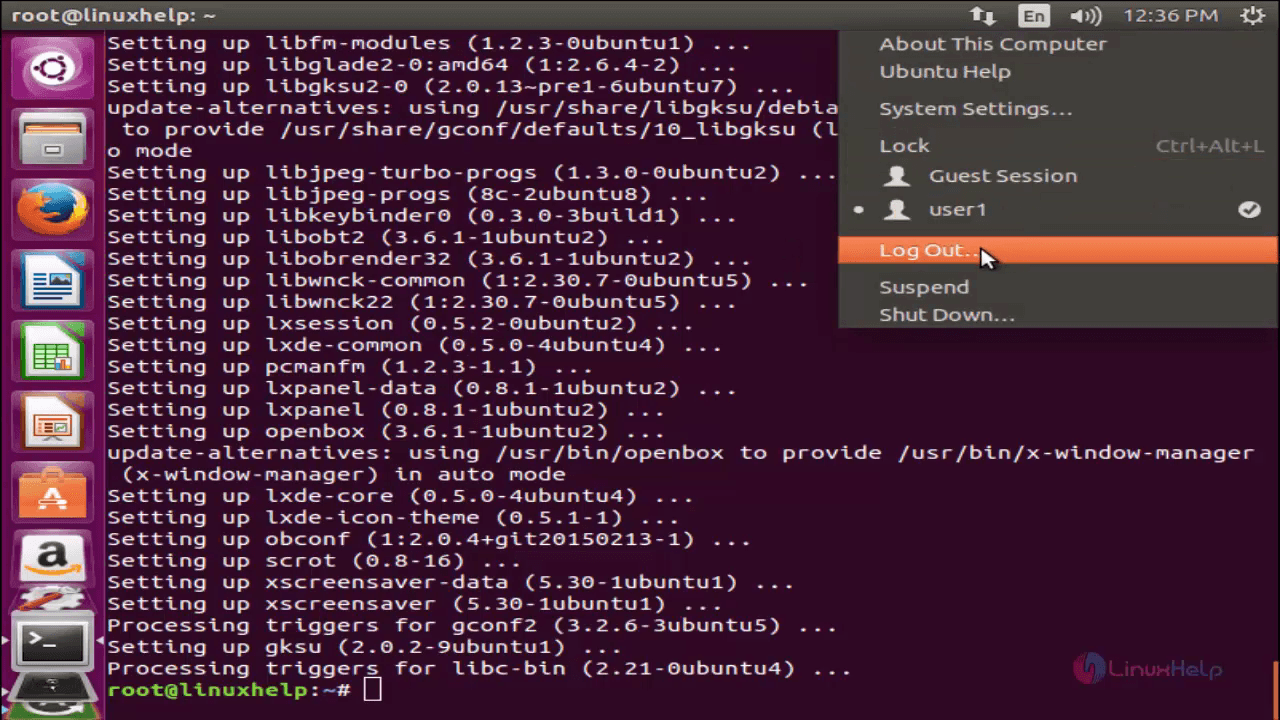
install-LXDE-Light-Weight-Desktop-Environment-Ubuntu-logout

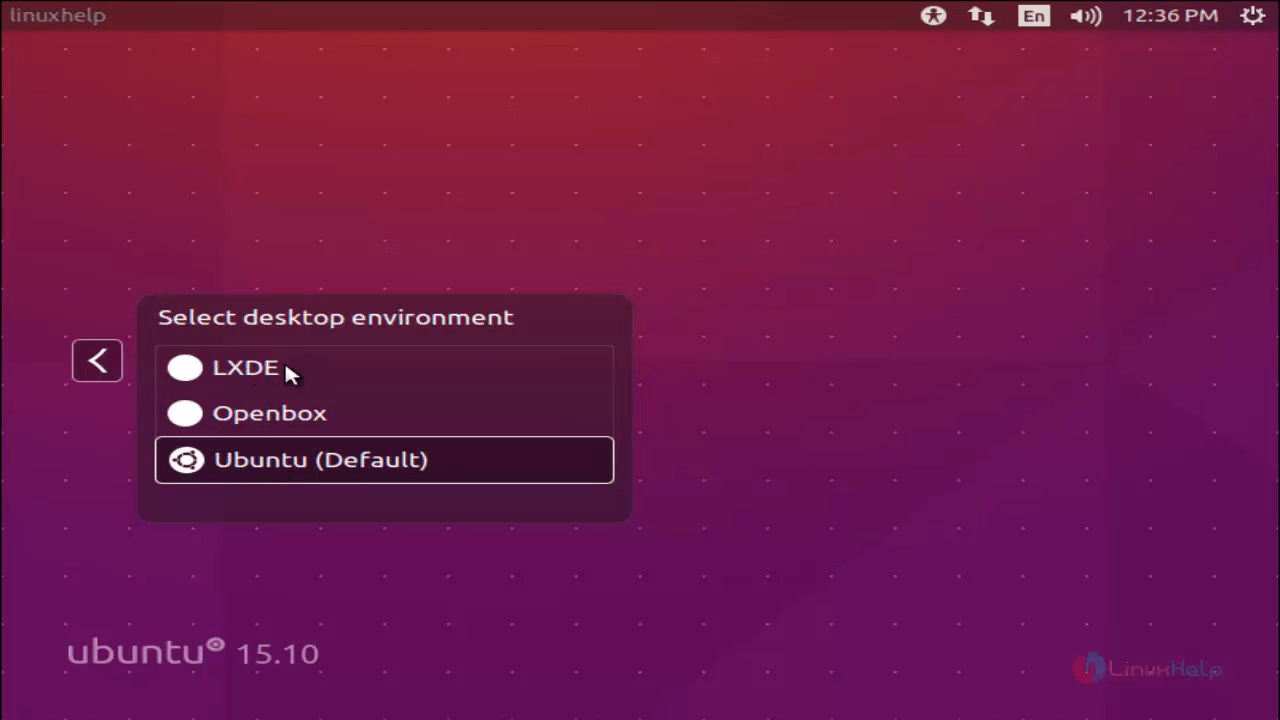
Click the Ubuntu Icon to change the Desktop Environment and choose “ LXDE”
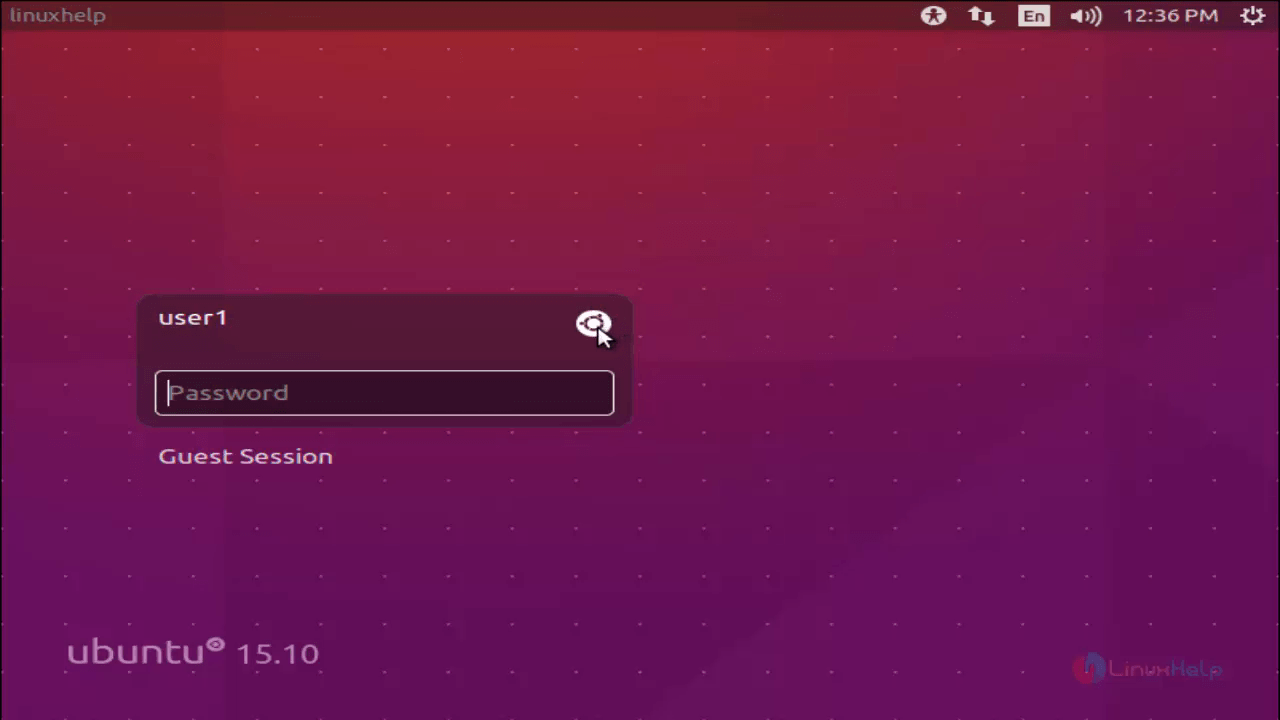
install-LXDE-Light-Weight-Desktop-Environment-Ubuntu-password

install-LXDE-Light-Weight-Desktop-Environment-Ubuntu-Ubuntu-Icon

install-LXDE-Light-Weight-Desktop-Environment-Ubuntu-change-Desktop-Environment

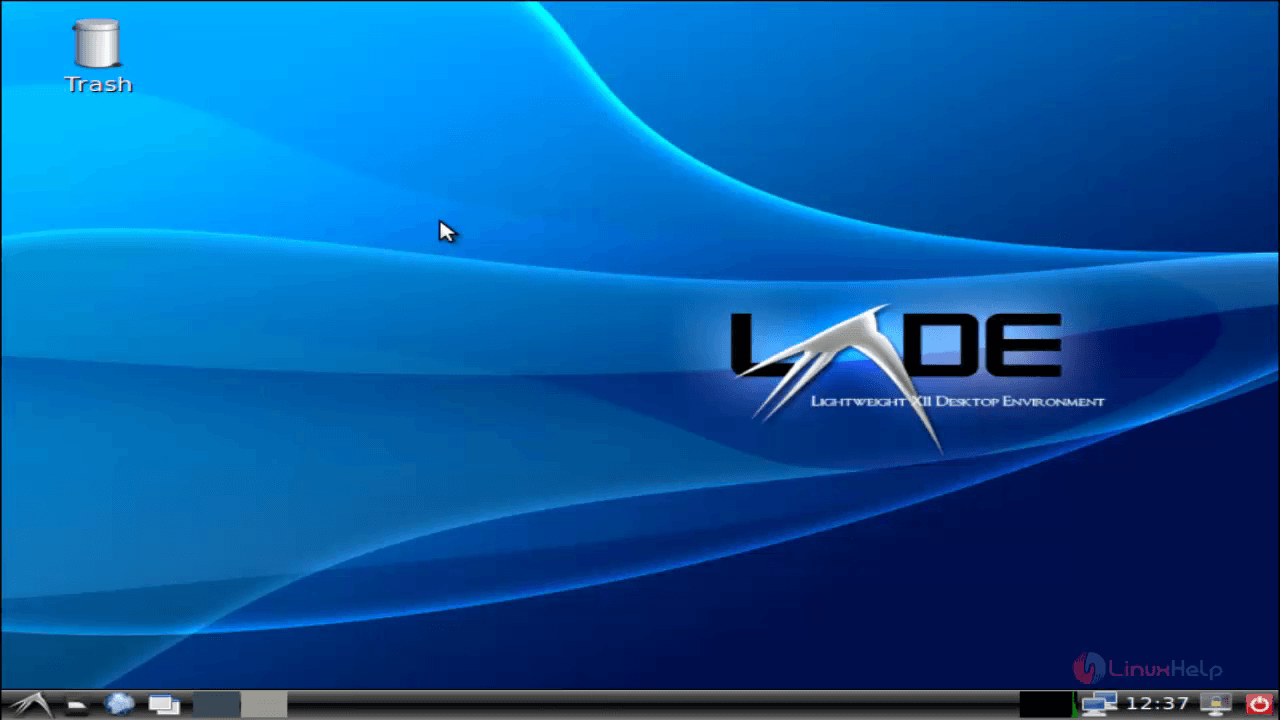
Now click the icon in task bar to access the applications.
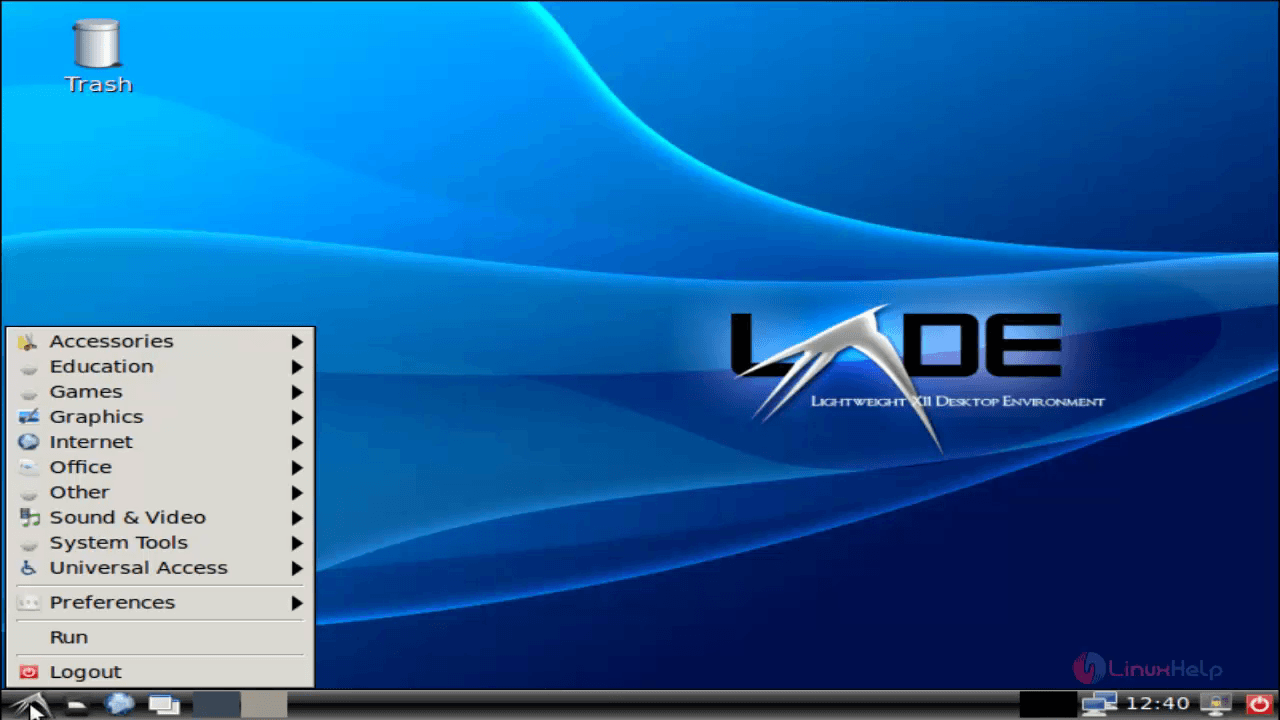
install-LXDE-Light-Weight-Desktop-Environment-Ubuntu-access-applications

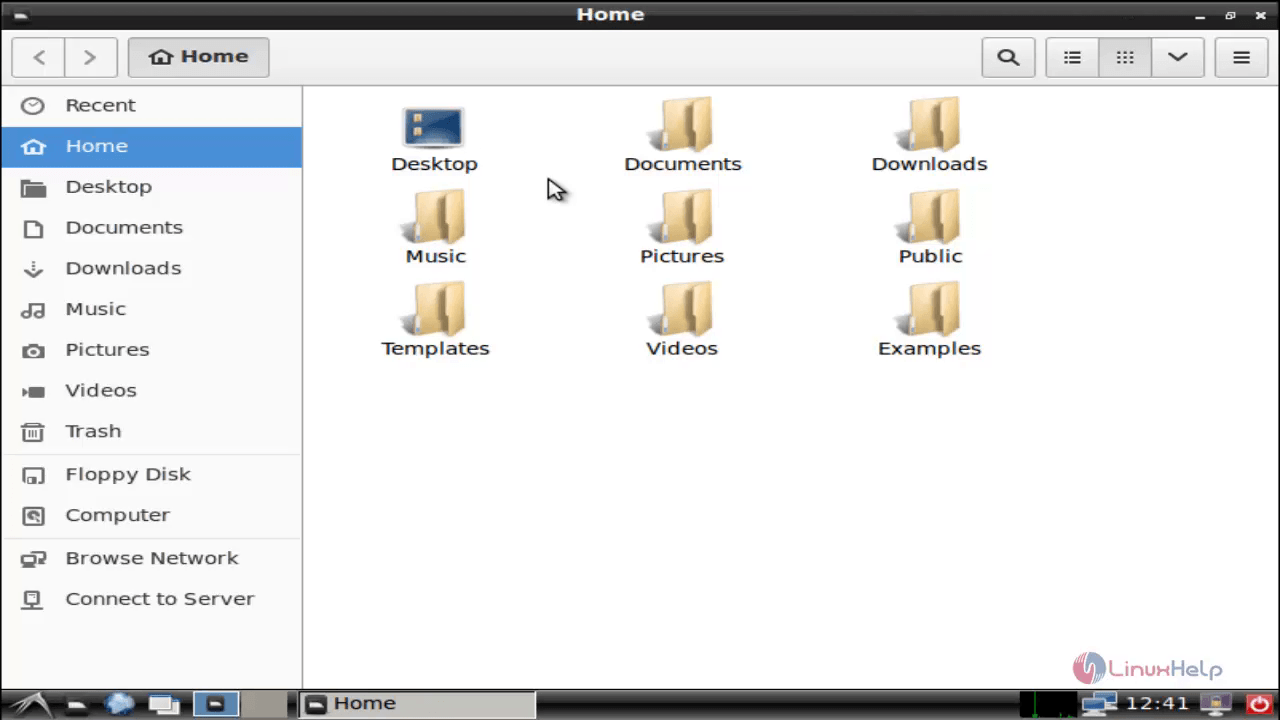
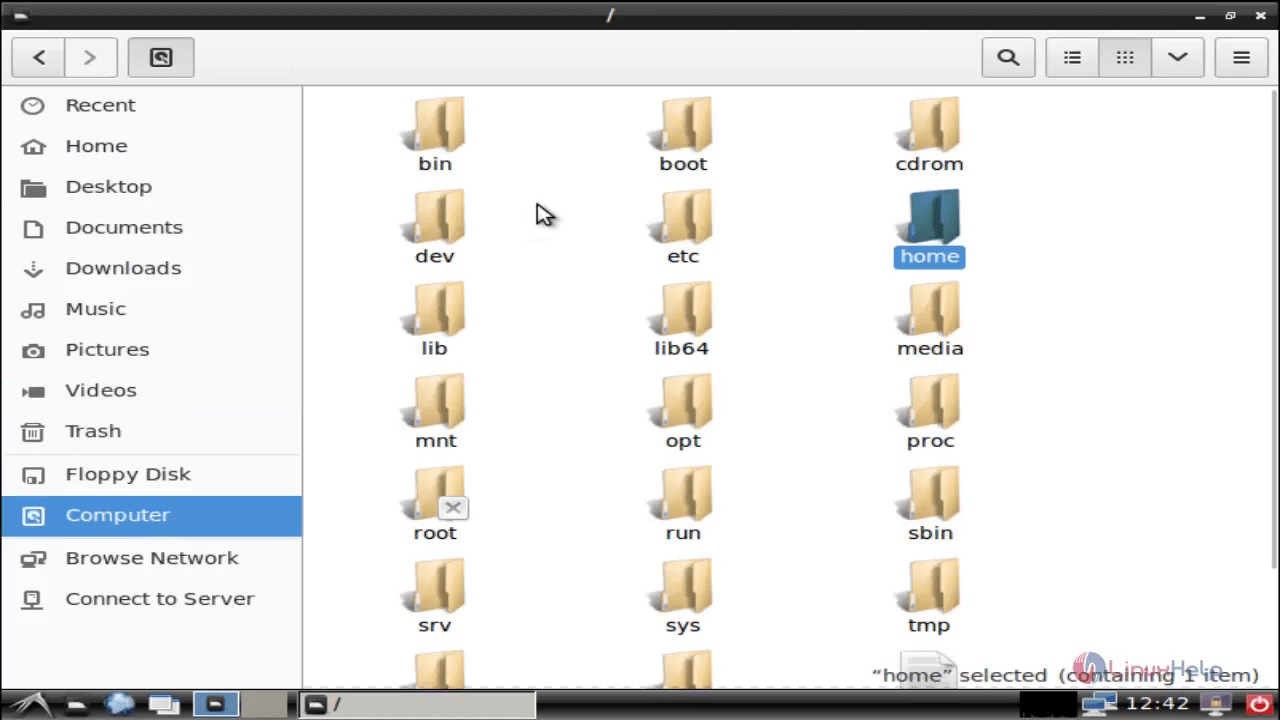
To View files, Go to Accessories &rarr Files.
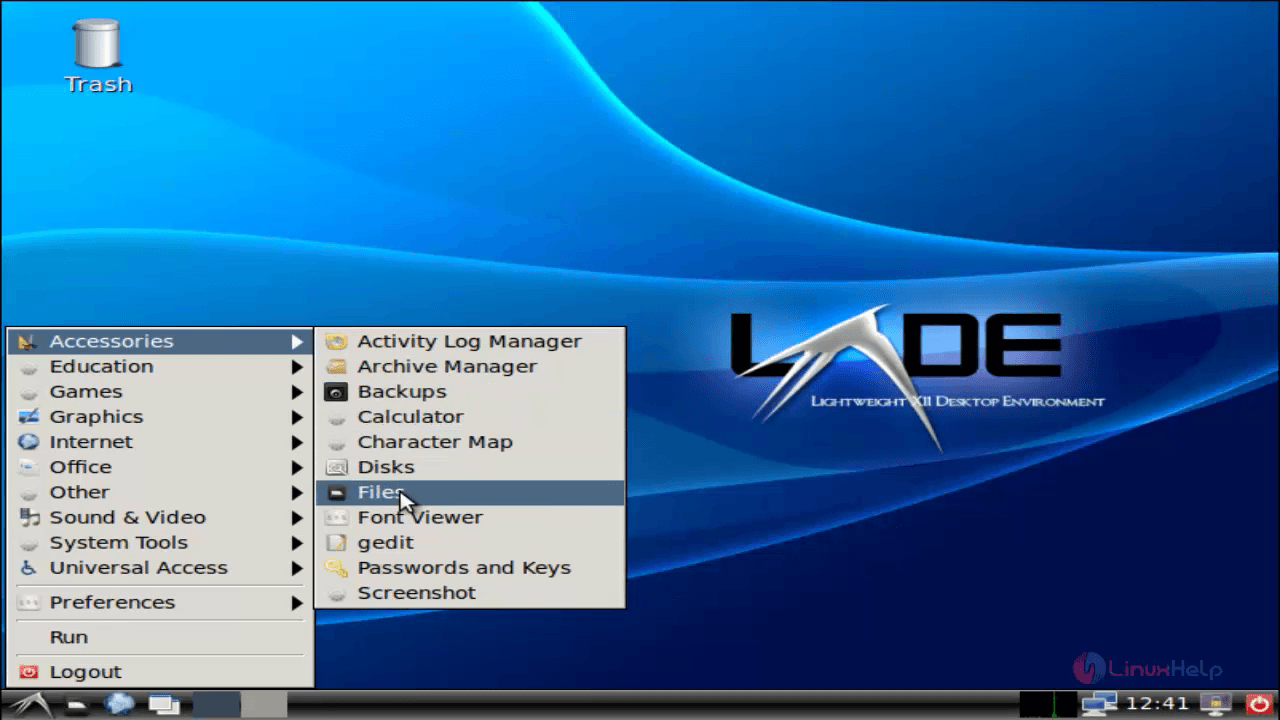
install-LXDE-Light-Weight-Desktop-Environment-Ubuntu-Files

install-LXDE-Light-Weight-Desktop-Environment-Ubuntu-home

install-LXDE-Light-Weight-Desktop-Environment-Ubuntu-computer

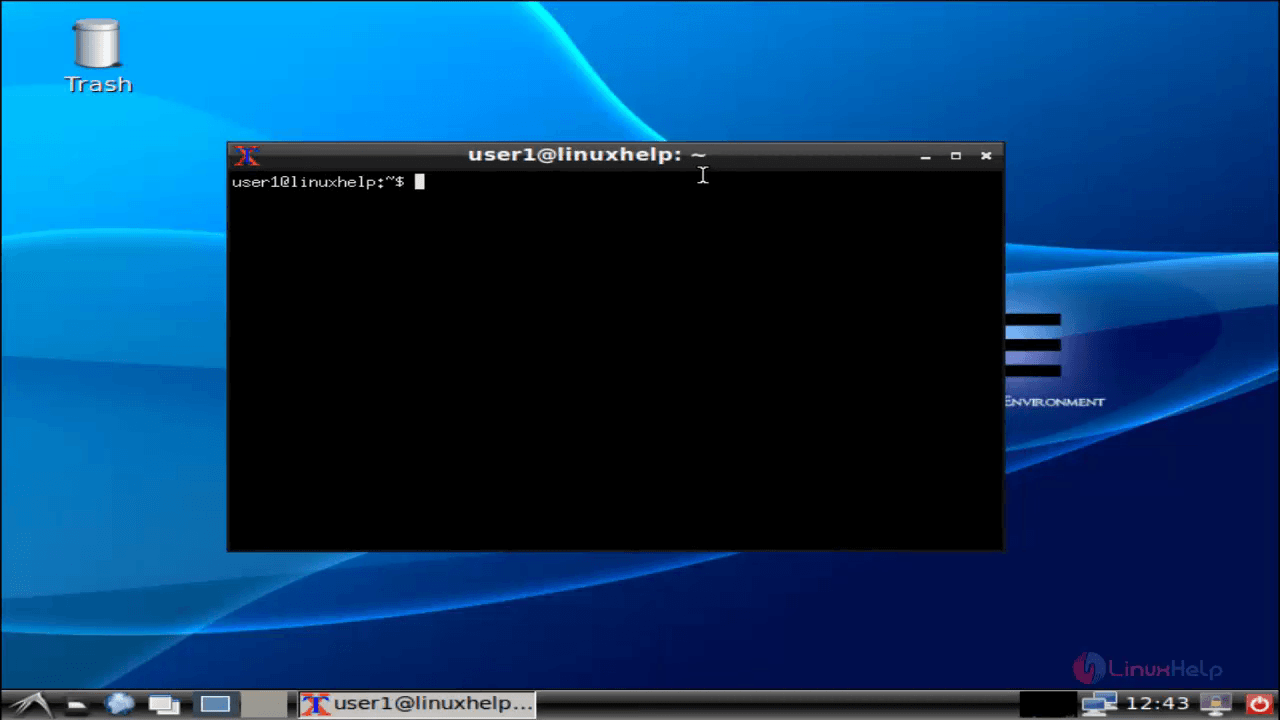
To Open Terminal, go to System tools &rarr UXTerm
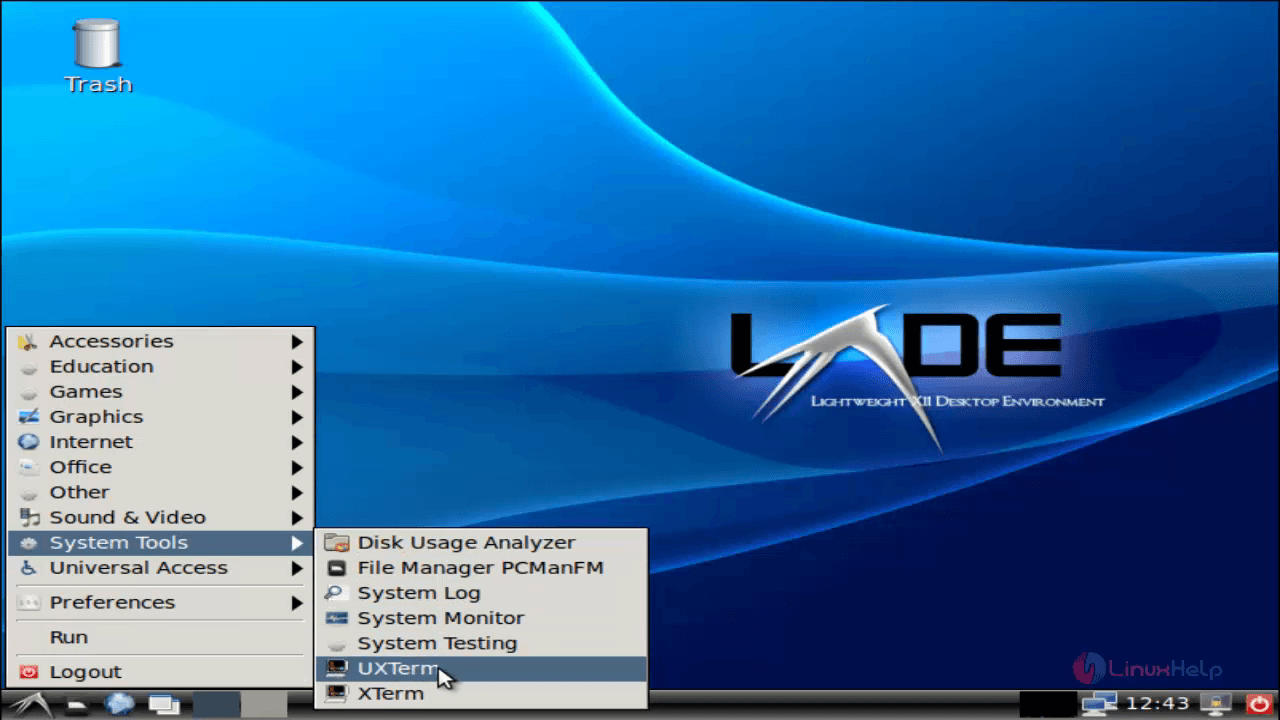
install-LXDE-Light-Weight-Desktop-Environment-Ubuntu-UXTerm

install-LXDE-Light-Weight-Desktop-Environment-Ubuntu-Terminal

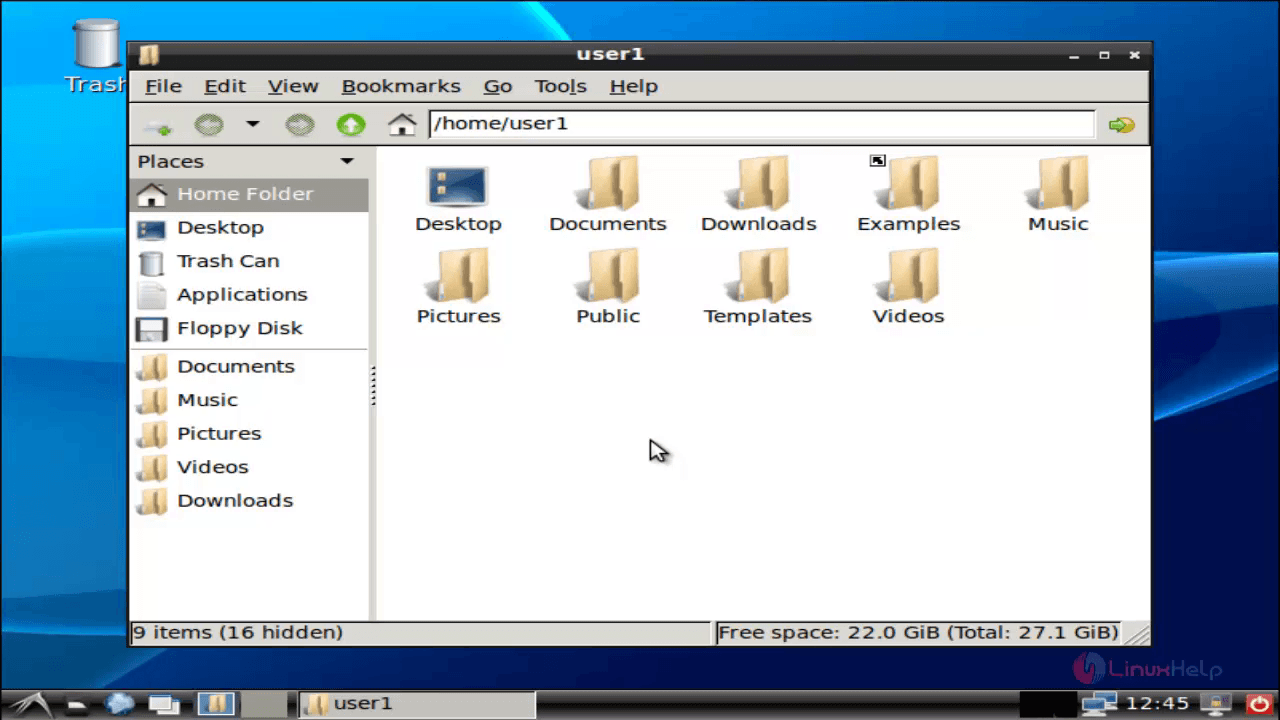
To open File Manager, click the file manager icon in the task bar.
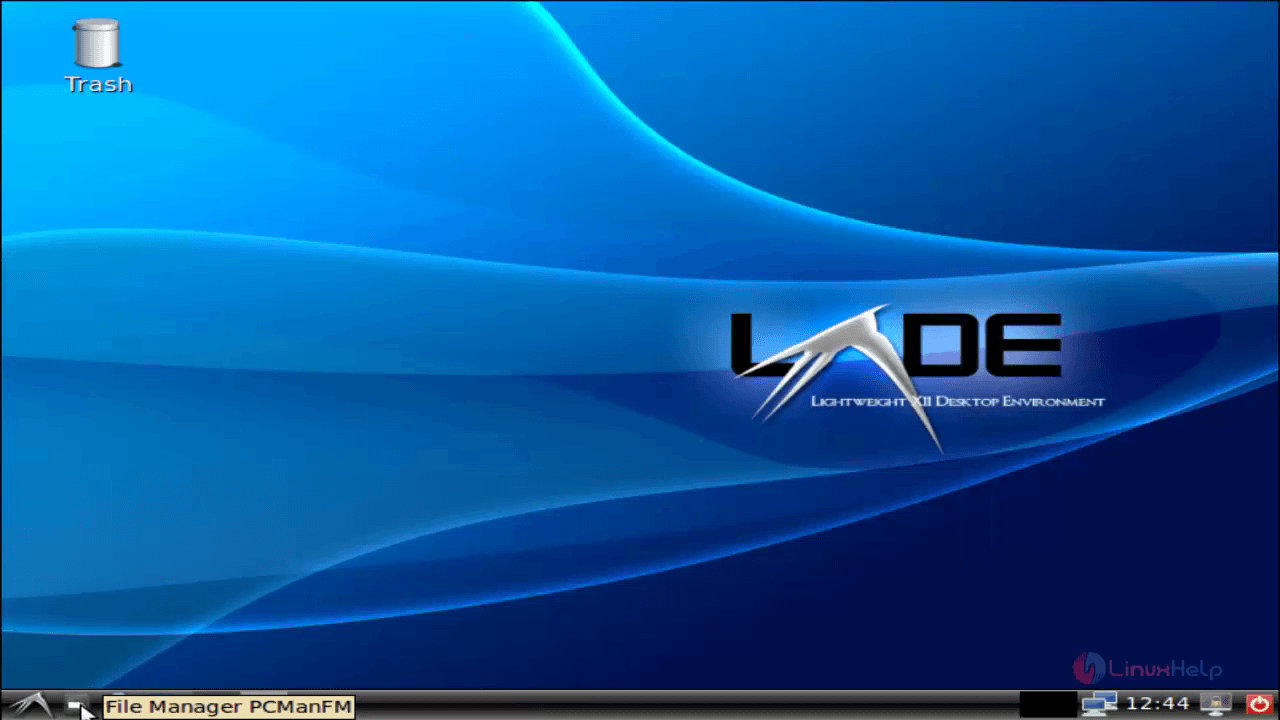
install-LXDE-Light-Weight-Desktop-Environment-Ubuntu-open-File-Manager

install-LXDE-Light-Weight-Desktop-Environment-Ubuntu-user1

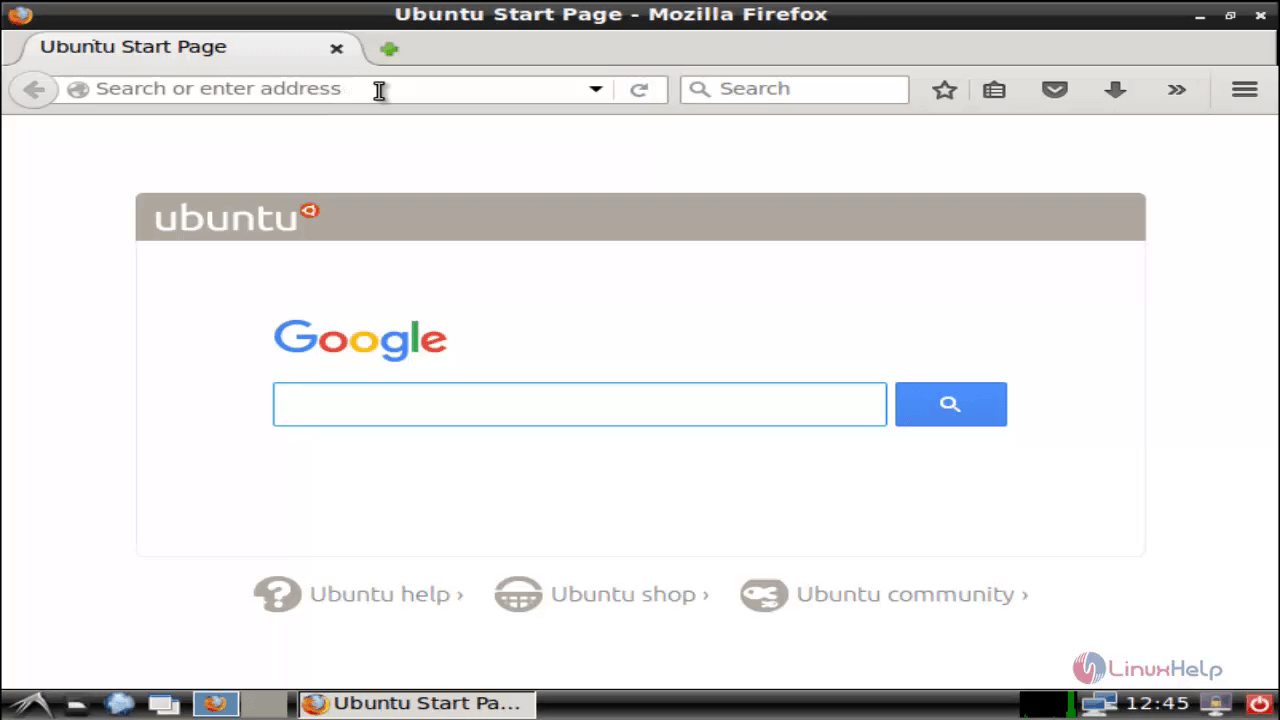
To open web browser, click the browser icon in the task bar.
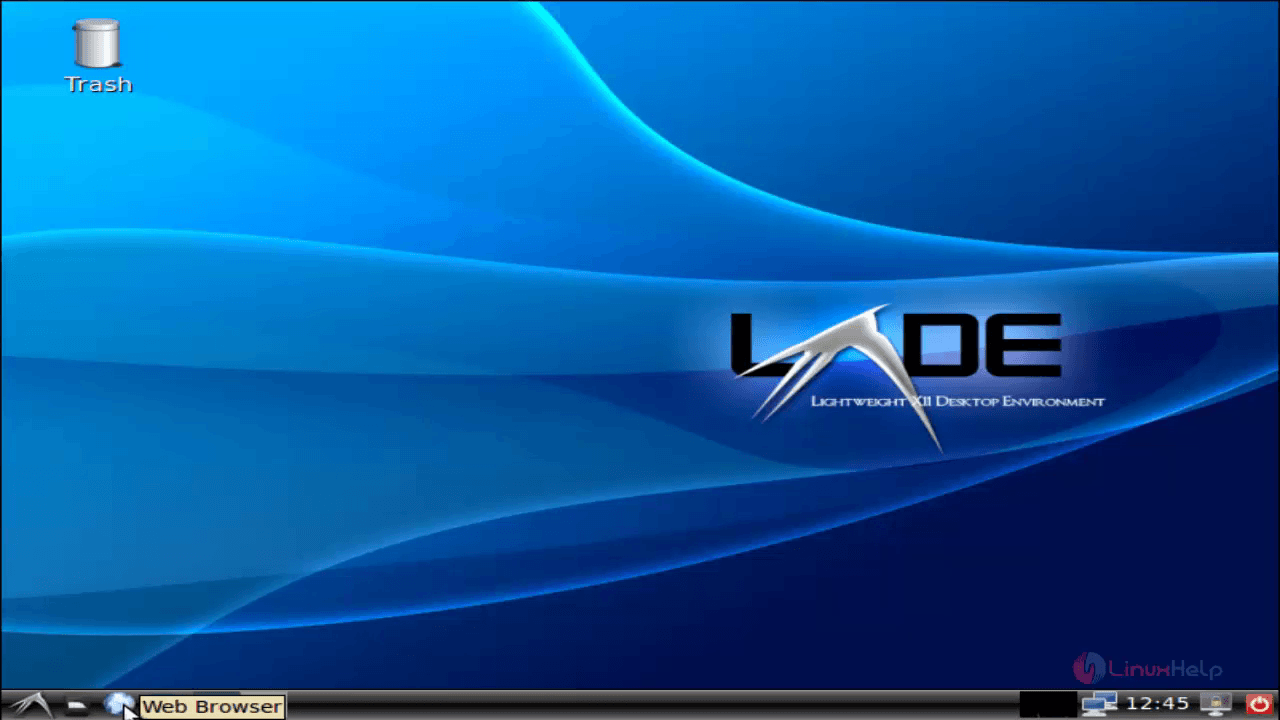
install-LXDE-Light-Weight-Desktop-Environment-Ubuntu-open-browser

install-LXDE-Light-Weight-Desktop-Environment-Ubuntu-start-page
To switch between work spaces, use the desktop icon.
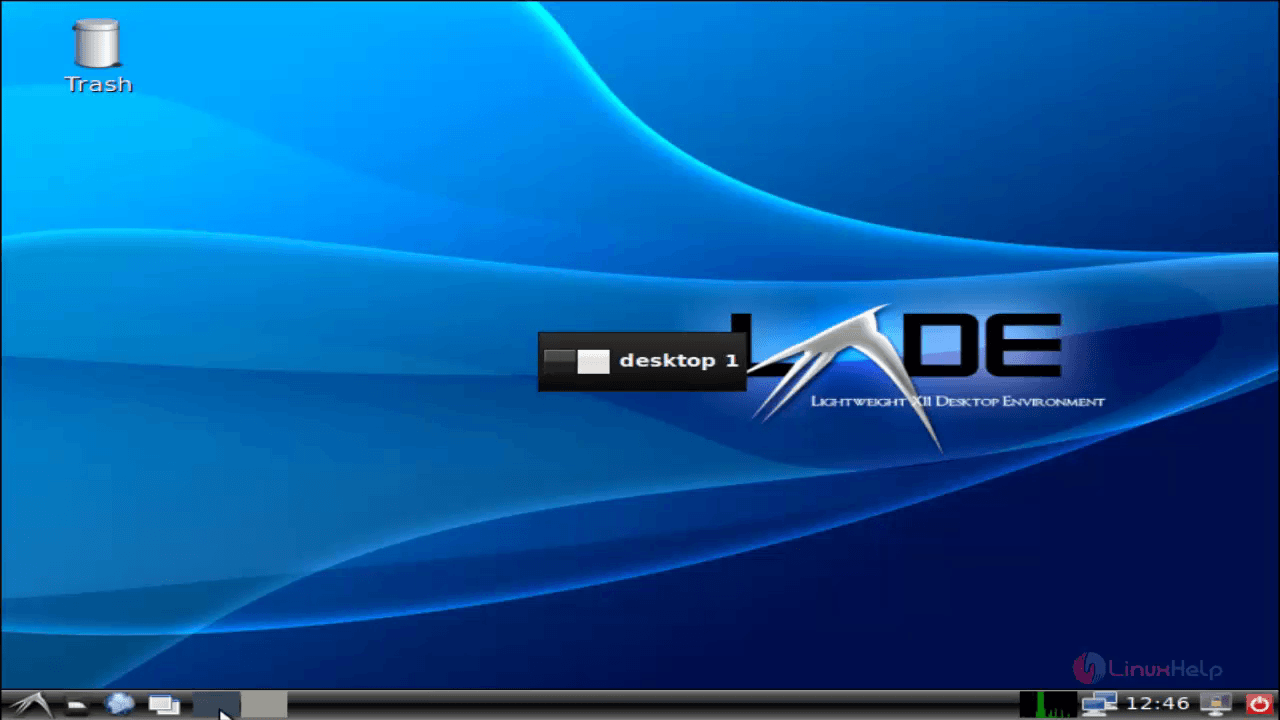
install-LXDE-Light-Weight-Desktop-Environment-Ubuntu-switch-between-work-spaces

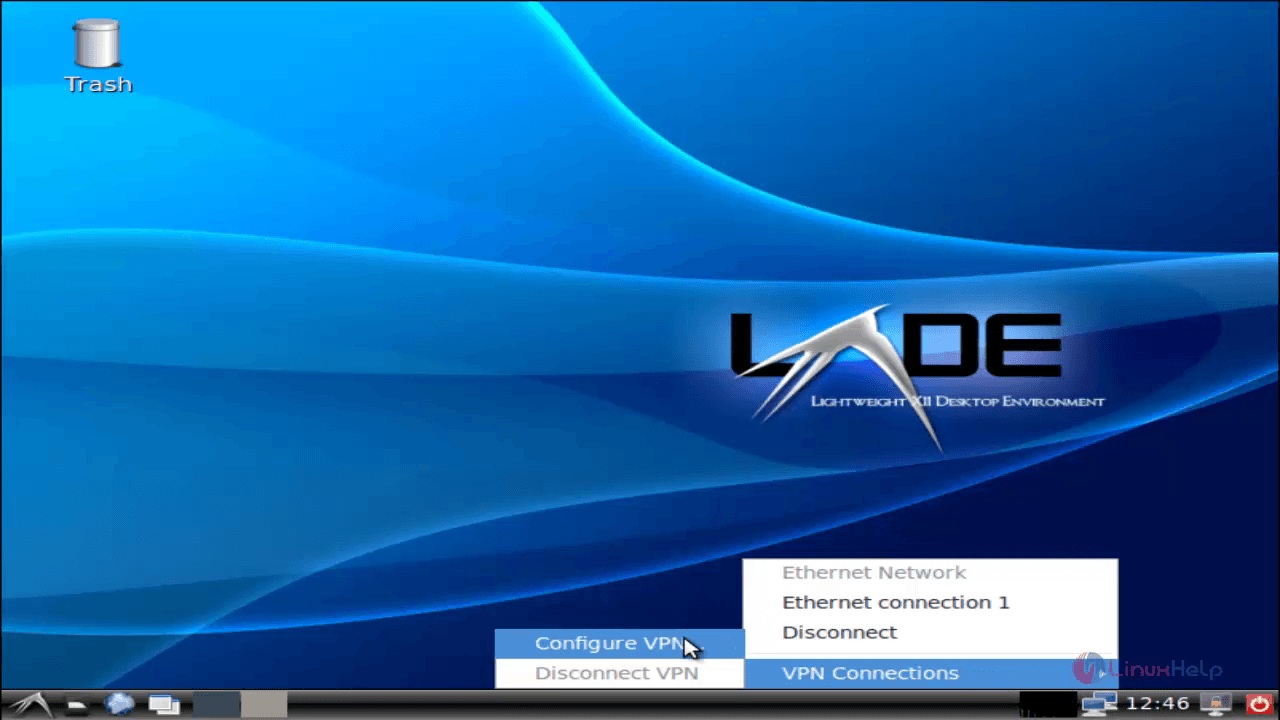
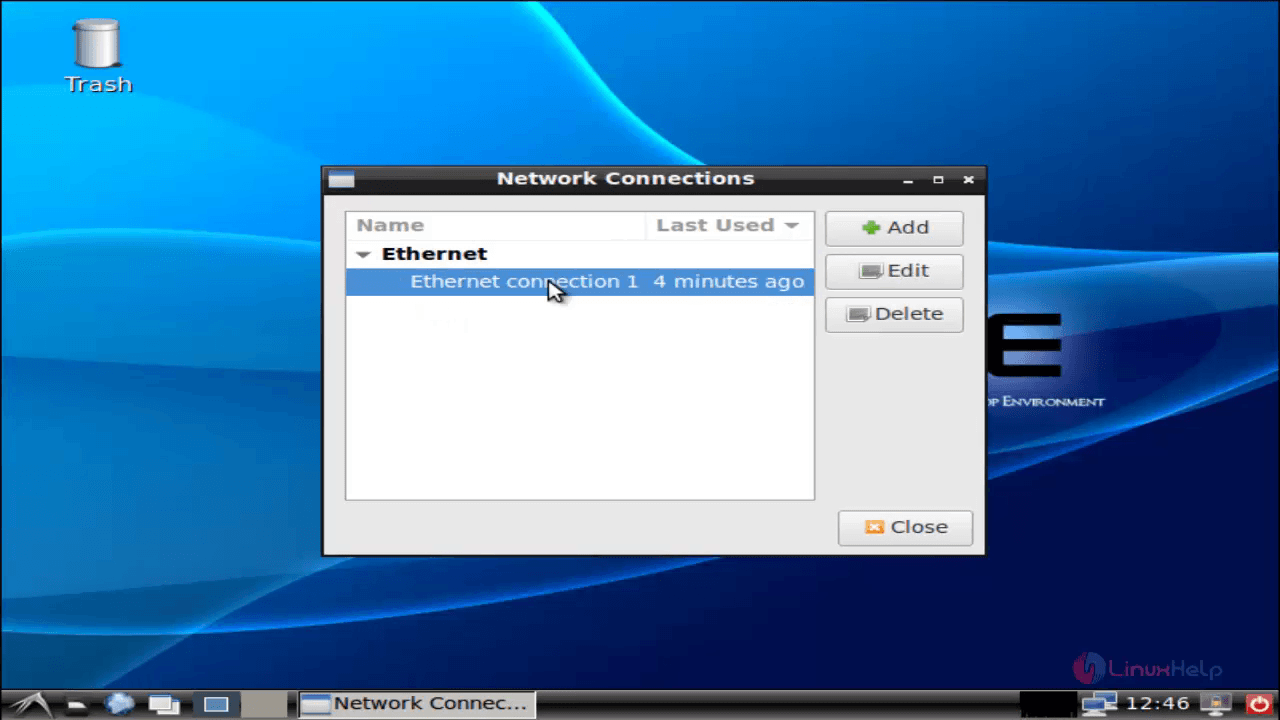
To configure Network Interface, click network icon.
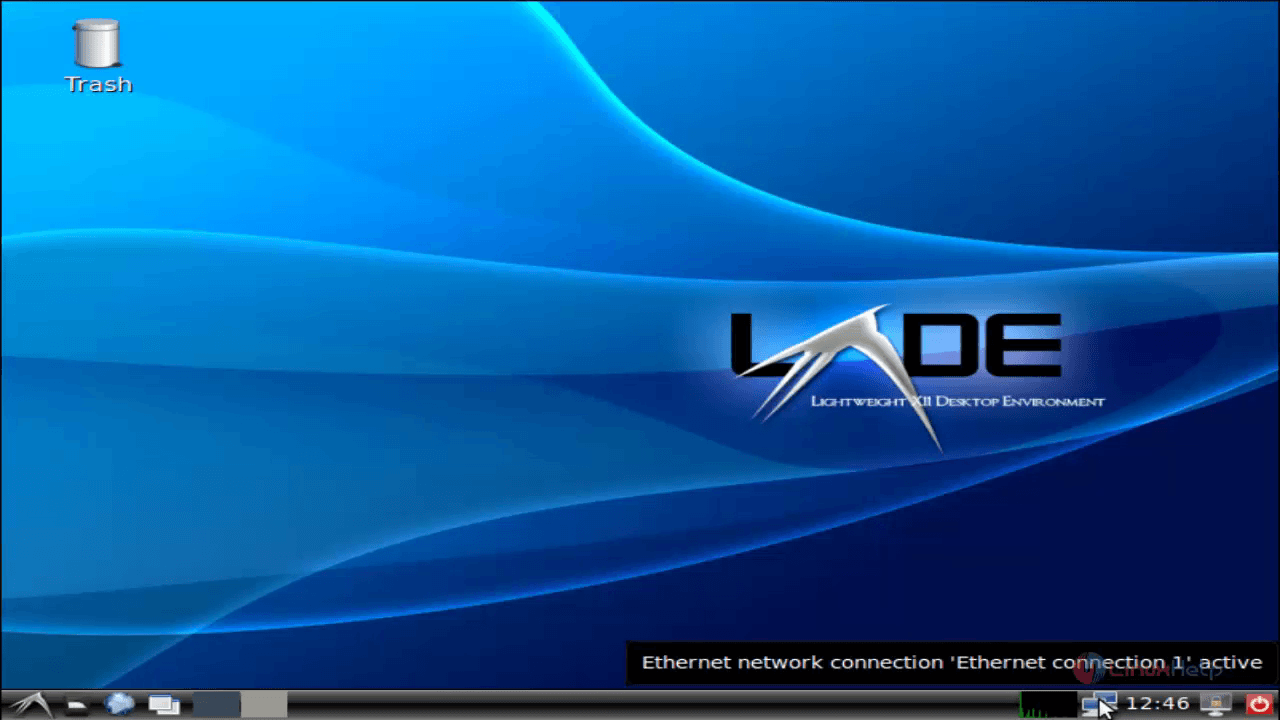
install-LXDE-Light-Weight-Desktop-Environment-Ubuntu-configure-Network-Interface-network-icon

install-LXDE-Light-Weight-Desktop-Environment-Ubuntu-configure-VPN

install-LXDE-Light-Weight-Desktop-Environment-Ubuntu-ethernet-connection1

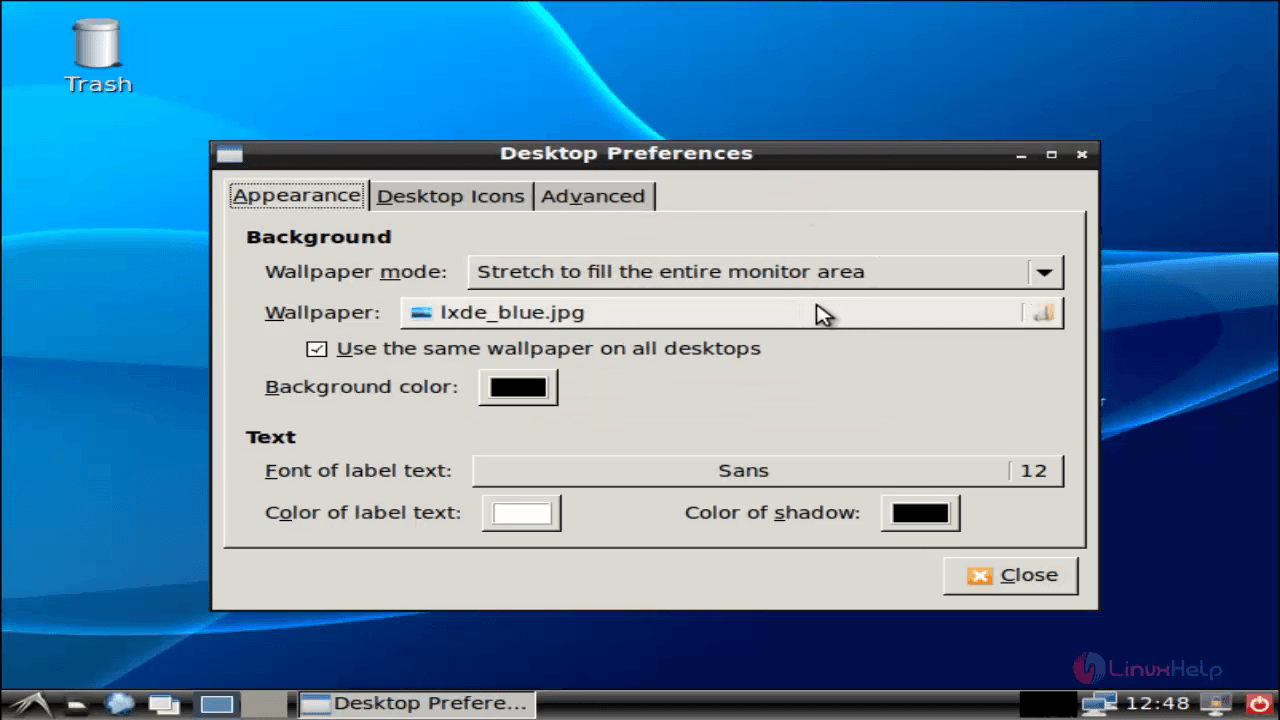
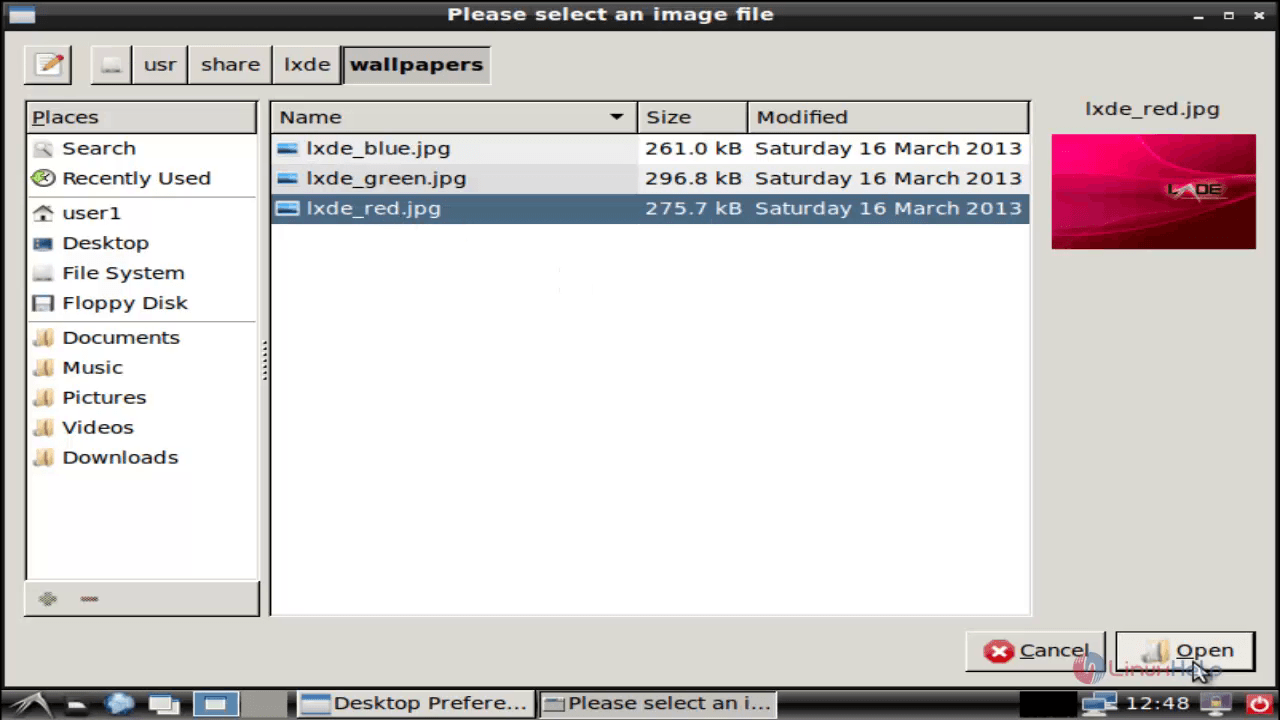
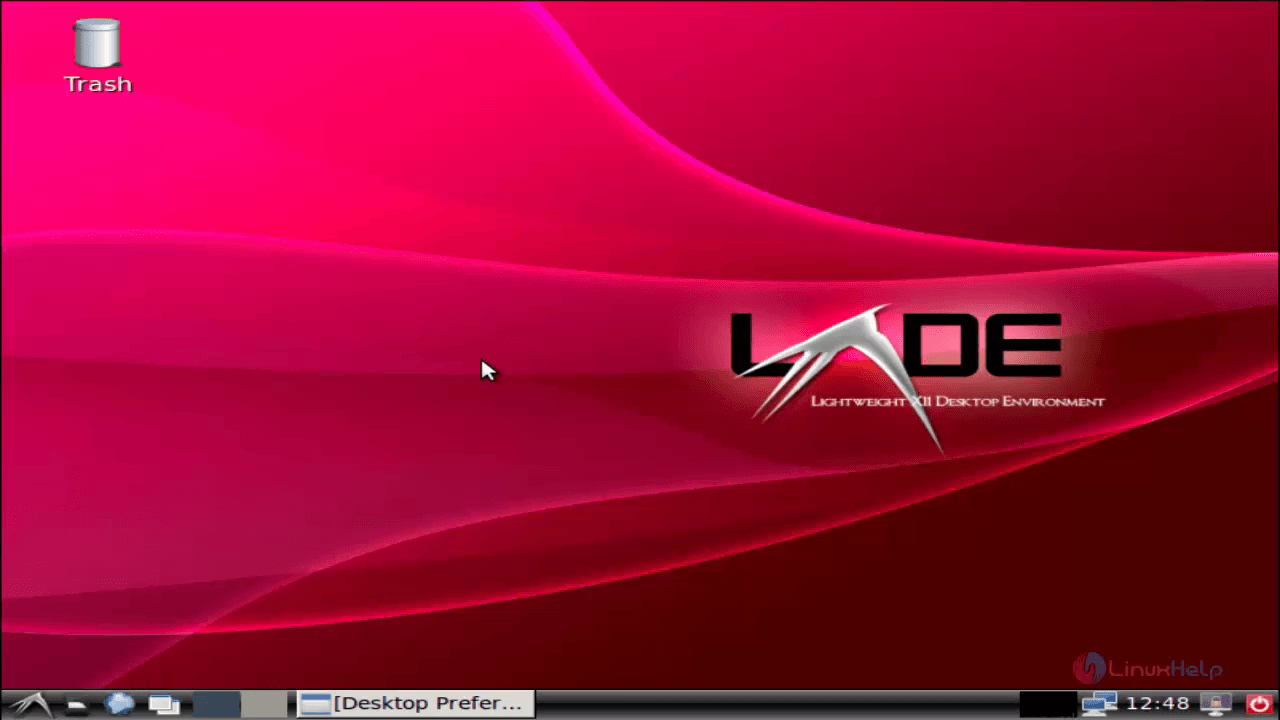
To change Desktop Background, right click and select Desktop preferences.
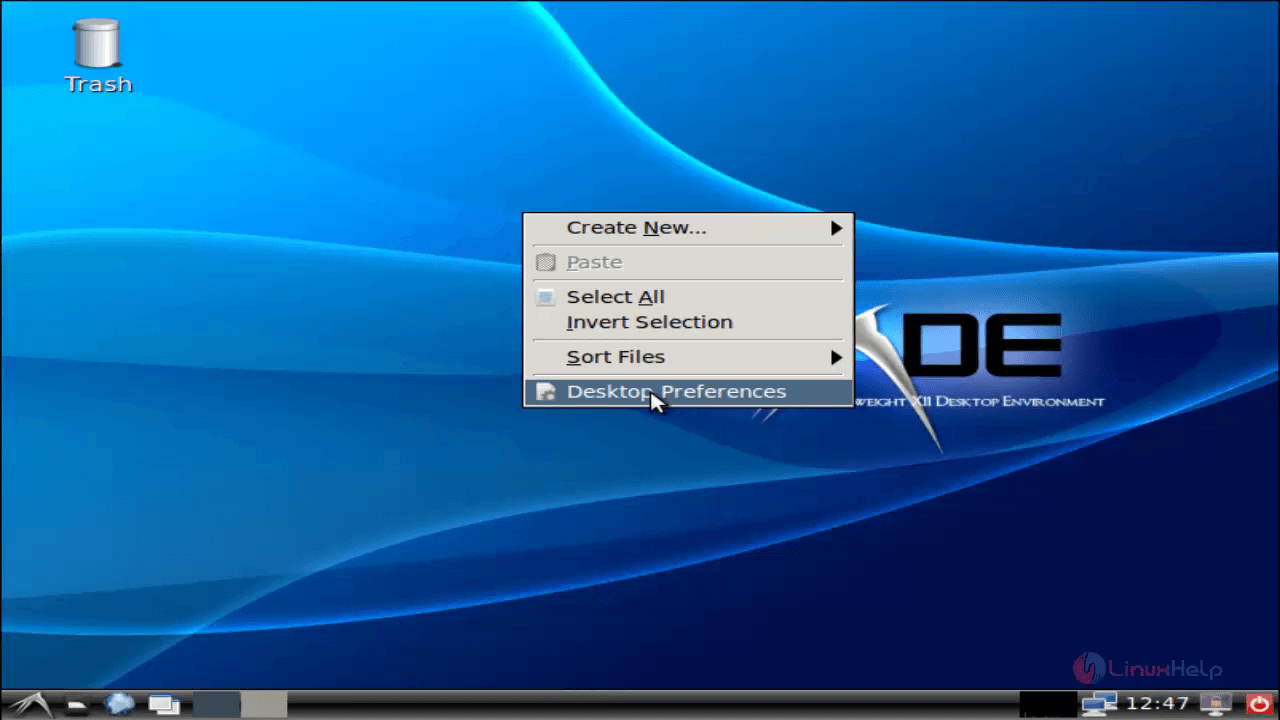
install-LXDE-Light-Weight-Desktop-Environment-Ubuntu-change-Desktop-Background-Desktop-preferences

install-LXDE-Light-Weight-Desktop-Environment-Ubuntu-wallpaper

install-LXDE-Light-Weight-Desktop-Environment-Ubuntu-select-image-file

install-LXDE-Light-Weight-Desktop-Environment-Ubuntu-done

Tags:
benjamin
Author: 

Comments ( 0 )

No comments available

Add a comment
{{postCtrl.cmtErrMsg}}

Frequently asked questions ( 5 )

Q

How to install LXDE Light Weight Desktop Environment on Ubuntu?

A

Run the following command to install LXDE.

# apt-get install dialog xorg lxde-core

Q

How can we logout from your current desktop?

A

Follow the instructions
*After installation, logout from your current desktop.
*Click the Ubuntu Icon to change the Desktop Environment and choose &ldquo LXDE&rdquo

Q

What's the name LXDE means?

A

LXDE is the abbrevation of Lightweight X11 Desktop Environment, and also LX means LinuX.

Q

How can I use window manager other than Openbox?

A

Use the following commands
Simply edit /etc/xdg/lxsession/LXDE/default with a text editor, and replace openbox with your favorite window manager.

Q

How do I make an application autostart on LXDE launch?

A

For system wide you edit the file /etc/xdg/lxsession/LXDE/autostart, for user specific application launches (the more common way) you just add a .desktop file to ~/.config/autostart or add the commands to .config/lxsession/LXDE/autostart.

Back To Top!
Rank
User
Points

Top Contributers

userNamenaveelansari
135850

Top Contributers

userNameayanbhatti
92510

Top Contributers

userNamehamzaahmed
32150

Top Contributers

1
userNamelinuxhelp
31040

Top Contributers

userNamemuhammadali
24500
Can you help Owen ?
How to add SSH key to my Gitlab account

I need to add the SSH key in my gitlab account. How to do so ????

Networking
  • Routing
  • trunk
  • Netmask
  • Packet Capture
  • domain
  • HTTP Proxy
Server Setup
  • NFS
  • KVM
  • Memory
  • Sendmail
  • WebDAV
  • LXC
Shell Commands
  • Cloud commander
  • Command line archive tools
  • last command
  • Shell
  • terminal
  • Throttle
Desktop Application
  • Linux app
  • Pithos
  • Retrospect
  • Scribe
  • TortoiseHg
  • 4Images
Monitoring Tool
  • Monit
  • Apache Server Monitoring
  • EtherApe 
  • Arpwatch Tool
  • Auditd
  • Barman
Web Application
  • Nutch
  • Amazon VPC
  • FarmWarDeployer
  • Rukovoditel
  • Mirror site
  • Chef
Contact Us | Terms of Use| Privacy Policy| Disclaimer
© 2025 LinuxHelp.com All rights reserved. Linux™ is the registered trademark of Linus Torvalds. This site is not affiliated with linus torvalds in any way.