• Categories
    Category
    {{ postCtrl.tags }}
    • {{ category.tag_type }}

      • {{tag.tag_name}}
      • View more
  • Categories
    Category
    {{ postCtrl.tags }}
    • {{ category.tag_type }}

      • {{tag.tag_name}}
      • View more
  • News
  • Tutorials
  • Forums
  • Tags
  • Users
Tutorial News Comments FAQ Related Articles

How to Install LXLE 16.04.1

{{postValue.id}}

To Install LXLE 16.04.1

LXLE is an open source operating system with LXDE desktop environment based on Linux distributions. The lightweight desktop OS has advance featured and unique characteristics. It is developed with useful modifications and tweaks. Installation of LXLE 16.04.1 is explained in this article.

Features

  • Optimized LXDE user interface is used
  • Simple and Familiar desktop UI
  • Preinstalled Prudent full featured Apps
  • Random & Interval Wallpaper Changer
  • Preinstalled 100 gorgeous wallpapers
  • Several tweaks

Installation of LXLE 16.04.1

First download the latest version of LXLE OS from the below given official site.

http://www.lxle.net

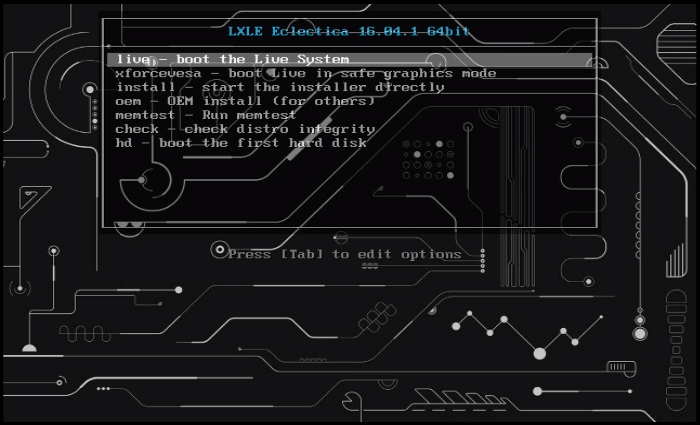
Then make it bootable DVD or USB and insert that bootable media into the system. Now restart the system to get the menu page as given below.
bootable_media

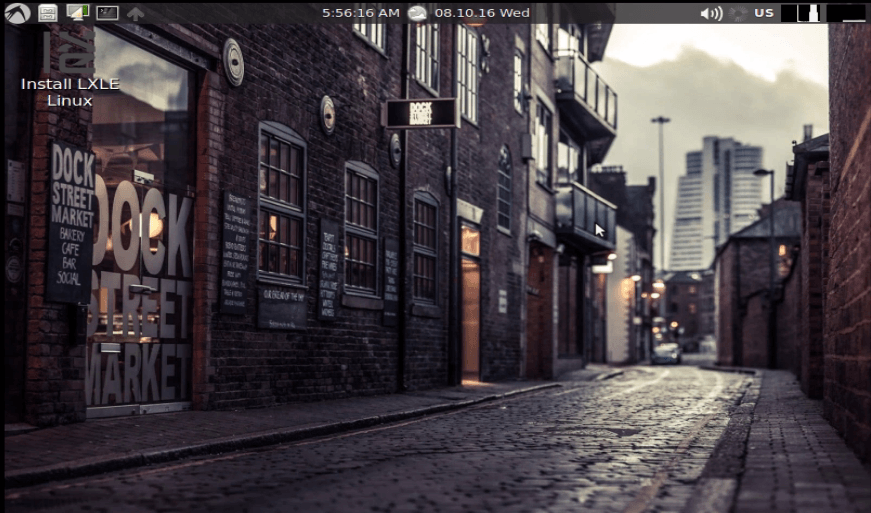
Select live option through arrow keys and press enter to boot live mode. Now live mode desktop will be open.
boot_live_mode

Next select the install LXLE Linux and press enter to proceed.
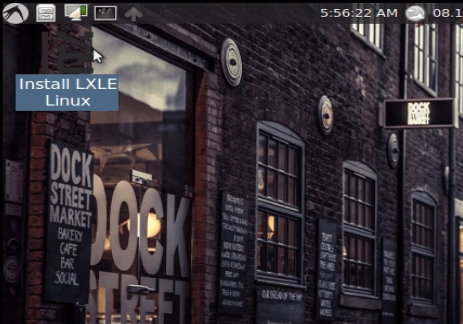
install_lxle

In this welcome wizard, select your language and click continue.
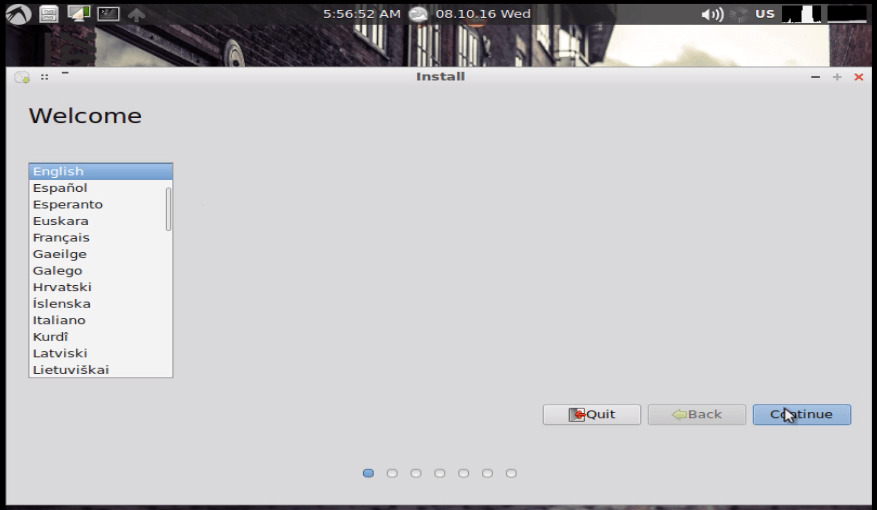
language

If you want third party software then select install third-party software and click continue.
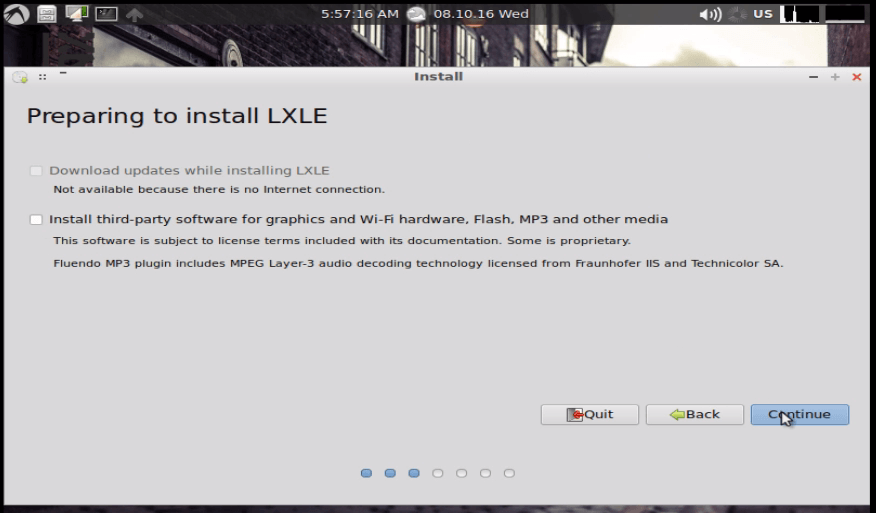
third_party_software

Next select the installation type for partition. Select something else for manual partition and click continue.
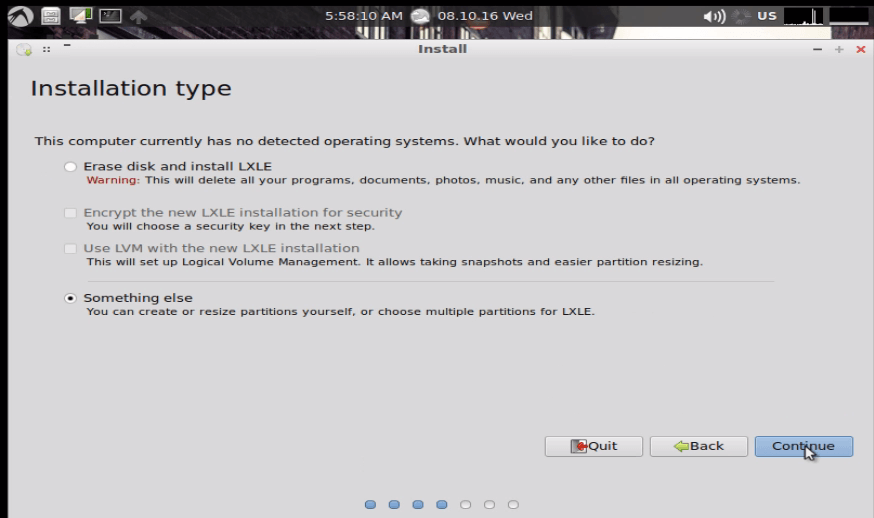
type_of_partition

Now you can see hard disk, here click new partition table.
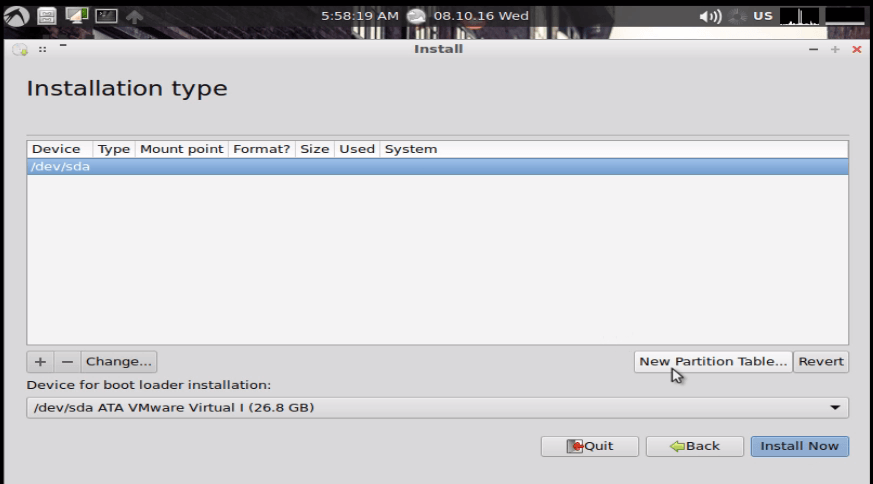
new_partition_table

Next create new empty partition table and then click continue to create partition table.
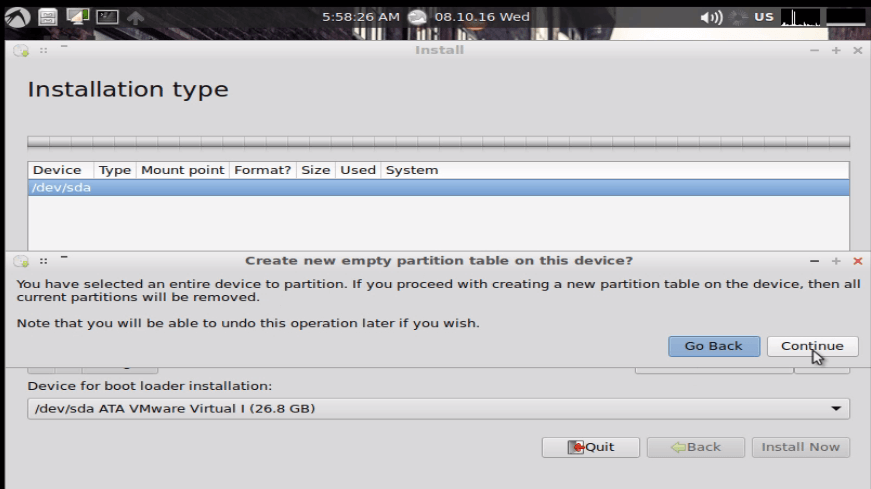
new_empty_partition

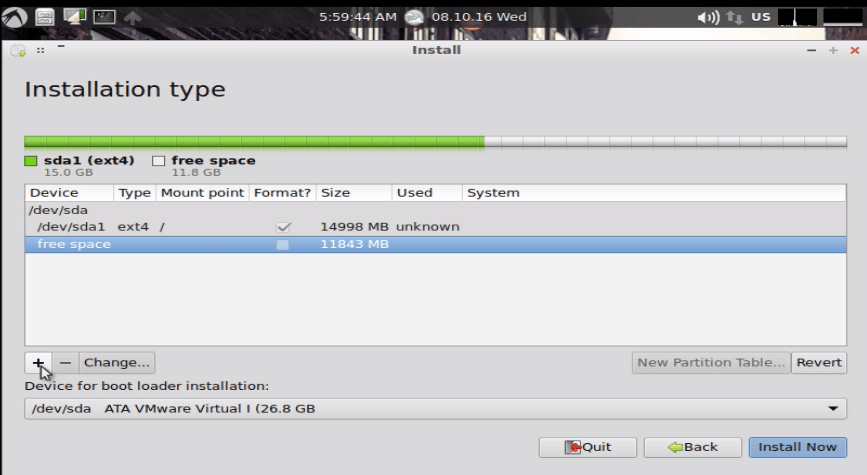
Here select free space disk and click on + icon to create new partition.
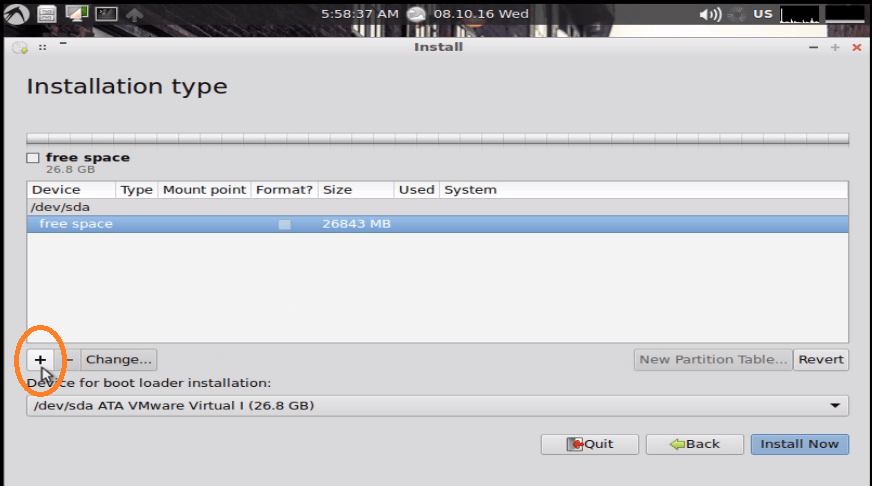
create_new_partition

Enter the following details as given below.
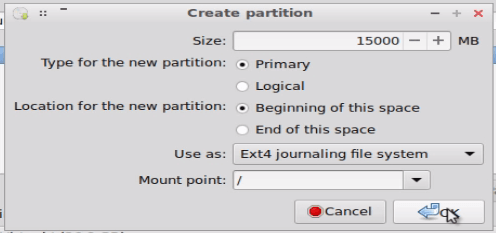
create_partition

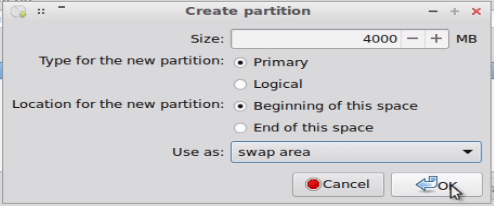
Again select free space disk and click on + icon. Now its time to swap memory.
free_space_disk

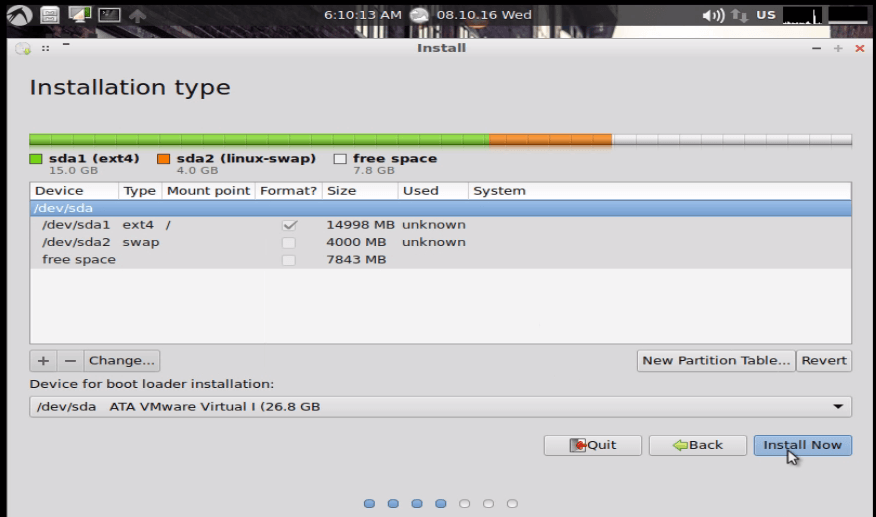
Enter the size for swap. Make sure that size must be double the actual RAM size. Then click ok option.
swap_size

Next click on install now option.

install_now

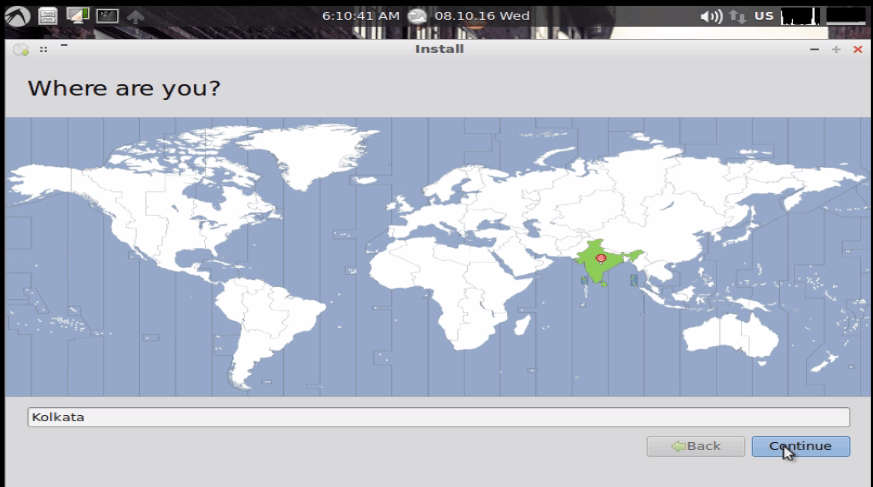
Here select your location and then click continue option.
location

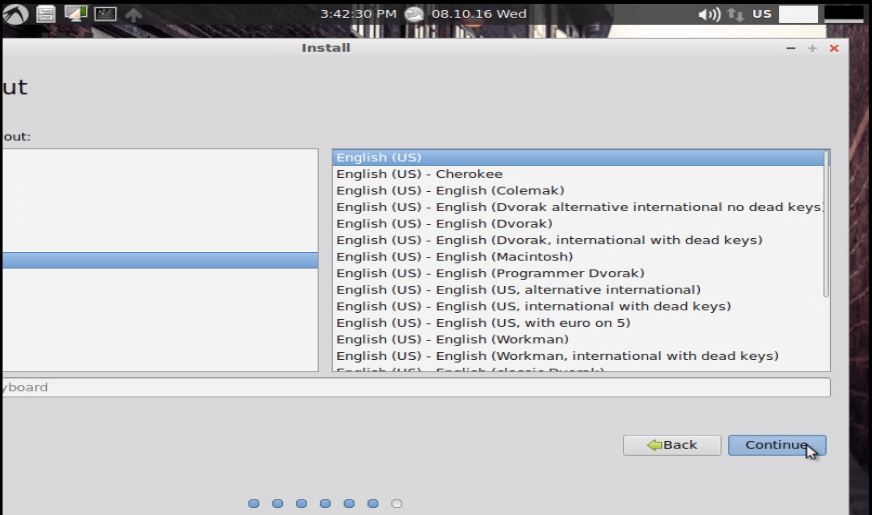
Select key board layout and click continue option.
keyboard_layout

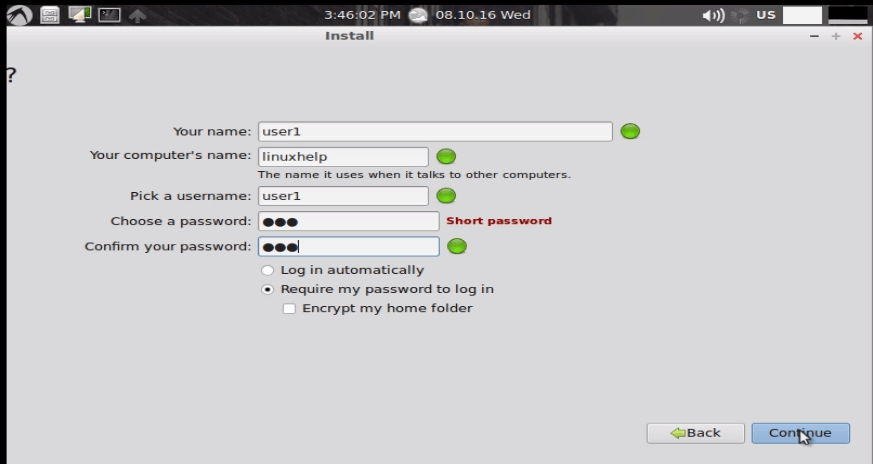
Enter the following details and then set host name. Next click continue option.
set_host

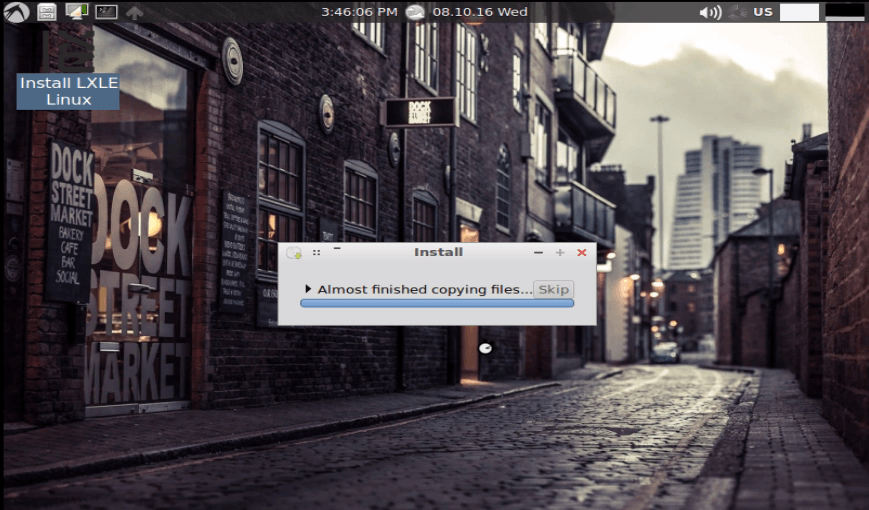
Finally installation started.

installation_start

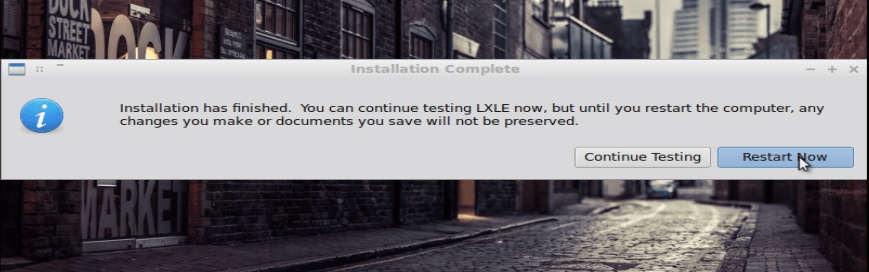
Here click on restart now option in the installation complete wizard.
restart

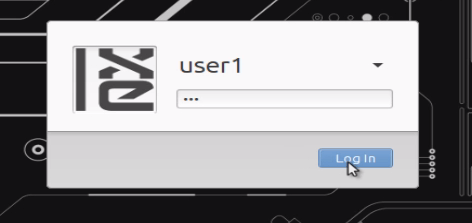
After restart user login page will appear on the screen. Enter the user password and then click log in option.
login_page

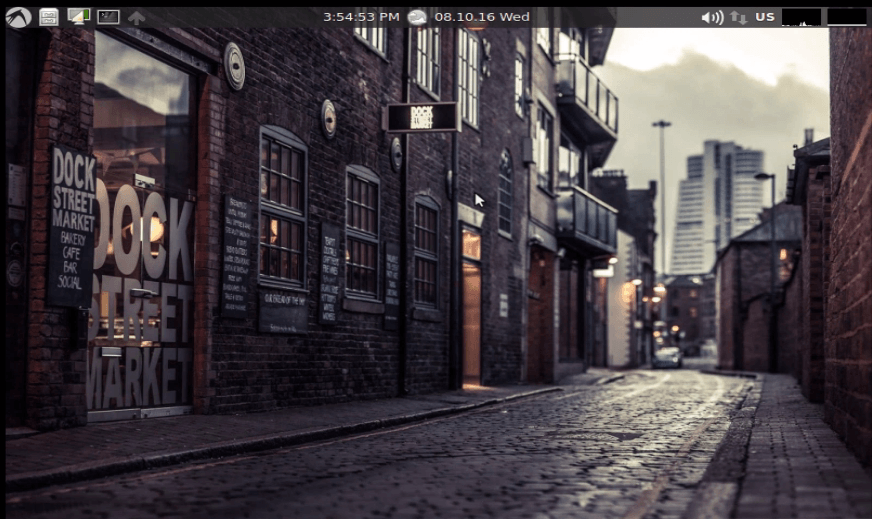
Now you can able to see you LXLE desktop.
lxle_desktop

Tags:
christian
Author: 

Comments ( 0 )

No comments available

Add a comment
{{postCtrl.cmtErrMsg}}

Frequently asked questions ( 5 )

Q

what tool is used for this?

A

you can prefer "Unetbootin" which is good for all linux distributions

Q

I found some installation error in Unetbootin please any other alternative ? Even for windows Os also it is fine

A

Yumi, power iso and rufus you can go for it

Q

What are the features of the LXLE?

A

A Full-Featured Operating System for Aging PCs.
Peek Under the Hood - Program Docs and Manuals - v. 12.04.3

32 and 64 bit OS versions available.
Stable and rock solid performance.
Boot to online time: 15 - 60 seconds (depends on hardware.)

Q

What is the LXLE?

A

LXLE stands for Lubuntu eXtra Life Extension.

LXLE is simply a respun Lubuntu OS with different goals:

Develops a beautiful, modern-looking, intuitive desktop - for anyone to use easily.

Sticks with LTS only releases of Ubuntu to ensure hardware & software support.

Q

What are the Aging?

A

Fast Forecast, Aero Snap, Quick Launch

Back To Top!
Rank
User
Points

Top Contributers

userNamenaveelansari
135850

Top Contributers

userNameayanbhatti
92510

Top Contributers

userNamehamzaahmed
32150

Top Contributers

1
userNamelinuxhelp
31040

Top Contributers

userNamemuhammadali
24500
Can you help Elijah ?
Remote Desktop Connection Has Stopped Working

When accessing my remote machine server using remote desktop on a windows machine I am getting this error

forum (1)

Networking
  • Routing
  • trunk
  • Netmask
  • Packet Capture
  • domain
  • HTTP Proxy
Server Setup
  • NFS
  • KVM
  • Memory
  • Sendmail
  • WebDAV
  • LXC
Shell Commands
  • Cloud commander
  • Command line archive tools
  • last command
  • Shell
  • terminal
  • Throttle
Desktop Application
  • Linux app
  • Pithos
  • Retrospect
  • Scribe
  • TortoiseHg
  • 4Images
Monitoring Tool
  • Monit
  • Apache Server Monitoring
  • EtherApe 
  • Arpwatch Tool
  • Auditd
  • Barman
Web Application
  • Nutch
  • Amazon VPC
  • FarmWarDeployer
  • Rukovoditel
  • Mirror site
  • Chef
Contact Us | Terms of Use| Privacy Policy| Disclaimer
© 2025 LinuxHelp.com All rights reserved. Linux™ is the registered trademark of Linus Torvalds. This site is not affiliated with linus torvalds in any way.