• Categories
    Category
    {{ postCtrl.tags }}
    • {{ category.tag_type }}

      • {{tag.tag_name}}
      • View more
  • Categories
    Category
    {{ postCtrl.tags }}
    • {{ category.tag_type }}

      • {{tag.tag_name}}
      • View more
  • News
  • Tutorials
  • Forums
  • Tags
  • Users
Tutorial News Comments FAQ Related Articles

How to install Mageia Linux

{{postValue.id}}

To install Mageia Linux

Mageia Linux is an open-source, stable and secure operating system for all desktop and servers. Mageia is a branch of Mandriva Linux distribution. It is the community driven, non-profit project developed by a group of former Mandriva developers. Installation of Mageia Linux is explained in this manual.

Mageia Linux Installation

First download the Mageia linux ISO file from its official site. After downloading, make the file as bootable software.When the following screen appears on your screen, click on install Mageia 5.
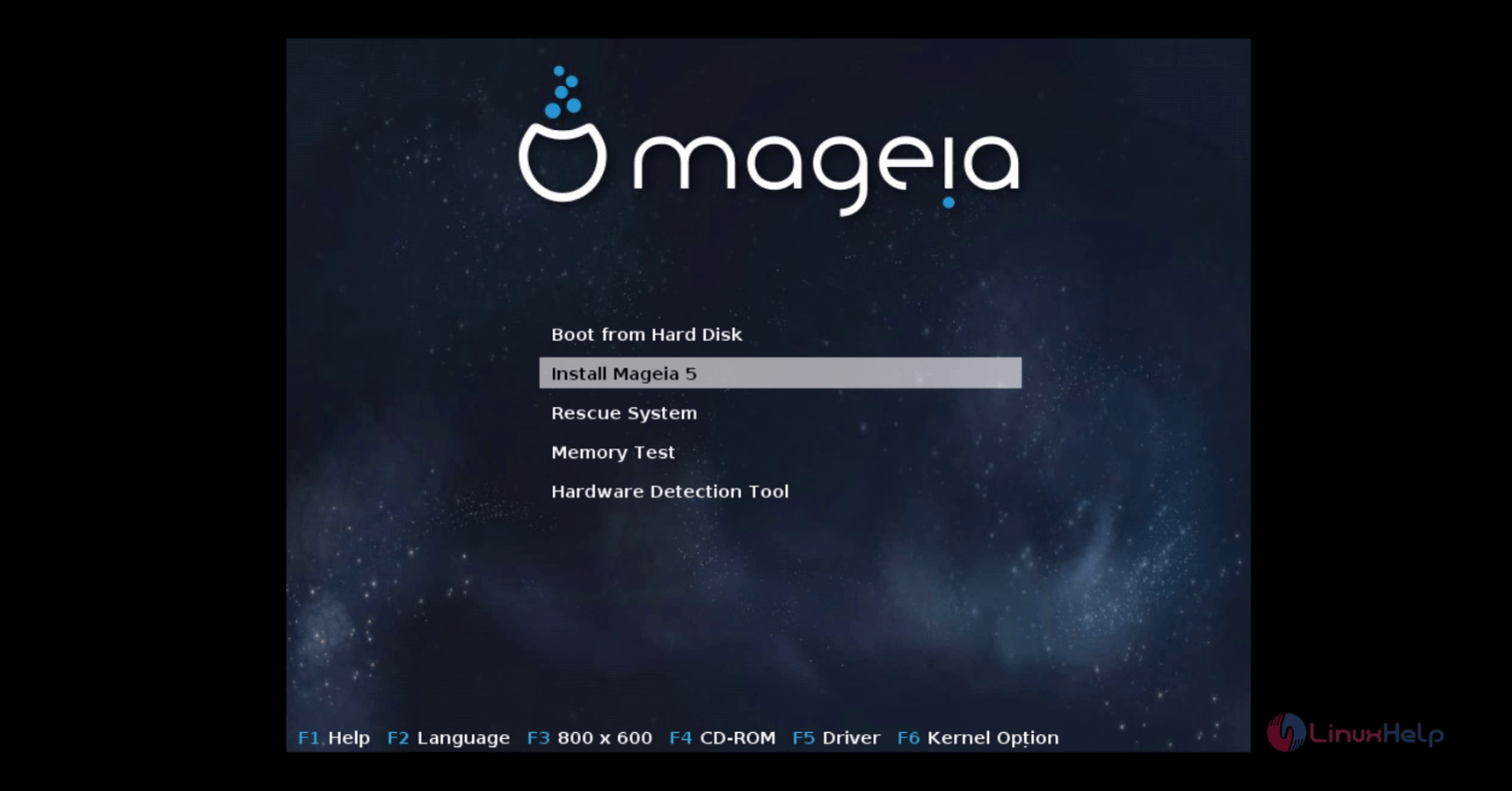
Install_Mageia
Choose your desired language and click Next.
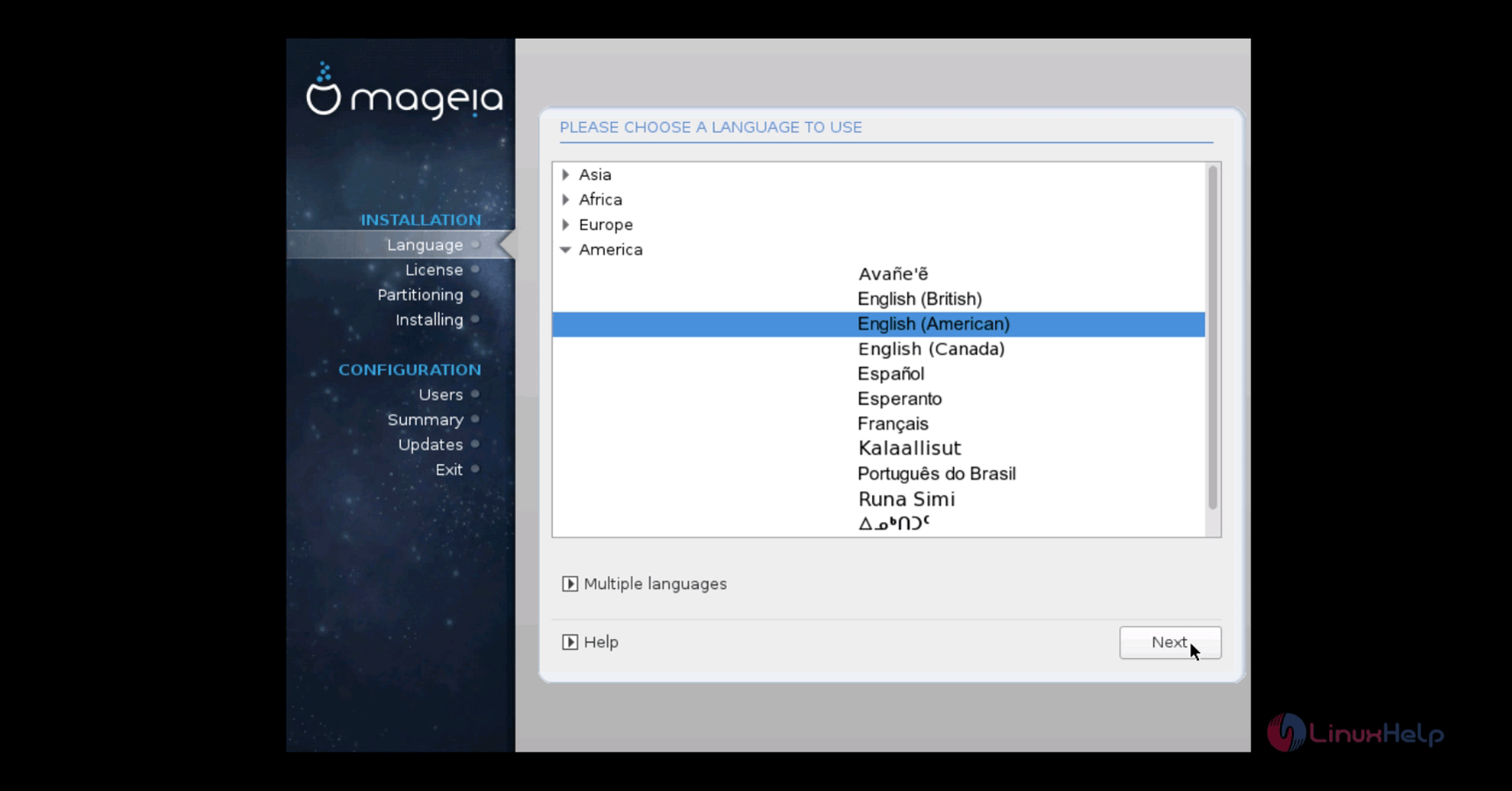
Desired_Language
Read the License agreement and accept it.
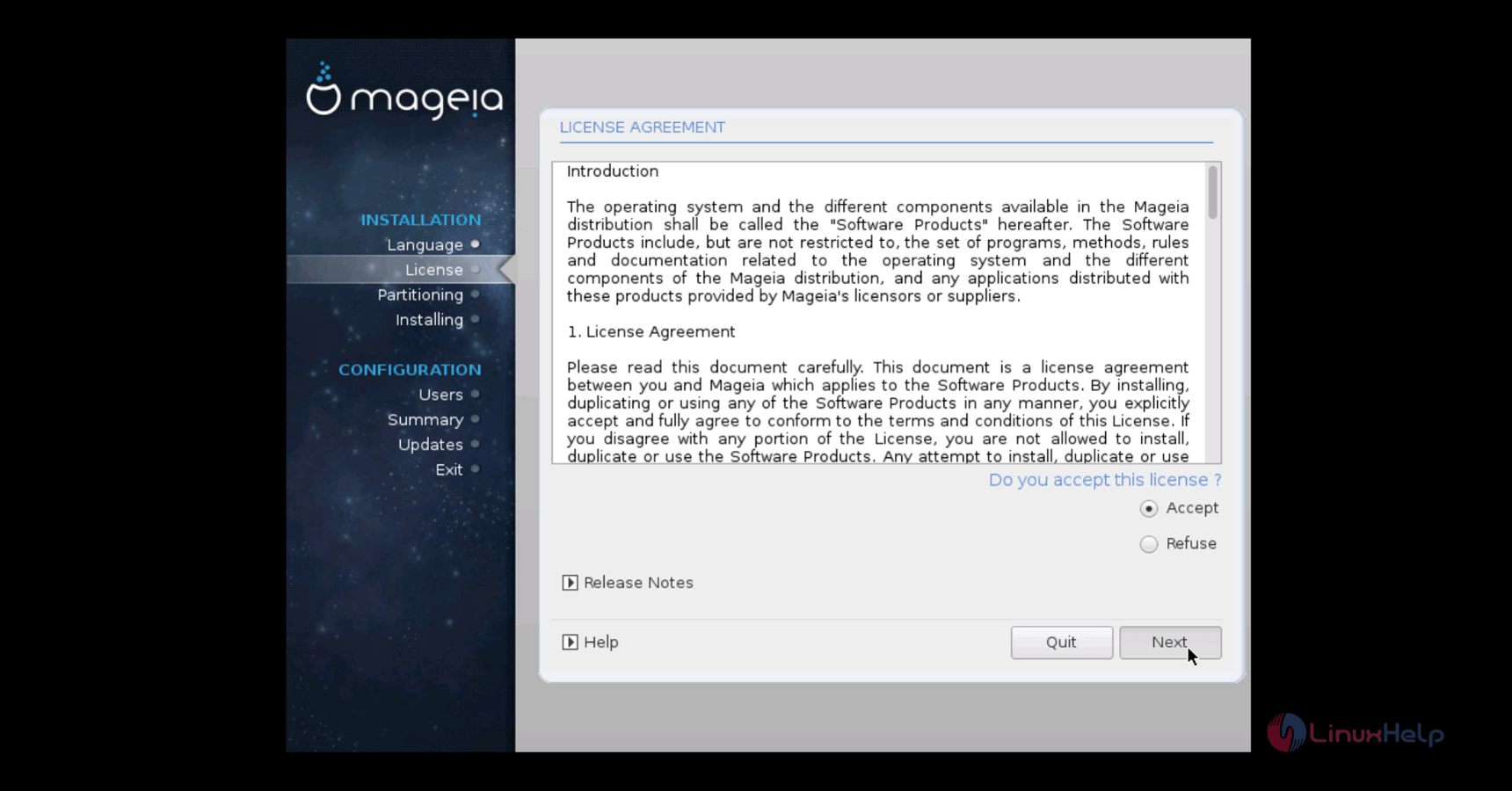
 License_agreement
Select the type of keyboard layout and click Next.
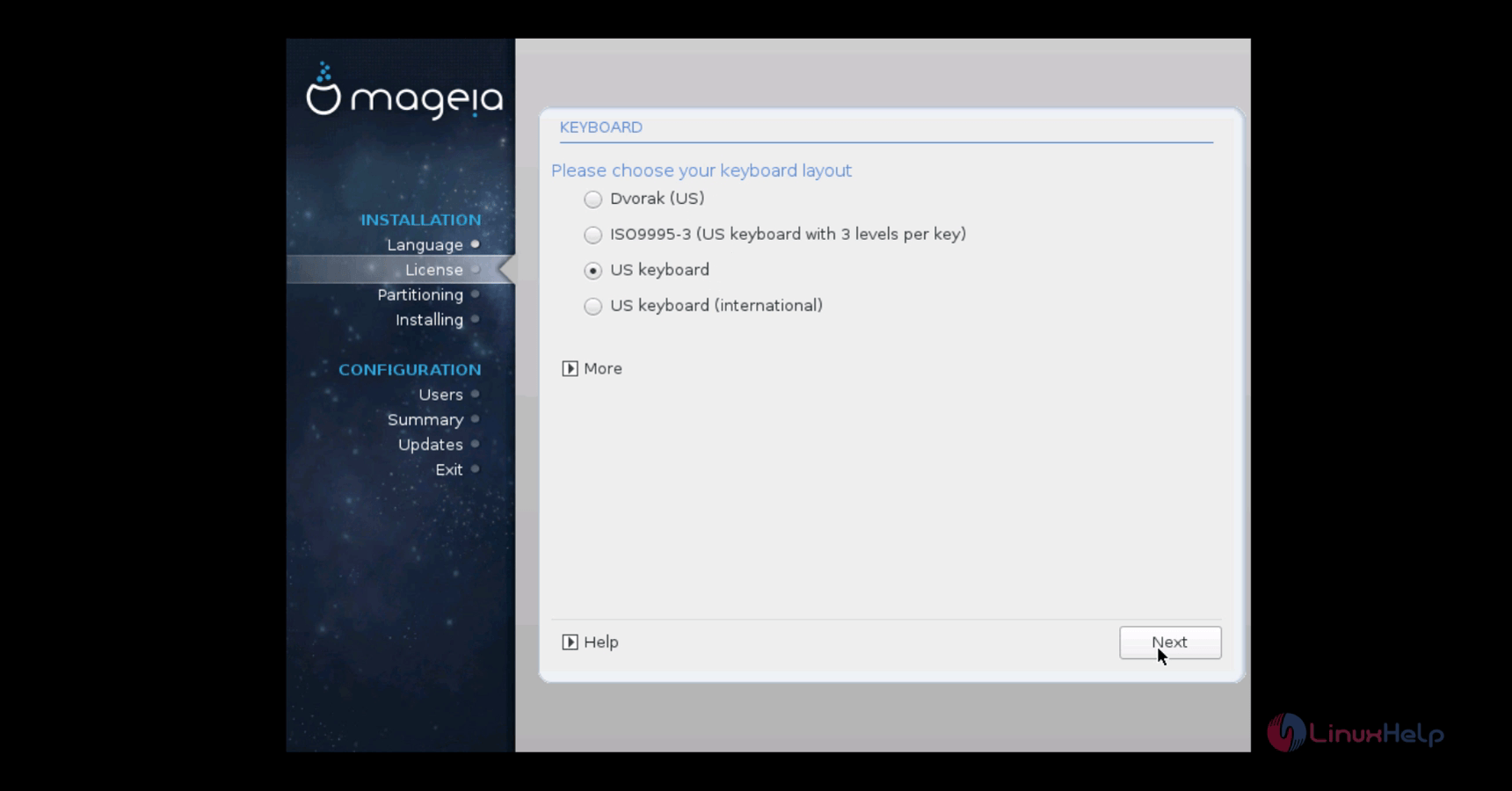
keyboard_layout

To create partition

Select custom partitioning to create manual partitions and click next.
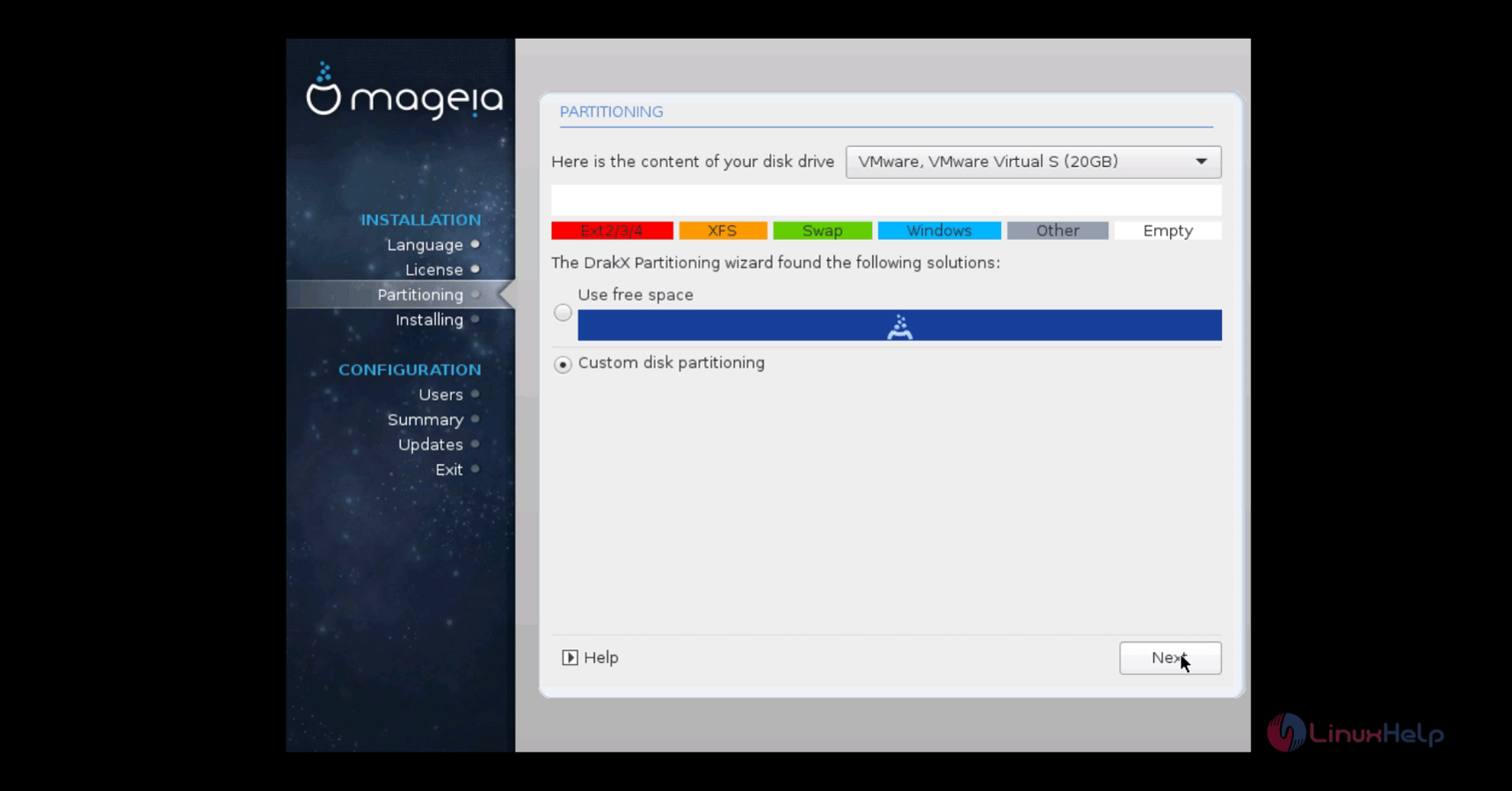
Mageia_create_partition

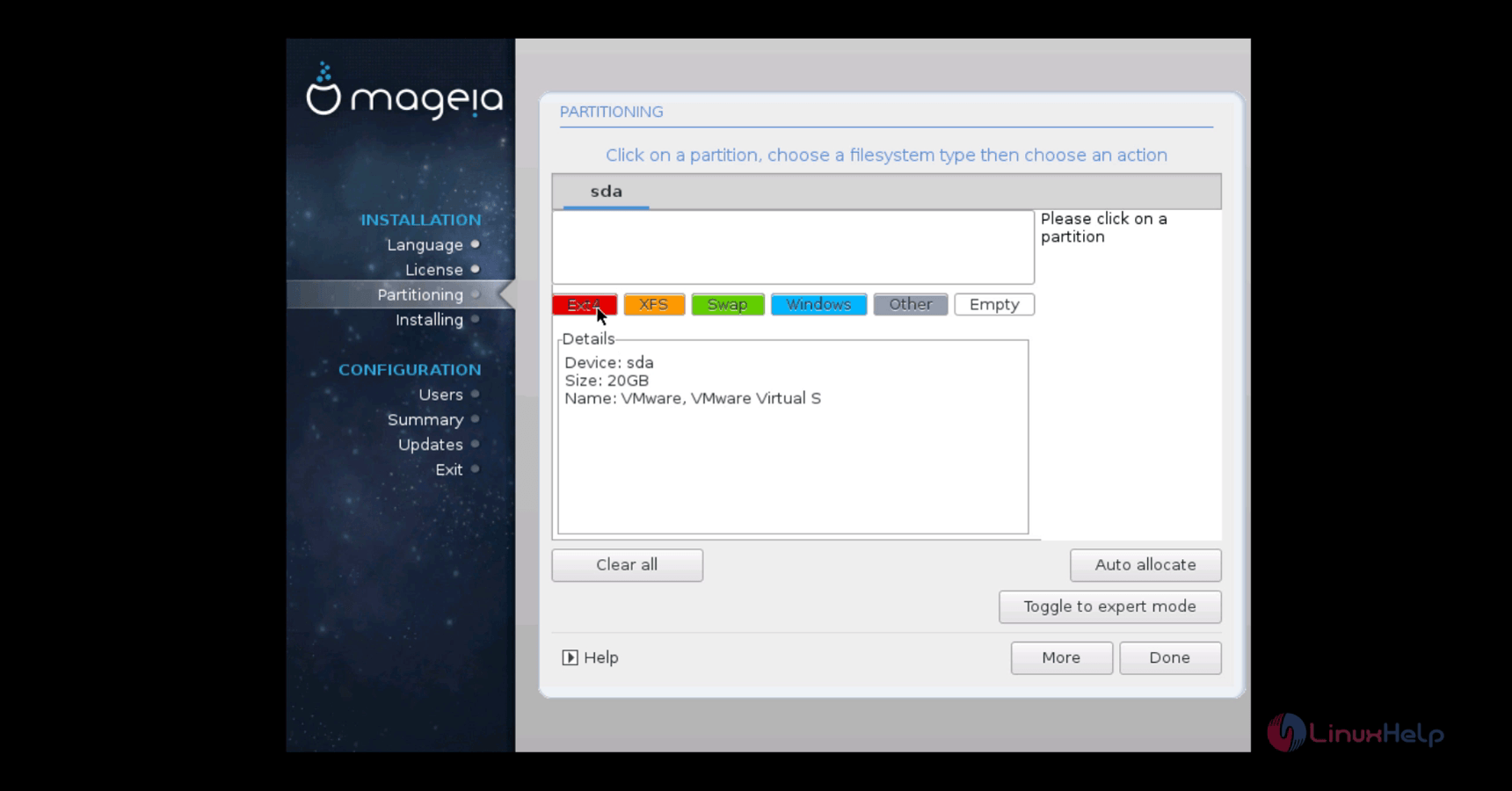
Boot partition
Select the free space which is to be partitioned for boot mount point.boot partition
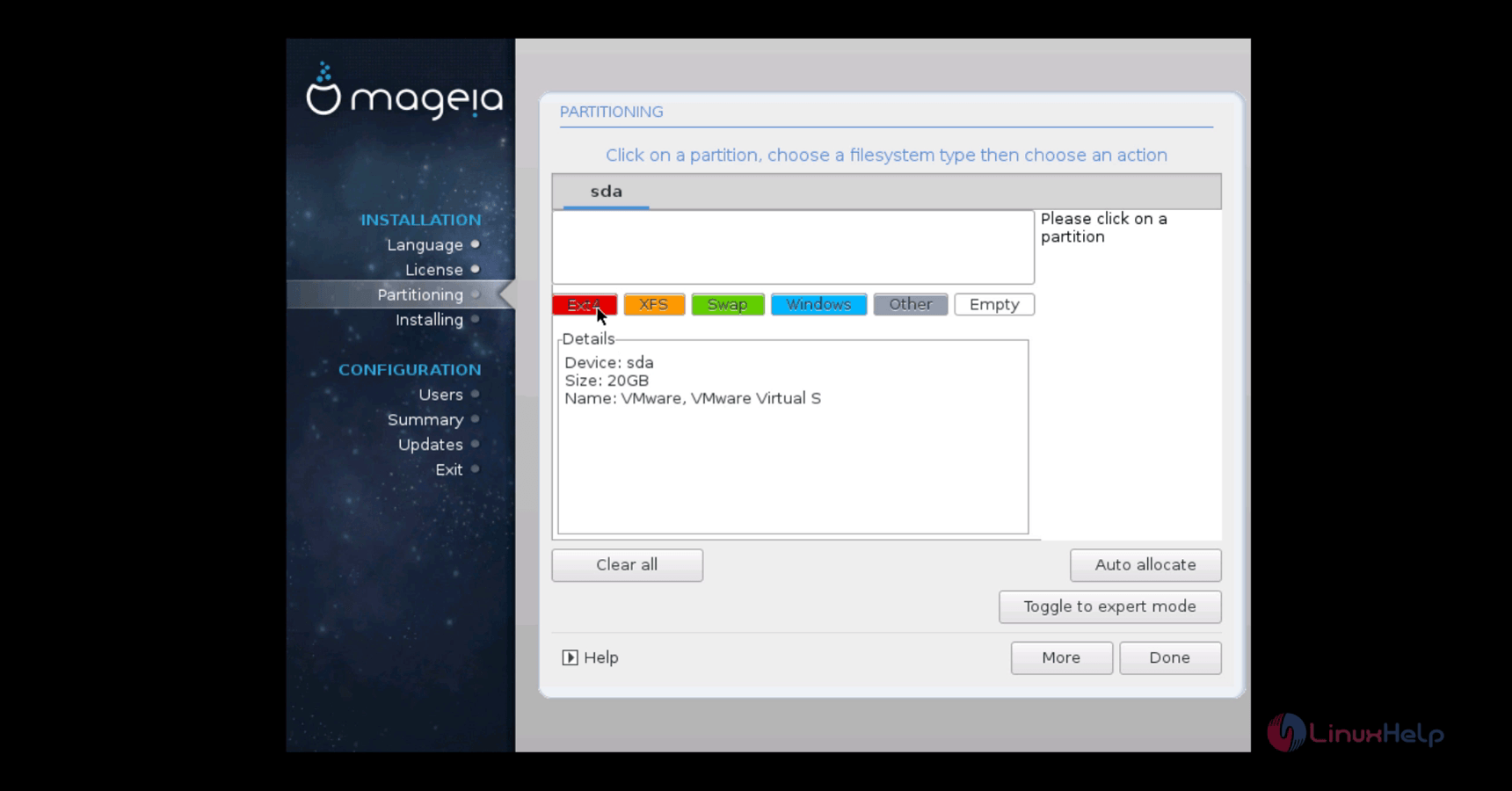
Mageia_free_space

Size 344 MB
File system type Ext4
Mount point /boot


Mageia_EXT4
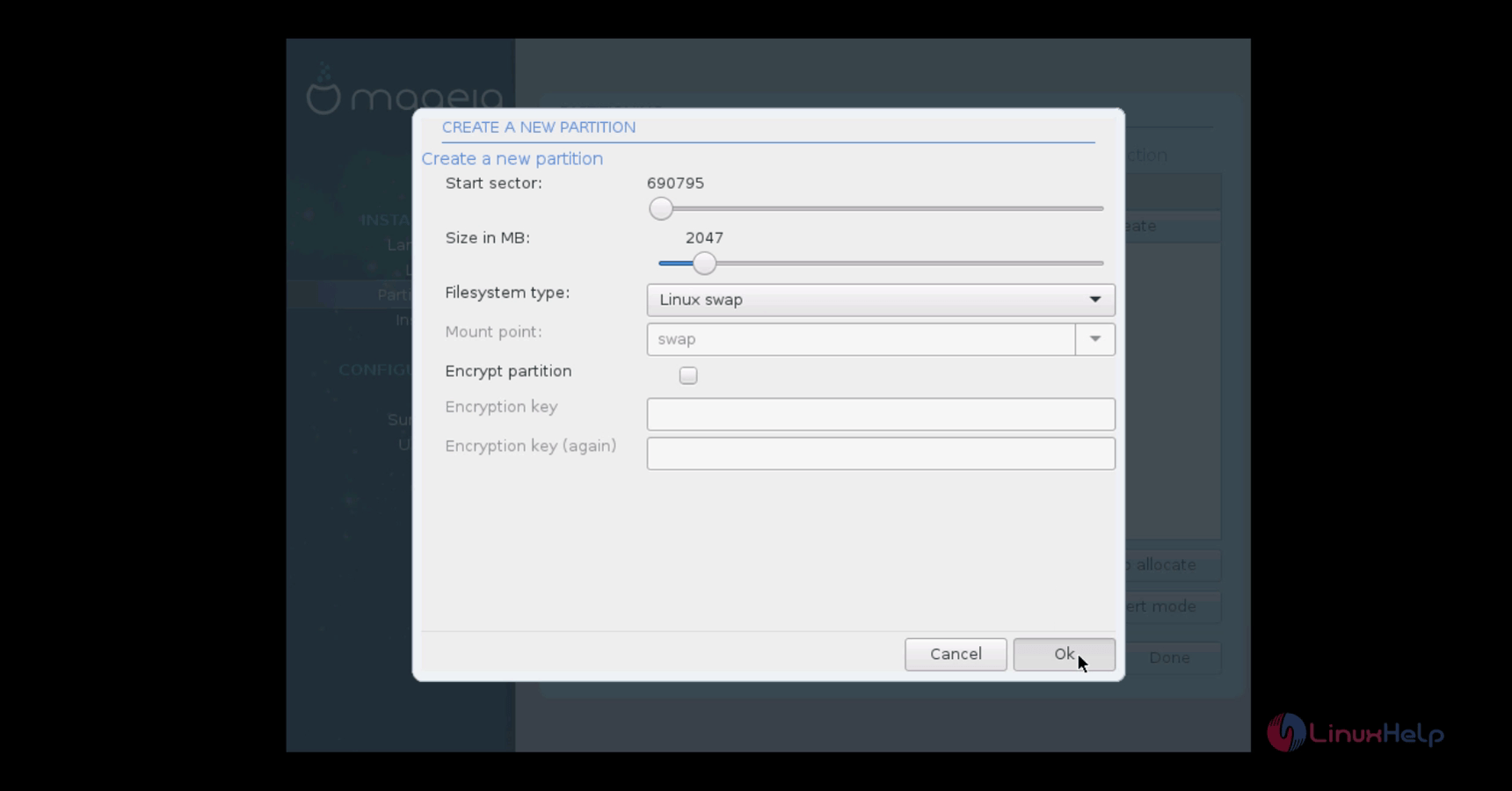
Swap partition
Select the free space and select the swap file system for the swap partition
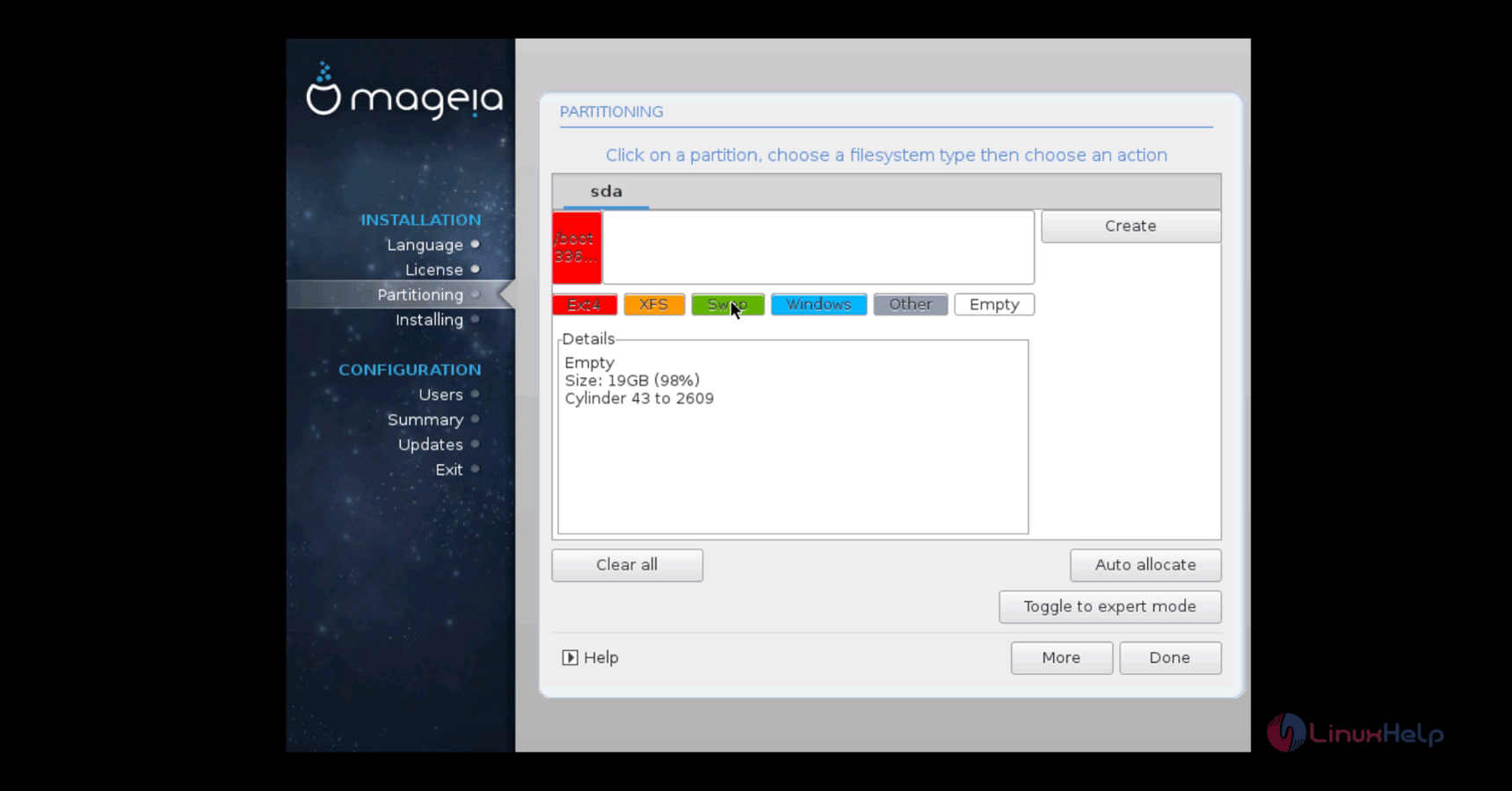
Mageia_Swap_partition
Swap partition

Size 2047 MB
File system type Linux Swap


Mageia_new_partition
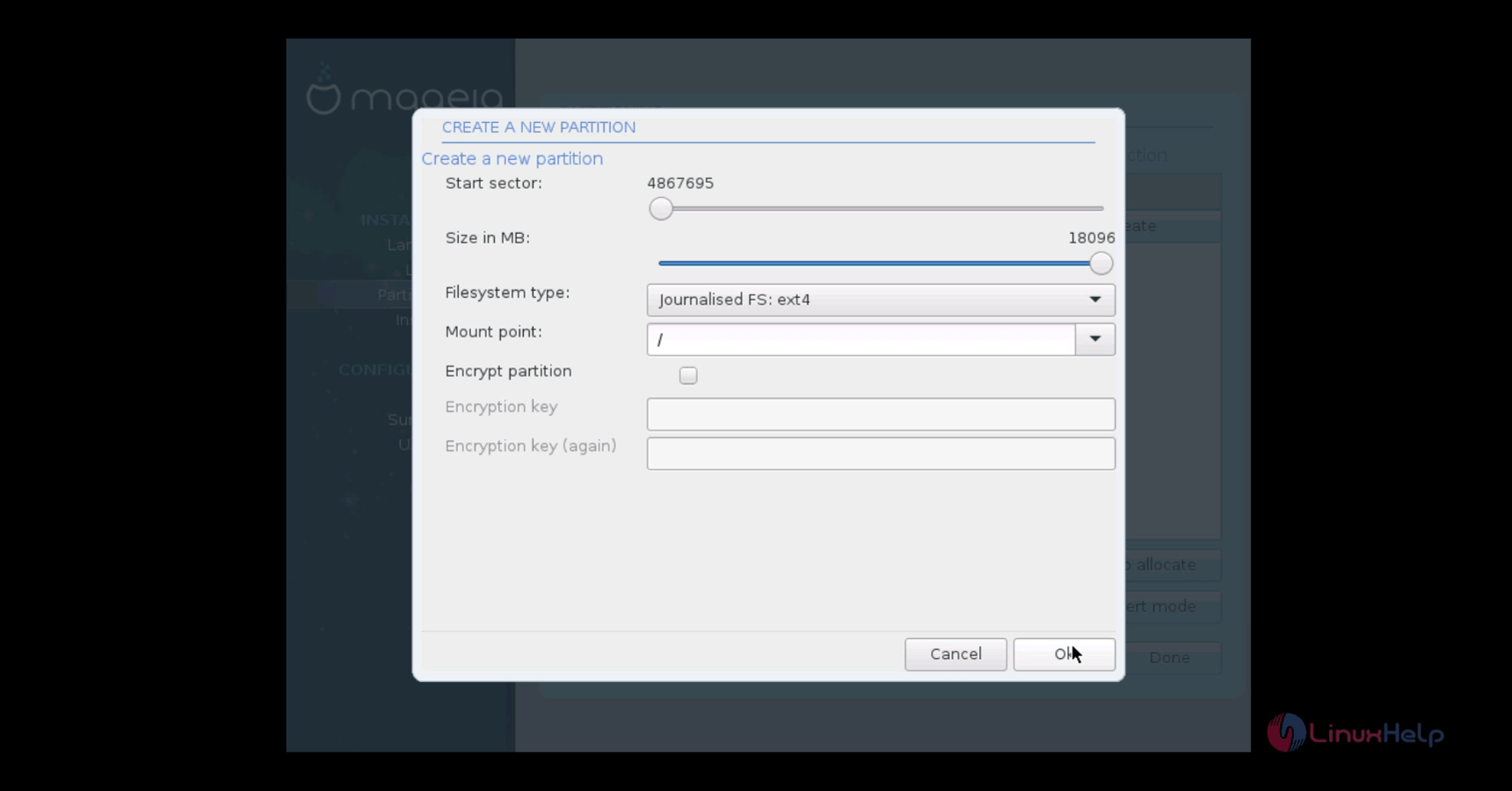
Root Partition
Select the free space and select the ext4 file system for the / partition.
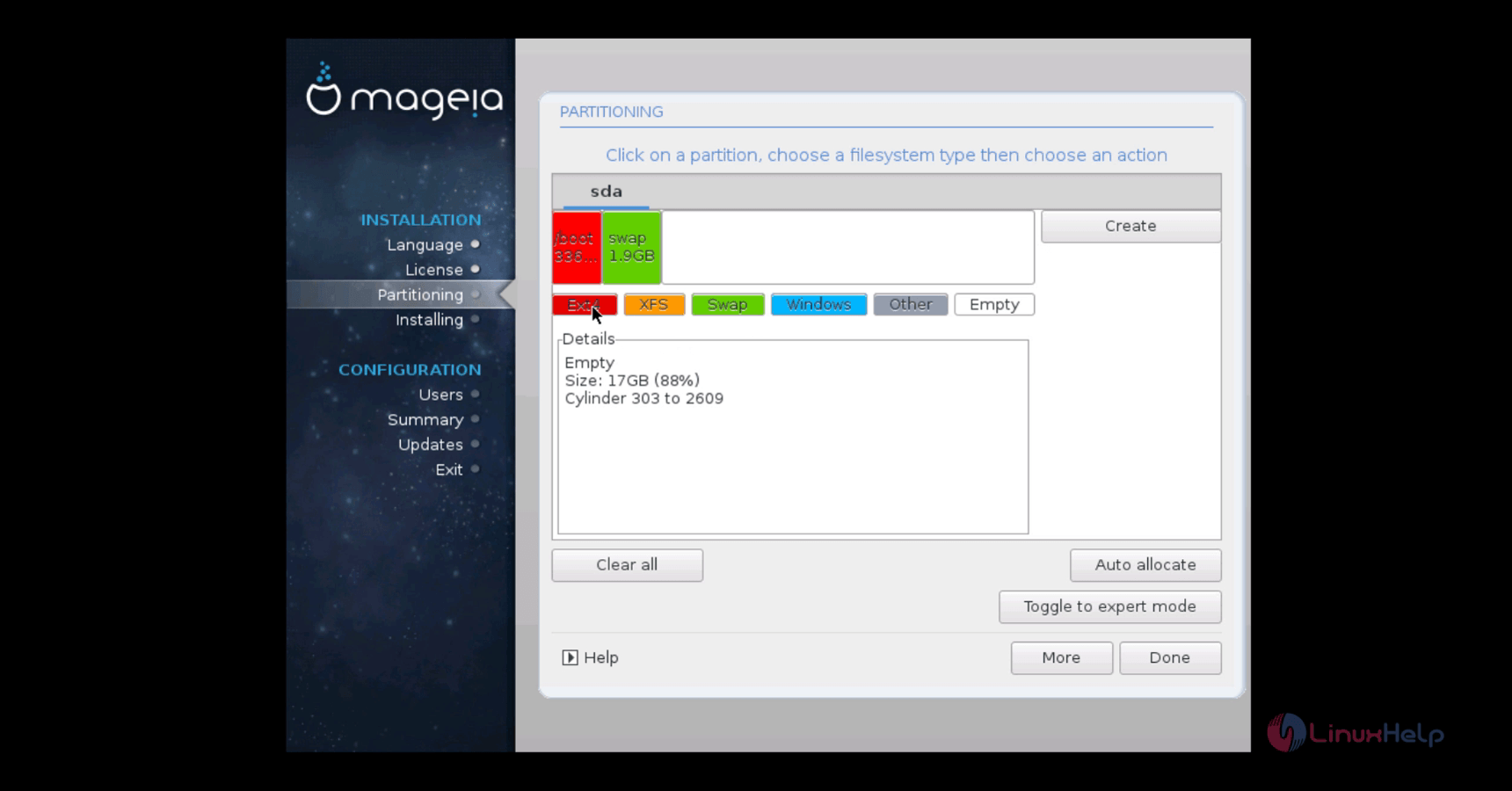
Root_partition
Root Partition

Size 18098 MB
File system type Ext4
Mount point /


Create_partition
After completing all the partitions, click done.
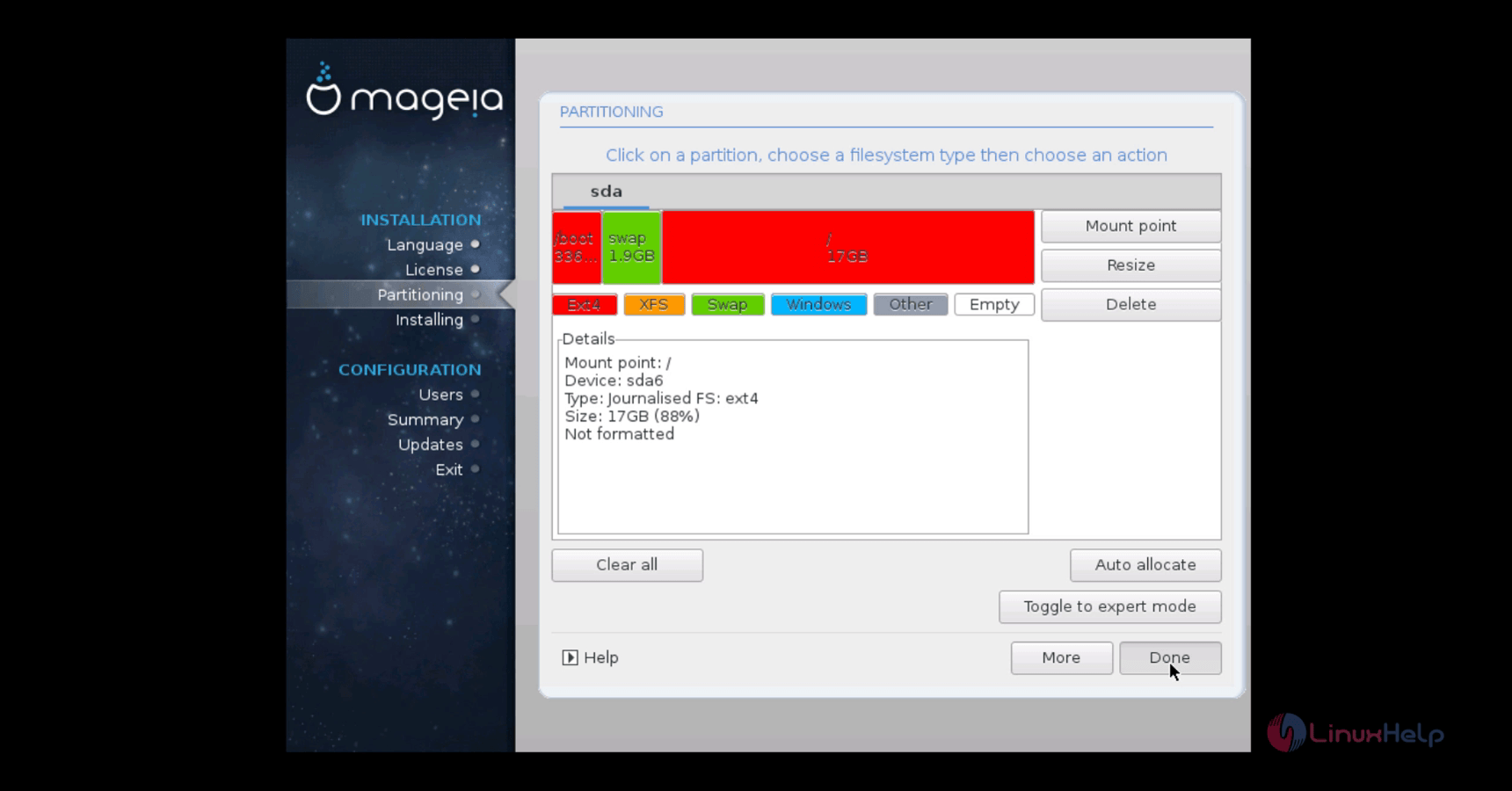
Complete_partition
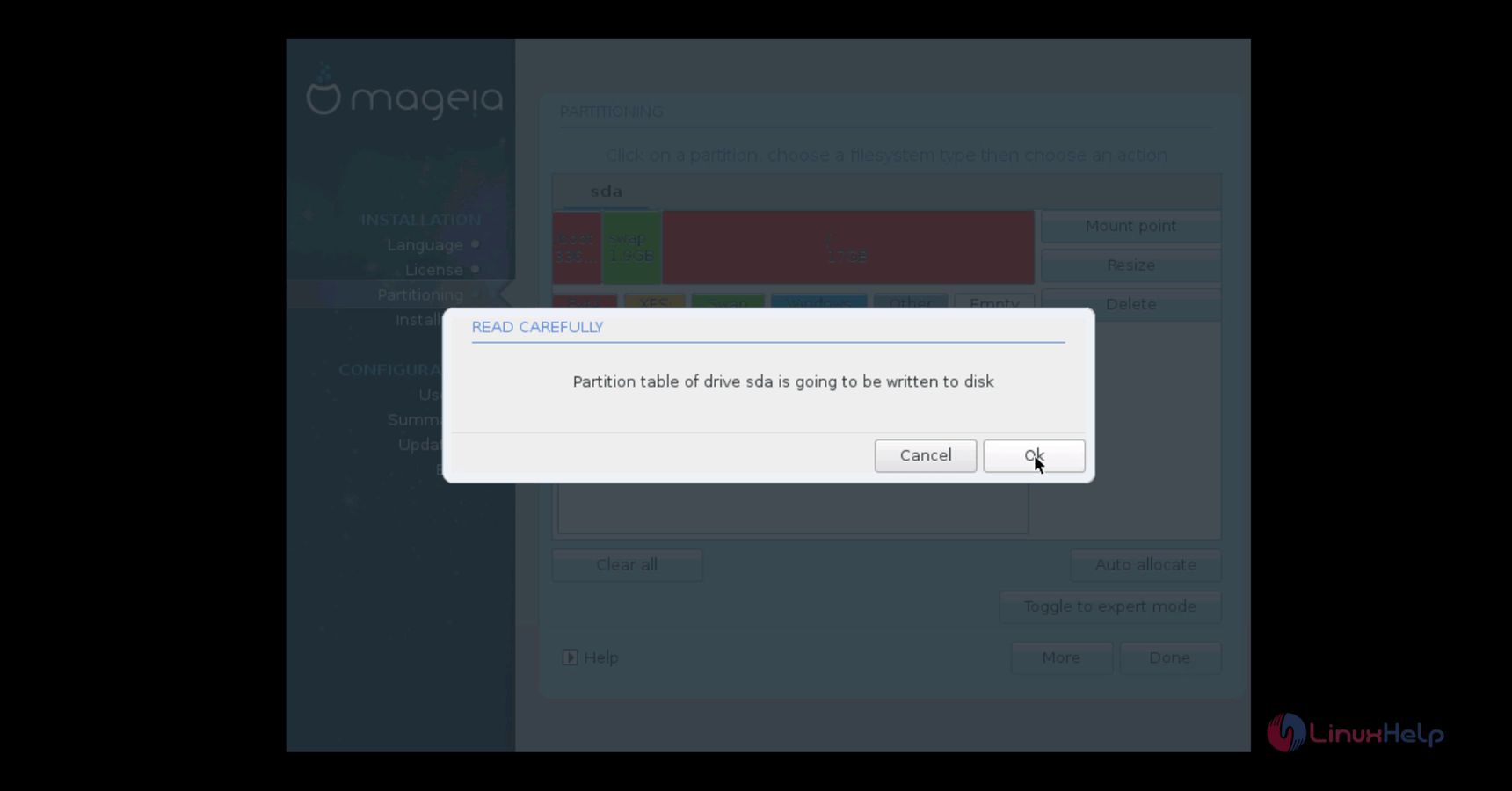
Click ok to write changes to disk.
Changes_to_disk
Choose your favorite desktop environment and click next.
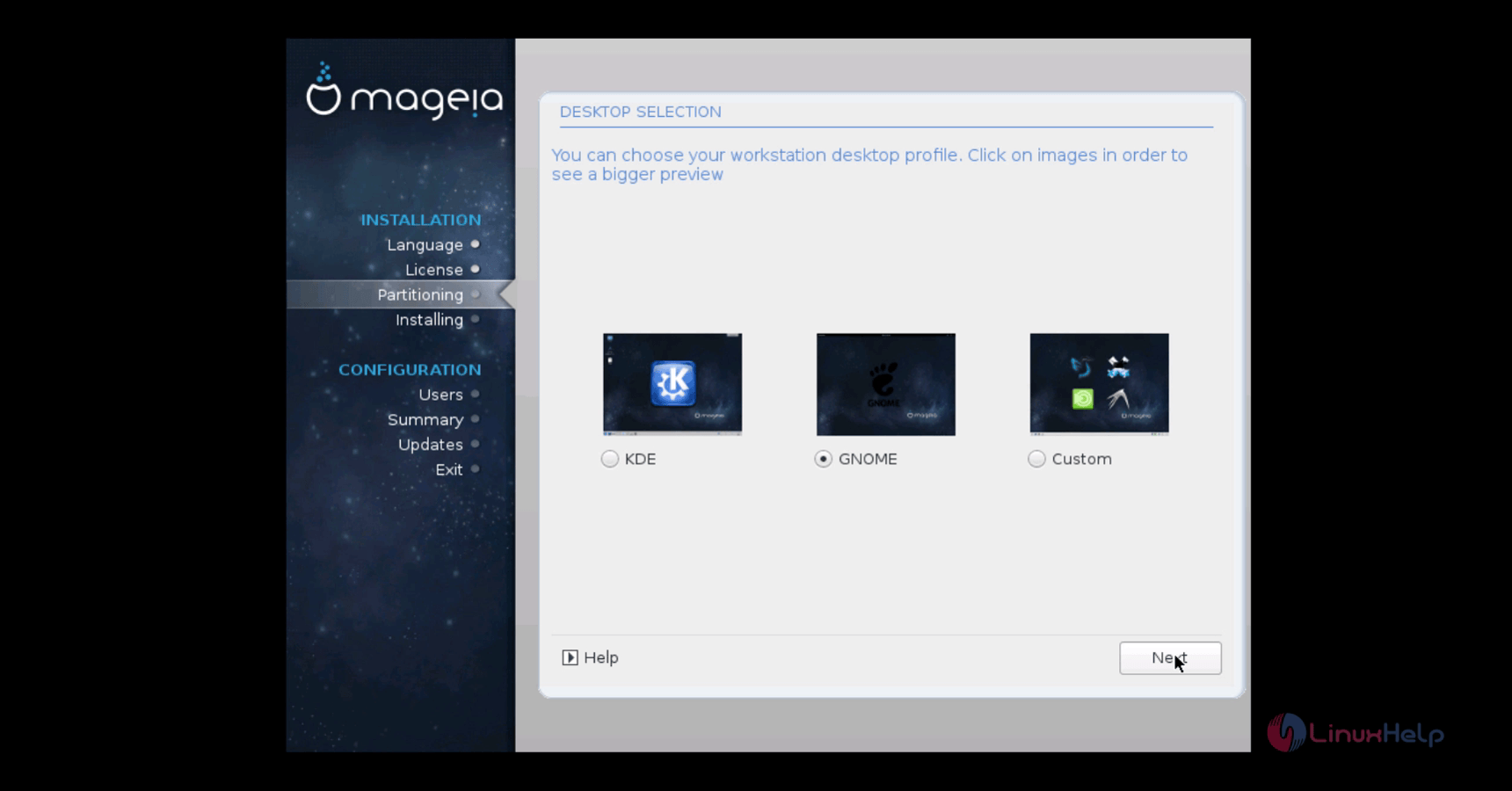
Select_desktop_environment
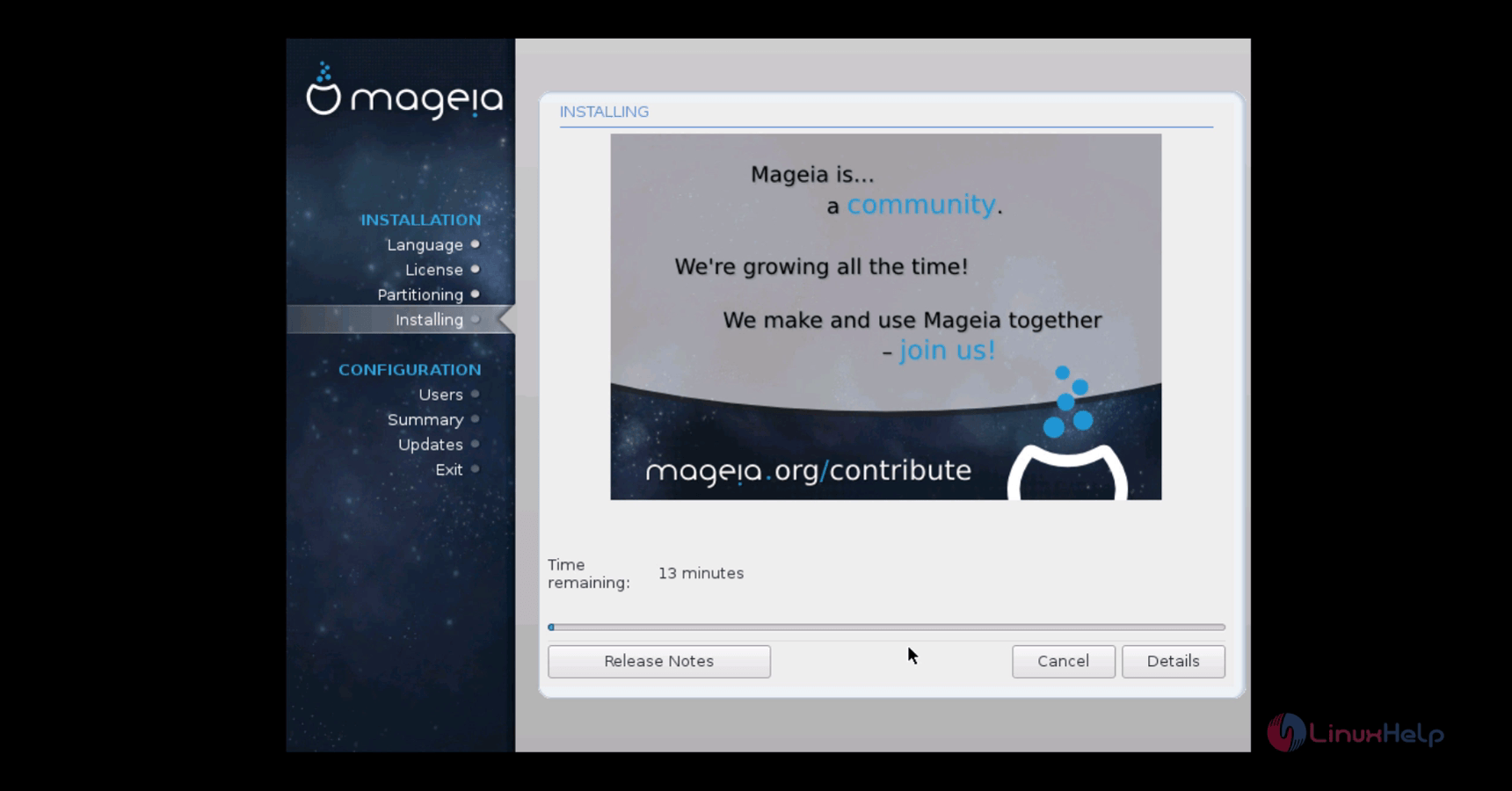
Installation progress starts.
installation_starts

User management

Create a new user as shown below.
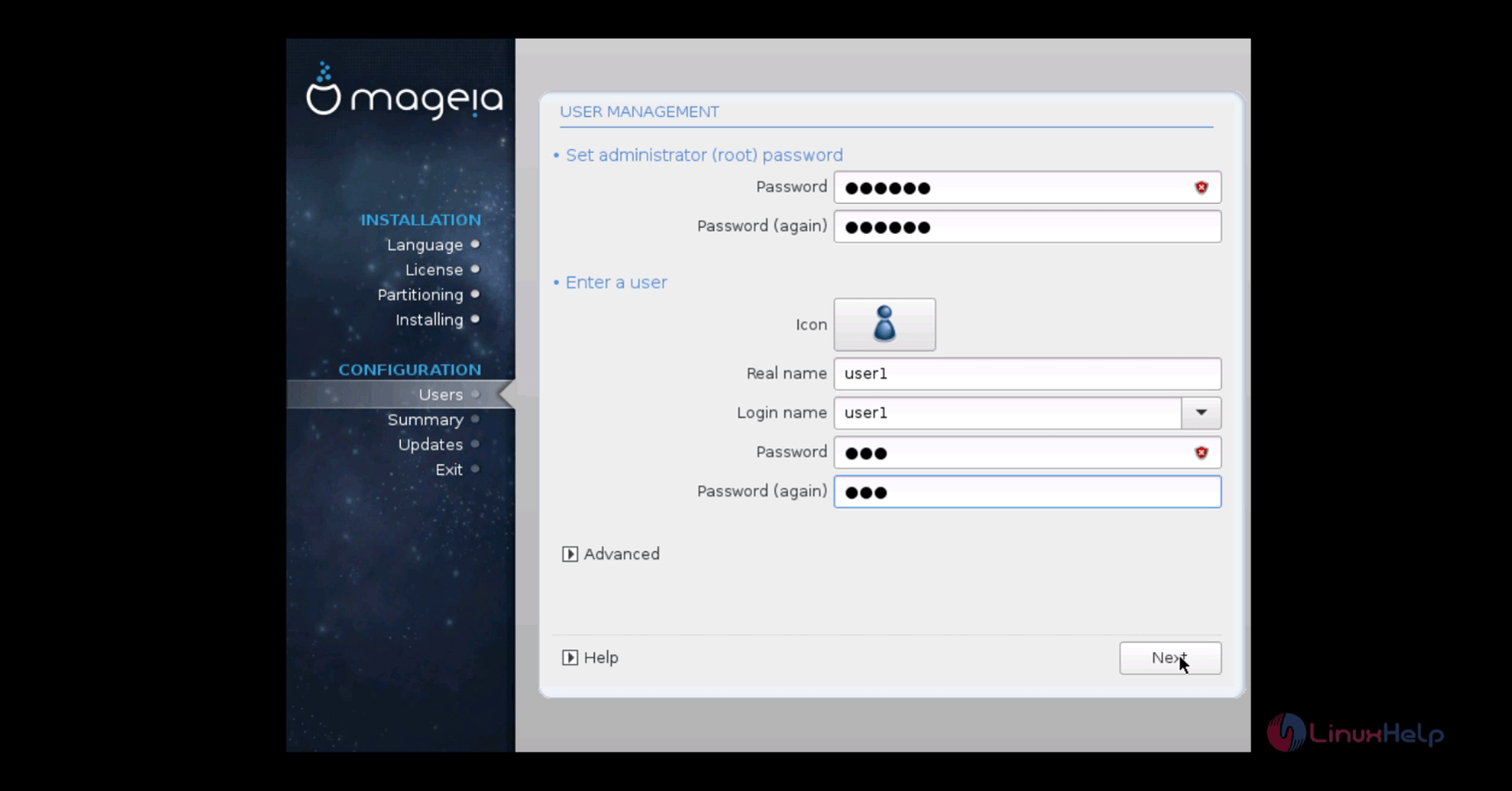
User_management
Choose the type of monitor and click next
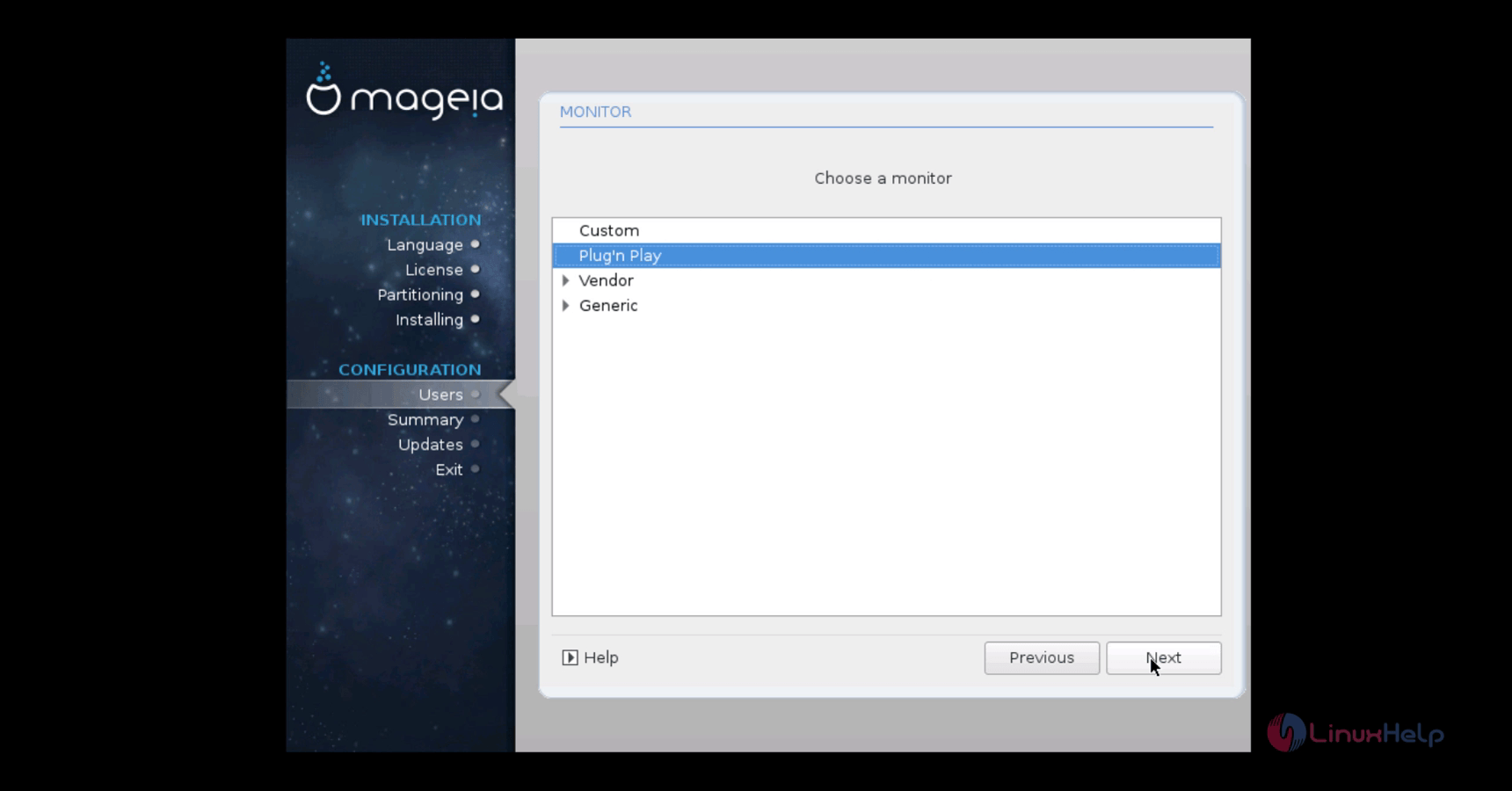
Plugin
Choose the location of your time zone.
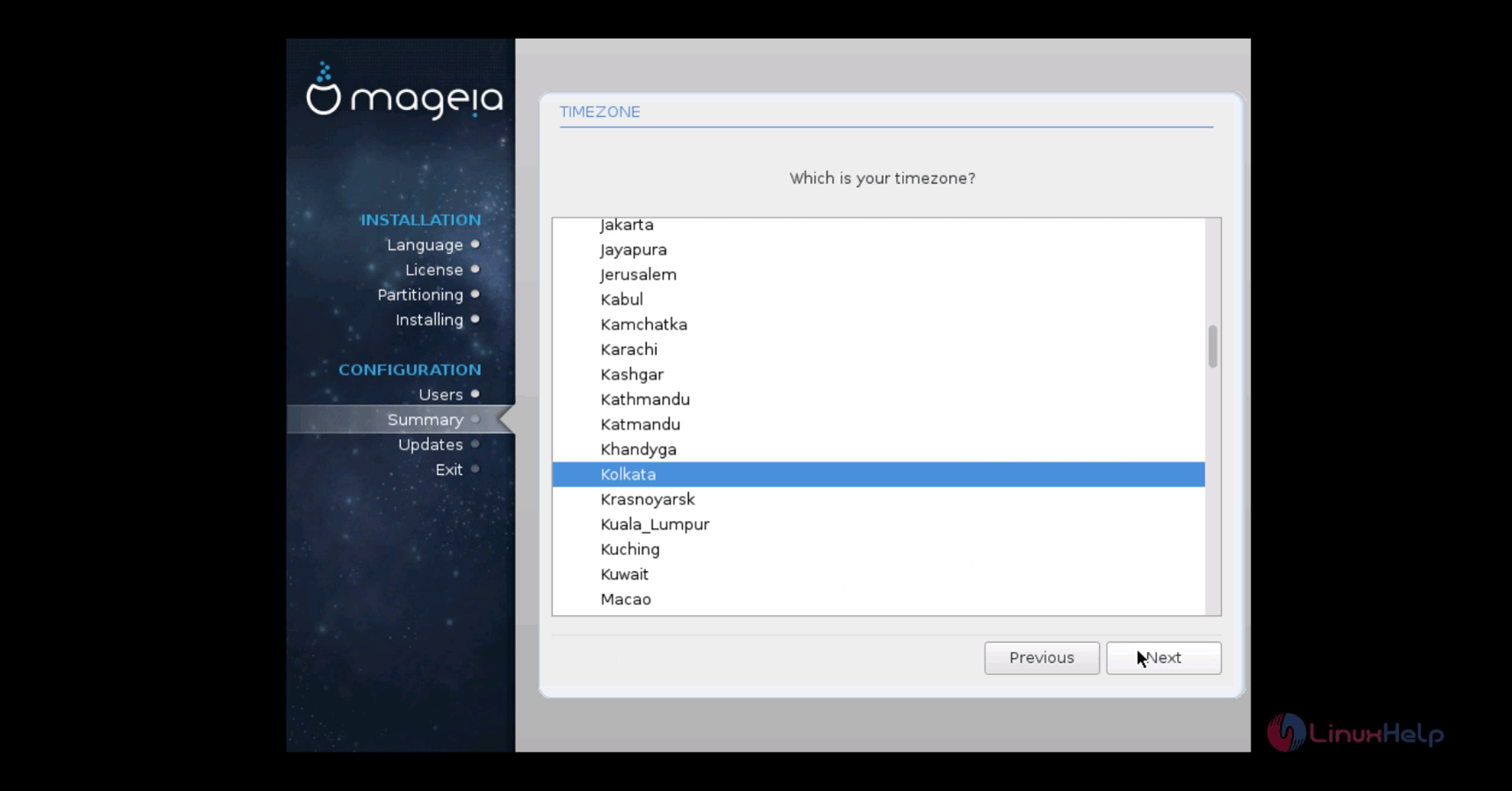
Time_Zone
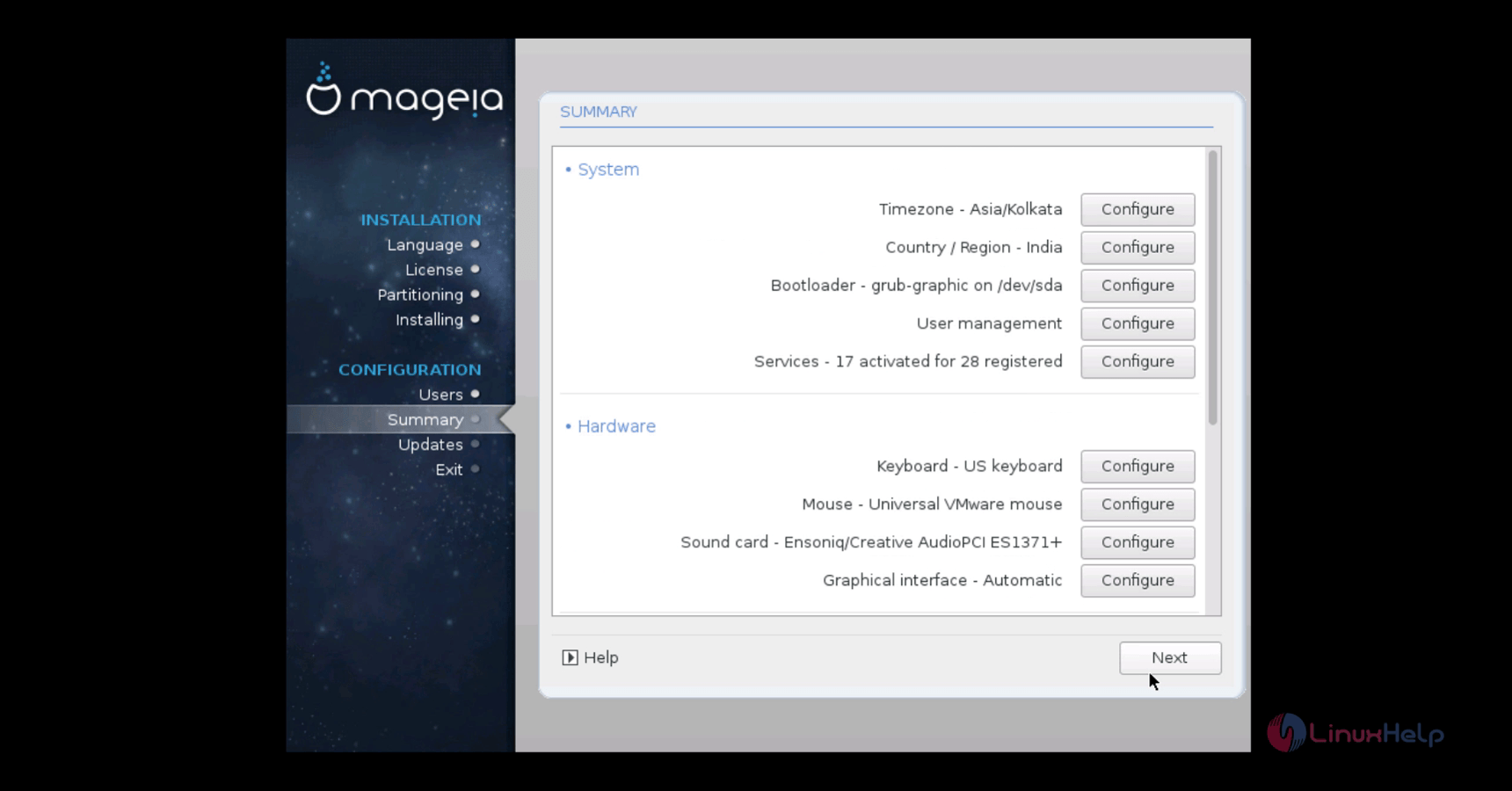
Verify the configuration summary.
Configuration_summary
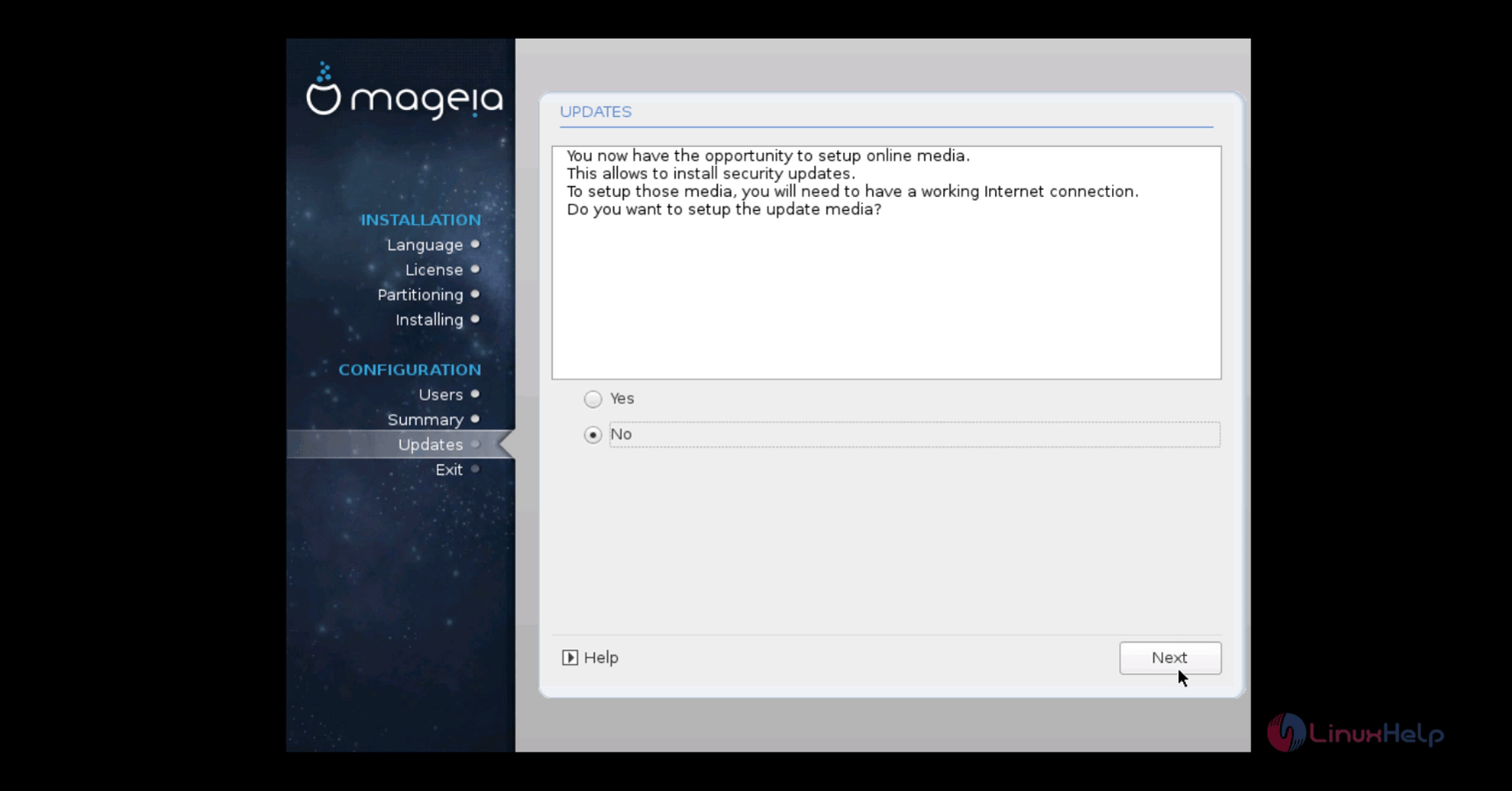
Mageia_updates
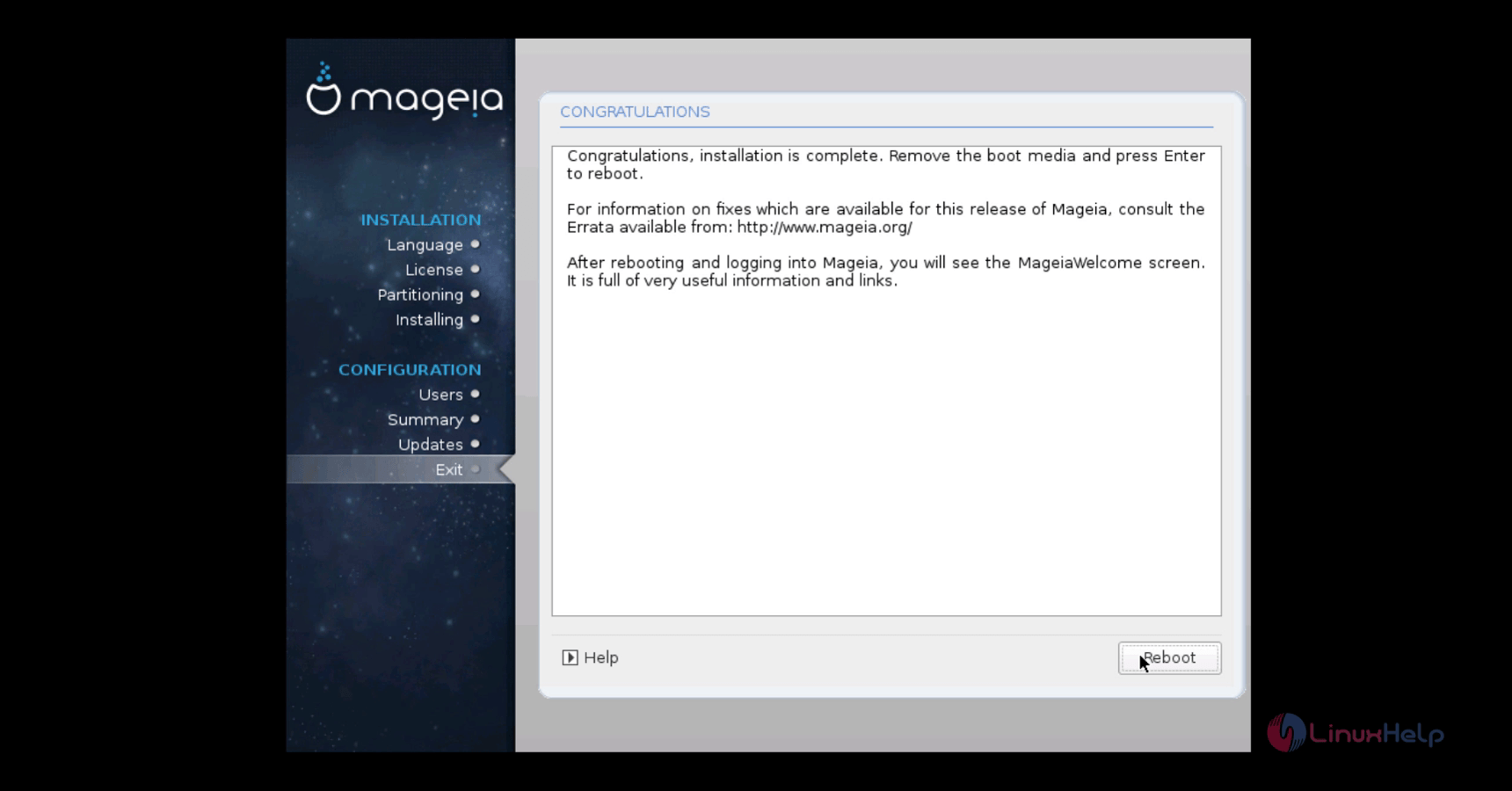
After installing reboot the system.
Installing_reboot_system
Now login to the Mageia by using the login credentials.
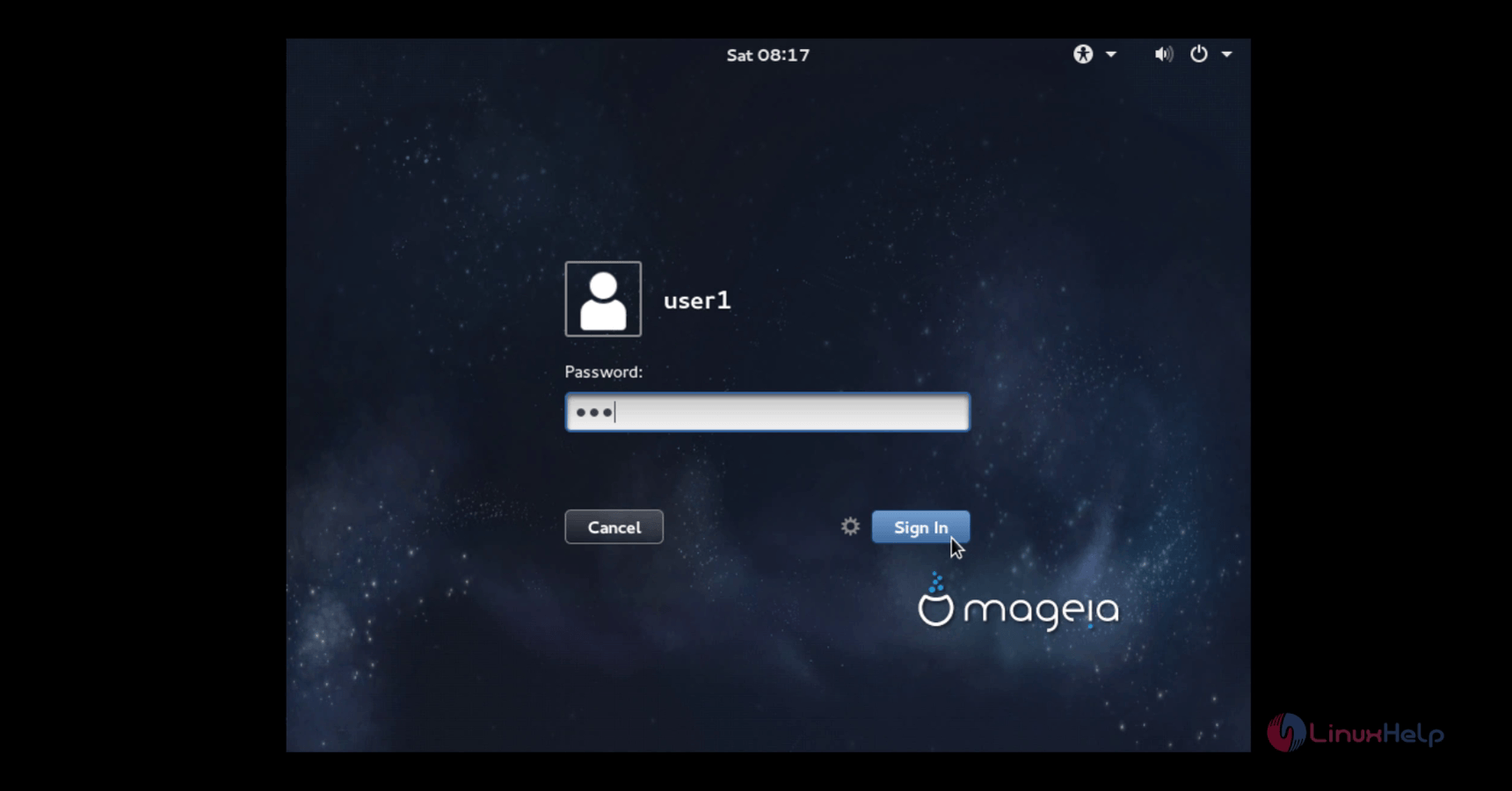
Login
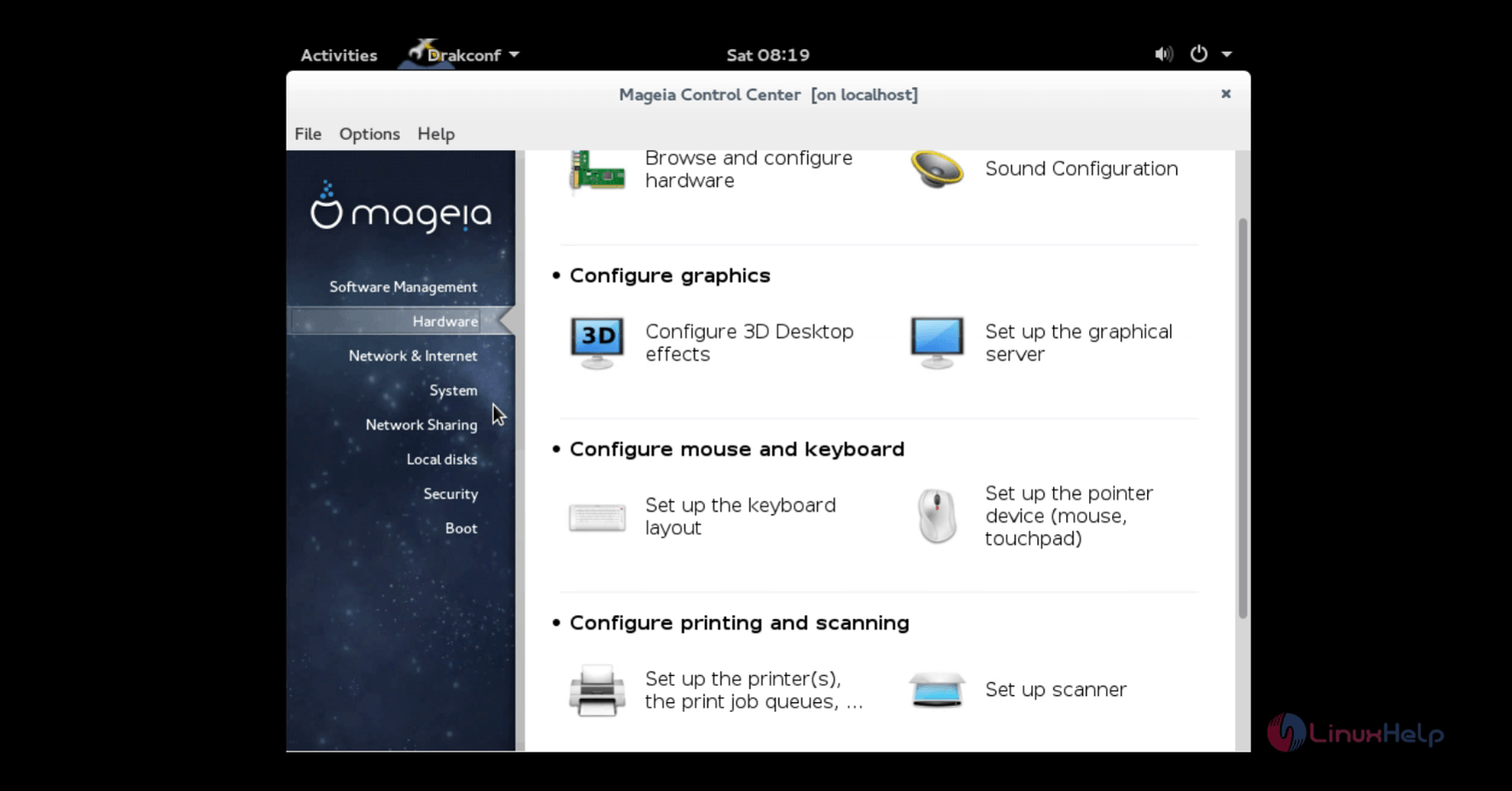
Mageia Control center
Control_center

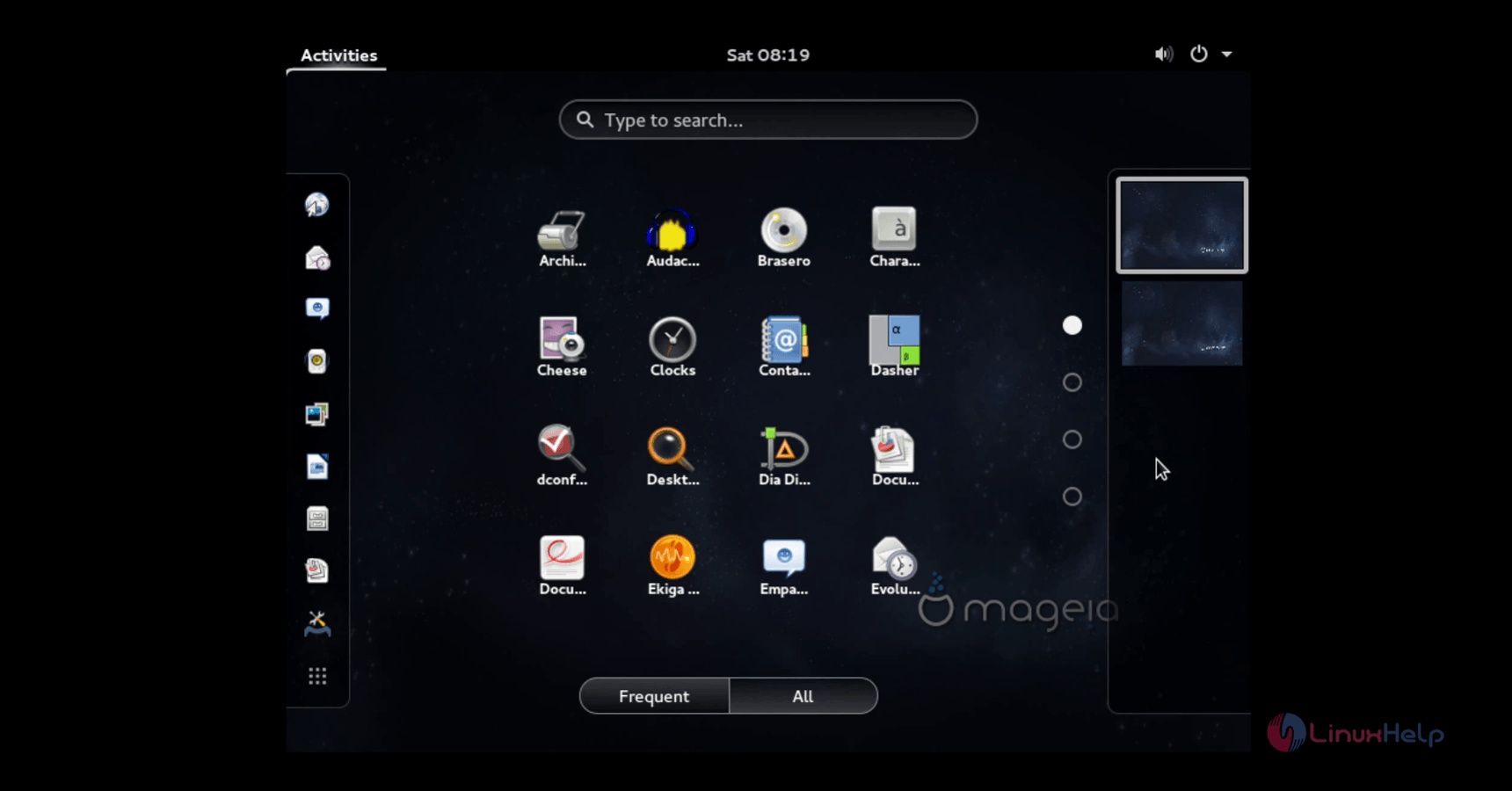
Mageia Workspaces
Workspace
To view the System Settings, click settings.
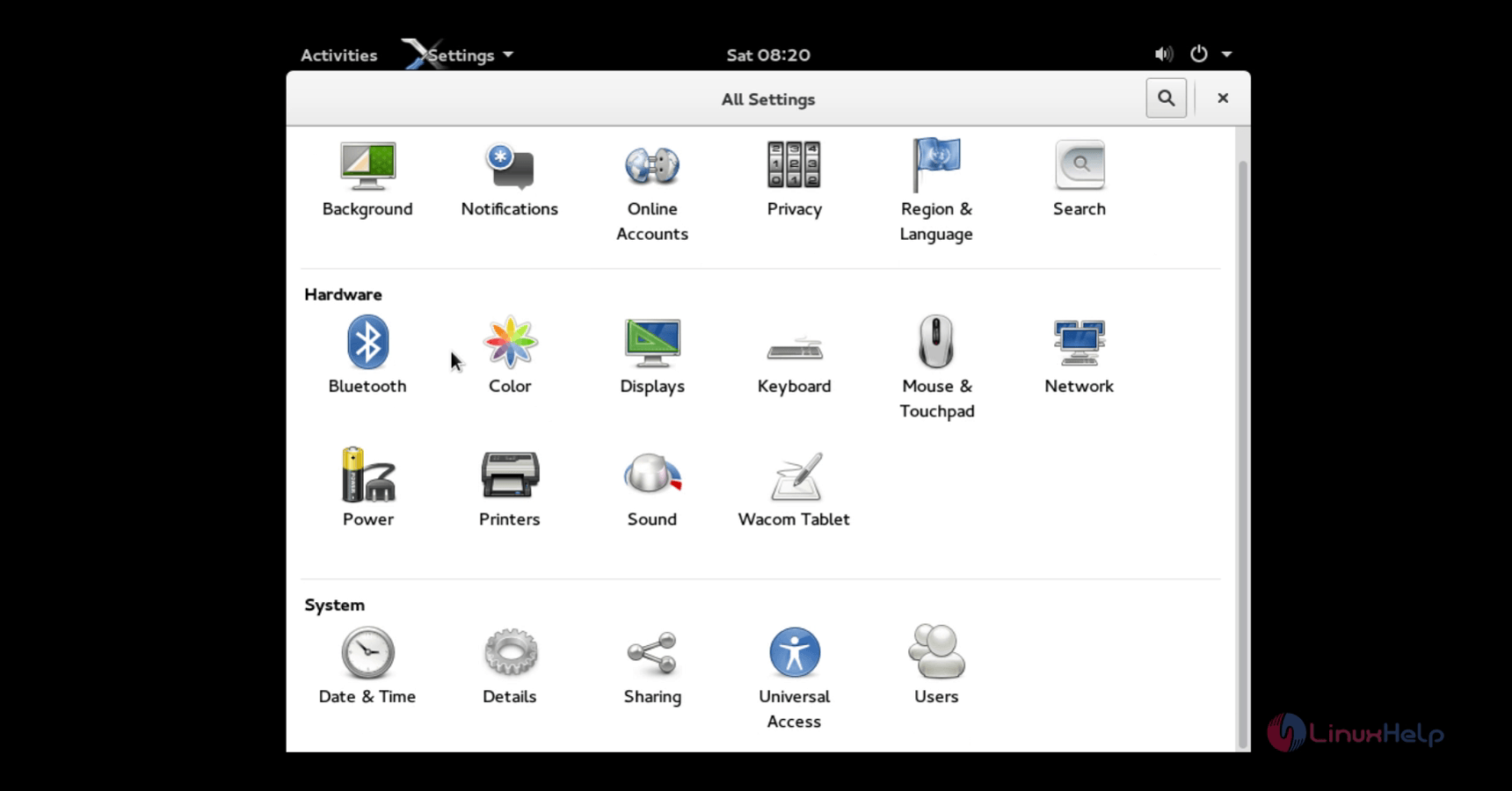
settings

Tags:
grayson
Author: 

Comments ( 0 )

No comments available

Add a comment
{{postCtrl.cmtErrMsg}}

Frequently asked questions ( 5 )

Q

How does one pronounce Mageia?

A

There is no official pronunciation, you can use whichever one you like.

Q

How to display the current "run level"?

A

By following command:
$ systemctl get-default # display current system "run level"

Q

How to set "run level" 3 (non-graphical)?

A

Use the following commnad:
# systemctl set-default multi-user.target
# set default system "run level" to 3 - non-graphical login

Q

How to set "run level" 5 (graphical)?

A

use the following commands:
# systemctl set-default graphical.target
# set default system "run level" to 5 - graphical login

Q

How to search logs for a particular string?

A

Utilize the follow command:
# journalctl -a --no-pager | grep sudo
# example: search logs for string "sudo"

Back To Top!
Rank
User
Points

Top Contributers

userNamenaveelansari
135850

Top Contributers

userNameayanbhatti
92510

Top Contributers

userNamehamzaahmed
32150

Top Contributers

1
userNamelinuxhelp
31040

Top Contributers

userNamemuhammadali
24500
Can you help Owen ?
How to add SSH key to my Gitlab account

I need to add the SSH key in my gitlab account. How to do so ????

Networking
  • Routing
  • trunk
  • Netmask
  • Packet Capture
  • domain
  • HTTP Proxy
Server Setup
  • NFS
  • KVM
  • Memory
  • Sendmail
  • WebDAV
  • LXC
Shell Commands
  • Cloud commander
  • Command line archive tools
  • last command
  • Shell
  • terminal
  • Throttle
Desktop Application
  • Linux app
  • Pithos
  • Retrospect
  • Scribe
  • TortoiseHg
  • 4Images
Monitoring Tool
  • Monit
  • Apache Server Monitoring
  • EtherApe 
  • Arpwatch Tool
  • Auditd
  • Barman
Web Application
  • Nutch
  • Amazon VPC
  • FarmWarDeployer
  • Rukovoditel
  • Mirror site
  • Chef
Contact Us | Terms of Use| Privacy Policy| Disclaimer
© 2025 LinuxHelp.com All rights reserved. Linux™ is the registered trademark of Linus Torvalds. This site is not affiliated with linus torvalds in any way.