How to Install MantisBt CMS on Linuxmint 19
- 00:43 lsb_release -a
- 00:55 mysql -u root -p
- 02:03 wget https://sourceforge.net/projects/mantisbt/files/latest/download
- 02:19 unzip download
- 02:29 mv mantisbt-2.21.1 /var/www/mantis
- 02:39 chown -R www-data.www-data /var/www/mantis
- 02:53 chmod -R 755 /var/www/mantis
- 03:05 vim /etc/apache2/sites-available/mantis.conf
- 04:11 a2dissite 000-default.conf
- 04:21 a2ensite mantis.conf
- 04:31 a2enmod rewrite
- 04:38 systemctl restart apache2
Installation of MantisBt CMS on Linuxmint 19
Mantis is a free and popular open source bug tracking system. It is written in PHP and supports all types of database server. It provides a professional dashboard to manage bugs assigned to the user. It supports powerful access control which provides per project base user access. It is very flexible so you can customize the issue fields, notifications, and workflow. This tutorial covers the installation procedure of Mantis Bug tracker on Linuxmint 19
Requirements for Mantis Bug tracker:
Apache
Mysql
Php and its modules
(php php-xml php-mysql php-mbstring php-zip php-soap php-curl php-gd php-ldap php-imap php-common php-dev libmcrypt-dev php-pear)
Installation procedure
Check the linuxmint version by using the following command
root@linuxhelp:~# lsb_release -a
No LSB modules are available.
Distributor ID:	LinuxMint
Description:	Linux Mint 19 Tara
Release:	19
Codename:	tara
Configure the MySQL database. Log into MySQL as a root user and make the necessary settings.
root@linuxhelp:~# mysql -u root -p
Enter password:
Welcome to the MySQL monitor.  Commands end with ; or \g.
Your MySQL connection id is 2
Server version: 5.7.26-0ubuntu0.18.04.1 (Ubuntu)
Copyright (c) 2000, 2019, Oracle and/or its affiliates. All rights reserved.
Oracle is a registered trademark of Oracle Corporation and/or its
affiliates. Other names may be trademarks of their respective
owners.
Type 'help;' or '\h' for help. Type '\c' to clear the current input statement.
mysql> create database mantisdb;
Query OK, 1 row affected (0.00 sec)
mysql> create user 'mantisuser'@localhost identified by 'Linuxc#4';
Query OK, 0 rows affected (0.00 sec)
mysql> grant all privileges on mantisdb.* to 'mantisuser'@localhost;
Query OK, 0 rows affected (0.00 sec)
mysql> flush privileges;
Query OK, 0 rows affected (0.00 sec)
mysql> exit
Bye
Once the database configuration is done, download the MantisBT cms Installation package by using the wget command.
root@linuxhelp:~# wget https://sourceforge.net/projects/mantisbt/files/latest/download
--2019-06-20 16:16:06--  https://sourceforge.net/projects/mantisbt/files/latest/download
Resolving sourceforge.net (sourceforge.net)... 216.105.38.13
Connecting to sourceforge.net (sourceforge.net)|216.105.38.13|:443... connected.
HTTP request sent, awaiting response... 302 Found
Location: https://downloads.sourceforge.net/project/mantisbt/mantis-stable/2.21.1/mantisbt-2.21.1.zip?r=&ts=1561011695&use_mirror=liquidtelecom [following]
--2019-06-20 16:16:09--  https://downloads.sourceforge.net/project/mantisbt/mantis-stable/2.21.1/mantisbt-2.21.1.zip?r=&ts=1561011695&use_mirror=liquidtelecom
Resolving downloads.sourceforge.net (downloads.sourceforge.net)... 216.105.38.13
Connecting to downloads.sourceforge.net (downloads.sourceforge.net)|216.105.38.13|:443... connected.
HTTP request sent, awaiting response... 302 Found
Location: https://liquidtelecom.dl.sourceforge.net/project/mantisbt/mantis-stable/2.21.1/mantisbt-2.21.1.zip [following]
--2019-06-20 16:16:11--  https://liquidtelecom.dl.sourceforge.net/project/mantisbt/mantis-stable/2.21.1/mantisbt-2.21.1.zip
Resolving liquidtelecom.dl.sourceforge.net (liquidtelecom.dl.sourceforge.net)... 197.155.77.8
Connecting to liquidtelecom.dl.sourceforge.net (liquidtelecom.dl.sourceforge.net)|197.155.77.8|:443... connected.
HTTP request sent, awaiting response... 200 OK
Length: 18458067 (18M) [application/octet-stream]
Saving to: ‘download’

download                      100%[=================================================>]  17.60M   157KB/s    in 3m 16s

2019-06-20 16:19:33 (91.9 KB/s) - ‘download’ saved [18458067/18458067]
Extract the downloaded package using unzip command
root@linuxhelp:~# unzip download
Archive:  download
   creating: mantisbt-2.21.1/
  inflating: mantisbt-2.21.1/manage_custom_field_page.php
  inflating: mantisbt-2.21.1/bug_actiongroup_page.php
  inflating: mantisbt-2.21.1/login_select_proj_page.php
  inflating: mantisbt-2.21.1/account_update.php
.
.
.
inflating: mantisbt-2.21.1/account_prefs_reset.php
  inflating: mantisbt-2.21.1/bug_relationship_graph.php
  inflating: mantisbt-2.21.1/proj_doc_delete.php
  inflating: mantisbt-2.21.1/xmlhttprequest.php
  inflating: mantisbt-2.21.1/view_filters_page.php
  inflating: mantisbt-2.21.1/bug_monitor_list_view_inc.php
  inflating: mantisbt-2.21.1/news_menu_page.php
  inflating: mantisbt-2.21.1/manage_proj_user_add.php
Move the MantisBT directory to apache root directory
root@linuxhelp:~# mv mantisbt-2.21.1 /var/www/mantis
Set the ownership and permission for MantisBT by using the following command
root@linuxhelp:~# chown -R www-data.www-data /var/www/mantis
root@linuxhelp:~# chmod -R 755 /var/www/mantis
Configure the virtualhost for accessing the MantisBT
root@linuxhelp:~# vim /etc/apache2/sites-available/mantis.conf
<Virtualhost *:80>
        Servername www.linuxhelp1.com
        documentroot /var/www/mantis
<directory /var/www/mantis>
allowoverride all
allow from all
</directory>
Disable the default site access
root@linuxhelp:~# a2dissite 000-default.conf
Site 000-default disabled.
To activate the new configuration, you need to run:
systemctl reload apache2
Enable the site access for accessing the MantisBT
root@linuxhelp:~# a2ensite mantis.conf
Enabling site mantis.
To activate the new configuration, you need to run:
systemctl reload apache2
Enable the rewrite module
root@linuxhelp:~# a2enmod rewrite
Enabling module rewrite.
To activate the new configuration, you need to run:
systemctl restart apache2
Restart the apache service by using the following command
root@linuxhelp:~# systemctl restart apache2
Switch to your browser and enter the domain name
 Verify the php configuration and enter the Database detail


Verify the installation and click continue

 Enter the default admin user and password

 Create the new password for admin user
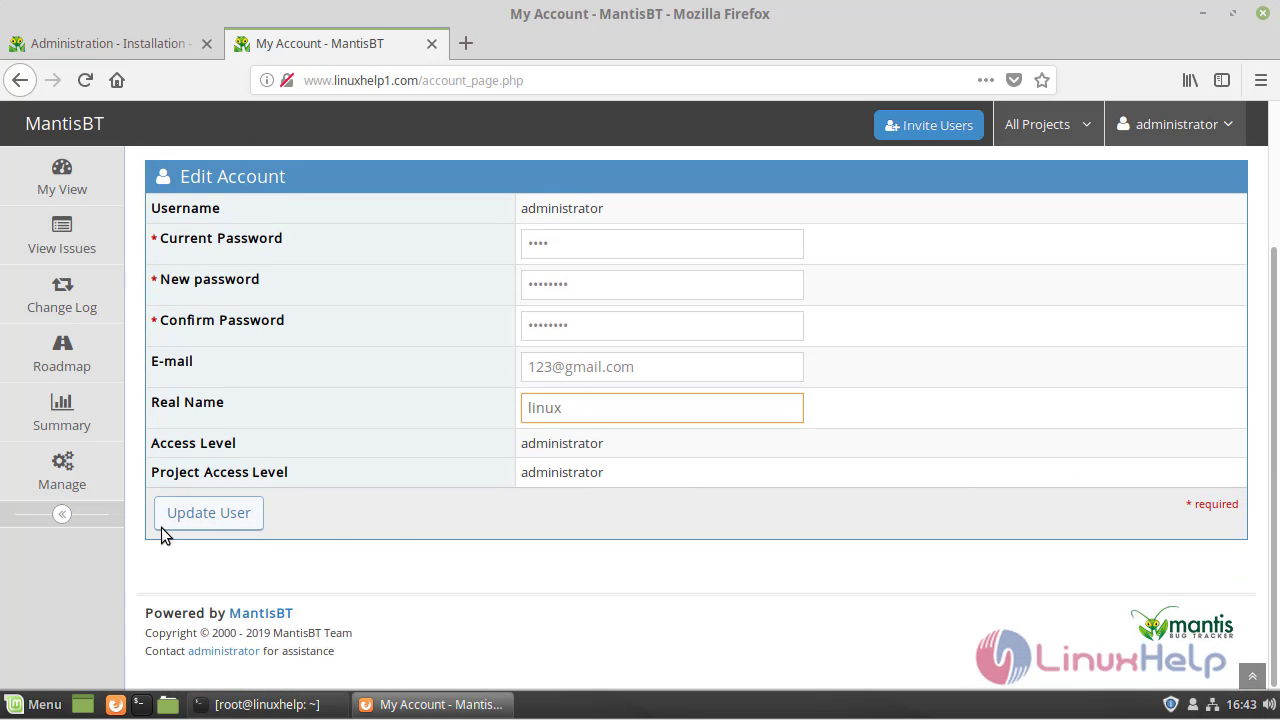 Enter the admin credentials and new password to login

 This is the dashboard of MantisBT cms

With this, the method to install MantisBT CMS on Linumint 19 comes to an end.
Comments ( 0 )
No comments available