How to Install Monitorix - Network monitoring tool
Installation of Monitorix Lightweight System and Network Monitoring Tool
Monitorix is a free, lightweight, open source monitoring tool designed to monitor many services and system resources as possible on servers and desktops. It mainly consists of two programs: a collector, called Monitorix, which is a Perl daemon that is started automatically as a system service, and a CGI script called monitorix.cgi. Since Monitorix 3.8.1 version includes its own HTTP server as built-in, so you aren' t forced to install a third-party web server to use it.
Features
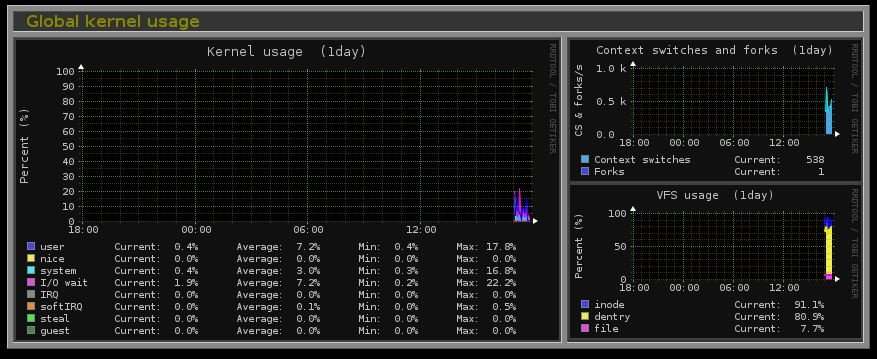
- Global kernel usage
- Unlimited number of network ports supported.
- Unlimited number of Apache servers supported.
- Ability to define the number of graphs per row.
- Ability to enable traffic monthly reports.
- Ability to zoom in any graph.
- Ability to show network metrics in MBytes/sec or Mbits/sec.
- Monitors Disk drive temperatures and health.
- Filesystem usage and I/O activity of filesystems.
- Network traffic usage up to 10 network devices.
- Netstat statistics.
- System services demand (SSH, ProFTPD, Samba, CUPS, Fail2ban, IMAP, POP3, SMTP, etc&hellip )
- Squid Proxy Web Cache statistics.
- Built-in HTTP server.
- MTA Mail statistics including input and output connections
- Network port traffic including TCP, UDP, etc.
Install dependencies
First install the required dependencies to install Monitorix package. Suppose if you are not able to download the required package, then enable the epel-repository and once again try installing those packages.
[root@linuxhelp Desktop]# yum install rrdtool rrdtool-perl perl-libwww-perl perl-MailTools perl-MIME-Lite perl-CGI perl-DBI perl-XML-Simple perl-Config-General perl-HTTP-Server-Simple perl-IO-Socket-SSL wget
Loaded plugins: fastestmirror, langpacks
Loading mirror speeds from cached hostfile
 * base: ftp.iitm.ac.in
 * epel: ftp.cuhk.edu.hk
 * extras: ftp.iitm.ac.in
 * rpmforge: mirror.smartmedia.net.id
 * updates: ftp.iitm.ac.in
Resolving Dependencies
-->  Running transaction check
--->  Package perl-CGI.noarch 0:3.63-4.el7 will be installed
--->  Package perl-Config-General.noarch 0:2.61-1.el7 will be installed
.
.
.
Dependency Installed:
  perl-Net-HTTP.noarch 0:6.06-2.el7               perl-Net-SMTP-SSL.noarch 0:1.01-13.el7
  perl-XML-SAX.noarch 0:0.99-9.el7

Complete!
Download the Monitorix package
Now download the Monitorix package from the official website.
[root@linuxhelp Desktop]# wget http://www.monitorix.org/monitorix-3.8.1-1.noarch.rpm
--2016-05-14 17:34:08--  http://www.monitorix.org/monitorix-3.8.1-1.noarch.rpm
Resolving www.monitorix.org (www.monitorix.org)... 82.98.146.100
.
.
.
100%[=============================================================> ] 280,011      275KB/s   in 1.0s

2016-05-14 17:34:10 (275 KB/s) - ‘ monitorix-3.8.1-1.noarch.rpm’  saved [280011/280011]
Now install the downloaded Monitorix package.
[root@linuxhelp Desktop]# rpm -ivh monitorix-3.8.1-1.noarch.rpm
Preparing...                          ################################# [100%]
Updating / installing...
   1:monitorix-3.8.1-1                ################################# [100%]
Then start the monitorix service by using the following command.
[root@linuxhelp Desktop]# chkconfig --level 35 monitorix on
[root@linuxhelp Desktop]# systemctl start monitorix
Monitorix configuration file
The configuration file for monitorix was placed under /etc/monitorix.conf.
Check the selinux policy
You can check the selinux status by using the following command. The selinux policy must be disabled.
[root@linuxhelp Desktop]# getenforce
disabled
Open the Browser
Navigate to the browser and enter your IP address or hostname with port number 8080 and monitorix.
http://192.168.1.50:8080/monitorix/
or
http://localhost/monitorix/
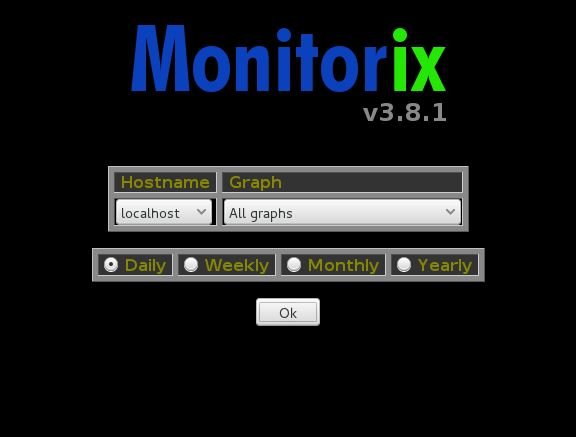
Now your monitorix tool will be opened. Click graph menu and the service you want to monitor separately. By default, it will mark all as graph and it shows all monitoring status of your system.
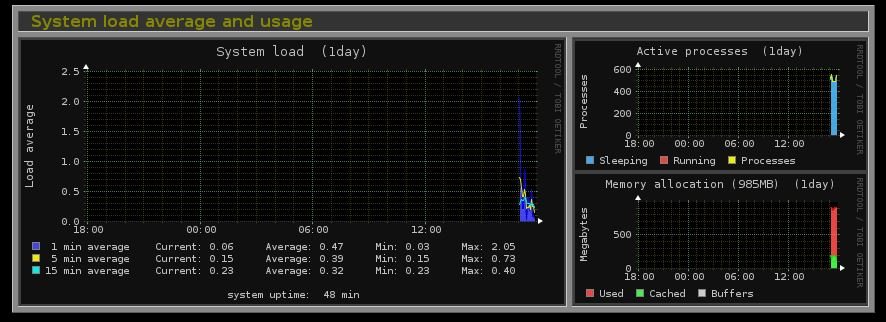
Monitoring load average
Monitor the kernel usage
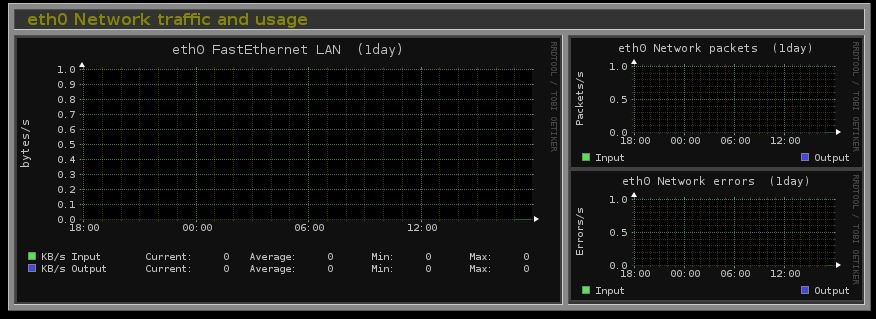
Monitoring network traffic and usage
Monitoring the system service demand
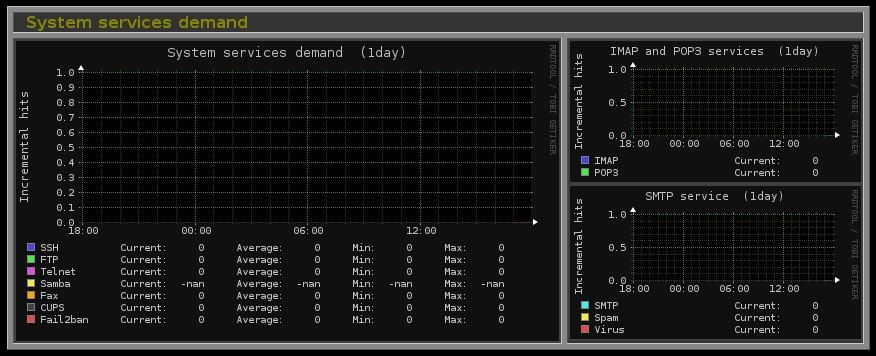
Monitoring the user’ s using system
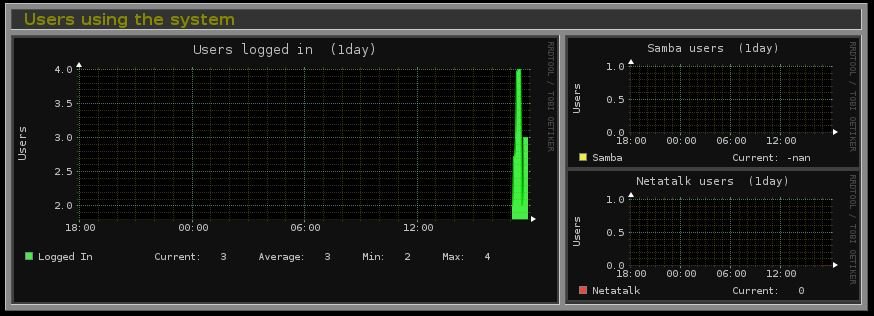
Monitoring the Network port traffic
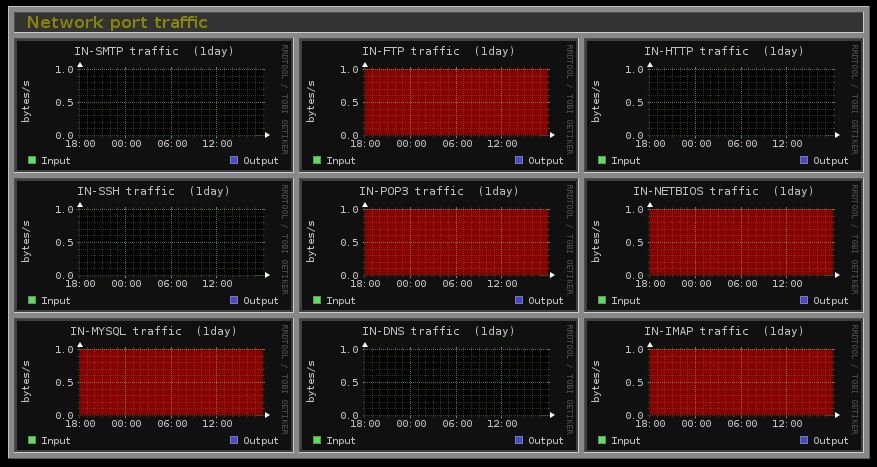
Monitoring the Device interrupt activity
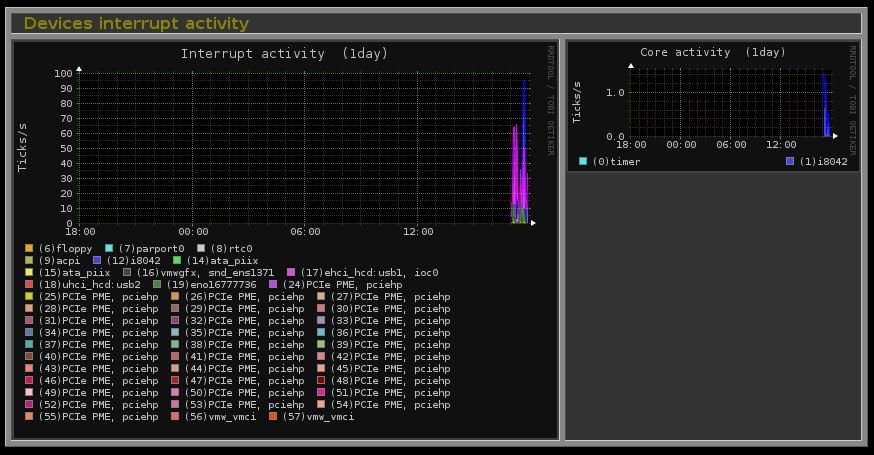
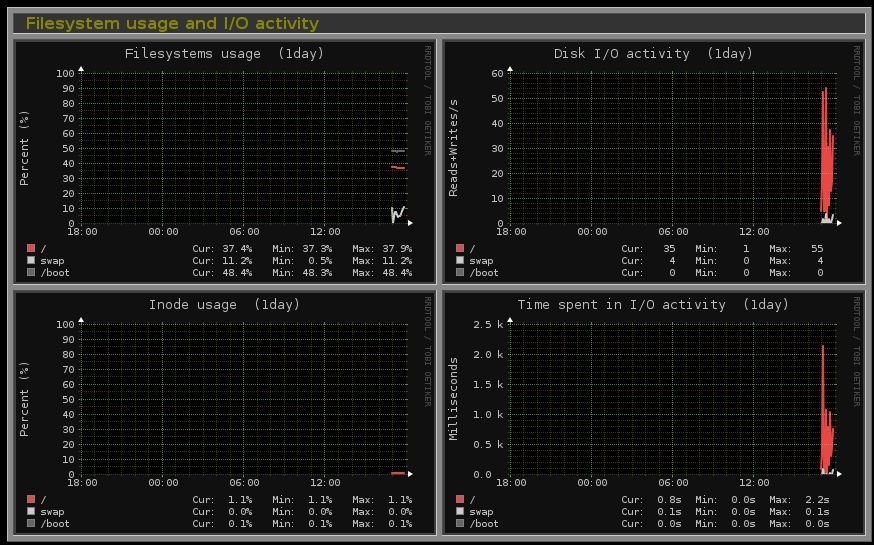
Monitoring file system usage and I/O activity
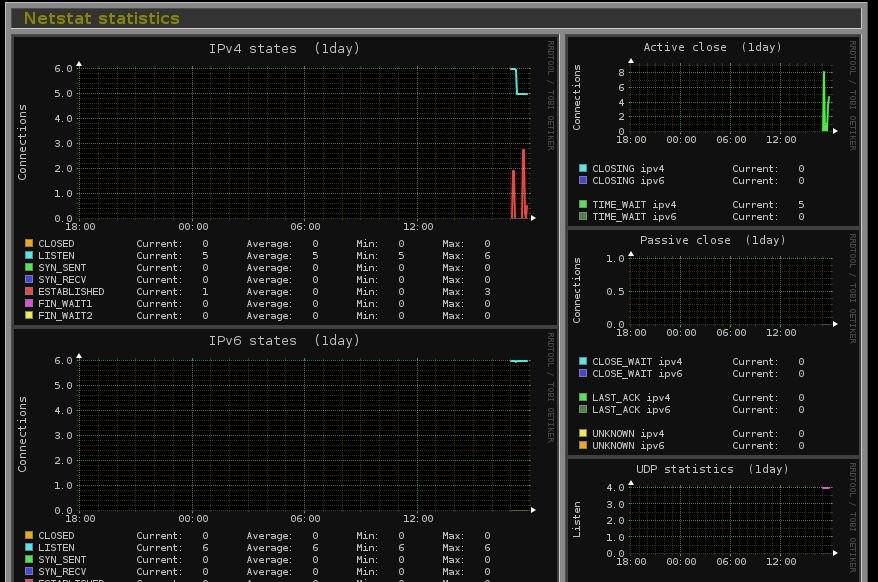
Monitoring Netstat statics
Comments ( 0 )
No comments available