How to install Monstra CMS 3.0.4 on CentOS 7
To install Monstra CMS 3.0.4 on CentOS 7
Monstra is an open source, modern and lightweight CMS application that is easy to install, upgrade within a few steps. It contains various API' s for plugins, themes, and core development. It also supports several administrators, editors, and users. It is SEO friendly and supports multiple levels of security for the content.
Prerequisites
Install LAMP(Apache, MariaDB, php7)
In MariaDB (create database and user and give privileges to that user )
PHP installation
rpm -Uvh https://dl.fedoraproject.org/pub/epel/epel-release-latest-7.noarch.rpm
rpm -Uvh https://mirror.webtatic.com/yum/el7/webtatic-release.rpm
yum install php56w php56w-opcache php56w-mysql php56w-curl php56w-xml  php56w-mcrypt php56w-gd
Installation
First, we have to switch to any local directory where you wants the package to gets downloaded.
[root@linuxhelp1 ~]# cd /home/user1/
Download the Monstra package from the terminal as follows.
[root@linuxhelp1 user1]# wget https://bitbucket.org/Awilum/monstra/downloads/monstra-3.0.4.zip --no-check-certificate
--2018-04-16 03:06:51--
Resolving wget (wget)... failed: Name or service not known.
wget: unable to resolve host address ‘ wget’
--2018-04-16 03:06:52--  https://bitbucket.org/Awilum/monstra/downloads/monstra-3.0.4.zip--2018-05-09
Resolving bitbucket.org (bitbucket.org)... 104.192.143.2, 104.192.143.1, 104.192.143.3, ...
.
.
HTTP request sent, awaiting response... 200 OK
Length: 1739269 (1.7M) [application/zip]
Saving to: ‘ monstra-3.0.4.zip’

100%[============================================================> ] 1,739,269    333KB/s   in 13s

2018-04-16 03:07:30 (133 KB/s) - ‘ monstra-3.0.4.zip’  saved [1739269/1739269]

FINISHED --2018-04-16 03:07:30--
Total wall clock time: 39s
Downloaded: 1 files, 1.7M in 13s (133 KB/s)
The package is a zip file, so we need to unzip the package now.
[root@linuxhelp1 user1]# unzip monstra-3.0.4.zip -d monstra
Archive:  monstra-3.0.4.zip
   creating: monstra/monstra-3.0.4/
  inflating: monstra/monstra-3.0.4/sitemap.xml
  inflating: monstra/monstra-3.0.4/rss.php
  inflating: monstra/monstra-3.0.4/robots.txt
  inflating: monstra/monstra-3.0.4/install.php
  inflating: monstra/monstra-3.0.4/index.php
.
.
  inflating: monstra/monstra-3.0.4/plugins/codemirror/codemirror/mode/rpm/changes/index.html
  inflating: monstra/monstra-3.0.4/plugins/codemirror/codemirror/mode/rpm/changes/changes.js
   creating: monstra/monstra-3.0.4/plugins/codemirror/codemirror/addon/merge/dep/
  inflating: monstra/monstra-3.0.4/plugins/codemirror/codemirror/addon/merge/dep/diff_match_patch.js
   creating: monstra/monstra-3.0.4/libraries/Gelato/ErrorHandler/Resources/Views/Errors/
  inflating: monstra/monstra-3.0.4/libraries/Gelato/ErrorHandler/Resources/Views/Errors/production.php
  inflating: monstra/monstra-3.0.4/libraries/Gelato/ErrorHandler/Resources/Views/Errors/exception.php
Move the extracted file into the following path.
[root@linuxhelp1 user1]# mv monstra-3.0.4 /var/www/
Then switch to the directory as follows.
[root@linuxhelp1 user1]# cd /var/www/
Next, you need to change ownership and permission of the file.
[root@linuxhelp1 www]# chown -R apache. apache monstra-3.0.4
 [root@linuxhelp1 www]# chmod -R 775 monstra-3.0.4
Now we have to create a new virtual host configuration for accessing the monstra application.
[root@linuxhelp1 www]# vim /etc/httpd/conf.d/monstra.conf
< VirtualHost *:80>
ServerName www.linuxhelp1.com
DocumentRoot /var/www/monstra-3.0.4/

< Directory /var/www/monstra-3.0.4/>
AllowOverride All
allow from all
< /Directory>

< /virtualHost>
Then restart the httpd service as follows.
[root@linuxhelp1 www]# systemctl restart httpd
Now you can proceed the further installation and configuration from the browser by navigating to the following URL: http://< ipaddress or domain name

Now configure the application setup as follows. First Choose the Language and verify whether it meets all the requirements.

Next, configure the site information setup and proceed further.

After the setup, we will see the home page of monstra as shown in the following image.
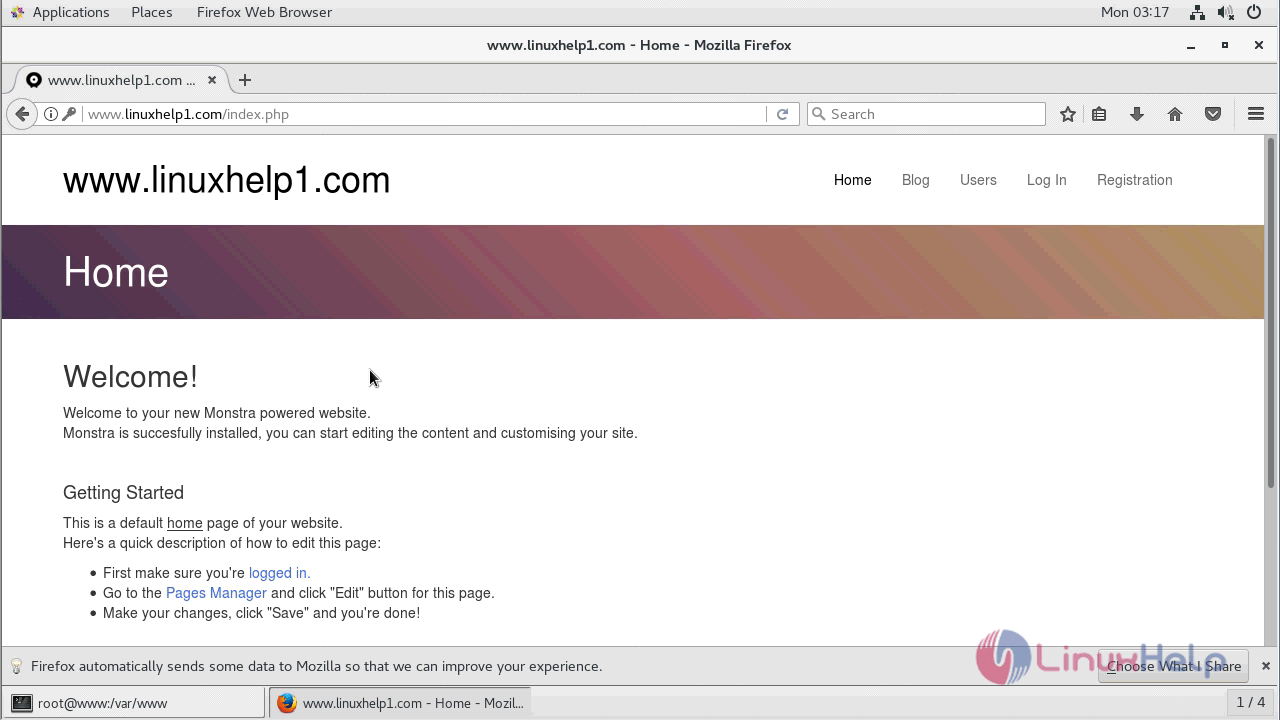
Login Monstra, using Admin user credential which you created during the setup.

Now we are in an Administration control panel of Monstra application.

With this, the method to install Monstra CMS 3.0.4 on CentOS 7 comes to an end.
Comments ( 0 )
No comments available