How to install mtPaint Graphic Editor on Ubuntu 17.04
To install mtPaint Graphic Editor on Ubuntu 17.04.
mtPaint is an open-source and cross-platform painting program used for designing icons, pixel-based artworks as well as for manipulating digital photos. It can also be used for editing indexed palette or 24 bit RGB images and offers painting, palette, and image manipulation tools similar to the popular Microsoft MS Paint. The installation of mtPaint Graphic Editor on Ubuntu 17.04 is so simple and this article covers the same process.
Features
- Supports several file extensions such as BMP, GIF, JPEG, LSS, PNG, TGA, TIFF, XPM, XBM, etc.
- Image channels such as Alpha, Selection, as well as Mask are available - All saved to a PNG file
- Easy for creating animations by moving layers, or shifting palettes, as well as animated GIF’ s using Gifsicle
- Enables shuffling pixels, flood fill, draw straight lines, smudge, clone, paste text, draw/fill, rectangle/ellipses, etc.
Installing mtPaint Graphic Editor
For making a successful mtPaint Editor installation on your Ubuntu machine, you need to install the gdebi file in your system. Run the following command to install it.
root@linuxhelp:~#  apt install gdebi
Reading package lists... Done
Building dependency tree
Reading state information... Done
.
.
Setting up gdebi (0.9.5.7ubuntu1) ...
Processing triggers for libc-bin (2.23-0ubuntu3) ...
Once the file is installed, you need to add the other dependency packages into your system, this action can be done by executing the following command.
root@linuxhelp:~# wget https://launchpad.net/ubuntu/+archive/primary/+files/libopenjpeg5_1.5.2-3.1_amd64.deb
--2017-07-30 10:46:44--  https://launchpad.net/ubuntu/+archive/primary/+files/libopenjpeg5_1.5.2-3.1_amd64.deb
Resolving launchpad.net (launchpad.net)... 91.189.89.222, 91.189.89.223
Connecting to launchpad.net (launchpad.net)|91.189.89.222|:443... connected.
.
.
libopenjpeg5_1.5.2- 100%[===================> ] 101.70K   225KB/s    in 0.5s

2017-07-30 10:46:47 (225 KB/s) - ‘ libopenjpeg5_1.5.2-3.1_amd64.deb’  saved [104144/104144]
After downloading those dependency packages, you need to install them as follows.
root@linuxhelp:~# gdebi libopenjpeg5_1.5.2-3.1_amd64.deb
Reading package lists... Done
Building dependency tree
Reading state information... Done
.
.
Setting up libopenjpeg5:amd64 (1:1.5.2-3.1) ...
Processing triggers for libc-bin (2.24-9ubuntu2) ...
There are still a couple of steps left before you kickstart your mtpaint installation. Add the necessary repository into your system by executing the following command.
root@linuxhelp:~# add-apt-repository ppa:webupd8team/mtpaint
 mtPaint (currently provides the latest mtPaint 3.50 development release)
 More info: https://launchpad.net/~webupd8team/+archive/ubuntu/mtpaint
.
.
gpg: Total number processed: 1
gpg:               imported: 1
OK
Once added, update the newly added repo as follows.
root@linuxhelp:~# apt update
Hit:1 http://in.archive.ubuntu.com/ubuntu zesty InRelease
Get:2 http://ppa.launchpad.net/webupd8team/mtpaint/ubuntu zesty InRelease [15.4 kB]
.
.
Building dependency tree
Reading state information... Done
175 packages can be upgraded. Run ' apt list --upgradable'  to see them.
Finally, install mtpaint application by triggering the following command.
root@linuxhelp:~# apt install mtpaint
Reading package lists... Done
Building dependency tree
Reading state information... Done
.
.
Processing triggers for man-db (2.7.6.1-2) ...
Processing triggers for gnome-menus (3.13.3-6ubuntu5) ...
The installation is successful. Go to your ubuntu dashboard and type mtpaint, the icon will be displayed on your system.
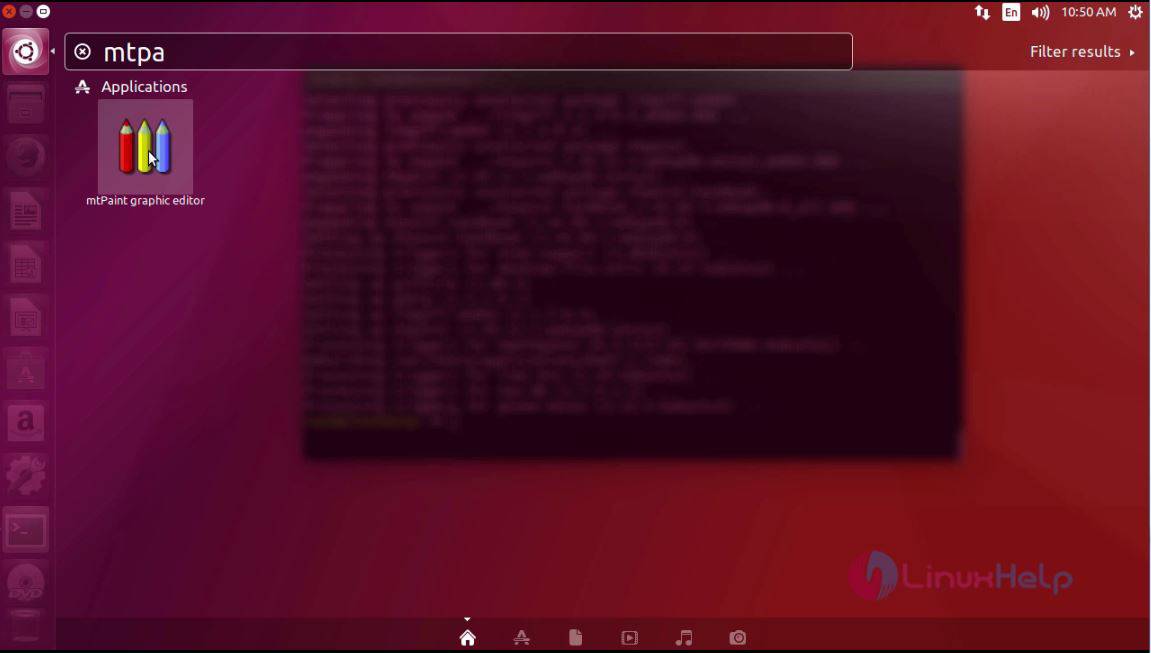
Click the icon to open the application.
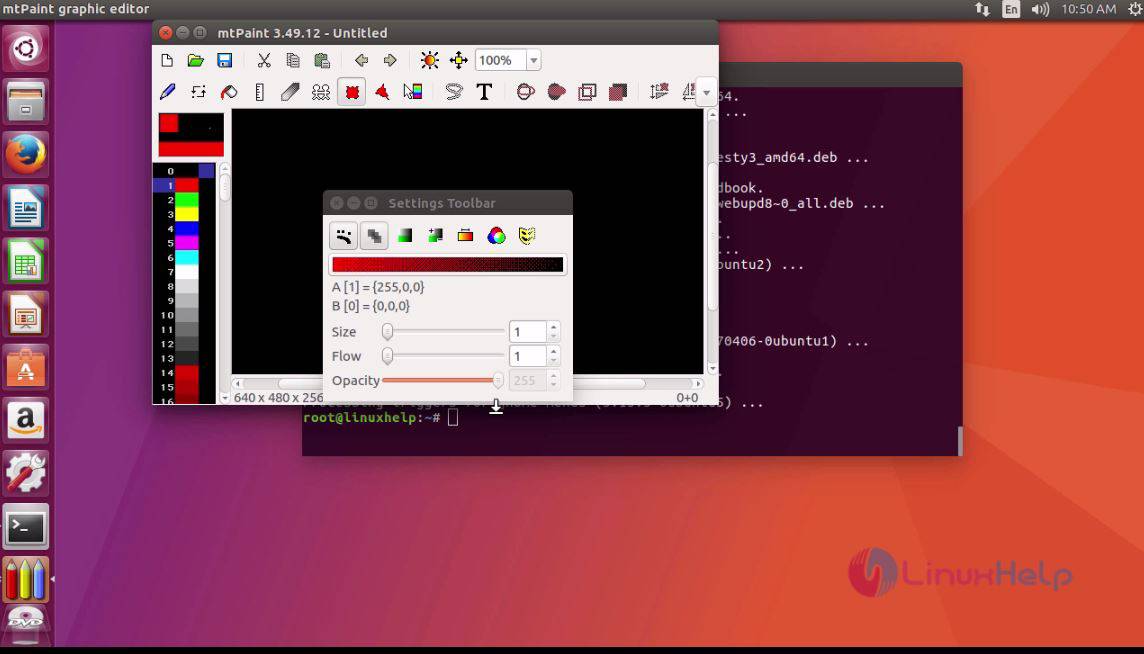
With this, the installation of mtPaint in your system is complete.
Comments ( 0 )
No comments available