• Categories
    Category
    {{ postCtrl.tags }}
    • {{ category.tag_type }}

      • {{tag.tag_name}}
      • View more
  • Categories
    Category
    {{ postCtrl.tags }}
    • {{ category.tag_type }}

      • {{tag.tag_name}}
      • View more
  • News
  • Tutorials
  • Forums
  • Tags
  • Users
Tutorial News Comments FAQ Related Articles

How to Install Multitail 6.4.2 on Ubuntu

{{postValue.id}}

How to Install Multitail on Ubuntu

Tail is a program in Linux which is used to read a few lines from the end of a large file. Multi-tail, on the other hand, is a similar program to Tail. The only difference is that with Multi-tail, you can read multiple files - the log files at once. It also displays every opened file in a single terminal window nicely. You can also follow multiple files for changes at once. With Multi-tail you can open the different file with different colors. It is a very useful tool for Linux System Administrators.

It is so simple to install Multitail on Ubuntu and this tutorial covers the ground on the same process.

Installing Multitail

First, make sure you update your system by making use of the following command.

root@localhost:~# apt-get update
Hit:1 http://in.archive.ubuntu.com/ubuntu xenial InRelease
Hit:2 http://security.ubuntu.com/ubuntu xenial-security InRelease 
.
.
Hit:4 http://in.archive.ubuntu.com/ubuntu xenial-backports InRelease
Reading package lists... Done

You shall now install multitail by making use of the following command.

root@localhost:~# apt-get install multitail
Reading package lists... Done
.
.
Processing triggers for man-db (2.7.5-1) ...
Setting up multitail (6.4.2-1build1) ...

Once Multitail has been installed, you shall know about the version of Multi-tail by making use of the following command.

root@localhost:~# multitail -V
 --*- multitail 6.4.2 (C) 2003-2014 by folkert@vanheusden.com -*--
.
.
do not hesitate to contact me at folkert@vanheusden.com
Website is available at: http://www.vanheusden.com/multitail/


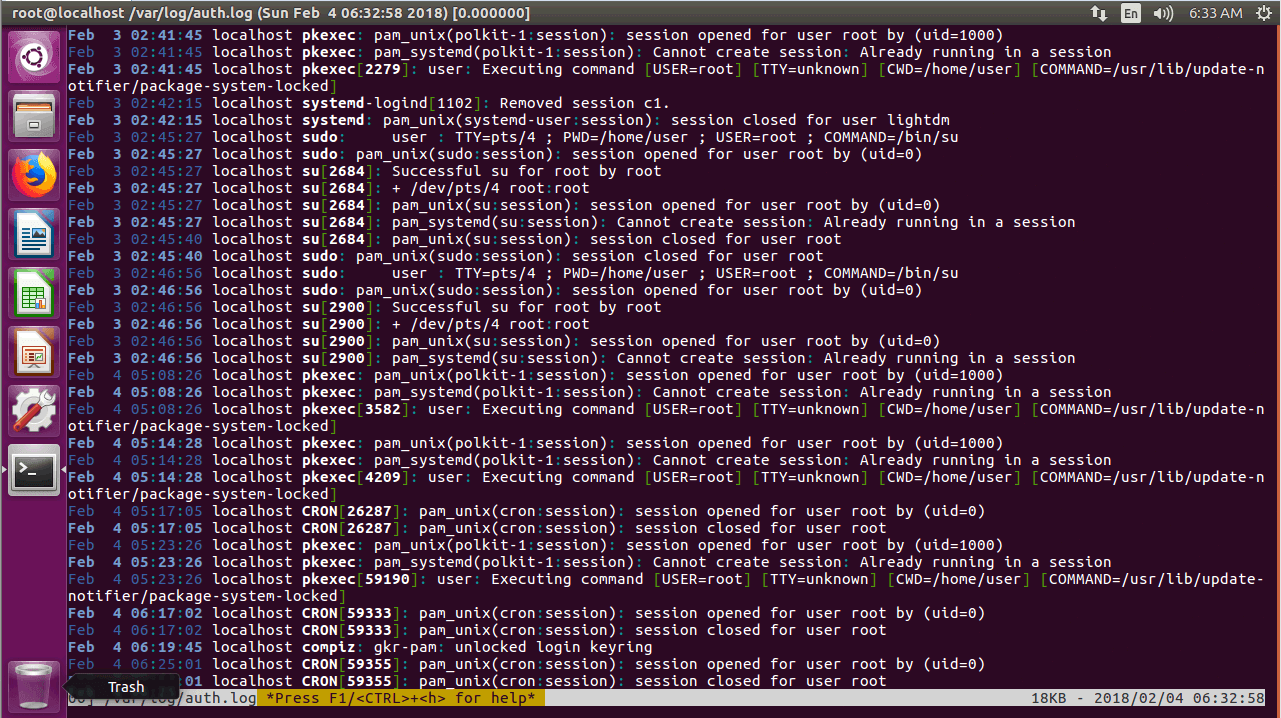
You can now use multitail to view single log file with Multi-tail.

root@localhost:~# multitail /var/log/auth.log 
Multiple

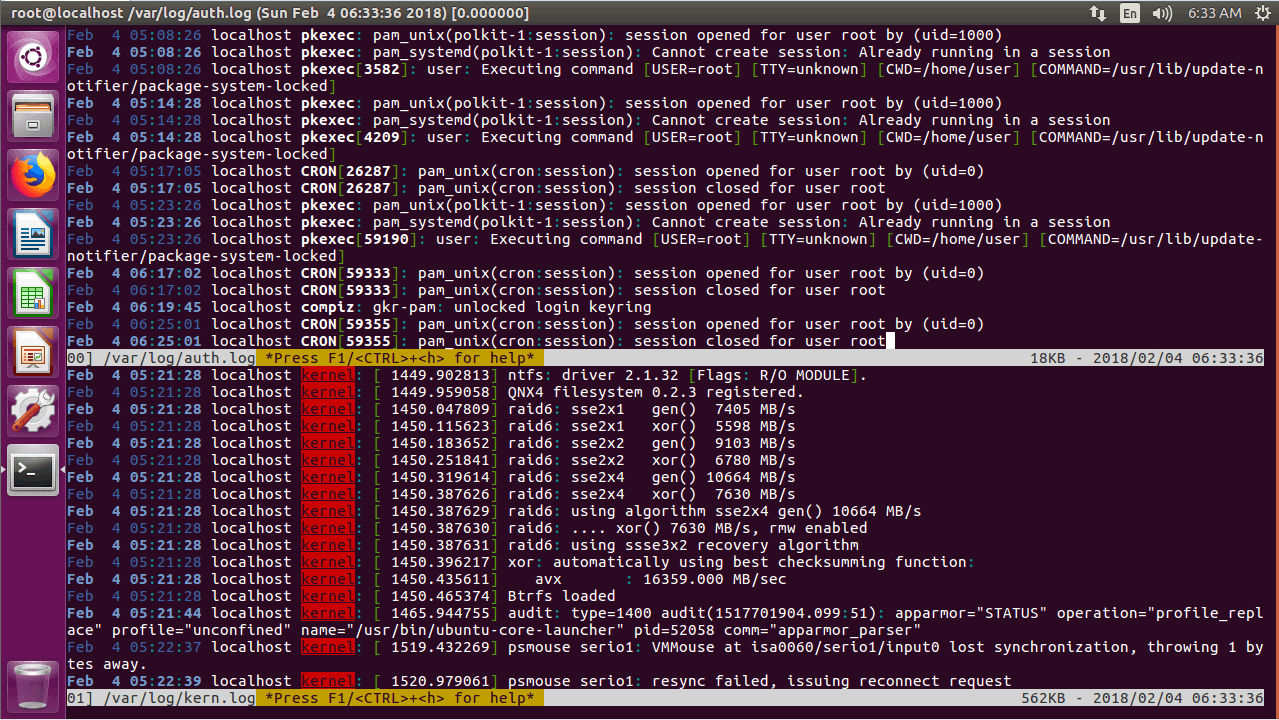
You can also view multiple log files with multi-tail in a vertical manner.

root@localhost:~# multitail /var/log/auth.log  /var/log/kern.log 
Multi

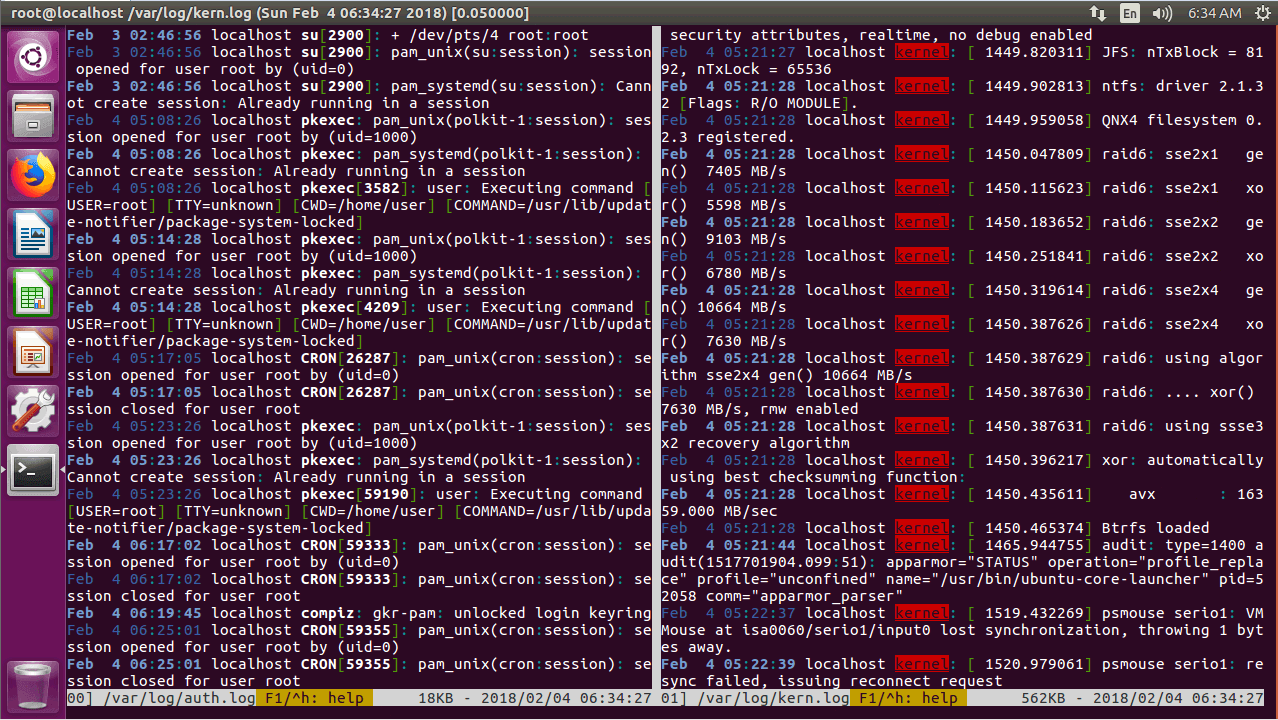
You can also view multiple log files with multi-tail in a horoizontal manner.

root@localhost:~# multitail -s 2 /var/log/auth.log  /var/log/kern.log 
Tail

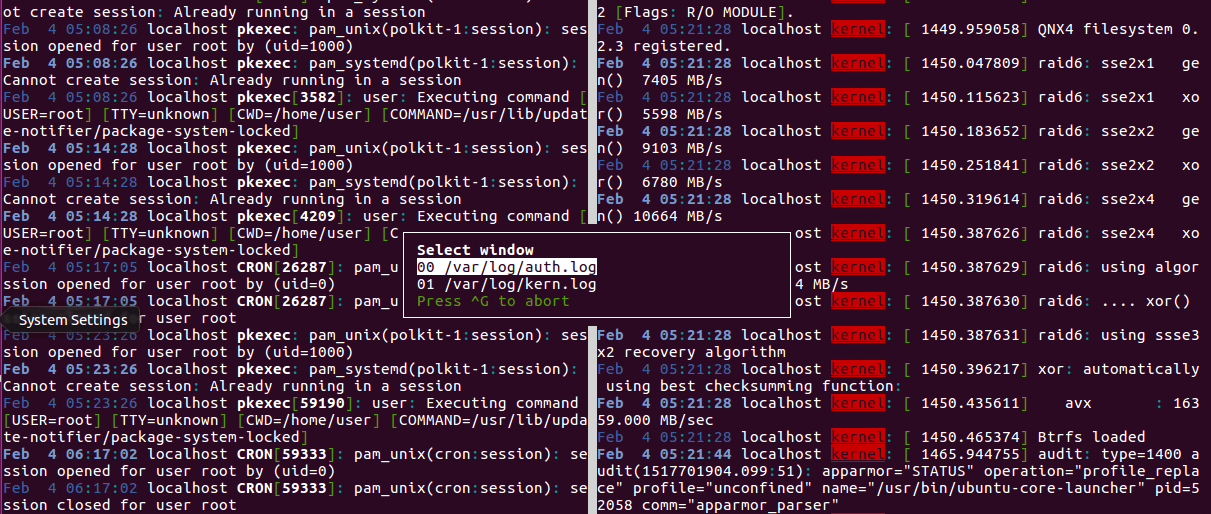
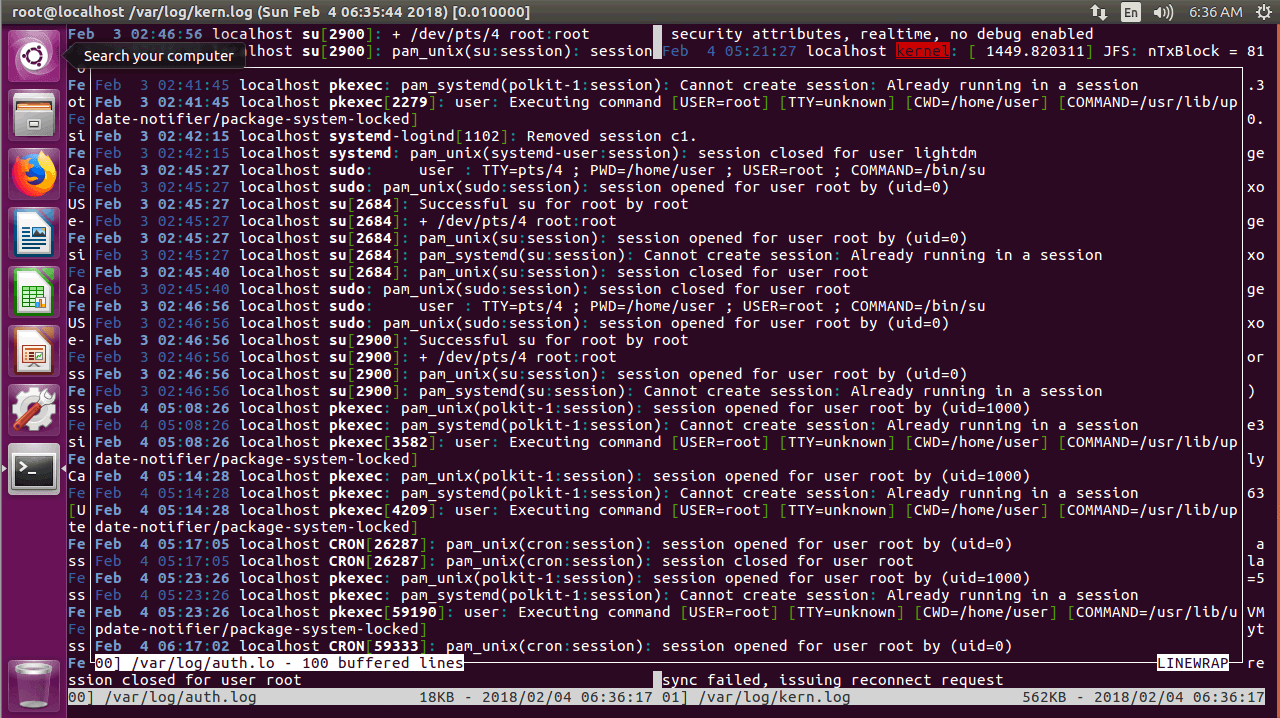
You can press ‘ b’ to open a list of the opened files as shown in the screenshot below. I have 2 files opened, the first one /var/log/auth.log is numbered 00 and the second one /var/log/kern.log is numbered 01. If you don’ t want to select any file, just press < Ctrl> and < g> to cancel the selection menu.
Press

As you can see from the screenshot below, I selected the first file /var/log/auth.log and it’ s displayed in a separate section. Now you can press < Up> and < Down> arrow keys to navigate the file.
Navigate

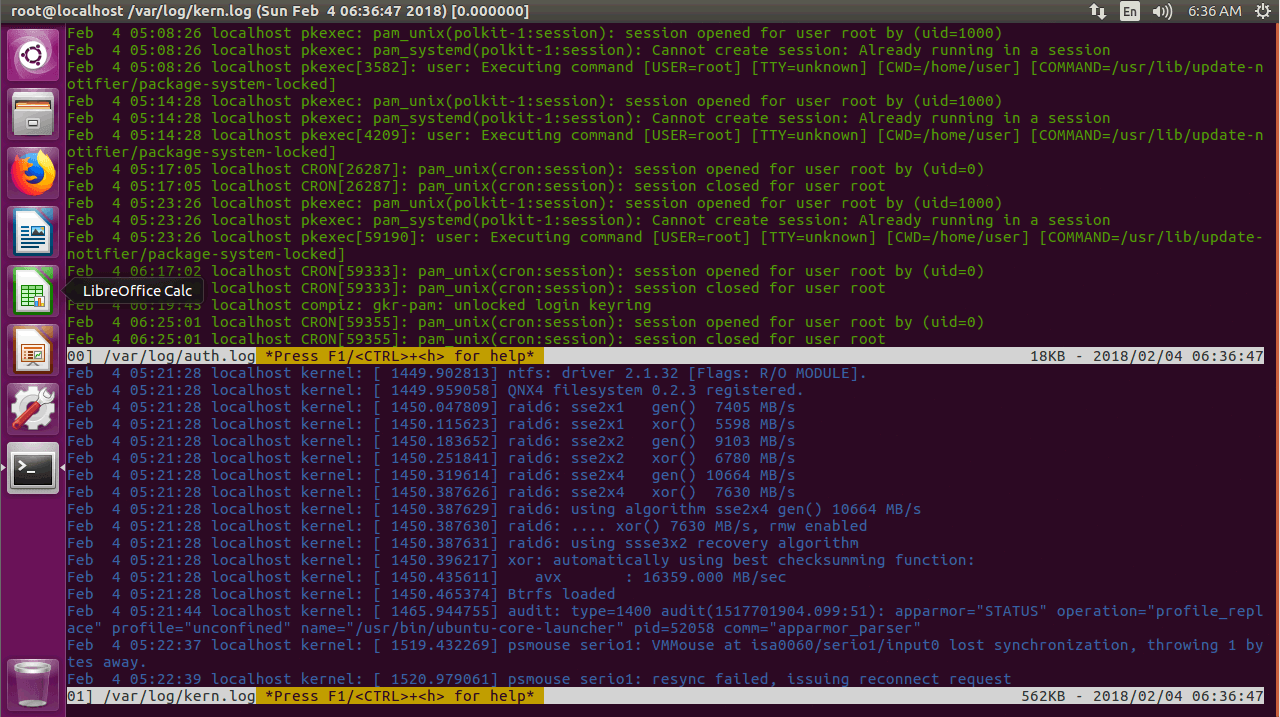
If you want to view multiple files with different colors in a vertical manner, run the following command.

root@localhost:~# multitail -ci green /var/log/auth.log -ci blue /var/log/kern.log 
Vertical

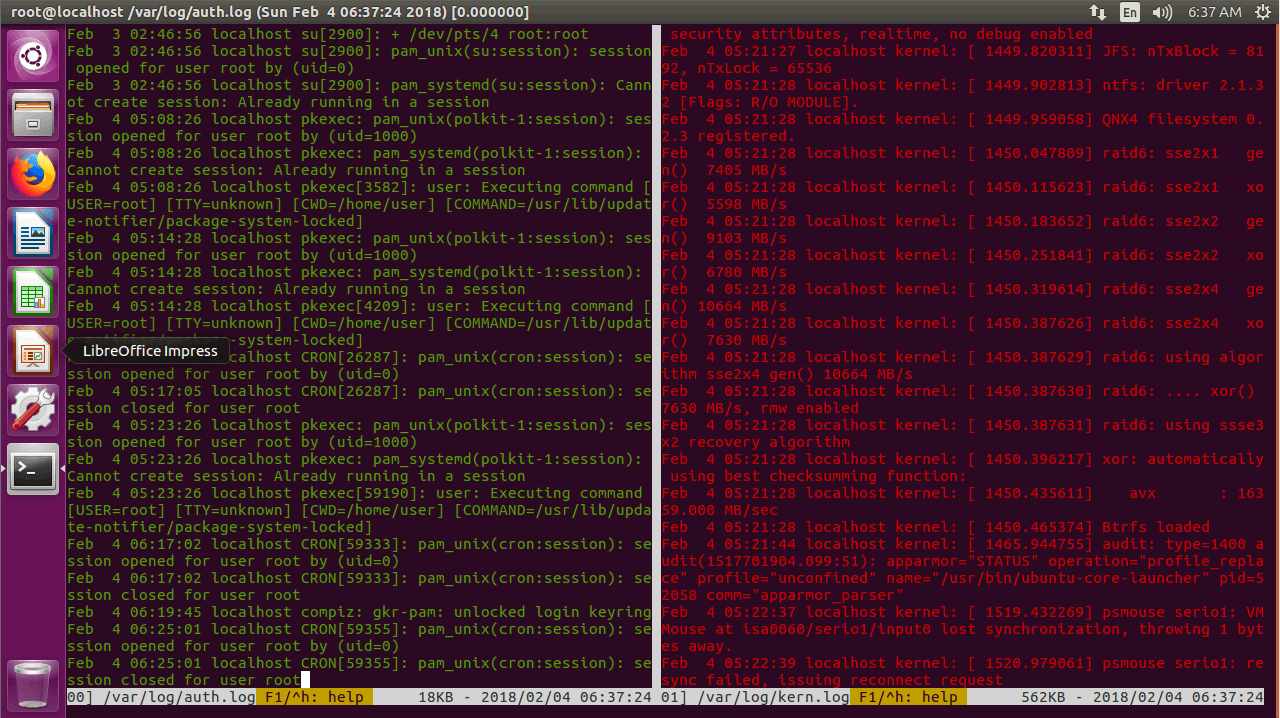
You can also view multiple files with different colors in horizontal manner.

root@localhost:~# multitail -s 2 -ci green /var/log/auth.log -ci red /var/log/kern.log 
Horizontal

With this, the tutorial comes to an end.

Tags:
jayce
Author: 

Comments ( 0 )

No comments available

Add a comment
{{postCtrl.cmtErrMsg}}

Frequently asked questions ( 5 )

Q

how to install Multitail on centos?

A

For the installation of the Multitail on CentOS, use the following link as given below "https://www.linuxhelp.com/how-to-install-multitail-in-linux/"

Q

What is the main term os usage of Multitail?

A

A tail is a program in Linux which is used to read a few lines from the end of a large file. Multi-tail, on the other hand, is a similar program to Tail. The only difference is that with Multi-tail, you can read multiple files - the log files at once. It also displays every opened file in a single terminal window nicely. You can also follow multiple files for changes at once. With Multi-tail you can open the different file with different colors. It is a very useful tool for Linux System Administrators.

It is so simple to install Multitail on Ubuntu and this tutorial covers the ground on the same process.

Q

What are the features available in Multitail?

A

The following features are available in Multitail as given below,
Multiple input sources.
Color display using Regular Expression in the case of important information.
Line filtering.
Interactive Menus for deleting and adding shells.

Q

How to View 2 Files in Single Window using the Multitail command?

A

For View 2 Files in Single Window using the Multitail command, use the following example as given below "multitail /file1.txt /file2.txt"

Q

How to view the Multiple files in multiple columns using the Multitail command?

A

For view the Multiple files in multiple columns using the Multitail command, use the following example as given below " multitail -s 3 /file.txt /file2.txt /file3.txt"

Back To Top!
Rank
User
Points

Top Contributers

userNamenaveelansari
135850

Top Contributers

userNameayanbhatti
92510

Top Contributers

userNamehamzaahmed
32150

Top Contributers

1
userNamelinuxhelp
31040

Top Contributers

userNamemuhammadali
24500
Can you help Luk Van De Looverbosch ?
How to create a root ?

Hello,
How to create root@linuxhelp in Linux Mint 20.1 64-bit ?
Thanks in advance for your reply.
Best regards.

Networking
  • Routing
  • trunk
  • Netmask
  • Packet Capture
  • domain
  • HTTP Proxy
Server Setup
  • NFS
  • KVM
  • Memory
  • Sendmail
  • WebDAV
  • LXC
Shell Commands
  • Cloud commander
  • Command line archive tools
  • last command
  • Shell
  • terminal
  • Throttle
Desktop Application
  • Linux app
  • Pithos
  • Retrospect
  • Scribe
  • TortoiseHg
  • 4Images
Monitoring Tool
  • Monit
  • Apache Server Monitoring
  • EtherApe 
  • Arpwatch Tool
  • Auditd
  • Barman
Web Application
  • Nutch
  • Amazon VPC
  • FarmWarDeployer
  • Rukovoditel
  • Mirror site
  • Chef
Contact Us | Terms of Use| Privacy Policy| Disclaimer
© 2025 LinuxHelp.com All rights reserved. Linux™ is the registered trademark of Linus Torvalds. This site is not affiliated with linus torvalds in any way.