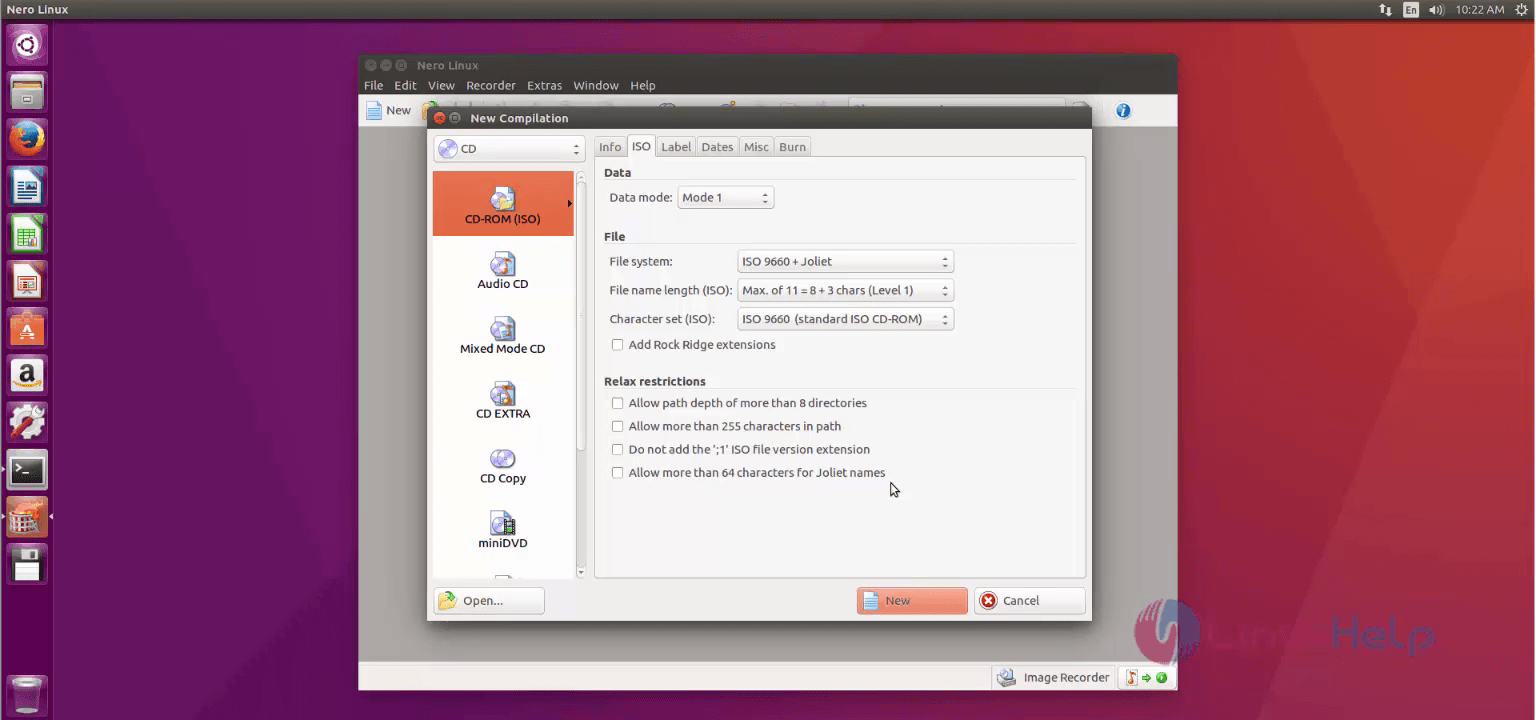
• Categories
    Category
    {{ postCtrl.tags }}
    • {{ category.tag_type }}

      • {{tag.tag_name}}
      • View more
  • Categories
    Category
    {{ postCtrl.tags }}
    • {{ category.tag_type }}

      • {{tag.tag_name}}
      • View more
  • News
  • Tutorials
  • Forums
  • Tags
  • Users
Tutorial News Comments FAQ Related Articles

How to install nero on Ubuntu 16.04

{{postValue.id}}

To install nero on Ubuntu 16.04

Nero is an optical authoring software used for burning and copying optical discs such as CDs, DVDs, Blu-rays. Installation of Nero is explained in this article.


To install nero

Before installation, download nero debian package using “ wget” command.

root@linuxhelp:~# wget -O nero-64bit.deb http://drive.noobslab.com/data/apps/nero/nerolinux-4.0.0.0b-x86_64.deb
--2016-07-06 10:19:23--  http://drive.noobslab.com/data/apps/nero/nerolinux-4.0.0.0b-x86_64.deb
Resolving drive.noobslab.com (drive.noobslab.com)... 108.167.143.64
Connecting to drive.noobslab.com (drive.noobslab.com)|108.167.143.64|:80... connected.
HTTP request sent, awaiting response... 200 OK
Length: 17386312 (17M) [application/x-debian-package]
Saving to: ‘ nero-64bit.deb’ 

nero-64bit.deb            100%[==================================> ]  16.58M   305KB/s    in 44s     

2016-07-06 10:20:08 (390 KB/s) - ‘ nero-64bit.deb’  saved [17386312/17386312]

Then install nero using the following command.

root@linuxhelp:~# dpkg -i nero-64bit.deb
Selecting previously unselected package nerolinux.
(Reading database ... 174141 files and directories currently installed.)
Preparing to unpack nero-64bit.deb ...
Unpacking nerolinux (4.0.0.0-1) ...
Setting up nerolinux (4.0.0.0-1) ...
Processing triggers for hicolor-icon-theme (0.15-0ubuntu1) ...
Processing triggers for man-db (2.7.5-1) ...
Processing triggers for gnome-menus (3.13.3-6ubuntu3) ...
Processing triggers for desktop-file-utils (0.22-1ubuntu5) ...
Processing triggers for bamfdaemon (0.5.3~bzr0+16.04.20160415-0ubuntu1) ...
Rebuilding /usr/share/applications/bamf-2.index...
Processing triggers for mime-support (3.59ubuntu1) ...
Processing triggers for libc-bin (2.23-0ubuntu3) ...

To Launch nero

After installation you can launch it in two ways.

GUI - using search panel. Select “ search panel” and type “ nero” and click nero.
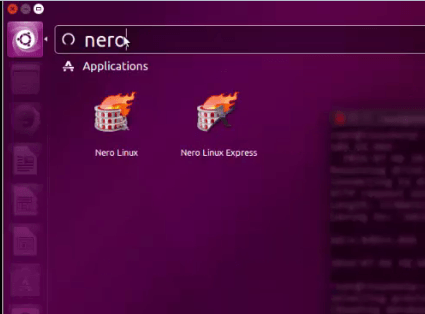
Installation-Nero-optical-authoring-software-Ubuntu16.04-Launch-nero
CLI - type “ nero” on command line terminal.

root@linuxhelp:~# nero

To Explore Nero

Open the nero application and click " Next"
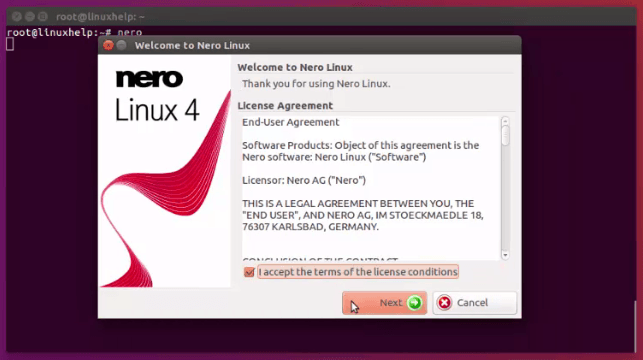
Installation-Nero-optical-authoring-software-Ubuntu16.04-Open-nero
Accept license agreement and click “ OK”
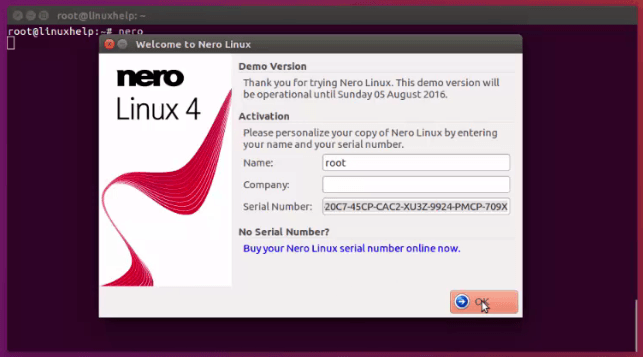
Installation-Nero-optical-authoring-software-Ubuntu16.04-license
Now Nero burn wizard appears.
Installation-Nero-optical-authoring-software-Ubuntu16.04-Nero-burn-wizard
Click “ new” for new writing process.
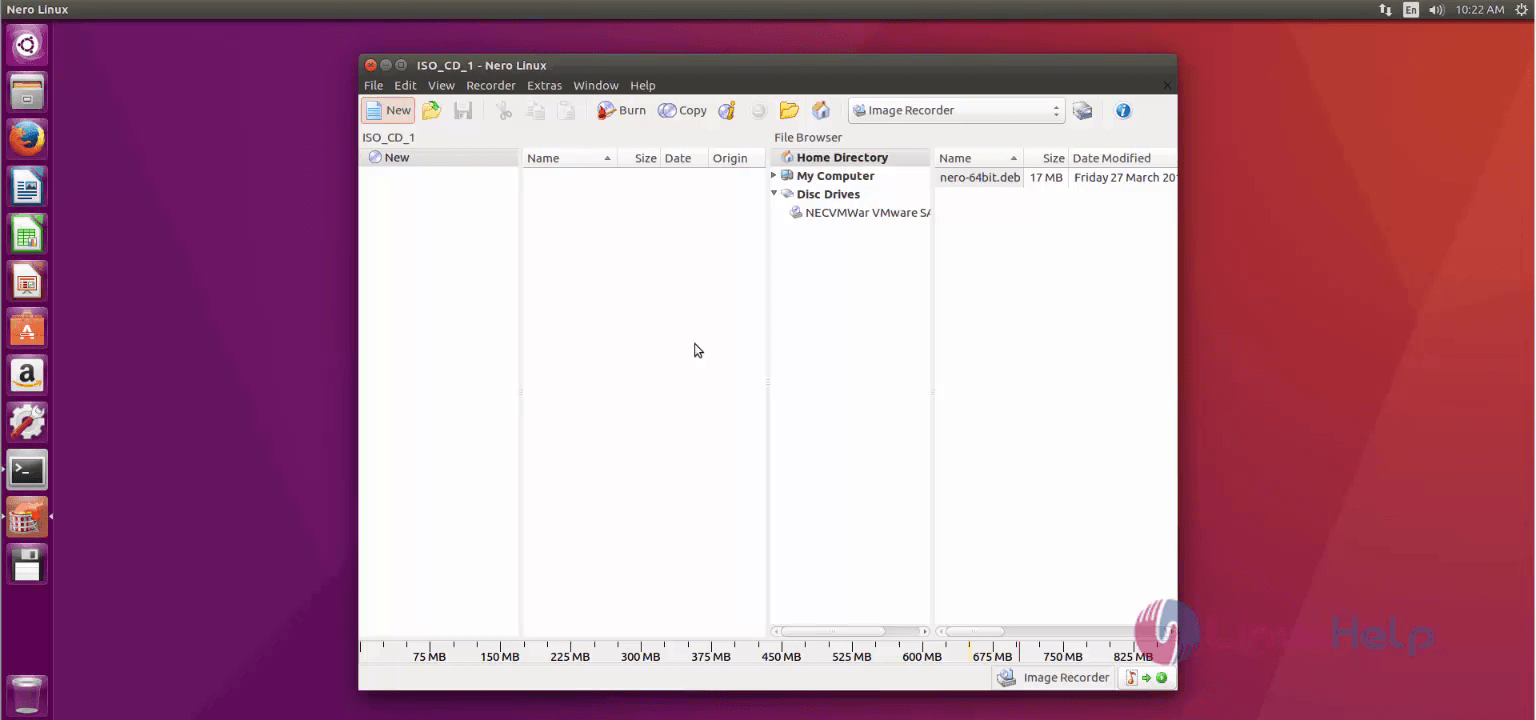
Installation-Nero-optical-authoring-software-Ubuntu16.04-new-writing-process
Select the writer in menu option. Here, we are choosing “ image recorder”
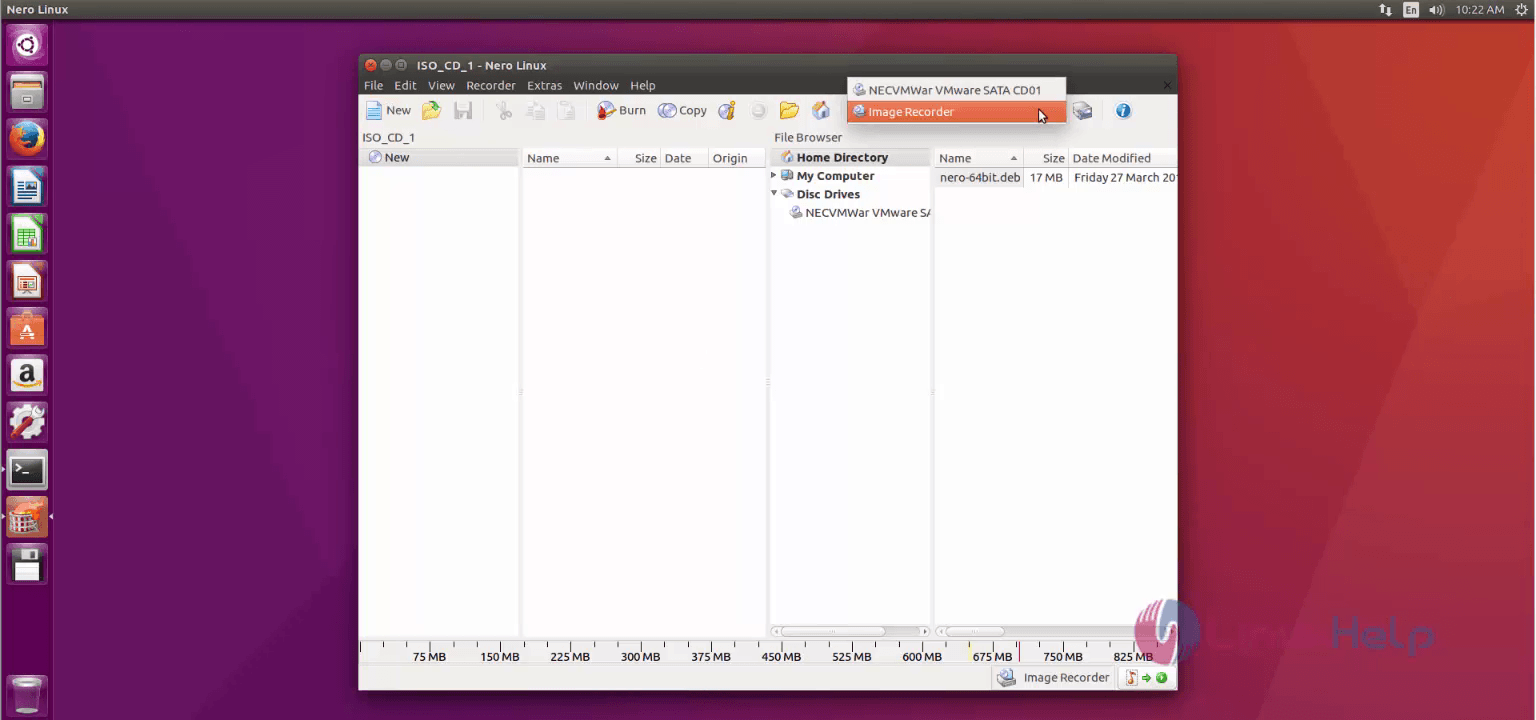
Installation-Nero-optical-authoring-software-Ubuntu16.04-image-recorder
Then “ Right click” in blank source panel and select “ Add files”
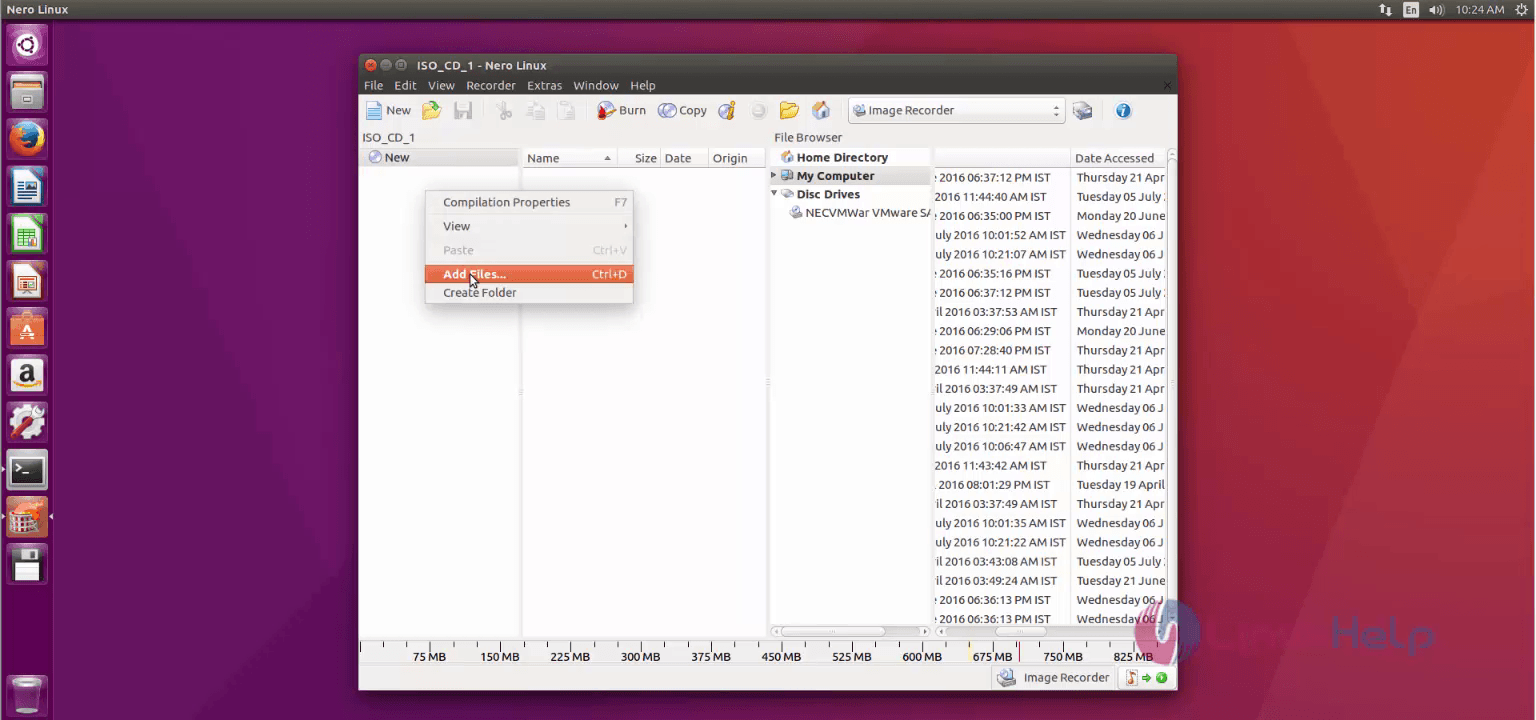
Installation-Nero-optical-authoring-software-Ubuntu16.04-Add-files
The add files wizard appears. Select the file to be burned and click “ Add” .
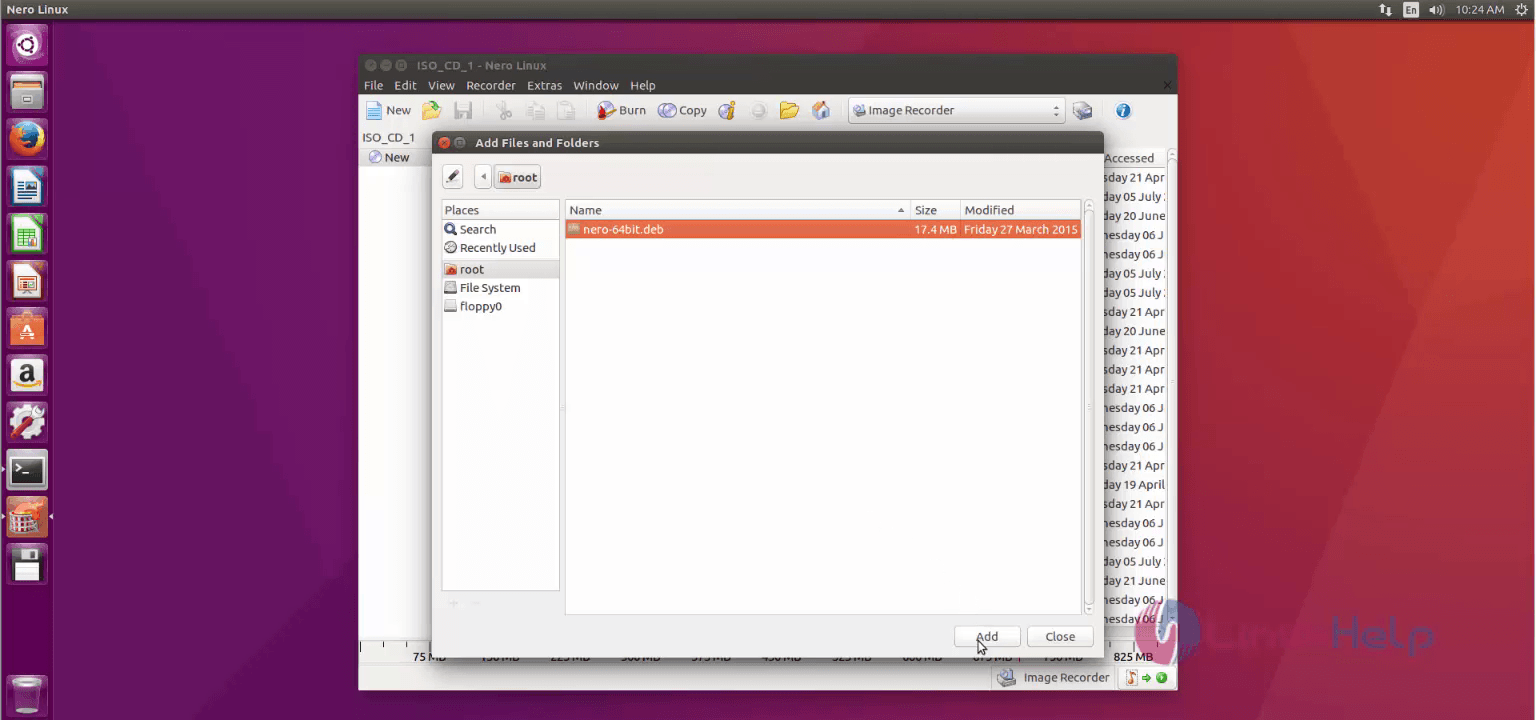
Installation-Nero-optical-authoring-software-Ubuntu16.04-add-files-wizard
After adding the file. Click “ close” .
Your file added successfully.
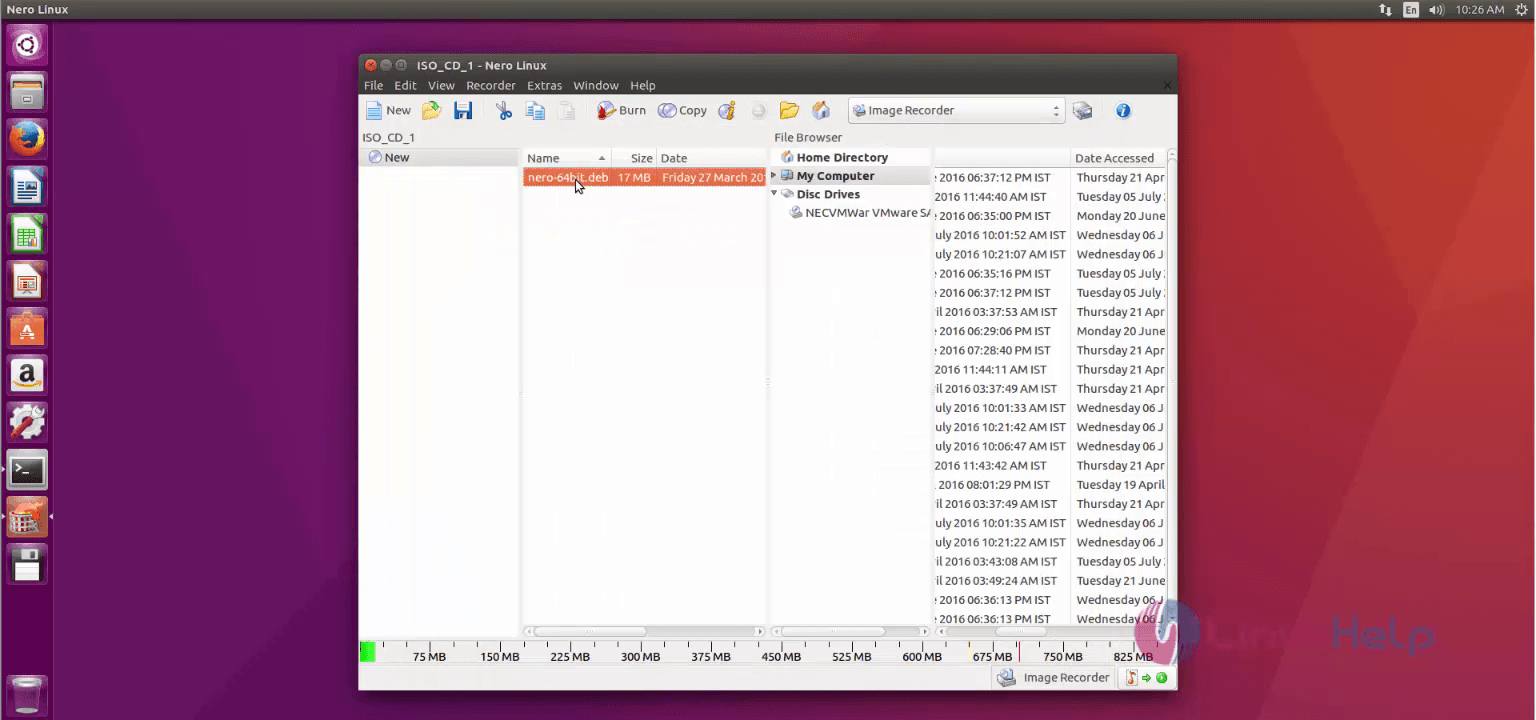
Installation-Nero-optical-authoring-software-Ubuntu16.04-file-added
Click “ burn” in menu bar. The “ burn compilation” wizard appears, then click “ burn”
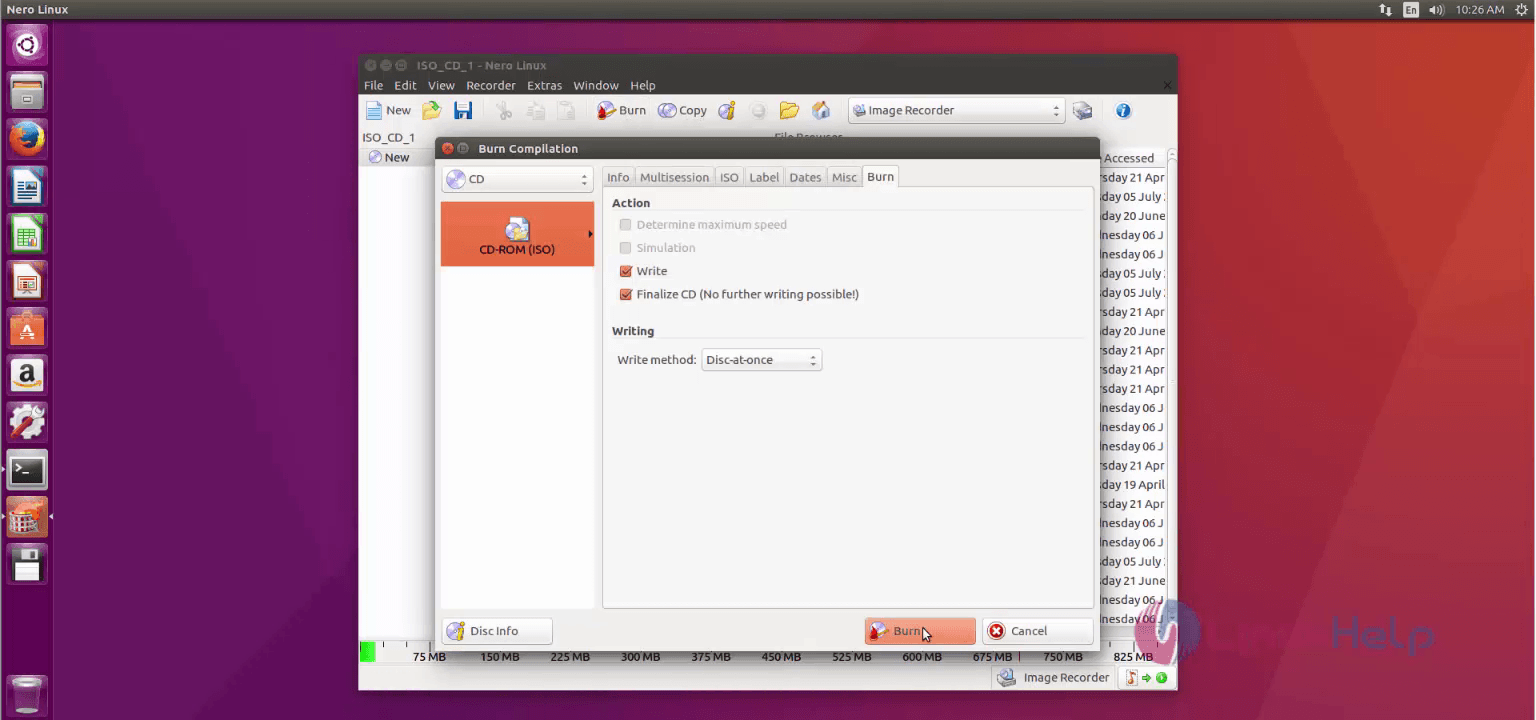
Installation-Nero-optical-authoring-software-Ubuntu16.04-burn-compilation
For image recorder, you have to set the image destination path and click Save
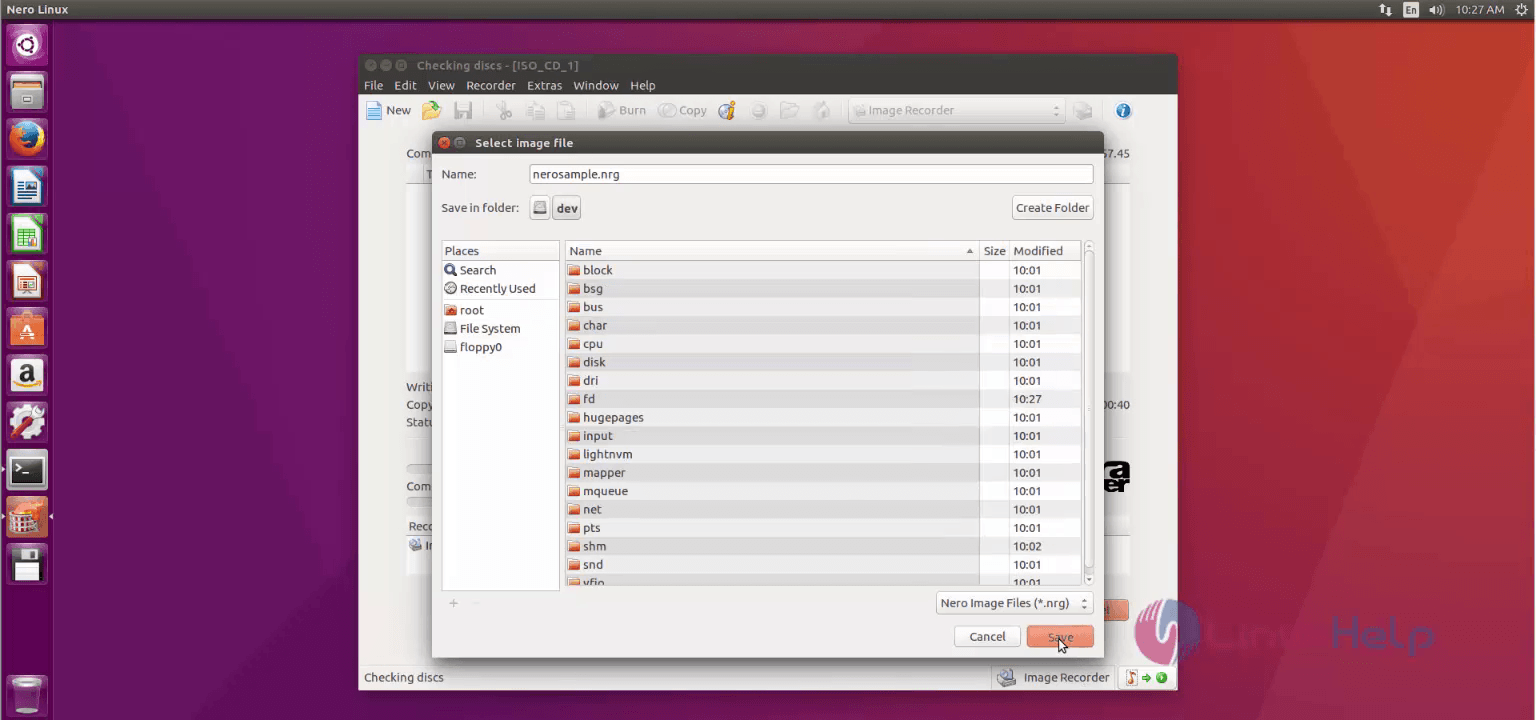
Installation-Nero-optical-authoring-software-Ubuntu16.04-set-image-destination-path

Installation-Nero-optical-authoring-software-Ubuntu16.04-set-image-destination-path-save
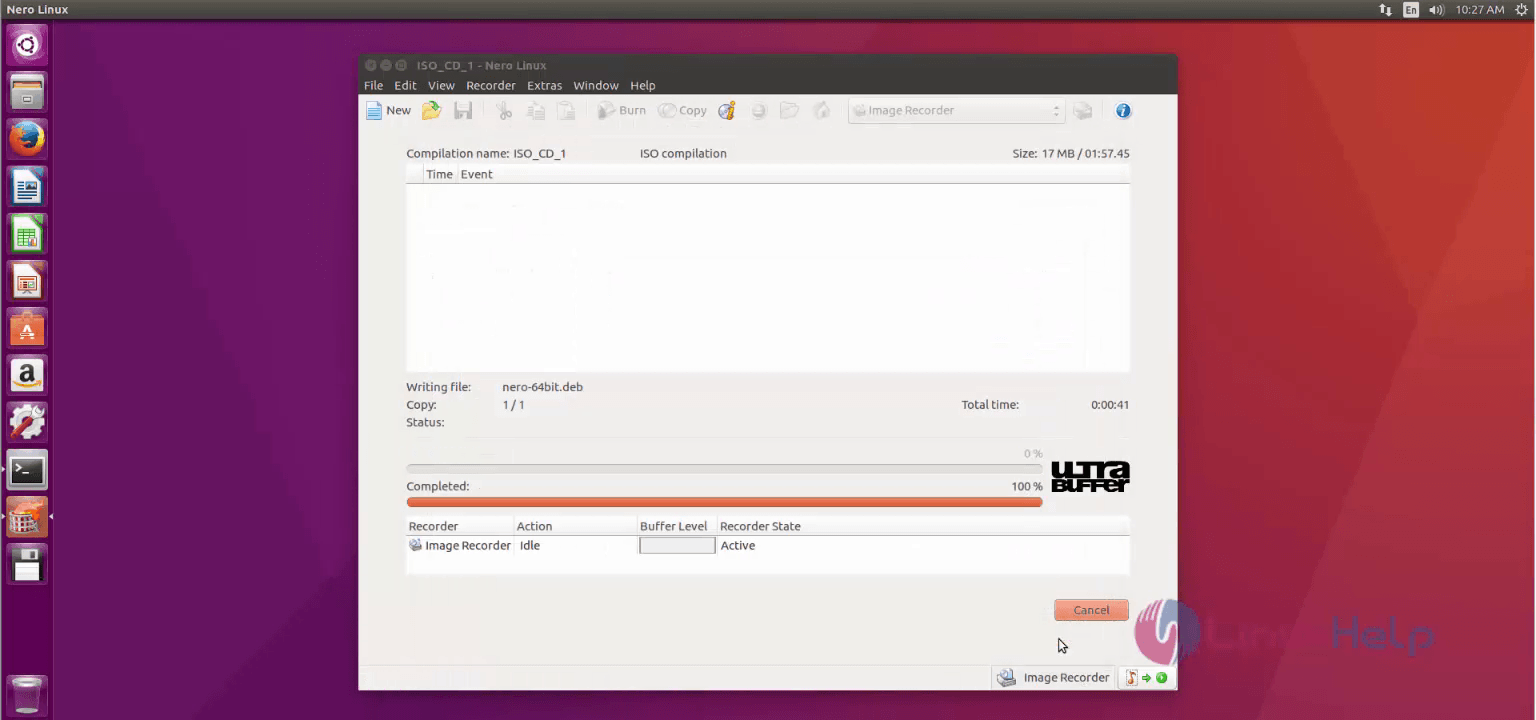
Once the Burn process is completed, Click “ ok”
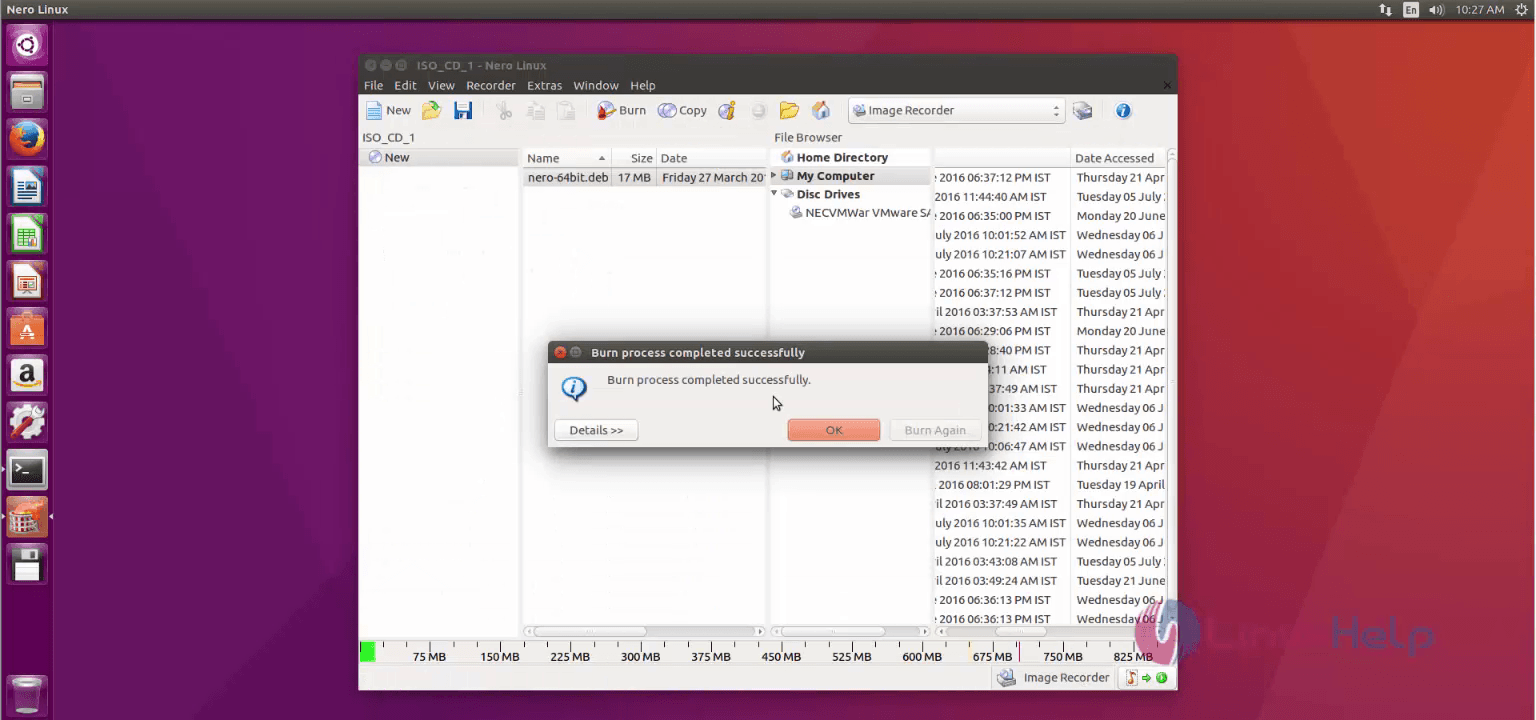
Installation-Nero-optical-authoring-software-Ubuntu16.04-Burn-process-completed

Tags:
landon
Author: 

Comments ( 0 )

No comments available

Add a comment
{{postCtrl.cmtErrMsg}}

Frequently asked questions ( 5 )

Q

What is the main terms of using "Nero"?

A

Nero is an optical authoring software used for burning and copying optical discs such as CDs, DVDs, Blu-rays.

Q

What is the Alternatives for the Nero application?

A

The alternatives for Nero application is given below,
Infra recorder,
CDBurnerXP,
DeepBurner,
FinalBurner,
ImgBurn,
Cdrtfe

Q

Whether the "nero" is available or not?

A

The "nero" is also available for Windows.

Q

Does Nero offer Subscription Products, and what are the Conditions of Purchase?

A

365 Days License: valid for 365 days with the option of manual renewal at the end of the contract period,
365 Days License (auto-renewal): valid for 365 days with auto-renewal at the end o

Q

How to install NeroACC on ubuntu?

A

For the installation of "NeroACC" on Ubuntu, use the link as given below "https://www.linuxhelp.com/how-to-install-neroaac-on-ubuntu-16-04/"

Back To Top!
Rank
User
Points

Top Contributers

userNamenaveelansari
135850

Top Contributers

userNameayanbhatti
92510

Top Contributers

userNamehamzaahmed
32150

Top Contributers

1
userNamelinuxhelp
31040

Top Contributers

userNamemuhammadali
24500
Can you help Gibbson ?
How do i run both nginx and apache in same instance on centos

Hi...,

my server is based centos operating system and my webserver is already running on Apache.... i need to run both apache and nginx on same instance ... please help me to implement this concept...

Networking
  • Routing
  • trunk
  • Netmask
  • Packet Capture
  • domain
  • HTTP Proxy
Server Setup
  • NFS
  • KVM
  • Memory
  • Sendmail
  • WebDAV
  • LXC
Shell Commands
  • Cloud commander
  • Command line archive tools
  • last command
  • Shell
  • terminal
  • Throttle
Desktop Application
  • Linux app
  • Pithos
  • Retrospect
  • Scribe
  • TortoiseHg
  • 4Images
Monitoring Tool
  • Monit
  • Apache Server Monitoring
  • EtherApe 
  • Arpwatch Tool
  • Auditd
  • Barman
Web Application
  • Nutch
  • Amazon VPC
  • FarmWarDeployer
  • Rukovoditel
  • Mirror site
  • Chef
Contact Us | Terms of Use| Privacy Policy| Disclaimer
© 2025 LinuxHelp.com All rights reserved. Linux™ is the registered trademark of Linus Torvalds. This site is not affiliated with linus torvalds in any way.