How to install Netdata Monitoring tool on Ubuntu 17.04
To install Netdata Monitoring tool on Ubuntu 17.04
Netdata is a free software (a daemon) which gathers a real-time performance data from Linux systems, Application, and SNMP devices,picture it in the web-based interface. The users can monitor anything with the API plugin and also easily embed the charts with any external web pages. It has its own web server to display the final report in graphical format. This tutorial covers the installation of Netdata monitoring tool on Ubuntu 17.04.
Installation procedure
To proceed with the installation procedure, install the application' s required dependencies by running the following command and press y to continue with the installation procedure.
root@linuxhelp:~# apt install zlib1g-dev uuid-dev libmnl-dev gcc make git autoconf autogen automake pkg-config curl jq nodejs -y
Reading package lists... Done
Building dependency tree
Reading state information... Done
gcc is already the newest version (4:6.3.0-2ubuntu1).
gcc set to manually installed.
make is already the newest version (4.1-9.1).
make set to manually installed.
pkg-config is already the newest version (0.29.1-0ubuntu1).
pkg-config set to manually installed.
.
.
.
Setting up autoconf (2.69-10) ...
Setting up libopts25-dev:amd64 (1:5.18.12-3) ...
Setting up automake (1:1.15-5ubuntu1) ...
update-alternatives: using /usr/bin/automake-1.15 to provide /usr/bin/automake (automake) in auto mode
Setting up autogen (1:5.18.12-3) ...
Processing triggers for libc-bin (2.24-9ubuntu2) ...
Gitclone the netdata package by executing the following command.
root@linuxhelp:~# git clone https://github.com/firehol/netdata.git --depth=1
Cloning into ' netdata' ...
remote: Counting objects: 679, done.
remote: Compressing objects: 100% (631/631), done.
remote: Total 679 (delta 90), reused 257 (delta 32), pack-reused 0
Receiving objects: 100% (679/679), 2.70 MiB | 741.00 KiB/s, done.
Resolving deltas: 100% (90/90), done.
Run the following script.
root@linuxhelp:~/netdata# ./netdata-installer.sh
  ^
  |.-.   .-.   .-.   .-.   .  netdata
  |   ' -'    ' -'    ' -'    ' -'    real-time performance monitoring, done right!
  +----+-----+-----+-----+-----+-----+-----+-----+-----+-----+-----+-----+--->

  You are about to build and install netdata to your system.

  It will be installed at these locations:
   - the daemon     at /usr/sbin/netdata
   - config files   in /etc/netdata
   - web files      in /usr/share/netdata
   - plugins        in /usr/libexec/netdata
   - cache files    in /var/cache/netdata
   - db files       in /var/lib/netdata
   - log files      in /var/log/netdata
   - pid file       at /var/run/netdata.pid
   - logrotate file at /etc/logrotate.d/netdata

  This installer allows you to change the installation path.
  Press Control-C and run the same command with --help for help.
During installation, a prompt will appear, just press enter to continue with the installation process.
Press ENTER to build and install netdata to your system >
.
.
.
Uninstall script generated: ./netdata-uninstaller.sh
Update script generated   : ./netdata-updater.sh

netdata-updater.sh can work from cron. It will trigger an email from cron
only if it fails (it does not print anything when it can update netdata).
Run this to automatically check and install netdata updates once per day:
sudo ln -s /root/netdata/netdata-updater.sh /etc/cron.daily/netdata-updater

 --- We are done! ---

  ^
  |.-.   .-.   .-.   .-.   .-.   .  netdata                          .-.   .-
  |   ' -'    ' -'    ' -'    ' -'    ' -'    is installed and running now!  -'    ' -'
  +----+-----+-----+-----+-----+-----+-----+-----+-----+-----+-----+-----+--->

  enjoy real-time performance and health monitoring...
Copy over the Netdata systemd service by running the following command.
root@linuxhelp:~/netdata# cp system/netdata.service /etc/systemd/system/
Start and enable your netdata service by executing the set of following commands.
root@linuxhelp:~/netdata# systemctl enable netdata
root@linuxhelp:~/netdata# systemctl start netdata
Switch over to your browser and enter the localhost:19999. The Netdata will run on that particular port.
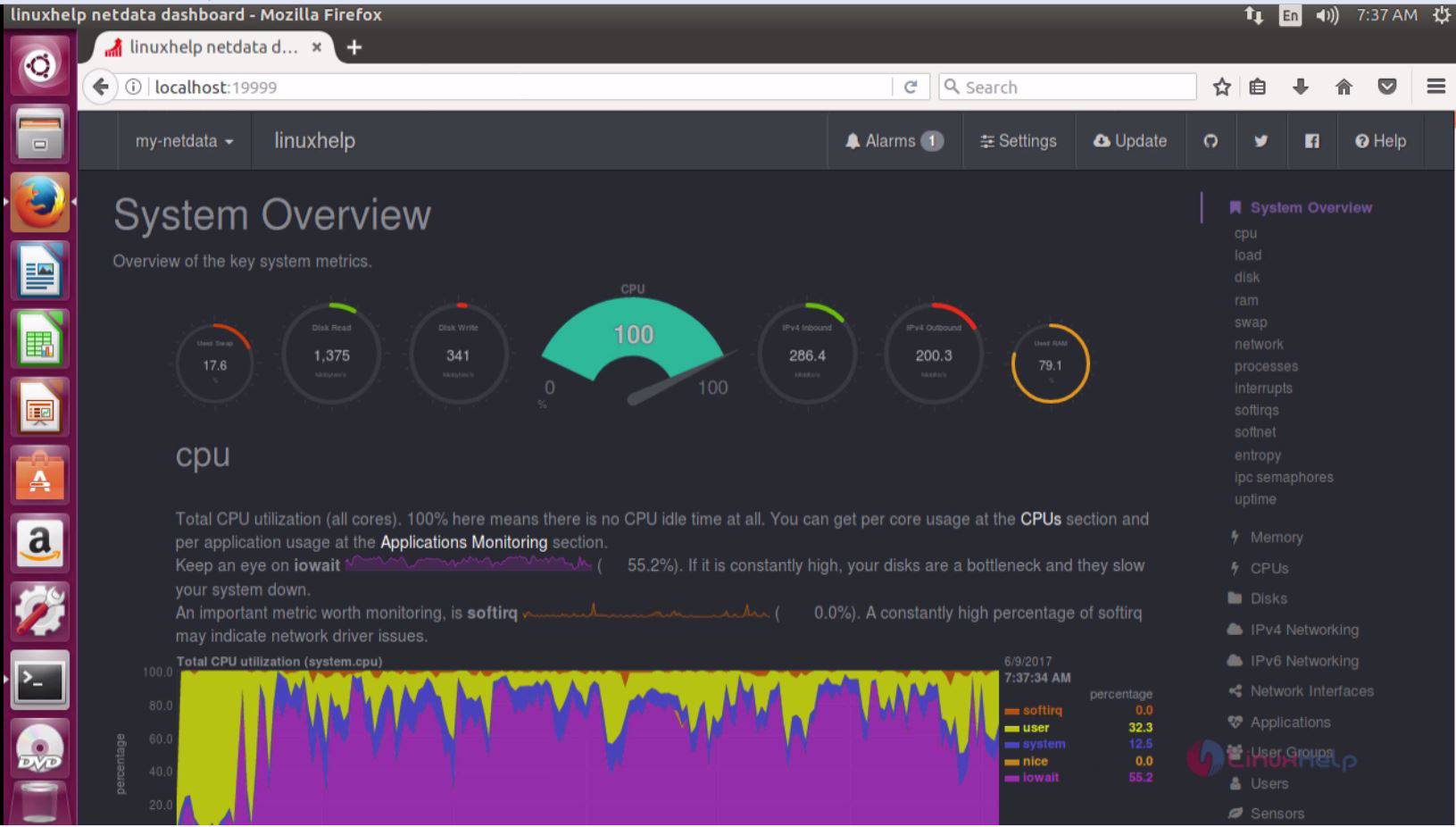
It shows the current system load in graphical representation.

A preview of the RAM and swap memory spaces.

Shows the Running processes from time to time.

Shows the list of interrupts and count of threads running in system.


The installation procedure of netdata monitoring tool on Ubuntu 17.04 is done without any glitches.
Comments ( 0 )
No comments available