• Categories
    Category
    {{ postCtrl.tags }}
    • {{ category.tag_type }}

      • {{tag.tag_name}}
      • View more
  • Categories
    Category
    {{ postCtrl.tags }}
    • {{ category.tag_type }}

      • {{tag.tag_name}}
      • View more
  • News
  • Tutorials
  • Forums
  • Tags
  • Users
Tutorial News Comments FAQ Related Articles

How to install nmon on Ubuntu 16.04

{{postValue.id}}

To install nmon on Ubuntu 16.04

nmon is a nifty tool to monitor various system resources such as CPU, memory, network, disks, file systems, NFS, top processes, Power micro-partition and resources on Linux terminal. It has support common architectures like POWER, x86, x86_64, Mainframe & now ARM (Raspberry Pi). This system administrator tuner, benchmark tool gives you a huge amount of important performance information which will help you to troubleshoot the system performance when you have the issues.

Installing nmon

First, make sure you update the system by making use of the following command.

root@localhost:~# apt-get update
Hit:1 http://security.ubuntu.com/ubuntu xenial-security InRelease                                           
Hit:2 http://in.archive.ubuntu.com/ubuntu xenial InRelease     
.
.
Hit:4 http://in.archive.ubuntu.com/ubuntu xenial-backports InRelease
Reading package lists... Done

Once it is done, you shall install nmon on Ubuntu by making use of the following command.

root@localhost:~# apt-get install nmon
Reading package lists... Done
.
.
Processing triggers for man-db (2.7.5-1) ...
Setting up nmon (14g+debian-1build1) ...


Once the installation is over, make sure you launch the application by making use of the following command.

root@localhost:~# nmon

welcome screen of nmon appears on your screen.
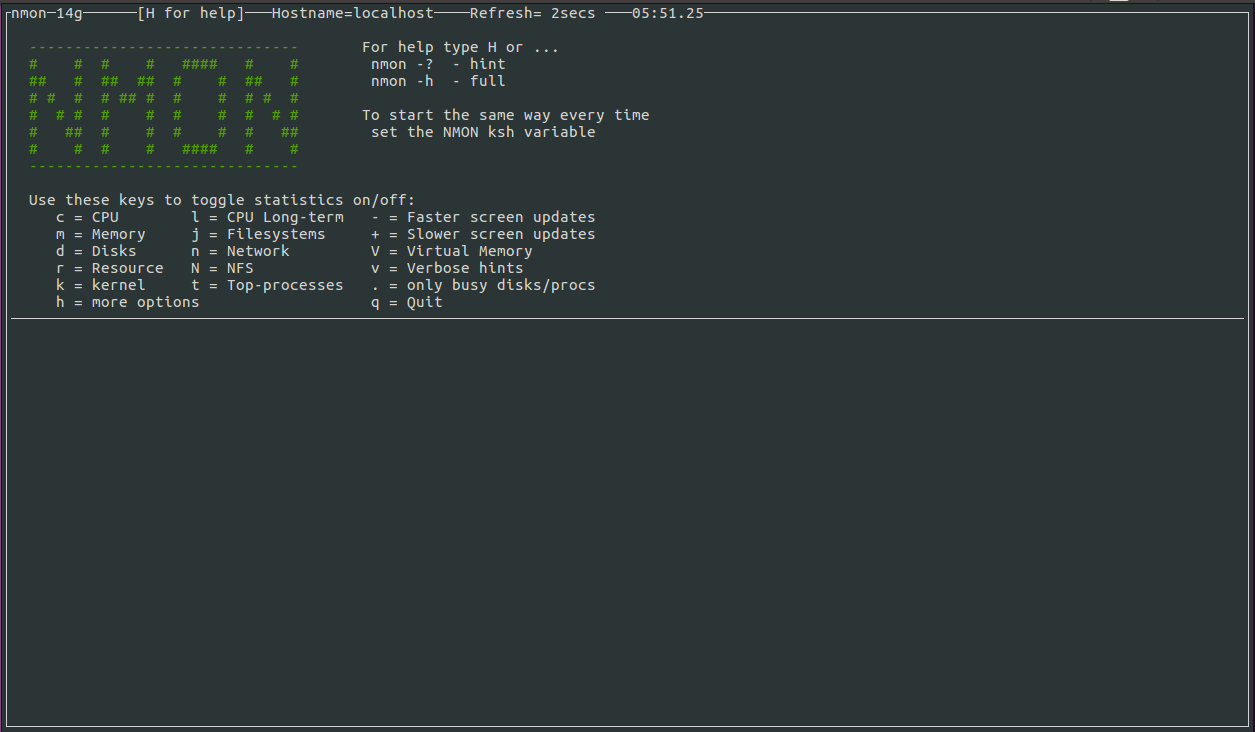
Nmon

You should now check CPU utilization by processor.
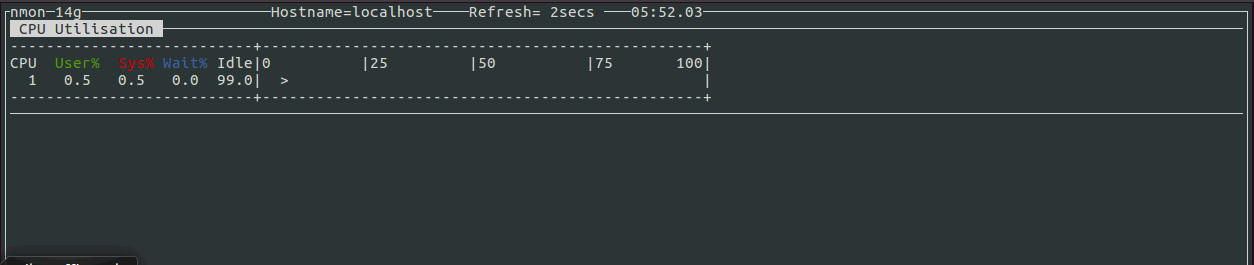
CPU


And also, you need to check the memory utilization.
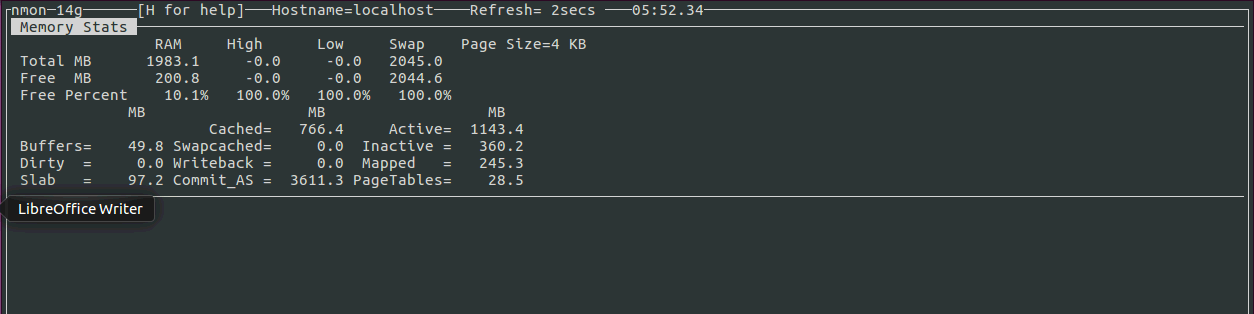
Memory


Apart from that, you can check disk utilization.
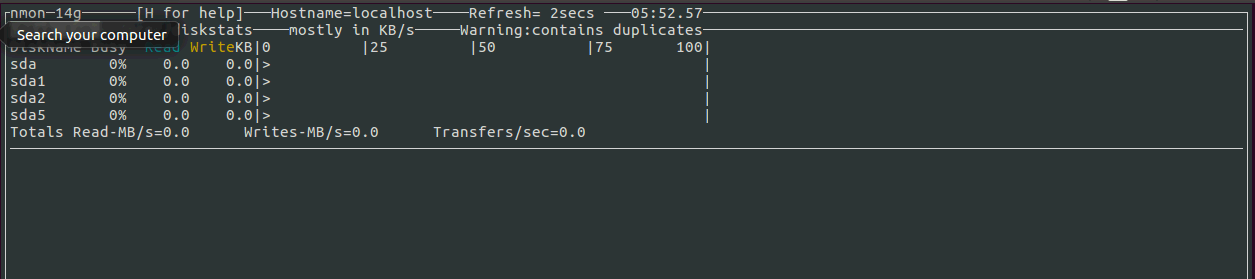
Disk

You can also check Network utilization.

Network

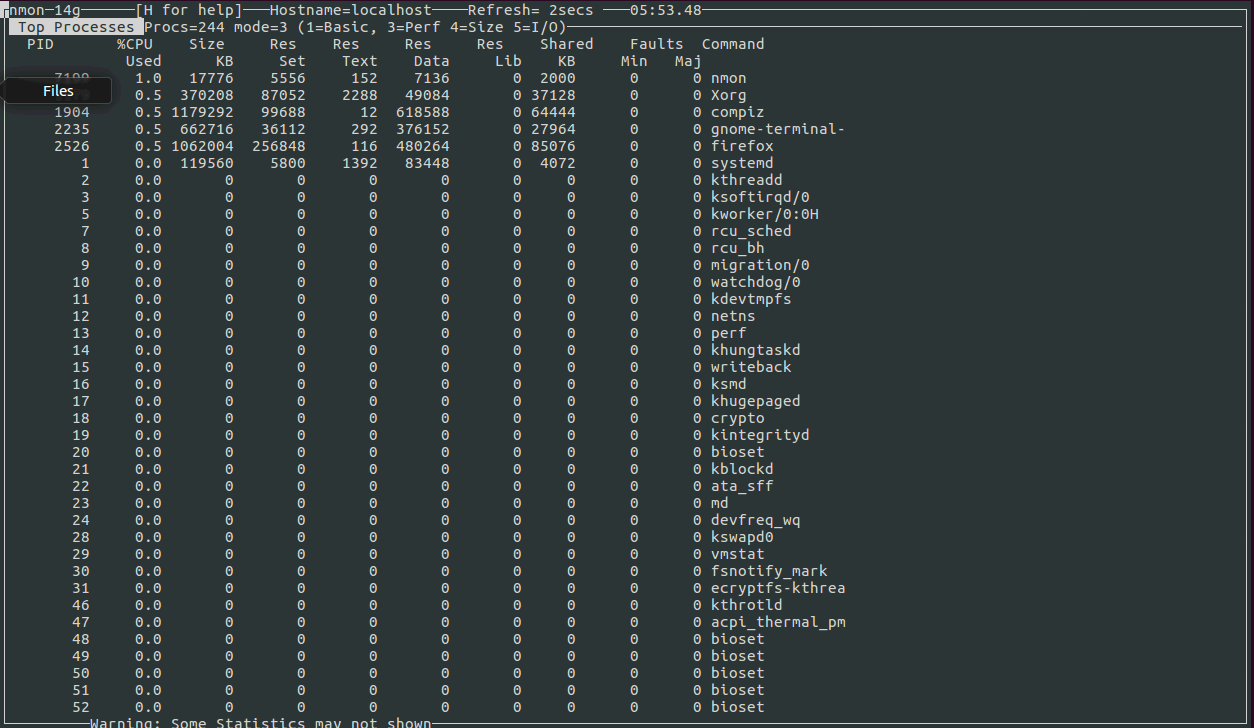
And check for top processes
Process

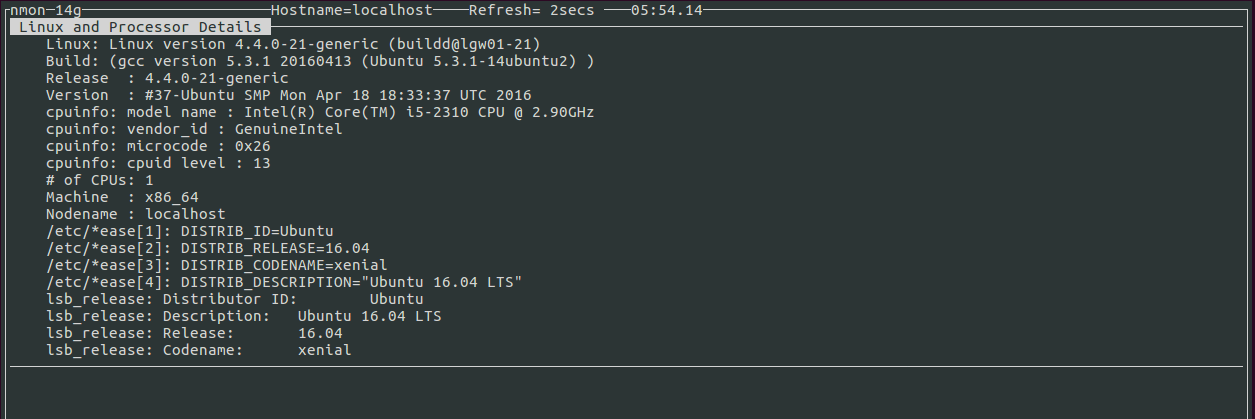
Check system information now.
Information

Load more then one widgets (CPU, memory, disk & network utilization)
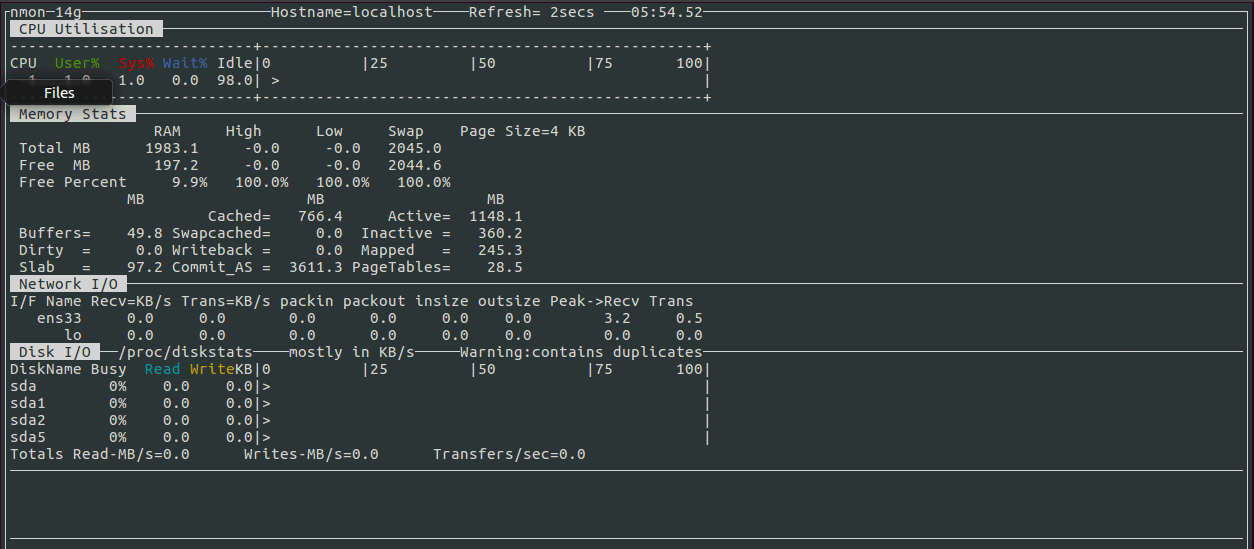
Cpu
With this, the tutorial on nmon on Ubuntu 16.04 comes to an end.

Tags:
connor
Author: 

Comments ( 0 )

No comments available

Add a comment
{{postCtrl.cmtErrMsg}}

Frequently asked questions ( 5 )

Q

How to install "nmon" tool on Linux?

A

Use the following steps to install "nmon" on Linux. For syntax: In Ubuntu "apt-get install nmon"

In CentOS "yum install nmon"

Q

Can you give me the list of manipulation key to getting information of the system using the "nmon" tool in Linux?

A

Here I have to give the list of some manipulation keys. Such as,

1. m = Memory

2. j = Filesystems

3. d = Disks

4. n = Network

4. V = Virtual Memory

5. r = Resource

6. N = NFS

7. k = kernel

8. t = Top-processes

9. "." = only busy disks/procs

Q

How can I check the file system in Linux using the "nmon" tool?

A

You can press "j" while intermediate with "nmon" tool console, to check the file system in Linux using the "nmon" tool.

Q

How to check the version of the "nmon" tool has been installed on the system?

A

You can use the option of "-V" with "nmon" command to check the version of the "nmon" tool has been installed on the system. For syntax: "nmon -V".

Q

Whether there is any alternative tool is available for windows like "nmon"?

A

Yes, you can prefer the following application for "Windows" like "nmon" tool. Such as,

1. Glances

2. Resource Monitor

3. psutil

4. Kiwi application monitor

Back To Top!
Rank
User
Points

Top Contributers

userNamenaveelansari
135850

Top Contributers

userNameayanbhatti
92510

Top Contributers

userNamehamzaahmed
32150

Top Contributers

1
userNamelinuxhelp
31040

Top Contributers

userNamemuhammadali
24500
Can you help Luke ?
workbench for debian

I am using workbench in CentOS whereas now I need to use Debian Operating system so could you please help to install and use in Debian?

Networking
  • Routing
  • trunk
  • Netmask
  • Packet Capture
  • domain
  • HTTP Proxy
Server Setup
  • NFS
  • KVM
  • Memory
  • Sendmail
  • WebDAV
  • LXC
Shell Commands
  • Cloud commander
  • Command line archive tools
  • last command
  • Shell
  • terminal
  • Throttle
Desktop Application
  • Linux app
  • Pithos
  • Retrospect
  • Scribe
  • TortoiseHg
  • 4Images
Monitoring Tool
  • Monit
  • Apache Server Monitoring
  • EtherApe 
  • Arpwatch Tool
  • Auditd
  • Barman
Web Application
  • Nutch
  • Amazon VPC
  • FarmWarDeployer
  • Rukovoditel
  • Mirror site
  • Chef
Contact Us | Terms of Use| Privacy Policy| Disclaimer
© 2025 LinuxHelp.com All rights reserved. Linux™ is the registered trademark of Linus Torvalds. This site is not affiliated with linus torvalds in any way.