How to Install NoMachine Tool in linux
To Install NoMachine Tool
NoMachine
NoMachine is an Advanced Remote Desktop Access Tool. Installation and features will be discussed in this article. It is a fast remote desktop tool. The NX protocol gives local speed responsiveness over high latency and low bandwidth links.
Features
If you enable NoMachine in system, you can work with any content like documents, videos, music as if you were in front of your computer.
If you like to print documents or files on the remote computer, you will print them in the local computer. If you insert your USB flash disk into your local computer, you will also put the files into the remote computer.
Scenario' s
To work remotely for mobile workers with full desktop experience, Implement thin-client scenario to reduce procurement cost PC. Users can work with a low - spec PC but gain full desktop experience.
To Install NoMachine Remote Desktop Tool
NoMachine supports for Linux, Mac OS X, Android and Windows. But for Linux, NoMachine is available in RPM, TAR and DEB format. Both in 32-bit and 64-bit. On Debian, Ubuntu and Linux Mint you can install it using dpkg command. Use RPM command, to install in RHEL, CentOS and Fedora.
To download nomachine from official site
Click on the following link: https://www.nomachine.com/download/linux& id=1
Now go to nomachine official link to download the appropriate package for your distribution by using web browser or you can copy the link address and use “ wget” command to download the package as follows.
[root@linuxhelp ~]# wget http://download.nomachine.com/download/5.1/Linux/nomachine_5.1.26_1_x86_64.rpm
--2016-05-24 13:03:57--  http://download.nomachine.com/download/5.1/Linux/nomachine_5.1.26_1_x86_64.rpm
Resolving download.nomachine.com (download.nomachine.com)... 83.222.233.16
Connecting to download.nomachine.com (download.nomachine.com)|83.222.233.16|:80... connected.
HTTP request sent, awaiting response... 200 OK
Length: 37873040 (36M) [application/x-redhat-package-manager]
Saving to: ‘ nomachine_5.1.26_1_x86_64.rpm’

100%[==================================================================================================> ] 37,873,040   142KB/s   in 9m 48s

2016-05-24 13:13:46 (62.9 KB/s) - ‘ nomachine_5.1.26_1_x86_64.rpm’  saved [37873040/37873040]
Now install the nomachine package.
[root@linuxhelp ~]# ls
anaconda-ks.cfg  Documents  initial-setup-ks.cfg  nomachine_5.1.26_1_x86_64.rpm  Public     Videos
Desktop          Downloads  Music                 Pictures                       Templates
[root@linuxhelp ~]# rpm -ivh nomachine_5.1.26_1_x86_64.rpm
Preparing...                          ################################# [100%]
Updating / installing...
   1:nomachine-5.1.26-1               ################################# [100%]
NX>  700 Starting install at: Tue May 24 13:43:36 2016.
NX>  700 Installing: nxclient version: 5.1.26.
NX>  700 Using installation profile: Red Hat.
NX>  700 Install log is: /usr/NX/var/log/nxinstall.log.
NX>  700 Compiling the USB module.
.
.
NX>  700 Install completed at: Tue May 24 13:51:24 2016.
NX>  700 NoMachine was configured to run the following services:
NX>  700 NX service on port: 4000
Running NoMachine
After NoMachine installed, you can check it through CLI using following command.
[root@linuxhelp ~]# /usr/NX/bin/nxplayer
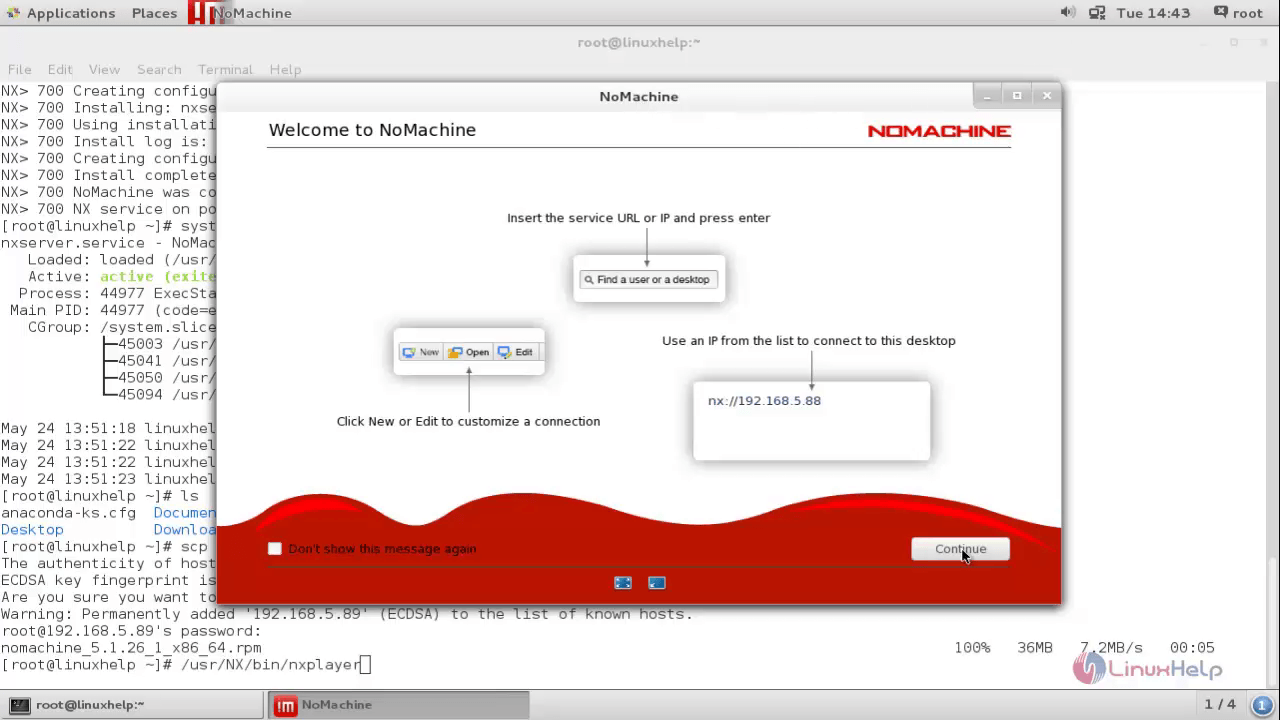
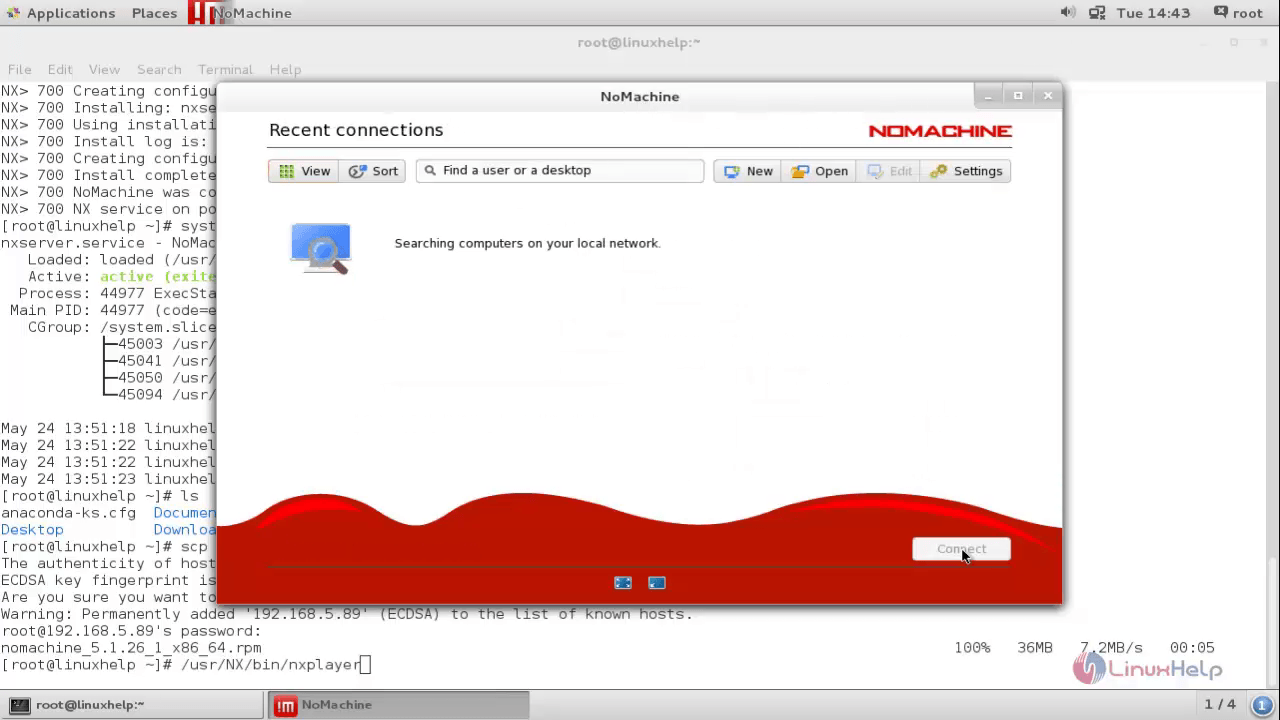
Now click continue, it will automatically look for computer we can connect from local network and it will detects the connection if available.
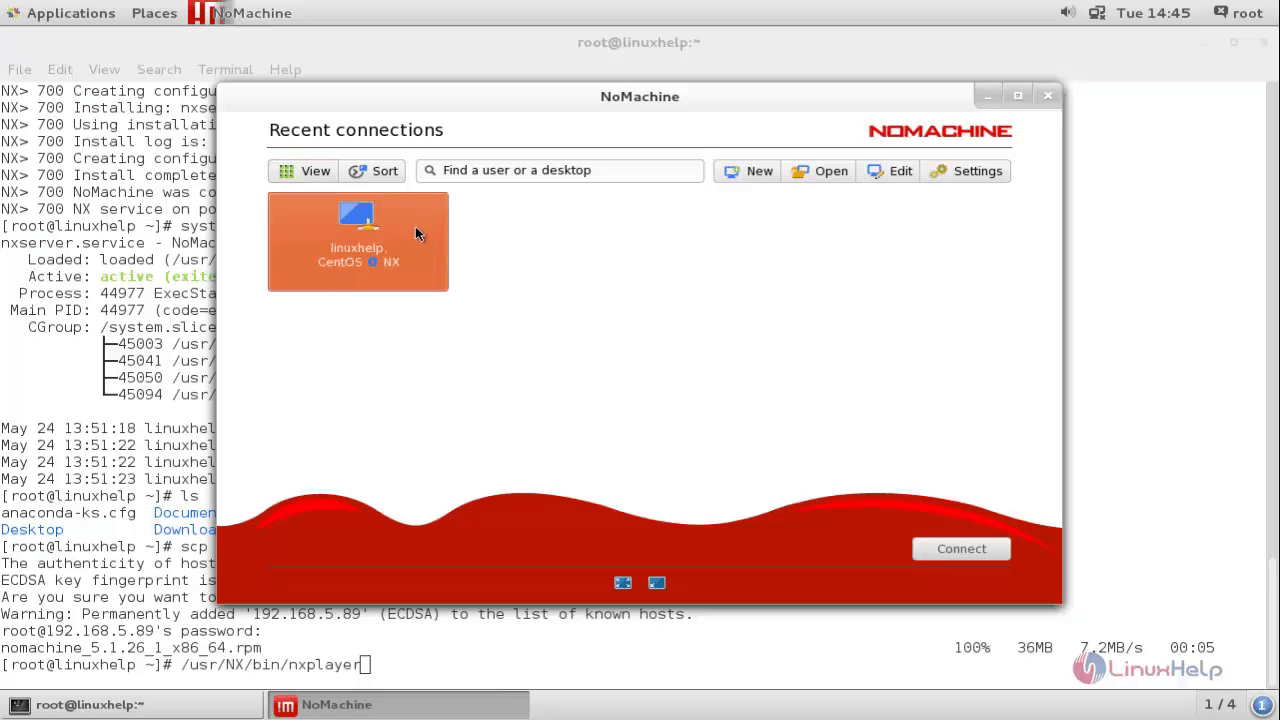
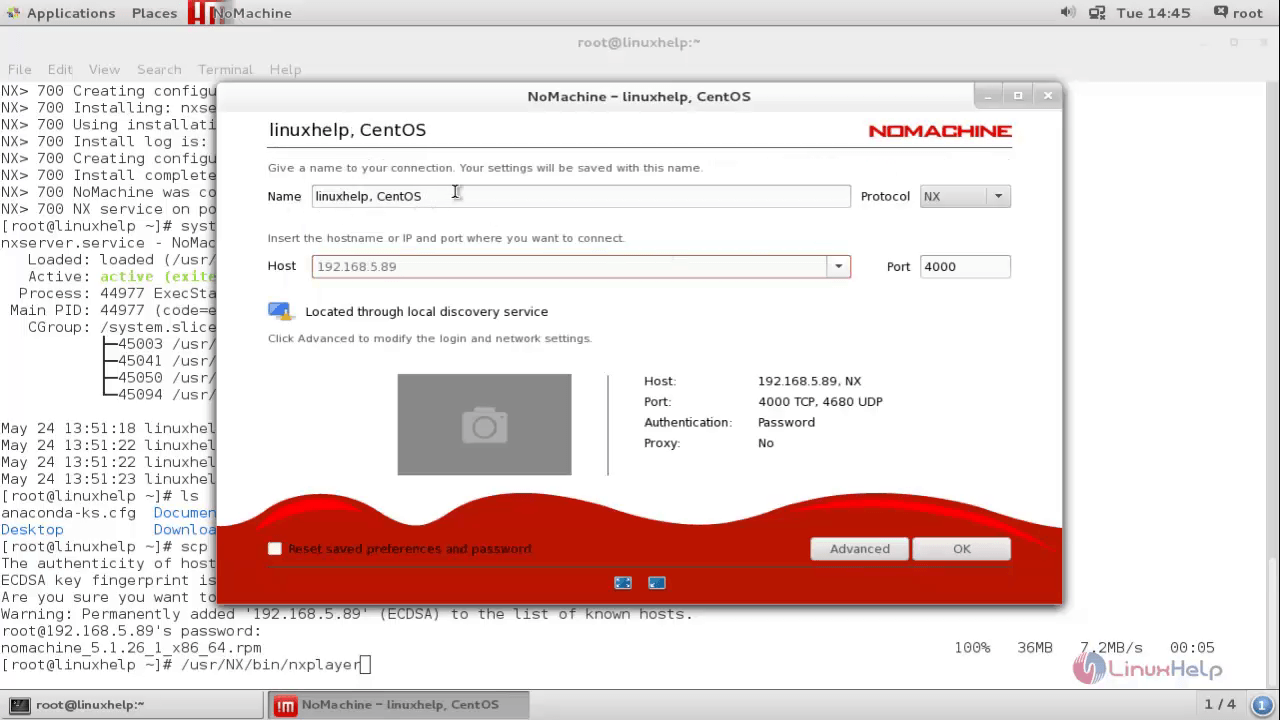
As in the above snap show the connection detected for my client machine. Now click Edit to see the details for that connection
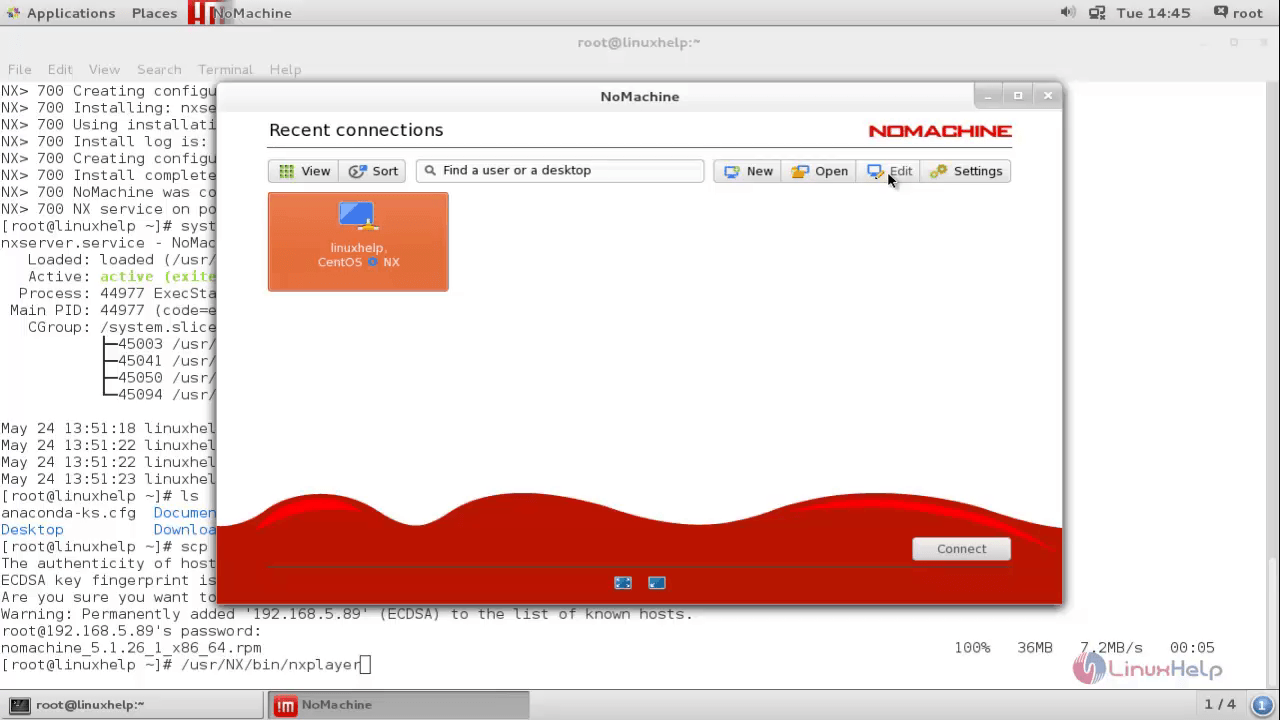
You can see the connection name, protocol “ NX” Host IP address and port “ 4000”
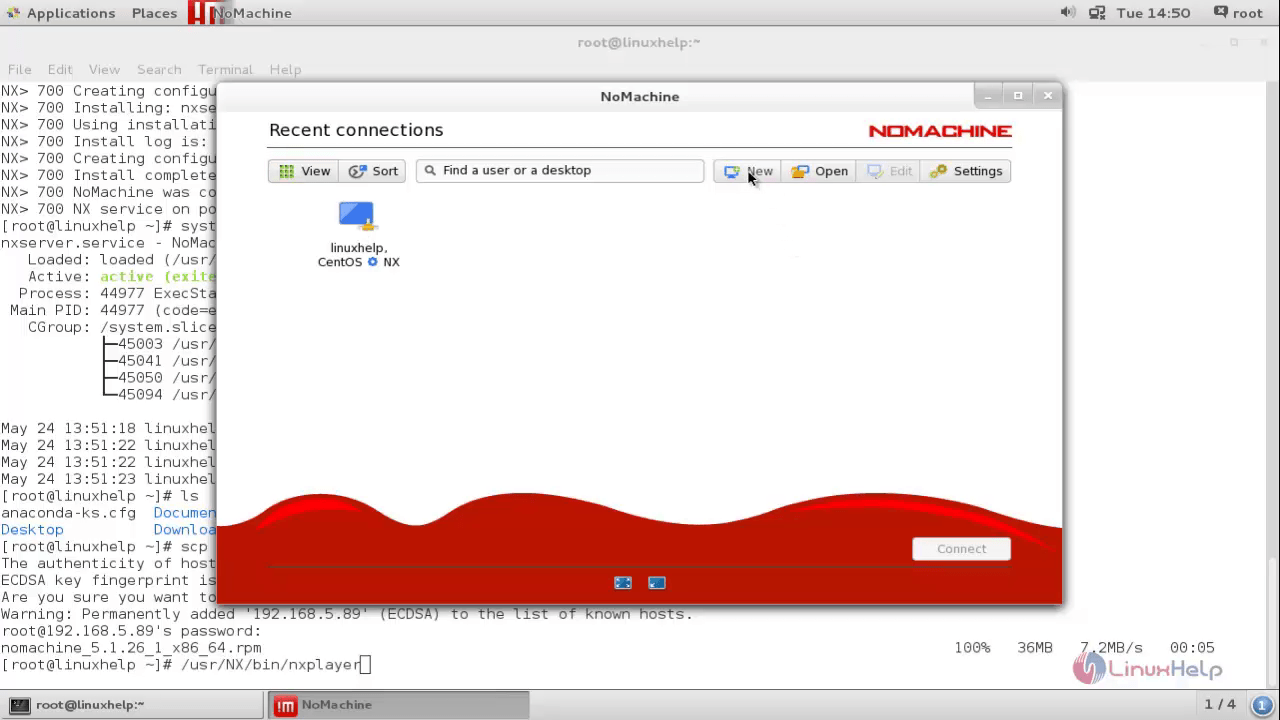
Click New for creating a new connection if our client is not detected automatically.
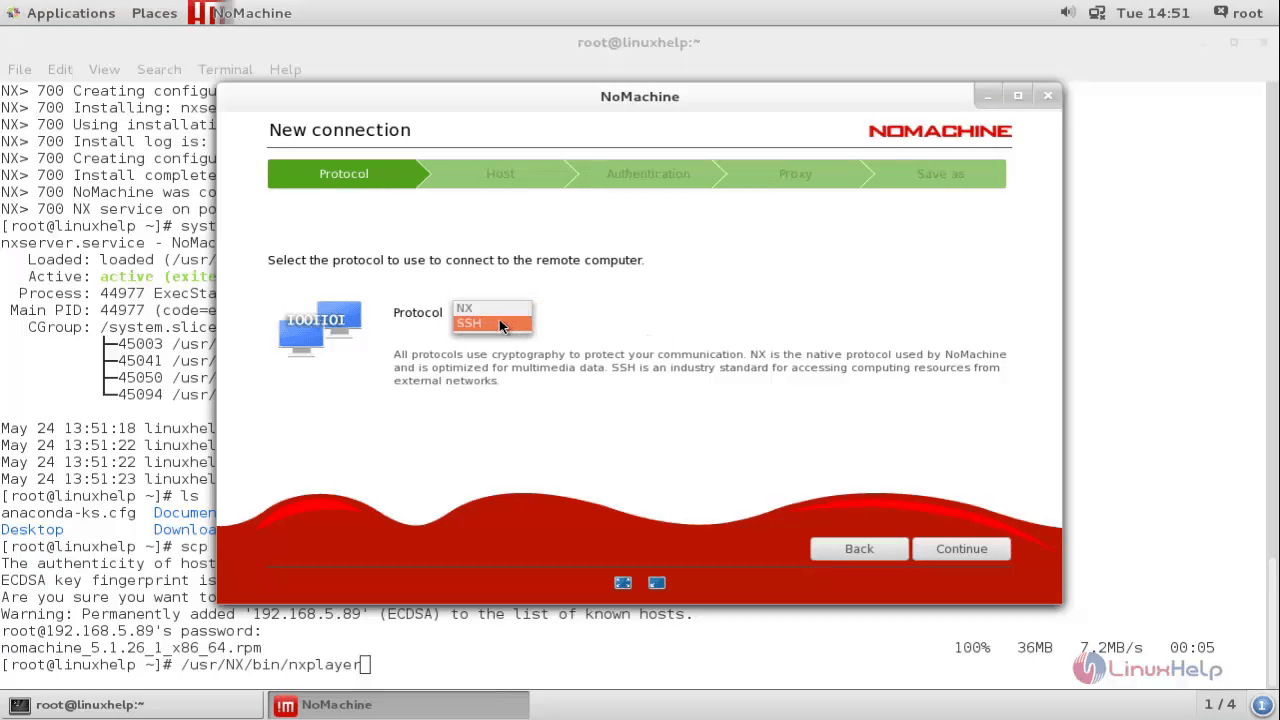
Choose the protocol “ NX or “ SSH” depending upon your convenient and then click continue.
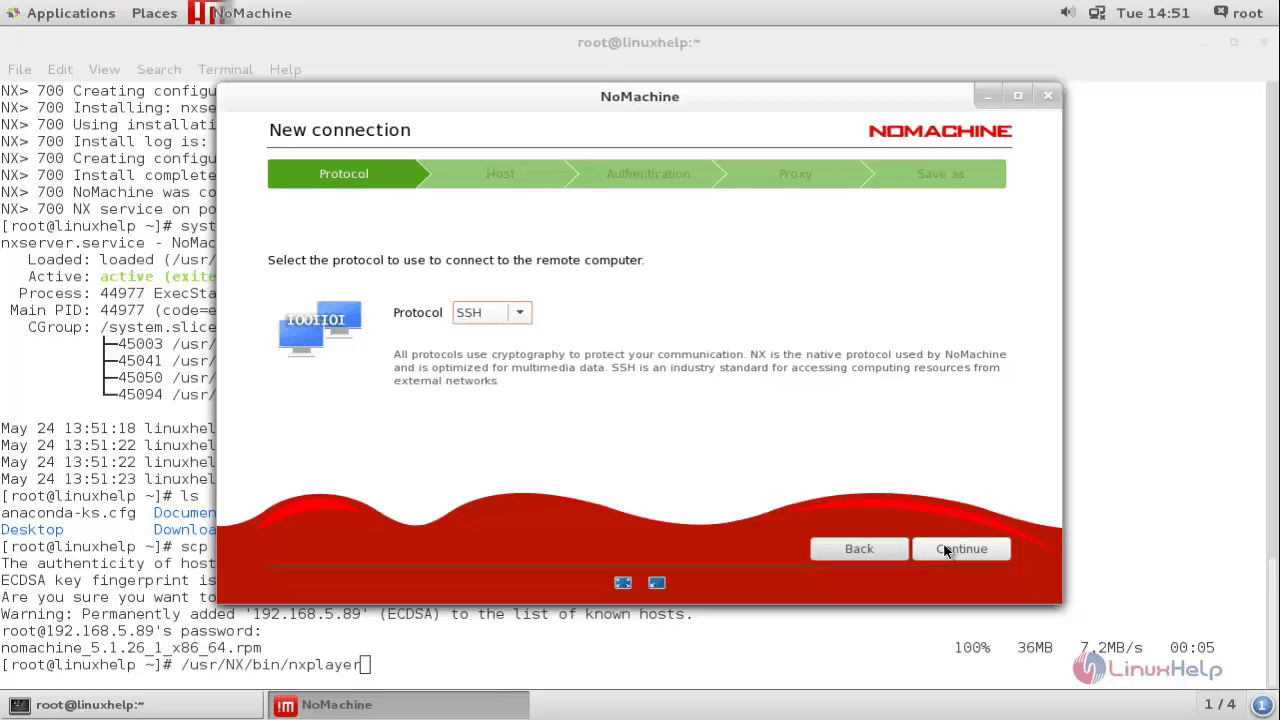
Now mention the host name or host IP and port number and then click continue.
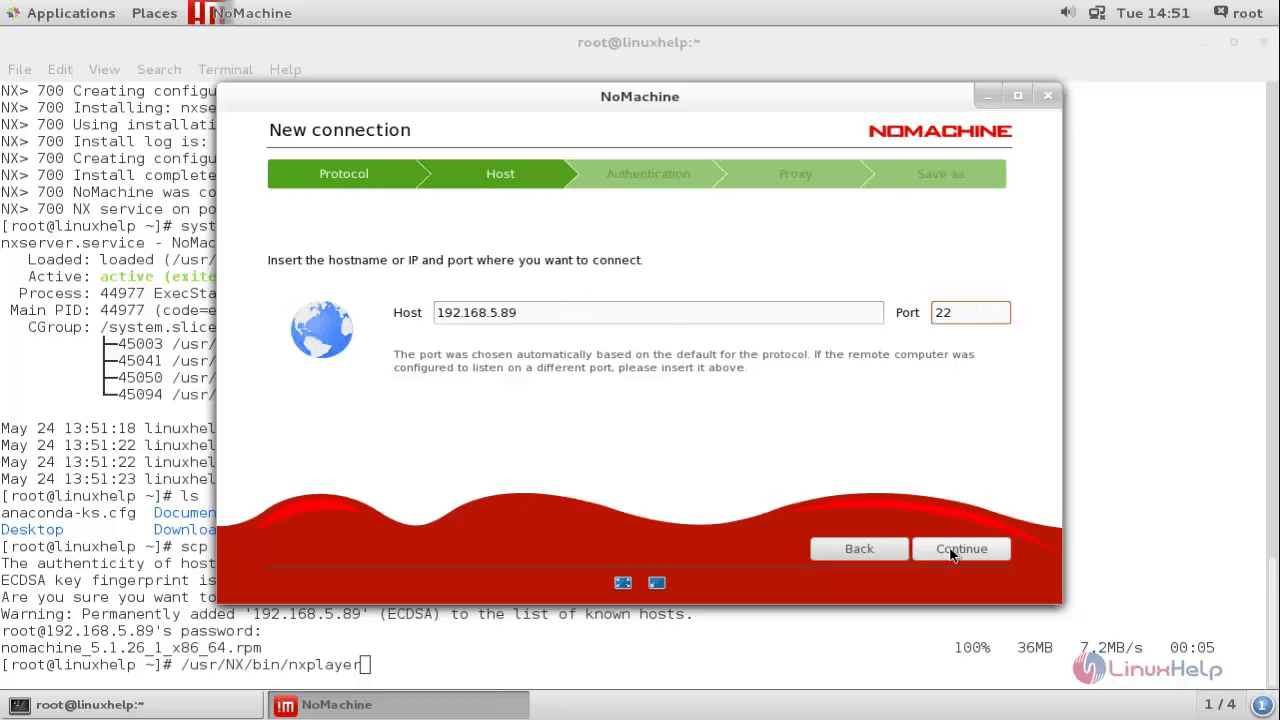
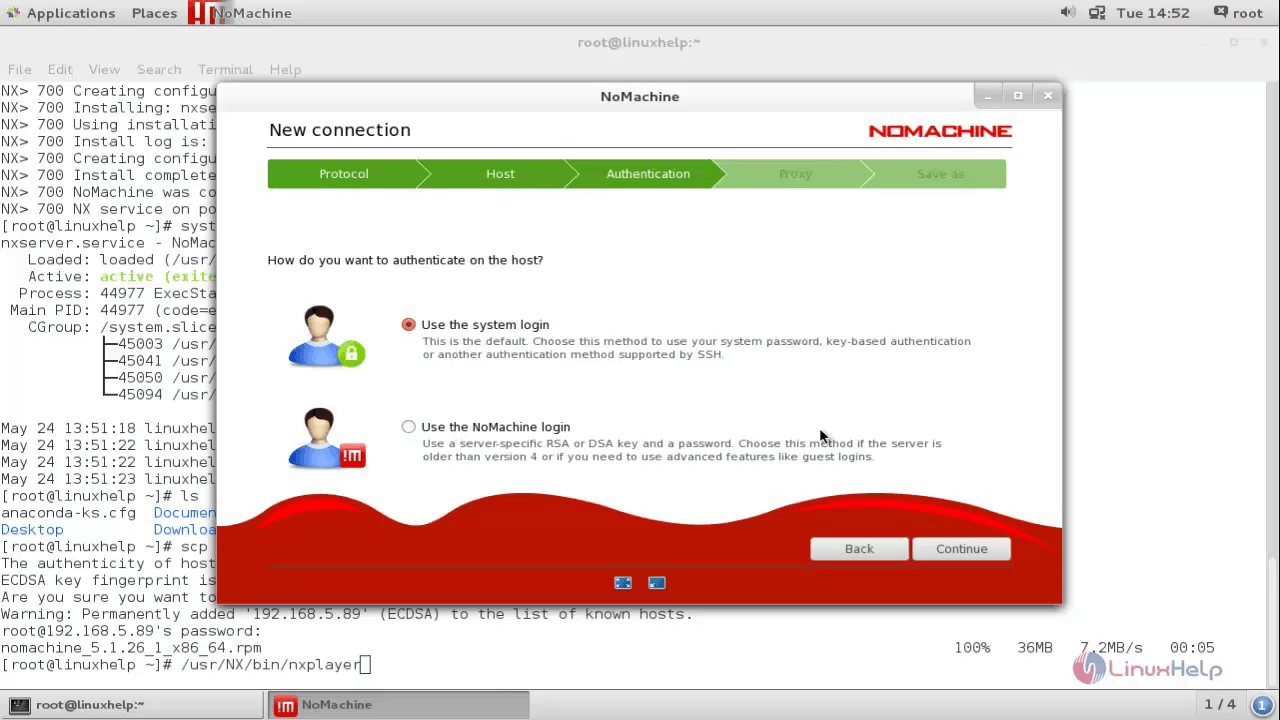
Now choose the authentication method and click continue.
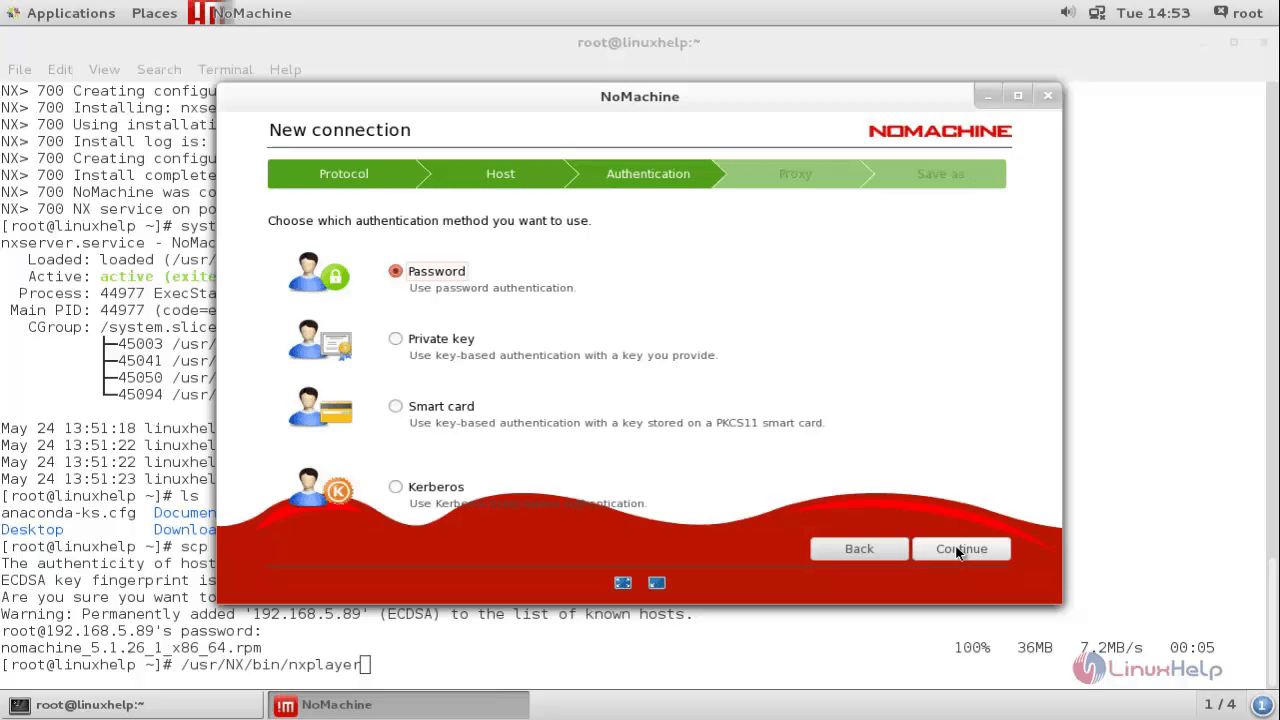
Now choose for proxy if you have any, or simply choose don’ t use proxy option and click continue.
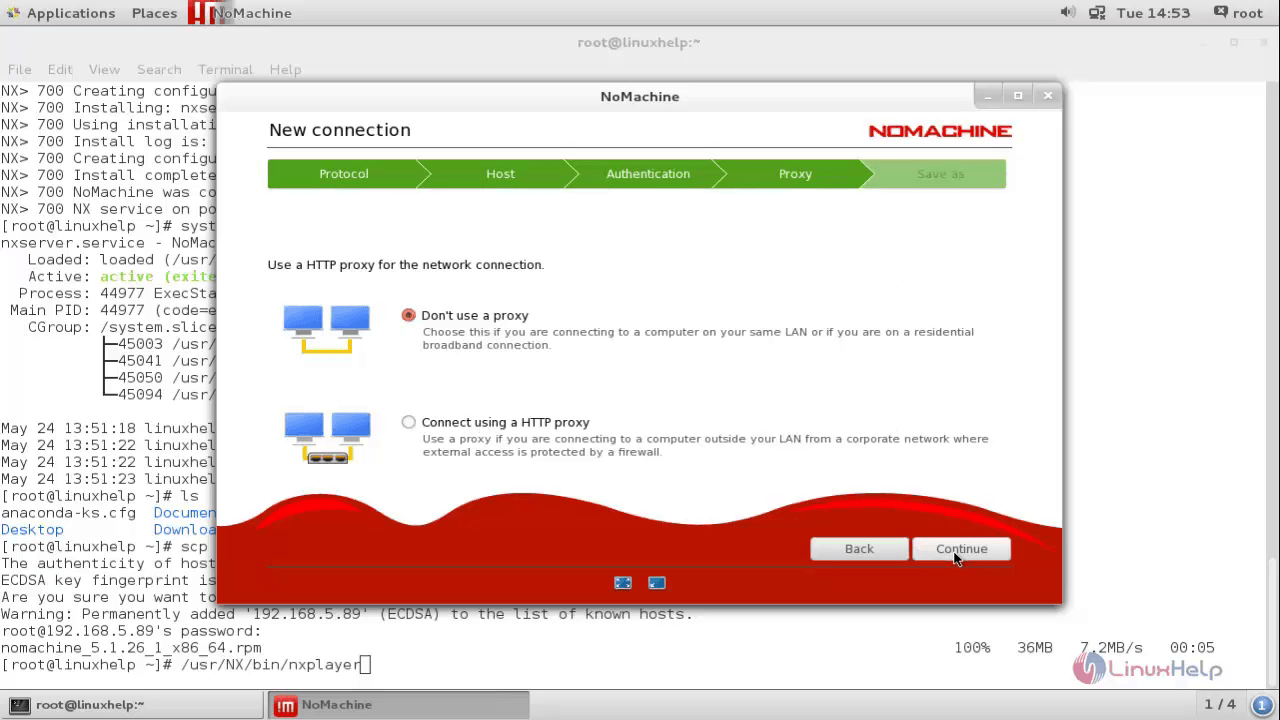
Now choose your connection name and then you can see the new connection is created.
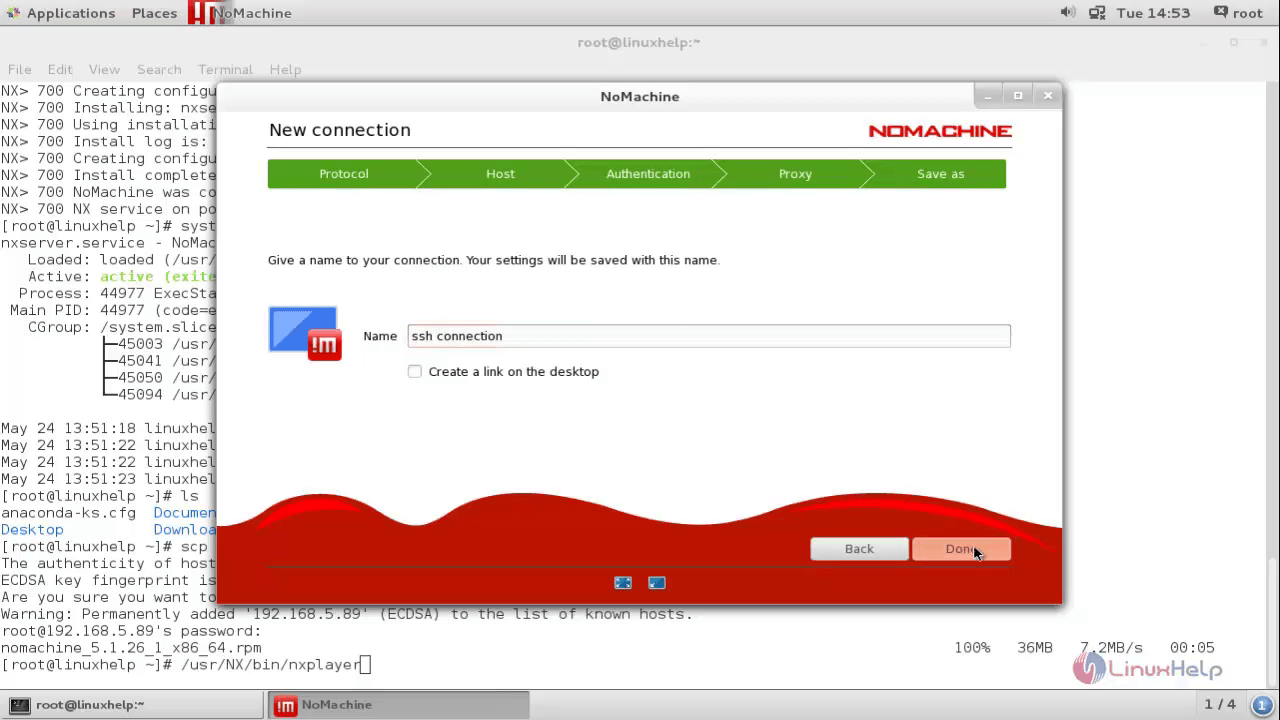
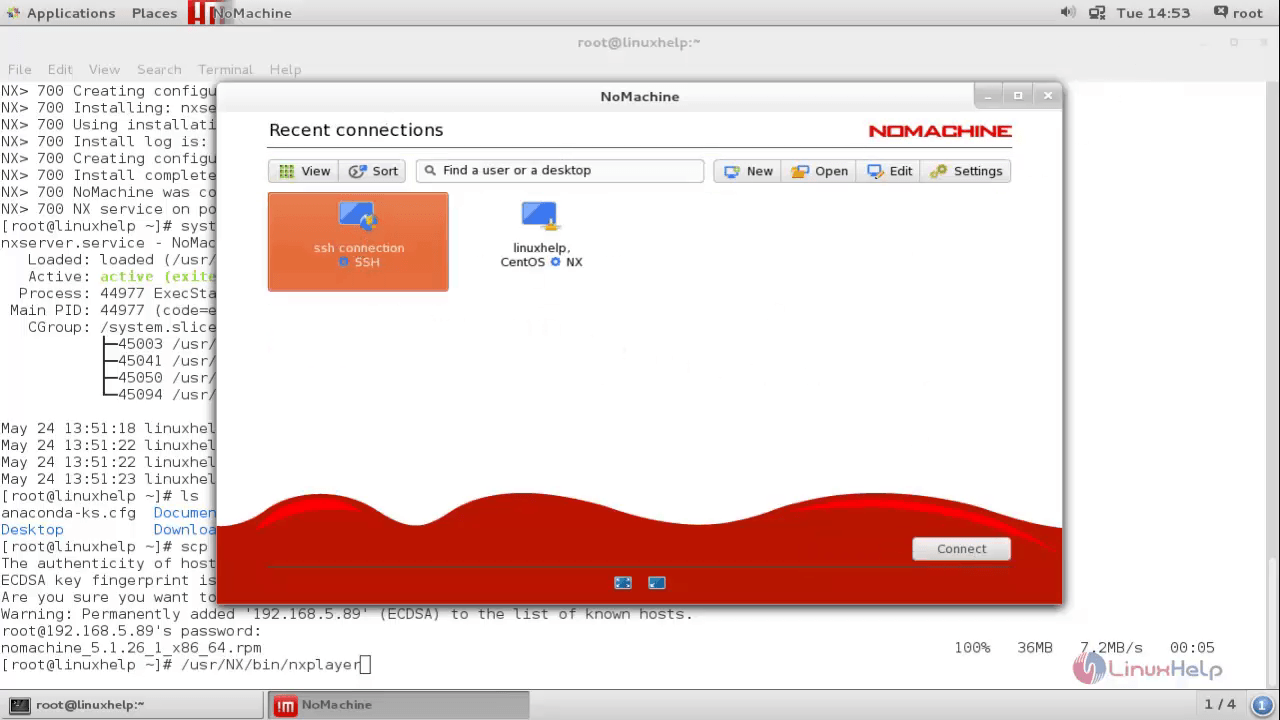
Now choose any connection and click “ connect” to connect to that host and follow the steps as shown in below snaps.
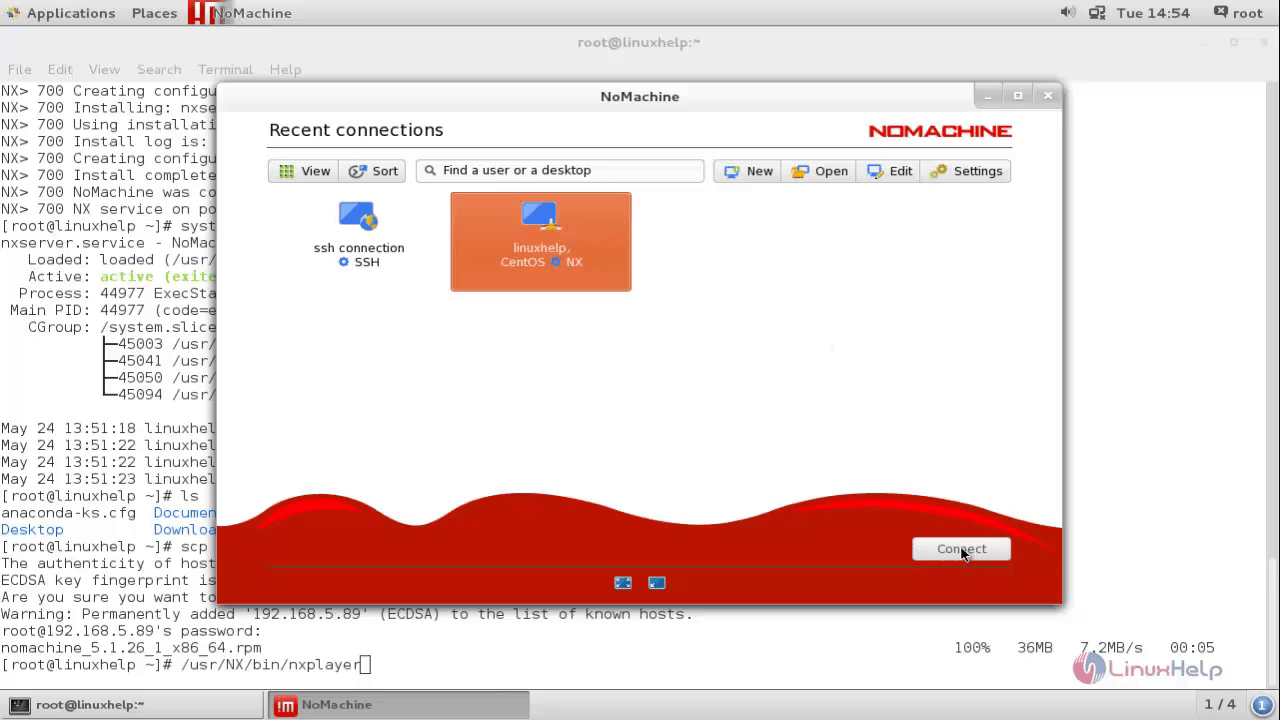
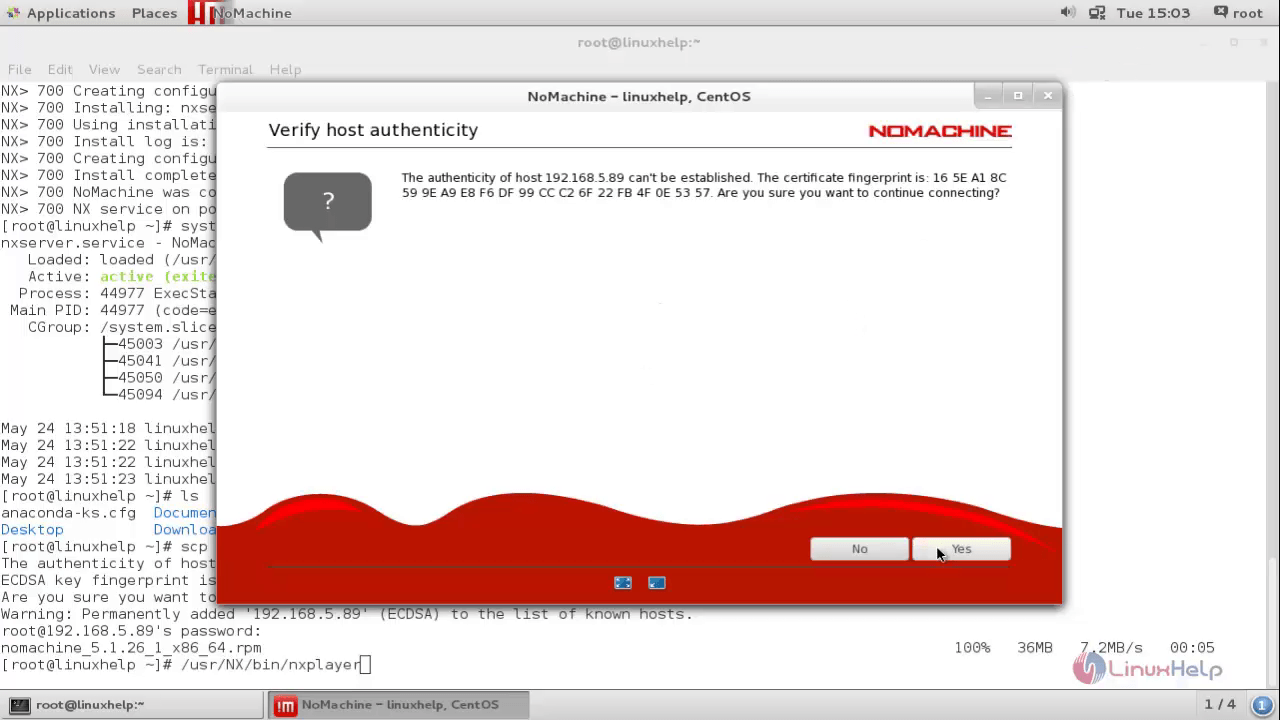
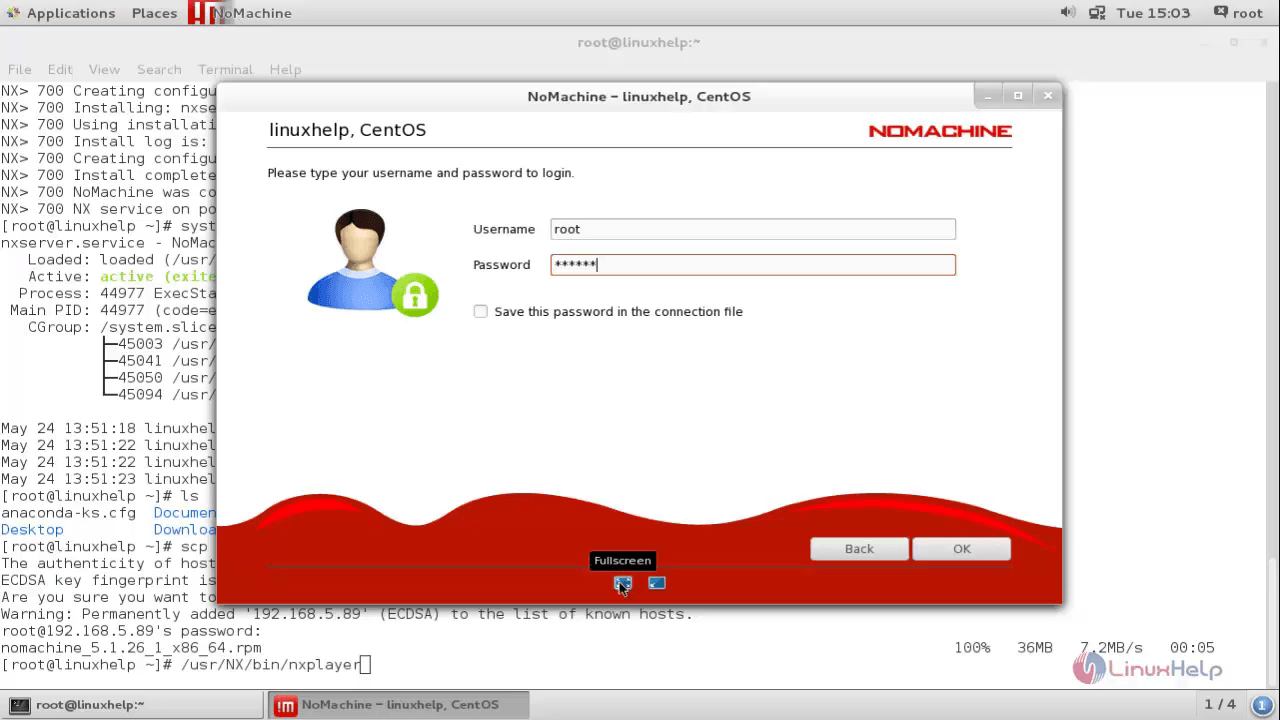
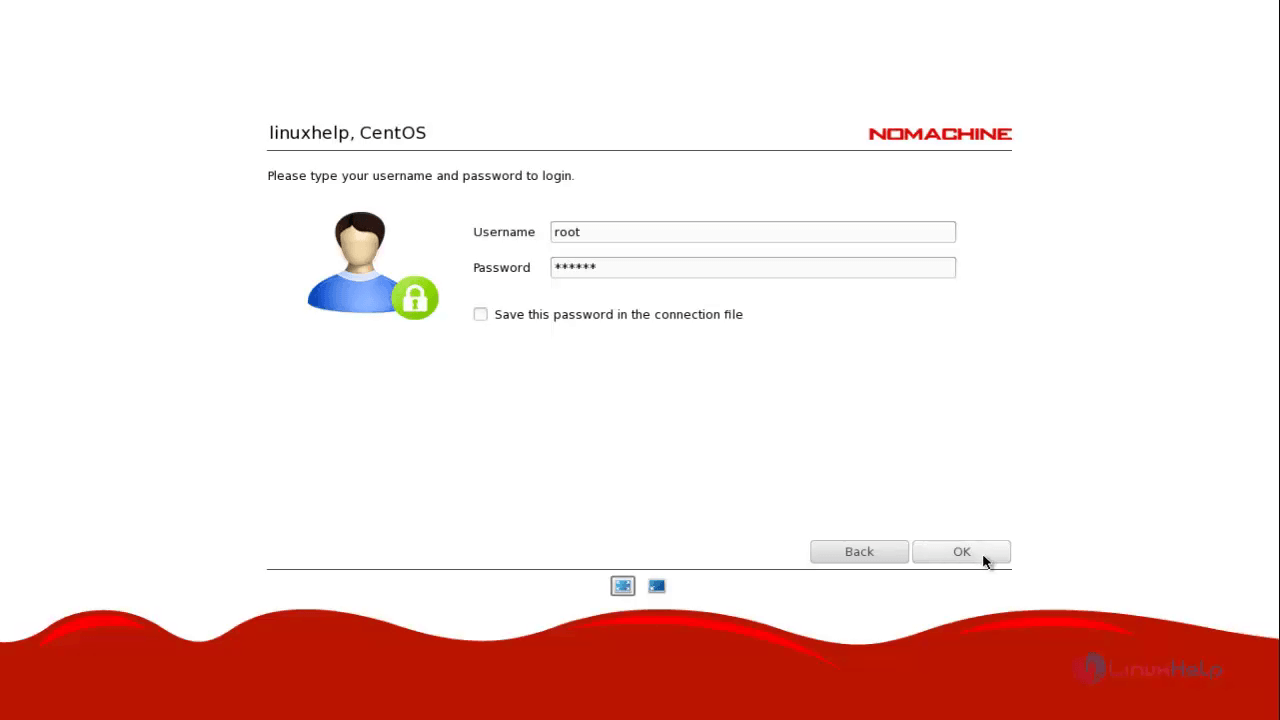
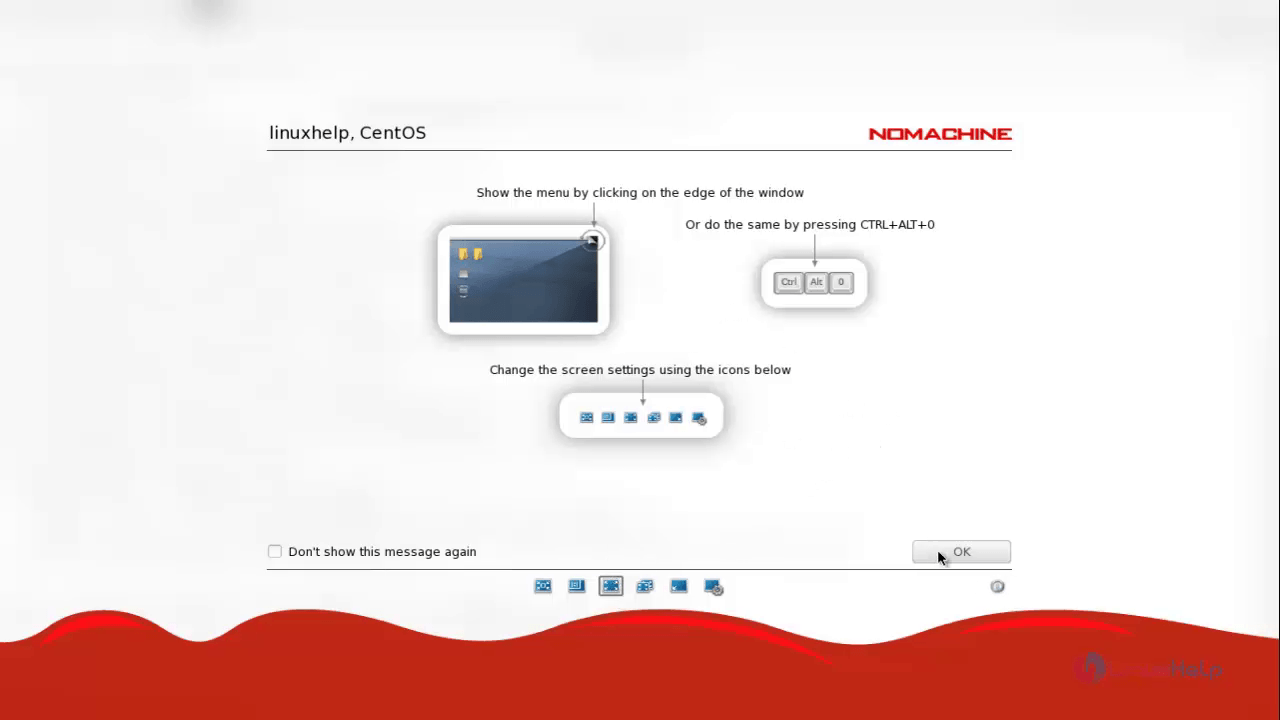
Before connecting to the client it will shows you a quick intro for the futures of nomachine, you can verify in below snaps.
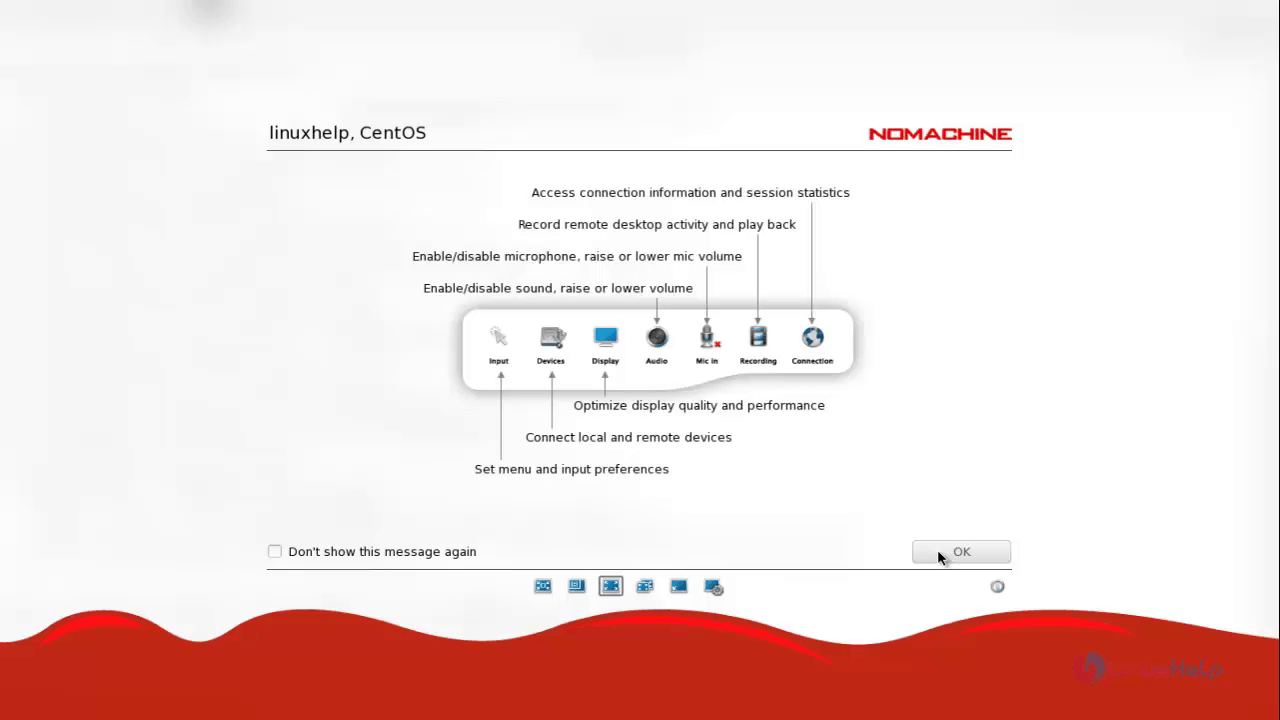
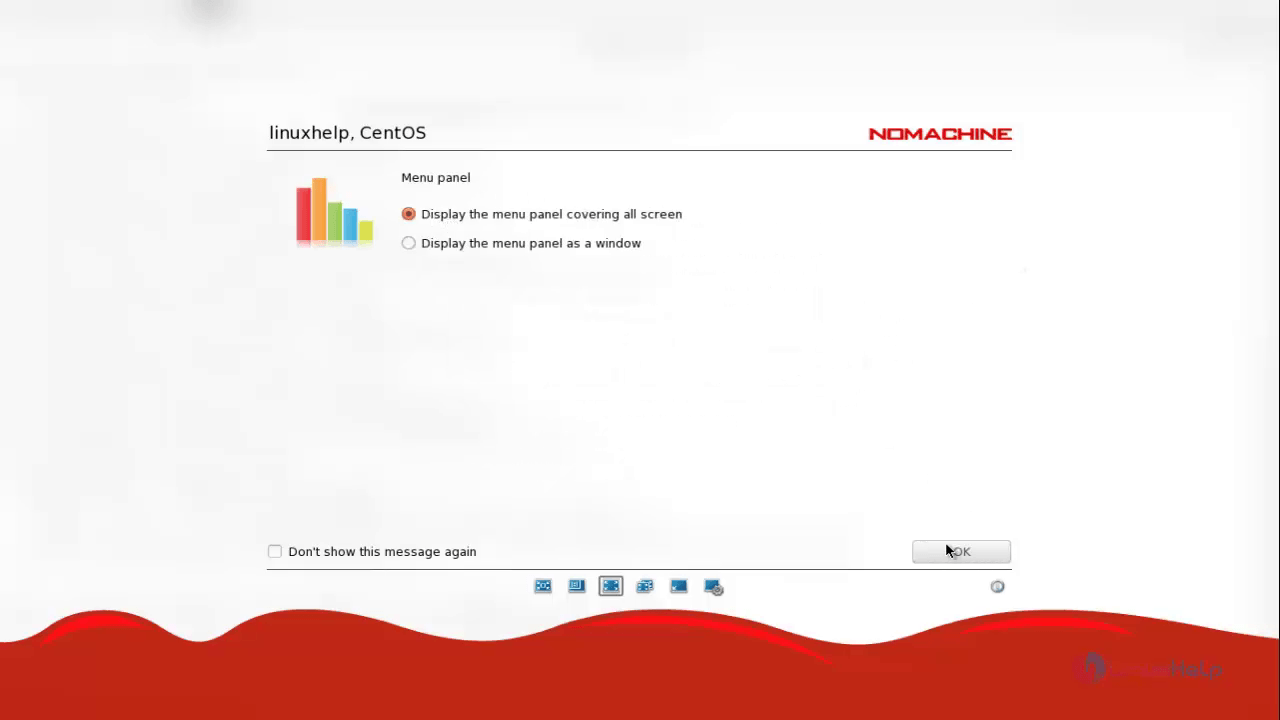
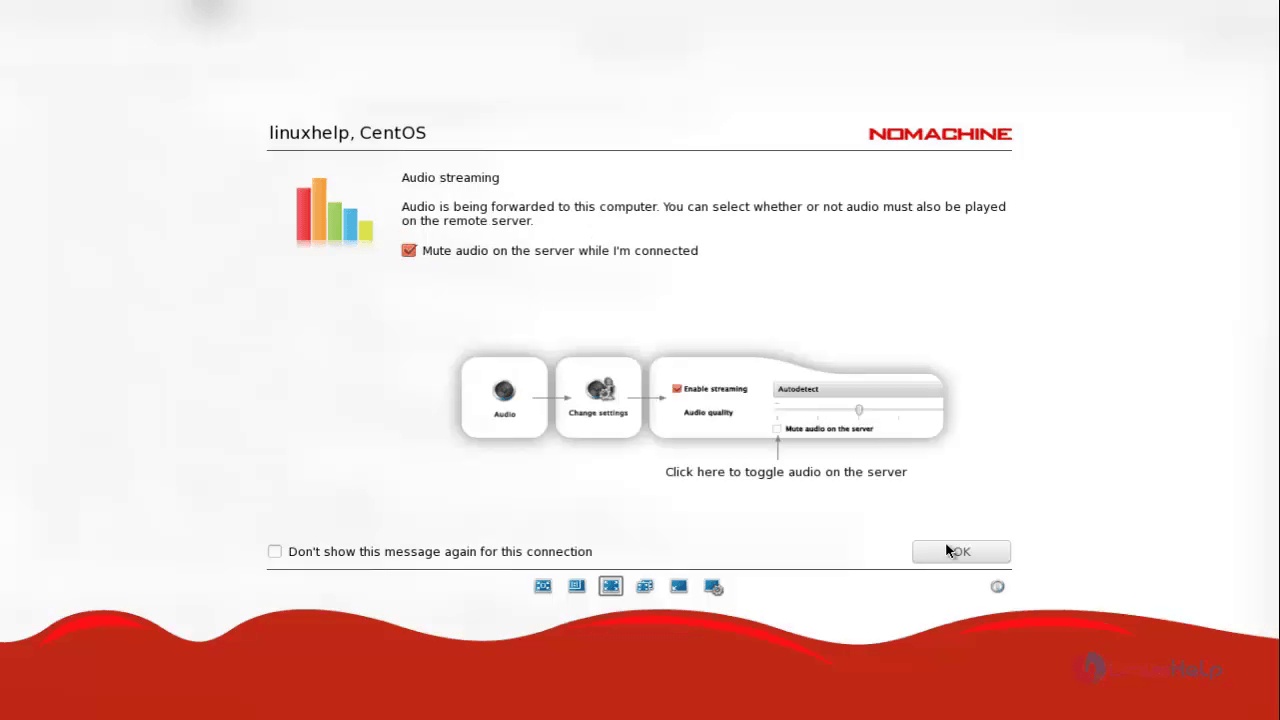
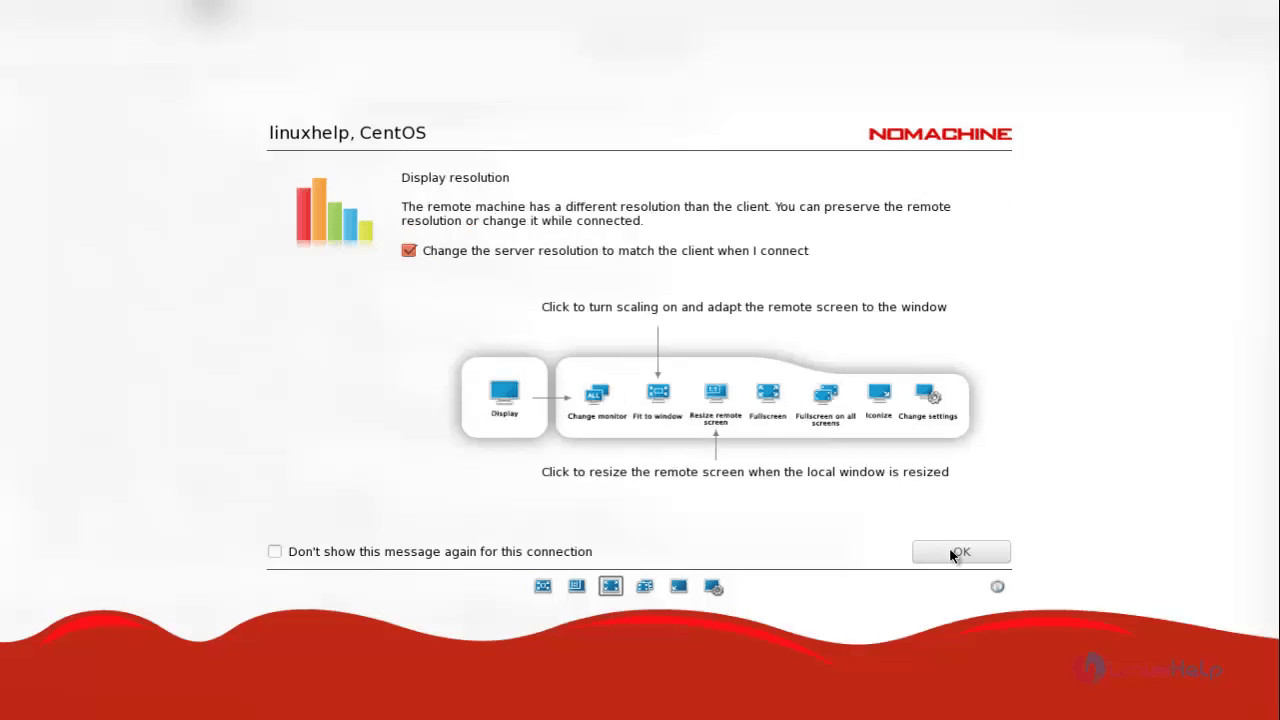
After connecting to the client you can check about the connected users from your notification bar.
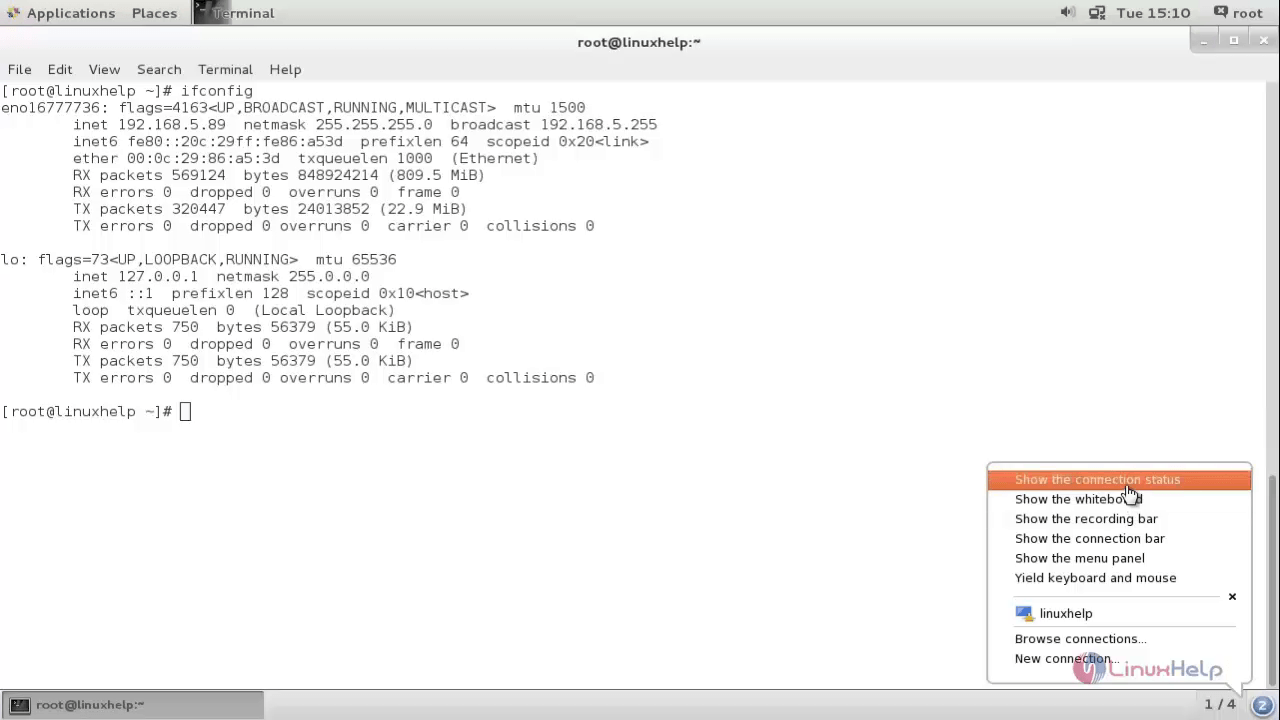
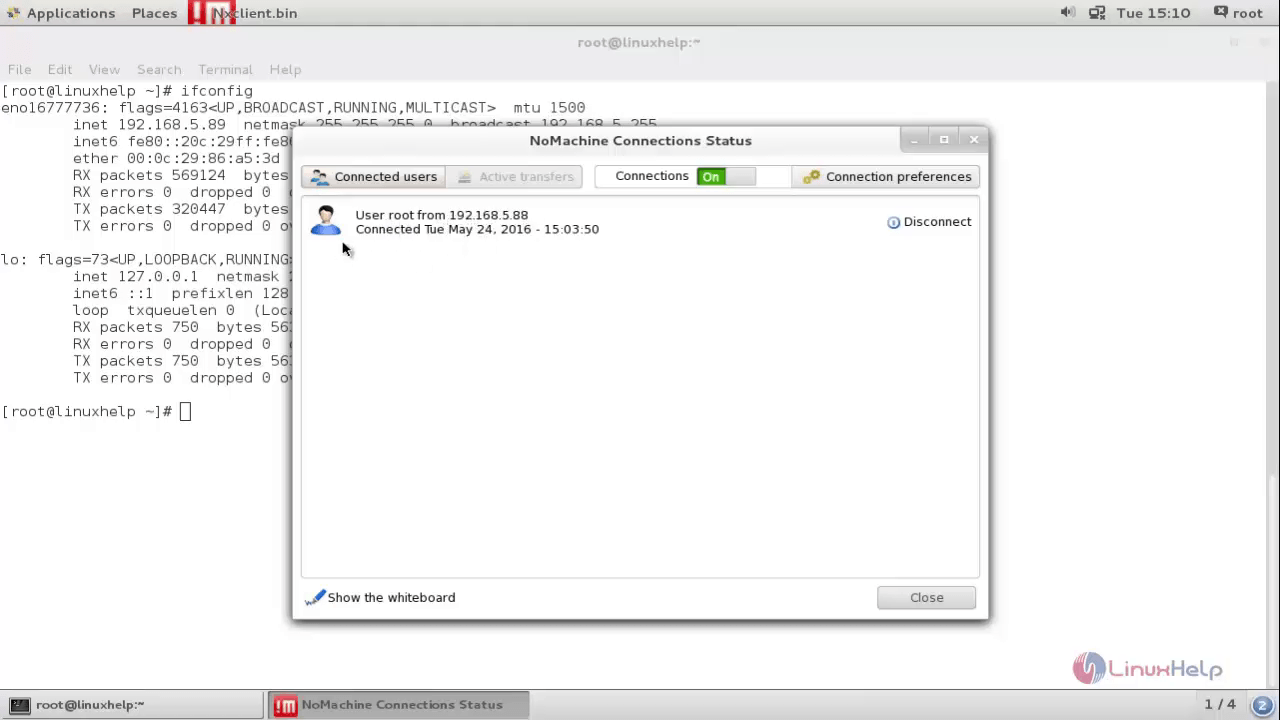
To view the control panel option menu for nomachine move the mouse pointer to the top right corner of the window and click it as shown in below snap.
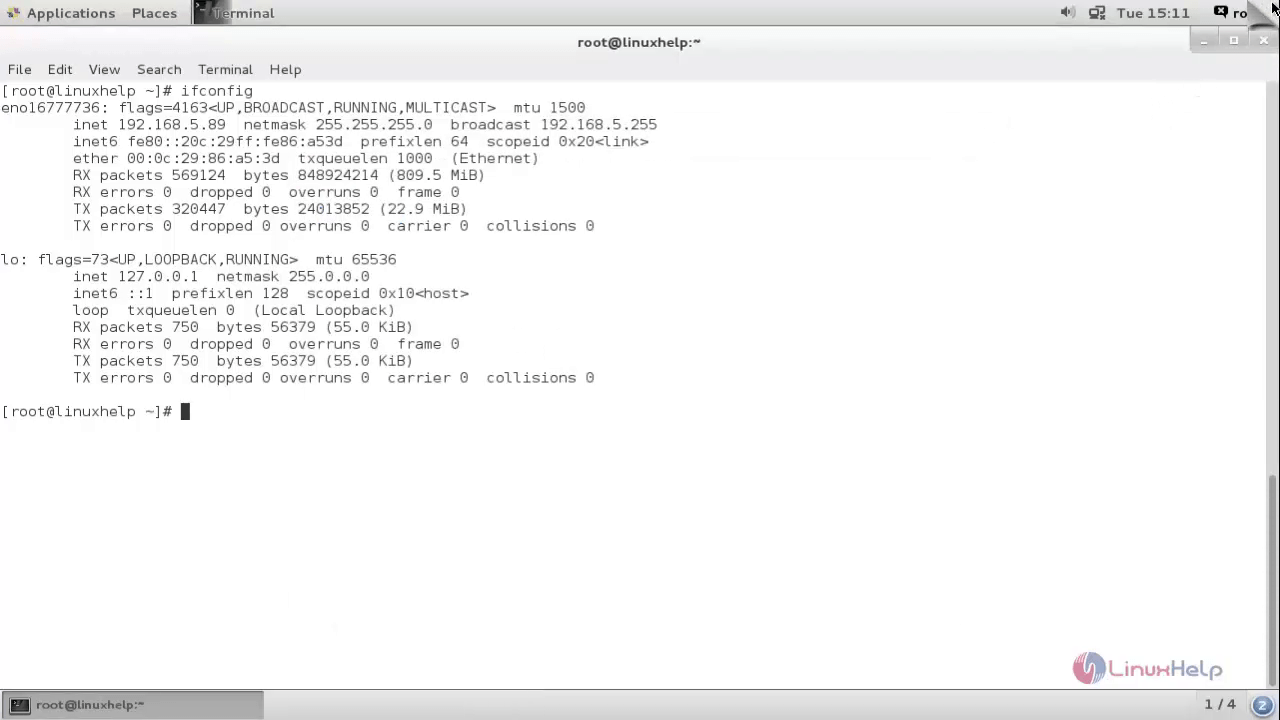
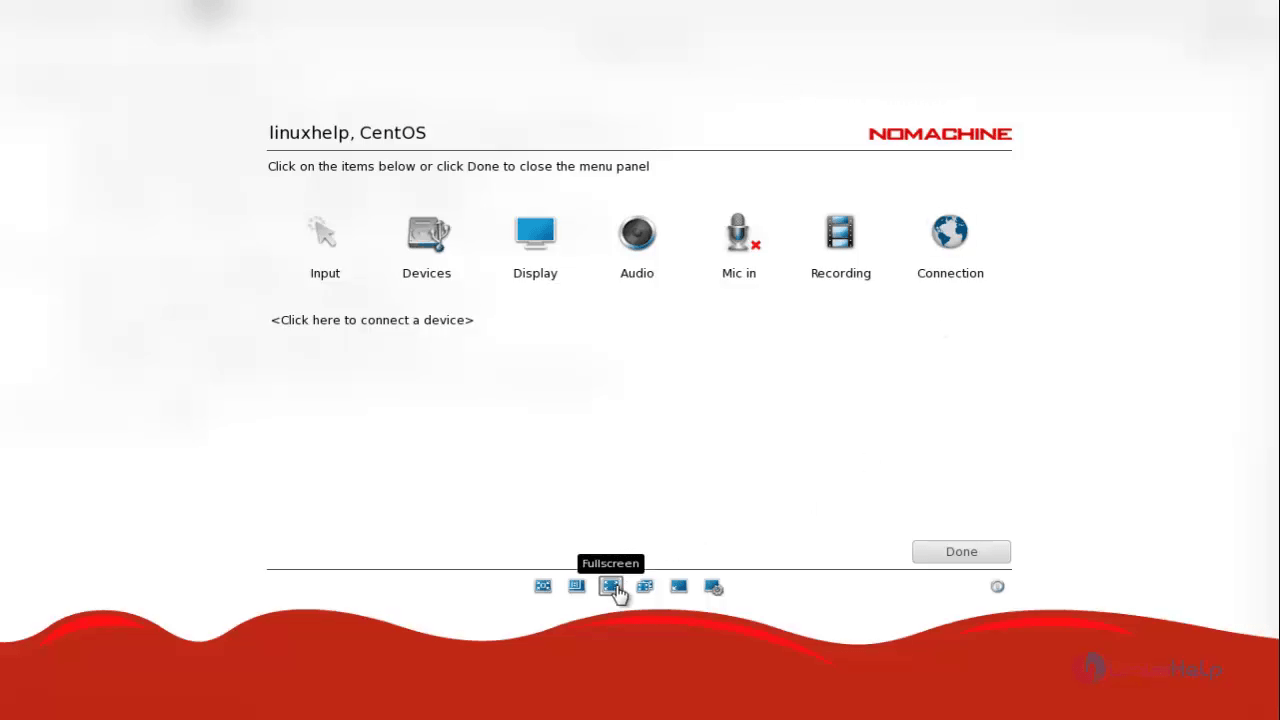
Here you can see the menu. Now click full screen option to exit from full screen.
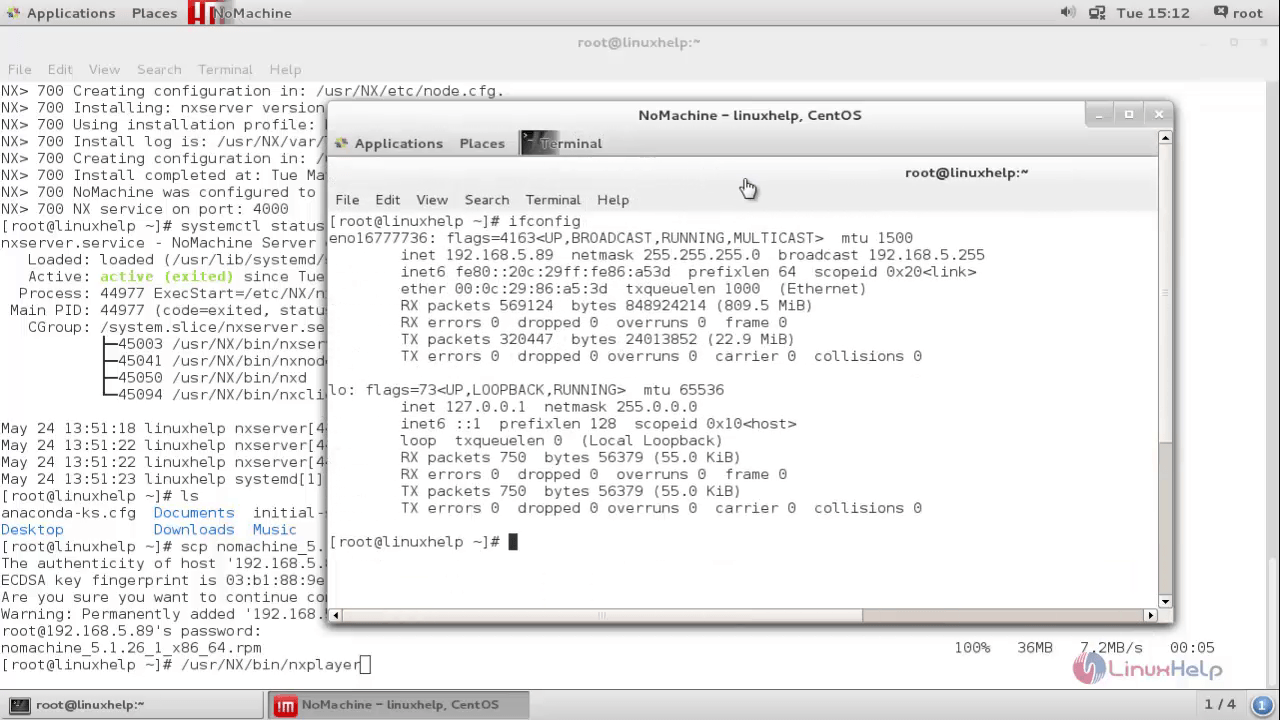
Comments ( 0 )
No comments available