• Categories
    Category
    {{ postCtrl.tags }}
    • {{ category.tag_type }}

      • {{tag.tag_name}}
      • View more
  • Categories
    Category
    {{ postCtrl.tags }}
    • {{ category.tag_type }}

      • {{tag.tag_name}}
      • View more
  • News
  • Tutorials
  • Forums
  • Tags
  • Users
Tutorial News Comments FAQ Related Articles

How to install Notepadqq on Ubuntu 17.04

{{postValue.id}}

To install Notepadqq on Ubuntu 17.04

Notepadqq is similar to notepad++,written in c++ and Qt5.It provides all the features that we expect from the text editors like syntax highlighting for more than 100 different languages, code folding, color schemes, file monitoring, multiple selection and much more.

Installing Notepadqq

Before starting the installation, add the official PPA repository of Notepadqq to the local machine as follows.

user1@linuxhelp1:~$ sudo add-apt-repository ppa:notepadqq-team/notepadqq
 Notepadqq text editor
 More info: https://launchpad.net/~notepadqq-team/+archive/ubuntu/notepadqq
Press [ENTER] to continue or ctrl-c to cancel adding it
.
.
.
gpg: Total number processed: 1
gpg:               imported: 1
OK

Once it is done, run apt-get update to update the repository to download the latest version of the package.

user1@linuxhelp1:~$ sudo apt-get update
Get:1 http://security.ubuntu.com/ubuntu zesty-security InRelease [89.2 kB]                                                        
Get:2 http://ppa.launchpad.net/notepadqq-team/notepadqq/ubuntu zesty InRelease [15.4 kB]       
Hit:3 http://ppa.launchpad.net/webupd8team/atom/ubuntu zesty InRelease                     
.
.
.
Fetched 285 kB in 24s (11.7 kB/s)
Reading package lists... Done

Now is the time for installation. Install the Notepadqq application by running the following command.

user1@linuxhelp1:~$ sudo apt-get install notepadqq
Reading package lists... Done
Building dependency tree       
Reading state information... Done
.
.
.
Processing triggers for hicolor-icon-theme (0.15-1) ...
Setting up notepadqq (1.0.1-3~zesty1) ...
update-alternatives: using /usr/lib/notepadqq/notepadqq.sh to provide /usr/bin/notepadqq (notepadqq) in auto mode

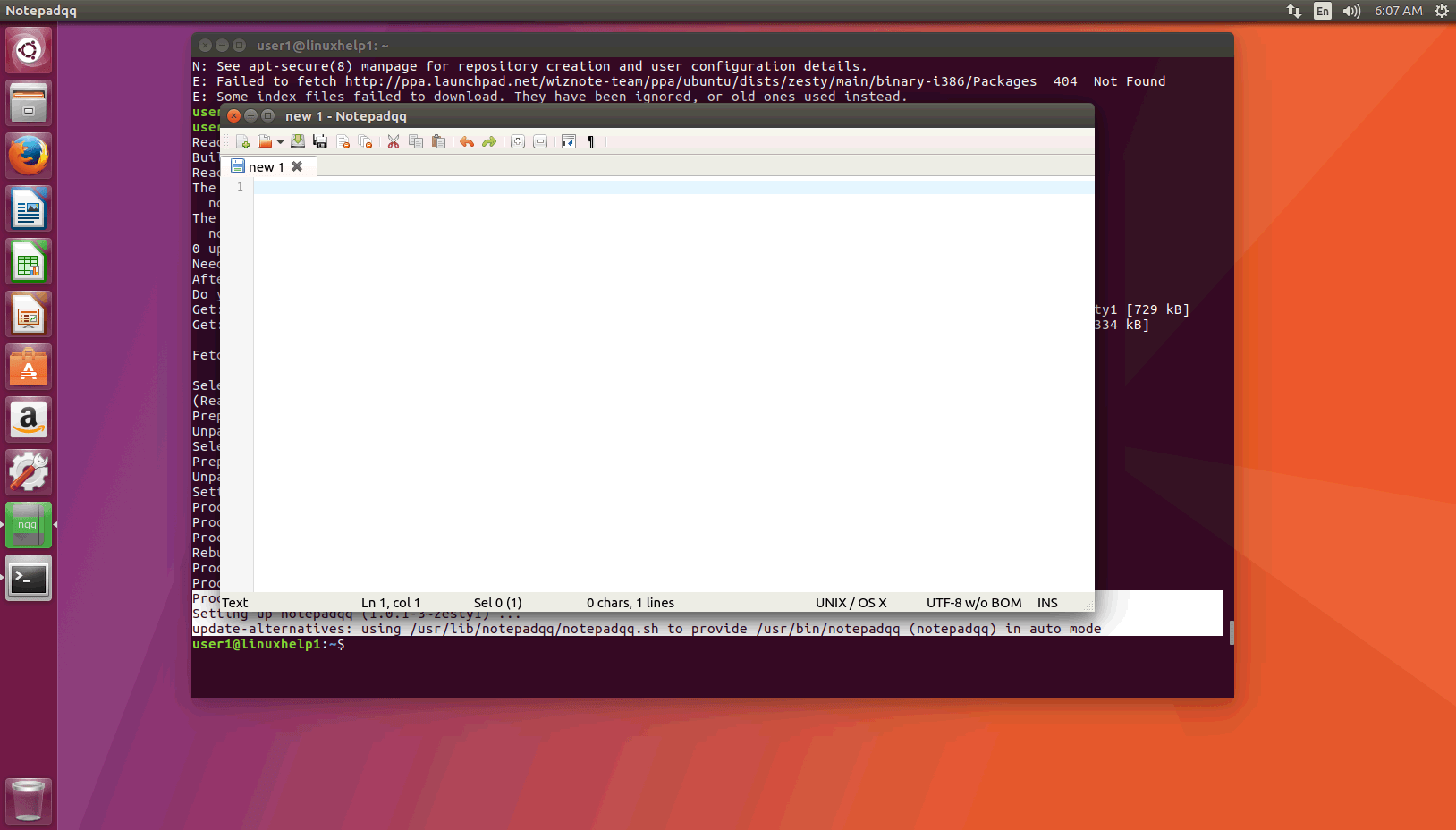
Notepadqq has been installed and it looks as the following image.
notepadqq

That was all. It was a simple installation process, don' t you agree? Enjoy working with your Notepadqq application.

Tags:
mason
Author: 

Comments ( 0 )

No comments available

Add a comment
{{postCtrl.cmtErrMsg}}

Frequently asked questions ( 5 )

Q

How to install Notepadqq in Linux Mint?

A

Run the following command:
$ sudo apt-get install notepadqq

Q

Is there any alternatives in Linux?

A

The alternatives are,
Gedit (Gnome text editor) ...
SciTE. ...
Sublime Text. ...
Geany. ...
GNU Emacs. ...
Atom.

Q

How to check version the version of Notepadqq?

A

run the command as follow
"# notepadqq -V".

Q

How can I remove the Notepadqq application?

A

use the following command as follow
"# apt-get remove notepadqq -y".

Q

How to install Notepadqq in CentOs?

A

Run the following command:
$ sudo yum install notepadqq

Back To Top!
Rank
User
Points

Top Contributers

userNamenaveelansari
135850

Top Contributers

userNameayanbhatti
92510

Top Contributers

userNamehamzaahmed
32150

Top Contributers

1
userNamelinuxhelp
31040

Top Contributers

userNamemuhammadali
24500
Can you help Ganesh Konka ?
Zentya 6.1 http proxy configuration

please send link for creating zentyal 6.1 for http proxy and firewall as gateway.

Networking
  • Routing
  • trunk
  • Netmask
  • Packet Capture
  • domain
  • HTTP Proxy
Server Setup
  • NFS
  • KVM
  • Memory
  • Sendmail
  • WebDAV
  • LXC
Shell Commands
  • Cloud commander
  • Command line archive tools
  • last command
  • Shell
  • terminal
  • Throttle
Desktop Application
  • Linux app
  • Pithos
  • Retrospect
  • Scribe
  • TortoiseHg
  • 4Images
Monitoring Tool
  • Monit
  • Apache Server Monitoring
  • EtherApe 
  • Arpwatch Tool
  • Auditd
  • Barman
Web Application
  • Nutch
  • Amazon VPC
  • FarmWarDeployer
  • Rukovoditel
  • Mirror site
  • Chef
Contact Us | Terms of Use| Privacy Policy| Disclaimer
© 2025 LinuxHelp.com All rights reserved. Linux™ is the registered trademark of Linus Torvalds. This site is not affiliated with linus torvalds in any way.