How to install Nylas mail client on Ubuntu 18.04
To install Nylas Mail Client on Ubuntu 18.04
Nylas-mail is an open source email client application and it’ s a cross-platform application available for a major using operating system such as Windows, Linux, MAC OS. It supports all important email related protocol like IMAP, POP3, SMTP and etc. This application has been developed by Nylas team by using C++ and JavaScript programming language under GPL license. It is so simple to install Nylas Mail Client on Ubuntu 18.04 and this tutorial covers the ground on the same process.
Installing Nylas
First, download the application using the following command.
root@linuxhelp1:~# wget https://edgehill.nylas.com/download?platform=linux-deb
--2018-04-20 03:41:33--  https://edgehill.nylas.com/download?platform=linux-deb
Resolving edgehill.nylas.com (edgehill.nylas.com)... 52.25.153.17, 52.34.173.171, 52.39.252.208, ...
Connecting to edgehill.nylas.com (edgehill.nylas.com)|52.25.153.17|:443... connected.
HTTP request sent, awaiting response... 302 FOUND
.
.
Length: 122593440 (117M) [application/x-debian-package]
Saving to: ‘ download?platform=linux-deb’

download?platform=linux 100%[==============================> ] 116.91M  1.11MB/s    in 2m 5s

2018-04-20 03:43:40 (960 KB/s) - ‘ download?platform=linux-deb’  saved [122593440/122593440]
Since we are going to install Nylas using gdebi command, let' s install gdebi and for that, you need to run the following command.
root@linuxhelp1:~# apt-get install gdebi
Reading package lists... Done
Building dependency tree
Reading state information... Done
The following packages were automatically installed and are no longer required:
  apache2-bin apache2-data apache2-utils libapr1 libaprutil1 libaprutil1-dbd-sqlite3
  libaprutil1-ldap
Use ' sudo apt autoremove'  to remove them.
The following additional packages will be installed:
.
.
Setting up gnome-icon-theme (3.12.0-3) ...
update-alternatives: using /usr/share/icons/gnome/scalable/places/debian-swirl.svg to provide /usr/share/icons/gnome/scalable/places/start-here.svg (start-here.svg) in auto mode
Processing triggers for man-db (2.8.2-1) ...
Processing triggers for gnome-menus (3.13.3-11ubuntu1) ...
Setting up libpango-perl (1.227-2build1) ...
Setting up gdebi (0.9.5.7+nmu2) ...
Setting up libgtk2-perl (2:1.24992-1build1) ...
Now, install the Nylas application using with help of gdebi in the following manner.
root@linuxhelp1:~# gdebi download?platform=linux-deb
Reading package lists... Done
Building dependency tree
Reading state information... Done
Reading state information... Done
Requires the installation of the following packages: gconf-service gconf-service-backend gconf2 gconf2-common gir1.2-gnomekeyring-1.0 git git-man liberror-perl libgconf-2-4 libgnome-keyring-common libgnome-keyring0

The best email app for people and teams at work
.
.
Selecting previously unselected package nylas-mail.
(Reading database ... 139062 files and directories currently installed.)
Preparing to unpack download?platform=linux-deb ...
Unpacking nylas-mail (2.0.32) ...
Setting up nylas-mail (2.0.32) ...
Processing triggers for gnome-menus (3.13.3-11ubuntu1) ...
Processing triggers for desktop-file-utils (0.23-1ubuntu3) ...
Processing triggers for mime-support (3.60ubuntu1) ...
Processing triggers for hicolor-icon-theme (0.17-2) ...
After installation, you can open the application from Ubuntu search field.

After the application is launched it will show the Welcome page of Nylas mail application.
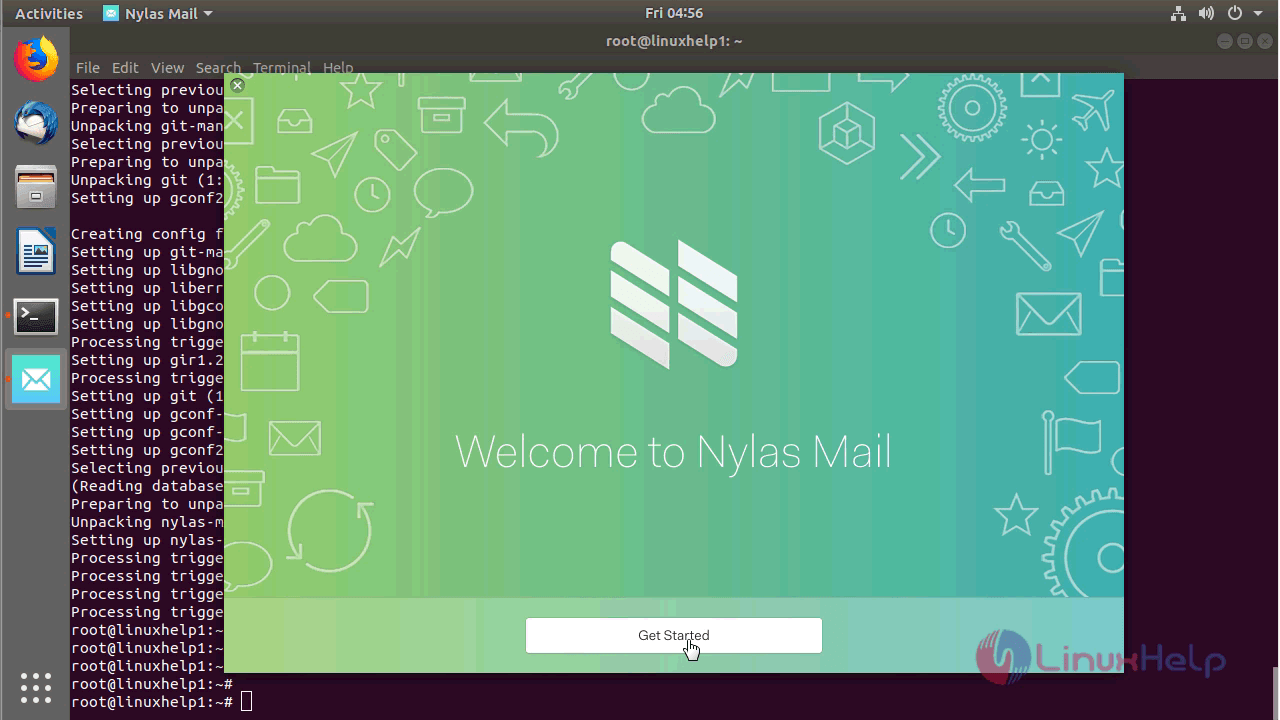
After getting started we have to create an account to log in and use Nylas.

Create Nylas ID and then sign in.

After choosing a mail account it will sync your account with Nylas application.

With this, the method to install Nylas mail client on Ubuntu 18.04 comes to an end.
Comments ( 0 )
No comments available