How to install ocPortal on CentOS 7
To install ocPortal on CentOS 7
ocPortal is a free and open souce PHP based CMS. It can be customized easily and contains lots of website features like photo galleries, news, events and social networking. For installation ocPortal, you need to have LAMP stack installed in your system. This tutorial explains the installation of ocPortal on CentOS 7.
Installation procedure
To proceed with the installation procedure, check whether the target system is running a MySQL service. Start the ocPortal installation by configuring the database for ocPortal by MySQL.
[root@test Desktop]# mysql -u root -p
Enter password:
Welcome to the MariaDB monitor.  Commands end with   or g.
Your MariaDB connection id is 2
Server version: 5.5.56-MariaDB MariaDB Server
Copyright (c) 2000, 2017, Oracle, MariaDB Corporation Ab and others.
Type ' help '  or ' h'  for help. Type ' c'  to clear the current input statement.
MariaDB [(none)]>  CREATE DATABASE ocportal
Query OK, 1 row affected (0.00 sec)
MariaDB [(none)]>  GRANT ALL ON ocportal.* to ocportaluser@localhost identified by ' password'
Query OK, 0 rows affected (0.00 sec)
MariaDB [(none)]>  FLUSH PRIVILEGES
Query OK, 0 rows affected (0.00 sec)
MariaDB [(none)]>  exit
Bye
Next download the installation package from the following link http://ocportal.com/site/sites.htm .
Create the directory in HTML location with the required domain name.
[root@test Desktop]# mkdir /var/www/html/test.linuxhelp1.com
Move the downloaded zip file to the newly created directory in HTML location.
[root@test Downloads]# mv ocportal_manualextraction_installer-9.0.39.zip /var/www/html/test.linuxhelp1.com/
Now extract the downloaded package by running the unzip command.
[root@test Downloads]# cd /var/www/html/test.linuxhelp1.com/
[root@test test.linuxhelp1.com]# unzip ocportal_manualextraction_installer-9.0.39.zip
Archive:  ocportal_manualextraction_installer-9.0.39.zip
   creating: adminzone/
  inflating: adminzone/find_permissions.php
  inflating: adminzone/index.php
  inflating: adminzone/load_template.php
&hellip
&hellip
&hellip
   creating: uploads/website_specific/
 extracting: uploads/website_specific/index.html
  inflating: validateip.php
  inflating: web.config
Change the ownership for the test.linuxhelp1.com directory.
[root@test html]# chown -R apache:apache /var/www/html/test.linuxhelp1.com
Open and edit the Apache configuration file using vim editor. Now add the following virtual host configuration content to the file. Save and exit the file.
[root@test html]# vim /etc/httpd/conf/httpd.conf
< VirtualHost *:80>
ServerAdmin linuxhelpserver@gmail.com
DocumentRoot /var/www/html/test.linuxhelp1.com
ServerName test.linuxhelp1.com
ErrorLog logs/test.linuxhelp1.com-error_log
CustomLog logs/test.linuxhelp1.com-access_log common
< /VirtualHost>
Change the serveradmin, document root and server name options based on your configuration. Save the file and exit
Now restart the Apache web server by running the following command.
[root@test html]# systemctl restart httpd
Now open the web browser and navigate to http://192.168.7.203/install.php. The ocPortal installer appears on the screen.
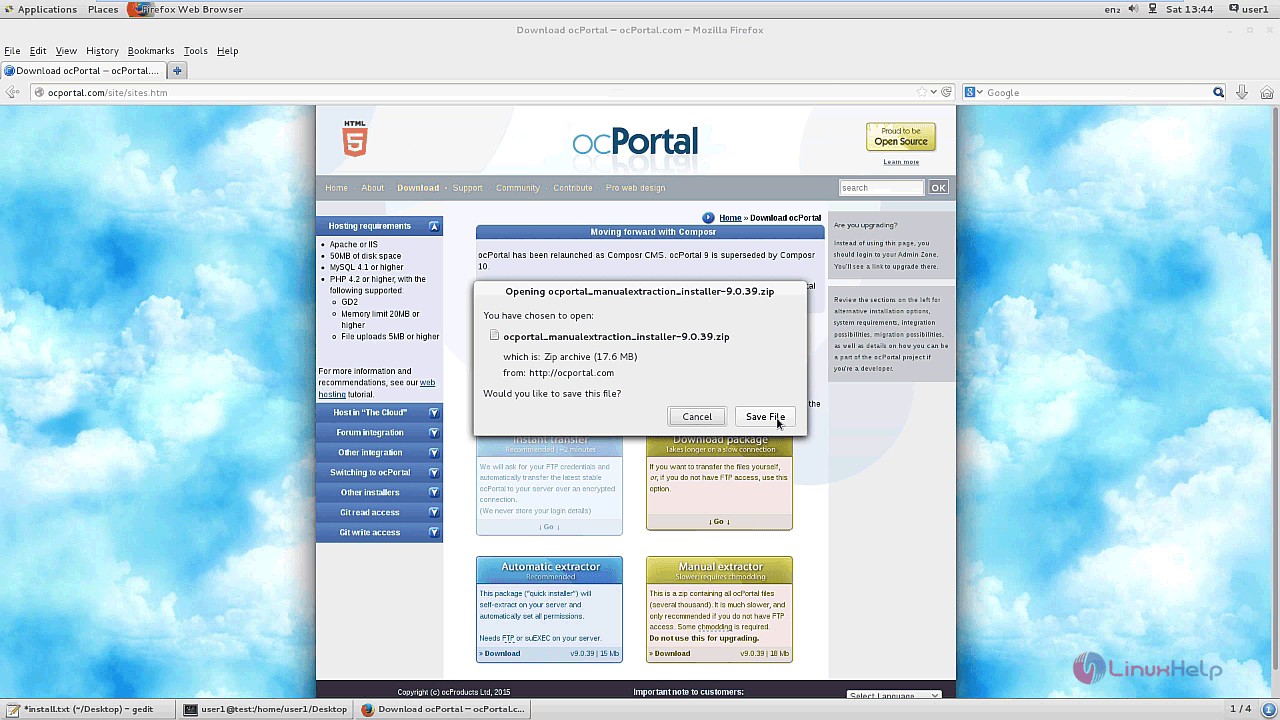
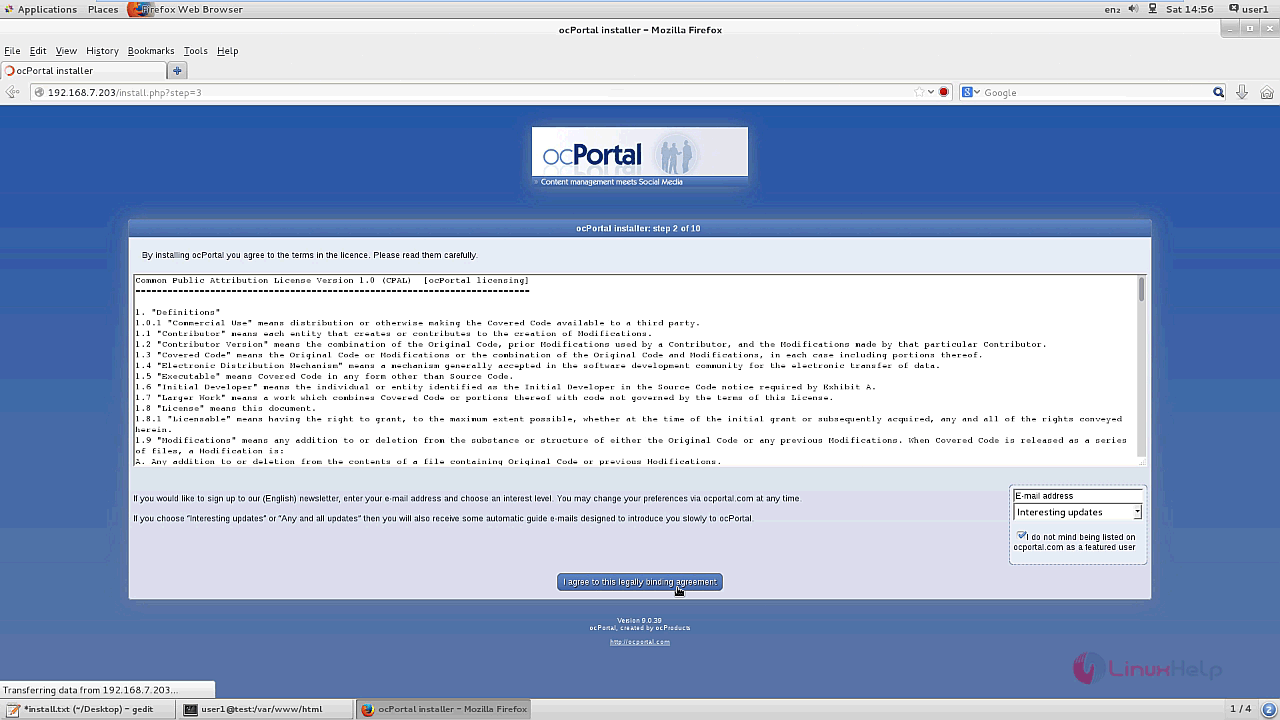
The next window contains the license agreement. Accept the license agreement.
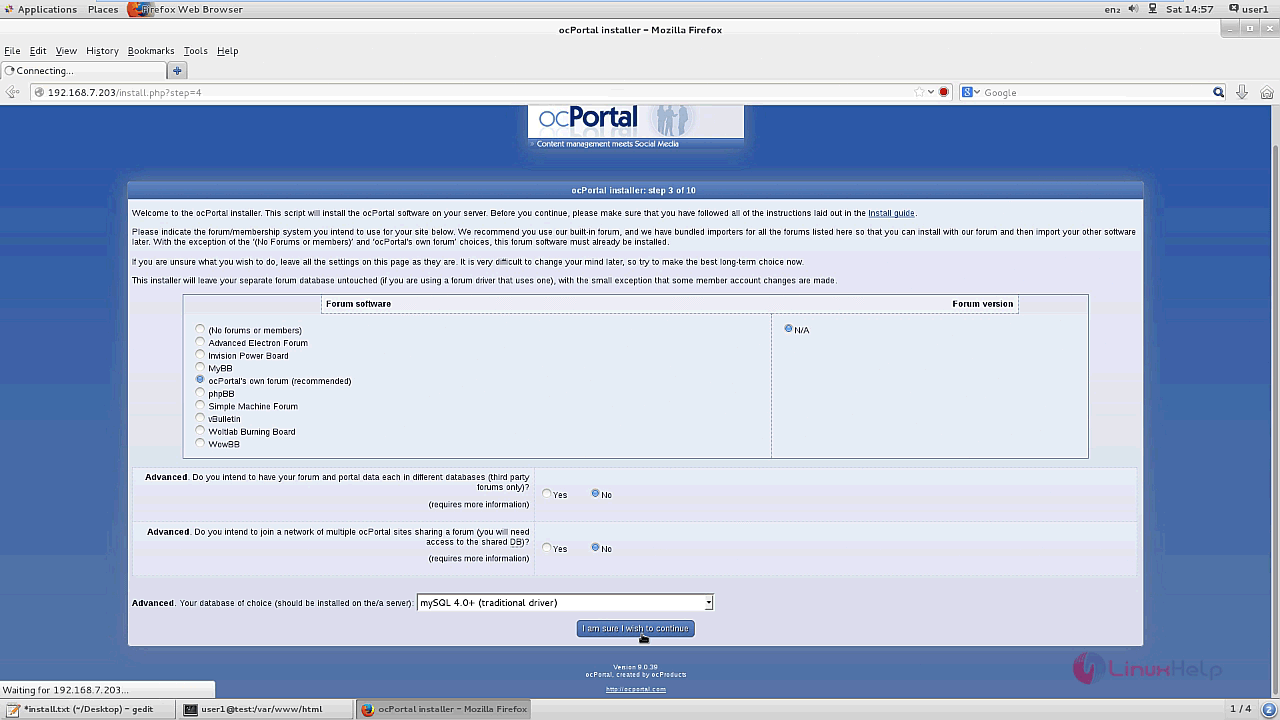
Choose your forum software and click continue to next window.
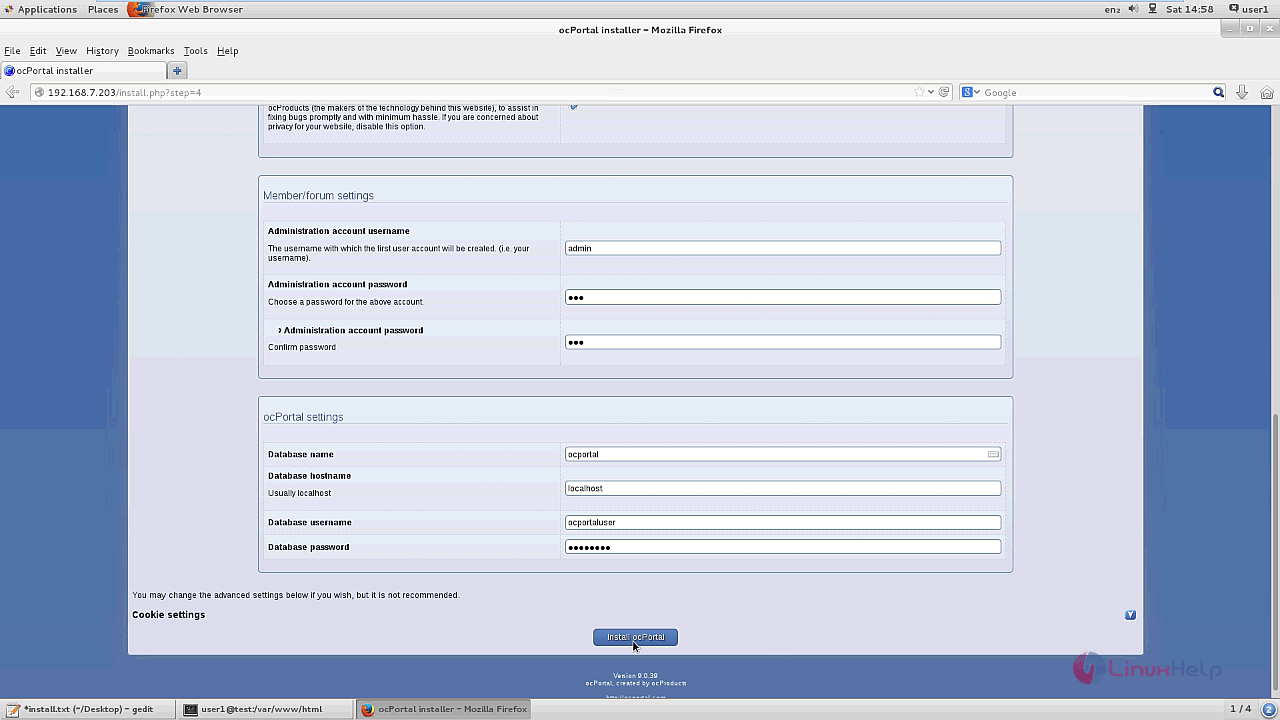
Configure the administrative account login and press install option.
The ocPortal installation log appears on the screen.
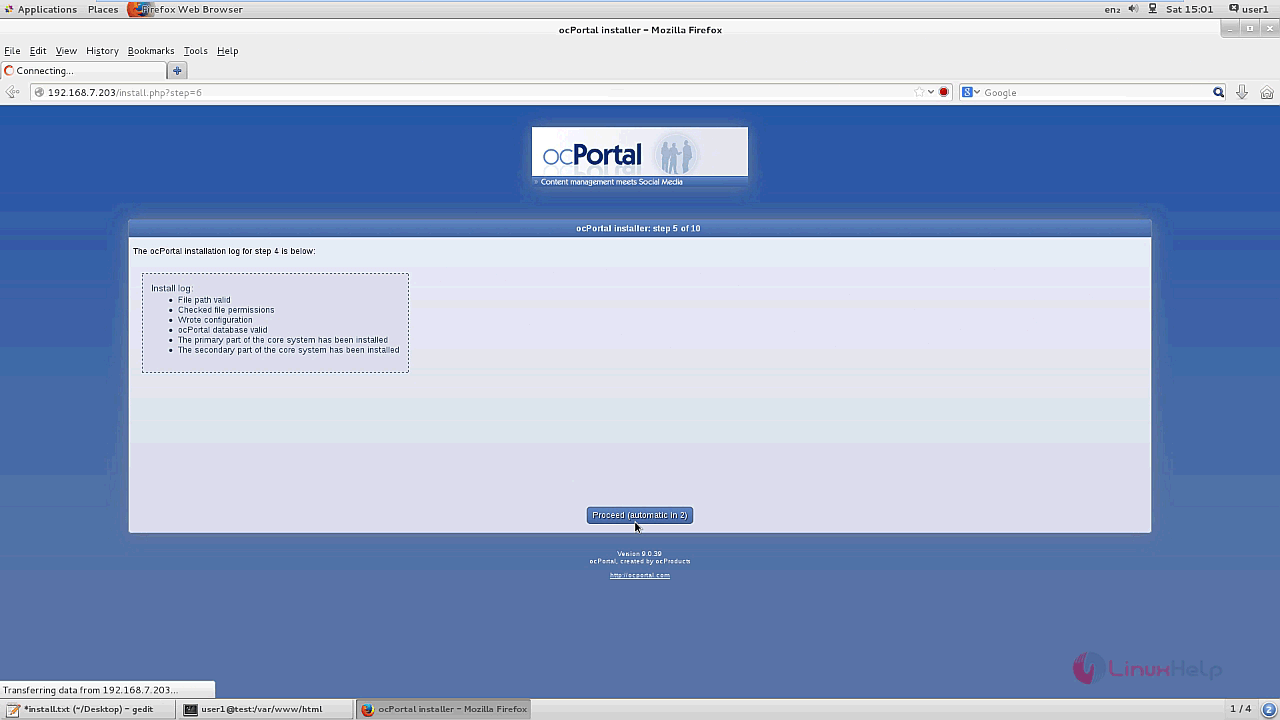
The installation is now complete. Remove the install.php file from the installation directory by running the following command.
[root@test test.linuxhelp1.com]# rm -rf install.php
Now select the Configure my ocPortal first option.
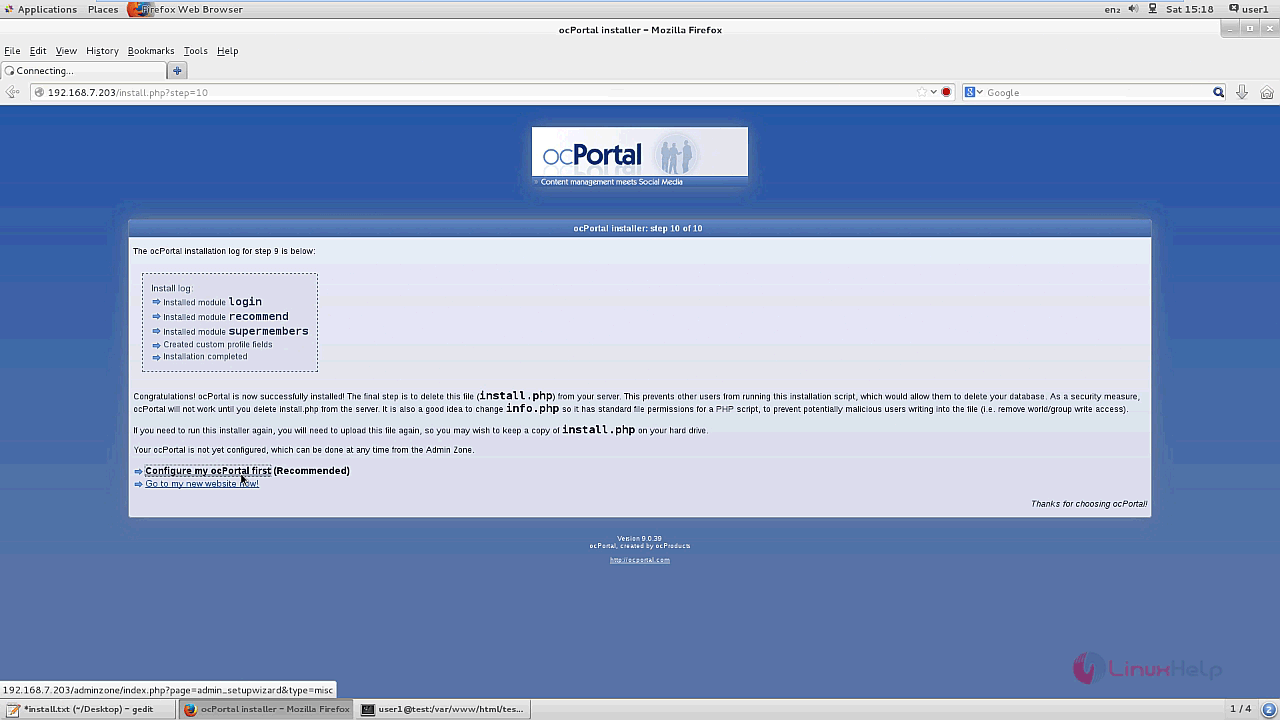
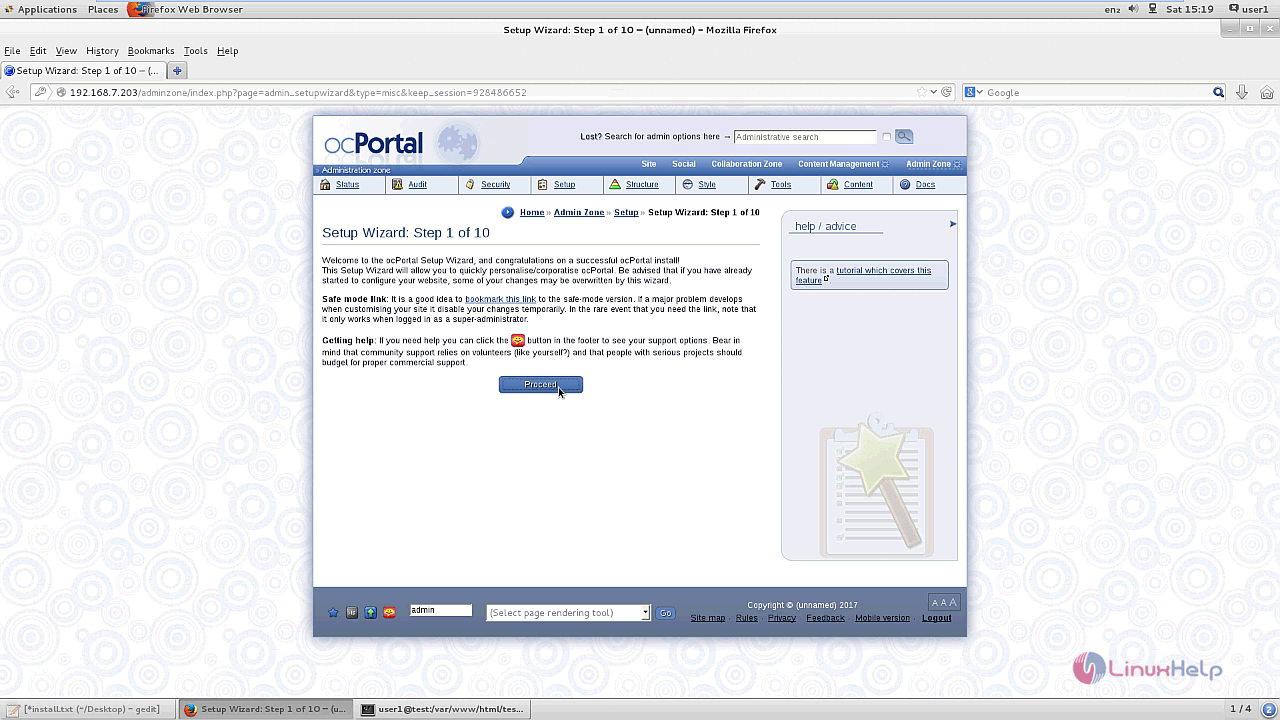
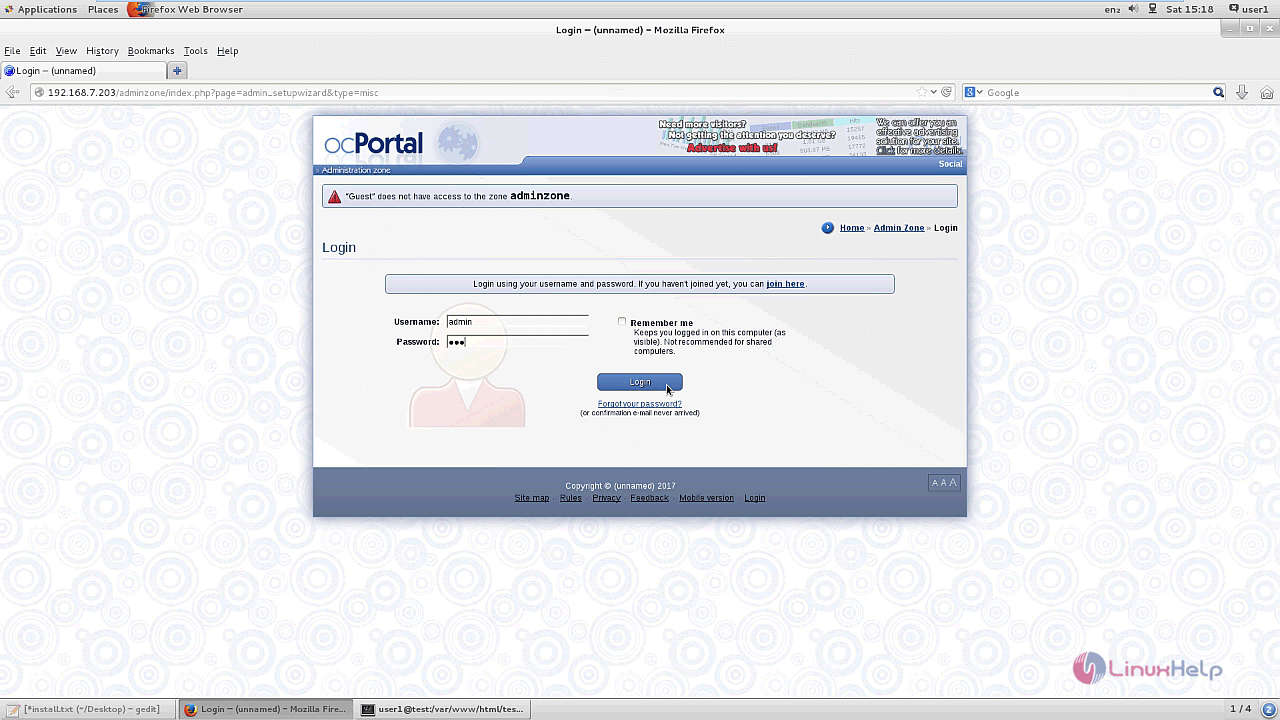
The ocPortal Admin zone login page comes to the screen and click proceed to continue with the installation wizard.
Setup the admin credentials for admin zone.
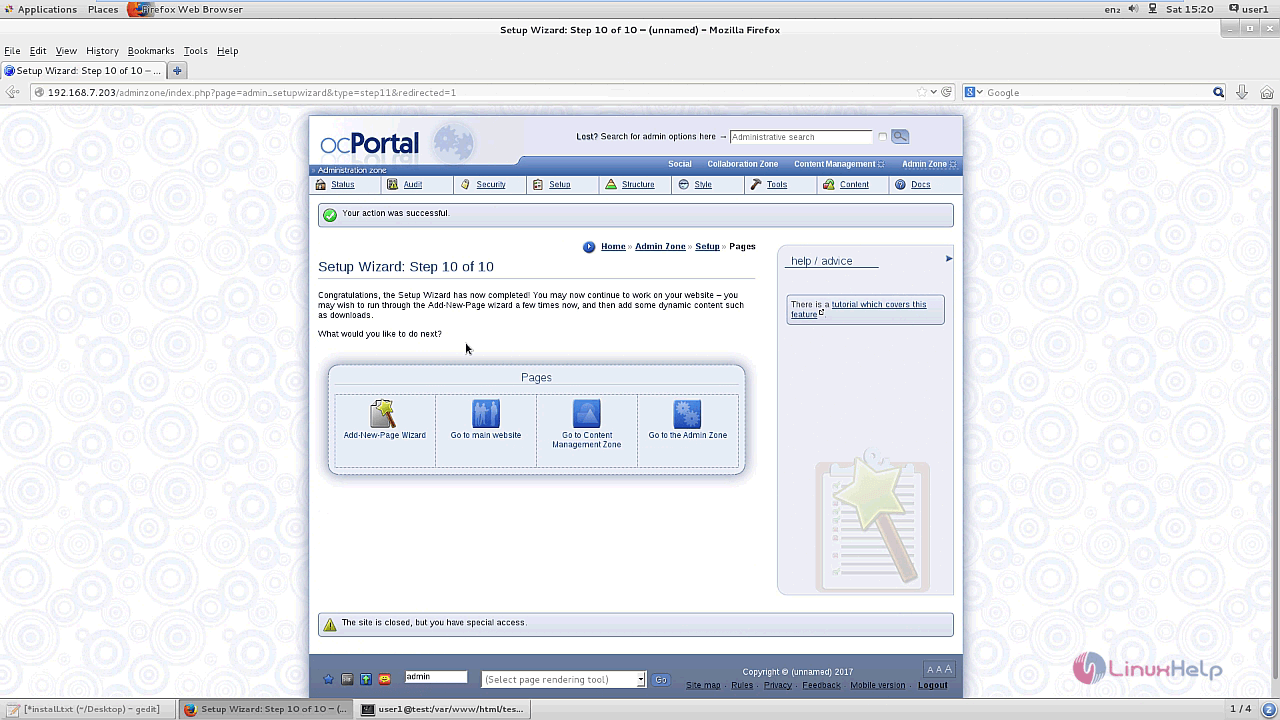
The installation wizard setup is completed.
The newly created website is now displayed on the screen.
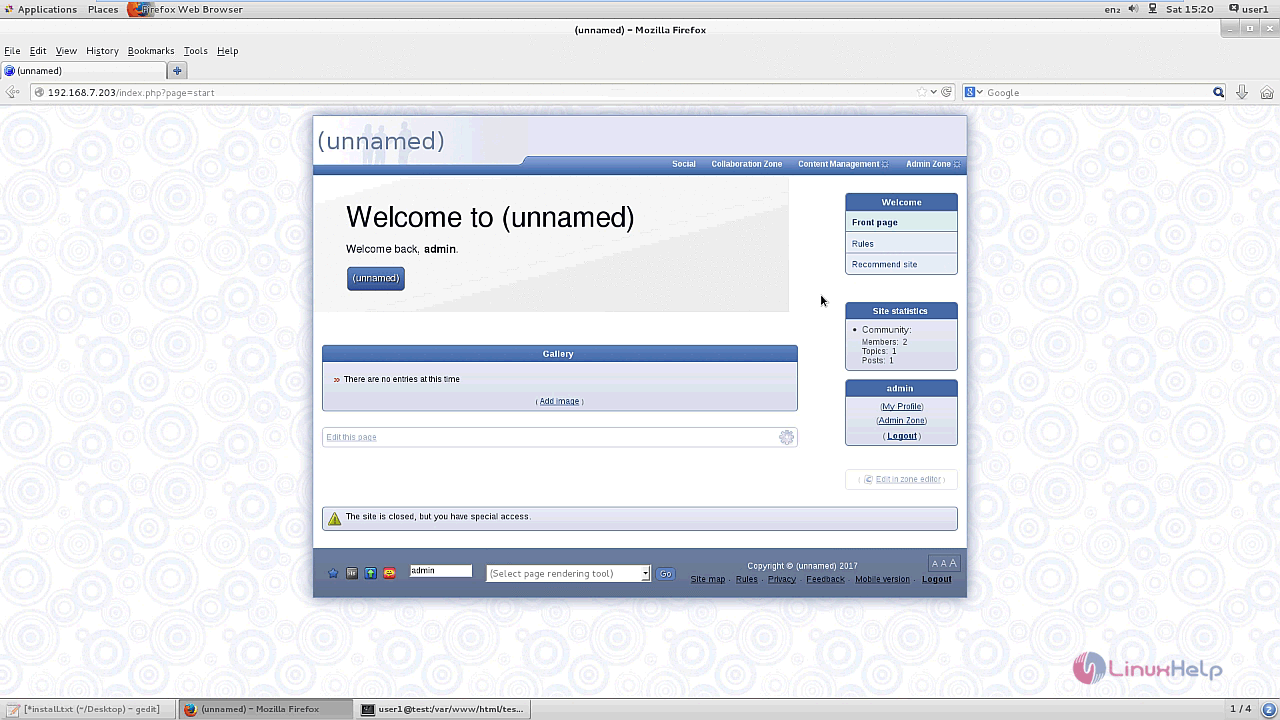
This Concludes the installation procedure of ocPortal on CentOS 7.
Comments ( 0 )
No comments available