How to install of CrashPlan on Ubuntu
{{postValue.id}}
To install CrashPlan on Ubuntu
CrashPlan is an online backup service software which supports Linux. It is easy to take backup your files to the cloud with the help of CrashPlan. In this tutorial, you will learn the method to install CrashPlan on Ubuntu.
Installing CrashPlan
To install CrashPlan, you need to download the installation package from its official link. Run the following command for the same purpose.
user1@linuxhelpubnt:~/Desktop$ wget https://download2.code42.com/installs/linux/install/CrashPlan/CrashPlan_4.8.3_Linux.tgz
--2017-06-25 06:25:42--  https://download2.code42.com/installs/linux/install/CrashPlan/CrashPlan_4.8.3_Linux.tgz
Resolving download2.code42.com (download2.code42.com)... 216.17.8.13
.
.
.
CrashPlan_4.8.3_Linux.tgz        100%[=======================================================> ]  44.91M   144KB/s    in 3m 53s
2017-06-25 06:29:38 (197 KB/s) - ‘ CrashPlan_4.8.3_Linux.tgz’  saved [47086668/47086668]
Once the download is completed, extract the tar file as follows.
user1@linuxhelpubnt:~/Desktop$ tar -xvf CrashPlan_4.8.3_Linux.tgz
crashplan-install/install.sh
crashplan-install/uninstall.sh
crashplan-install/
.
.
.
crashplan-install/scripts/crashplan
rashplan-install/scripts/run.conf
Now, move it into the crashplan directory as follows.
user1@linuxhelpubnt:~/Desktop$ cd crashplan-install/
user1@linuxhelpubnt:~/Desktop/crashplan-install$ ls -la
total 46040
drwxr-xr-x 3 user1 user1     4096 Jun  9 04:23 .
drwxr-xr-x 3 user1 user1     4096 Jun 25 06:30 ..
-rw-r--r-- 1 user1 user1 47092262 Jun  9 04:23 CrashPlan_4.8.3.cpi
-rw-r--r-- 1 user1 user1      621 Jun  9 04:23 INSTALL
-rw-r--r-- 1 user1 user1      244 Jun  9 04:23 install.defaults
-rwxr-xr-x 1 user1 user1    15284 Jun  9 04:23 install.sh
-rw-r--r-- 1 user1 user1     1326 Jun  9 04:23 README
drwxr-xr-x 2 user1 user1     4096 Jun 25 06:30 scripts
-rwxr-xr-x 1 user1 user1     6083 Jun  9 04:23 uninstall.sh
After that, run the install.sh script.
user1@linuxhelpubnt:~/Desktop/crashplan-install$ sudo ./install.sh
[sudo] password for user1:
Welcome to the Code42 CrashPlan installer.
Press enter to continue with installation.
Validating environment...
  detected root permissions
What parent directory do you wish to install CrashPlan into? [/usr/local]
/usr/local/crashplan does not exist.  Create /usr/local/crashplan? (y/n) [y]
What directory do you wish to link the CrashPlan executable to? [/usr/local/bin]
.
.
.
Your selections:
CrashPlan will install to: /usr/local/crashplan
And put links to binaries in: /usr/local/bin
And store data in: /usr/local/var/crashplan
Your init.d dir is: /etc/init.d
Your current runlevel directory is: /etc/rc5.d
Is this correct? (y/n) [y]
    downloading the JRE using wget
--2017-06-25 06:31:28--  http://download.code42.com/installs/proserver/jre/jre-linux-x64-1.8.0_72.tgz
Resolving download.code42.com (download.code42.com)... 216.17.8.19
.
.
.
jre-linux-x64-1.8.0_72.tgz       100%[=======================================================> ]  68.46M  1.00MB/s    in 76s
2017-06-25 06:32:49 (924 KB/s) - ‘ jre-linux-x64-1.8.0_72.tgz’  saved [71789390/71789390]
Java Installed.
.
.
.
Would you like to start CrashPlanDesktop? (y/n) [y]
To start the Desktop UI:
 /usr/local/bin/CrashPlanDesktop
Installation is complete. Thank you for installing Code42 CrashPlan.
We have successfully installed CrashPlan.

Register your account as follows.
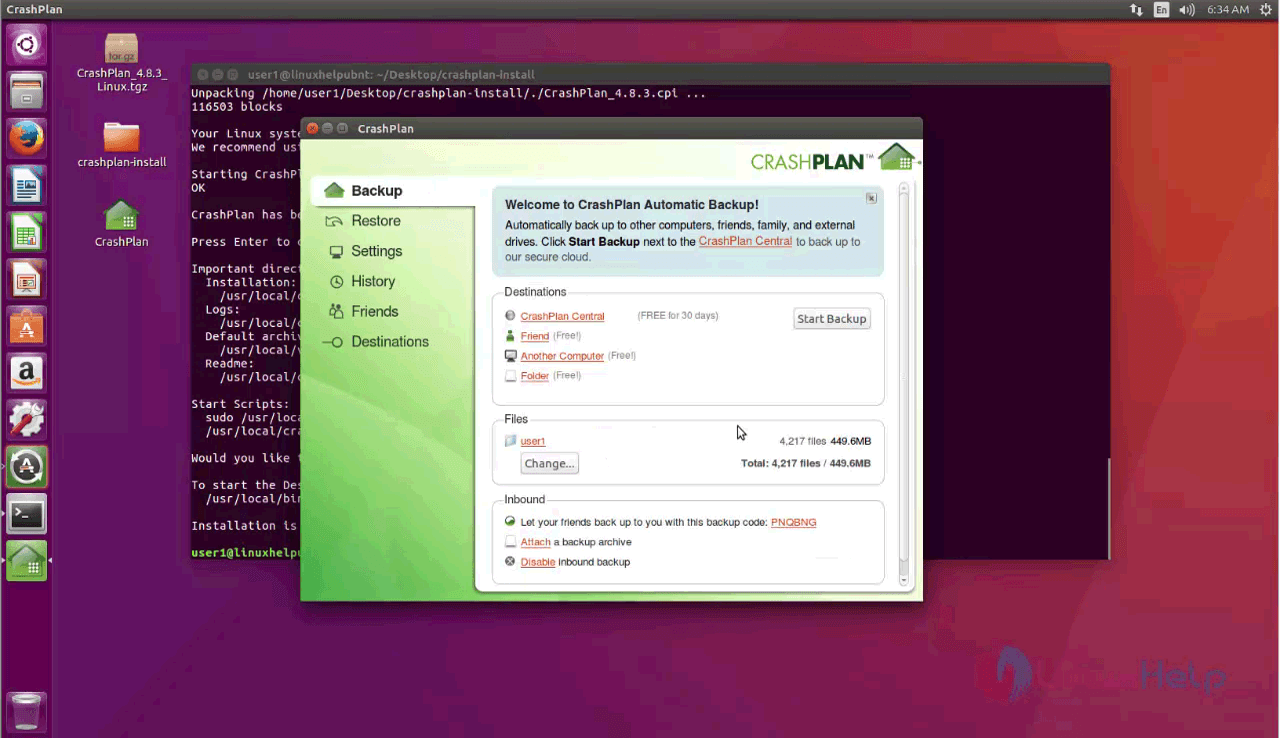
That was all. Enjoy using CrashPlan to store all your data.
Comments ( 0 )
No comments available