How to Install Open Shot video Editor on Ubuntu 21.04
{{postValue.id}}
To Install Open Shot Video Editor on Ubuntu 21.04
Introduction:
The OpenShot video editing software, which can create videos, movies, and activities, has a simple to use interface and many features, and runs on Linux, macOS, and Windows.
Installation Procedure
Step 1: Check the OS version by using the below command
root@linuxhelp:~# lsb_release -a
No LSB modules are available.
Distributor ID:	Ubuntu
Description:	Ubuntu 21.04
Release:	21.04
Codename:	hirsute
Step 2: Add the Open Shot Repository to APT source List by using the below command
root@linuxhelp:~# add-apt-repository ppa:openshot.developers/ppa
Repository: 'deb http://ppa.launchpad.net/openshot.developers/ppa/ubuntu/ hirsute main'
Description:
This PPA contains the current stable version of OpenShot Video Editor.

If you would rather the bleeding-edge version, check out the following URL:
https://launchpad.net/~jonoomph/+archive/openshot-edge

More info: https://launchpad.net/~openshot.developers/+archive/ubuntu/ppa
Adding repository.
Press [ENTER] to continue or Ctrl-c to cancel.
Adding deb entry to /etc/apt/sources.list.d/openshot_developers-ubuntu-ppa-hirsute.list
Adding disabled deb-src entry to /etc/apt/sources.list.d/openshot_developers-ubuntu-ppa-hirsute.list
Adding key to /etc/apt/trusted.gpg.d/openshot_developers-ubuntu-ppa.gpg with fingerprint FBA0C227099A5360635E3D9152165BD6B9BA26FA

Hit:1 http://in.archive.ubuntu.com/ubuntu hirsute InRelease
Hit:2 https://download.docker.com/linux/ubuntu bionic InRelease
Get:3 http://in.archive.ubuntu.com/ubuntu hirsute-updates InRelease [115 kB]
Hit:4 http://in.archive.ubuntu.com/ubuntu hirsute-backports InRelease
Get:5 http://ppa.launchpad.net/openshot.developers/ppa/ubuntu hirsute InRelease [17.6 kB]
Hit:6 http://security.ubuntu.com/ubuntu hirsute-security InRelease
Get:7 http://ppa.launchpad.net/openshot.developers/ppa/ubuntu hirsute/main i386 Packages [1,076 B]
Get:8 http://ppa.launchpad.net/openshot.developers/ppa/ubuntu hirsute/main amd64 Packages [2,136 B]
Get:9 http://ppa.launchpad.net/openshot.developers/ppa/ubuntu hirsute/main Translation-en [856 B]
Fetched 137 kB in 3s (51.7 kB/s)
Reading package lists... Done
Step 3: Update the APT repository Source List by using the below command
root@linuxhelp:~# apt update
Hit:1 http://in.archive.ubuntu.com/ubuntu hirsute InRelease
Hit:2 https://download.docker.com/linux/ubuntu bionic InRelease
Get:3 http://in.archive.ubuntu.com/ubuntu hirsute-updates InRelease [115 kB]
Hit:4 http://in.archive.ubuntu.com/ubuntu hirsute-backports InRelease
Hit:5 http://ppa.launchpad.net/openshot.developers/ppa/ubuntu hirsute InRelease
Hit:6 http://security.ubuntu.com/ubuntu hirsute-security InRelease
Fetched 115 kB in 1s (81.4 kB/s)
Reading package lists... Done
Building dependency tree... Done
Reading state information... Done
All packages are up to date.
Step 4:Now install the open Shot application by using the below command
root@linuxhelp:~# apt install openshot-qt
Reading package lists... Done
Building dependency tree... Done
Reading state information... Done
The following package was automatically installed and is no longer required:
  libllvm11
Use 'apt autoremove' to remove it.
The following additional packages will be installed:
  gsfonts i965-va-driver imagemagick-6-common intel-media-va-driver libaacs0 libaom0 libavcodec58 libavformat58
  libavutil56 libbdplus0 libbluray2 libchromaprint1 libcodec2-0.9 libdav1d4 libde265-0 libdouble-conversion3
  libevent-2.1-7 libfftw3-double3 libgme0 libgsm1 libheif1 libigdgmm11 libjsoncpp24 liblqr-1-0 libmagick++-6.q16-8
  libmagickcore-6.q16-6 libmagickwand-6.q16-6 libmd4c0 libmfx1 libminizip1 libnorm1 libopenmpt0 libopenshot-audio8
  libopenshot20 libpcre2-16-0 libpgm-5.3-0 libqt5core5a libqt5dbus5 libqt5designer5 libqt5gui5 libqt5help5 libqt5network5
  libqt5opengl5 libqt5positioning5 libqt5printsupport5 libqt5qml5 libqt5qmlmodels5 libqt5quick5 libqt5quickwidgets5
  libqt5sql5 libqt5sql5-sqlite libqt5svg5 libqt5test5 libqt5webchannel5 libqt5webengine-data libqt5webengine5
  libqt5webenginecore5 libqt5webenginewidgets5 libqt5widgets5 libqt5xml5 librabbitmq4 libre2-9 libshine3 libsnappy1v5
  libsrt1.4-gnutls libssh-gcrypt-4 libswresample3 libswscale5 libudfread0 libva-drm2 libva-x11-2 libva2 libvdpau1
  libx264-160 libx265-192 libxcb-xinerama0 libxcb-xinput0 libxvidcore4 libzmq5 libzvbi-common libzvbi0 mesa-va-drivers
  mesa-vdpau-drivers ocl-icd-libopencl1 python3-defusedxml python3-openshot python3-pyqt5 python3-pyqt5.qtopengl
  python3-pyqt5.qtsvg python3-pyqt5.qtwebchannel python3-pyqt5.qtwebengine python3-pyqt5.sip python3-zmq

qt5-gtk-platformtheme qttranslations5-l10n va-driver-all vdpau-driver-all
Suggested packages:
  i965-va-driver-shaders libbluray-bdj libfftw3-bin libfftw3-dev libmagickcore-6.q16-6-extra qt5-image-
Processing triggers for shared-mime-info (2.0-1) ...
Processing triggers for mailcap (3.68ubuntu1) ...
Processing triggers for fontconfig (2.13.1-4.2ubuntu3) ...
Processing triggers for desktop-file-utils (0.26-1ubuntu1) ...
Processing triggers for hicolor-icon-theme (0.17-2) ...
Processing triggers for gnome-menus (3.36.0-1ubuntu1) ...
Processing triggers for libc-bin (2.33-0ubuntu5) ...
Step 5: This is the Dashboard of the OpenShot Video Editor
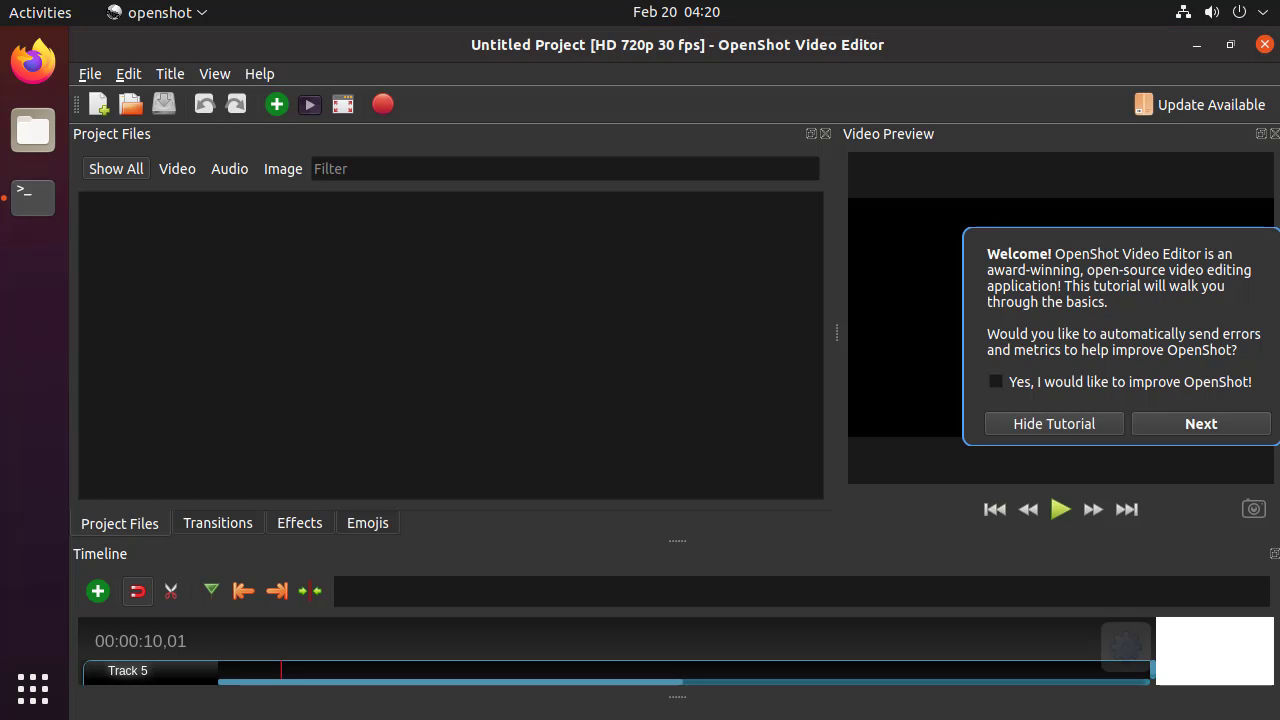
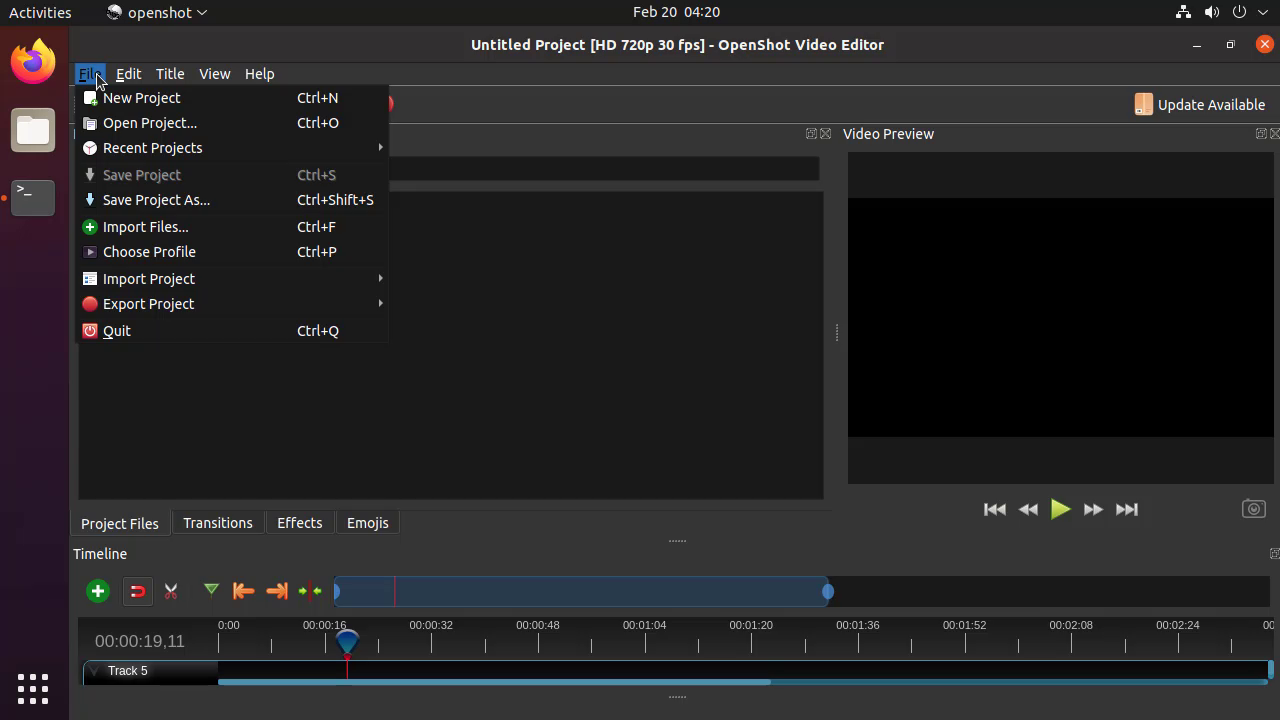
By this to Install Open Shot Video Editor on Ubuntu 21.04 have been completed
Comments ( 0 )
No comments available