• Categories
    Category
    {{ postCtrl.tags }}
    • {{ category.tag_type }}

      • {{tag.tag_name}}
      • View more
  • Categories
    Category
    {{ postCtrl.tags }}
    • {{ category.tag_type }}

      • {{tag.tag_name}}
      • View more
  • News
  • Tutorials
  • Forums
  • Tags
  • Users
Tutorial News Comments FAQ Related Articles

How to install Openshot video editor in Ubuntu 17.04

{{postValue.id}}

How to install Openshot video editor in Ubuntu 17.04

OpenShot Video Editor is a free, open-source video editor for Linux, Mac, and Windows licensed under the GPL version 3.0. OpenShot can take videos, photos, music files and helps the user to create any type of film. It also supports several enhancement options like sub-titles, transitions, and effects, and then it can also be used to export the completed film to DVD, YouTube, Vimeo, Xbox, PlayStation, and many other common formats. This tutorial covers the installation procedure of Openshot video editor in Ubuntu.

Installation procedure

To begin with the installation procedure, add the repository to the target system by executing the following command.

root@linuxhelp1:~# add-apt-repository ppa:openshot.developers/ppa
 This PPA contains the current stable version of OpenShot Video Editor.
If you would rather the bleeding-edge version, check out the following URL:
https://launchpad.net/~jonoomph/+archive/openshot-edge
More info: https://launchpad.net/~openshot.developers/+archive/ubuntu/ppa
Press [ENTER] to continue or ctrl-c to cancel adding it
gpg: keybox ' /tmp/tmp91s47r87/pubring.gpg'  created
gpg: /tmp/tmp91s47r87/trustdb.gpg: trustdb created
gpg: key 52165BD6B9BA26FA: public key " Launchpad OpenShot Development PPA"  imported
gpg: Total number processed: 1
gpg:               imported: 1
OK

The repositories are added to the target system. Execute the following command to update the local repository index.

root@linuxhelp1:~# apt-get update
Get:1 http://security.ubuntu.com/ubuntu zesty-security InRelease [89.2 kB]                                                    
Get:2 http://ppa.launchpad.net/openshot.developers/ppa/ubuntu zesty InRelease [15.4 kB]                                        
Hit:3 http://in.archive.ubuntu.com/ubuntu zesty InRelease                            
Get:4 http://in.archive.ubuntu.com/ubuntu zesty-updates InRelease [89.2 kB]                
&hellip 
&hellip 
Get:24 http://in.archive.ubuntu.com/ubuntu zesty-updates/universe amd64 DEP-11 Metadata [37.6 kB]
Get:25 http://in.archive.ubuntu.com/ubuntu zesty-updates/universe DEP-11 64x64 Icons [29.9 kB]
Fetched 542 kB in 5s (91.7 kB/s)                                       
Reading package lists... Done

The system is updated with the required repositories. Now install the Openshot video editor by running the following command.

root@linuxhelp1:~# apt-get install openshot-qt
Reading package lists... Done
Building dependency tree      
Reading state information... Done
&hellip 
&hellip 
&hellip 
Setting up libavformat57:amd64 (7:3.2.4-1build2) ...
Setting up libopenshot11:amd64 (0.1.4+0+588+107+201703310338+daily~ubuntu17.04.1) ...
Setting up python3-openshot:amd64 (0.1.4+0+588+107+201703310338+daily~ubuntu17.04.1) ...
Setting up openshot-qt (2.3.1+0+785+108+201704010143~ubuntu17.04.1) ...

The application is installed successfully. To open the application, type the package name in the Ubuntu dashboard and click on the icon to run the application.
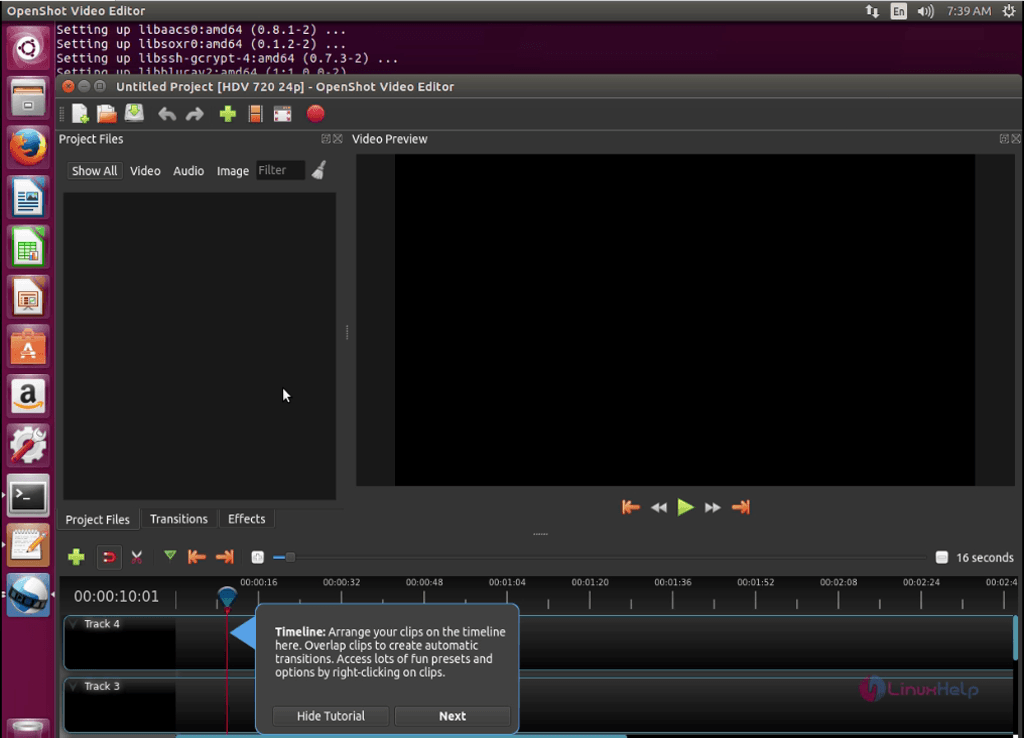
openshot

Wasn' t that an easy installation procedure? The Openshot also supports both video codecs(FFmpeg, WebM) and audio codecs(mp3, aac).

Tags:
benjamin
Author: 

Comments ( 0 )

No comments available

Add a comment
{{postCtrl.cmtErrMsg}}

Frequently asked questions ( 5 )

Q

what are the supported platform for openshot?

A

The Openshot application is Multi-platform supported application, it can run with multiple platform.

Q

How to remove opeshot video cutter on Ubuntu?

A

For uninstalling the Openshot on Ubuntu, use the following command as given below, "# apt-get remove openshot-qt"

Q

How to install Openshot on Debian?

A

For the o=installation of Openshot on Debian, use the following lin k as given below,
"https://www.linuxhelp.com/how-to-install-openshot-in-debian-8-3/"

Q

How to download the Openshot form officially for WIndows?

A

For download the Openshot from officially for windows, use the following link as given below "www.openshot.org/download/"

Q

What are the features available on Openshot?

A

The following thing of available features on Openshot,
Cross-platform (Supports Linux, OS X, and Windows)
Support for many video, audio, and image formats (based on FFmpeg)
Powerful curve-based Key frame animations
Desktop integration (drag and drop support)
Unlimited tracks / layers
Clip resizing, scaling, trimming, snapping, rotation, and cutting
Video transitions with real-time previews
Compositing, image overlays, watermarks
Title templates, title creation, sub-titles

Back To Top!
Rank
User
Points

Top Contributers

userNamenaveelansari
135850

Top Contributers

userNameayanbhatti
92510

Top Contributers

userNamehamzaahmed
32150

Top Contributers

1
userNamelinuxhelp
31040

Top Contributers

userNamemuhammadali
24500
Can you help legeek ?
Installation of the call center module

hello

I wish to install a call center in virtual with issabel, I downloaded the latest version of it , but I don' t arrive to install the call center module in issabel. please help me

thanks!

Networking
  • Routing
  • trunk
  • Netmask
  • Packet Capture
  • domain
  • HTTP Proxy
Server Setup
  • NFS
  • KVM
  • Memory
  • Sendmail
  • WebDAV
  • LXC
Shell Commands
  • Cloud commander
  • Command line archive tools
  • last command
  • Shell
  • terminal
  • Throttle
Desktop Application
  • Linux app
  • Pithos
  • Retrospect
  • Scribe
  • TortoiseHg
  • 4Images
Monitoring Tool
  • Monit
  • Apache Server Monitoring
  • EtherApe 
  • Arpwatch Tool
  • Auditd
  • Barman
Web Application
  • Nutch
  • Amazon VPC
  • FarmWarDeployer
  • Rukovoditel
  • Mirror site
  • Chef
Contact Us | Terms of Use| Privacy Policy| Disclaimer
© 2025 LinuxHelp.com All rights reserved. Linux™ is the registered trademark of Linus Torvalds. This site is not affiliated with linus torvalds in any way.