How to install OpenSIS on Linux mint 18.03
To install OpenSIS on Linux mint 18.03
OpenSIS is one of several free and open source student information system available to K-12 and higher education institutions. The solution has been in development for several years and appears to have much of the functionality that longtime commercial versions. In this tutorial, you will learn the method to install opensis on Linux mint 18.03.
Prerequisites
To install LAMP(Apache, MariaDB, and php5.6)
In MariaDB (create database and user and give privileges to that user)
Php installation with required following modules
add-apt-repository ppa:ondrej/php
apt-get update
apt-get install php5.6 php5.6-mysql php5.6-curl php5.6-json php5.6-cgi libapache2-mod-php5.6 php5.6-mcrypt php5.6-xmlrpc php5.6-gd php5.6-mbstring  php5.6-common
php5.6-xmlrpc php5.6-soap  php5.6-xml php5.6-intl  php5.6-cli  php5.6-ldap php5.6-zip php5.6-readline php5.6-imap php5.6-tidy php5.6-recode php5.6-sq php5.6-intl
Installation Download an Opensis package using by wget command.
linuxhelp ~ # wget https://excellmedia.dl.sourceforge.net/project/opensis-ce/opensis6.5.zip
--2018-09-24 18:56:16--  https://excellmedia.dl.sourceforge.net/project/opensis-ce/opensis6.5.zip
Resolving excellmedia.dl.sourceforge.net (excellmedia.dl.sourceforge.net)... 202.153.32.19
Connecting to excellmedia.dl.sourceforge.net (excellmedia.dl.sourceforge.net)|202.153.32.19|:443... connected.
HTTP request sent, awaiting response... 200 OK
Length: 3596418 (3.4M) [application/octet-stream]
Saving to: ‘opensis6.5.zip’

opensis6.5.zip            100%[====================================>]   3.43M  1.05MB/s    in 3.3s

2018-09-24 18:56:36 (1.05 MB/s) - ‘opensis6.5.zip’ saved [3596418/3596418]
The downloaded package is a zip file, so we need to unzip the package now.
linuxhelp ~ # unzip opensis6.5.zip
Archive:  opensis6.5.zip
   creating: opensis/
  inflating: opensis/.htaccess
  inflating: opensis/Ajax.php
   creating: opensis/assets/
 extracting: opensis/assets/add.png
 extracting: opensis/assets/add_button.gif
  inflating: opensis/assets/ajax-loader.gif
  inflating: opensis/assets/ajax_loader.gif
 extracting: opensis/assets/arrow_right.gif
  inflating: opensis/assets/attachment.png
.
.
.
extracting: opensis/themes/green/txtcontainer_bg.png
 extracting: opensis/themes/green/txt_bg.png
 extracting: opensis/themes/green/vseparator.png
 extracting: opensis/themes/green/warning_button_big.gif
  inflating: opensis/Top.php
  inflating: opensis/UpgradeInc.php
  inflating: opensis/Validator.php
  inflating: opensis/ValidatorAttendance.php
  inflating: opensis/ValidatorInt.php
  inflating: opensis/Warehouse.php
Change the ownership and permission for opensis directory
linuxhelp ~ # ls
opensis  opensis6.5.zip
linuxhelp html # chown -R www-data:www-data opensis/
linuxhelp html # chmod -R 775 opensis/
Move the opensis directory into the /html location
linuxhelp ~ # mv opensis /var/www/html/
Create a new virtual host configuration to accessing the opensis application
linuxhelp ~ # cd /etc/apache2/sites-available/
linuxhelp sites-available # vim opensis.conf
<VirtualHost *:80>
ServerName www.linuxhelp1.com
DocumentRoot /var/www/html/opensis/
<Directory /var/www/html/opensis/>
AllowOverride All
allow from all
</Directory>
</VirtualHost>
Enable the site access.
linuxhelp sites-available # a2ensite opensis.conf
Enabling site opensis.
To activate the new configuration, you need to run:
  service apache2 reload
Disable the strict mode run the following steps.
linuxhelp sites-available # vim /etc/mysql/my.cnf
[mysqld]
sql_mode=
linuxhelp sites-available # systemctl restart mysql.service
Make Entry to the host file
linuxhelp sites-available # vim /etc/hosts
<your ip address>     <your domain name>
Then we need to restart the apache2 service
linuxhelp sites-available # systemctl restart apache2.service
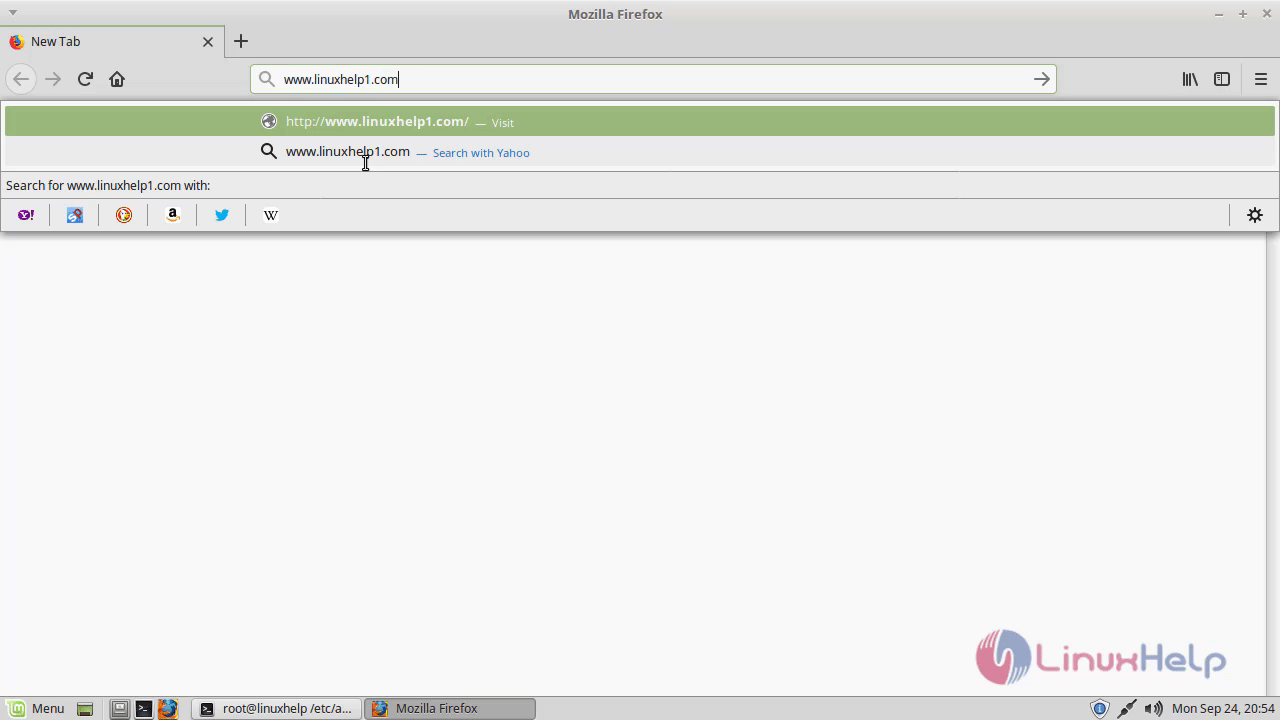
Start opensis installation. Click on New Installation.
click_new_installation
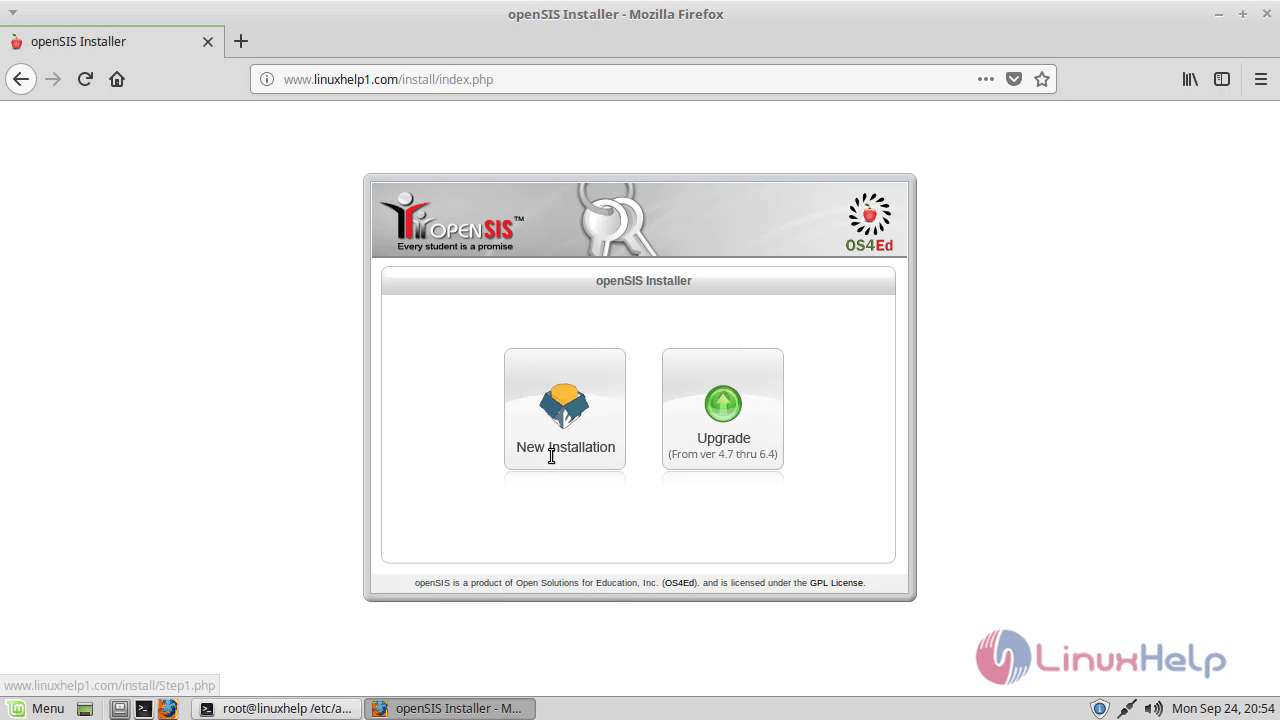 Enter the MySQL connection information, so give MySQL admin user and password.
mysql_credentials
Enter the MySQL connection information, so give MySQL admin user and password.
mysql_credentials
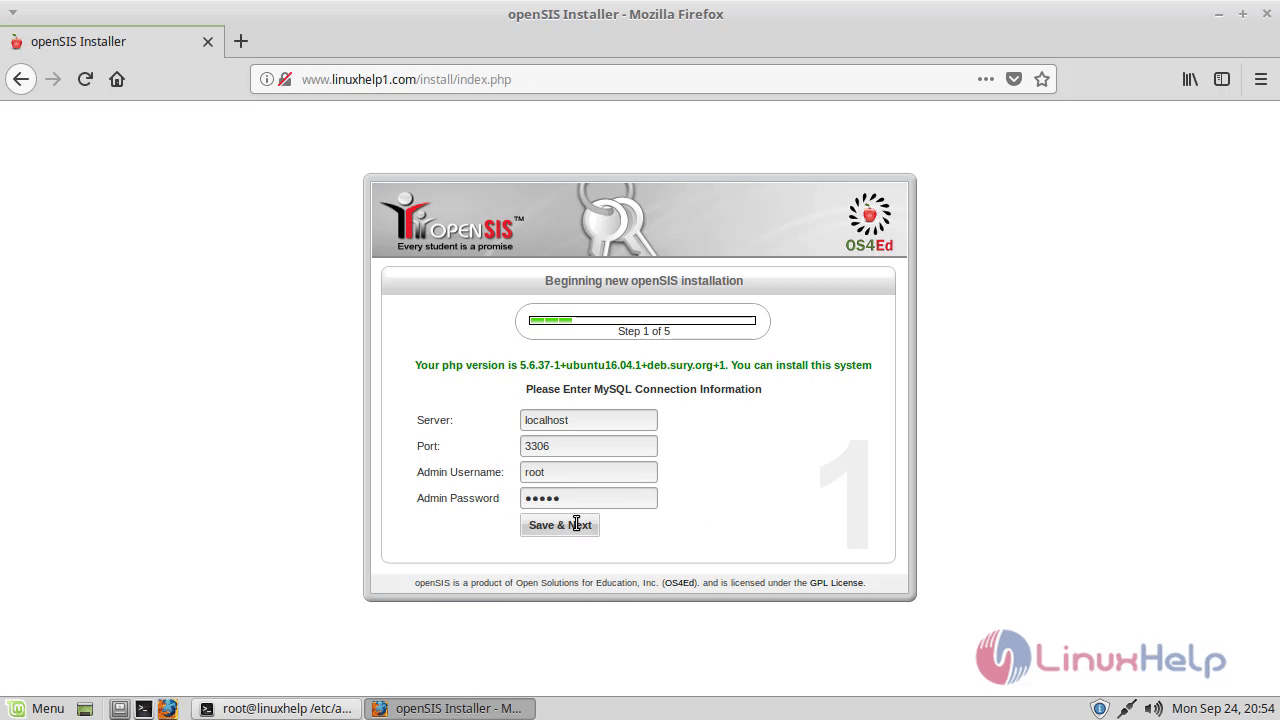 Click remove data from the existing database.
remove_existing_database
Click remove data from the existing database.
remove_existing_database
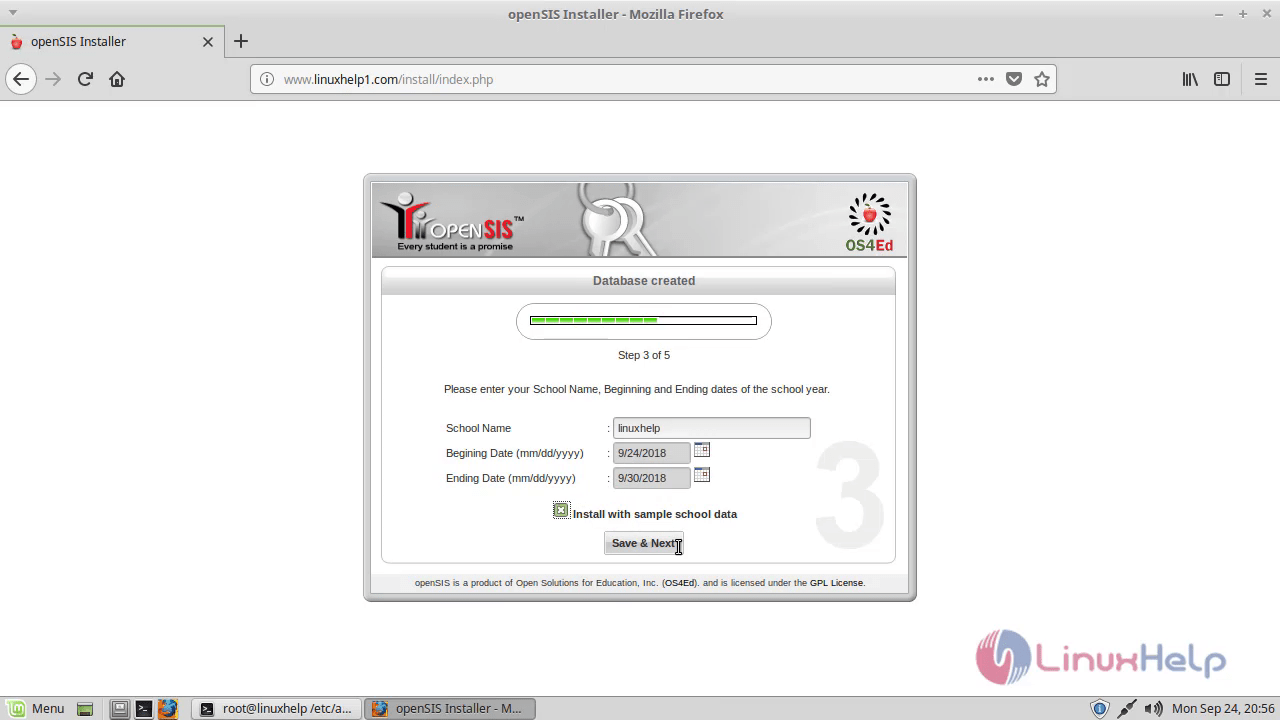
 Now, the database created then fill the school details.
fill_school_details
Now, the database created then fill the school details.
fill_school_details
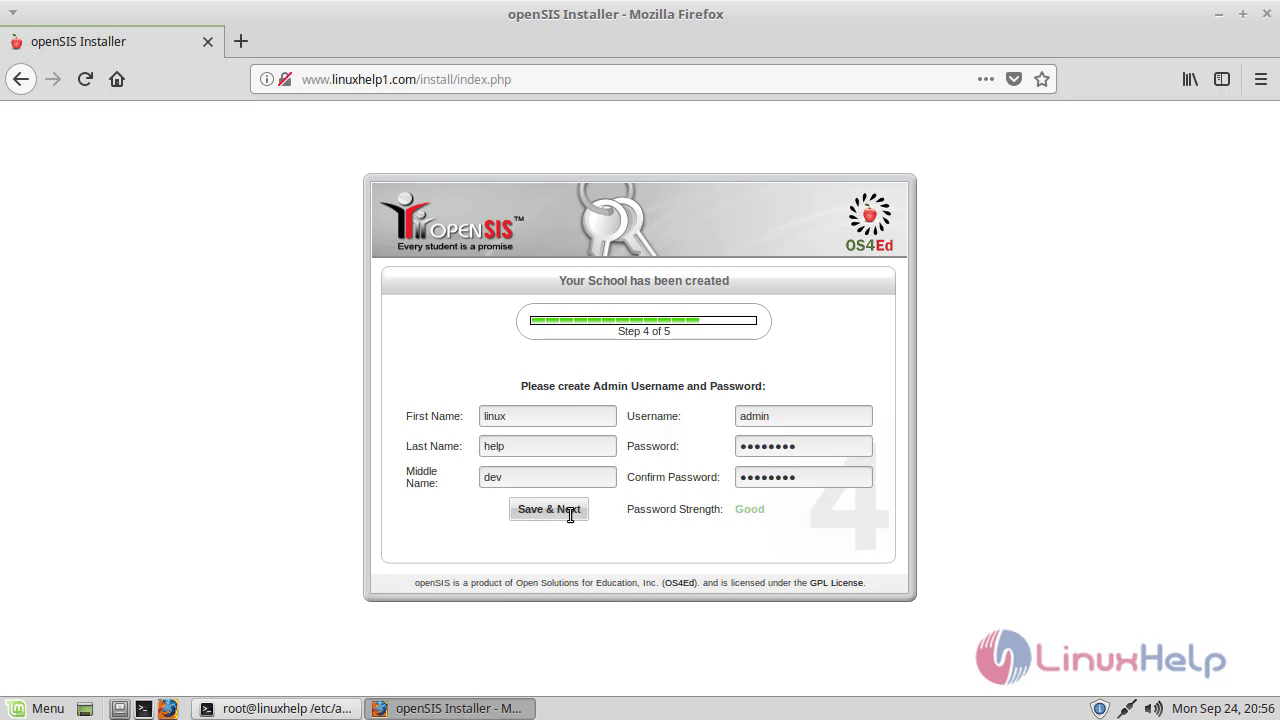
 Now, fill the admin user details.
admin_user_setting
Now, fill the admin user details.
admin_user_setting
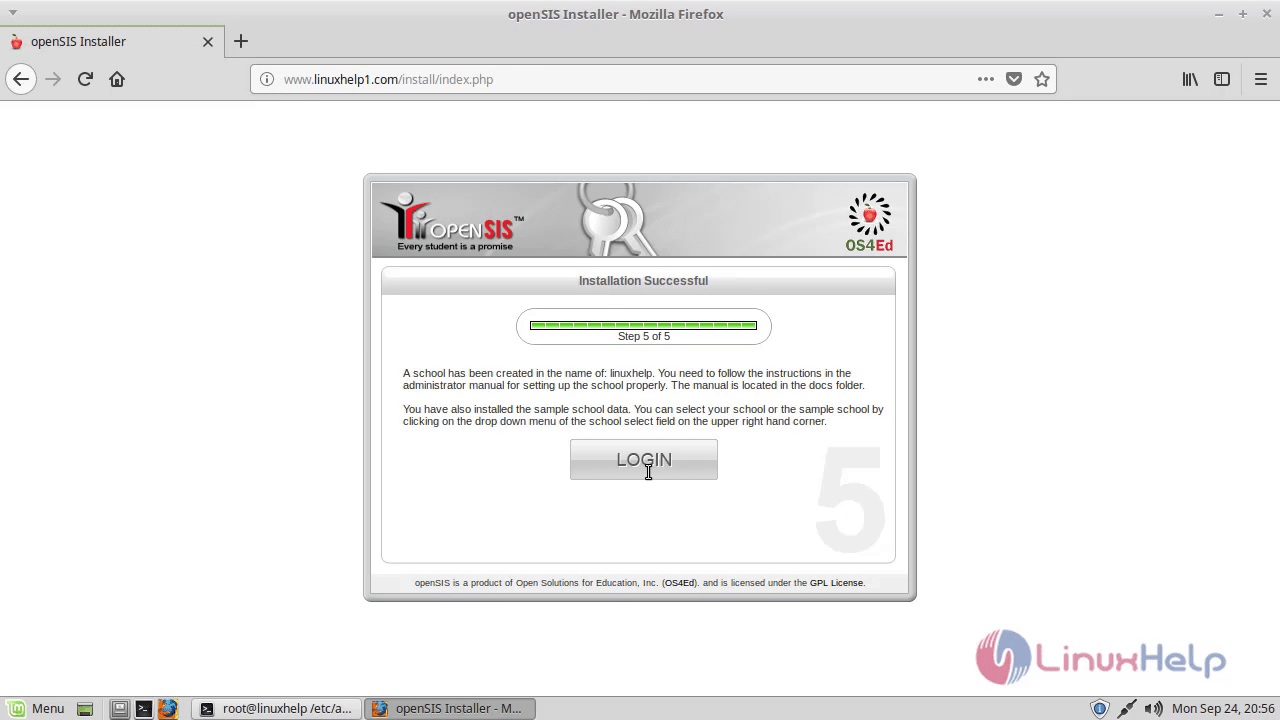
The installation is completed now click login. installation_completed
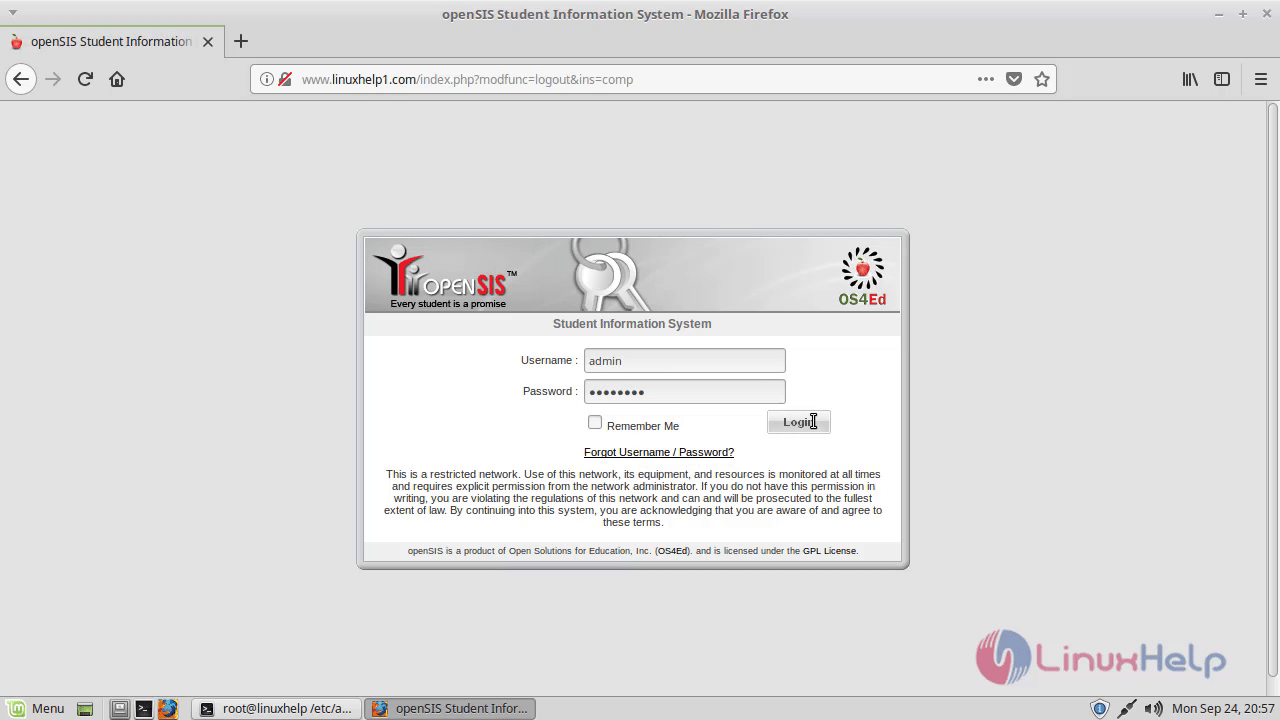
 Login page of opensis.
login_page
Login page of opensis.
login_page
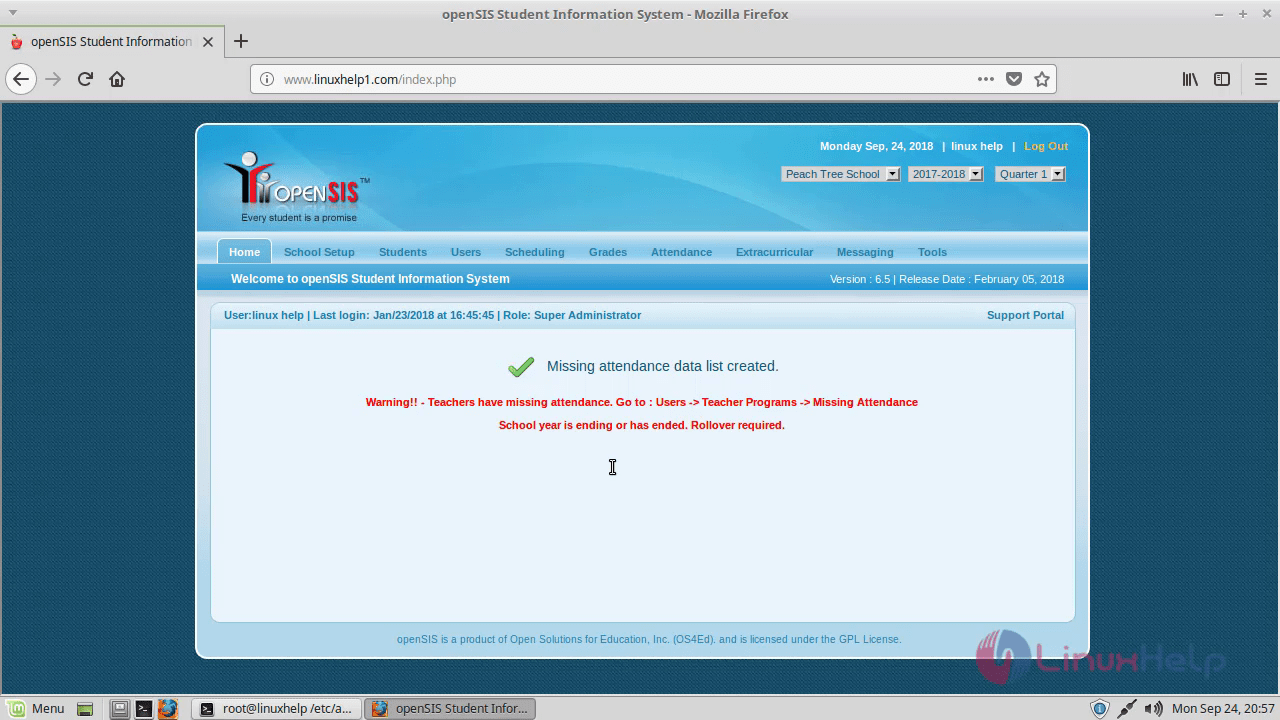
 Finally, here you can see admin page of opensis.
admin_page
Finally, here you can see admin page of opensis.
admin_page
 With this, the method to install Opensis on Linux mint 18.03 comes to an end.
Comments ( 0 )
No comments available