• Categories
    Category
    {{ postCtrl.tags }}
    • {{ category.tag_type }}

      • {{tag.tag_name}}
      • View more
  • Categories
    Category
    {{ postCtrl.tags }}
    • {{ category.tag_type }}

      • {{tag.tag_name}}
      • View more
  • News
  • Tutorials
  • Forums
  • Tags
  • Users
Tutorial News Comments FAQ Related Articles

How to install OpenSUSE 13.2 with Features

{{postValue.id}}

To install OpenSUSE 13.2 with Features

In this article we are going to discuss how to install OpenSUSE 13.2 in System with its advanced features.

Features

  • It Supports for ARM, Secure Boot enabled hardware and UEFI
  • PostgreSQL 9.2 database with Ships
  • It moves to systemd and it was dropped SysV init
  • Linux Kernel version 3.7

To download direct OpenSuse 13.2 DVD ISO Images

Follow the below link to download direct OpenSuse 13.2 DVD ISO Images.
https://software.opensuse.org/132/en

To Install OpenSUSE 13.2 Linux

Copy the downloaded ISO images to the bootable devices and boot the system.

Select install option.
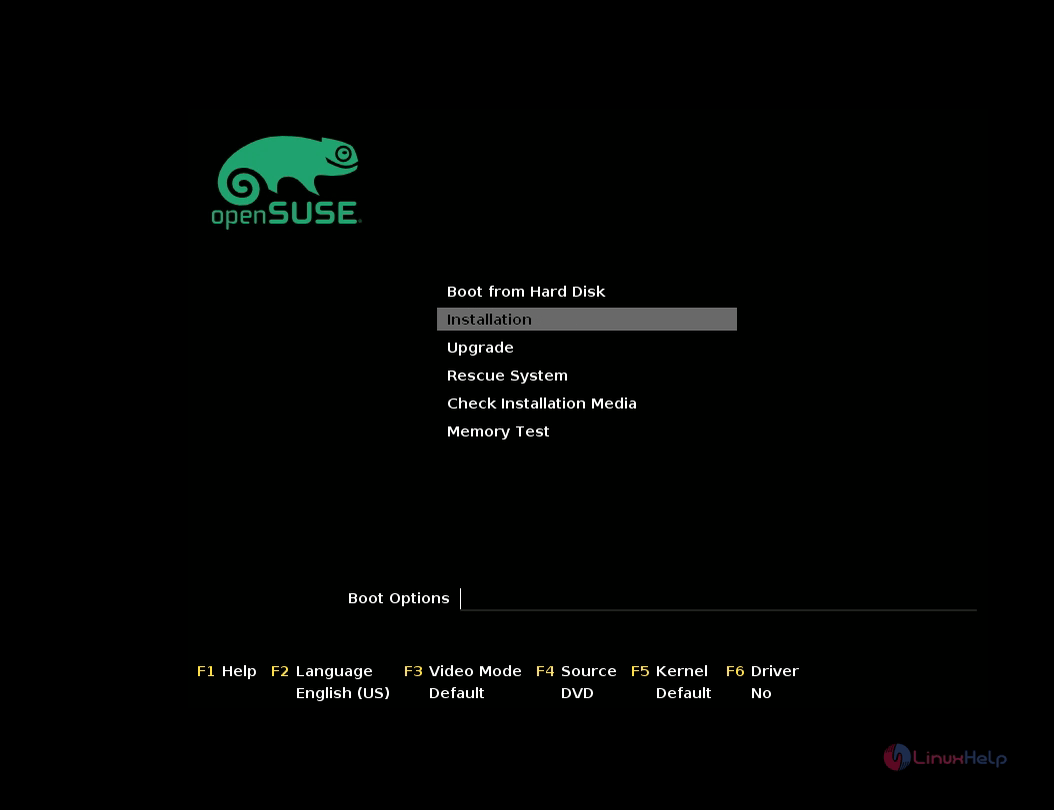
install option

Select language and keyboard layout and then proceed with license agreement.
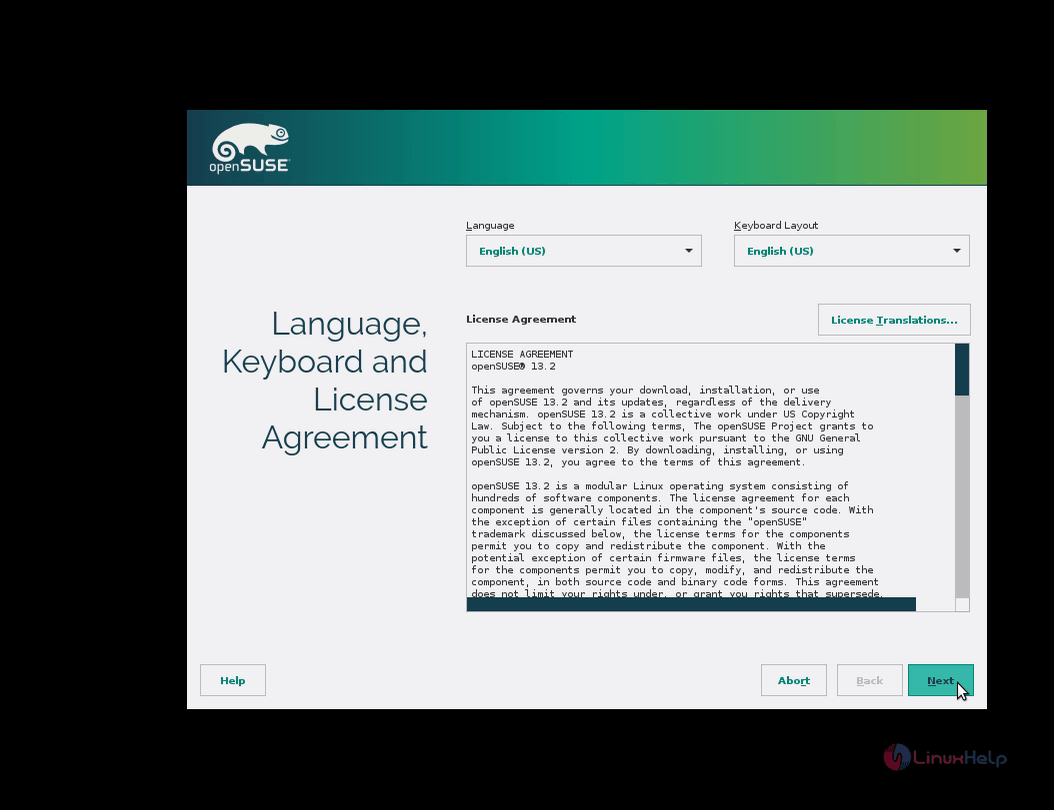
language

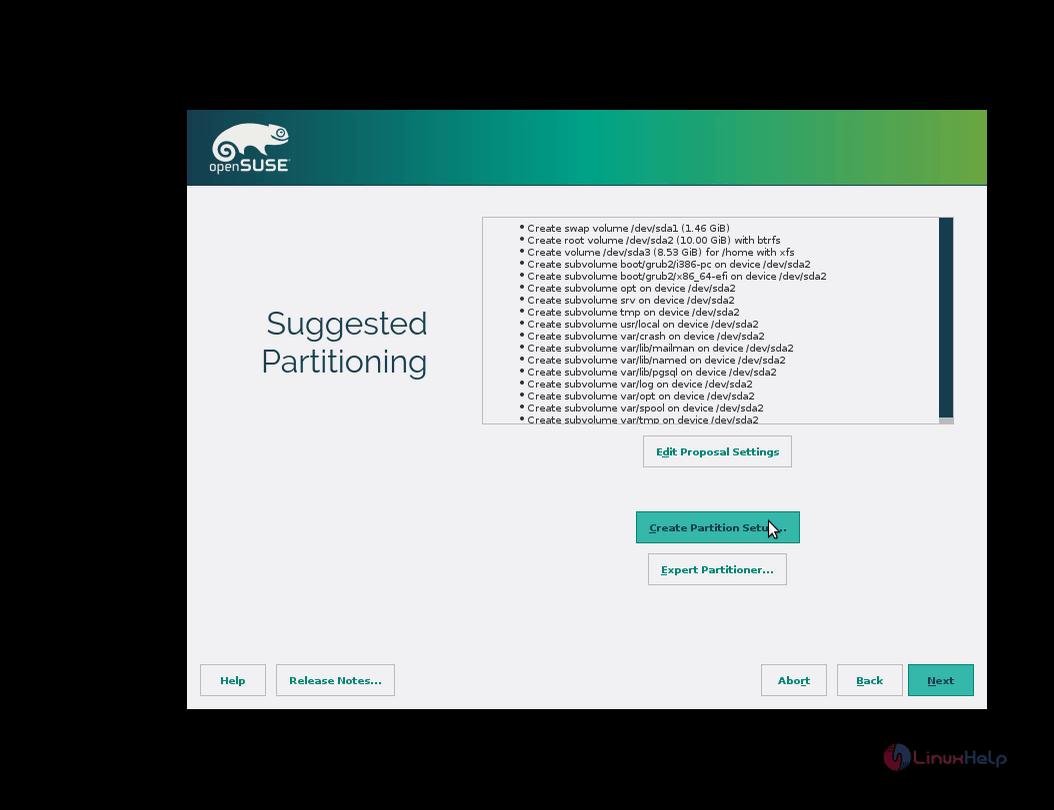
Select create partition setup option

create partition

t prompt for two options, one is default and another for experts. Select custom partitioning to create partitions of your own.
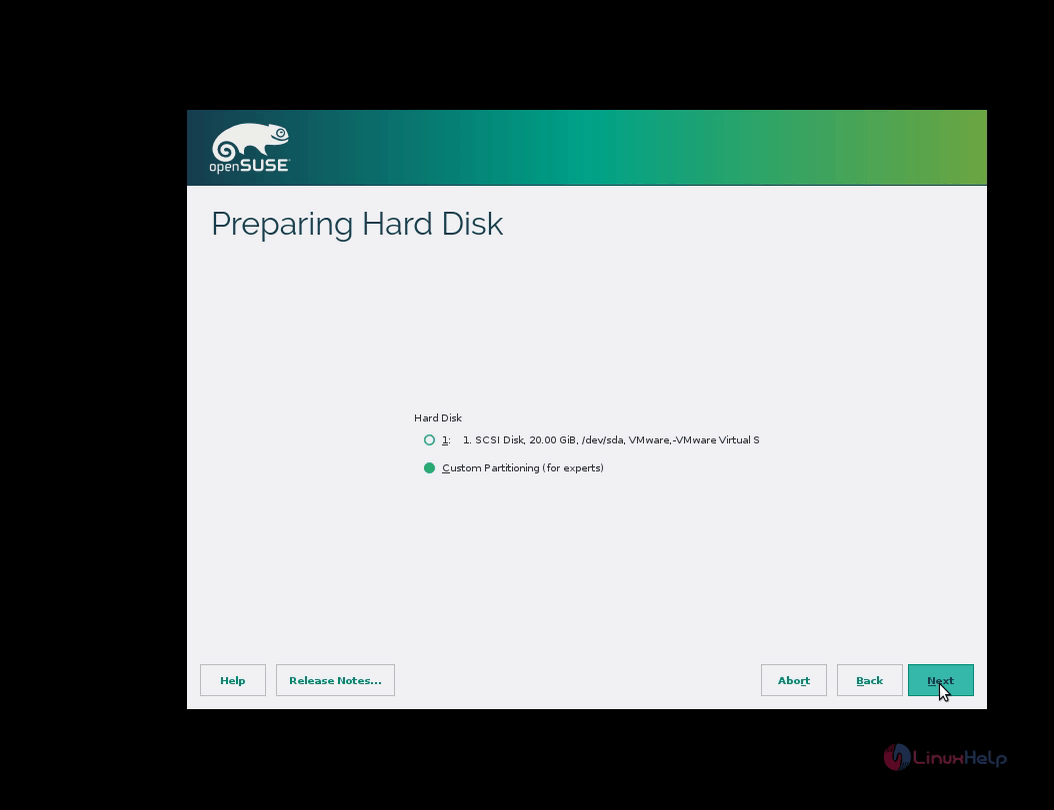
hard desk

Right click on the hard disk and select add partition to create a new partition
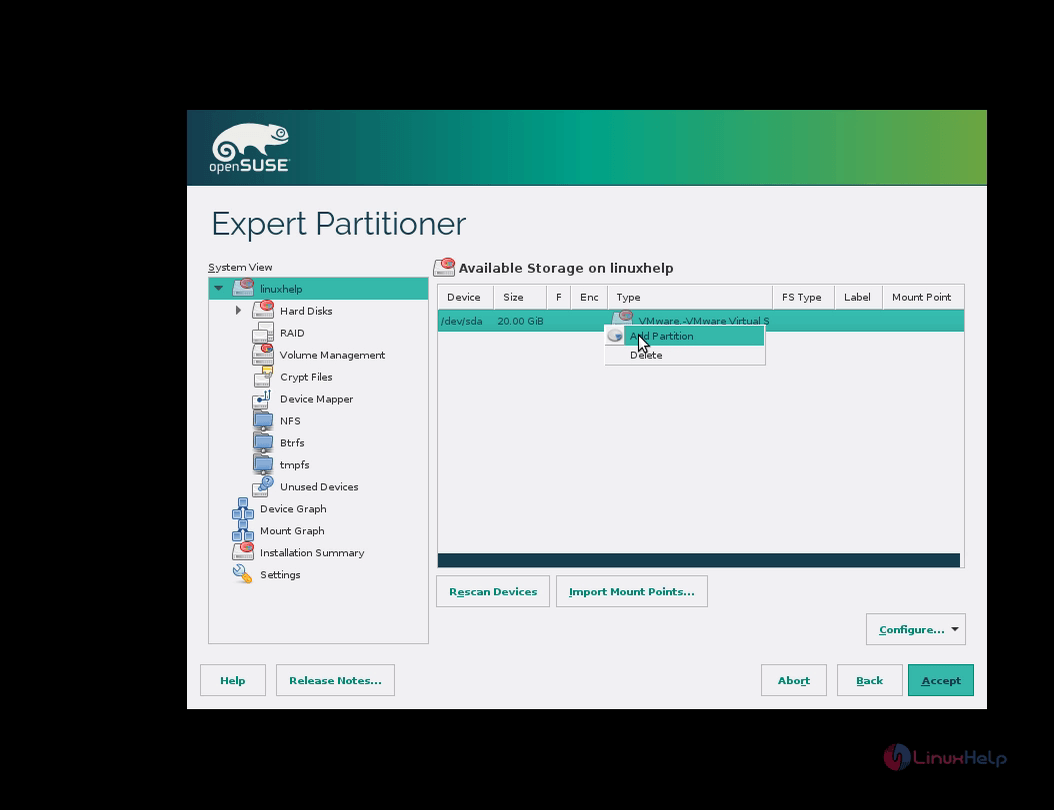
add partition

Select the partition type as primary
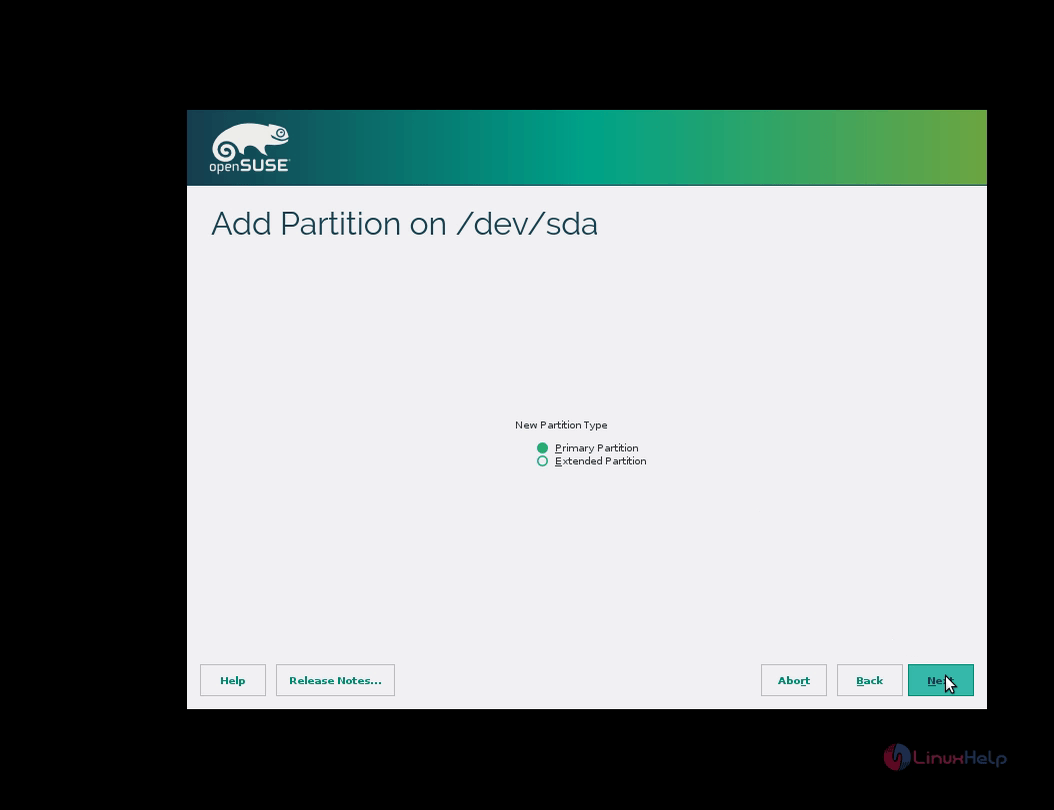
primary

Give size for the boot partition
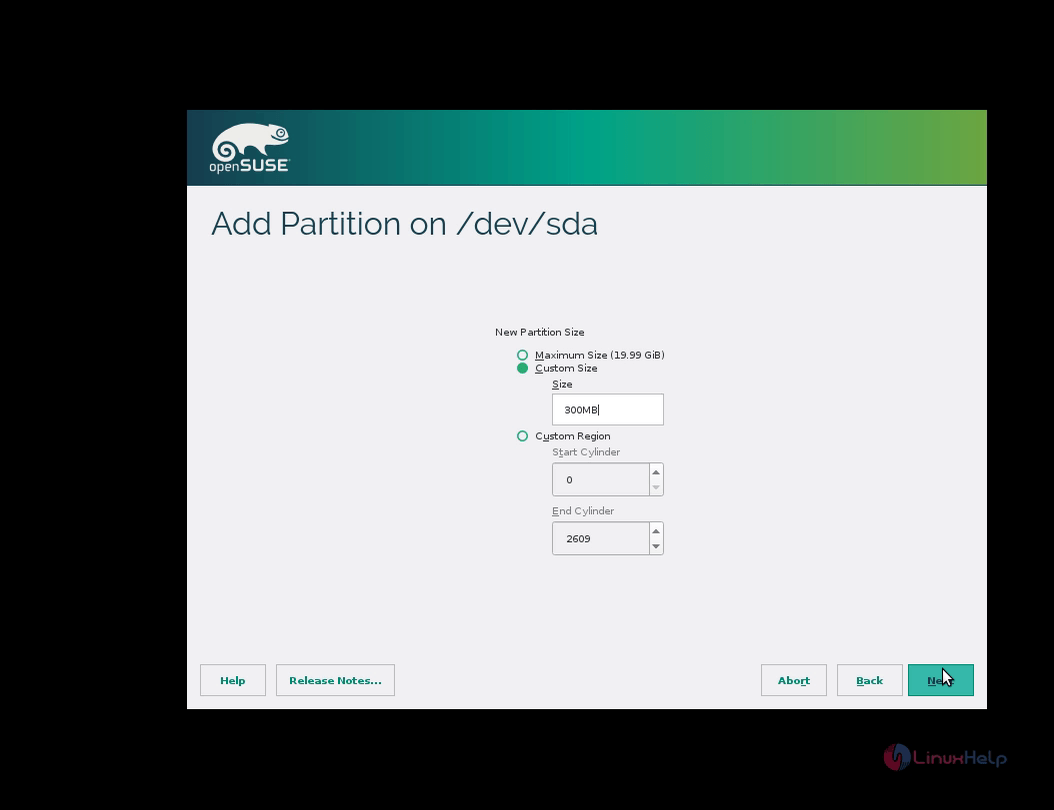
size type

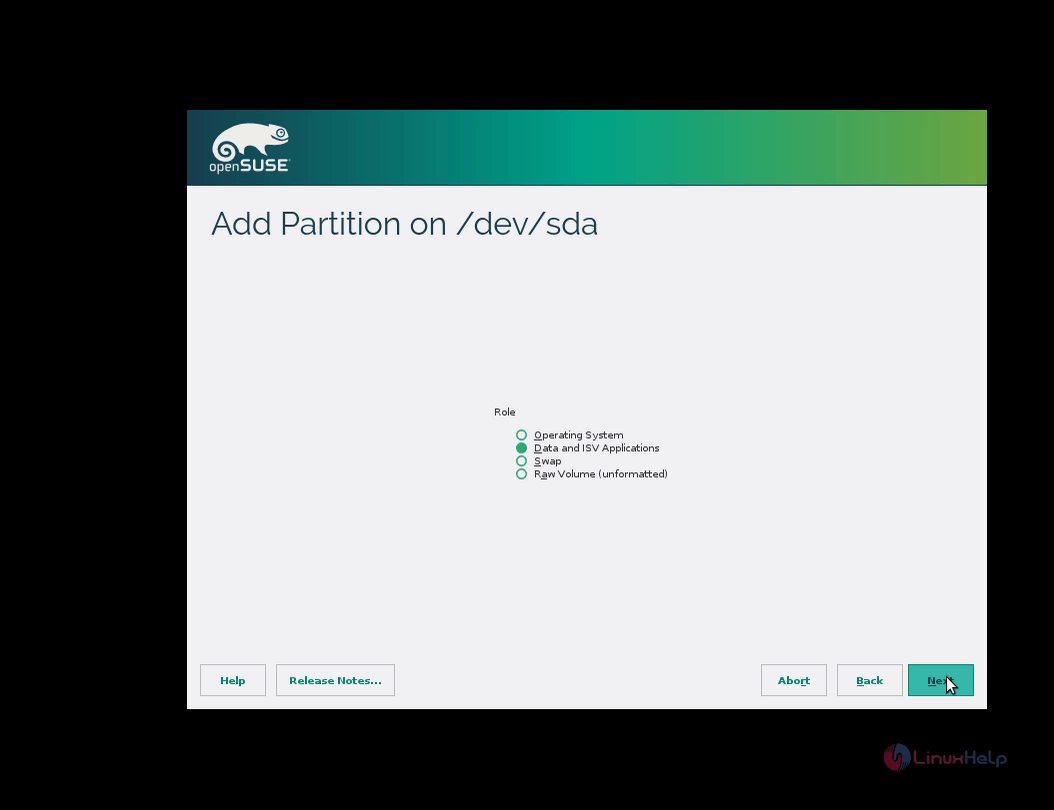
Select the role as data

role data

Next select the file system as ext4 and mount point as /boot
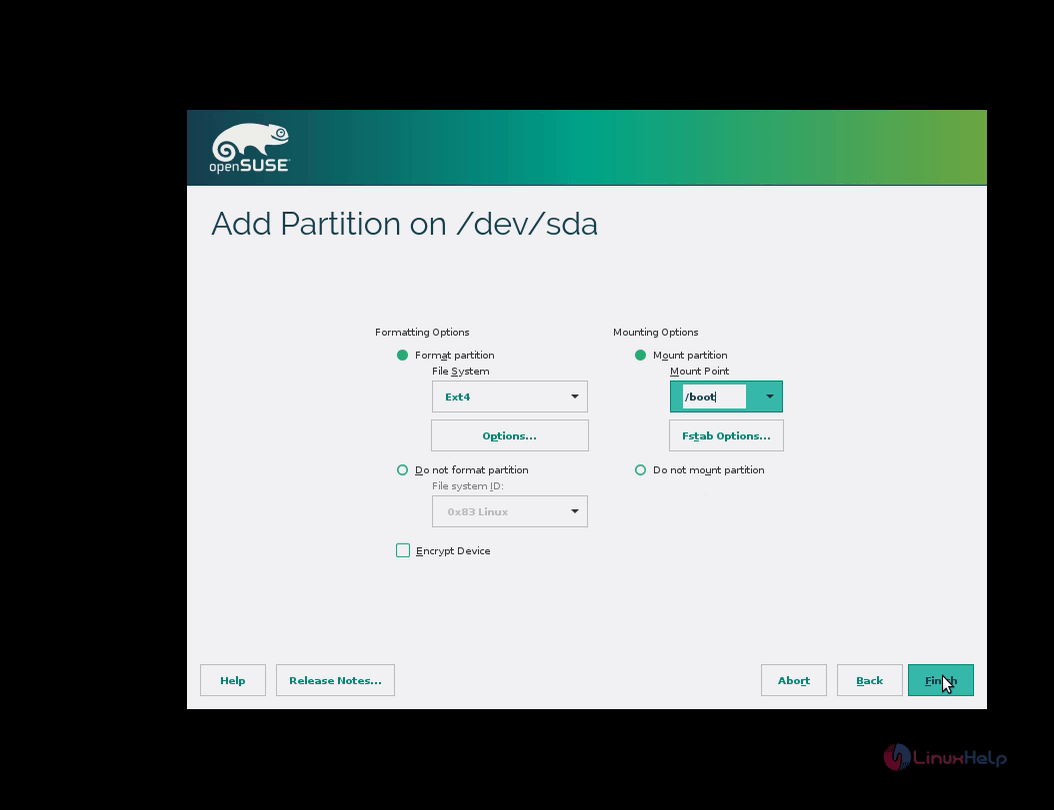
file system

Give size for the swap partition. The swap partition size should be double the size of RAM
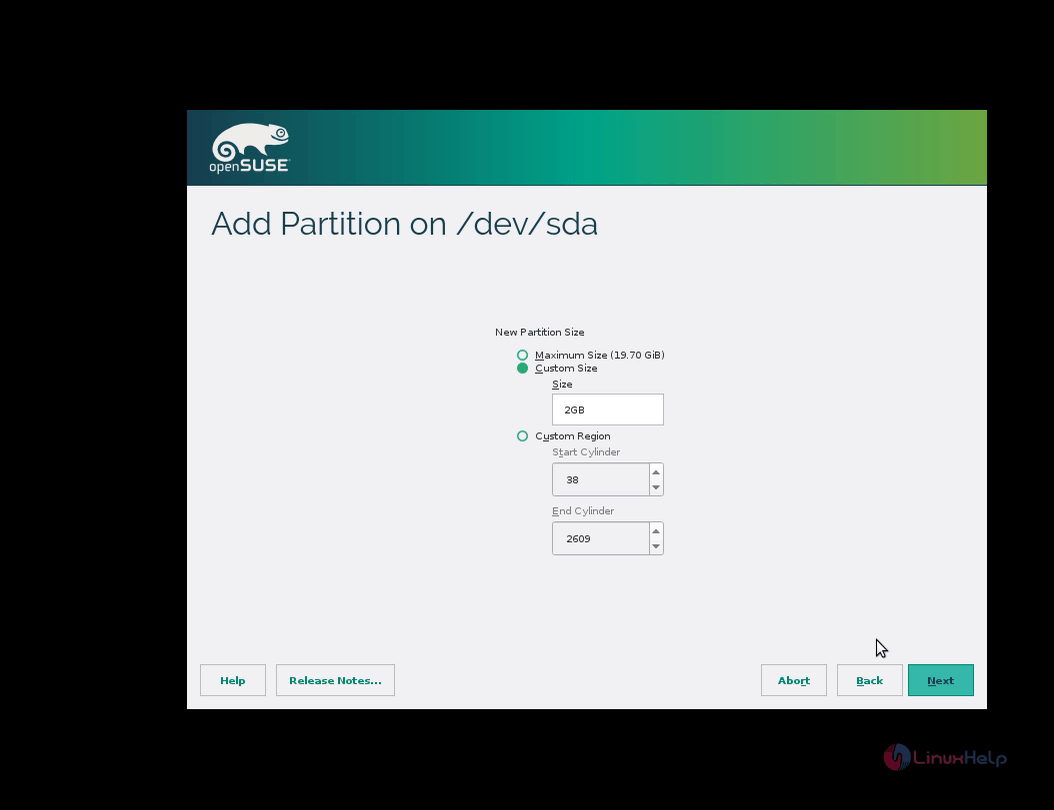
size swap partition

Next select the role as swap to create the swap partition
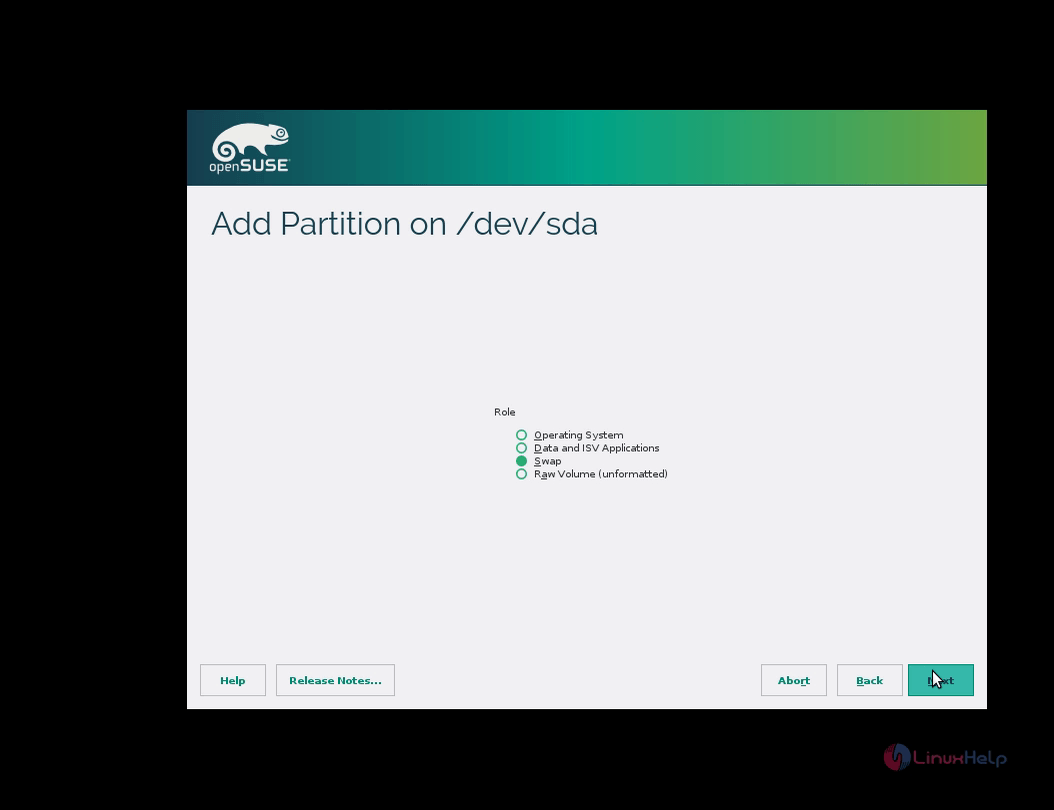
create swap partition

Select the file system and mount point as swap
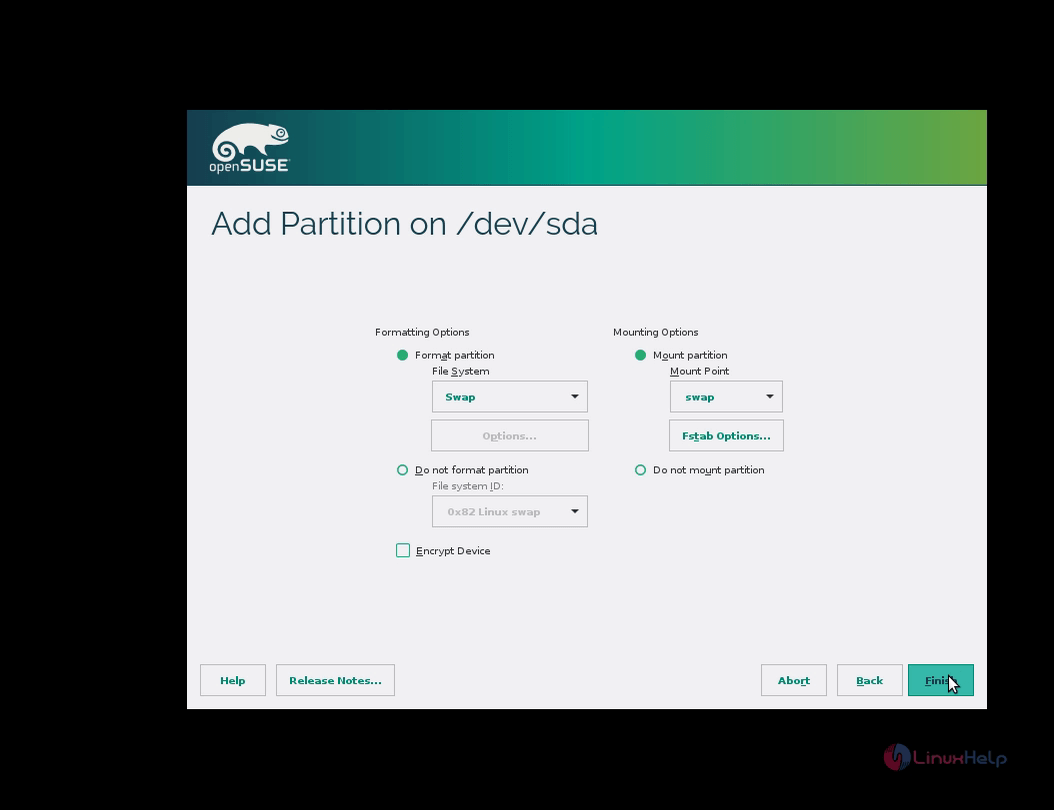
swap

Give size for the root partition
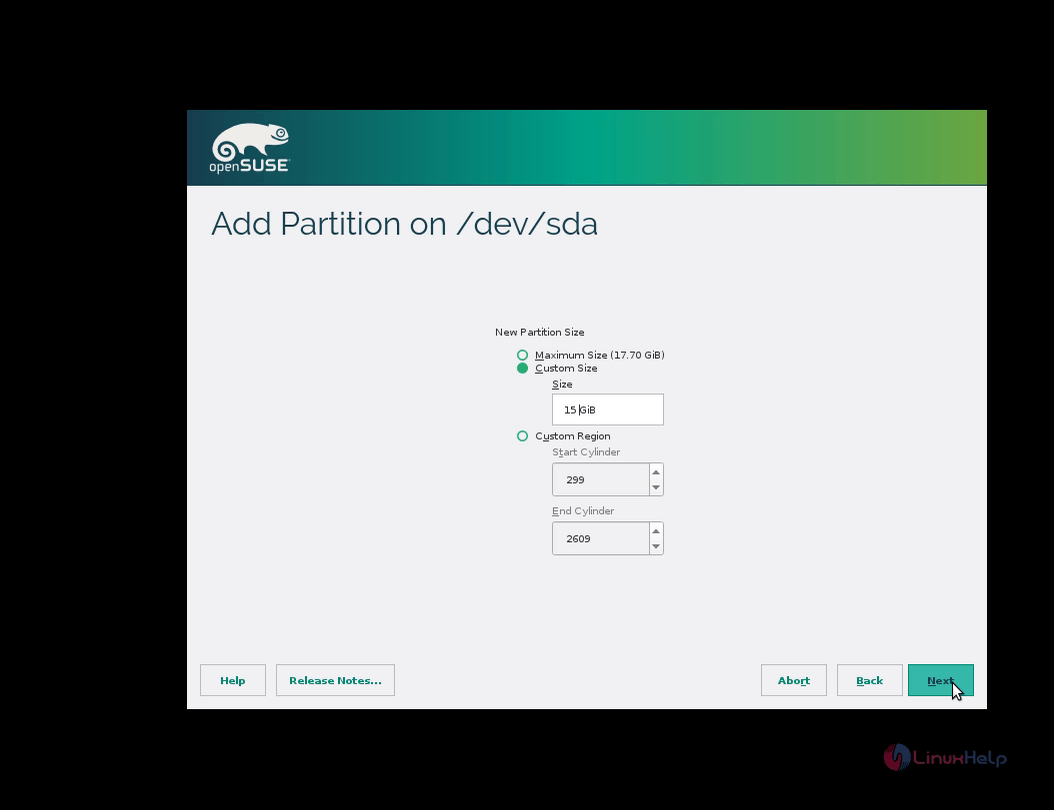
root partition

Select the file system as ext4 and mount point as /
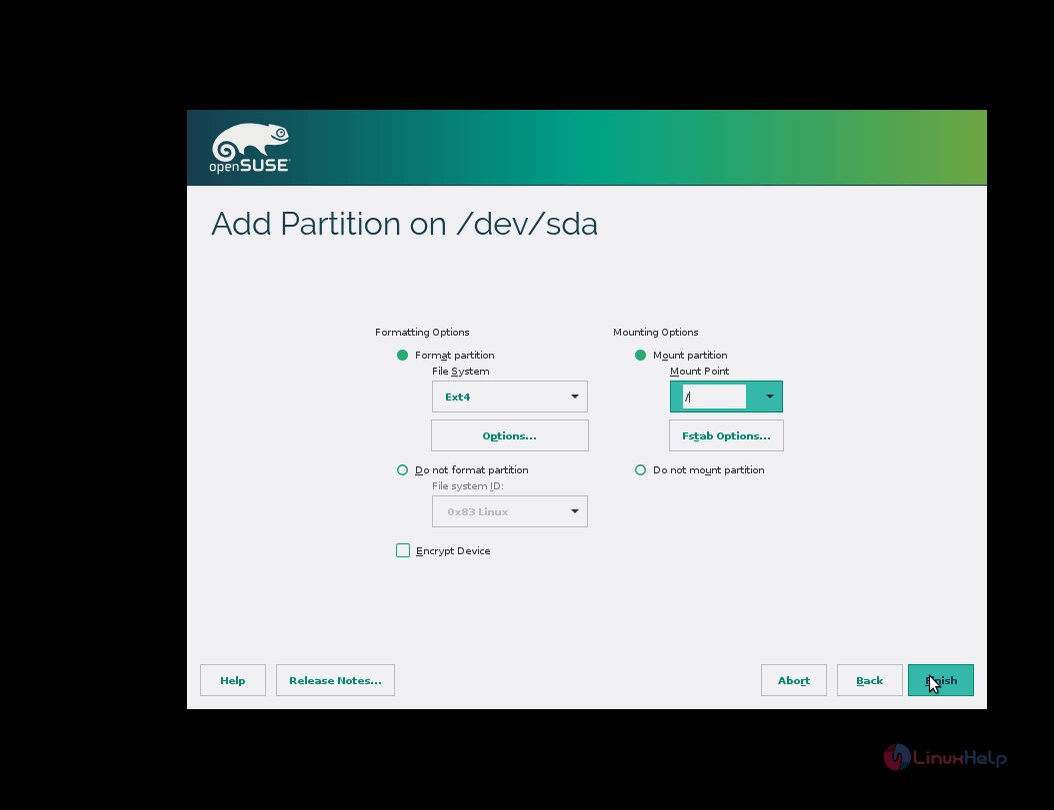
file systen ext4

After creating all the partitions select accept and give next
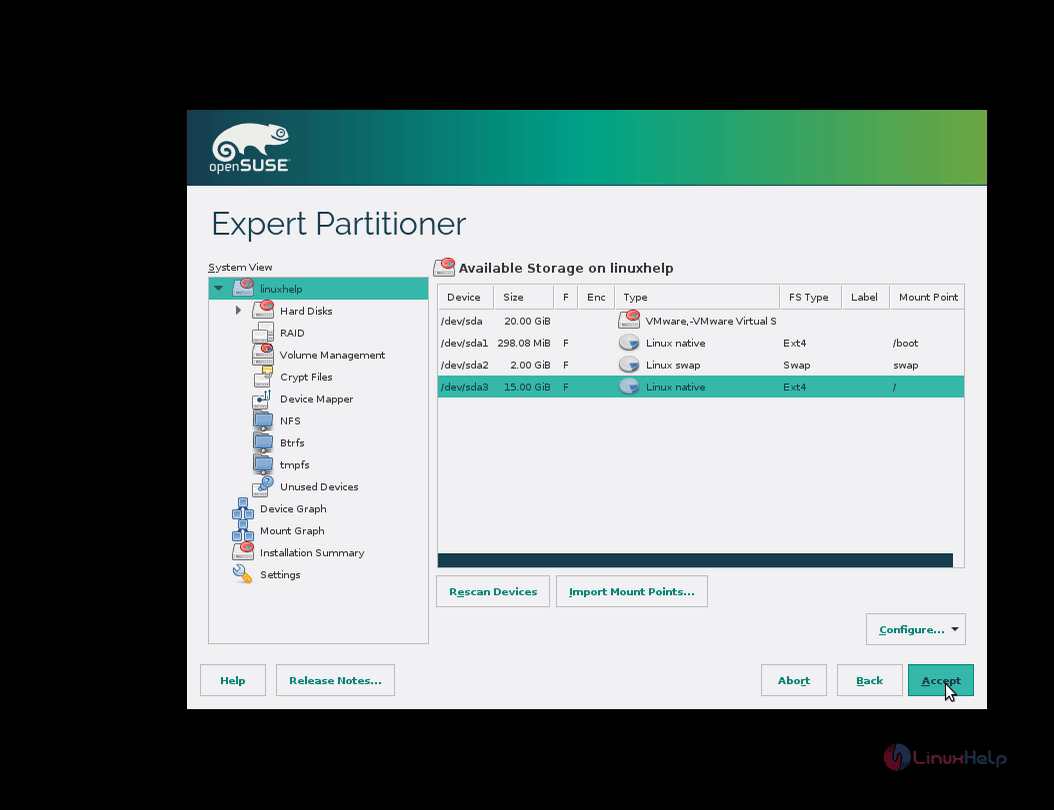
partitioner accept

Set the time clock and time zone and give next.
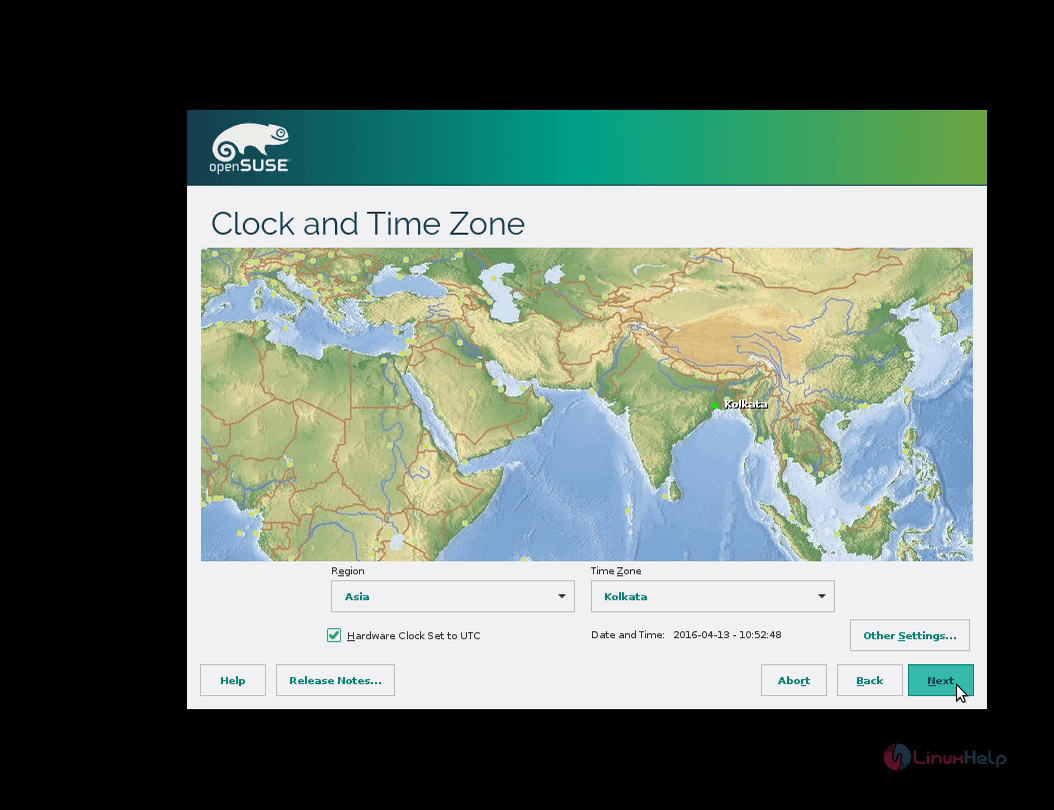
time zone and clock

Select the type of desktop that you need
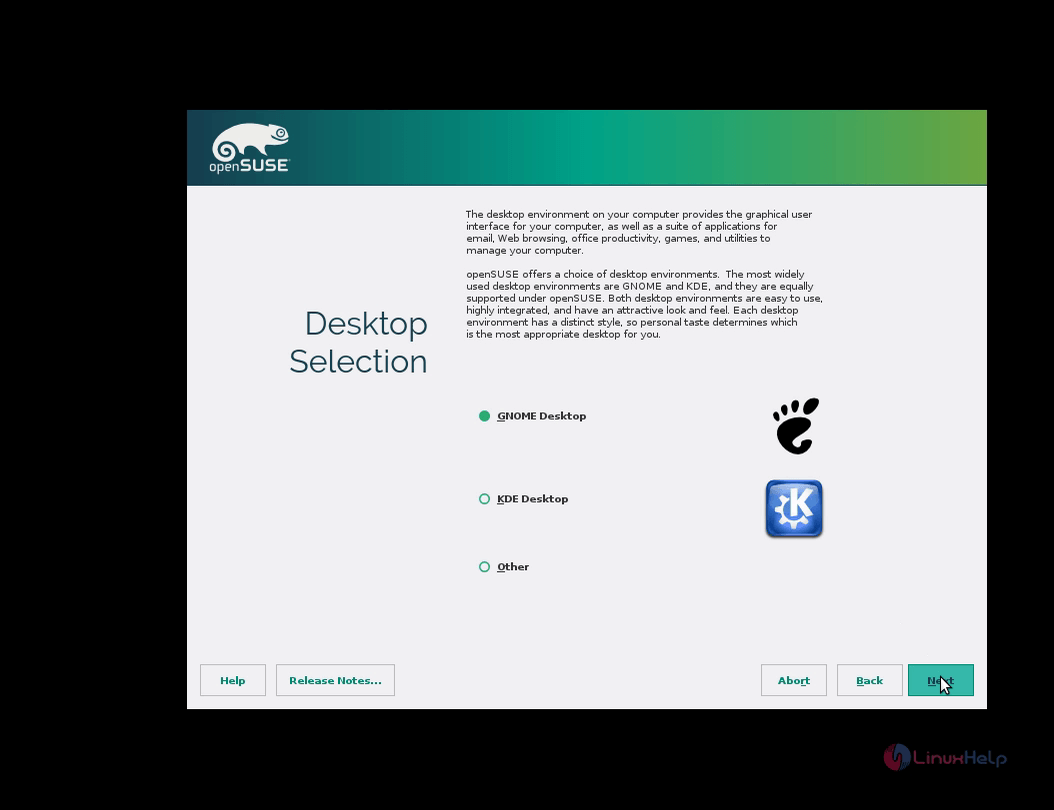
type of desktop

create user name and password and give next.
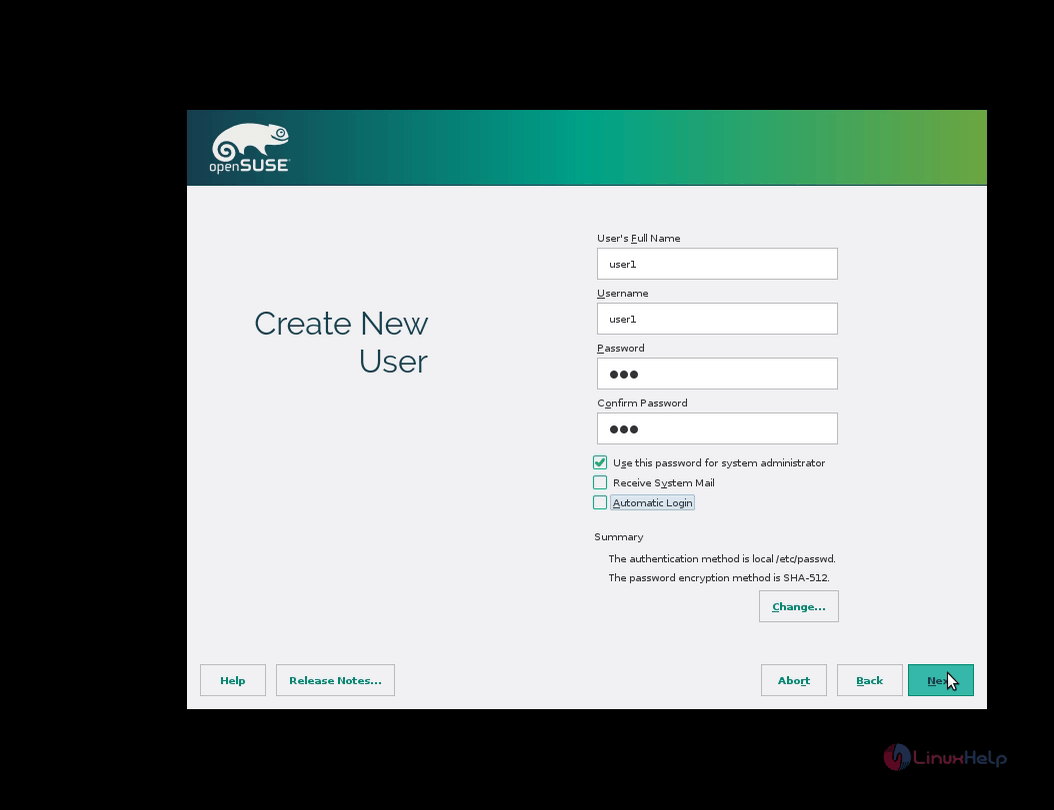
login user

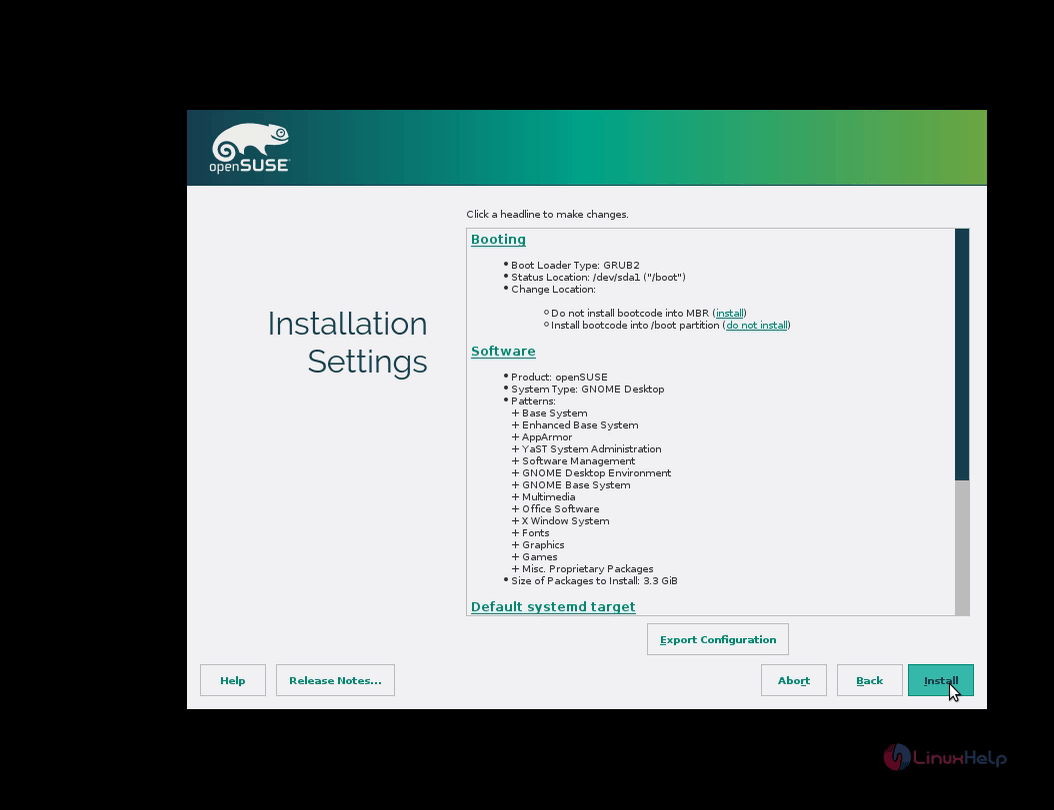
After verification, Choose Install.

verify

To confirm installation, once again click install.
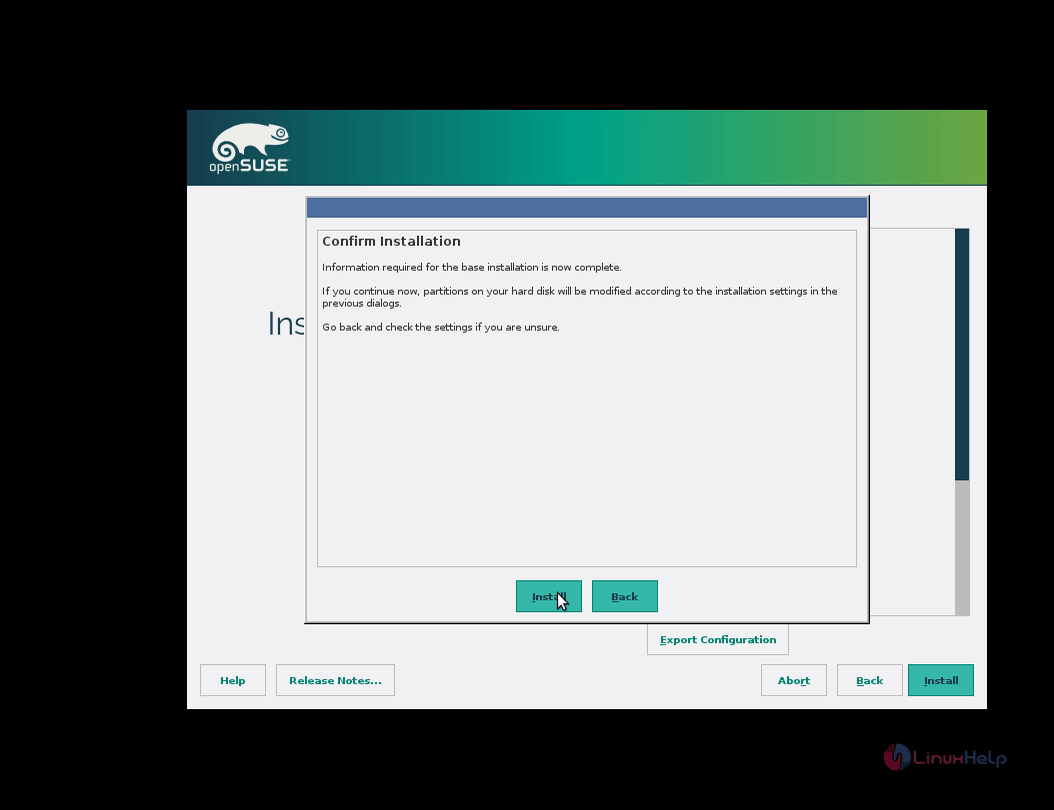
confirm installation

It formats the file system and creates the volume during the installation.
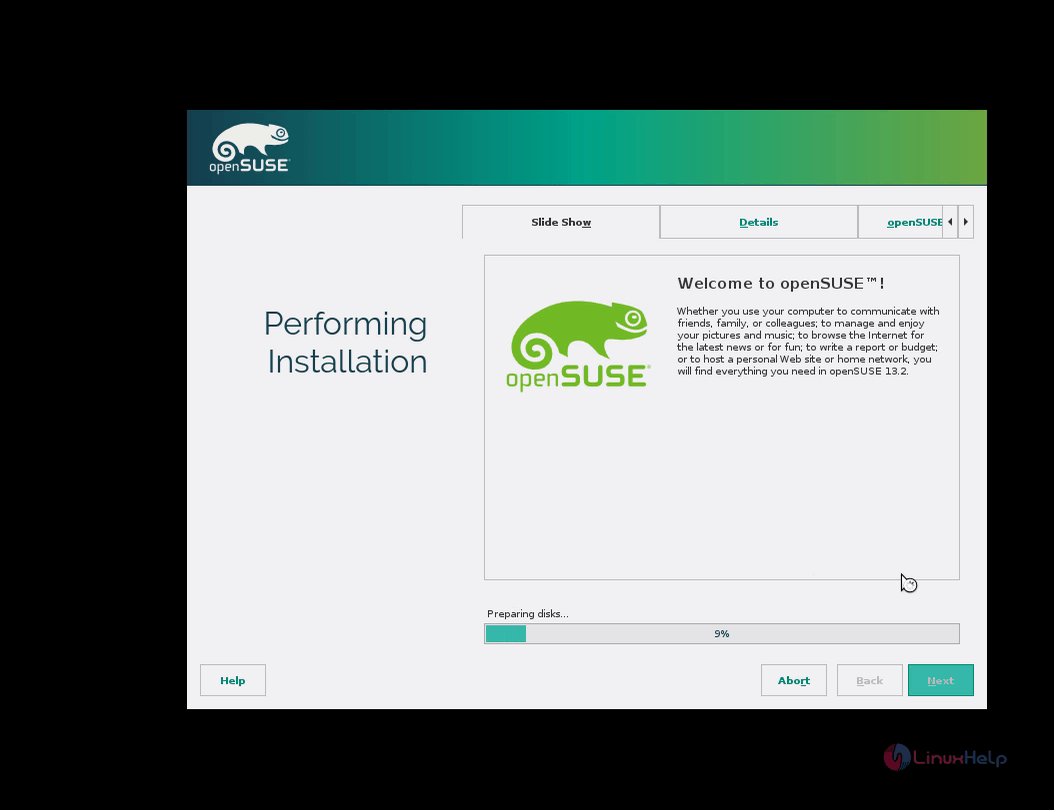
file system1

Once the installation is completed, Enter password and Login.
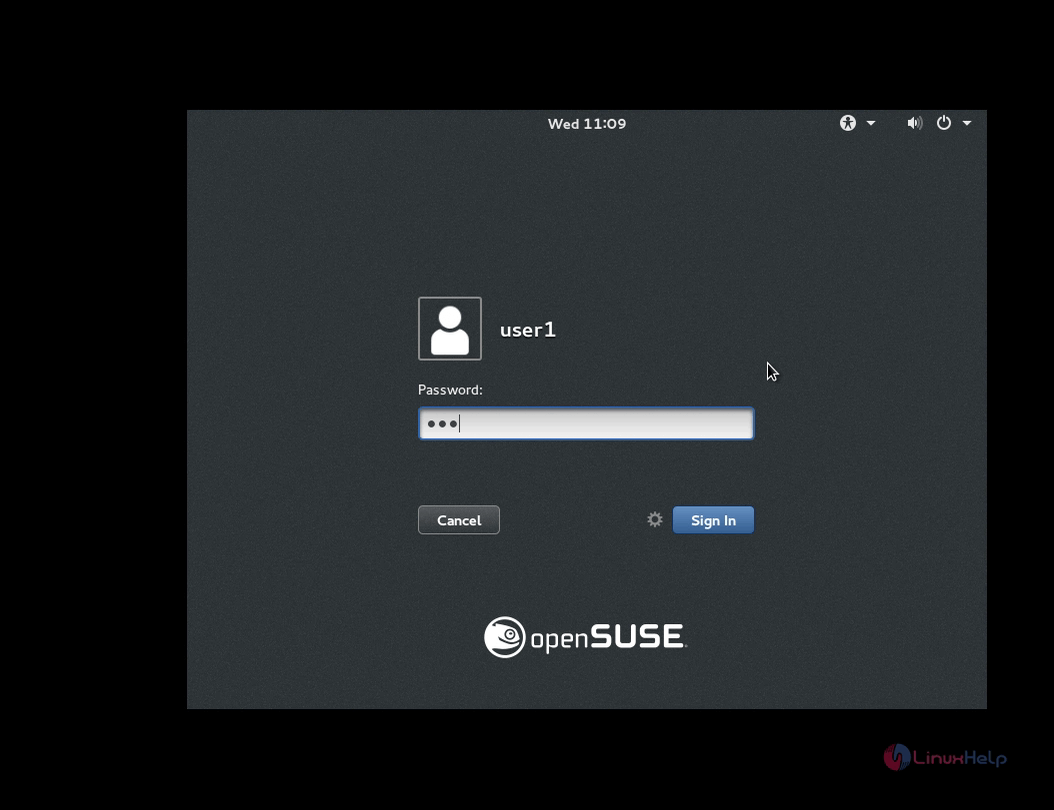
installation complete

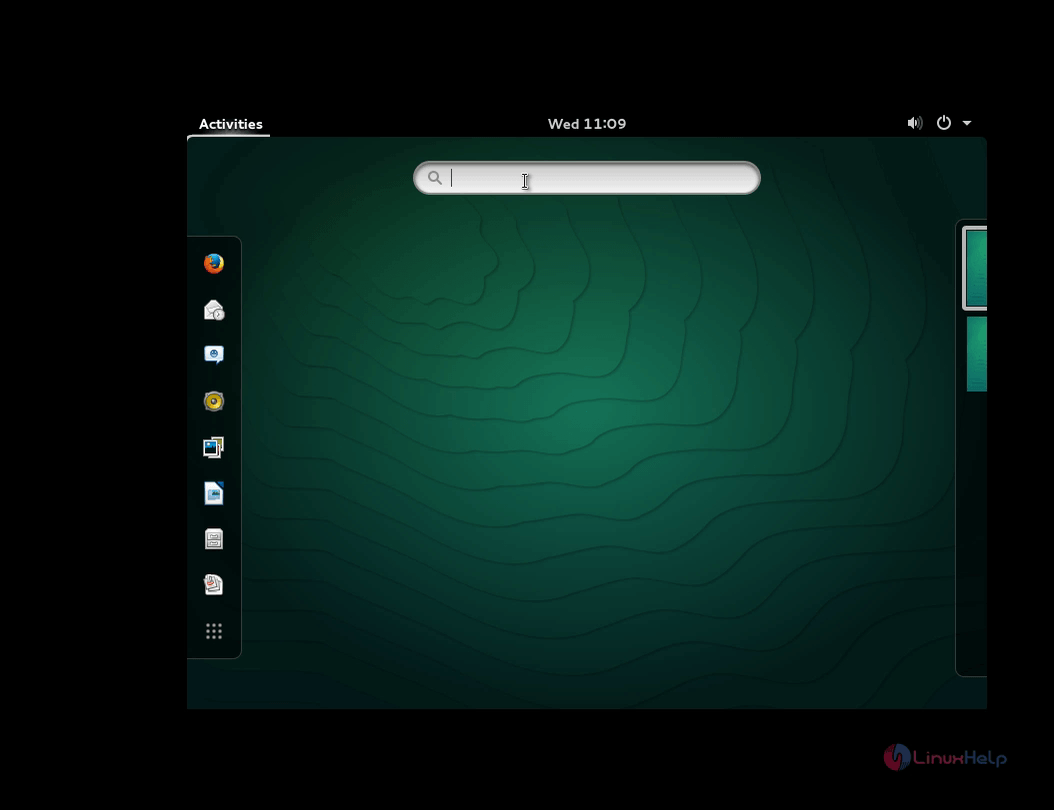
The Home screen of openSUSE 13.2

home screen

This window contains the System Details.
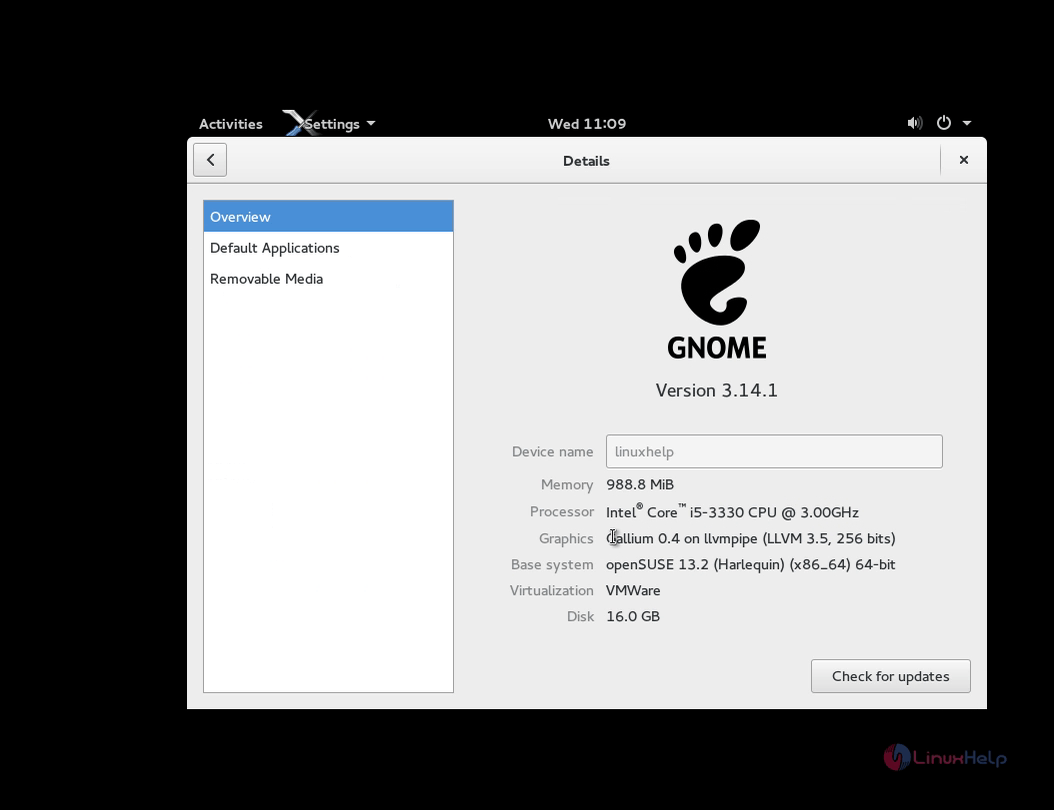
system details

Tags:
michael
Author: 

Comments ( 0 )

No comments available

Add a comment
{{postCtrl.cmtErrMsg}}

Frequently asked questions ( 5 )

Q

What is the package repository for OpenSUSE?

A

Here I have to give the repository link for the OpenSUSE.
1. Official package repositories as "https://en.opensuse.org/Package_repositories"
2. Additional package repositories as "https://en.opensuse.org/Additional_package_repositories"

Q

Can you give me the official link to get download the source of the "openSUSE" Operating system?

A

Use the following link to get download the source of the "openSUSE" Operating system, "https://software.opensuse.org/"

Q

Hardware requirement for installing the "OpenSUSE" operating system?

A

The following requirements should be met to ensure smooth operation of openSUSE Leap

1. Pentium* 4 1.6 GHz or higher processor (Pentium 4 2.4 GHz or higher or any AMD64 or Intel64 processor recommended)
2. Main memory: 1 GB physical RAM (2 GB recommended)
3. Hard disk: 3 GB available disk space for a minimal install, 5 GB available for a graphical desktop (more recommended)
4. Sound and graphics cards: Supports most modern sound and graphics cards, 800 x 600 display resolution (1024 x 768 or higher recommended)
5. Booting from DVD drive or USB-Stick for installation, or support for booting over network (you need to setup PXE by yourself, look also at PXE boot installation) or an existing installation of openSUSE, more information at Installation without CD

The GRUB bootloader co-operates with other operating systems on the same machine. openSUSE can be installed on one free hard disk partition while preserving existing installations on other partitions.

Q

How to install "OpenSUSE" 15.0?

A

Here you can see the official link to get documentation for installing the "OpenSUSE" 15.0 as "https://en.opensuse.org/Portal:15.0/Screenshots"

Q

How much amount of memory will be allocated for "swap" memory while the installation of "OpenSUSE"?

A

You should give the amount of memory for "swap" partition which will be the double amount for the size of existing the physical RAM memory has been installed on the system.

For Ex: If the RAM is 4GB => SWAP 8GB.

Back To Top!
Rank
User
Points

Top Contributers

userNamenaveelansari
135850

Top Contributers

userNameayanbhatti
92510

Top Contributers

userNamehamzaahmed
32150

Top Contributers

1
userNamelinuxhelp
31040

Top Contributers

userNamemuhammadali
24500
Can you help keel johnston ?
Unhide the folders on windows Explorer

Give any solutions to unhide folder using command prompt?

forum3

Networking
  • Routing
  • trunk
  • Netmask
  • Packet Capture
  • domain
  • HTTP Proxy
Server Setup
  • NFS
  • KVM
  • Memory
  • Sendmail
  • WebDAV
  • LXC
Shell Commands
  • Cloud commander
  • Command line archive tools
  • last command
  • Shell
  • terminal
  • Throttle
Desktop Application
  • Linux app
  • Pithos
  • Retrospect
  • Scribe
  • TortoiseHg
  • 4Images
Monitoring Tool
  • Monit
  • Apache Server Monitoring
  • EtherApe 
  • Arpwatch Tool
  • Auditd
  • Barman
Web Application
  • Nutch
  • Amazon VPC
  • FarmWarDeployer
  • Rukovoditel
  • Mirror site
  • Chef
Contact Us | Terms of Use| Privacy Policy| Disclaimer
© 2025 LinuxHelp.com All rights reserved. Linux™ is the registered trademark of Linus Torvalds. This site is not affiliated with linus torvalds in any way.