How to Install Opera Browser on Ubuntu
To Install Opera Browser on Ubuntu
Opera browser is a fast and user-friendly web browser that blocks ads without any add-ons. It allows the user to get rich content from an internet. Installation of the Opera browser is explained in this article.
Installation of Opera Browser
First run the below command to download and add the key file to the system.
root@linuxhelp:~# wget -O - http://deb.opera.com/archive.key | sudo apt-key add -
--2016-08-12 02:09:35--  http://deb.opera.com/archive.key
Resolving deb.opera.com (deb.opera.com)... 185.26.183.130
Connecting to deb.opera.com (deb.opera.com)|185.26.183.130|:80... connected.
HTTP request sent, awaiting response... 200 OK
Length: 3152 (3.1K) [application/pgp-keys]
Saving to: ‘ STDOUT’

-                                             100%[=================================================================================================> ]   3.08K  --.-KB/s   in 0.002s

2016-08-12 02:09:35 (1.99 MB/s) - written to stdout [3152/3152]

OK
Next create the new repository file by using the below command.
root@linuxhelp:~# vim /etc/apt/sources.list.d/opera.list
Now add the entry.
Entry:
deb http://deb.opera.com/opera-stable/ stable non-free
Then update the added repositories with the below command.
root@linuxhelp:~# apt-get update
Get:1 http://deb.opera.com stable InRelease [2,592 B]
Hit http://in.archive.ubuntu.com wily InRelease
Get:2 http://security.ubuntu.com wily-security InRelease [65.9 kB]
Get:3 http://in.archive.ubuntu.com wily-updates InRelease [65.9 kB]
Get:4 http://deb.opera.com stable/non-free amd64 Packages [1,809 B]
Get:5 http://deb.opera.com stable/non-free i386 Packages [1,823 B]
Hit http://in.archive.ubuntu.com wily-backports InRelease
Get:6 http://security.ubuntu.com wily-security/main Sources [55.3 kB]
Hit http://in.archive.ubuntu.com wily/main Sources
Hit http://in.archive.ubuntu.com wily/restricted Sources
Get:7 http://security.ubuntu.com wily-security/restricted Sources [2,854 B]
Hit http://in.archive.ubuntu.com wily/universe Sources
Get:8 http://security.ubuntu.com wily-security/universe Sources [14.3 kB]
Hit http://in.archive.ubuntu.com wily/multiverse Sources
Hit http://in.archive.ubuntu.com wily/main amd64 Packages
Get:9 http://security.ubuntu.com wily-security/multiverse Sources [2,784 B]
Hit http://in.archive.ubuntu.com wily/restricted amd64 Packages
Get:10 http://security.ubuntu.com wily-security/main amd64 Packages [180 kB]
Ign http://deb.opera.com stable/non-free Translation-en_IN
Hit http://in.archive.ubuntu.com wily/universe amd64 Packages
Ign http://deb.opera.com stable/non-free Translation-en
.
.
.
Hit http://in.archive.ubuntu.com wily-backports/multiverse amd64 Packages
Hit http://in.archive.ubuntu.com wily-backports/main i386 Packages
Hit http://in.archive.ubuntu.com wily-backports/restricted i386 Packages
Hit http://in.archive.ubuntu.com wily-backports/universe i386 Packages
Hit http://in.archive.ubuntu.com wily-backports/multiverse i386 Packages
Hit http://in.archive.ubuntu.com wily-backports/main Translation-en
Hit http://in.archive.ubuntu.com wily-backports/multiverse Translation-en
Hit http://in.archive.ubuntu.com wily-backports/restricted Translation-en
Hit http://in.archive.ubuntu.com wily-backports/universe Translation-en
Fetched 1,890 kB in 13s (141 kB/s)
Reading package lists... Done
Now run the below command to install Opera browser.
root@linuxhelp:~# apt-get install opera-stable
Reading package lists... Done
Building dependency tree
Reading state information... Done
The following extra packages will be installed:
  chromium-codecs-ffmpeg-extra pepperflashplugin-nonfree
Suggested packages:
  chromium-browser ttf-mscorefonts-installer ttf-dejavu ttf-xfree86-nonfree
The following NEW packages will be installed:
  chromium-codecs-ffmpeg-extra opera-stable pepperflashplugin-nonfree
0 upgraded, 3 newly installed, 0 to remove and 252 not upgraded.
.
.
.
Setting up chromium-codecs-ffmpeg-extra (51.0.2704.79-0ubuntu0.15.10.1.1232) ...
Setting up opera-stable (39.0.2256.48) ...
update-alternatives: using /usr/bin/opera to provide /usr/bin/x-www-browser (x-www-browser) in auto mode
update-alternatives: warning: skip creation of /usr/share/man/man1/x-www-browser.1.gz because associated file /usr/share/man/man1/opera.1.gz (of link group x-www-browser) doesn' t exist
update-alternatives: using /usr/bin/opera to provide /usr/bin/gnome-www-browser (gnome-www-browser) in auto mode
update-alternatives: warning: skip creation of /usr/share/man/man1/gnome-www-browser.1.gz because associated file /usr/share/man/man1/opera.1.gz (of link group gnome-www-browser) doesn' t exist
Setting up pepperflashplugin-nonfree (1.7ubuntu1) ...
To open the opera browser type “ opera” in the terminal.
root@linuxhelp:~# opera
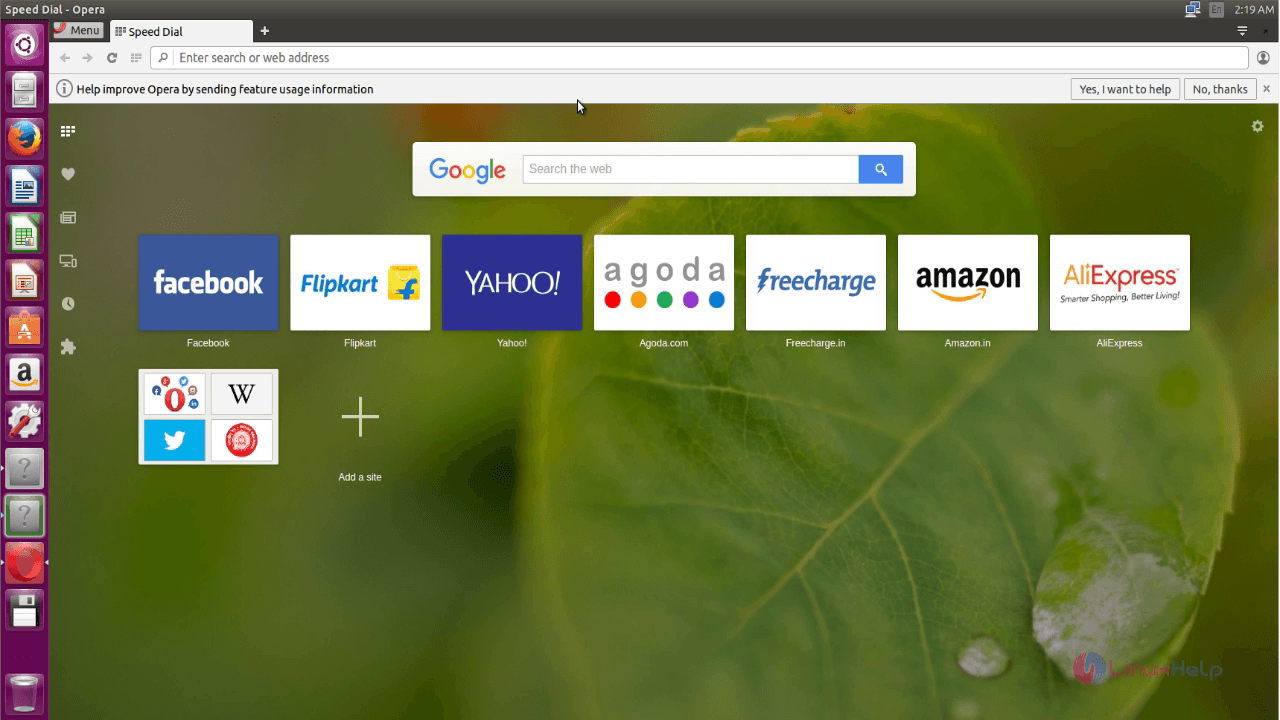
Home page of Opera browser will display as given below.
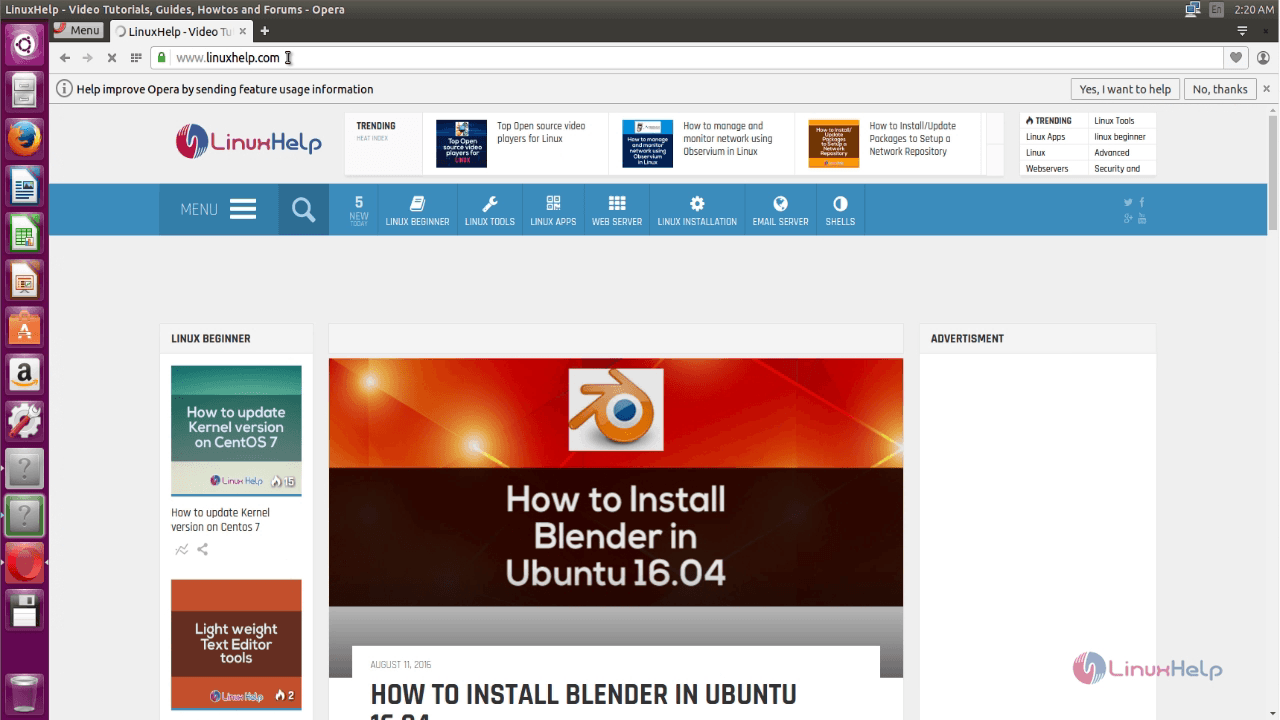
Here you can able to browse.
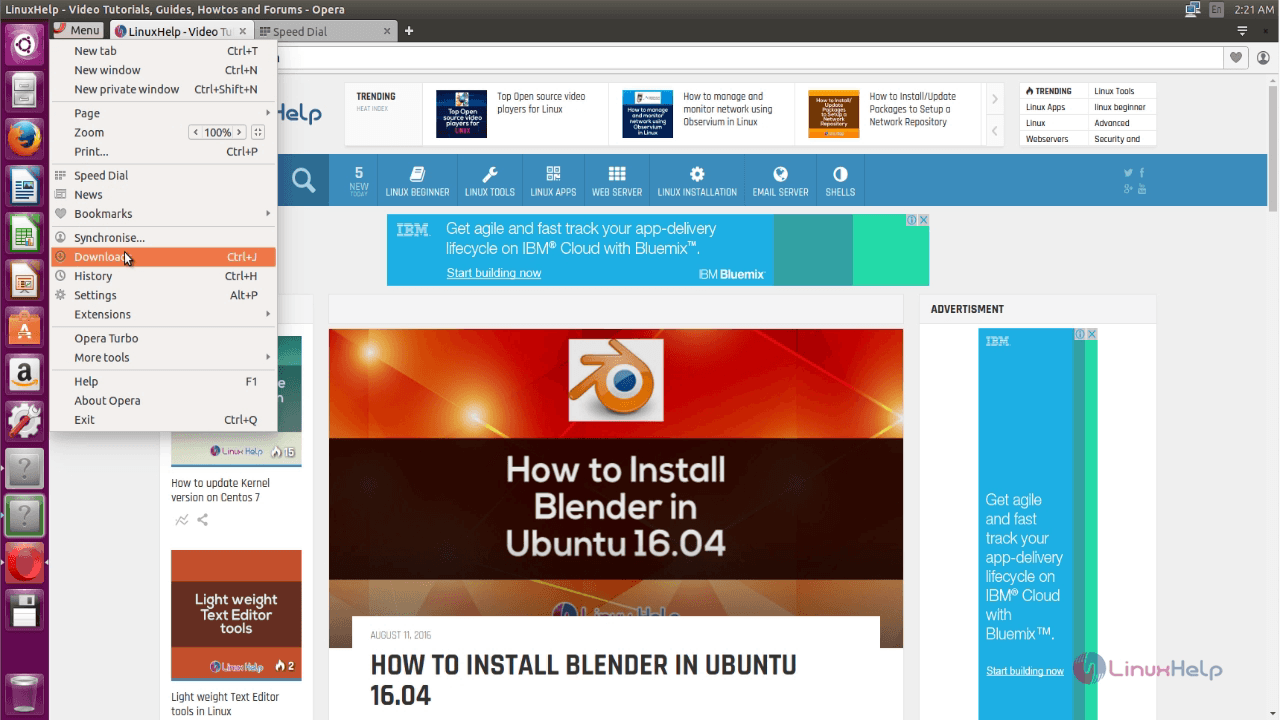
To view downloads, click on menu and select downloads option.
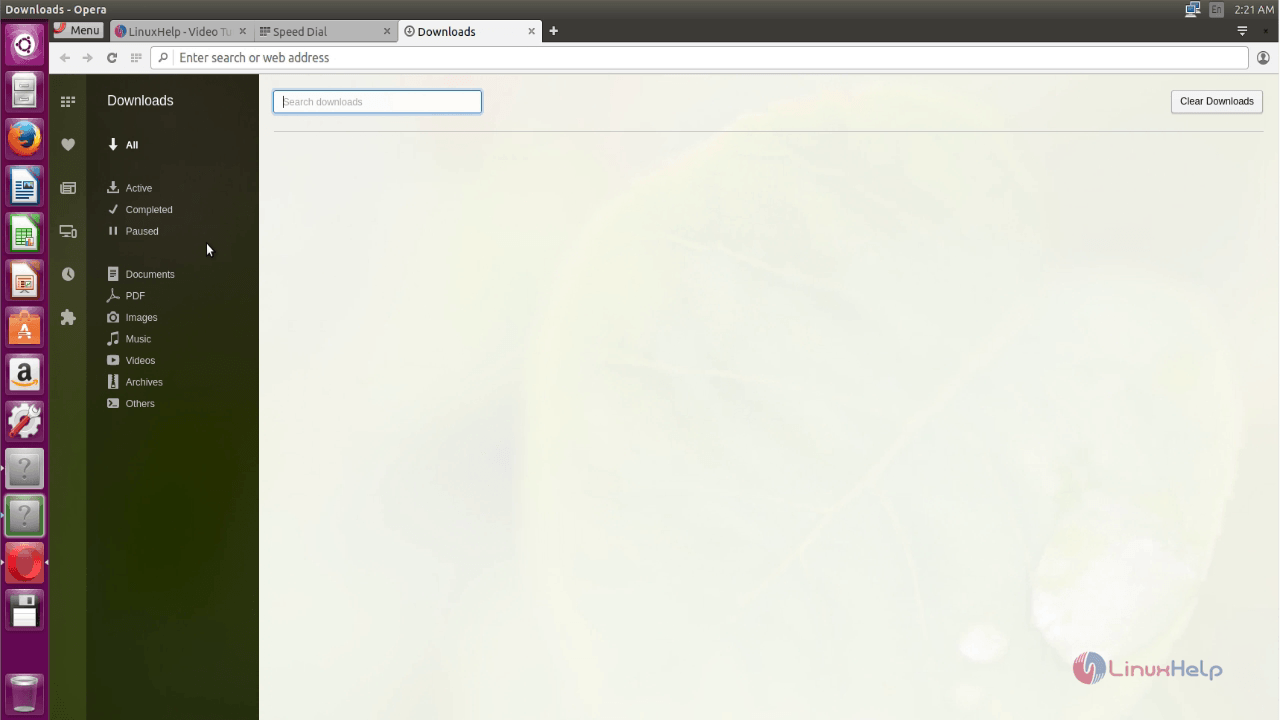
Here you can view the downloaded files.
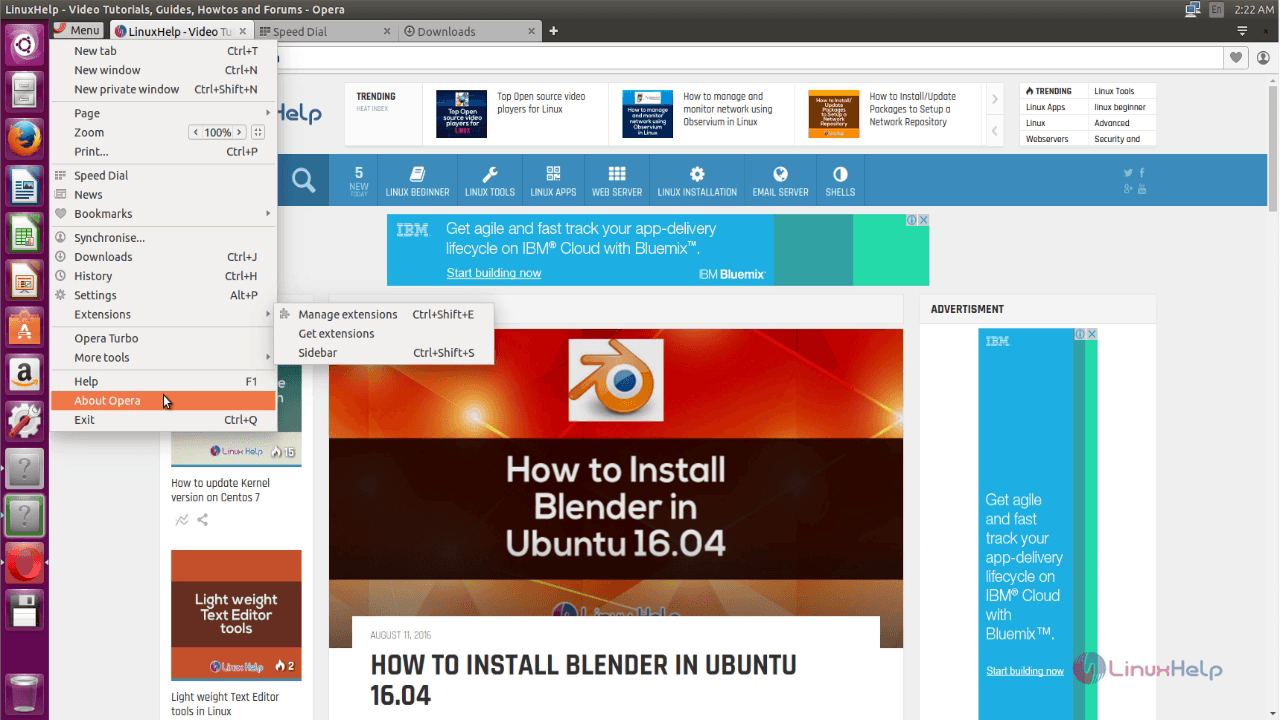
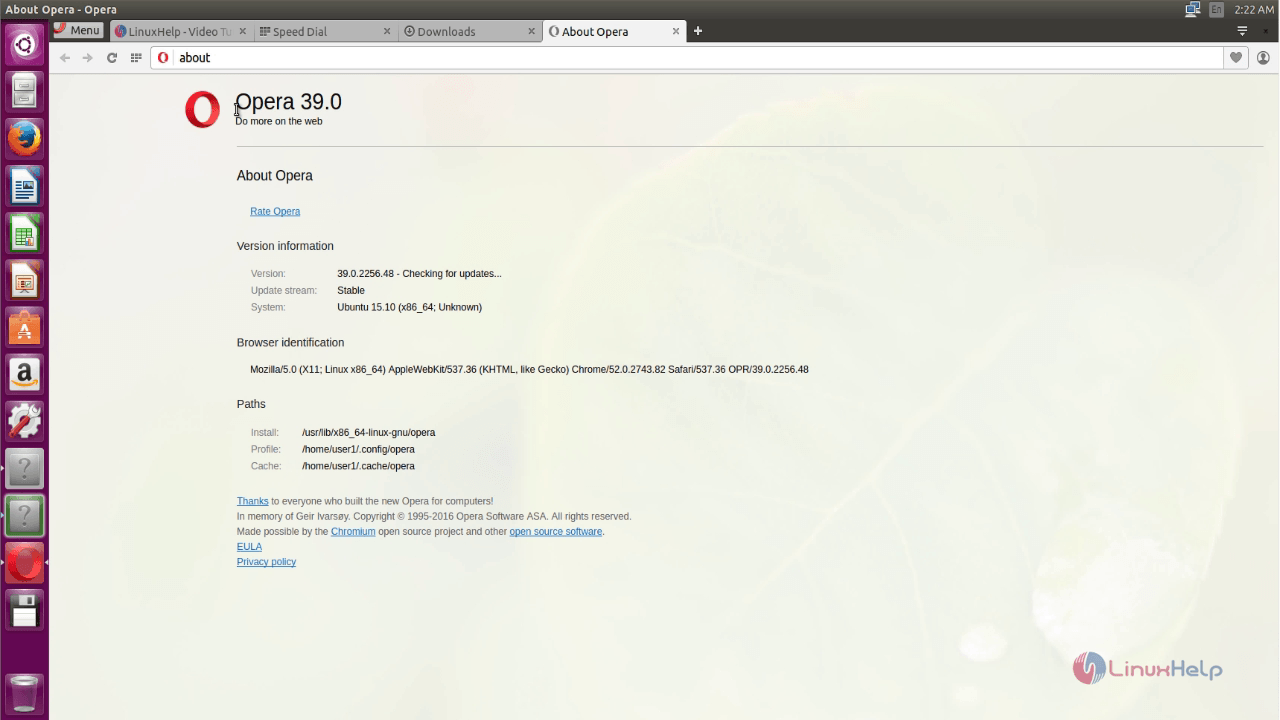
Click on menu and select About Opera option to see the browser version.
Opera browser version details will display as given below.
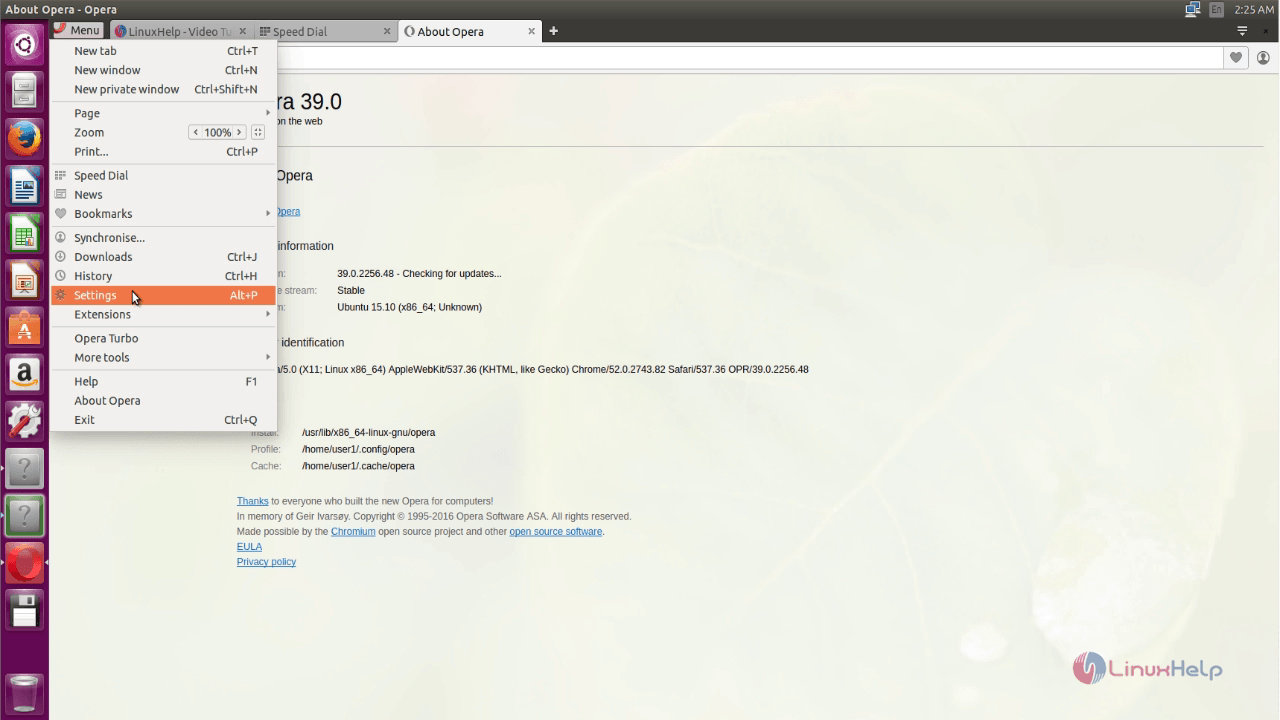
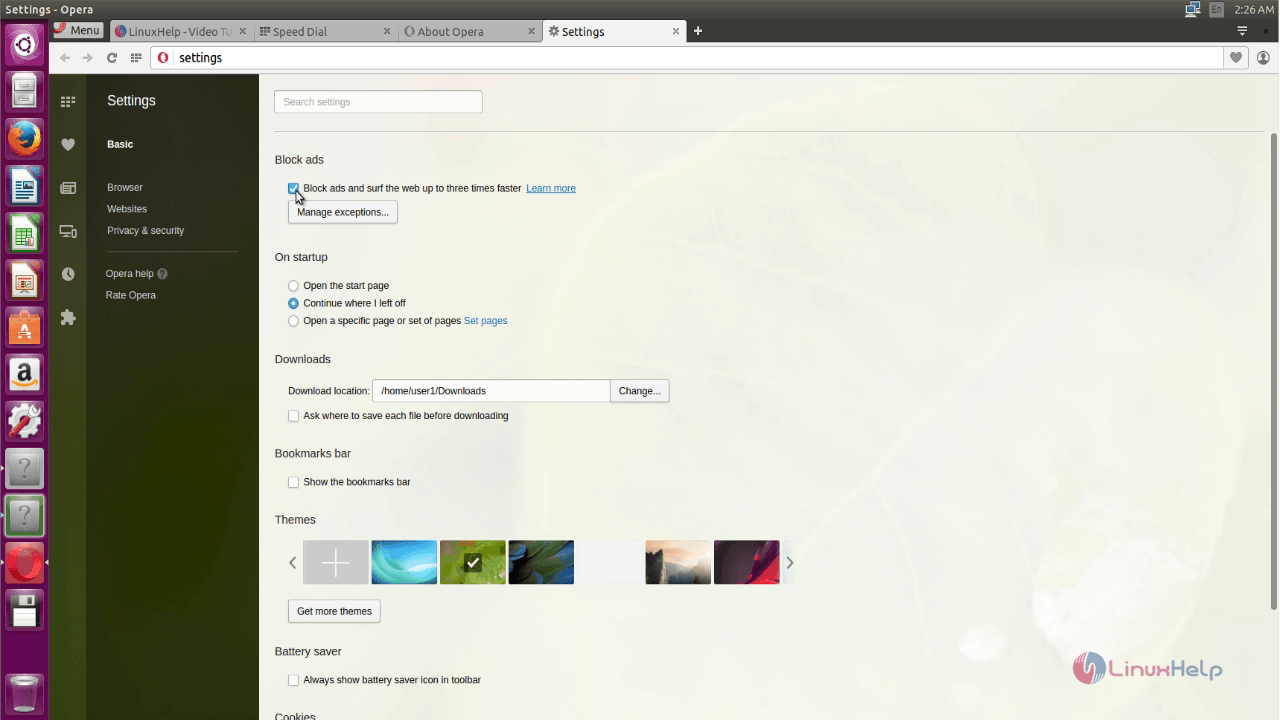
To change settings, click on menu and select settings option.
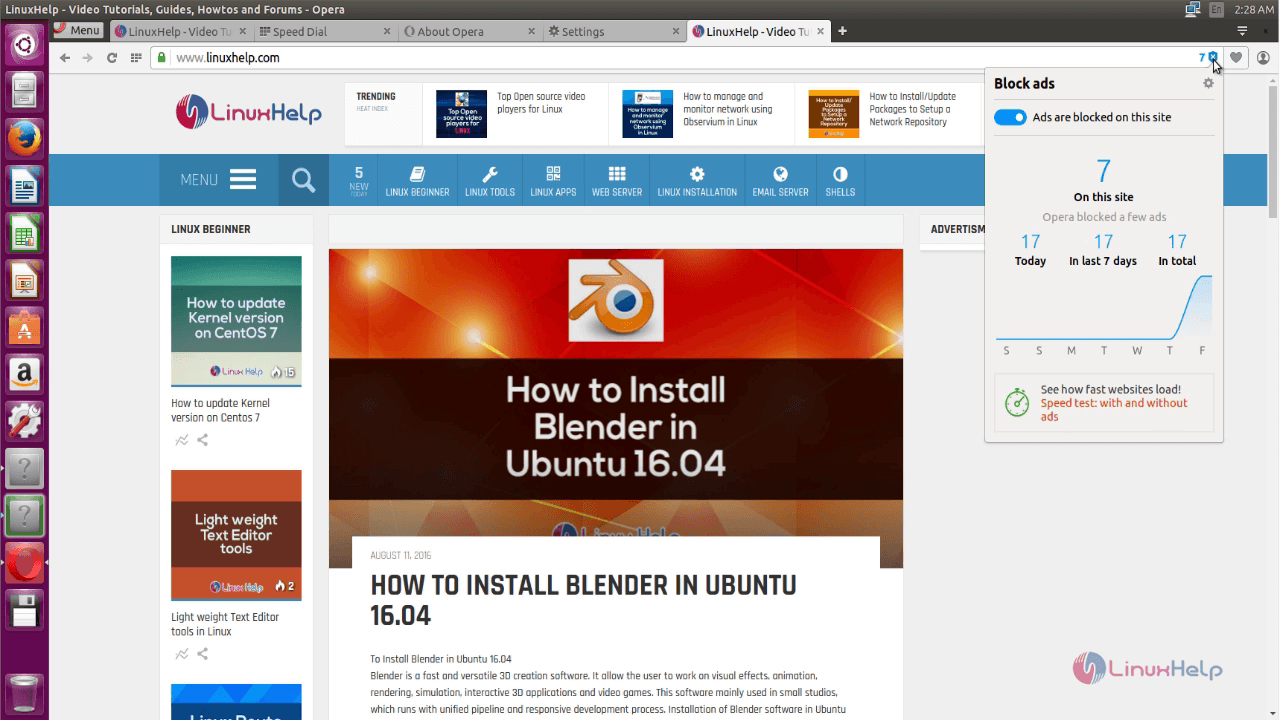
Here you can block the ads.
Comments ( 0 )
No comments available