How to install OpManager on Centos 7
To install OpManager on OpnSUSE leap 15.0
OpManager is a network monitoring software that can automatically discover your network, group your devices, services, process status and so on.
Installation Procedure
Make sure you have java installed in your machine by running java –version, but by default OpenSUSE leap 15.0 has java installed by default.
[root@linuxhelp ~]# java -version
openjdk version "1.8.0_161"
OpenJDK Runtime Environment (build 1.8.0_161-b14)
OpenJDK 64-Bit Server VM (build 25.161-b14, mixed mode)

Download OpManager from its official website (either free or paid version) the link attached below,
https://www.manageengine.com/network-monitoring/download-free.html

Download based on your Operating system and architecture
Now move inside the downloaded location
[root@linuxhelp ~]# cd /root/Desktop/
[root@linuxhelp Desktop]# ls -l
total 155964
-rwxrw-rw- 1 root root 159705169 Jun 11 13:10 ManageEngine_OpManager_Free_64bit.bin
As per your convenience, move the downloaded file into /opt
[root@linuxhelp ~]# cd /opt/
Run the following
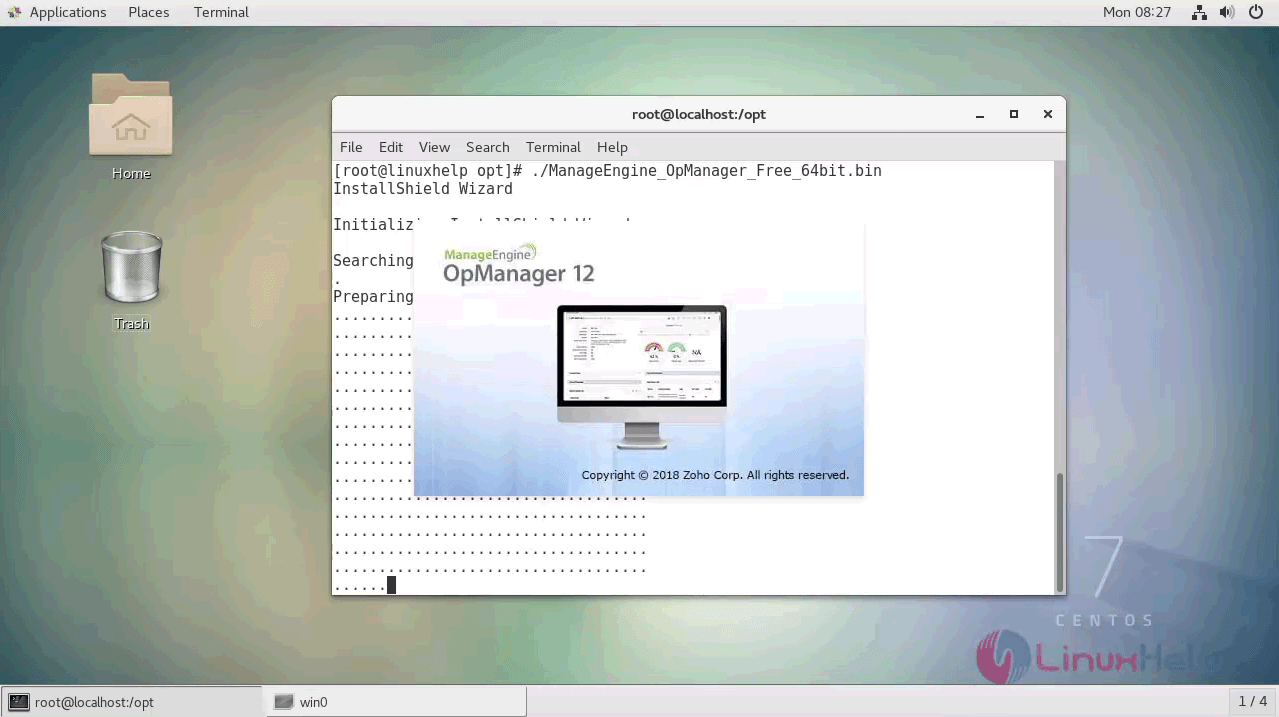
[root@linuxhelp opt]# ./ManageEngine_OpManager_Free_64bit.binInstallShield Wizard

Initializing InstallShield Wizard...

Searching for Java(tm) Virtual Machine...
.
Preparing Java(tm) Virtual Machine...
..................................
...................................
...................................
...................................
...................................
...................................
...................................
...................................
...................................
...................................
...................................
...................................
...................................
...................................
...................................

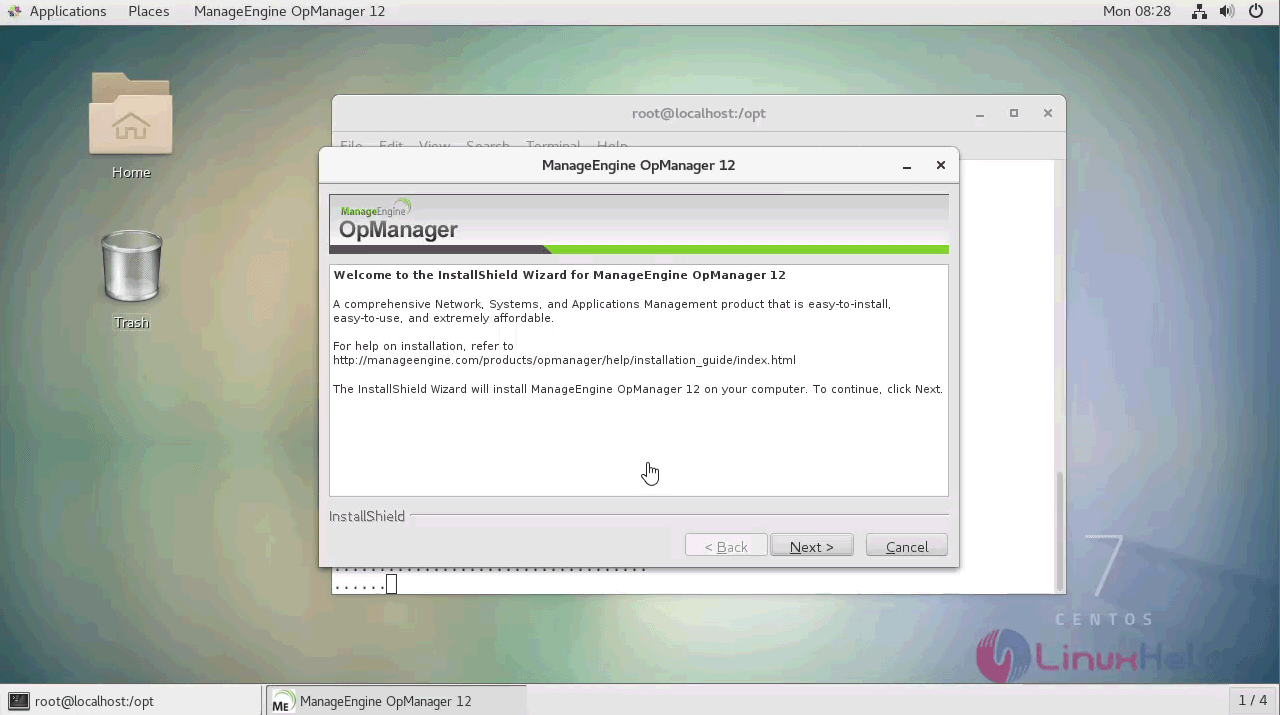
The graphical wizard gets opened as follows
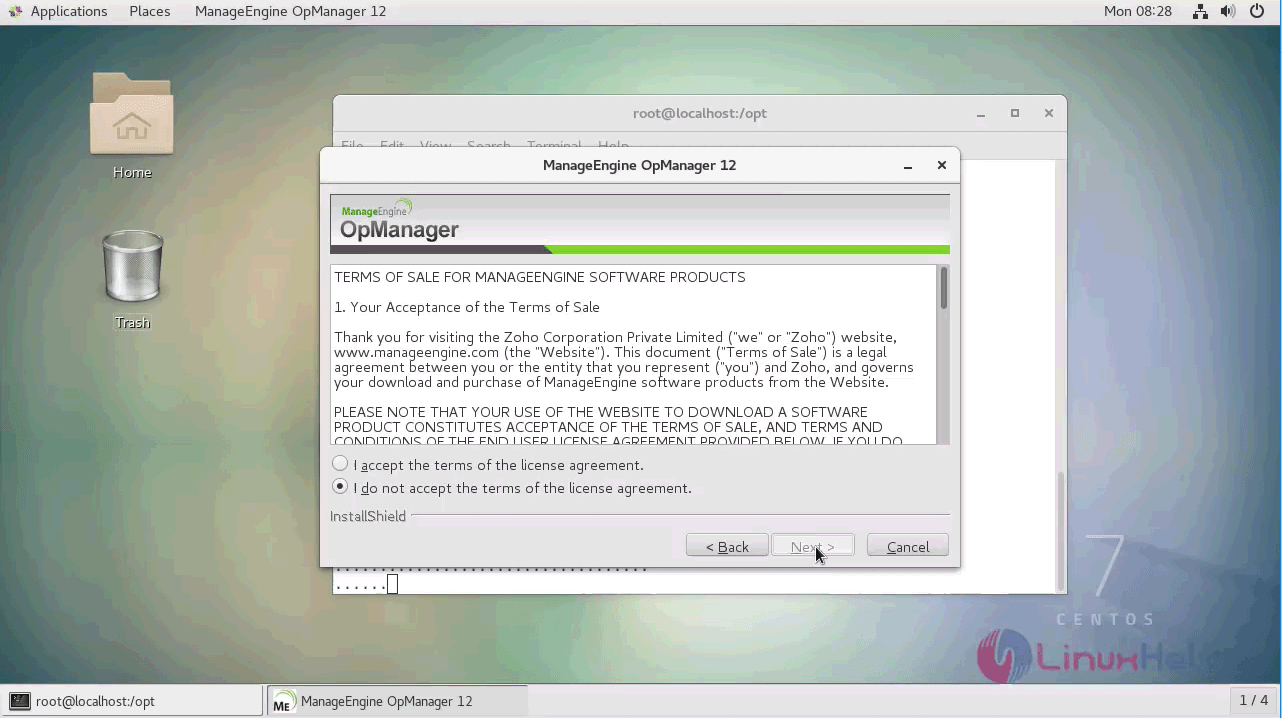
Follow the installation wizard open starts from initial step, license agreement
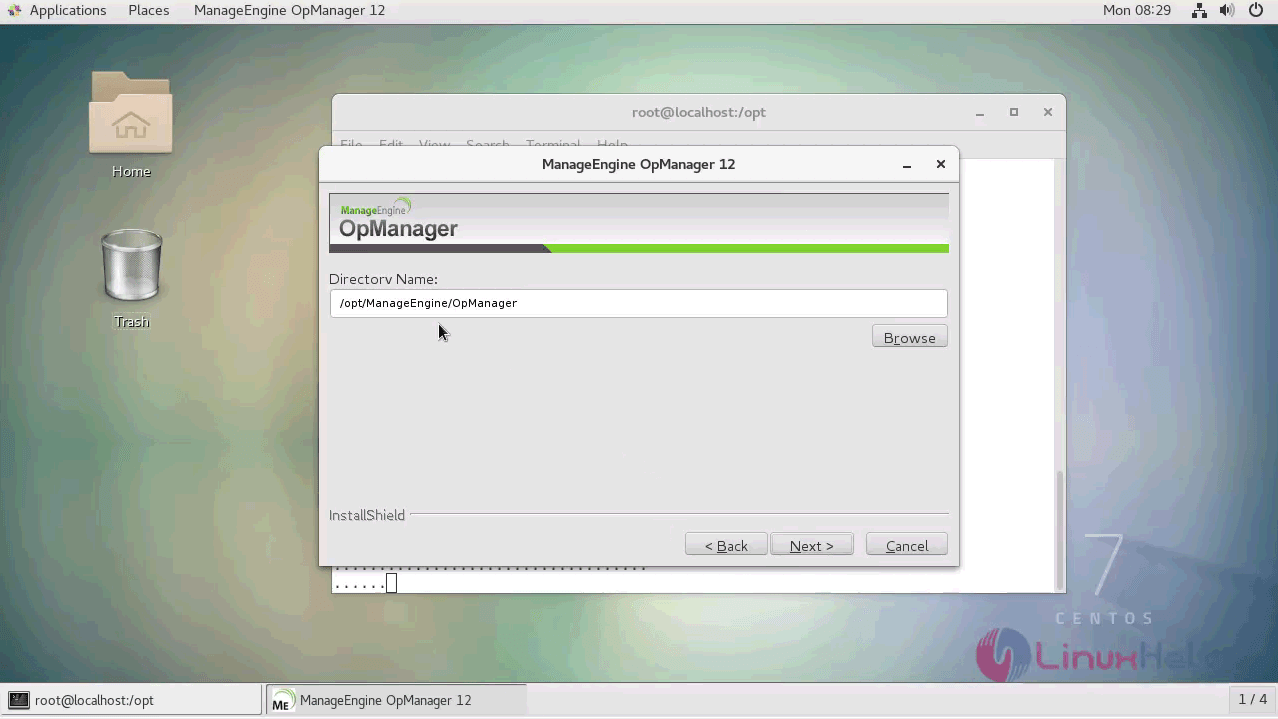
Directory location
Define web server port number
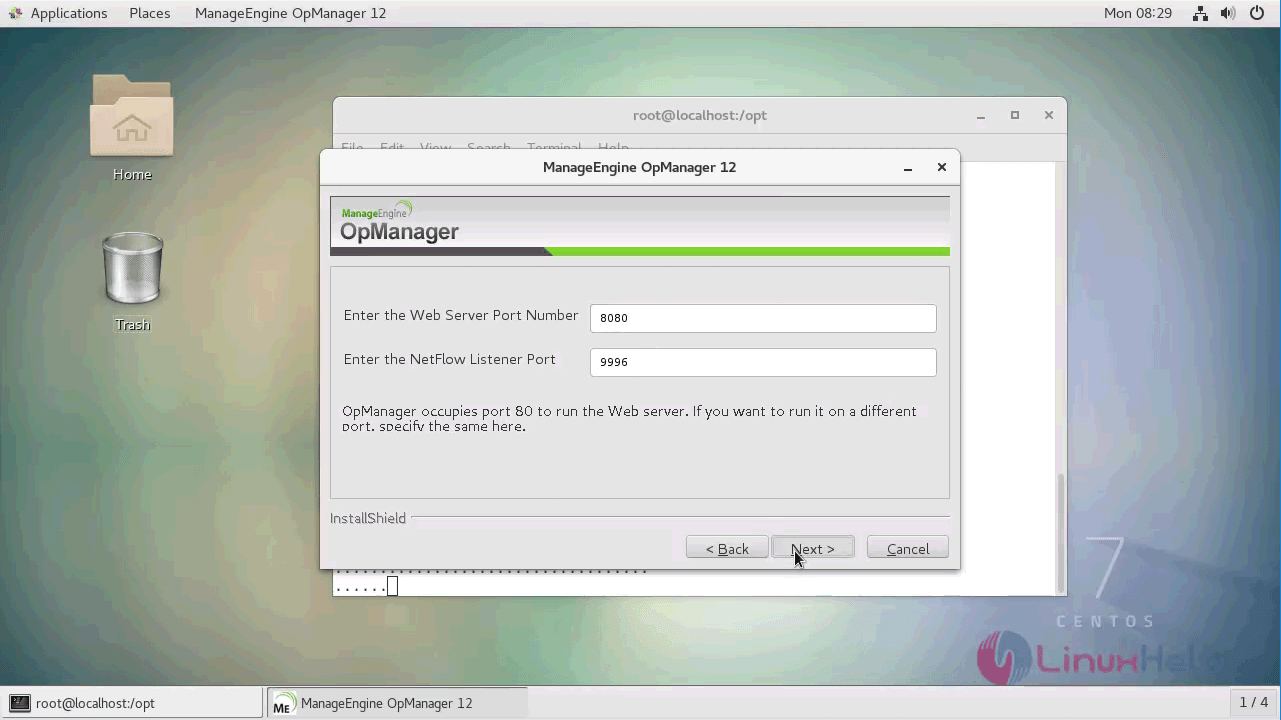
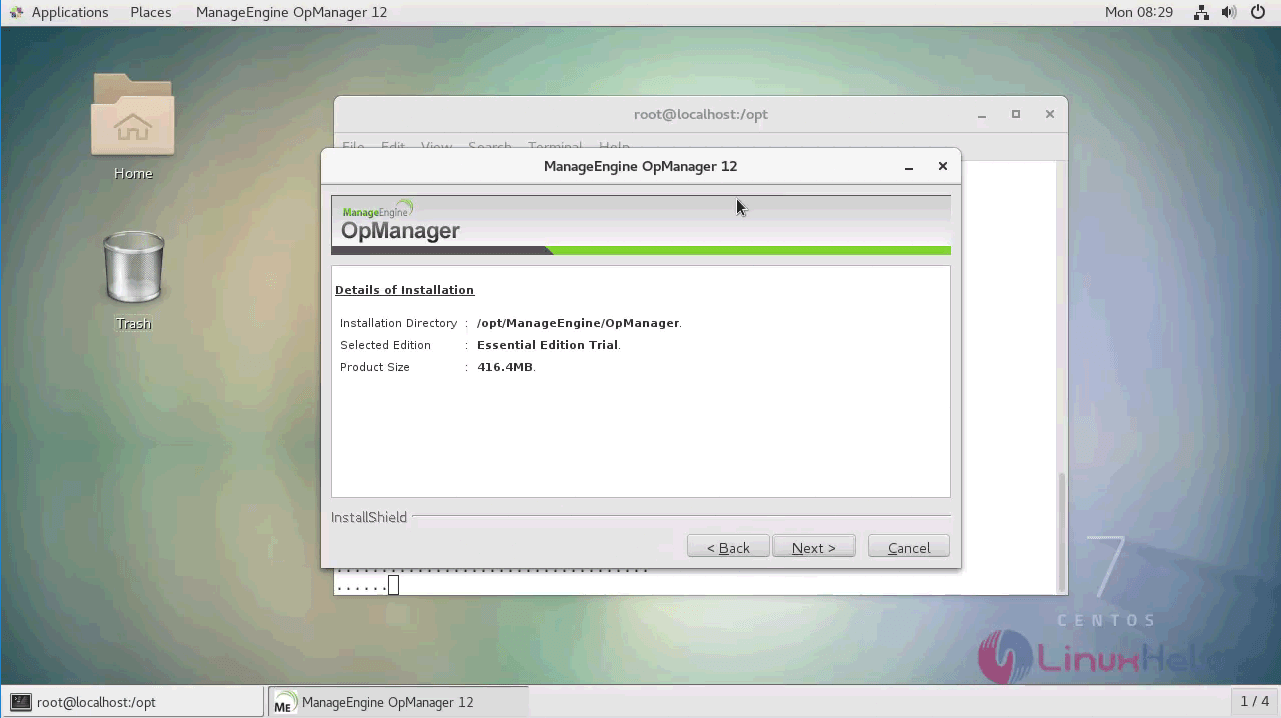
Details of Installation
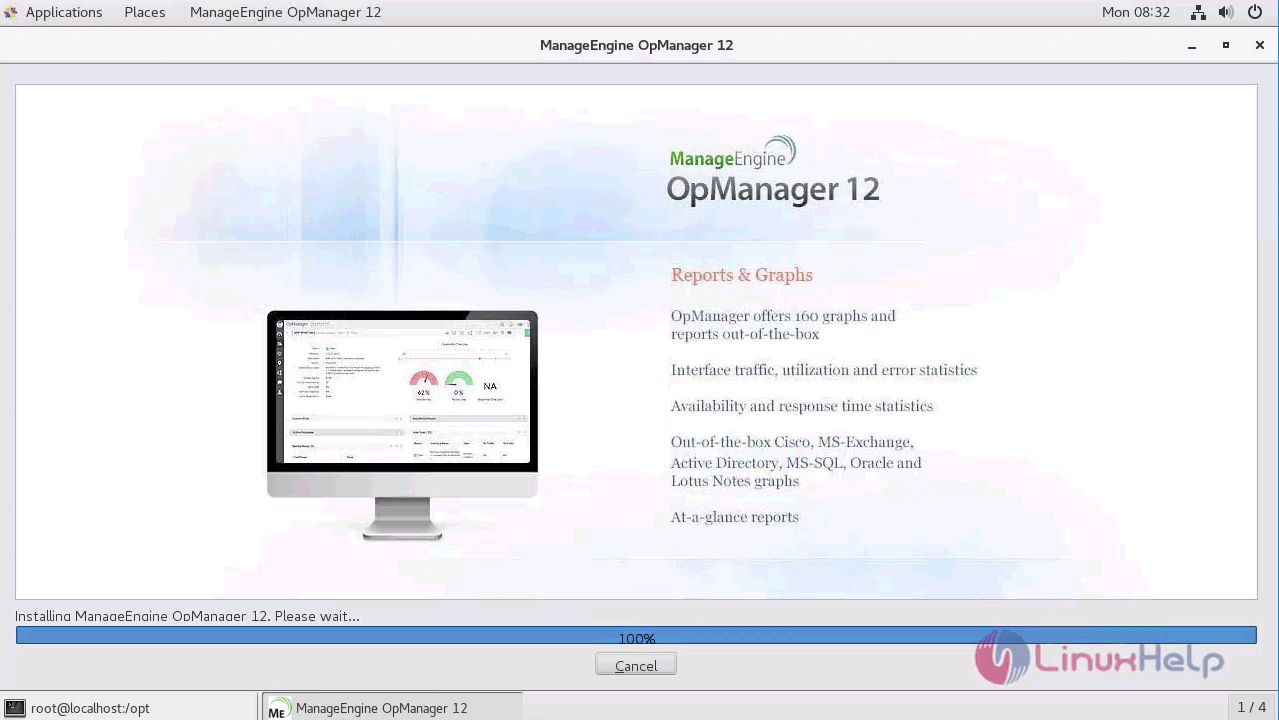
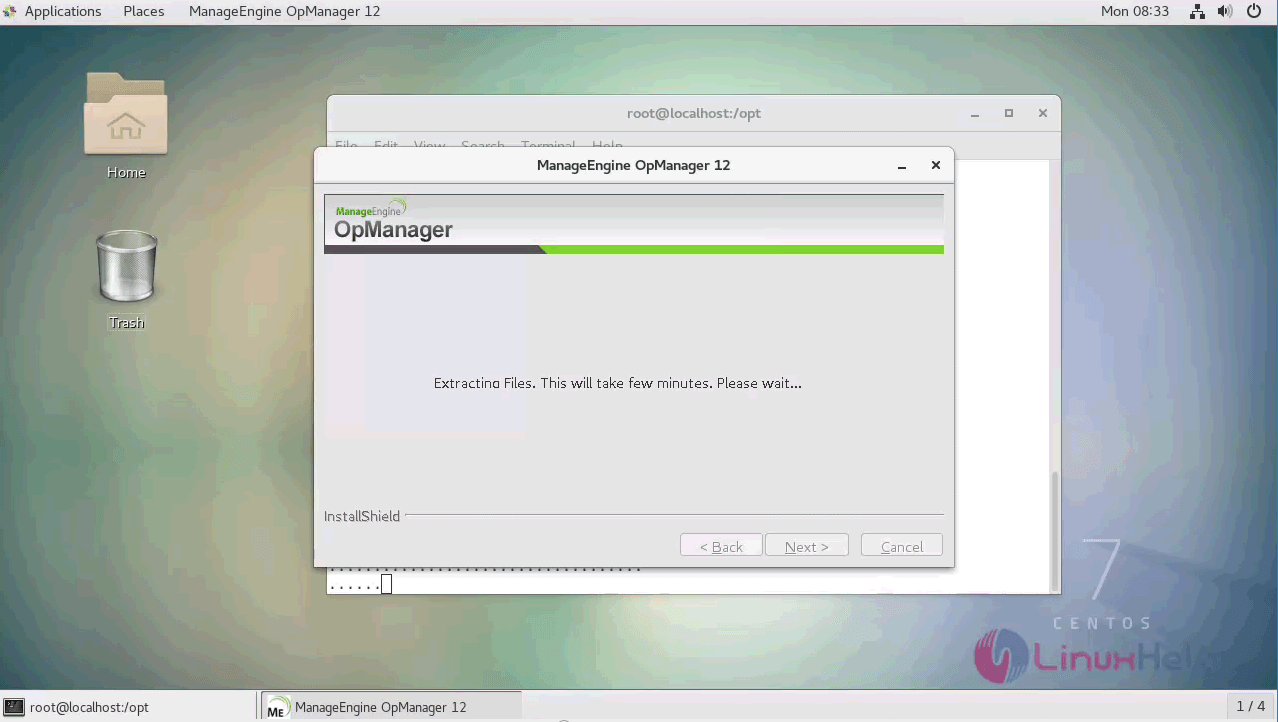
Installation
Select server details
9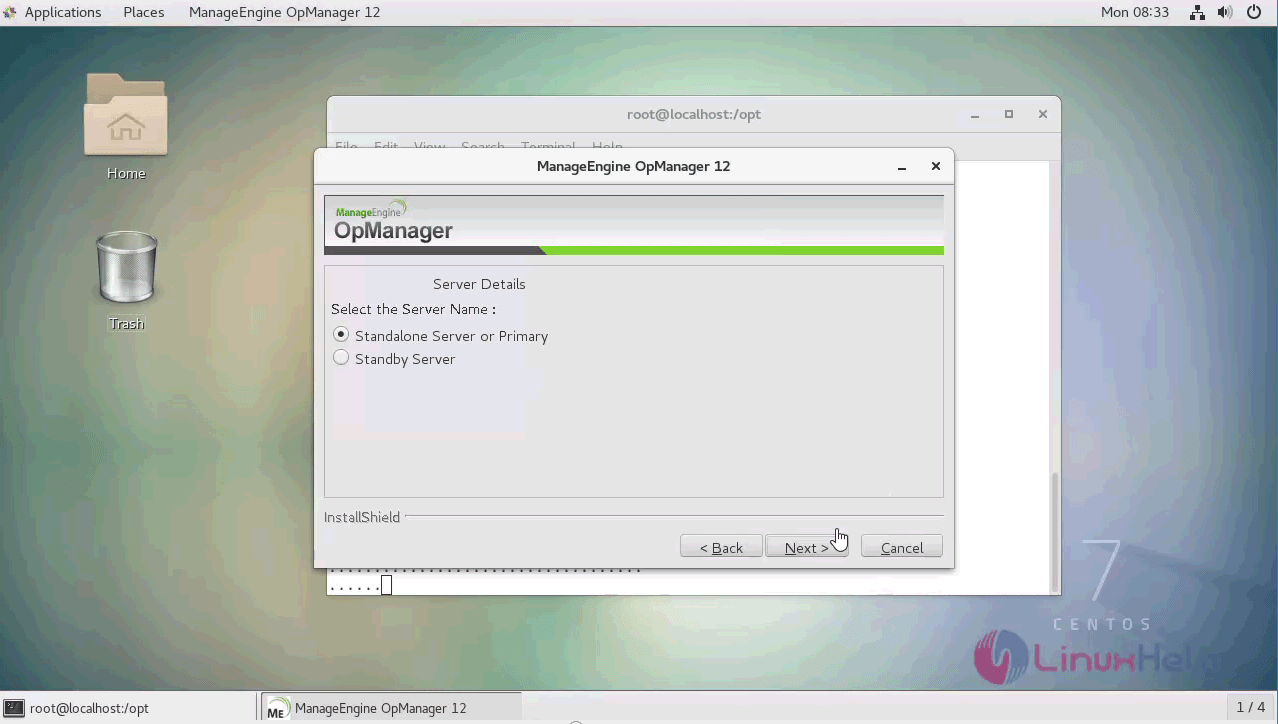
Finish the wizard
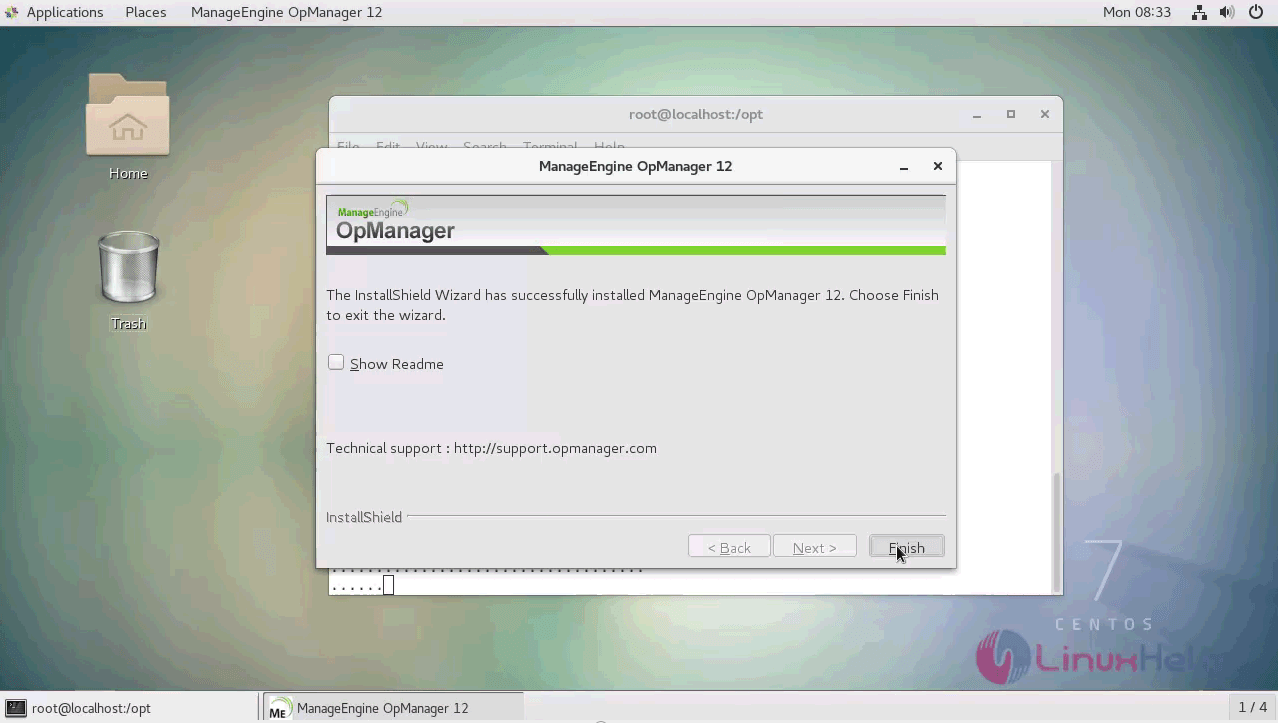
Finally after installation start the OpManager either as a script or as a service (Daemon service)
Directory location : /opt/ManageEngine/OpManager/bin/
For that move into the following location
[root@linuxhelp ~]# cd /opt/ManageEngine/OpManager/bin/
Run StartOpManagerServer.sh to start OpManager and ShutDownOpManager.sh to stop it.
Or
Start as service by
[root@linuxhelp bin]# ./linkAsService.sh
========================================
Running Opmanager as Service
========================================
Opmanager Directory     -->  /opt/ManageEngine/OpManager/bin
Opmanager Service name     -->  OpManager.service
----------------------------------------
OpManager.service successfully placed in /etc/systemd/system/ directory
----------------------------------------
Enabling services -
Created symlink /etc/systemd/system/multi-user.target.wants/OpManager.service → /etc/systemd/system/OpManager.service.
Opmanager service is added successfully
========================================
To start the service login as superuser and use - systemctl start OpManager.service
=======================================
Now start the OpManager service and check the status
[root@linuxhelp bin]# systemctl start OpManager
 [root@linuxhelp bin]# systemctl status OpManager
● OpManager.service - OpManager As Service
   Loaded: loaded (/etc/systemd/system/OpManager.service; enabled; vendor preset: disabled)
   Active: active (exited) since Mon 2018-06-25 09:41:04 IST; 3h 37min ago
  Process: 94539 ExecStart=/opt/ManageEngine/OpManager/bin/na_service start (code=exited, status=0/SUCCESS)
 Main PID: 94539 (code=exited, status=0/SUCCESS)
   CGroup: /system.slice/OpManager.service
           ├─94553 ./wrapper ../conf/wrapper.conf wrapper.pidfile=.//OpManager.pid wrapper.daemonize=TRUE
           └─96145 /opt/ManageEngine/OpManager/jre/bin/java -Dcatalina.home=.. -Dserver.home=.. -Dserver.stats=1000 -Djava.util.logging.m...

Jun 25 09:41:03 localhost.localdomain systemd[1]: Starting OpManager As Service...
Jun 25 09:41:04 localhost.localdomain systemd[1]: Started OpManager As Service.
Jun 25 09:41:10 localhost.localdomain su[94583]: (to postgres) root on none
Switch to your browser and access the OpManager interface by http://yourIP:8080
Note : The default port number is 80 ( here I have changed into custom port)
Default username and password is admin
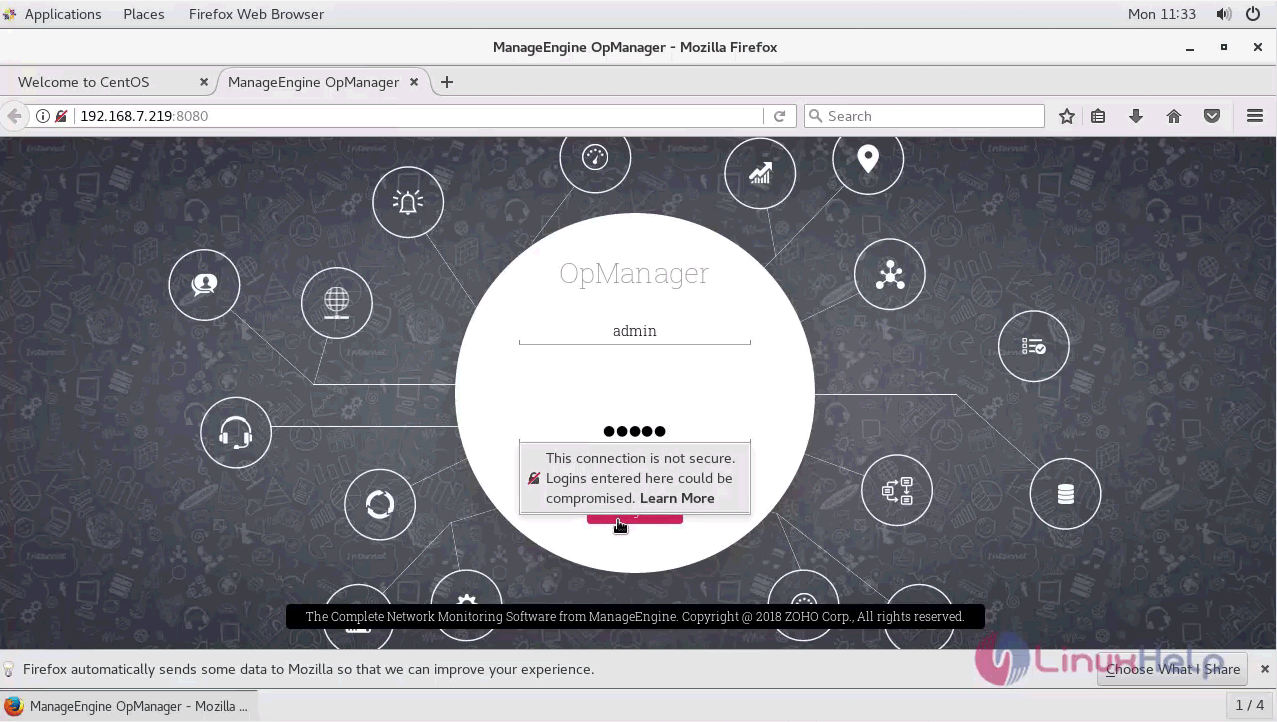
Dashboard appears on the screen
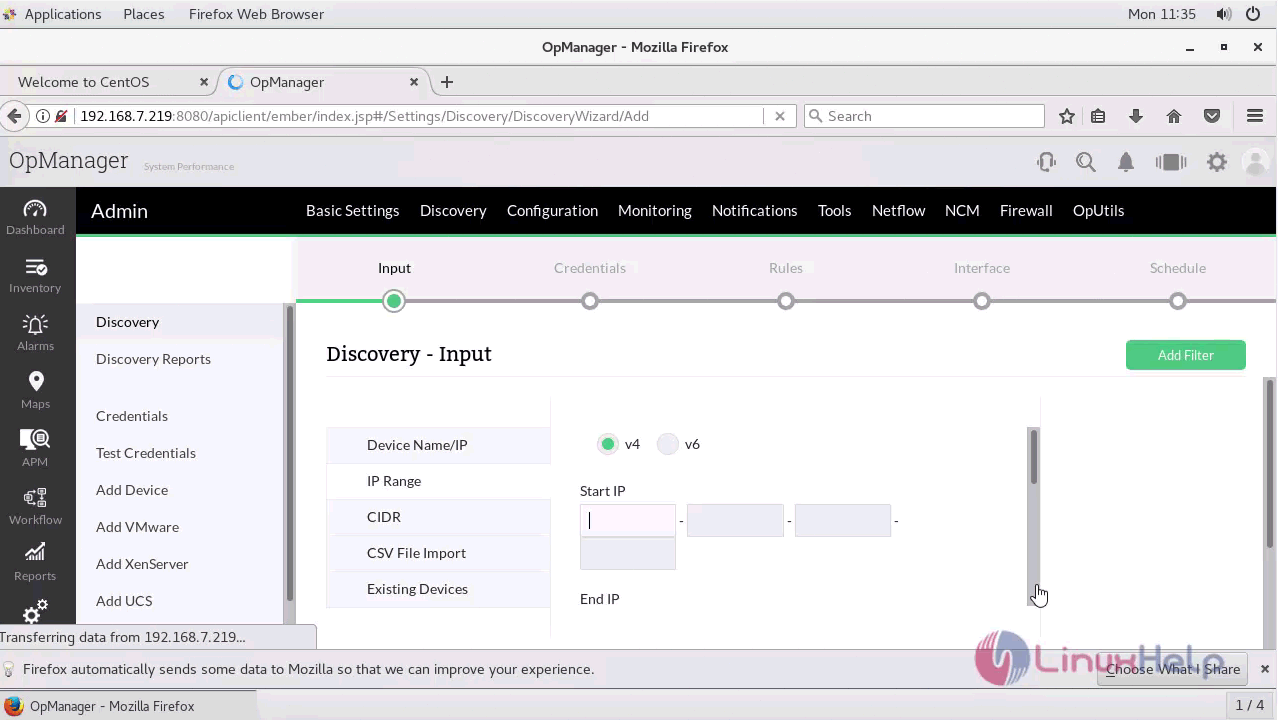
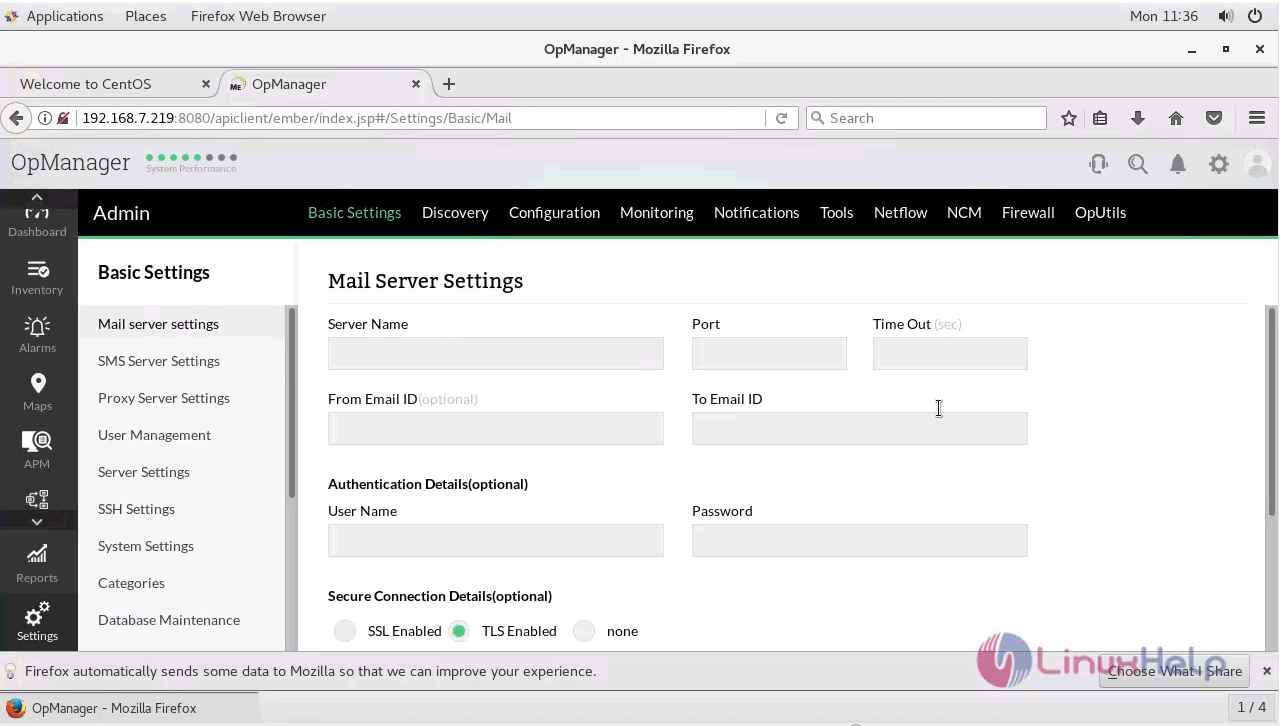
Under settings we have basic settings configuration comprising of mail settings, credentials etc.
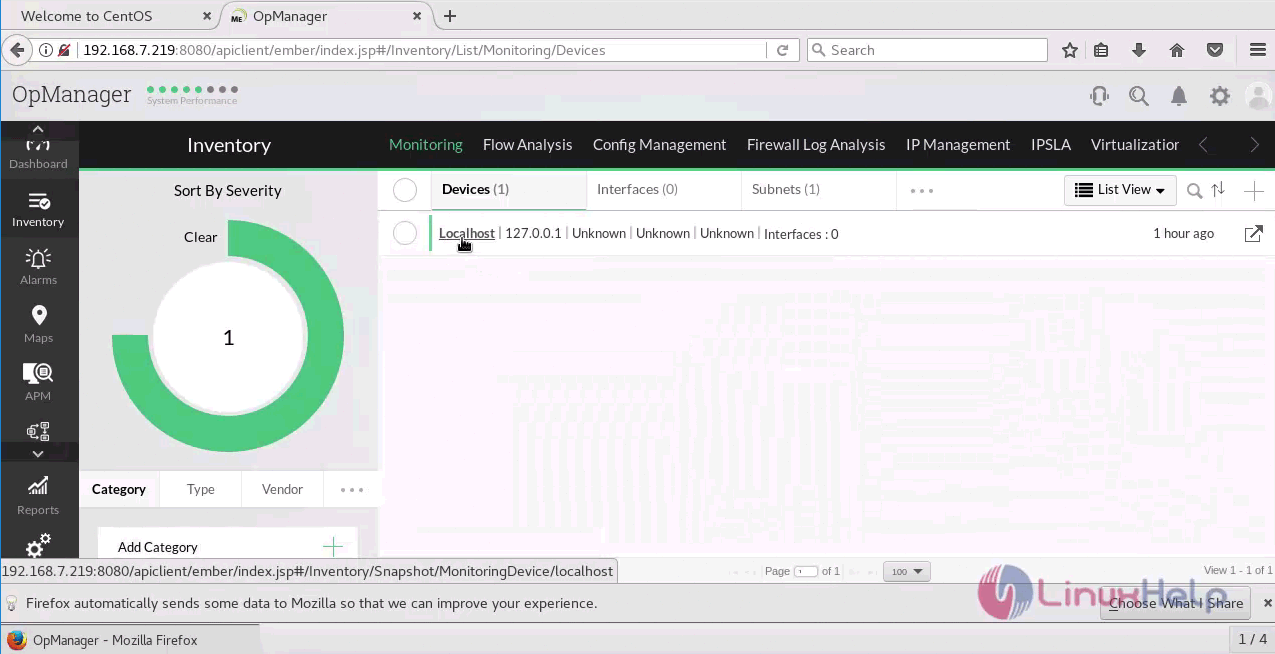
The added device is displayed in “Inventory”
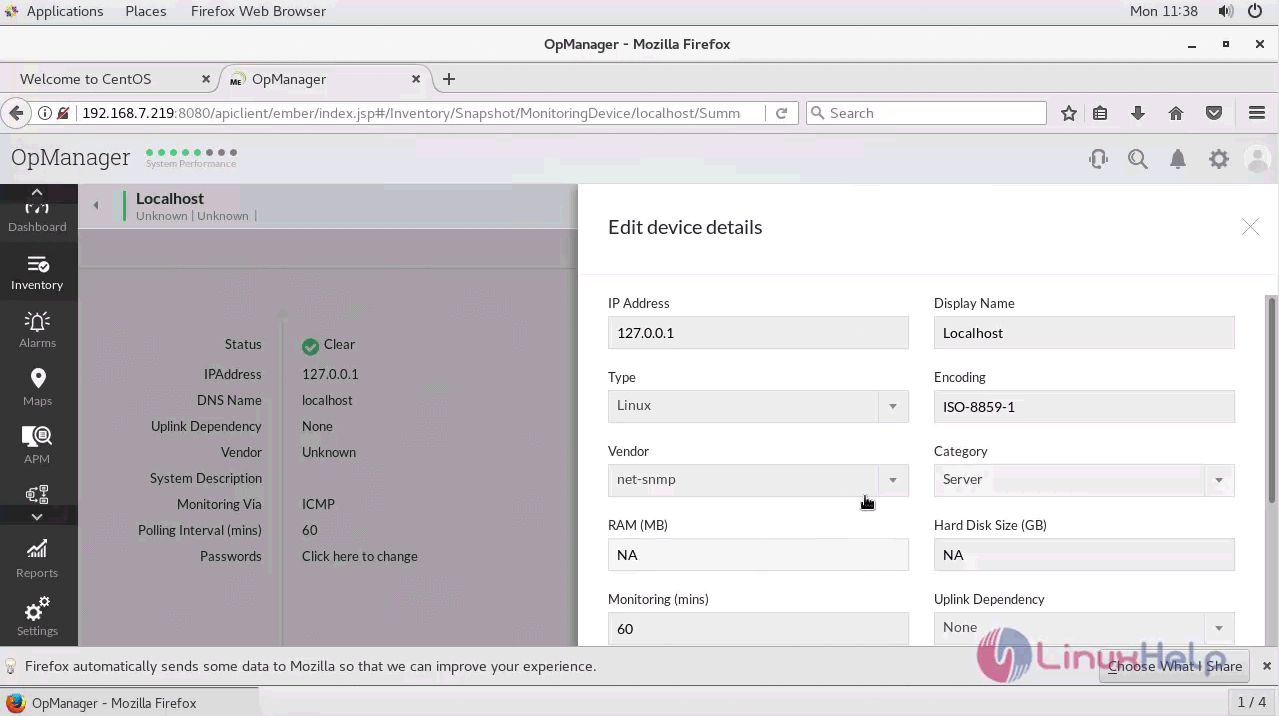
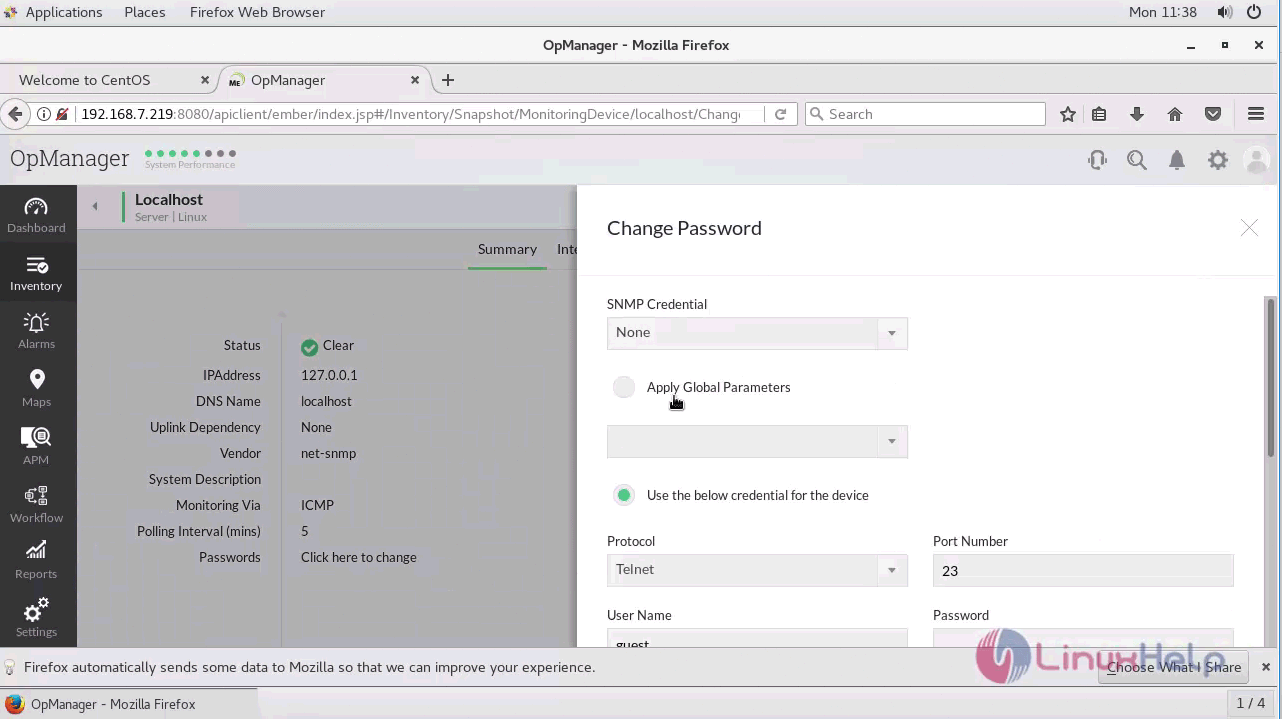
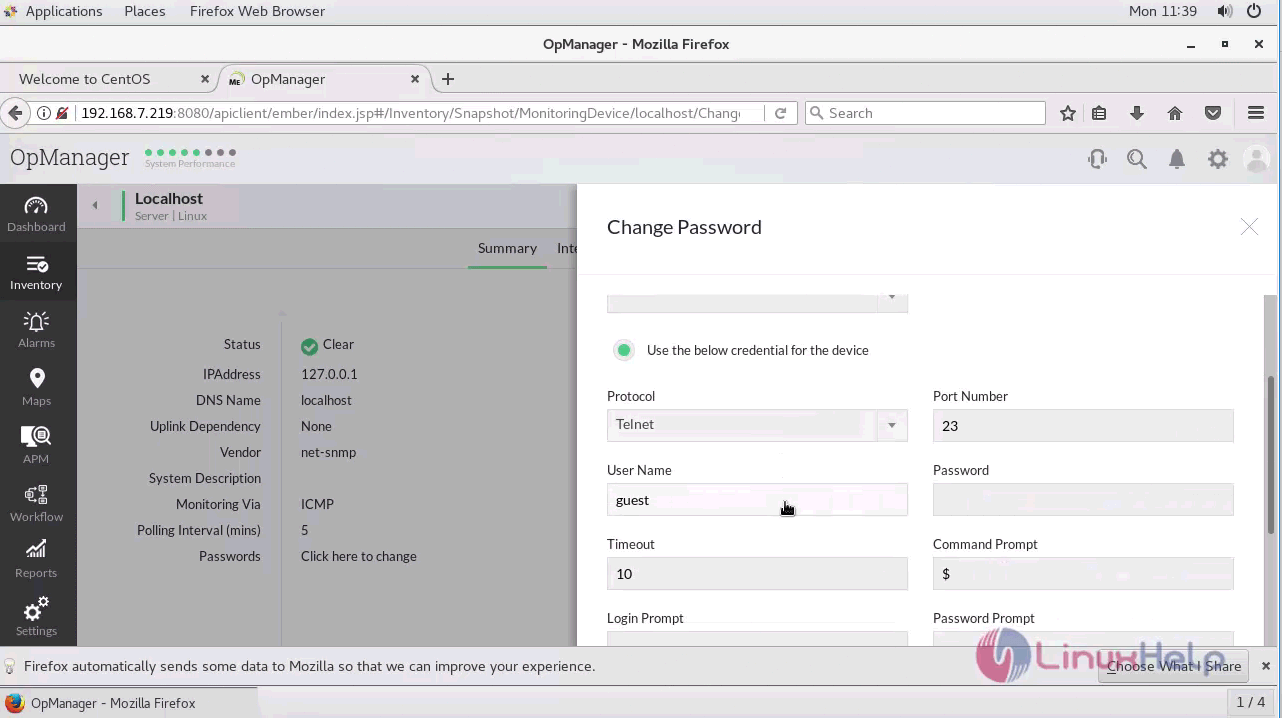
Edit credentials (telnet,ssh,net-snmp)
Comments ( 0 )
No comments available