How to install OsTicket on Ubuntu 17.04
To install osTicket on Ubuntu 17.04
osTicket is a simple and open source support ticket system built based on PHP. It' s a lightweight and widely used support ticket system. OsTicket allows you to manage, organize and archive your support request. It' s has support for LDAP and Active Directory authentication. It seamlessly routes inquiries created via email, web-forms and phone calls into a simple, easy-to-use, multi-user, web-based customer support platform. It is a simple to use and simple to install application. This tutorial covers the ground on the method to install osTicket on Ubuntu 17.04.
Pre requirements
Install LAMP (Apache, PHP 5.6, MariaDB server)
In MariaDB (create database, user and give privilegess to user)
For PHP, you need to install the following repo
Sudo add-apt-repository ppa:ondrej/php
sudo apt-get update
Modules (apt install php5.6-opcache php5.6-gd php5.6-curl php5.6-common php5.6-mysql php5.6 php5.6-imap )
Installing OsTicket
Before you begin with the process, you need to get into the HTML location. So run the following command for the same process.
root@linuxhelp:~# cd /var/www/html/
And then, you need to download the OsTicket by making use of the wget command in the following manner.
root@linuxhelp:/var/www/html# wget http://osticket.com/sites/default/files/download/osTicket-v1.9.12.zip
--2017-12-04 15:24:27--  http://osticket.com/sites/default/files/download/osTicket-v1.9.12.zip
Resolving osticket.com (osticket.com)... 69.164.192.85, 2600:3c00::3a:9200
Connecting to osticket.com (osticket.com)|69.164.192.85|:80... connected.
HTTP request sent, awaiting response... 200 OK
Length: 7152664 (6.8M) [application/zip]
Saving to: ‘ osTicket-v1.9.12.zip’

osTicket-v1.9.12.zi 100%[===================> ]   6.82M  42.8MB/s    in 0.2s

2017-12-04 15:24:39 (42.8 MB/s) - ‘ osTicket-v1.9.12.zip’  saved [7152664/7152664]
And then, you need to extract the downloaded file by making use of the following command.
root@linuxhelp:/var/www/html# unzip osTicket-v1.9.12.zip -d osticket
Archive:  osTicket-v1.9.12.zip
  inflating: osticket/scripts/api_ticket_create.php
  inflating: osticket/scripts/automail.php
  inflating: osticket/scripts/automail.pl
  inflating: osticket/scripts/rcron.php
  inflating: osticket/upload/account.php
  inflating: osticket/upload/ajax.php
  inflating: osticket/upload/api/.htaccess
  inflating: osticket/upload/api/api.inc.php
  inflating: osticket/upload/api/cron.php
  inflating: osticket/upload/api/http.php
.
.
..
 inflating: osticket/upload/tickets.php
  inflating: osticket/upload/view.php
  inflating: osticket/upload/web.config
After that, you need to change the ownership of osTicket directory in the following manner.
root@linuxhelp:/var/www/html# chown -R www-data:www-data osticket/
Later, you need to copy the config file by making use of the following command.
root@linuxhelp:/var/www/html# cp osticket/upload/include/ost-sampleconfig.php osticket/upload/include/ost-config.php
And then, you need to change the permission of osTicket directory and for that, you should run the following command.
root@linuxhelp:/var/www/html# chmod -R 777 osticket/
After that, you need to create the conf file for VirtualHosting. Run the following command for the same purpose.
root@linuxhelp:/var/www/html# vim /etc/apache2/sites-available/osticket.conf
In that file, you need to add the following lines.
VirtualHost *:80>
ServerAdmin admin@linuxhelp11.com
DocumentRoot /var/www/html/osticket/
ServerName linuxhelp11.com
< Directory /var/www/html/osticket/>
Options FollowSymLinks
AllowOverride All
Order allow,deny
allow from all
< /Directory>
ErrorLog /var/log/apache2/linuxhelp11.com-error_log
CustomLog /var/log/apache2/linuxhelp11.com-access_log common
< /VirtualHost>
And then, make an entry in hosts file. So, open it.
root@linuxhelp:/var/www/html# vim /etc/hosts
In that file, you need to add the following line.
< machine ip> domainname (linuxhelp11.com)
You should also enable the newly created conf file by running the following command.
root@linuxhelp:/var/www/html# a2ensite osticket.conf
Enabling site osticket.
To activate the new configuration, you need to run:
  service apache2 reload
Once all of it is done, you need to restart the apache service
root@linuxhelp:/var/www/html# systemctl restart apache2.service
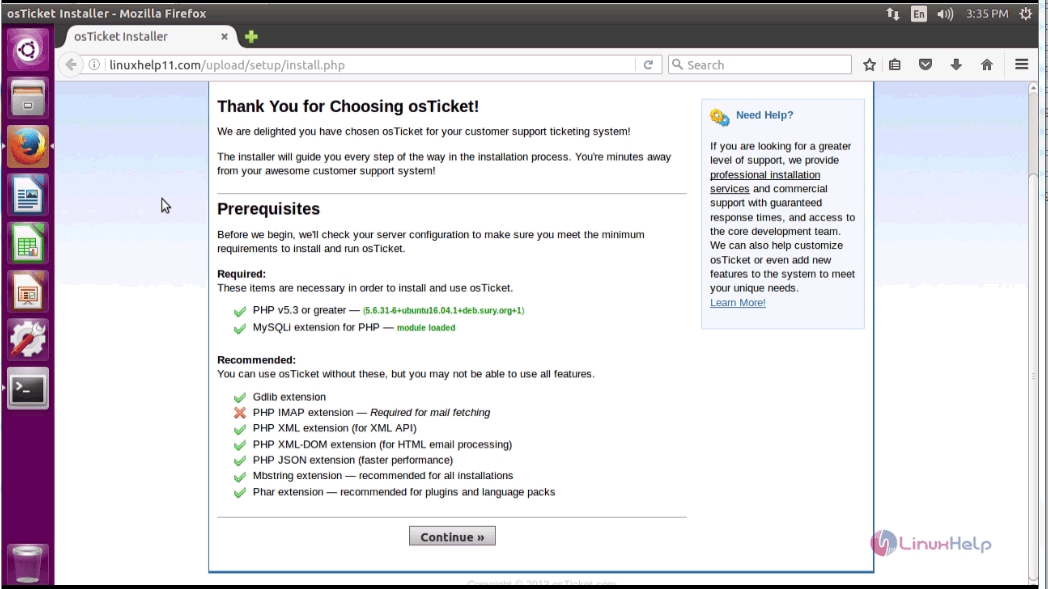
Now open your browser and give http://yourdomain/uploads as URL. The osTicket installation appears here. The system requirement is now shown, click on the Continue option.
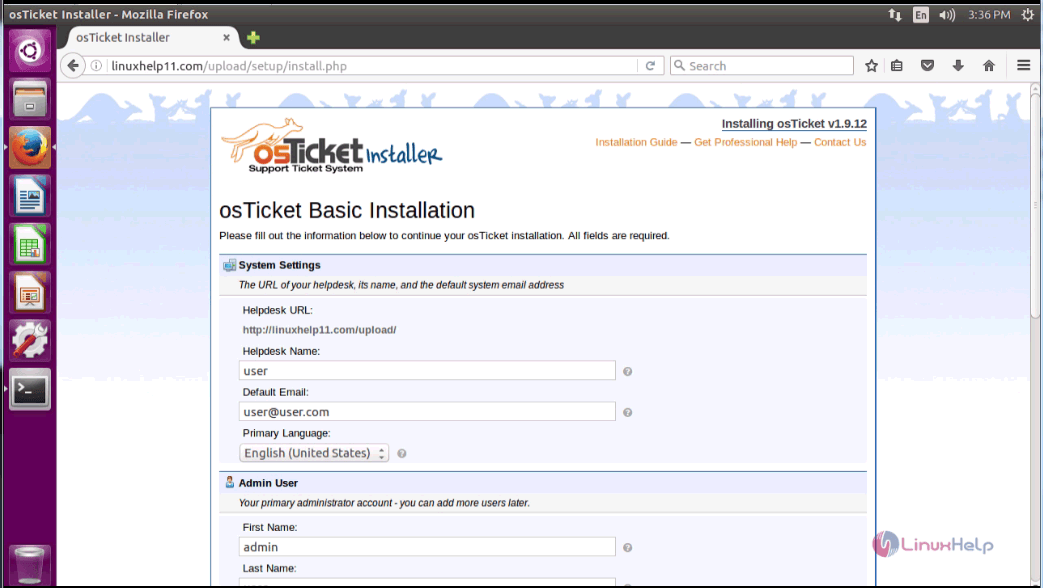
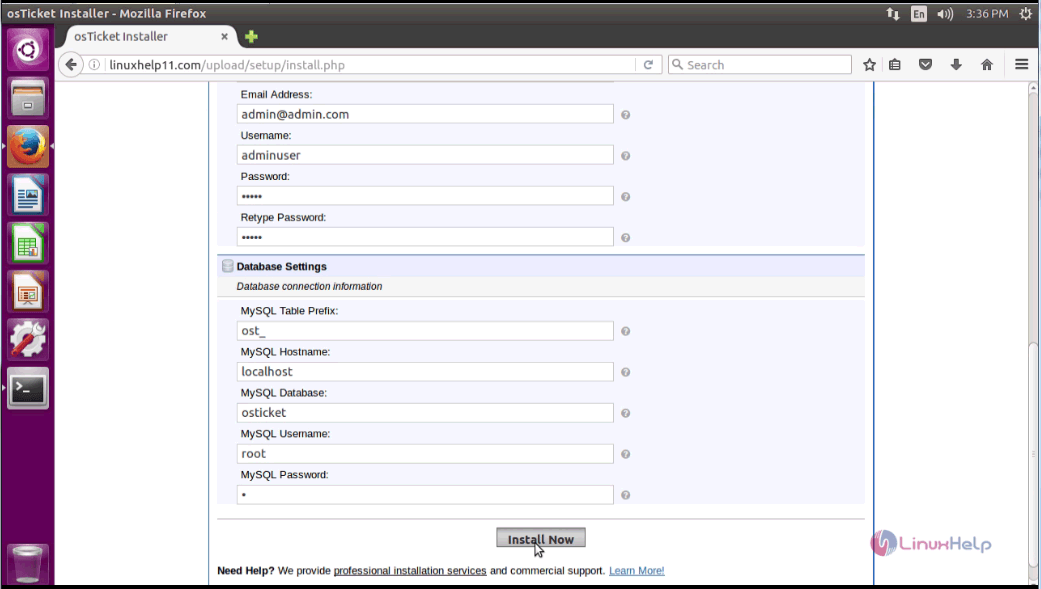
In the next page, you need to fill user, admin, database details and click install Now.
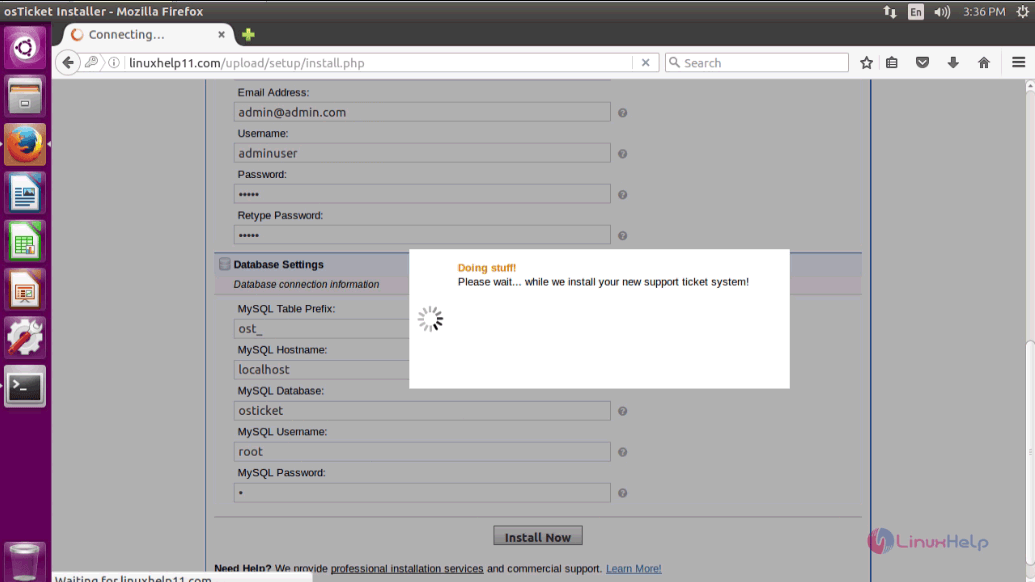
The installation is in progress.
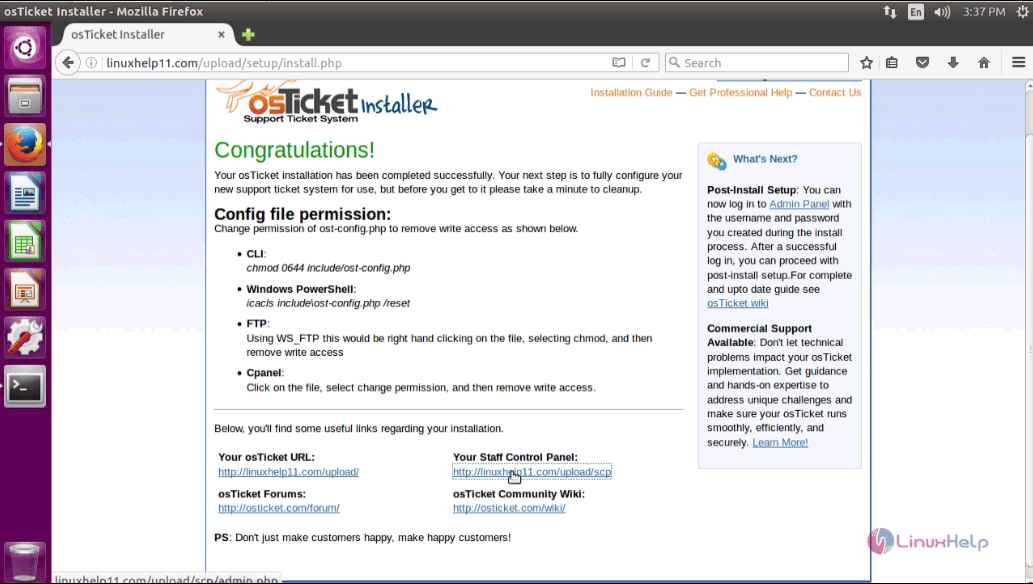
Now, the installation is complete. You can click on the link to open the Control panel.
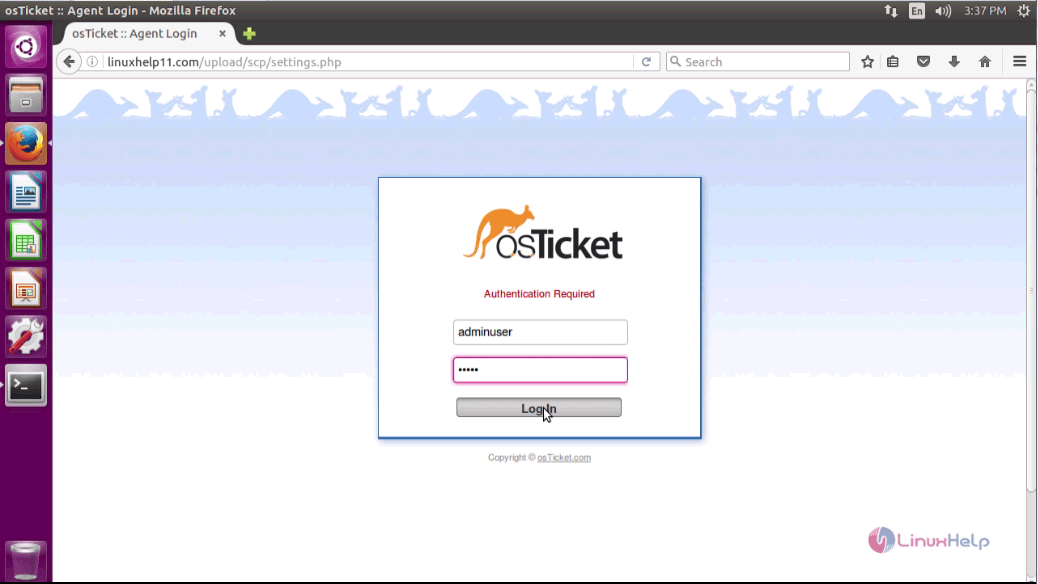
Give your admin credentials and click login.
You will be taken to the Admin dashboard.
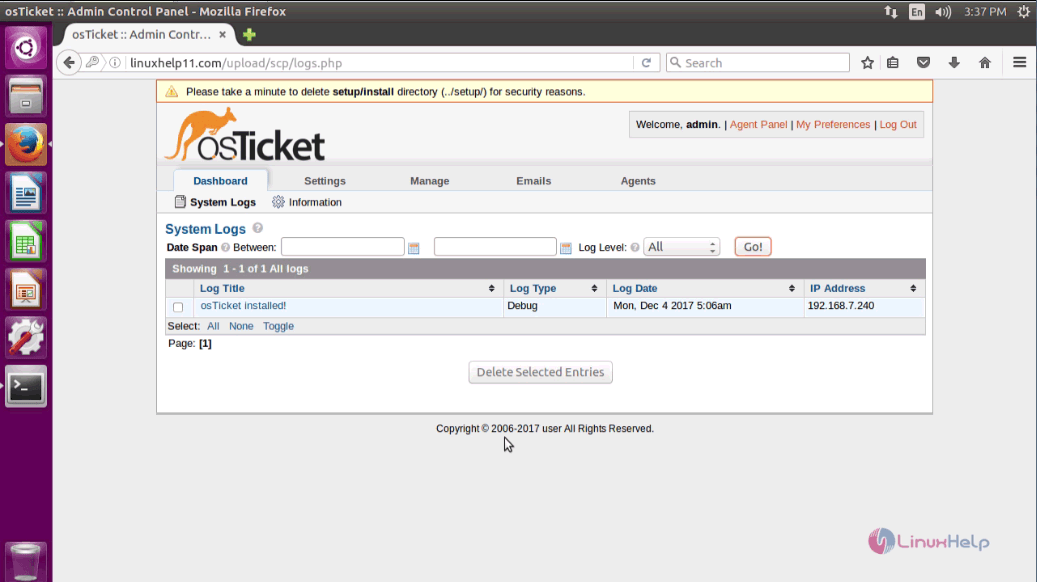
With this, the installation of OsTicket on Ubuntu 17.04 comes to an end.
Comments ( 0 )
No comments available