How to install Peek-1.3.1 on Ubuntu 18.04
To install Peek 1.3.1 on Ubuntu 18.04
Peek is a system software for Linux that provides to create simple animated GIF file based on the GIF89 file format. A screencast is created from a user-defined screen area. It is not only a general purpose screencasts application, It' s having an extended feature with focuses on the single task of creating small, silent screencasts of an area of the screen for creating animation or silent WebM or MP4 videos. It is so simple to install Peek 1.3.1 on Ubuntu 18.04 and this tutorial covers the ground on the same process.
To install Peek
First, make sure the system repository is up to date by making use of the following command.
root@linuxhelp1:~# apt-get update
Hit:1 http://security.ubuntu.com/ubuntu bionic-security InRelease
Hit:3 http://in.archive.ubuntu.com/ubuntu bionic-updates InRelease
Hit:4 http://in.archive.ubuntu.com/ubuntu bionic-backports InRelease
Get:2 http://in.archive.ubuntu.com/ubuntu bionic InRelease [235 kB]
Get:5 http://in.archive.ubuntu.com/ubuntu bionic/main amd64 Packages [1,023 kB]
.
.
Get:17 http://in.archive.ubuntu.com/ubuntu bionic/multiverse i386 Packages [143 kB]
Get:18 http://in.archive.ubuntu.com/ubuntu bionic/multiverse amd64 Packages [150 kB]
Get:19 http://in.archive.ubuntu.com/ubuntu bionic/multiverse amd64 DEP-11 Metadata [40.9 kB]
Get:20 http://in.archive.ubuntu.com/ubuntu bionic/multiverse DEP-11 64x64 Icons [221 kB]
Fetched 5,645 kB in 14s (412 kB/s)
Reading package lists... Done
Let' s add the repository that contains peek installation package.
root@linuxhelp1:~# add-apt-repository ppa:peek-developers/stable
 Stable releases of the Peek animated GIF recorder

https://github.com/phw/peek
 More info: https://launchpad.net/~peek-developers/+archive/ubuntu/stable
Press [ENTER] to continue or Ctrl-c to cancel adding it.

gpg: keybox ' /tmp/tmpr2ms71jp/pubring.gpg'  created
gpg: /tmp/tmpr2ms71jp/trustdb.gpg: trustdb created
.
.
Get:4 http://ppa.launchpad.net/peek-developers/stable/ubuntu bionic InRelease [15.9 kB]
Hit:5 http://in.archive.ubuntu.com/ubuntu bionic-backports InRelease
Get:6 http://ppa.launchpad.net/peek-developers/stable/ubuntu bionic/main amd64 Packages [612 B]
Get:7 http://ppa.launchpad.net/peek-developers/stable/ubuntu bionic/main i386 Packages [608 B]
Get:8 http://ppa.launchpad.net/peek-developers/stable/ubuntu bionic/main Translation-en [448 B]
Fetched 17.6 kB in 4s (3,998 B/s)
Reading package lists... Done
After adding the repository we need to update the system repository package you can do that by making use of the following command.
root@linuxhelp1:~# apt-get update
Hit:1 http://ppa.launchpad.net/peek-developers/stable/ubuntu bionic InRelease
Hit:2 http://security.ubuntu.com/ubuntu bionic-security InRelease
Hit:3 http://in.archive.ubuntu.com/ubuntu bionic InRelease
Hit:4 http://in.archive.ubuntu.com/ubuntu bionic-updates InRelease
Hit:5 http://in.archive.ubuntu.com/ubuntu bionic-backports InRelease
Reading package lists... Done
To install Peek on your machine enter the following command.
root@linuxhelp1:~# apt-get install peek
Reading package lists... Done
Building dependency tree
Reading state information... Done
The following packages were automatically installed and are no longer required:
  apache2-bin apache2-data apache2-utils libapr1 libaprutil1 libaprutil1-dbd-sqlite3
  libaprutil1-ldap
Use ' sudo apt autoremove'  to remove them.
The following additional packages will be installed:
.
.
Setting up libavresample3:amd64 (7:3.4.2-1build1) ...
Setting up libavcodec57:amd64 (7:3.4.2-1build1) ...
Setting up libchromaprint1:amd64 (1.4.3-1) ...
Setting up libavformat57:amd64 (7:3.4.2-1build1) ...
Setting up libavfilter6:amd64 (7:3.4.2-1build1) ...
Setting up libavdevice57:amd64 (7:3.4.2-1build1) ...
Setting up ffmpeg (7:3.4.2-1build1) ...
Setting up peek (1.3.1-0~ppa23~ubuntu18.04.1) ...
Processing triggers for libc-bin (2.27-0ubuntu2) ...
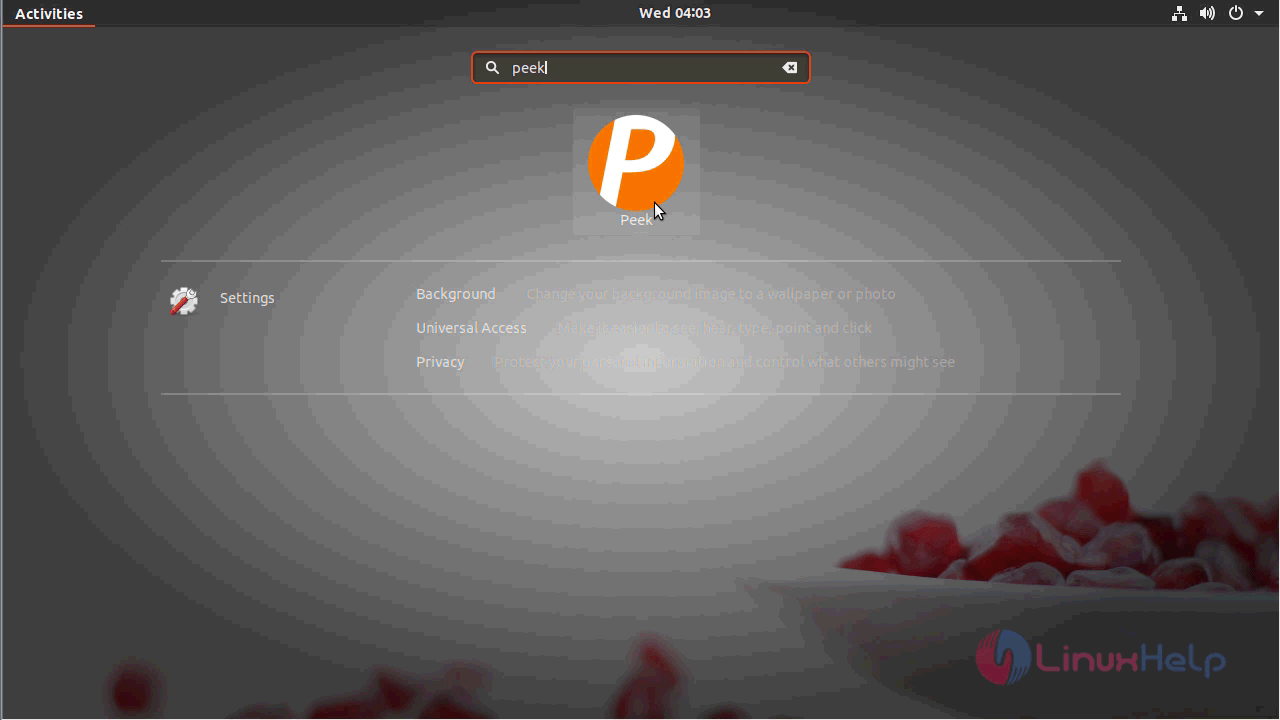
Now the peek has been installed on the machine. In order to open the peek application go to the ubuntu dashboard and search for Peek.
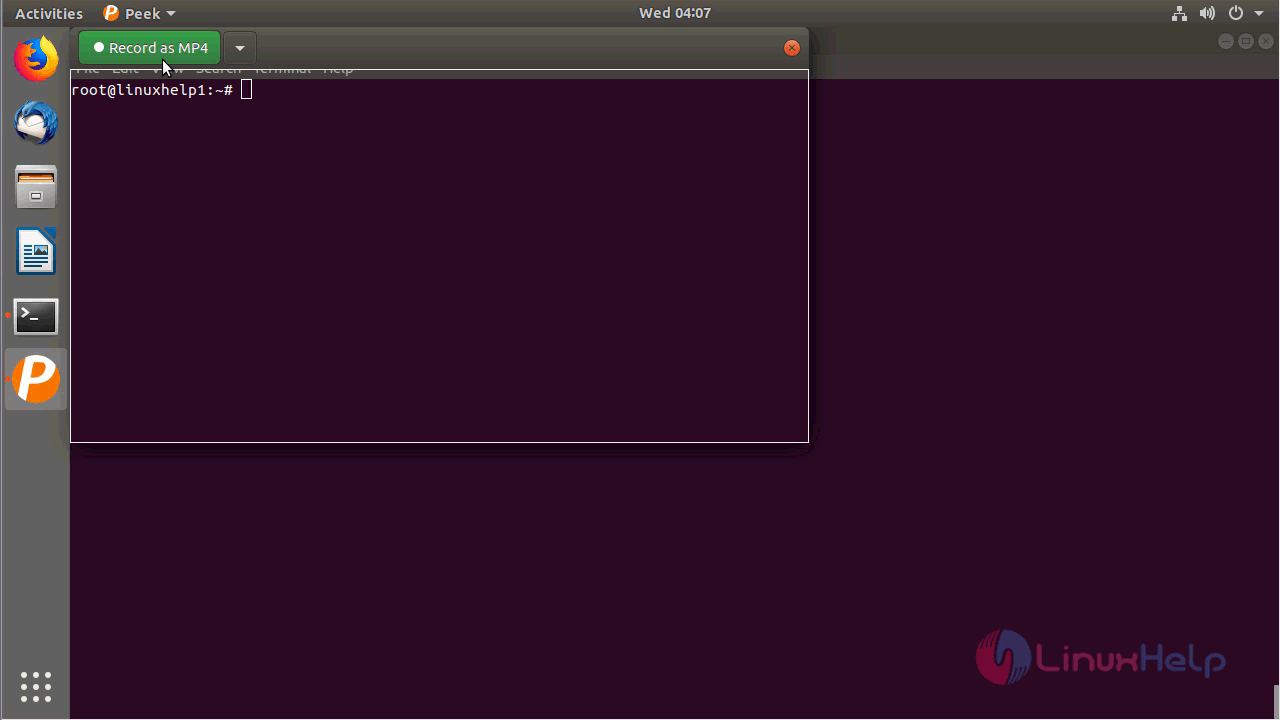
You will see the following screen after opening the application.
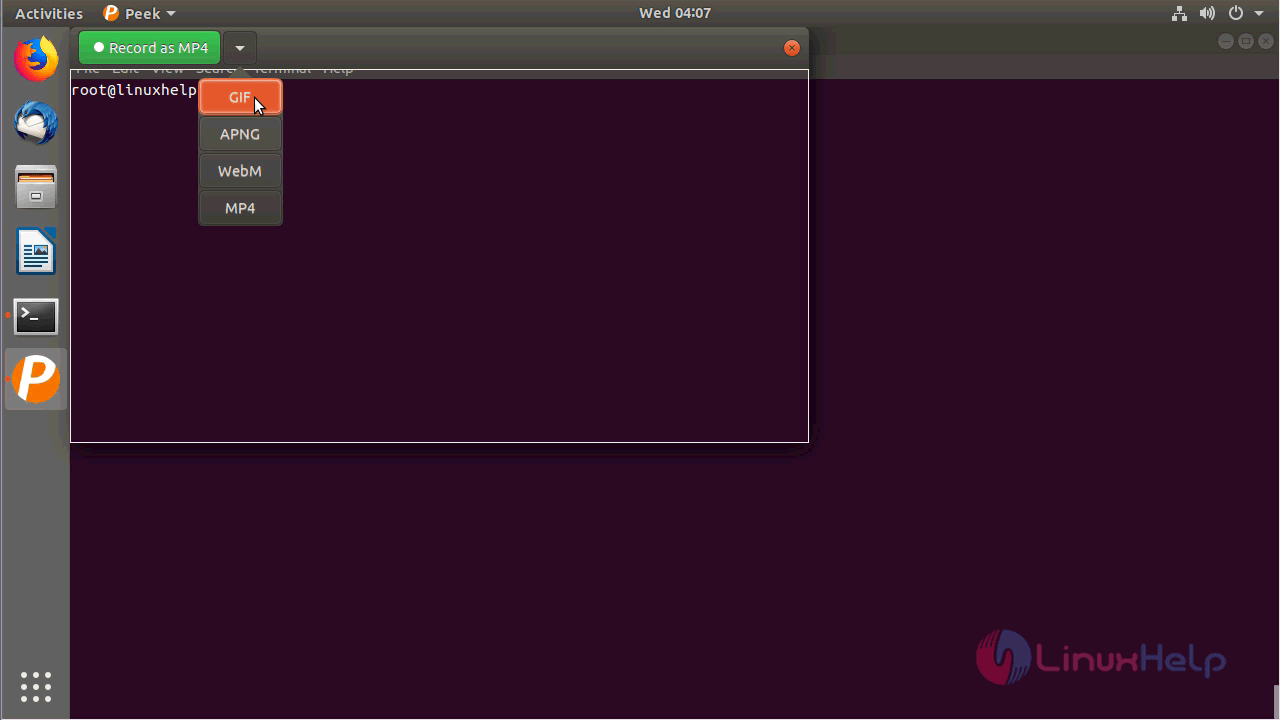
In order to select a type of screencasts mode, you can make use of drop-down option on the top left corner of the application.
To start recording with GIF format choose " record as GIF."
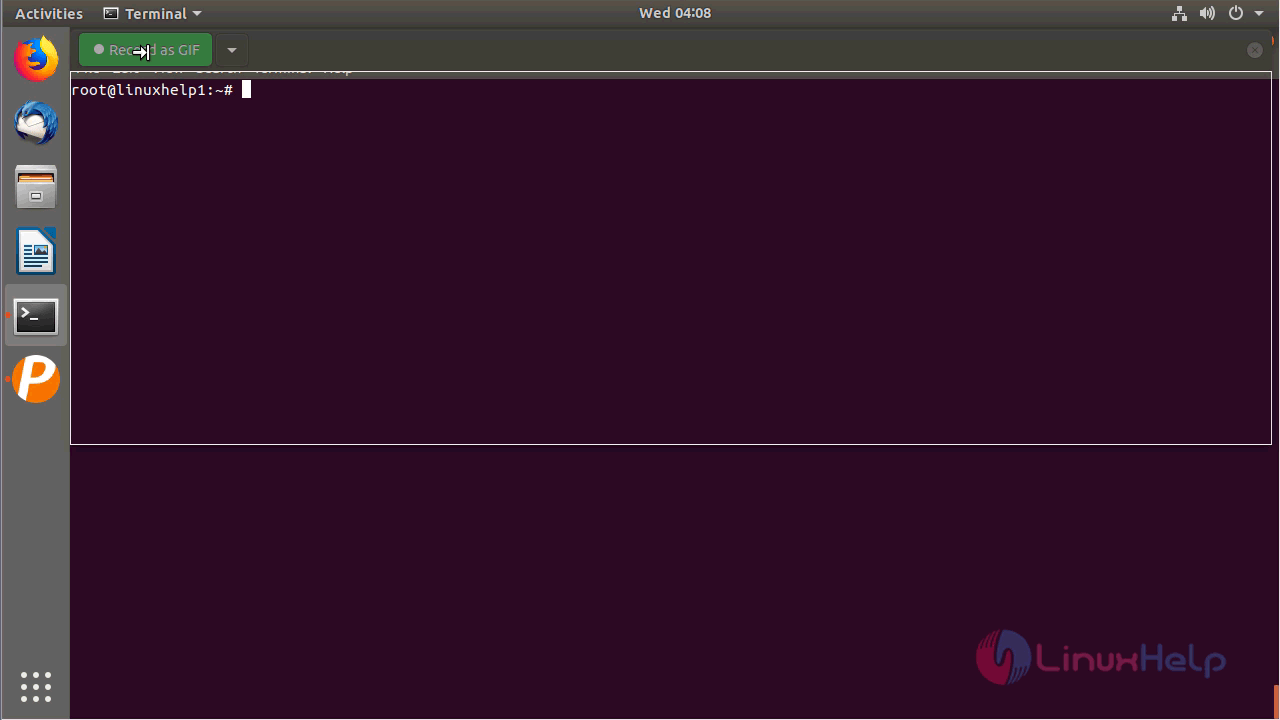
After recording if you want To stop the recording process click on stop
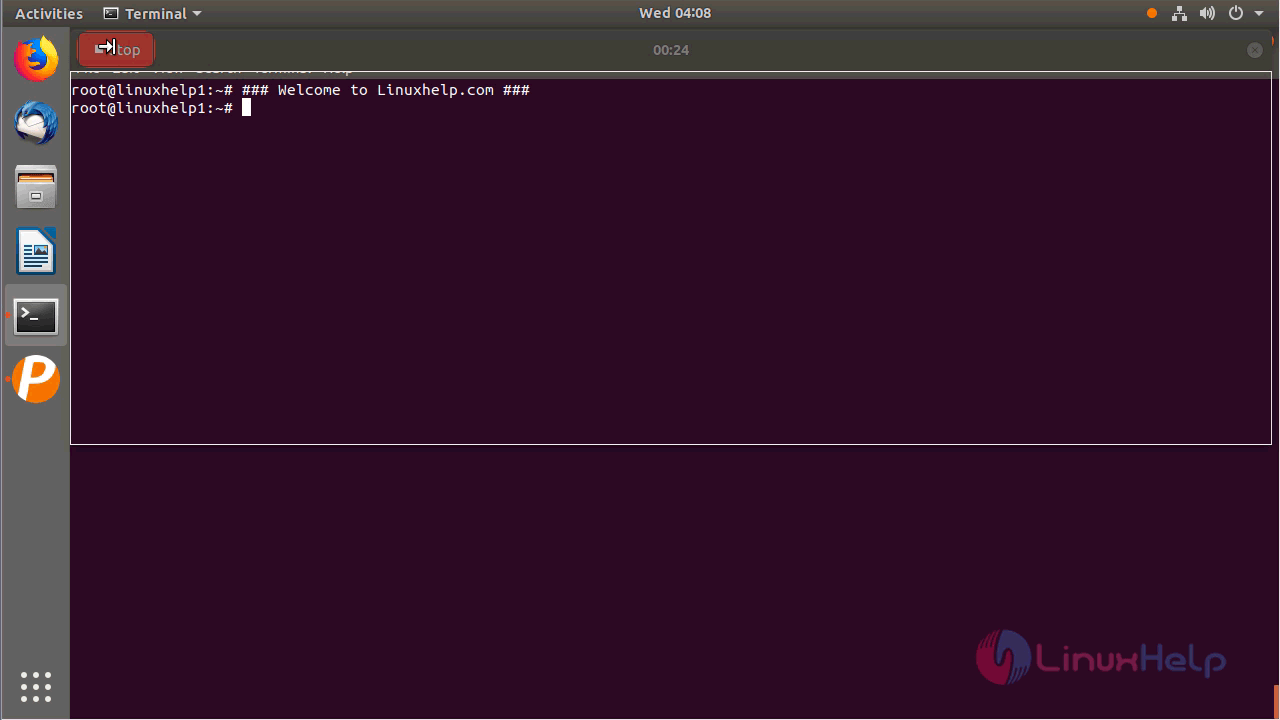
After clicking STOP you will be prompted to save, choose a location and save the file as gif format. In order to check the peek version, you can make use make use of the below-mentioned command in the image.
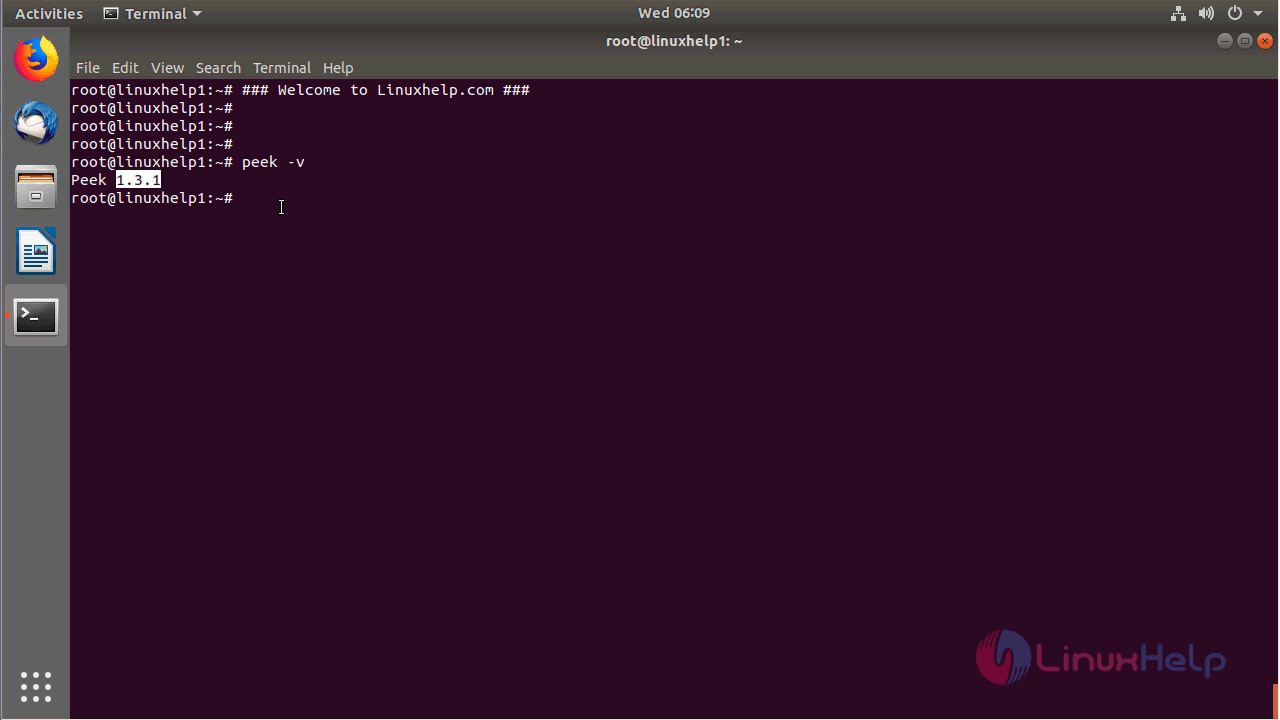
With this, the method to install Peek-1.3.1 on Ubuntu 18.04 comes to an end.
Comments ( 0 )
No comments available