• Categories
    Category
    {{ postCtrl.tags }}
    • {{ category.tag_type }}

      • {{tag.tag_name}}
      • View more
  • Categories
    Category
    {{ postCtrl.tags }}
    • {{ category.tag_type }}

      • {{tag.tag_name}}
      • View more
  • News
  • Tutorials
  • Forums
  • Tags
  • Users
Tutorial News Comments FAQ Related Articles

How to install peek in Ubuntu

{{postValue.id}}

How to install peek in Ubuntu

The Peek is a very basic screen recording tool which contains only a set of few options. This tool is used to create/record a section of screen and export the recorded video as a GIF file. It uses ffmpeg and imagemagick to create the GIF screencasts. The peek can be fixed or resized on any screen to record and also the user can change the format of the created recording. This tutorial covers the installation process of peek on Ubuntu.

Installation procedure

To start the installation procedure, import the repo file of the tool by executing the following command.

user1@linuxhelpubnt:~$ sudo add-apt-repository ppa:peek-developers/stable
[sudo] password for user1:
 Stable releases of the Peek animated GIF recorder
.
.
.
gpg:               imported: 1  (RSA: 1)
OK

The repository is added to the system. Run the apt-get update command to update the target system.

user1@linuxhelpubnt:~$ sudo apt-get update
Hit:1 http://in.archive.ubuntu.com/ubuntu xenial InRelease
Get:2 http://ppa.launchpad.net/peek-developers/stable/ubuntu xenial InRelease [18.1 kB]      
.
.
.
Reading package lists... Done

The target system is updated with the required repositories. Now run the installation by executing the apt-get install command.

user1@linuxhelpubnt:~$ sudo apt-get install peek
Reading package lists... Done
Building dependency tree      
.
.
.
Setting up gstreamer1.0-plugins-bad:amd64 (1.8.3-1ubuntu0.2) ...
Processing triggers for libc-bin (2.23-0ubuntu3) ...

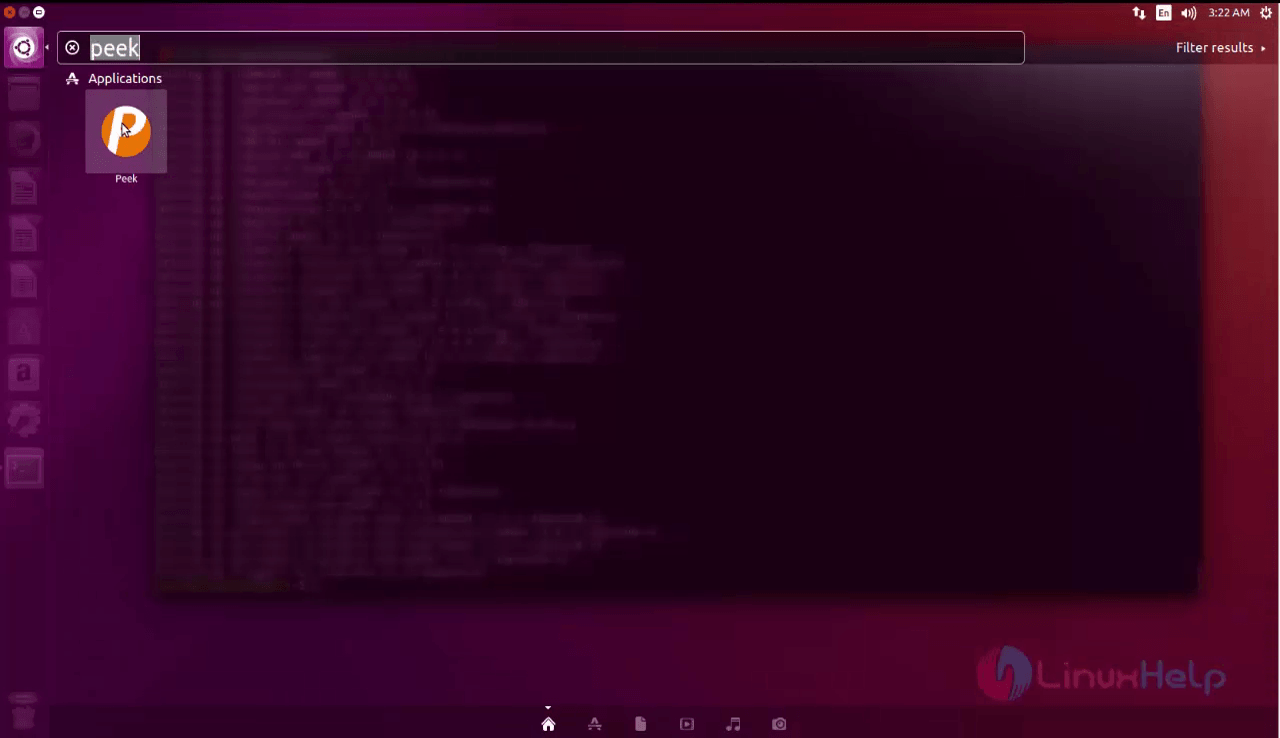
The Peek application has been successfully installed. To run the application, type the package name in the ubuntu dashboard and click on the icon to run the application. ubuntu dashboard
To record the screen, click on the record button on the top of the window to record and also to stop the recordings on the screen.
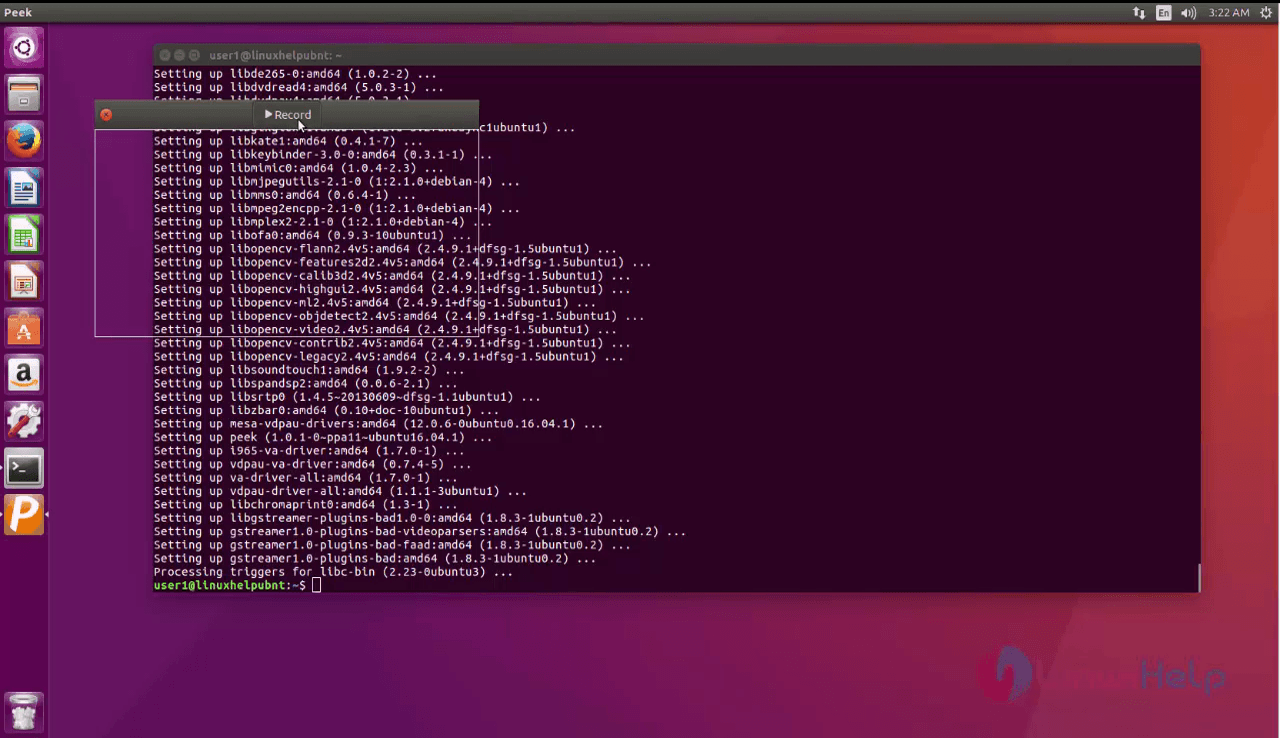
recording

To use the various options in peek application, click on the preferences option to change file formats, frame rate etc.
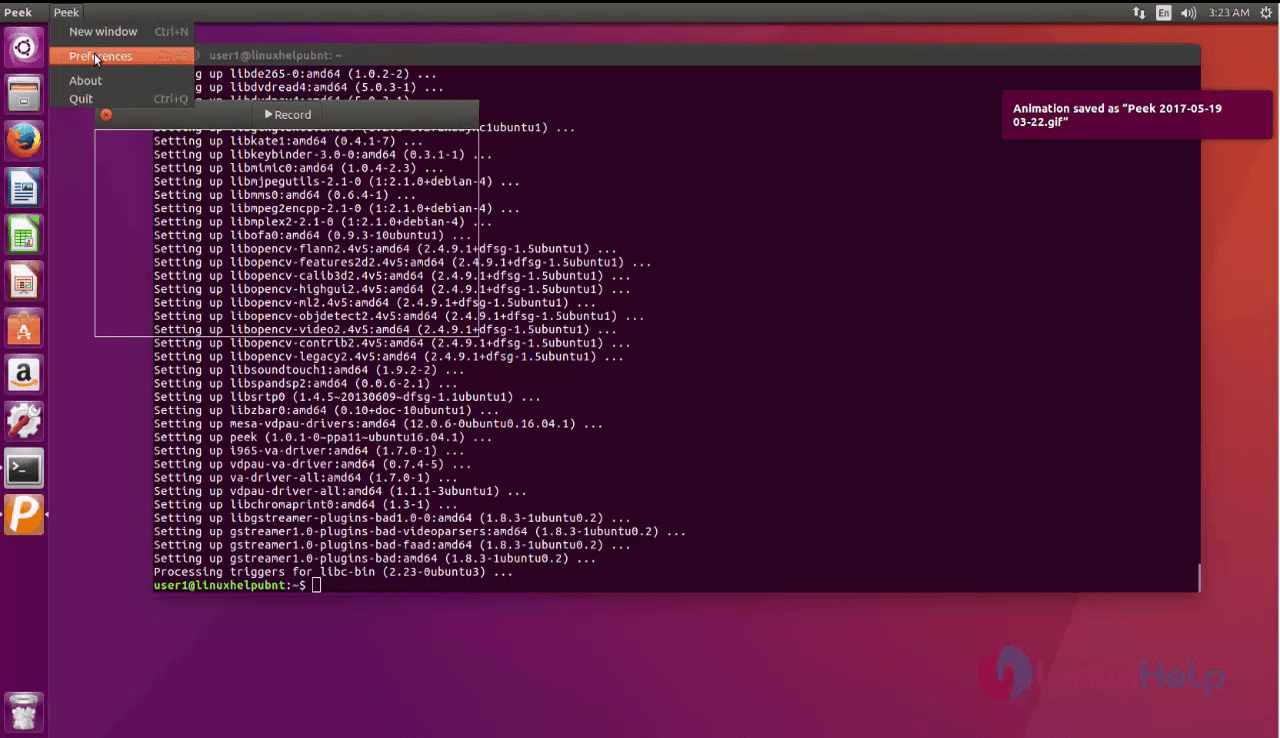
peek tool

Wasn' t that an easy installation procedure? The peek application uses a good resolution gif, mp4, webM file formats.

Tags:
gabriel
Author: 

Comments ( 0 )

No comments available

Add a comment
{{postCtrl.cmtErrMsg}}

Frequently asked questions ( 5 )

Q

What is the best alternative for peek?

A

The followin g alternative tolls are available for Peek, as give below
"OBS - Open broadcaster software,screen to gif"

Q

How to install Peek on Linuxmint?

A

For the instalation of Peek on Linuxmint, use the following link as given below "https://www.linuxhelp.com/how-to-install-peek-1-2-2-on-linux-mint-18-3/"

Q

How to access the Github repository for the Peek?

A

For accessing the Github repository of Peek, use the following link as given below "https://github.com/phw/peek"

Q

what is the use of installing the peek in ubuntu?

A

The Peek is a very basic screen recording tool which contains only a set of few options. This tool is used to create/record a section of screen and export the recorded video as a GIF file. It uses ffmpeg and imagemagick to create the GIF screencasts. The peek can be fixed or resized on any screen to record and also the user can change the format of the created recording.

Q

What is the main terms of using the peek?

A

Peek offers only one feature, and that is to provide users with top quality gif files of assigned portions of their desktop screens. You can open its preferences to choose open the gif file after saving and the options to set delay count, resolution down-sampling, and framerate.

Back To Top!
Rank
User
Points

Top Contributers

userNamenaveelansari
135850

Top Contributers

userNameayanbhatti
92510

Top Contributers

userNamehamzaahmed
32150

Top Contributers

1
userNamelinuxhelp
31040

Top Contributers

userNamemuhammadali
24500
Can you help Owen ?
How to add SSH key to my Gitlab account

I need to add the SSH key in my gitlab account. How to do so ????

Networking
  • Routing
  • trunk
  • Netmask
  • Packet Capture
  • domain
  • HTTP Proxy
Server Setup
  • NFS
  • KVM
  • Memory
  • Sendmail
  • WebDAV
  • LXC
Shell Commands
  • Cloud commander
  • Command line archive tools
  • last command
  • Shell
  • terminal
  • Throttle
Desktop Application
  • Linux app
  • Pithos
  • Retrospect
  • Scribe
  • TortoiseHg
  • 4Images
Monitoring Tool
  • Monit
  • Apache Server Monitoring
  • EtherApe 
  • Arpwatch Tool
  • Auditd
  • Barman
Web Application
  • Nutch
  • Amazon VPC
  • FarmWarDeployer
  • Rukovoditel
  • Mirror site
  • Chef
Contact Us | Terms of Use| Privacy Policy| Disclaimer
© 2025 LinuxHelp.com All rights reserved. Linux™ is the registered trademark of Linus Torvalds. This site is not affiliated with linus torvalds in any way.