How to Install PunBB on Ubuntu 17.04
To Install PunBB on Ubuntu 17.04
PunBB is an open source, lightweight forum software written in PHP with simple layout and clean design. In general, it is faster than other forum software and it is very easy to administrate and moderate. The default theme of PunBB supports responsive design, so it is mobile and tablet friendly. It is really simple to install PUNBB on Ubuntu 17.04, and this tutorial covers the ground on the same process.
Pre-requirement
Install LAMP (apache2, mysql-server, php )
In mysql (create database, user and give privileges to user)
For install php
Php modules (apt install php php-gd php-curl php-mysql php-mcrypt php-mbstring php-ldap php-odbc php-xml php-xmlrpc php-soap php-tidy)
Installing PUNBB
You need to download PunBB package in your HTML location, so make sure you use the wget command along with the download link in the following manner.
root@linuxhelp:/var/www/html# wget https://codeload.github.com/punbb/punbb/zip/master
--2017-12-02 03:20:57--  https://codeload.github.com/punbb/punbb/zip/master
Resolving codeload.github.com (codeload.github.com)... 192.30.255.121, 192.30.255.120
Connecting to codeload.github.com (codeload.github.com)|192.30.255.121|:443... connected.
HTTP request sent, awaiting response... 200 OK
Length: unspecified [application/zip]
Saving to: ‘ master’

master                  [      < =>            ] 452.39K   274KB/s    in 1.7s

2017-12-02 03:21:01 (274 KB/s) - ‘ master’  saved [463252]
Once the file is downloaded, you need to extract it as follows.
root@linuxhelp:/var/www/html# unzip master
Archive:  master
b20a80ae87ec5285df5d0e0de1bb64e5923e603f
   creating: punbb-master/
  inflating: punbb-master/.htaccess.dist
  inflating: punbb-master/COPYING
  inflating: punbb-master/ChangeLog
  inflating: punbb-master/README
  inflating: punbb-master/README.md
   creating: punbb-master/admin/
  inflating: punbb-master/admin/bans.php
  inflating: punbb-master/admin/categories.php
  inflating: punbb-master/admin/censoring.php
.
.
.
inflating: punbb-master/userlist.php
  inflating: punbb-master/viewforum.php
  inflating: punbb-master/viewtopic.php
Later, rename the extracted directory as per your wish, but use the following command for that.
root@linuxhelp:/var/www/html# mv punbb-master punbb
Next, you need to change the ownership of the extracted directory and for that, you need to run the following command.
root@linuxhelp:/var/www/html# chown -R www-data.www-data punbb
Now, you need to create a conf file for VirtualHosting.
root@linuxhelp:/var/www/html# vim /etc/apache2/sites-available/punbb.conf
In the newly created conf file, you need to add the following lines.
< VirtualHost *:80>
ServerAdmin admin@linuxhelp1.com
DocumentRoot /var/www/html/punbb/
ServerName linuxhelp1.com
< Directory /var/www/html/punbb/>
Options FollowSymLinks
AllowOverride All
Order allow,deny
allow from all
< /Directory>
ErrorLog /var/log/apache2/linuxhelp1.com-error_log
CustomLog /var/log/apache2/linuxhelp1.com-access_log common
< /VirtualHost>
Next, you need to make an entry in hosts file. So open it.
root@linuxhelp:/var/www/html# vim /etc/hosts
And add the following line in it.
< ipaddr>    domainname
Enable newly created conf file
root@linuxhelp:/var/www/html# a2ensite punbb.conf
Enabling site punbb.
To activate the new configuration, you need to run:
  service apache2 reload
Next, you need to restart the Apache service as follows.
root@linuxhelp:/var/www/html# systemctl restart apache2.service
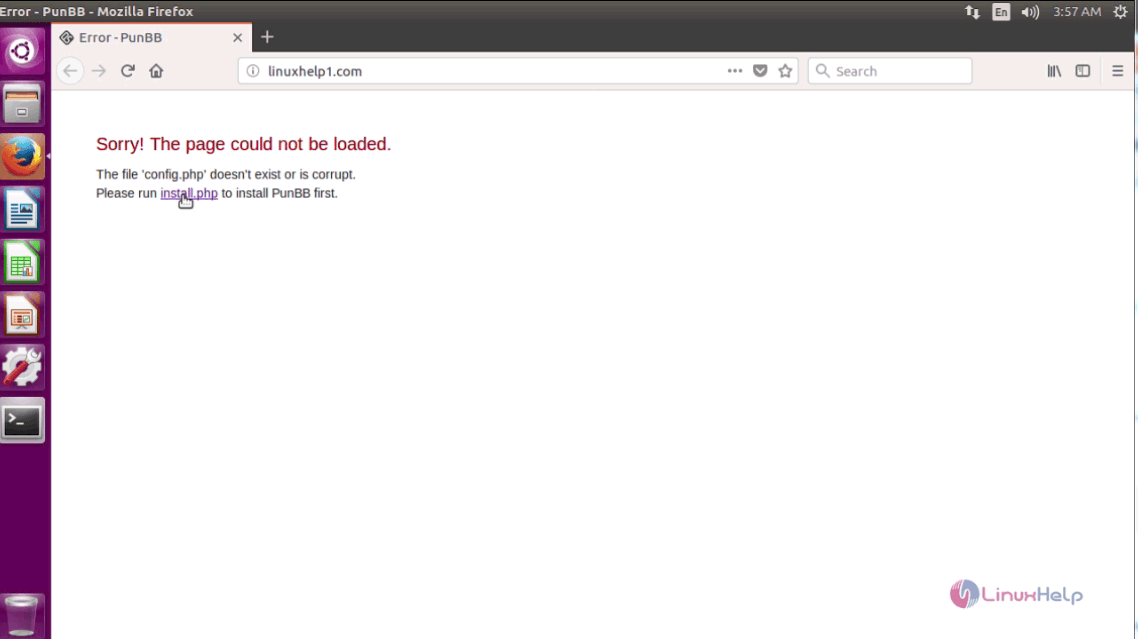
Now, you should open a browser and give http://yourdomain as URL. The installer of PunBB appears on the screen, proceed with the installation.
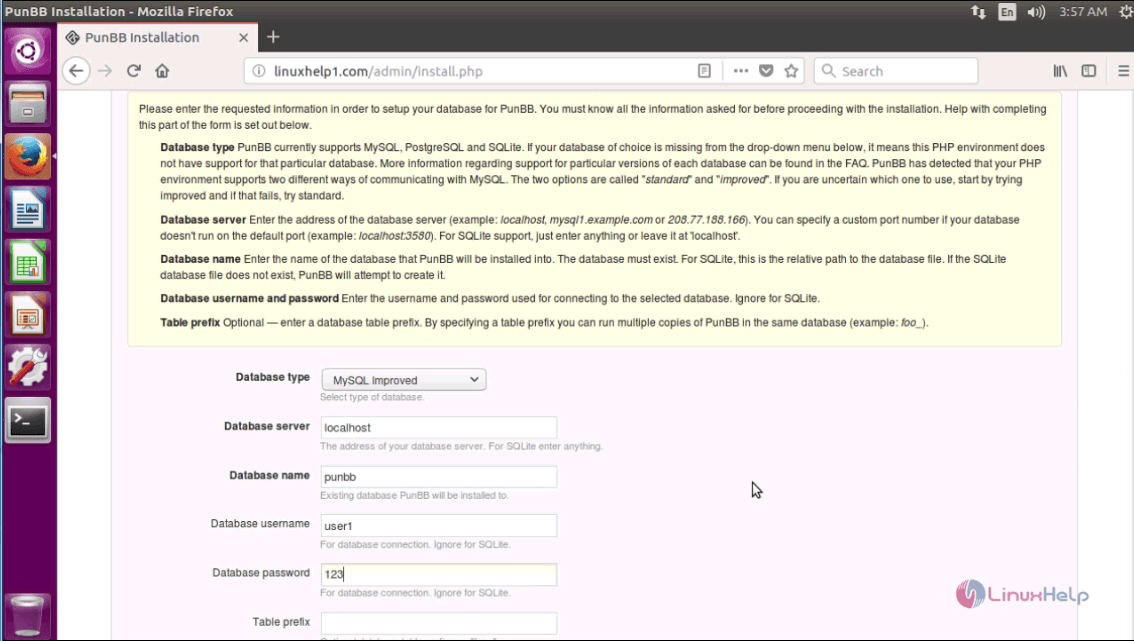
In the following page, you need to fill the database, admin details and then click install.
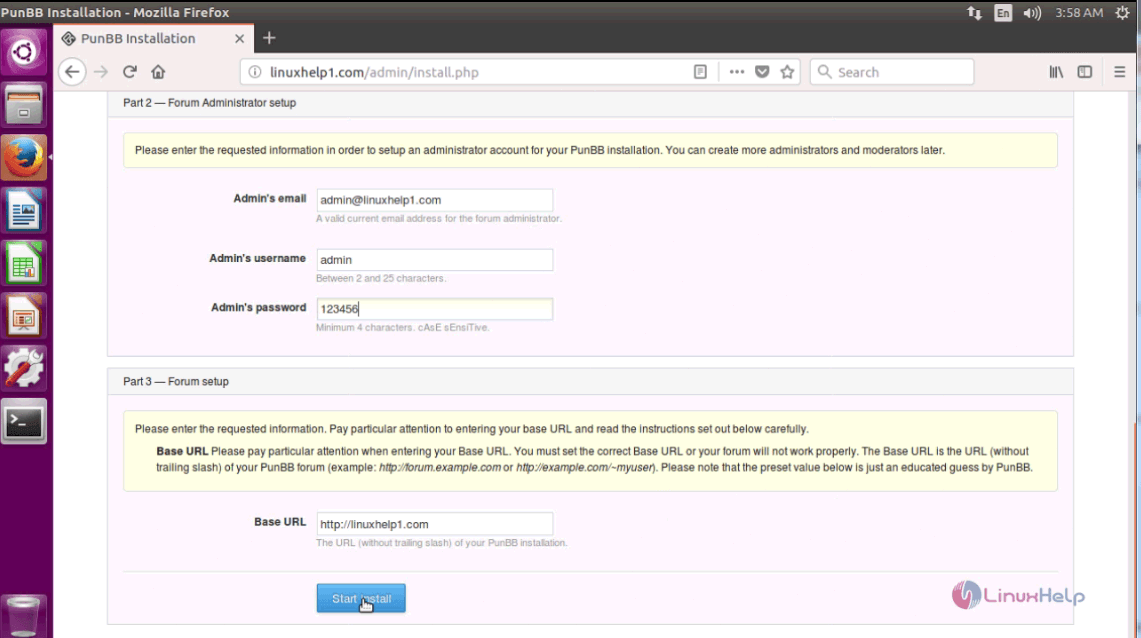
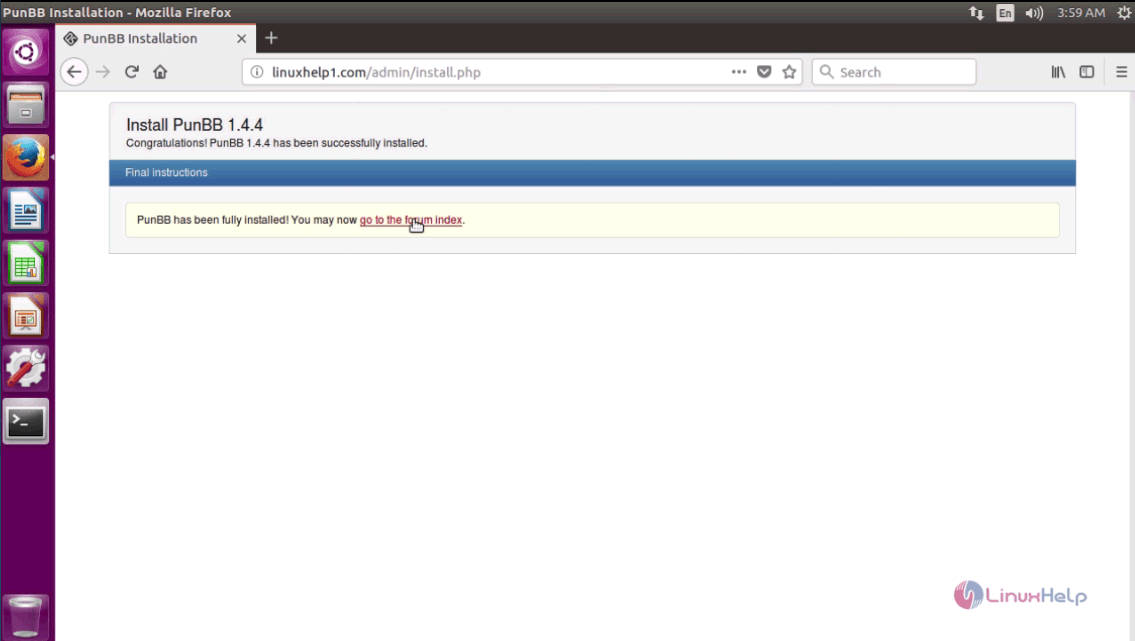
The installation is now complete, click go to forum hyperlink.
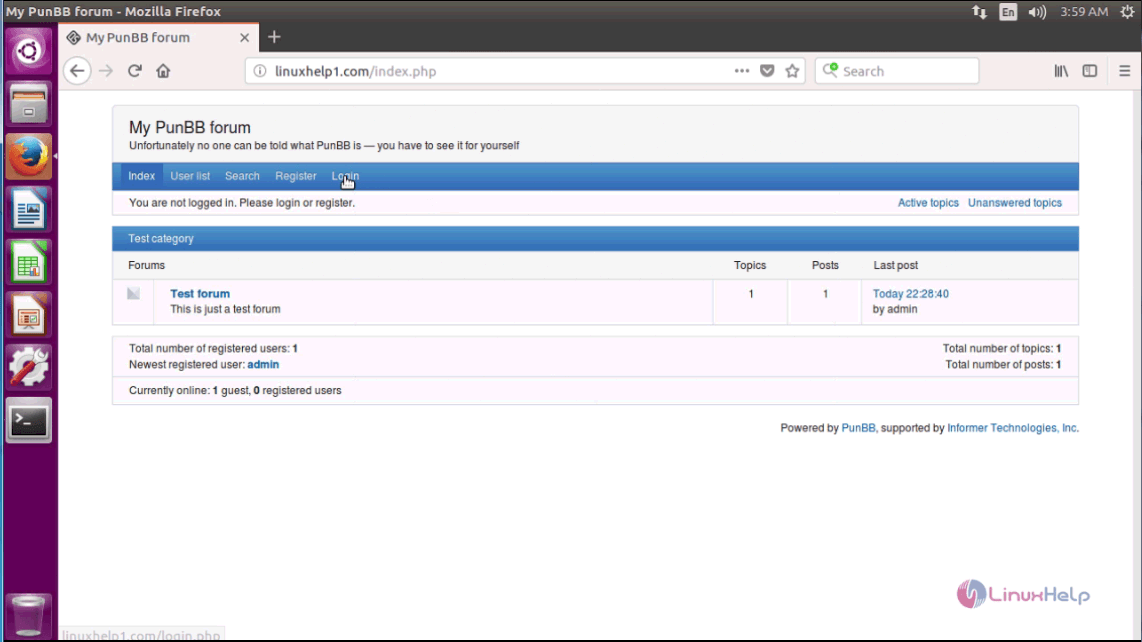
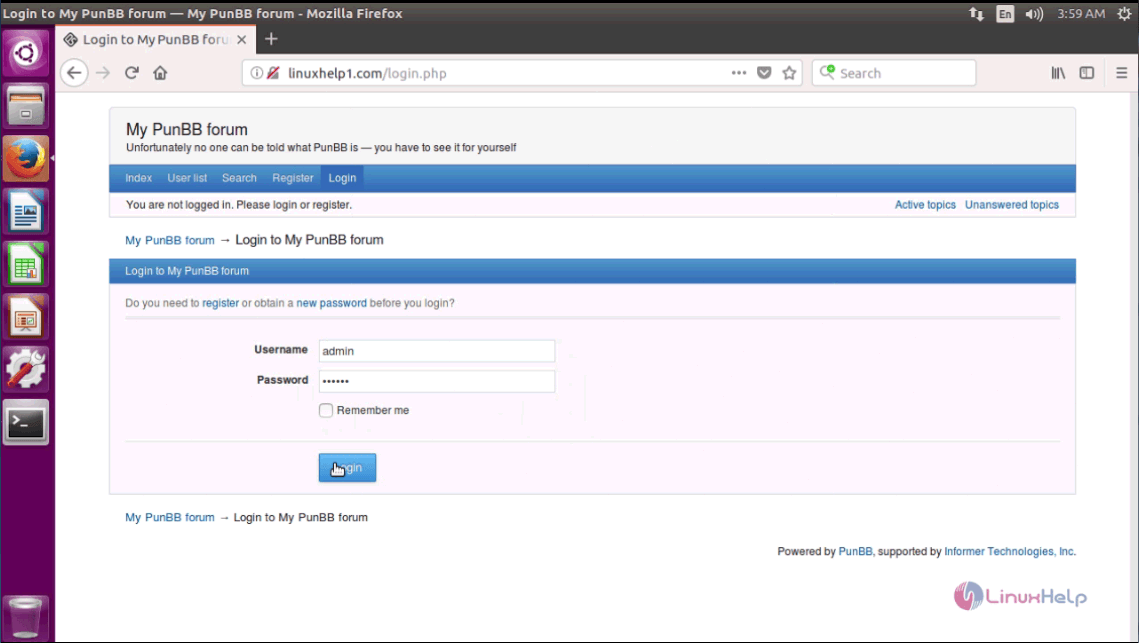
Home page , go to login , give admin credential , click login
Admin login successful
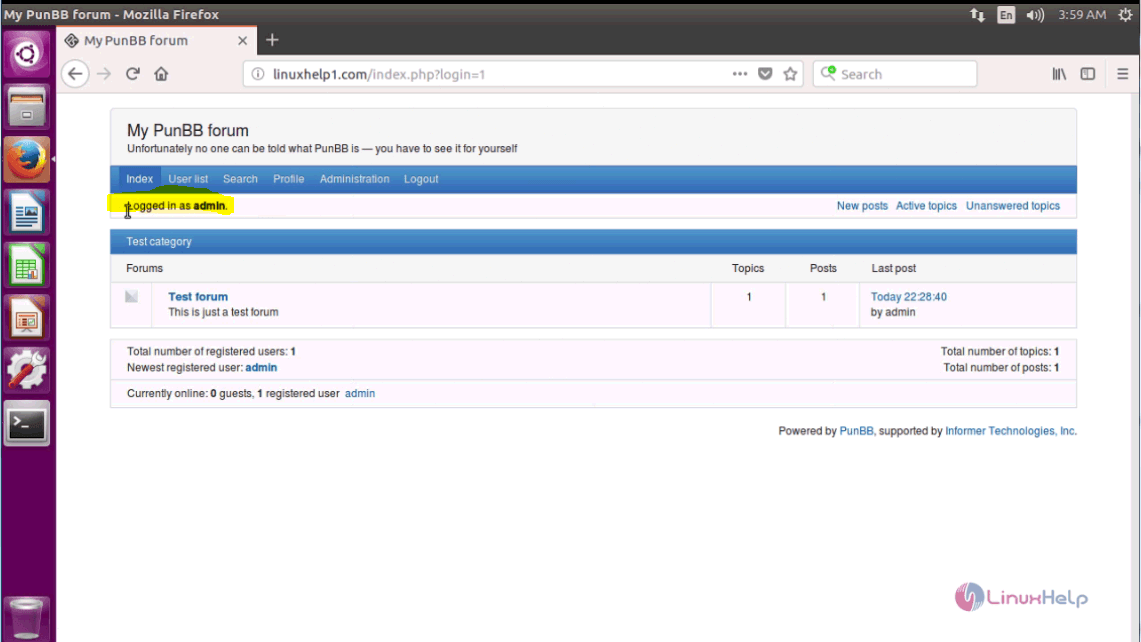
With this, the installation of PunBB on Ubuntu 17.04 gets completed.
Comments ( 0 )
No comments available