• Categories
    Category
    {{ postCtrl.tags }}
    • {{ category.tag_type }}

      • {{tag.tag_name}}
      • View more
  • Categories
    Category
    {{ postCtrl.tags }}
    • {{ category.tag_type }}

      • {{tag.tag_name}}
      • View more
  • News
  • Tutorials
  • Forums
  • Tags
  • Users
Tutorial News Comments FAQ Related Articles

How to install Qmmp on Ubuntu 17.04

{{postValue.id}}

How to install Qmmp on Ubuntu 17.04

The Qmmp is a popular open-source, cross-platform multimedia player, similar to Winamp and written in Qt. It is a simple, intitutive user interface and supports Ogg Vorbis, FLAC and MP3 music formats and also supports embedded ID3v2 album images. This tutorial covers the installation procedure of Qmmp on Ubuntu.

Installation procedure

To begin with the installation procedure, add the repository to the system by executing the following command.

root@linuxhelp1:/home/user1# add-apt-repository ppa:forkotov02/ppa
 Releases of Qt-based multimedia player (Qmmp)
Installation:
sudo add-apt-repository ppa:forkotov02/ppa
sudo apt-get update
sudo apt-get install qmmp qmmp-plugin-pack
Qt4-based version (for Ubuntu 16.04 or higher):
sudo apt-get install qmmp-qt4 qmmp-plugin-pack-qt4
 More info: https://launchpad.net/~forkotov02/+archive/ubuntu/ppa
Press [ENTER] to continue or ctrl-c to cancel adding it
gpg: keybox ' /tmp/tmp4cuxy_wt/pubring.gpg'  created
gpg: /tmp/tmp4cuxy_wt/trustdb.gpg: trustdb created
gpg: key 0F2BC52FC4FBC3E6: public key " Launchpad PPA for Ilya Kotov"  imported
gpg: Total number processed: 1
gpg:               imported: 1
OK

Next run the apt-get update command to update the local repository index.

root@linuxhelp1:/home/user1# apt-get update
Get:1 http://ppa.launchpad.net/forkotov02/ppa/ubuntu zesty InRelease [15.4 kB]                                                  
Hit:2 http://in.archive.ubuntu.com/ubuntu zesty InRelease                                                                       
Get:3 http://security.ubuntu.com/ubuntu zesty-security InRelease [89.2 kB]        
&hellip 
&hellip 
&hellip 
Get:22 http://security.ubuntu.com/ubuntu zesty-security/universe amd64 Packages [9,204 B]
Get:23 http://security.ubuntu.com/ubuntu zesty-security/universe Translation-en [7,188 B]
Get:24 http://security.ubuntu.com/ubuntu zesty-security/universe amd64 DEP-11 Metadata [2,184 B]                                                                                                          
Fetched 453 kB in 6s (75.3 kB/s)                                                                                                                                                                           
Reading package lists... Done

The target system is updated with the required repositories. Now install the Qmmp package by executing the following command.

root@linuxhelp1:/home/user1# apt-get install qmmp qmmp-plugin-pack
Reading package lists... Done
Building dependency tree      
Reading state information... Done      
&hellip 
&hellip 
Setting up libavformat57:amd64 (7:3.2.4-1build2) ...
Setting up qmmp (1.1.8-1ubuntu1~zesty0) ...
Setting up qmmp-plugin-pack (1.1.3-1ubuntu1~zesty0) ...
Processing triggers for libc-bin (2.24-9ubuntu2) ...

To open the Qmmp application, execute the following command and the application will run.

root@linuxhelp1:/home/user1# qmmp
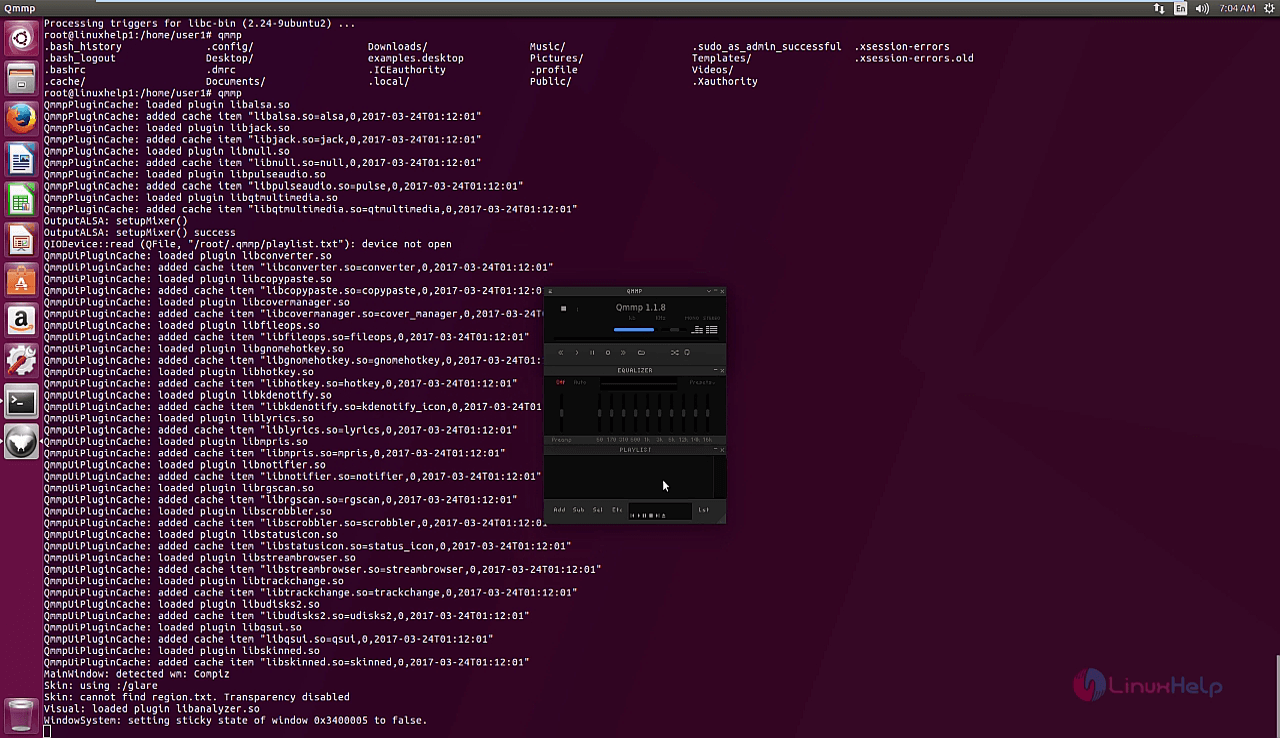
terminal

Now the application can be used to listen the user' s favourite music playlist.
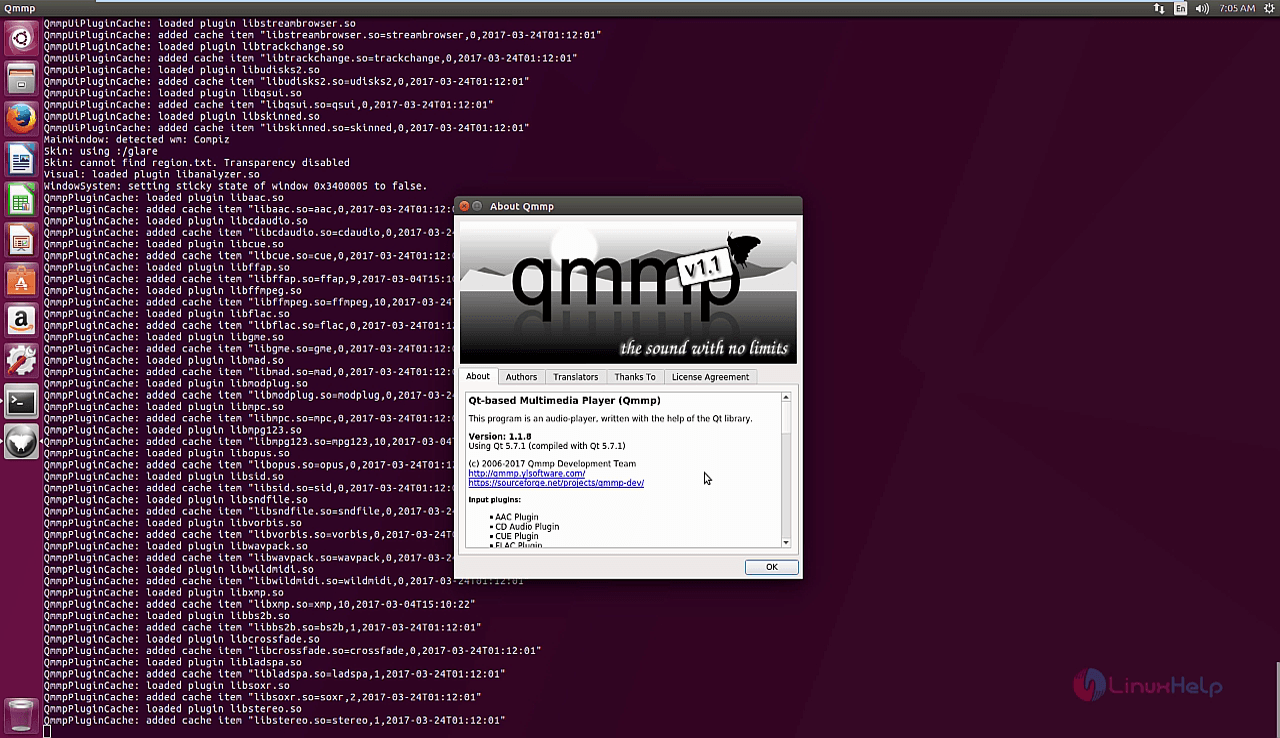
qmmp

Wasn' t that an easy installation procedure? The Qmmp is inspired by Winamp which is the software' s default user interface.

Tags:
michael
Author: 

Comments ( 0 )

No comments available

Add a comment
{{postCtrl.cmtErrMsg}}

Frequently asked questions ( 5 )

Q

How to check the qmmp player version in command line?

A

Foe check the version of QMMP player, use the following command as given below "# qmmp -V"

Q

How to remove qmmp player on Ubuntu?

A

For uninstalling the QMMP player on Ubuntu, use the follwing command as given below, "# apt-get remove qmmp* qmmp-plugin-pack* && sudo apt-get autoremove"

Q

How to install QMMP on Debian?

A

For the installation of QMMP on Debian, use the following link as given below
"https://www.linuxhelp.com/how-to-install-qmmp-on-debian-8-3/"

Q

What are the formats will support the QMMP player?

A

The following formats support the QMMP player,


MPEG1 layer 2/3

Ogg Vorbis

Ogg Opus

Native FLAC/Ogg FLAC

Musepack

WavePack

tracker modules (mod, s3m, it, xm, etc)

ADTS AAC

CD Audio

WMA, Monkey's Audio (and other formats provided by FFmpeg library)

PCM WAVE (and other formats provided by libsndfile library)

Midi

SID

Chiptune formats (AY, GBS, GYM, HES, KSS, NSF, NSFE, SAP, SPC, VGM, VGZ, VTX)

Q

What is the feature available in QMMP player?

A

What is the feature available in QMMP player?

Back To Top!
Rank
User
Points

Top Contributers

userNamenaveelansari
135850

Top Contributers

userNameayanbhatti
92510

Top Contributers

userNamehamzaahmed
32150

Top Contributers

1
userNamelinuxhelp
31040

Top Contributers

userNamemuhammadali
24500
Can you help David Lopez Guillen ?
Ayuda urgente instale SSL para servidor Opensuse y ahora no funciona tengo servicio web

hola segui este tutorial para tener un certificado ssl y ahora no se ve mi app en la red, espero alguien pueda ayudarme, tengo M9oodle en3.5 en un servidor open suse y ahora no funciona por favor ayuda.

https://www.linuxhelp.com/how-to-create-ssl-certificate-in-opensuse

Networking
  • Routing
  • trunk
  • Netmask
  • Packet Capture
  • domain
  • HTTP Proxy
Server Setup
  • NFS
  • KVM
  • Memory
  • Sendmail
  • WebDAV
  • LXC
Shell Commands
  • Cloud commander
  • Command line archive tools
  • last command
  • Shell
  • terminal
  • Throttle
Desktop Application
  • Linux app
  • Pithos
  • Retrospect
  • Scribe
  • TortoiseHg
  • 4Images
Monitoring Tool
  • Monit
  • Apache Server Monitoring
  • EtherApe 
  • Arpwatch Tool
  • Auditd
  • Barman
Web Application
  • Nutch
  • Amazon VPC
  • FarmWarDeployer
  • Rukovoditel
  • Mirror site
  • Chef
Contact Us | Terms of Use| Privacy Policy| Disclaimer
© 2025 LinuxHelp.com All rights reserved. Linux™ is the registered trademark of Linus Torvalds. This site is not affiliated with linus torvalds in any way.