• Categories
    Category
    {{ postCtrl.tags }}
    • {{ category.tag_type }}

      • {{tag.tag_name}}
      • View more
  • Categories
    Category
    {{ postCtrl.tags }}
    • {{ category.tag_type }}

      • {{tag.tag_name}}
      • View more
  • News
  • Tutorials
  • Forums
  • Tags
  • Users
Tutorial News Comments FAQ Related Articles

How to install QuteBrowser on Ubuntu 18.04

{{postValue.id}}

To install QuteBrowser on Ubuntu 18.04

qutebrowser is a web browser for Linux, Windows, and macOS operating systems with vim-style key bindings and a minimal GUI.[4] It is keyboard-driven and is inspired by similar software such as Vimperator and dwb.[5] It uses DuckDuckGo as the default search engine. Qutebrowser is included in the native repositories of Linux distributions such as Fedora and Arch Linux. In this tutorial, we will cover the installation of Qutebrowser on Ubuntu 18.04.

Installation

Update the system repository using the following command

root@linuxhelp1:~# apt-get update
Hit:1 http://ppa.launchpad.net/ondrej/php/ubuntu bionic InRelease
Hit:2 http://in.archive.ubuntu.com/ubuntu bionic InRelease               
Get:3 http://in.archive.ubuntu.com/ubuntu bionic-updates InRelease \[88.7 kB\]
Get:4 http://security.ubuntu.com/ubuntu bionic-security InRelease \[83.2 kB\]         
Hit:5 http://in.archive.ubuntu.com/ubuntu bionic-backports InRelease                
Fetched 172 kB in 2s (106 kB/s)
Reading package lists... Done

Install the Qutebrowser package using the following command

root@linuxhelp1:~# apt-get install qutebrowser -y
Reading package lists... Done
Building dependency tree       
Reading state information... Done
The following packages were automatically installed and are no longer required:
  apache2-bin apache2-data apache2-utils libapr1 libaprutil1 libaprutil1-dbd-sqlite3
  libaprutil1-ldap linux-headers-4.15.0-23 linux-headers-4.15.0-23-generic
  linux-image-4.15.0-23-generic linux-modules-4.15.0-23-generic
  linux-modules-extra-4.15.0-23-generic
Use 'sudo apt autoremove' to remove them.
The following additional packages will be installed:
  i965-va-driver libaacs0 libavcodec57 libavformat57 libavutil55 libbdplus0 libbluray2
  libchromaprint1 libcrystalhd3 libgme0 libminizip1 libopenjp2-7 libopenmpt0 libqt5designer5
  libqt5help5 libqt5opengl5 libqt5positioning5 libqt5printsupport5 libqt5qml5 libqt5quick5
  libqt5quickwidgets5 libqt5sql5 libqt5sql5-sqlite libqt5test5 libqt5webchannel5
.
.
Setting up vdpau-driver-all:amd64 (1.1.1-3ubuntu1) ...
Setting up python3-pyqt5 (5.10.1+dfsg-1ubuntu2) ...
Setting up libavcodec57:amd64 (7:3.4.4-0ubuntu0.18.04.1) ...
Setting up python3-pyqt5.qtwebchannel (5.10.1+dfsg-1ubuntu2) ...
Setting up python3-pyqt5.qtopengl (5.10.1+dfsg-1ubuntu2) ...
Setting up python3-pyqt5.qtquick (5.10.1+dfsg-1ubuntu2) ...
Setting up python3-pyqt5.qtsql (5.10.1+dfsg-1ubuntu2) ...
Setting up libchromaprint1:amd64 (1.4.3-1) ...
Setting up libavformat57:amd64 (7:3.4.4-0ubuntu0.18.04.1) ...
Setting up libqt5webenginecore5:amd64 (5.9.5+dfsg-0ubuntu2) ...
Setting up libqt5webenginewidgets5:amd64 (5.9.5+dfsg-0ubuntu2) ...
Setting up libqt5webengine5:amd64 (5.9.5+dfsg-0ubuntu2) ...
Setting up python3-pyqt5.qtwebengine (5.10.1+dfsg-1ubuntu2) ...
Setting up qutebrowser (1.1.1-1ubuntu0.1) ...
Processing triggers for libc-bin (2.27-3ubuntu1) ...

Once Installation is done you can access the Qutebrowser from the Menu as shown here
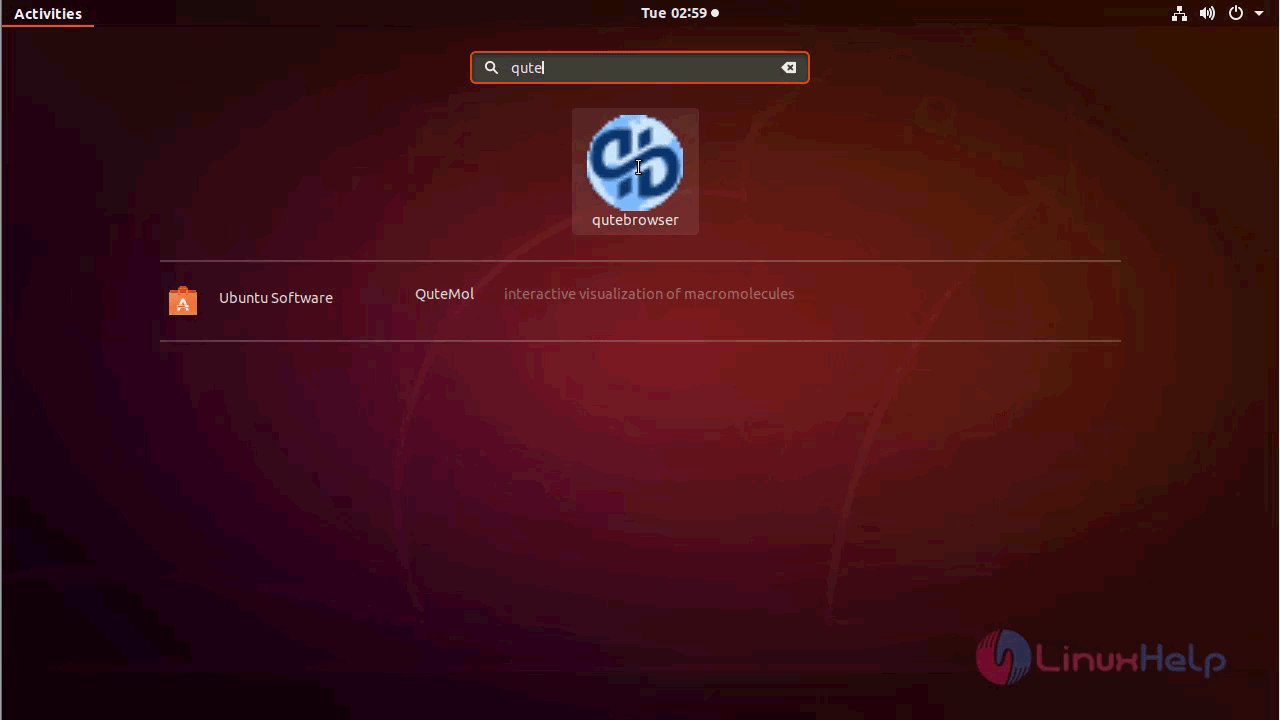
ubuntu_menu

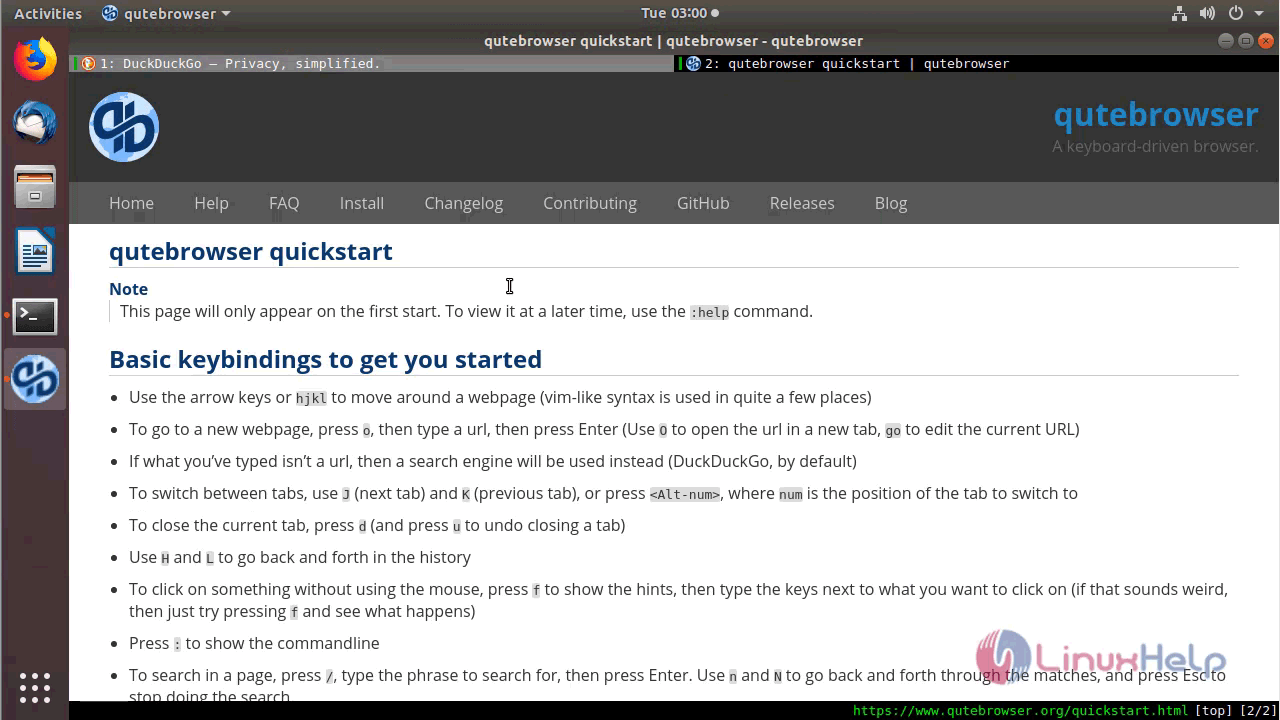
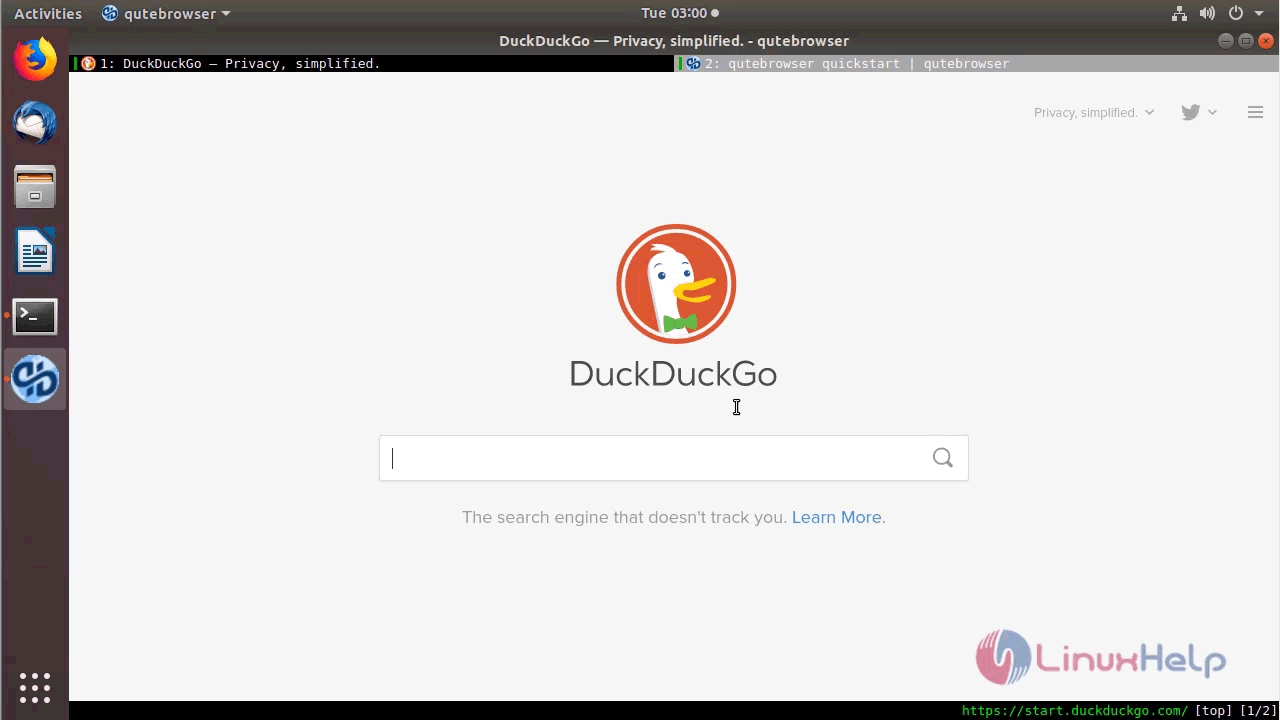
Qutebrowser application
home_page
search_engine

With this, the method to install Qutebrowser on Ubuntu 18.04 comes to an end.

Tags:
liam
Author: 

Comments ( 0 )

No comments available

Add a comment
{{postCtrl.cmtErrMsg}}

Frequently asked questions ( 5 )

Q

What is qutebrowser based on?

A

qutebrowser uses Python, Qt and PyQt.
The concept of it is largely inspired by dwb and Vimperator. Many actions and key bindings are similar to dwb.

Q

It is safer to use qutebrowser?

A

Most security issues are in the backend (which handles networking, rendering, JavaScript, etc.) and not qutebrowser itself.
qutebrowser uses QtWebEngine by default. QtWebEngine is based on Google’s Chromium.

Q

How do I use qutebrowser with mutt?

A

For security reasons, local files without .html extensions aren’t rendered as HTML, see this Chromium issue for details. You can do this in your mailcap file to get a proper extension:

text/html; qutebrowser %s; nametemplate=%s.html

Q

Why takes it longer to open an URL in qutebrowser than in chromium?

A

When opening an URL in an existing instance the normal qutebrowser Python script is started and a few PyQt libraries need to be loaded until it is detected that there is an instance running where the URL is then passed to. This takes some time. One workaround is to use this script and place it in your $PATH with the name "qutebrowser".

Q

How do I use Tor with qutebrowser?

A

Start tor on your machine, and do: set content.proxy socks://localhost:9050/ in qutebrowser. Note this won’t give you the same amount of fingerprinting protection that the Tor Browser does, but it’s useful to be able to access .onion sites.

Back To Top!
Rank
User
Points

Top Contributers

userNamenaveelansari
135850

Top Contributers

userNameayanbhatti
92510

Top Contributers

userNamehamzaahmed
32150

Top Contributers

1
userNamelinuxhelp
31040

Top Contributers

userNamemuhammadali
24500
Can you help Jayce ?
What are the types of table used in IPtables

What are the various types of table used in IPtables and how to use that for my server security?

Networking
  • Routing
  • trunk
  • Netmask
  • Packet Capture
  • domain
  • HTTP Proxy
Server Setup
  • NFS
  • KVM
  • Memory
  • Sendmail
  • WebDAV
  • LXC
Shell Commands
  • Cloud commander
  • Command line archive tools
  • last command
  • Shell
  • terminal
  • Throttle
Desktop Application
  • Linux app
  • Pithos
  • Retrospect
  • Scribe
  • TortoiseHg
  • 4Images
Monitoring Tool
  • Monit
  • Apache Server Monitoring
  • EtherApe 
  • Arpwatch Tool
  • Auditd
  • Barman
Web Application
  • Nutch
  • Amazon VPC
  • FarmWarDeployer
  • Rukovoditel
  • Mirror site
  • Chef
Contact Us | Terms of Use| Privacy Policy| Disclaimer
© 2025 LinuxHelp.com All rights reserved. Linux™ is the registered trademark of Linus Torvalds. This site is not affiliated with linus torvalds in any way.