How to install RedNotebook on Ubuntu 17.04
To install RedNotebook on Ubuntu 17.04
RedNotebook is a modern journal. It lets you format, tag and search your entries. It contains features such as adding pictures, links and customizable templates, spell check your notes, and export to plain text, HTML, Latex or PDF. The data is stored in the plain text files so that no database is needed. This tutorial explains the installation procedure of RedNotebook on Ubuntu 17.04.
Installation procedure
To proceed with the installation procedure, add its repository by executing the following command.
root@linuxhelp:~# add-apt-repository ppa:rednotebook/stable
 This PPA contains packages for stable RedNotebook versions.
Installation instructions for the terminal:

sudo add-apt-repository ppa:rednotebook/stable
sudo apt-get update
sudo apt-get install rednotebook

Alternatively you can add ppa:rednotebook/stable to your system' s Software Sources in the Ubuntu Software-Center.
 More info: https://launchpad.net/~rednotebook/+archive/ubuntu/stable
Press [ENTER] to continue or ctrl-c to cancel adding it
gpg: keybox ' /tmp/tmp8_h69fcx/pubring.gpg'  created
gpg: /tmp/tmp8_h69fcx/trustdb.gpg: trustdb created
gpg: key CD3EA4E67AFEC43D: public key " Launchpad PPA for Rednotebook"  imported
gpg: Total number processed: 1
gpg:               imported: 1
OK
The repositories are added to the system. Update your system after adding your repository by running the apt-get update command.
root@linuxhelp:~# apt-get update
Hit:1 http://in.archive.ubuntu.com/ubuntu zesty InRelease
Hit:2 http://in.archive.ubuntu.com/ubuntu zesty-updates InRelease
Get:3 http://ppa.launchpad.net/rednotebook/stable/ubuntu zesty InRelease [15.4 kB]
Get:4 http://security.ubuntu.com/ubuntu zesty-security InRelease [89.2 kB]
Get:5 http://in.archive.ubuntu.com/ubuntu zesty-backports InRelease [89.2 kB]
Get:6 http://ppa.launchpad.net/rednotebook/stable/ubuntu zesty/main amd64 Packages [572 B]
Get:7 http://ppa.launchpad.net/rednotebook/stable/ubuntu zesty/main i386 Packages [572 B]
Get:8 http://ppa.launchpad.net/rednotebook/stable/ubuntu zesty/main Translation-en [304 B]
Fetched 195 kB in 1s (142 kB/s)
Reading package lists... Done
The target system is updated with the required repositories. Next install Rednotebook package by executing the following command.
root@linuxhelp:~# apt-get install rednotebook
Reading package lists... Done
Building dependency tree
Reading state information... Done
The following additional packages will be installed:
  python3-enchant
The following NEW packages will be installed:
  python3-enchant rednotebook
0 upgraded, 2 newly installed, 0 to remove and 109 not upgraded.
Need to get 416 kB of archives.
After this operation, 2,106 kB of additional disk space will be used.
Do you want to continue? [Y/n] y
.
.
.
Setting up rednotebook (2.2-0~201709081752~ubuntu17.04.1) ...
Processing triggers for bamfdaemon (0.5.3+17.04.20170406-0ubuntu1) ...
Rebuilding /usr/share/applications/bamf-2.index...
Setting up python3-enchant (1.6.7-1) ...
Processing triggers for man-db (2.7.6.1-2) ...
Processing triggers for gnome-menus (3.13.3-6ubuntu5) ...
Processing triggers for hicolor-icon-theme (0.15-1) ...
The RedNotebook application is installed successfully. To run the application, type the application name in the Ubuntu dashboard and click on the icon to run the application.
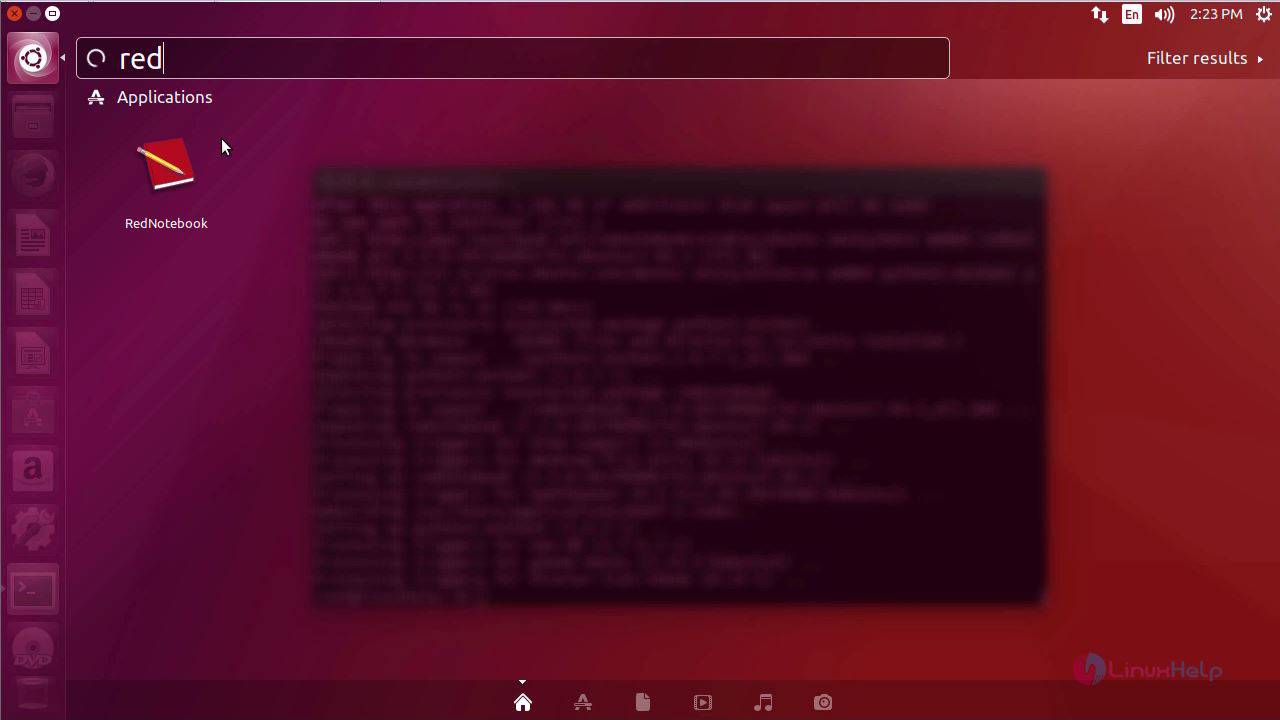
The Rednotebook application is running successfully.
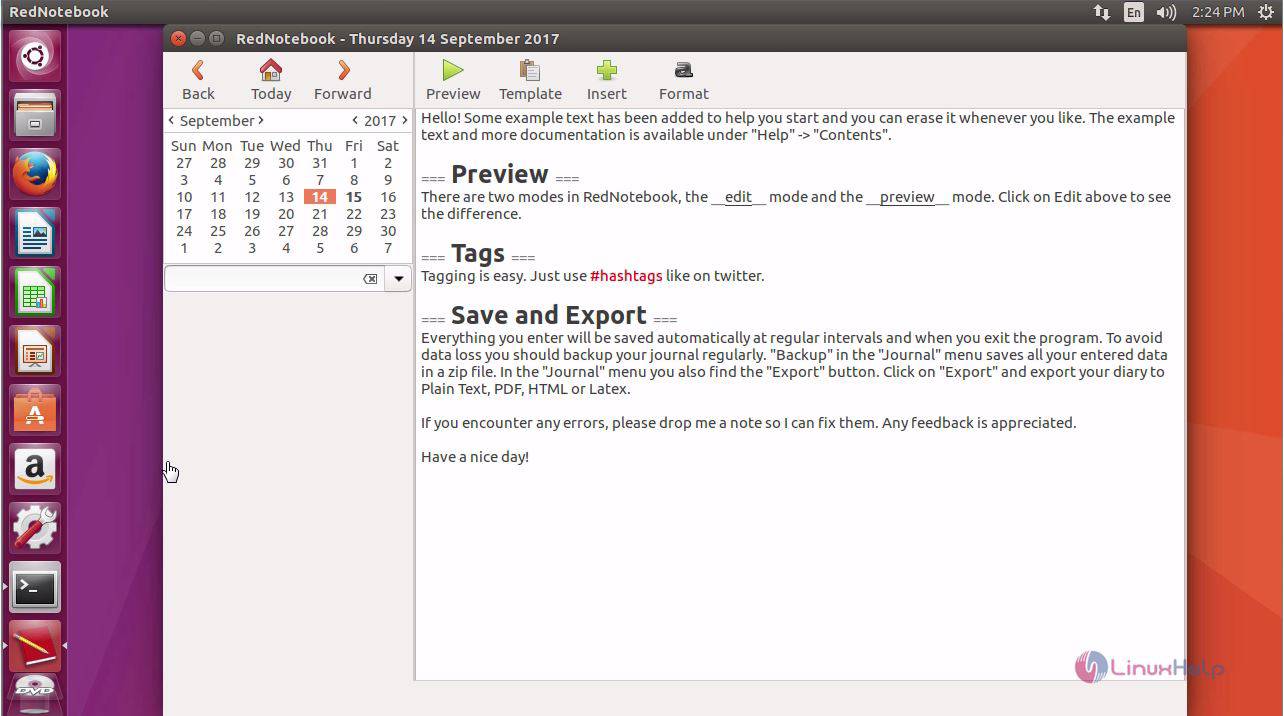
The installation procedure of Rednotebook on Ubuntu 17.04 is done without any glitches.
Comments ( 0 )
No comments available