How To Install Scribus 1.5.4 on Ubuntu 17.04
To Install Scribus 1.5.4 on Ubuntu 17.04
Scribus is a freeware, cross-platform publishing program which is capable of giving a press-ready output and has new approaches to page design. Its user- friendly interface allows the users to publish their work in an effective manner. It also supports color separations, ICC color management, CMYK and spot colors and versatile PDF creation.
Installing Scribus
In order to install Scribus, you should add the essential repositories in your system. Here it is done via ppa.
root@example:~#  add-apt-repository ppa:scribus/ppa
 Packages from the Scribus friends

scribus: current 1.4.x branch
scribus-ng: current 1.5.x branch
scribus-trunk: whatever inside the current svn repository, built daily.

scribus-trunk is not updated anymore in 14.04 LTS Trusty Tahr (and 14.10, 15.04 and 15.10) due to a too old Qt, please upgrade your system to a newer Ubuntu release (suggested: 16.04 LTS Xenial Xerus).

.
.
gpg: /tmp/tmpblm53tqe/trustdb.gpg: trustdb created
gpg: key 64B6EE15: public key " Launchpad PPA for Scribus friends"  imported
gpg: Total number processed: 1
gpg:               imported: 1  (RSA: 1)
OK
Once it is added, update the newly added repository by running the following command.
root@example:~#  apt-get update
Hit:1 http://in.archive.ubuntu.com/ubuntu xenial InRelease
Hit:2 http://security.ubuntu.com/ubuntu xenial-security InRelease
Hit:3 http://ppa.launchpad.net/eviltwin1/feedreader-daily/ubuntu xenial InRelease
Hit:4 http://in.archive.ubuntu.com/ubuntu xenial-updates InRelease
Hit:5 http://in.archive.ubuntu.com/ubuntu xenial-backports InRelease
Get:6 http://ppa.launchpad.net/scribus/ppa/ubuntu xenial InRelease [23.8 kB]
Get:7 http://ppa.launchpad.net/scribus/ppa/ubuntu xenial/main amd64 Packages [4,100 B]
Get:8 http://ppa.launchpad.net/scribus/ppa/ubuntu xenial/main i386 Packages [4,100 B]
Get:9 http://ppa.launchpad.net/scribus/ppa/ubuntu xenial/main Translation-en [1,604 B]
Fetched 33.6 kB in 2s (12.2 kB/s)
Reading package lists... Done
Now is the time to install Scribus. Trigger the installation by executing the following command.
root@example:~# apt-get install scribus-trunk -y
Reading package lists... Done
Building dependency tree
Reading state information... Done
The following additional packages will be installed:
  binutils blt cpp-5 fonts-dejavu fonts-dejavu-extra g++-5 gcc-5 gcc-5-base
  i965-va-driver icc-profiles-free libaacs0 libaec0 libarmadillo6 libarpack2
  libasan2 libass5 libatomic1 libavcodec-ffmpeg56 libavdevice-ffmpeg56
  libavfilter-ffmpeg5 libavformat-ffmpeg56 libavresample-ffmpeg2
  libavutil-ffmpeg54 libbdplus0 libblas-common libblas3 libbluray1 libbs2b0

.
.
Setting up libgdal1i (1.11.3+dfsg-3build2) ...
Setting up libopenscenegraph100v5:amd64 (3.2.1-7ubuntu4) ...
Setting up scribus-trunk (1.5.3svn~r22182~20171004~ppa71~ubuntu16.04.1) ...
Setting up odbcinst (2.3.1-4.1) ...
Processing triggers for libc-bin (2.23-0ubuntu3) ...
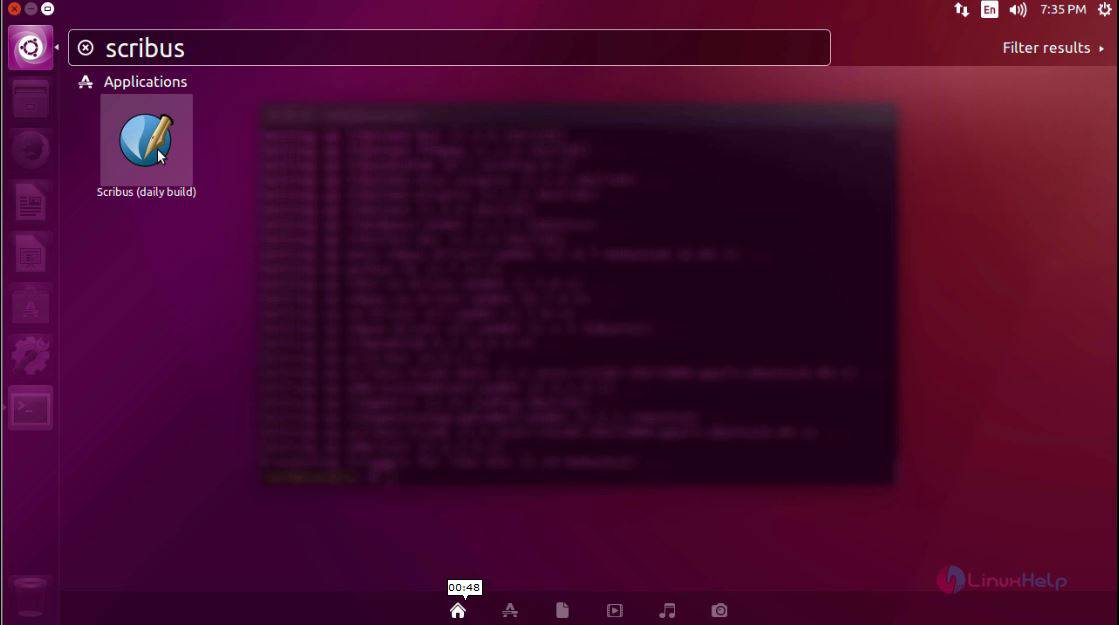
Scribus has been installed. You can open it by using your activities search-bar where you can type its name, and the application icon will be displayed. Click the icon to open the application.
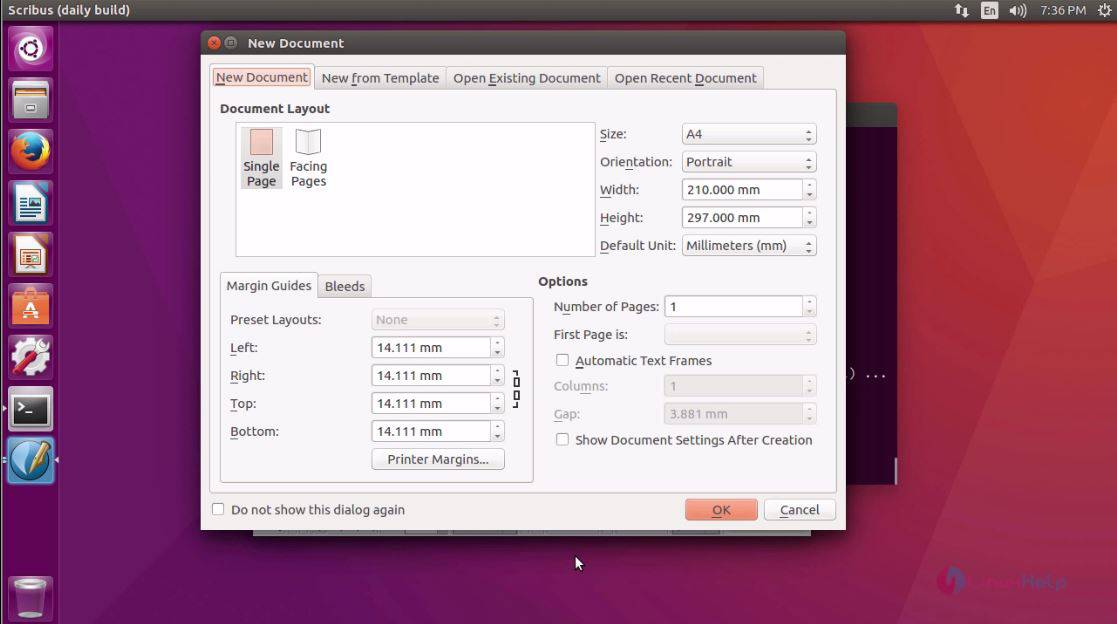
Scribus application gets opened.
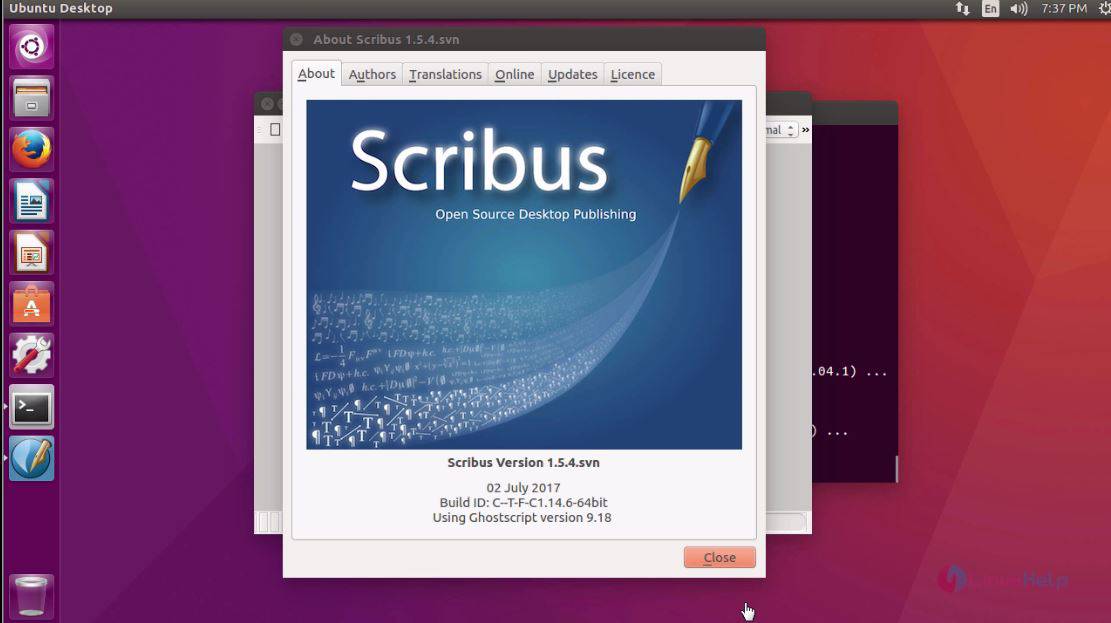
With this, the installation of Scribus gets completed.
Comments ( 0 )
No comments available