• Categories
    Category
    {{ postCtrl.tags }}
    • {{ category.tag_type }}

      • {{tag.tag_name}}
      • View more
  • Categories
    Category
    {{ postCtrl.tags }}
    • {{ category.tag_type }}

      • {{tag.tag_name}}
      • View more
  • News
  • Tutorials
  • Forums
  • Tags
  • Users
Tutorial News Comments FAQ Related Articles

How to install Simple Screen Recorder

{{postValue.id}}

To install Simple Screen Recorder

In this article, we will learn how to install Simple Screen Recorder Using Simple Screen Recorder in Linux. The simple screnn recorder can capture a video-audio record of the entire computer screen or records OpenGL applications.

Installation of SSR

For Debian/Ubuntu and Mint

Run the following command to add the repository to your sources.list

user1@linuxhelp:~$ sudo add-apt-repository ppa:maarten-baert/simplescreenrecorder

Next is to resynchronize the package index files from their sources and install using the following command.

user1@linuxhelp:~$ sudo apt-get update
user1@linuxhelp:~$ sudo apt-get install simplescreenrecorder

For Fedora/CentOS and RHEL

Add the ATRPMS repository

Now Add the ATRPMS repository in /etc/yum.repos.d/atrpm.repo

[atrpms]
name=Fedora Core $releasever - $basearch - ATrpms
baseurl=http://dl.atrpms.net/el$releasever-$basearch/atrpms/stable
gpgkey=http://ATrpms.net/RPM-GPG-KEY.atrpms
gpgcheck=1

Add the EPEL repository

Now Add the EPEL repository

# yum install epel-release

Install the rest of the dependencies

Now let us install the rest of the dependencies by using the following command.

# yum install ffmpeg ffmpeg-devel libX11-devel libXfixes-devel jack-audio-connection-kit-devel mesa-libGL-devel git

Clone the developer’ s GitHub repository for SSR

Now clone the the developer’ s GitHub repository for SSR by using the following command.

# git clone https://github.com/MaartenBaert/ssr
# cd ssr

Execute the installation script

Run the installation script.

user1@linuxhelp:~$ ./simple-build-and-install

You can start Simple Screen Recorder from the terminal, if the installation does not create a launch icon in the Applications menu.

user1@linuxhelp:~$ simplescreenrecorder

Run the following command to create shortcut in your Desktop.

user1@linuxhelp:~$ ln &ndash s $(which simplescreenrecorder) ~/Desktop/' Simple Screen Recorder' 

To Use Simple Screen Recorder

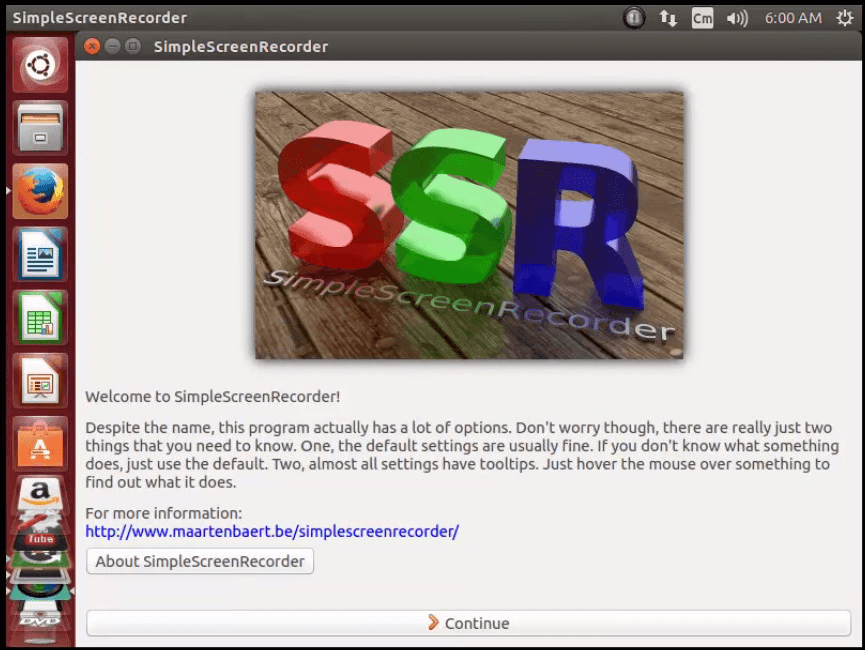
Click Continue on the initial screen.
home-page

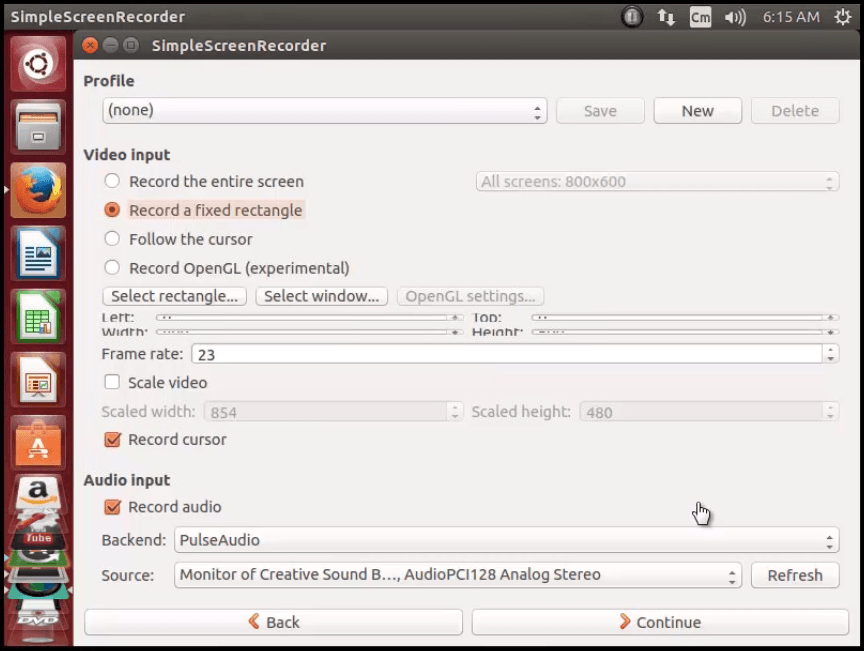
Next screen describes the options such as whether to record the entire screen, a fixed rectangle, or a specific window. Click any of the option you want to perform. Once done, click Continue:
profile

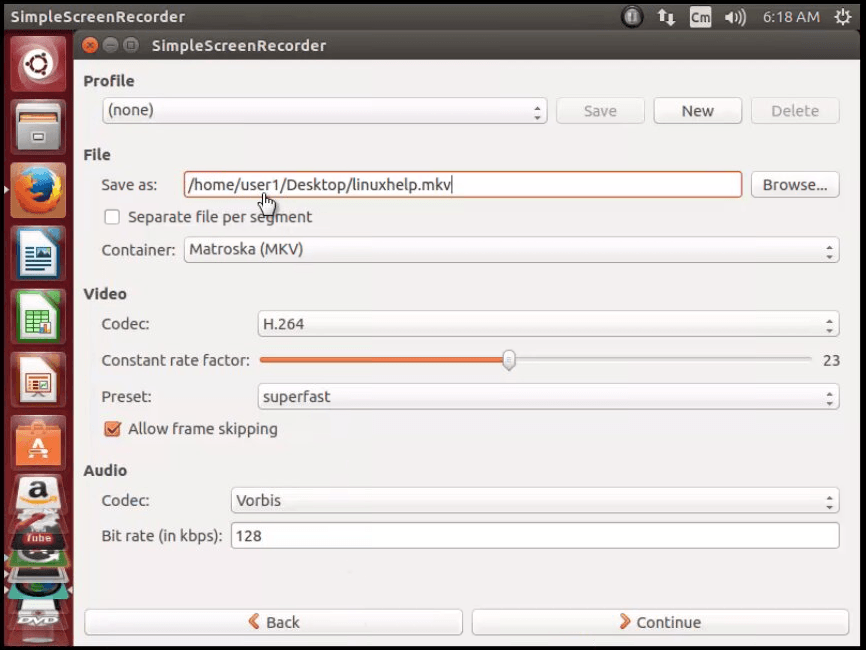
Now define the video output format and the location, then click Continue again.
video_output

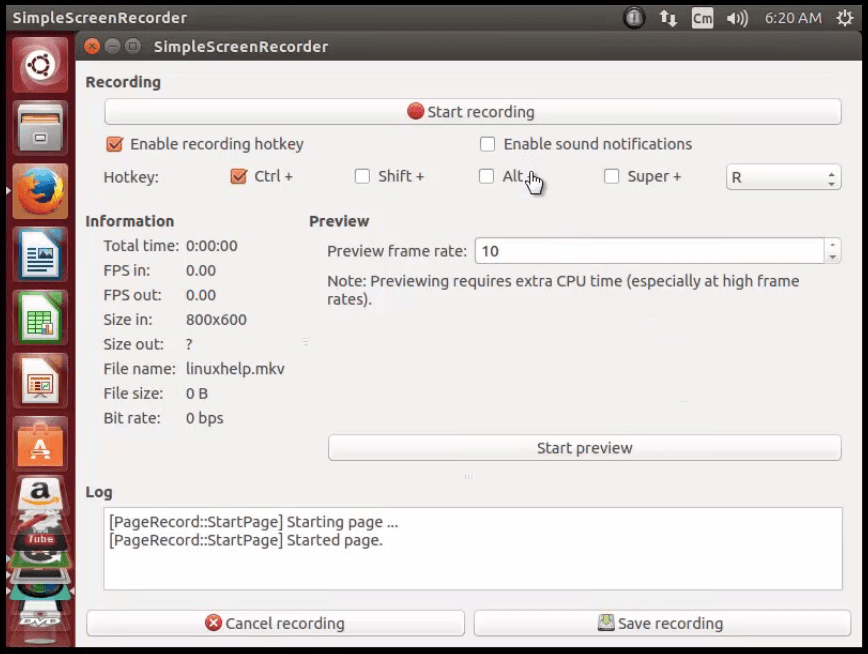
Select the keyboard shortcut to manage the user interface and click Start recording. When recording completes, save the video by clicking Save recording.
keyboard_shortcut
You can also minimize Simple Screen Recorder and start / stop the recording using the key combination selected earlier.

Press Ctrl + R to start recording.

To pause the recording presses the key combination again. The red circle will turn grey and you can finally stop the recording and save the file by clicking on it and choosing the corresponding menu.
mkv file

the shortcuts will work only if the Simple Screen Recorder is running.

Tags:
owen
Author: 

Comments ( 1 )

celestinoveiga
Install Simple Screen Recorder in centos 6. I followed tutorial but got errors. Can you help?
Add a comment
{{postCtrl.cmtErrMsg}}

Frequently asked questions ( 5 )

Q

How to install "Simple screen recorder" on Ubuntu?

A

You can use the following steps to install "screen recorder" on Ubuntu. For Syntax; "apt-get install simplescreenrecorder".

Q

What are alternative tools available for the Simple screen recorder?

A

Here I have to mention some of the alternative tools for the Simple screen recorder. Such as "Open Broadcaster Software ", "Camtasia Studio", "Bandicam Screen Recorder", "Fraps".

Q

How to resolve the problem of "Can't open output file" error in "Simple screen recorder?

A

This error indicates that the output file could not be created. Common causes are:

The output directory does not exist (i.e. you entered an incorrect path).

You don't have permission to write to the output directory.

Your hard disk is full.

Q

The problem of "simple screen recorder" application where Slowed-down, out-of-sync audio when recording the speakers with PulseAudio?

A

When this happens, you will usually get the following error message:

"Warning: Audio input is more than 5% too fast, video and audio will be out of sync."

The cause is a bug in PulseAudio. The issue has been fixed and the fix should arrive in some future version (probably 4.1). For now, you can work around the bug by modifying the file /etc/pulse/daemon.conf and adding/modifying these lines:

"default-sample-rate = 44100
alternate-sample-rate = 44100"

After doing this, you should restart PulseAudio (or just reboot). These values will force PulseAudio to use the same sample rate at all times rather than switching between 44100 Hz and 48000 Hz (which will trigger the bug).

Some users have reported that sound recorded through PulseAudio is still buggy even after applying this workaround, so it appears that there is more than one bug in PulseAudio that can cause this issue. I haven't been able to reproduce this myself though. If you are unable to fix the problems with PulseAudio, consider using JACK instead.

Q

How can I check the version of "Simple screen recorder" application?

A

You can check the version of "Simple screen recorder" application, go to the "Help -> About".

Back To Top!
Rank
User
Points

Top Contributers

userNamenaveelansari
135850

Top Contributers

userNameayanbhatti
92510

Top Contributers

userNamehamzaahmed
32150

Top Contributers

1
userNamelinuxhelp
31040

Top Contributers

userNamemuhammadali
24500
Can you help Luke ?
workbench for debian

I am using workbench in CentOS whereas now I need to use Debian Operating system so could you please help to install and use in Debian?

Networking
  • Routing
  • trunk
  • Netmask
  • Packet Capture
  • domain
  • HTTP Proxy
Server Setup
  • NFS
  • KVM
  • Memory
  • Sendmail
  • WebDAV
  • LXC
Shell Commands
  • Cloud commander
  • Command line archive tools
  • last command
  • Shell
  • terminal
  • Throttle
Desktop Application
  • Linux app
  • Pithos
  • Retrospect
  • Scribe
  • TortoiseHg
  • 4Images
Monitoring Tool
  • Monit
  • Apache Server Monitoring
  • EtherApe 
  • Arpwatch Tool
  • Auditd
  • Barman
Web Application
  • Nutch
  • Amazon VPC
  • FarmWarDeployer
  • Rukovoditel
  • Mirror site
  • Chef
Contact Us | Terms of Use| Privacy Policy| Disclaimer
© 2025 LinuxHelp.com All rights reserved. Linux™ is the registered trademark of Linus Torvalds. This site is not affiliated with linus torvalds in any way.