How to install Simple Wallpaper Randomizer in Ubuntu 16.04
To install Simple Wallpaper Randomizer in Ubuntu 16.04
Simple Wallpaper Randomizer is a free, open-source software used for changing the desktop wallpapers. With Simple wallpaper randomizer, you shall set a wallpaper either during the start-up or at a specified time interval. It is really so simple to install Simple wallpaper randomizer, and this article covers the ground on the installation of Simple wallpaper randomizer on Ubuntu 16.04
Installing Simple wallpaper randomizer
It is very essential to add the repository to the system, and for that, you shall use the following command.
root@user1:/home/user1# add-apt-repository ppa:atareao/wallpapers
More info: https://launchpad.net/~atareao/+archive/ubuntu/wallpapers
Press [ENTER] to continue or ctrl-c to cancel adding it
gpg: keyring `/tmp/tmpprt_z_v_/secring.gpg'  created
gpg: keyring `/tmp/tmpprt_z_v_/pubring.gpg'  created
gpg: requesting key 36FD5529 from hkp server keyserver.ubuntu.com
gpg: /tmp/tmpprt_z_v_/trustdb.gpg: trustdb created
gpg: key 36FD5529: public key " Launchpad PPA for atareao"  imported
gpg: Total number processed: 1
gpg: imported: 1 (RSA: 1)
OK
Once the repos are added, make sure you update the local repository index using the apt-get update command as follows.
root@user1:/home/user1# apt-get update
Get:1 http://ppa.launchpad.net/atareao/wallpapers/ubuntu xenial InRelease [17.5 kB]
Get:2 http://security.ubuntu.com/ubuntu xenial-security InRelease [102 kB]
Get:3 http://ppa.launchpad.net/atareao/wallpapers/ubuntu xenial/main amd64 Packages [2,440 B]
Hit:4 http://in.archive.ubuntu.com/ubuntu xenial InRelease
Hit:5 http://in.archive.ubuntu.com/ubuntu xenial-updates InRelease
Get:6 http://ppa.launchpad.net/atareao/wallpapers/ubuntu xenial/main i386 Packages [2,440 B]
Get:7 http://in.archive.ubuntu.com/ubuntu xenial-backports InRelease [102 kB]
Get:8 http://ppa.launchpad.net/atareao/wallpapers/ubuntu xenial/main Translation-en [908 B]
Fetched 228 kB in 3s (73.5 kB/s)
Reading package lists... Done
Now, you shall trigger the installation process by simply running the following command.
root@user1:/home/user1# apt-get install simple-wallpaper-randomizer
Reading package lists... Done
Building dependency tree
Reading state information... Done
&hellip
&hellip
&hellip
Setting up python3-tz (2014.10~dfsg1-0ubuntu2) ...
Setting up python3-croniter (0.3.8-1) ...
Setting up python3-crontab (1.9.3-2) ...
Setting up simple-wallpaper-randomizer (0.6.0-0extras17.10.6) ...
Simple Wallpaper Randomizer has been installed, so in order open the Simple Wallpaper Randomizer, you shall click the search and type the application name.

You can install new wallpapers by using this application.
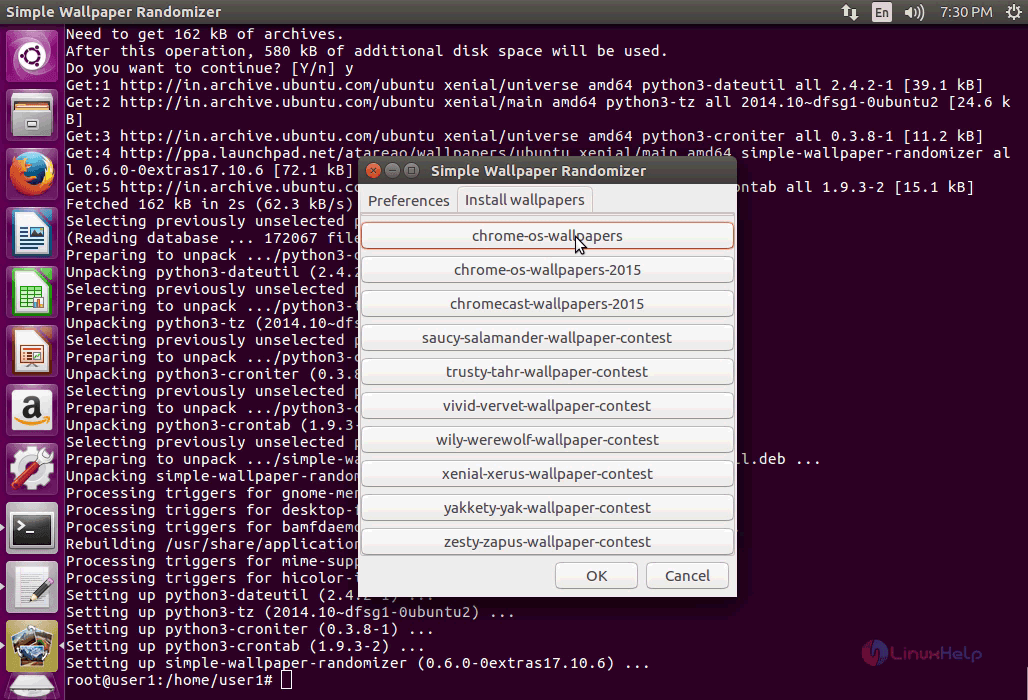
You can also download new wallpapers and apply them on your desktop.

Switch on time option and set time for changing the wallpaper.

You shall now use it for changing the wallpaper of your desktop.

With this, the installation of Simple wallpaper randomizer comes to an end.
Comments ( 0 )
No comments available