• Categories
    Category
    {{ postCtrl.tags }}
    • {{ category.tag_type }}

      • {{tag.tag_name}}
      • View more
  • Categories
    Category
    {{ postCtrl.tags }}
    • {{ category.tag_type }}

      • {{tag.tag_name}}
      • View more
  • News
  • Tutorials
  • Forums
  • Tags
  • Users
Tutorial News Comments FAQ Related Articles

How to install SMPlayer on Ubuntu 17.04

{{postValue.id}}

To install SMPlayer on Ubuntu 17.04

SMPlayer is a free and open-source media player for Windows and Linux with built-in codecs, which can also play Youtube videos, search and download subtitles, and includes other features like a thumbnail generator and audio and video filters. It can remember the settings of all the files the user plays and the video will resume at the same point where you have left it. This tutorial explains the installation procedure of SMPlayer on Ubuntu 17.04.

Installation procedure

To proceeding with the installation procedure, add the repository by running the following command.

root@linuxhelp1:~# apt-add-repository ppa:rvm/smplayer
 Packages for SMPlayer.
To install SMPlayer from this PPA, run these commands on a terminal:

sudo add-apt-repository ppa:rvm/smplayer
sudo apt-get update
sudo apt-get install smplayer smtube smplayer-themes smplayer-skins
.
.
gpg: Total number processed: 1
gpg:               imported: 1
OK

After adding the repositories, update the repository by executing the apt-get update command.

root@linuxhelp1:~#  apt-get update
Hit:1 http://in.archive.ubuntu.com/ubuntu zesty InRelease
Get:2 http://ppa.launchpad.net/rvm/smplayer/ubuntu zesty InRelease [15.4 kB]   
Get:3 http://security.ubuntu.com/ubuntu zesty-security InRelease [89.2 kB]
Get:4 http://in.archive.ubuntu.com/ubuntu zesty-updates InRelease [89.2 kB]    
Get:5 http://ppa.launchpad.net/rvm/smplayer/ubuntu zesty/main i386 Packages [1,528 B]
Get:6 http://ppa.launchpad.net/rvm/smplayer/ubuntu zesty/main amd64 Packages [1,524 B]
Get:7 http://ppa.launchpad.net/rvm/smplayer/ubuntu zesty/main Translation-en [5,100 B]
Get:8 http://in.archive.ubuntu.com/ubuntu zesty-backports InRelease [89.2 kB]
Fetched 291 kB in 2s (102 kB/s)    
Reading package lists... Done

The target system is updated with the required repositores. Now install the SMPlayer by running the following command.

root@linuxhelp1:~#  apt-get install smplayer smplayer-themes
Reading package lists... Done
Building dependency tree       
Reading state information... Done
The following additional packages will be installed:
  i965-va-driver liba52-0.7.4 libaacs0 libass5 libavcodec57 libavformat57
.
.
Setting up smplayer-themes (2:17.3.0-1~zesty1) ...
Processing triggers for libc-bin (2.24-9ubuntu2.2) ...

The application has been successfully installed. Now type the application name in the Ubuntu dashboard and click on the icon to run the application.
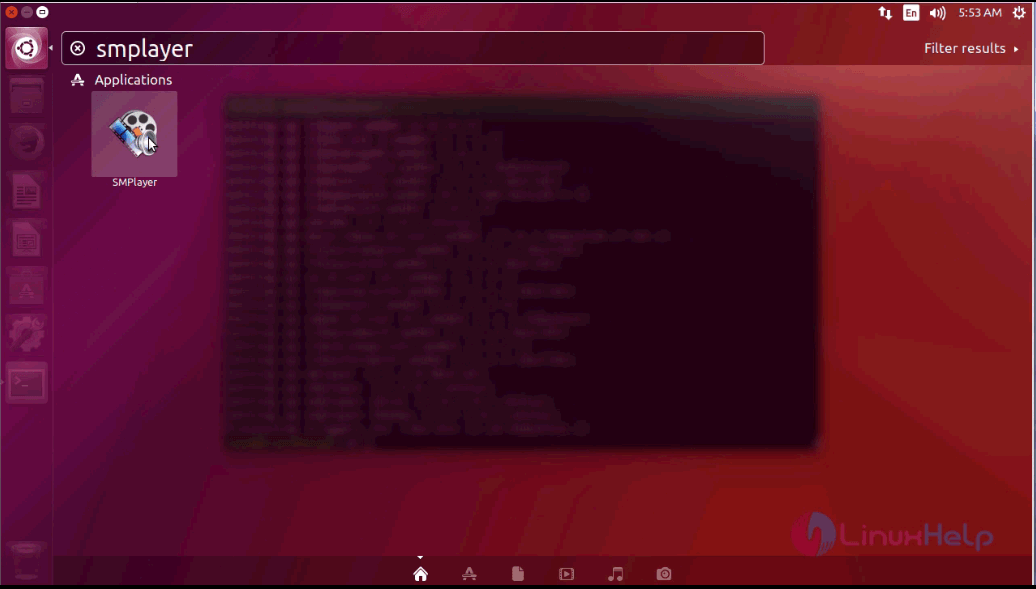
ubuntu dashboard

The SMPlayer application is open and running.
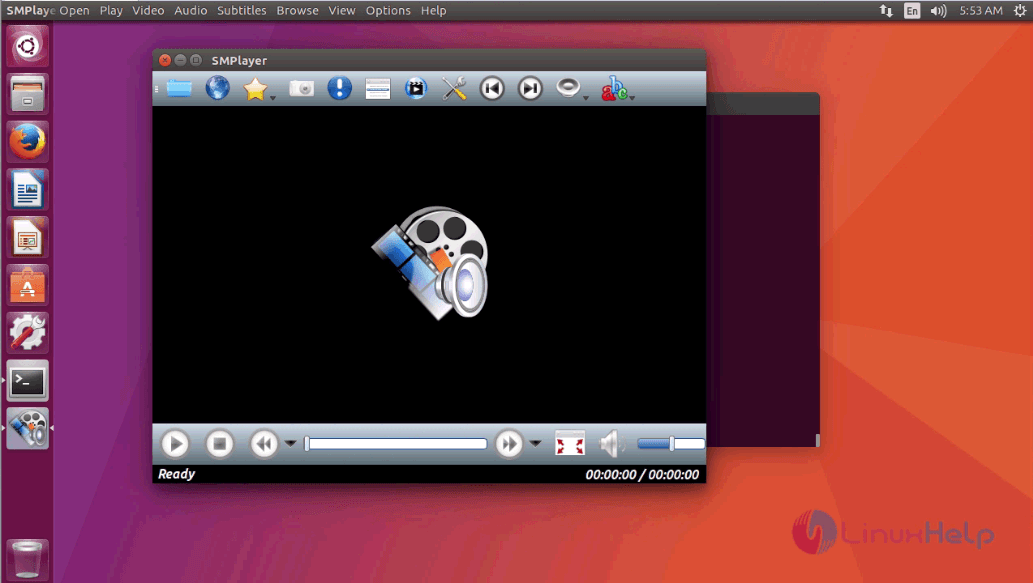
SMPlayer

The installation procedure of SMPlayer is done without any glitches.

Tags:
landon
Author: 

Comments ( 0 )

No comments available

Add a comment
{{postCtrl.cmtErrMsg}}

Frequently asked questions ( 5 )

Q

In SMPlayer video equalizer doesn't work, why?

A

With some cards or video drivers, the hardware video equalizer may not work. Go to Preferences -> General -> Video and enable the software equalizer.

Q

In SMPlayer DVD menus, where are they?

A

Go to the Drive section in preferences and check the option "Enable DVD menus (Experimental)" and set your DVD drive.

Q

How can I change the skin in SMPlayer?

A

Go to the SMPlayer preferences, select the Interface section, then select the "Skinnable GUI". Now you can choose among several skins. In Linux, you need to install the package smplayer-skins.

Q

The current time of the movie appears in the up left corner of the image, how can I hide it on SMPlayer?

A

To hide SMPlayer View -> OSD -> Subtitles only.

Q

What is SMPlayer?

A

SMPlayer is a free and open-source media player for Windows and Linux with built-in codecs, which can also play Youtube videos, search and download subtitles, and includes other features like a thumbnail generator and audio and video filters. It can remember the settings of all the files the user plays and the video will resume at the same point where you have left it.

Back To Top!
Rank
User
Points

Top Contributers

userNamenaveelansari
135850

Top Contributers

userNameayanbhatti
92510

Top Contributers

userNamehamzaahmed
32150

Top Contributers

1
userNamelinuxhelp
31040

Top Contributers

userNamemuhammadali
24500
Can you help legeek ?
Installation of the call center module

hello

I wish to install a call center in virtual with issabel, I downloaded the latest version of it , but I don' t arrive to install the call center module in issabel. please help me

thanks!

Networking
  • Routing
  • trunk
  • Netmask
  • Packet Capture
  • domain
  • HTTP Proxy
Server Setup
  • NFS
  • KVM
  • Memory
  • Sendmail
  • WebDAV
  • LXC
Shell Commands
  • Cloud commander
  • Command line archive tools
  • last command
  • Shell
  • terminal
  • Throttle
Desktop Application
  • Linux app
  • Pithos
  • Retrospect
  • Scribe
  • TortoiseHg
  • 4Images
Monitoring Tool
  • Monit
  • Apache Server Monitoring
  • EtherApe 
  • Arpwatch Tool
  • Auditd
  • Barman
Web Application
  • Nutch
  • Amazon VPC
  • FarmWarDeployer
  • Rukovoditel
  • Mirror site
  • Chef
Contact Us | Terms of Use| Privacy Policy| Disclaimer
© 2025 LinuxHelp.com All rights reserved. Linux™ is the registered trademark of Linus Torvalds. This site is not affiliated with linus torvalds in any way.