How to install Sopcast on Ubuntu 14.04
How to install Sopcast on Ubuntu 14.04
Sopcast is a simple, free way to broadcast video and audio or watch the video and listen to radio on the Internet. Adopting P2P(Peer-to-Peer) technology, It is very efficient and easy to use. This tutorial will cover on how to install Sopcast on Ubuntu 14.04.
It may not work properly in higher versions (16.04, 16.10, 17.04) since those repos are dependent to the 14.04 release.
Installation procedure
To start the installation procedure, add the required repo by executing the following command.
root@linuxhelp:~# add-apt-repository ppa:lyc256/sopcast-player-ppa
 sopcast player ppa
 More info: https://launchpad.net/~lyc256/+archive/ubuntu/sopcast-player-ppa
Press [ENTER] to continue or ctrl-c to cancel adding it
gpg: keyring `/tmp/tmp2ork40rv/secring.gpg'  created
gpg: keyring `/tmp/tmp2ork40rv/pubring.gpg'  created
gpg: requesting key 7733638E from hkp server keyserver.ubuntu.com
gpg: /tmp/tmp2ork40rv/trustdb.gpg: trustdb created
gpg: key 7733638E: public key " Launchpad PPA for ???"  imported
gpg: Total number processed: 1
gpg:               imported: 1  (RSA: 1)
OK
The repositories are added to the target system. Update the source list by running the apt-get update command.
root@linuxhelp:~# apt-get update
Ign http://in.archive.ubuntu.com trusty InRelease
Ign http://ppa.launchpad.net trusty InRelease
Get:1 http://ppa.launchpad.net trusty Release.gpg [316 B]
Get:2 http://ppa.launchpad.net trusty Release [15.1 kB]
Get:3 http://security.ubuntu.com trusty-security InRelease [65.9 kB]
Get:4 http://in.archive.ubuntu.com trusty-updates InRelease [65.9 kB]
Get:5 http://ppa.launchpad.net trusty/main amd64 Packages [756 B]
Hit http://in.archive.ubuntu.com trusty-backports InRelease
Get:6 http://ppa.launchpad.net trusty/main i386 Packages [758 B]
Hit http://in.archive.ubuntu.com trusty Release.gpg
Get:7 http://ppa.launchpad.net trusty/main Translation-en [321 B]
Ign http://extras.ubuntu.com trusty InRelease
Get:8 http://extras.ubuntu.com trusty Release.gpg [72 B]
Hit http://extras.ubuntu.com trusty Release
Hit http://extras.ubuntu.com trusty/main Sources
Hit http://extras.ubuntu.com trusty/main amd64 Packages
Hit http://extras.ubuntu.com trusty/main i386 Packages
Get:9 http://security.ubuntu.com trusty-security/main Sources [133 kB]
Get:10 http://security.ubuntu.com trusty-security/restricted Sources [4,955 B]
Get:11 http://in.archive.ubuntu.com trusty-updates/main Sources [400 kB]
Get:12 http://security.ubuntu.com trusty-security/universe Sources [59.4 kB]
Get:13 http://in.archive.ubuntu.com trusty-updates/restricted Sources [6,331 B]
Get:14 http://security.ubuntu.com trusty-security/multiverse Sources [3,200 B]
.
.
Fetched 6,551 kB in 1min 9s (93.8 kB/s)
Reading package lists... Done
The target system is updated with the required repositories. Now install the sopcast package by running the following command.
root@linuxhelp:~# apt-get install sopcast-player
Reading package lists... Done
Building dependency tree
Reading state information... Done
The following extra packages will be installed:
  gcc-4.9-base:i386 libaacs0 libbasicusageenvironment0 libbluray1 libc-dev-bin
  libc6 libc6:i386 libc6-dbg libc6-dev libcddb2 libcrystalhd3 libdvbpsi8
  libebml4 libgcc1:i386 libglade2-0 libgnutls28 libgroupsock1 libhogweed2
  libiso9660-8 liblivemedia23 libmatroska6 libpostproc52 libproxy-tools
  libresid-builder0c2a libsdl-image1.2 libsdl1.2debian libsidplay2 libssh2-1
  libstdc++5:i386 libtar0 libupnp6 libusageenvironment1 libva-x11-1
  libvcdinfo0 libvlc-dev libvlc5 libvlccore7 libxcb-composite0 libxcb-xv0
  python-glade2 sp-auth vlc vlc-data vlc-nox vlc-plugin-notify
  vlc-plugin-pulse
Suggested packages:
  libbluray-bdj glibc-doc glibc-doc:i386 locales:i386 firmware-crystalhd
  gnutls-bin python-gtk2-doc python-gnome2 videolan-doc
Recommended packages:
  libdvdcss2
The following NEW packages will be installed:
  gcc-4.9-base:i386 libaacs0 libbasicusageenvironment0 libbluray1 libc6:i386
  libcddb2 libcrystalhd3 libdvbpsi8 libebml4 libgcc1:i386 libglade2-0
  libgnutls28 libgroupsock1 libhogweed2 libiso9660-8 liblivemedia23
.
.
Setting up sopcast-player (0.8.5~ppa~trusty1) ...
Processing triggers for libc-bin (2.19-0ubuntu6.9) ...
The sopcast is successfully installed in the system. To run the application, type the sopcast application name in the Ubuntu dashboard and click on the icon to run.
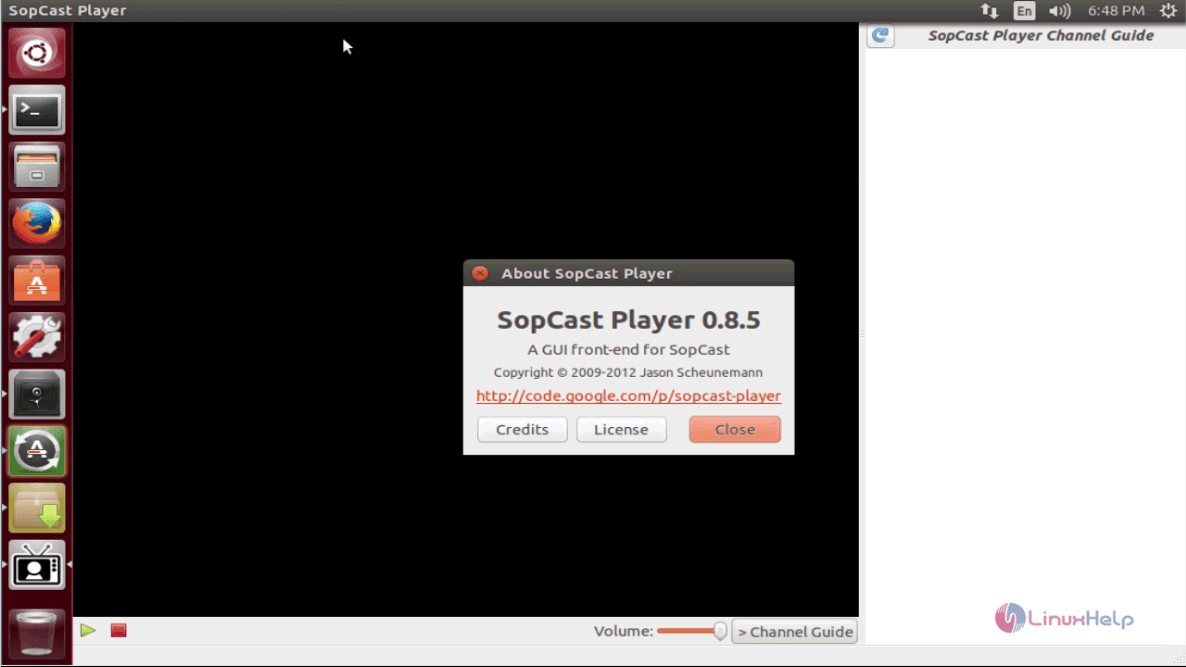
Wasn' t that an easy installation procedure? Sopcast supports a powerful server and vast bandwidth.
Comments ( 0 )
No comments available