• Categories
    Category
    {{ postCtrl.tags }}
    • {{ category.tag_type }}

      • {{tag.tag_name}}
      • View more
  • Categories
    Category
    {{ postCtrl.tags }}
    • {{ category.tag_type }}

      • {{tag.tag_name}}
      • View more
  • News
  • Tutorials
  • Forums
  • Tags
  • Users
Tutorial News Comments FAQ Related Articles

How to install SpiderOak in Ubuntu

{{postValue.id}}

Install SpiderOak in Ubuntu

SpiderOak is a free cloud storage service that automatically synchronize the data from the local machine to online cloud server. Users can also retrieve deleted files and folders from the backup folder. It uses combined AES and RES for security purpose. Installation of SpiderOak in Ubuntu is explained in this article.

To install SpiderOak Client

Download the SpiderOak Client installation package from the SpiderOak official site,
https://spideroak.com/opendownload

Once the download is completed, change the directory to Downloads and list the files as shown below.

root@linuxhelp:/home/user1# cd Downloads/
root@linuxhelp:/home/user1/Downloads# ls -l 
total 26268
drwxr-xr-x  2 user1 user1     4096 Aug 18 10:15 ./
drwxr-xr-x 16 user1 user1     4096 Aug 18 10:12 ../
-rw-rw-r--  1 user1 user1 26882606 Aug 18 10:15 spideroakone_6.1.5_amd64.deb


Now install the spideroak client by running the following command.

root@linuxhelp:/home/user1/Downloads# dpkg -i spideroakone_6.1.5_amd64.deb 
Selecting previously unselected package spideroakone.
(Reading database ... 172193 files and directories currently installed.)
Preparing to unpack spideroakone_6.1.5_amd64.deb ...
Unpacking spideroakone (1:6.1.5) ...
Setting up spideroakone (1:6.1.5) ...
Processing triggers for gnome-menus (3.13.3-6ubuntu3) ...
Processing triggers for desktop-file-utils (0.22-1ubuntu5) ...
Processing triggers for bamfdaemon (0.5.3~bzr0+16.04.20160415-0ubuntu1) ...
Rebuilding /usr/share/applications/bamf-2.index...
Processing triggers for mime-support (3.59ubuntu1) ...
Processing triggers for man-db (2.7.5-1) ...

To open spideroak

Open the unity dash and search spideroak.
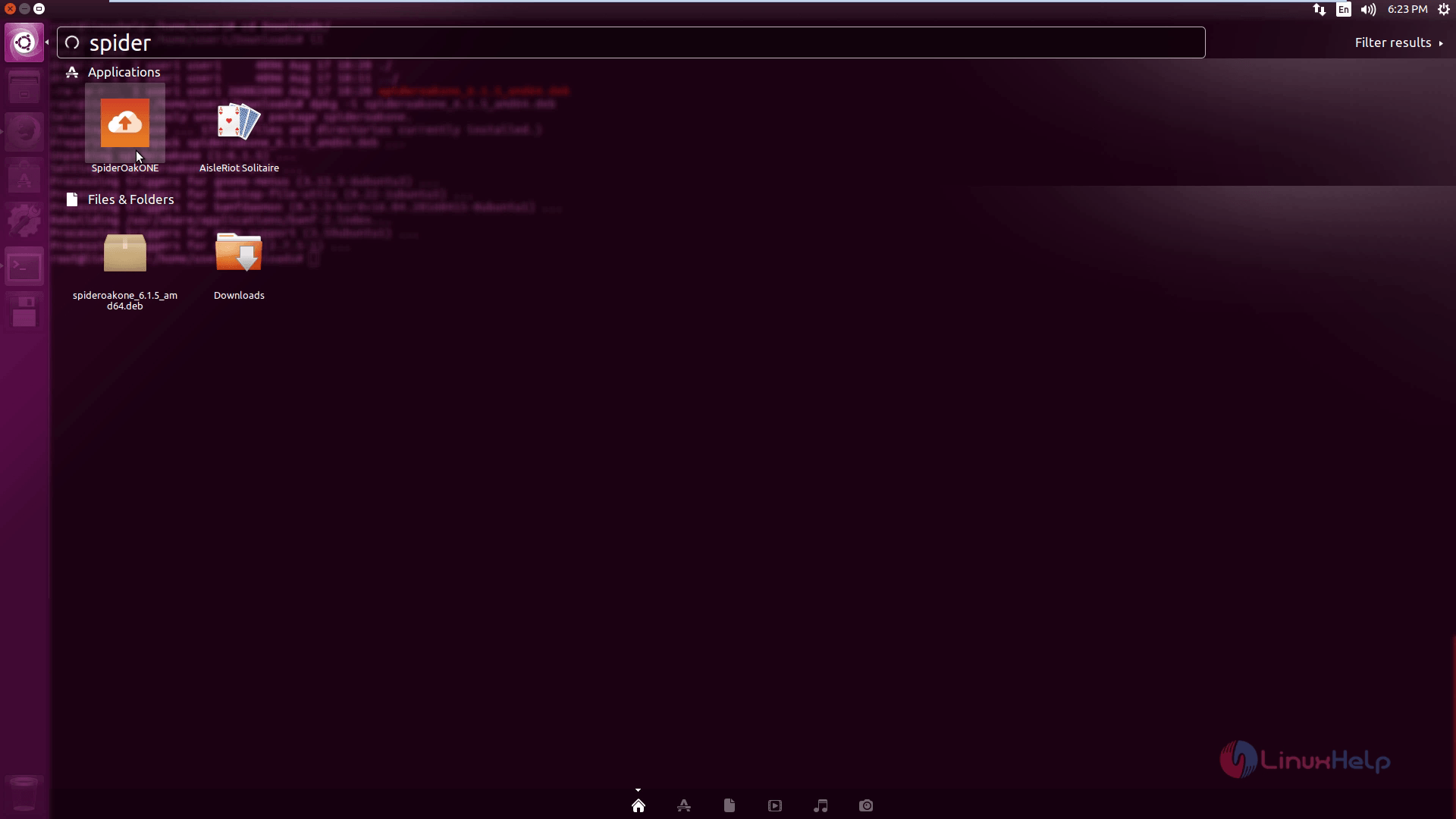
Search_spideroak

To create a spideroak account, fill the details of the spideroak and click Create account.
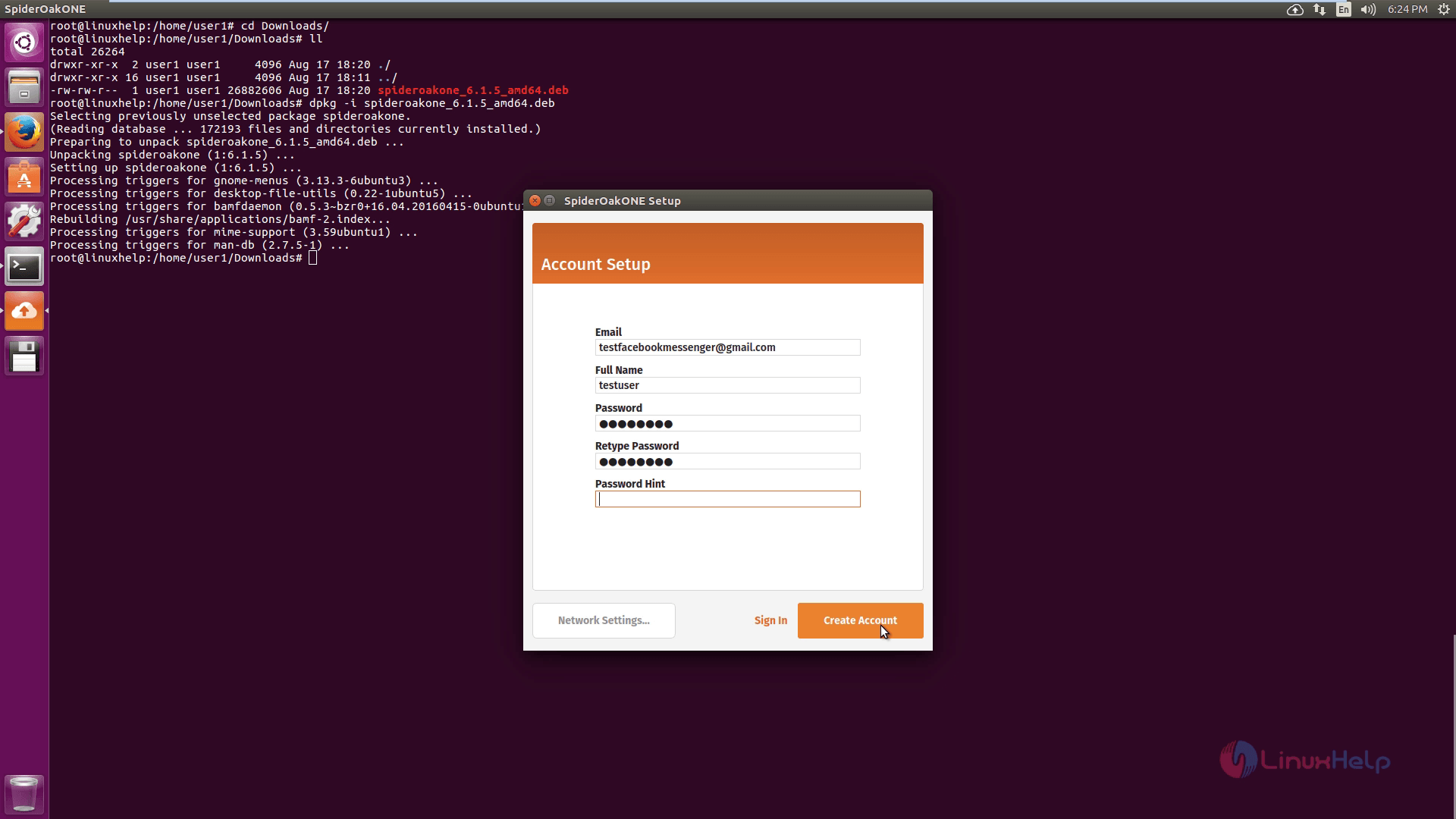
spideroak account

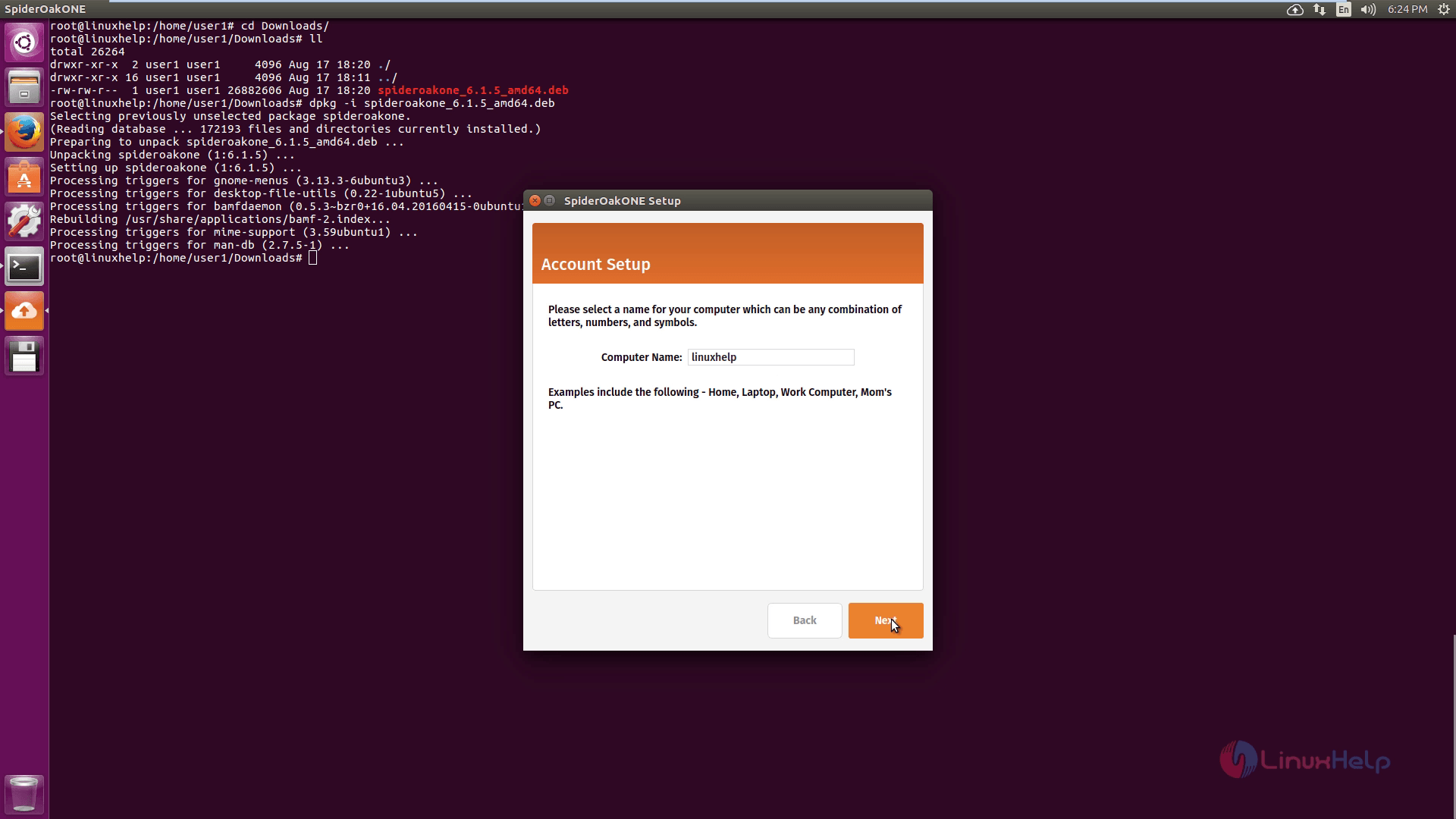
Select the hostname and click Next.

hostname

To Save the files to the cloud, select the file and click Save.
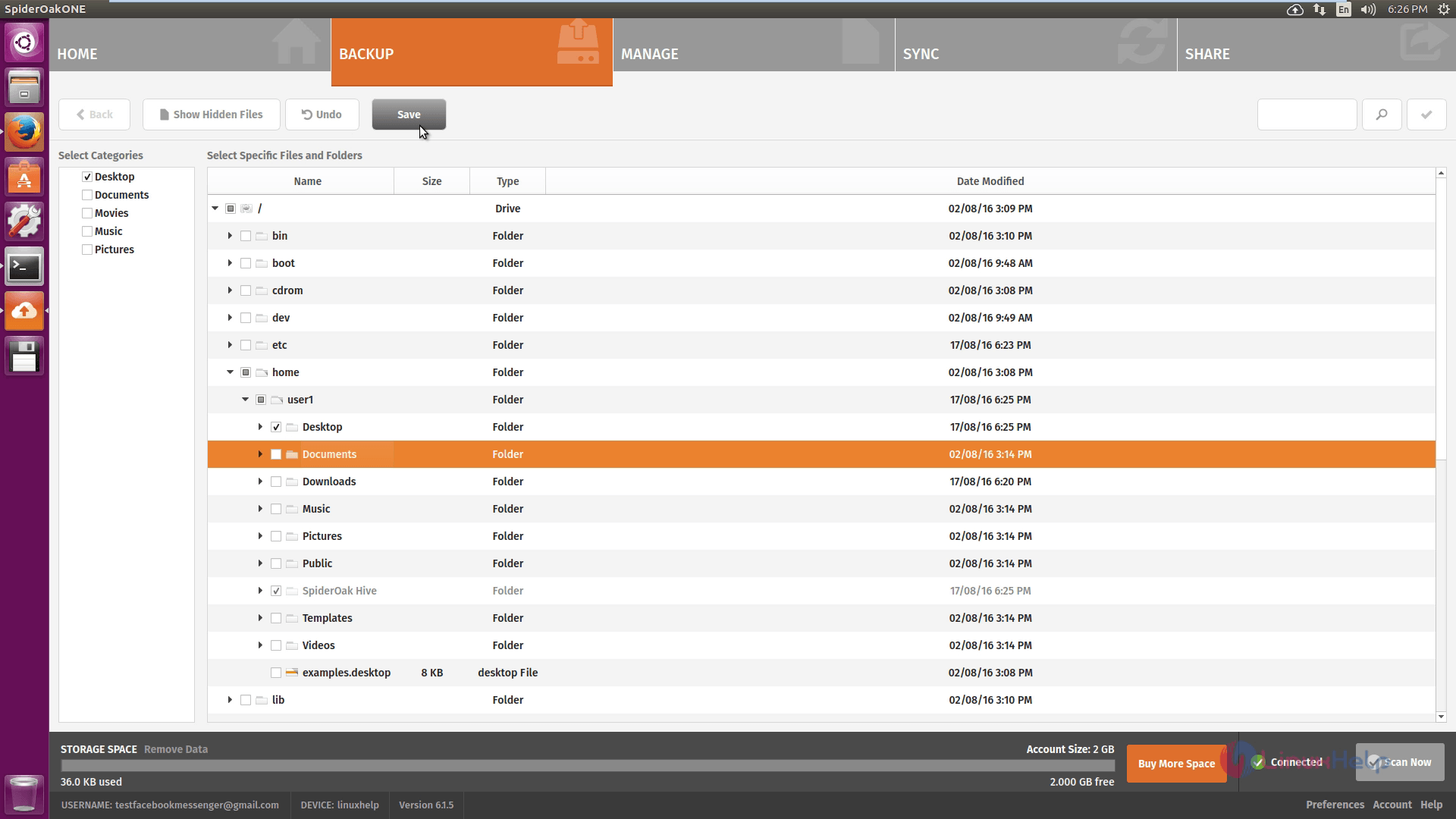
Save

Upload process
Upload

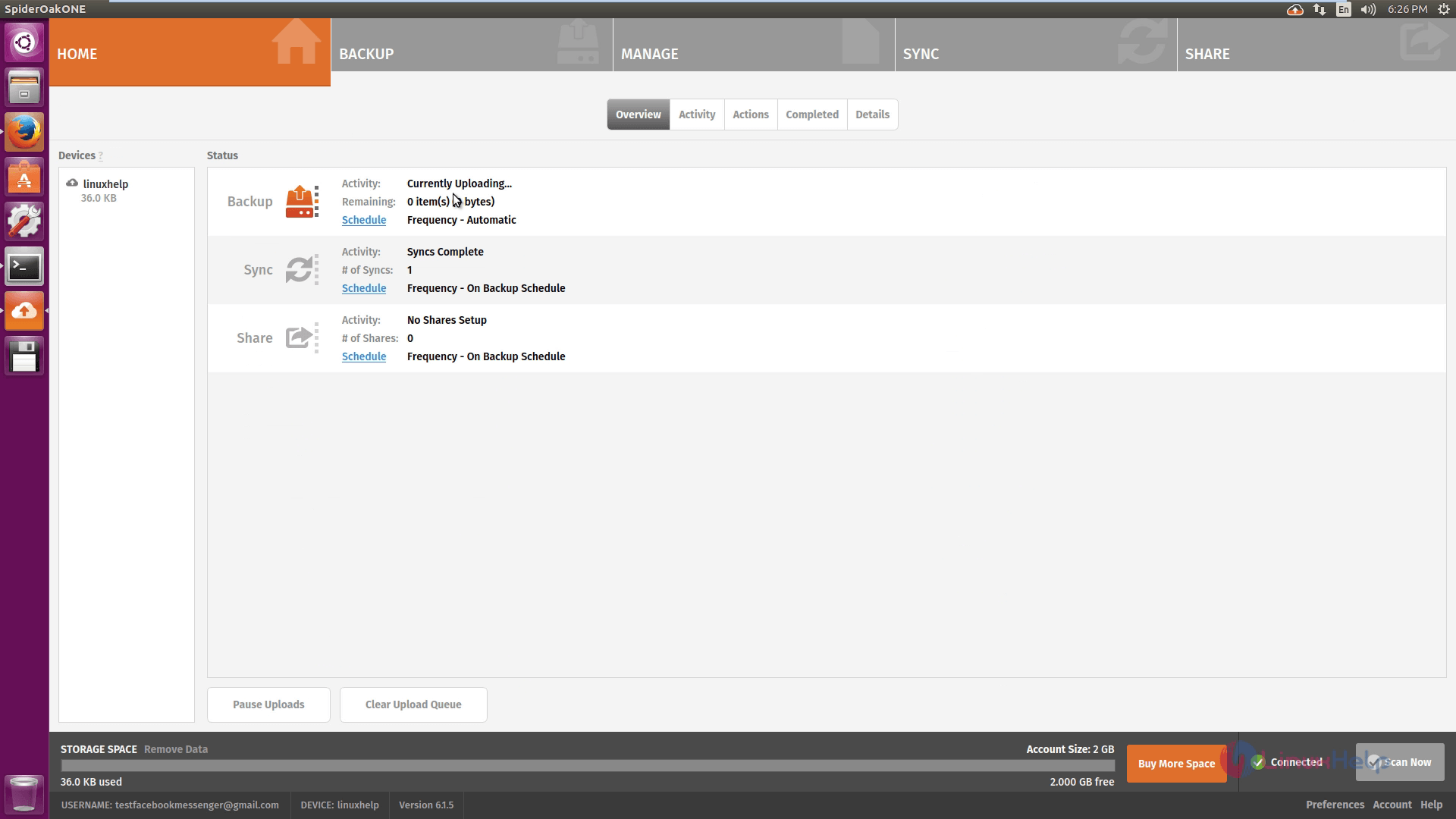
To view the uploaded files, click completed tab.
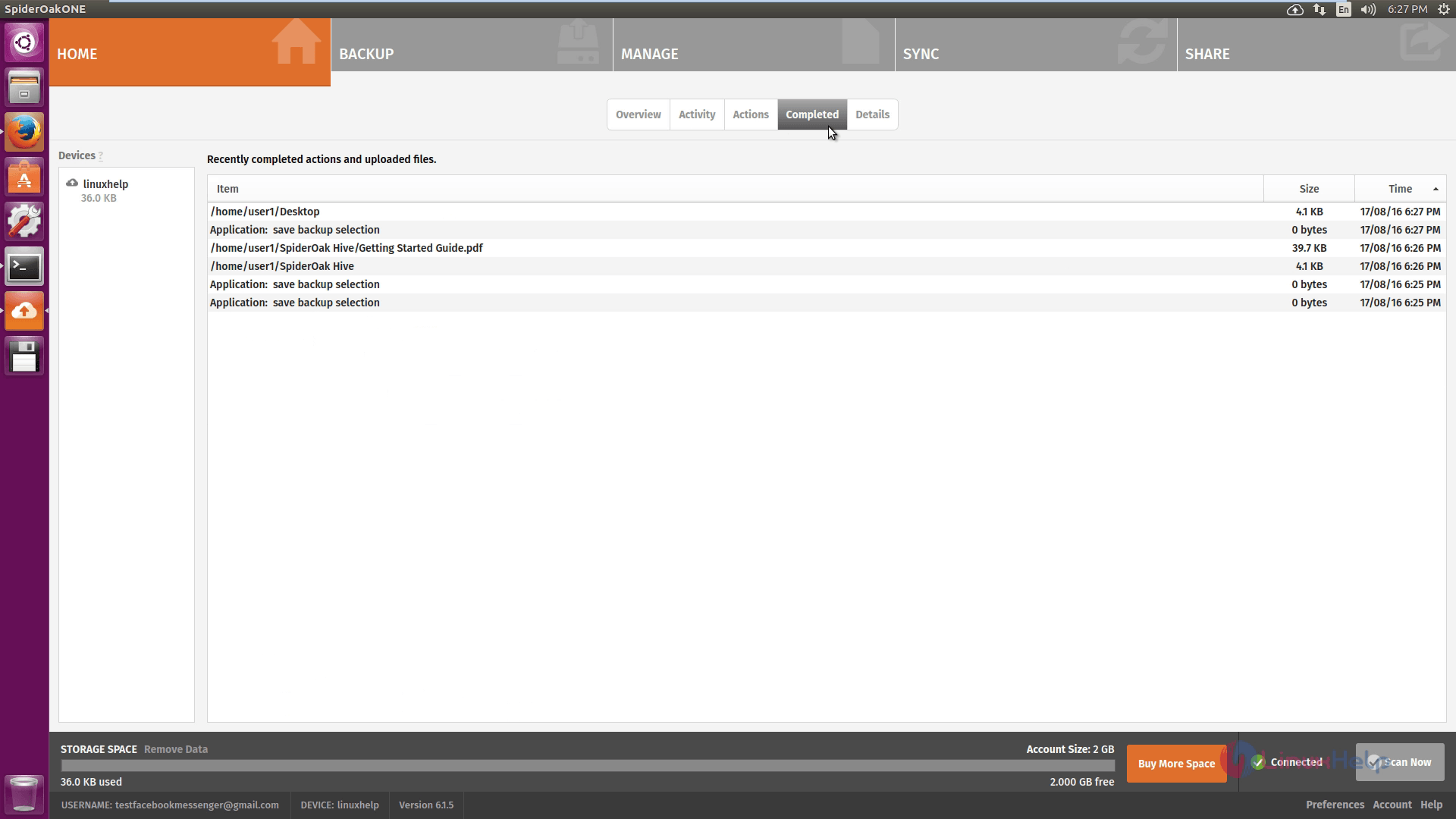
uploaded files

To view the currently uploading files status, click Activity.
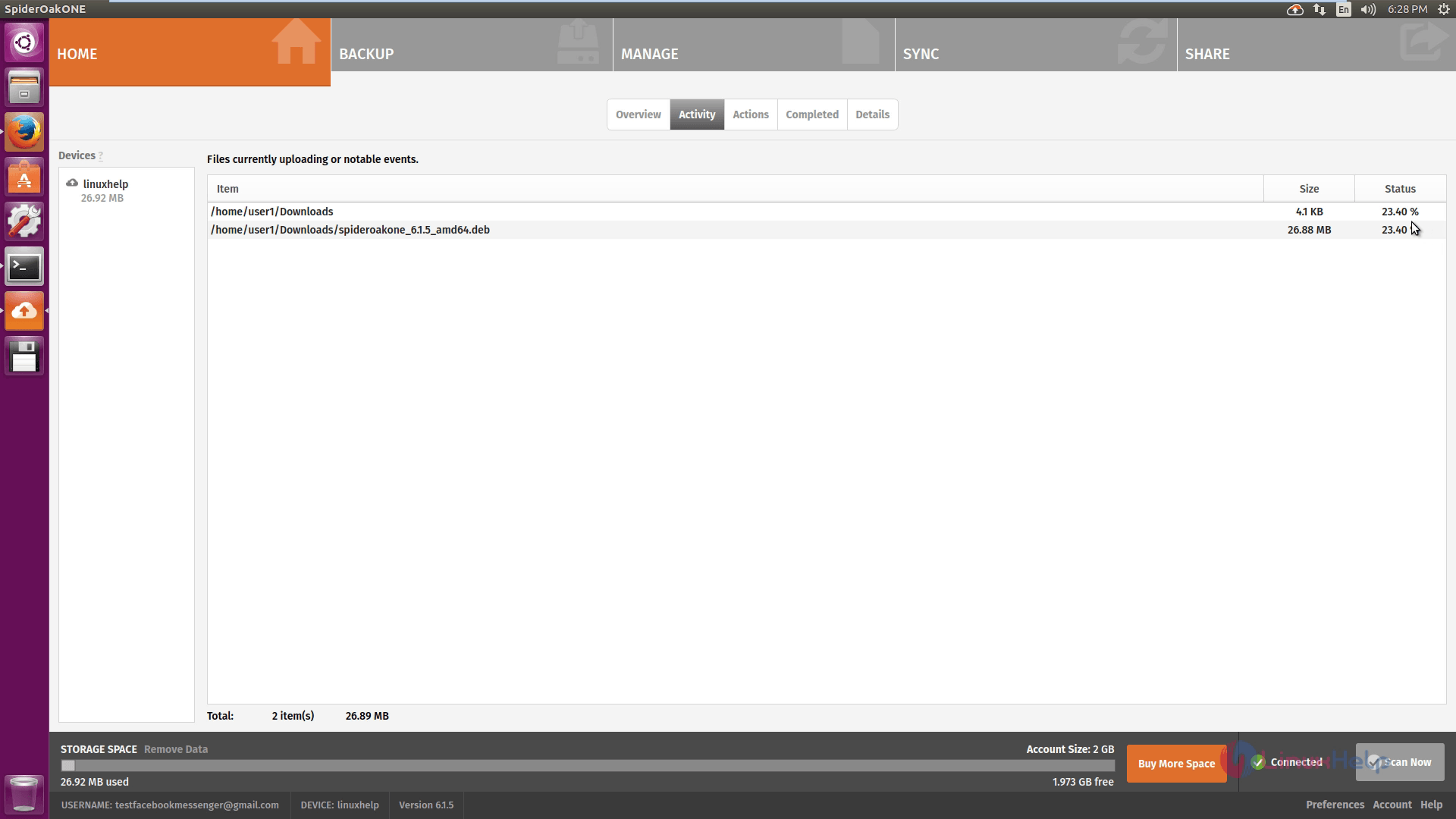
Activity

Preferences

To know general information, click General settings
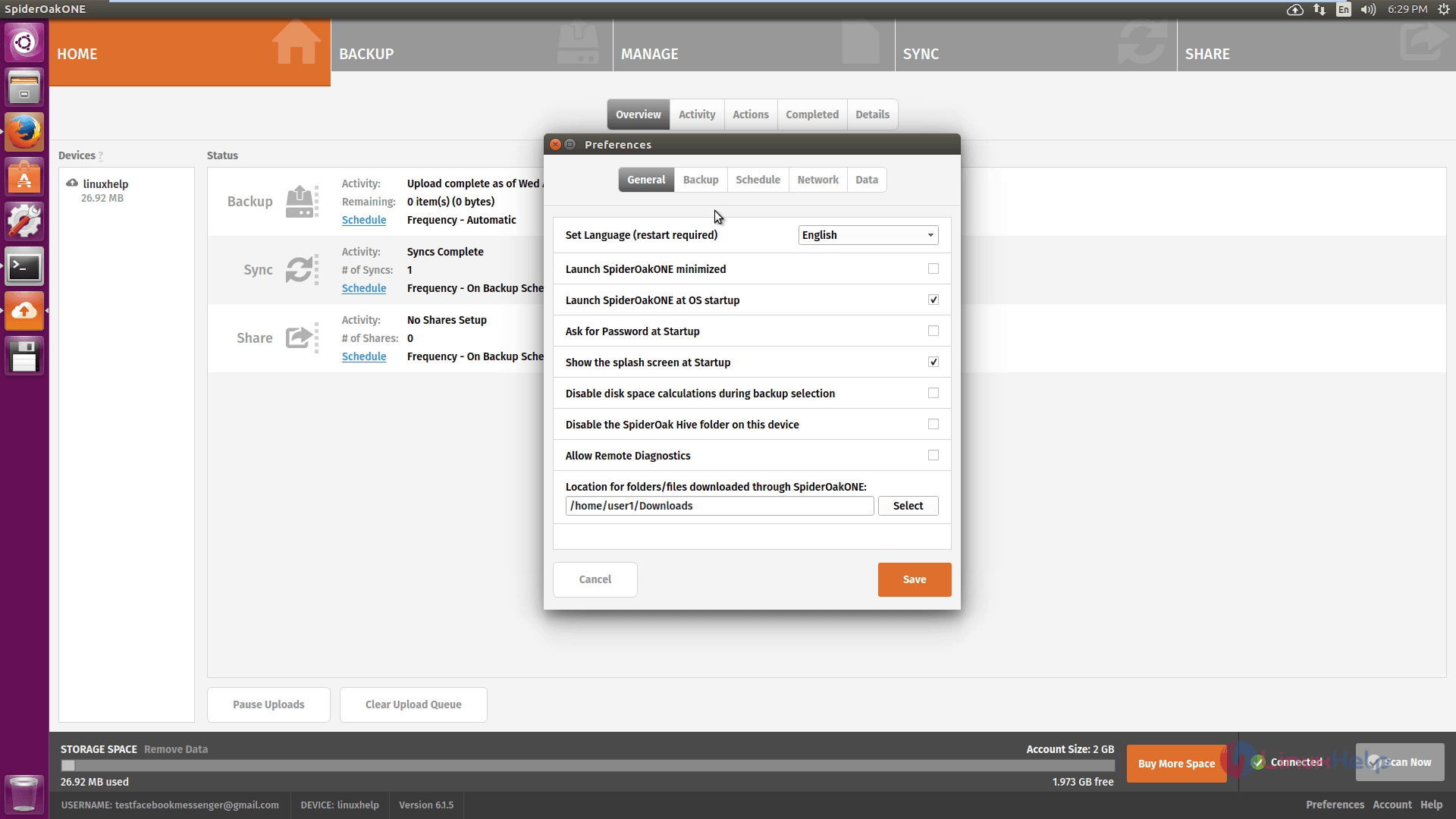
Genera_ settings

To know about Backup settings, click backup tab.
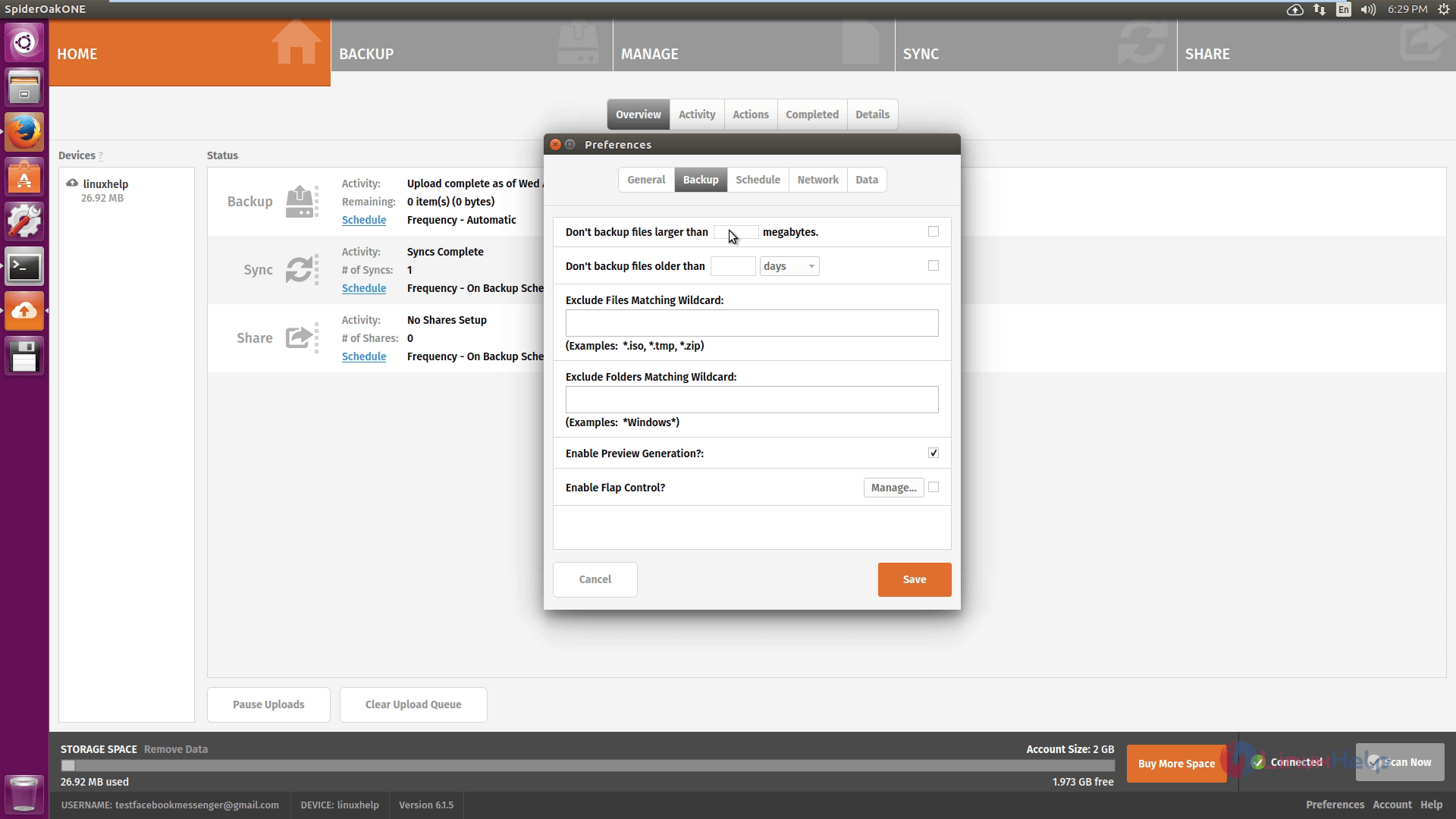
Backup settings

To know about Backup schedules, click schedule tab.
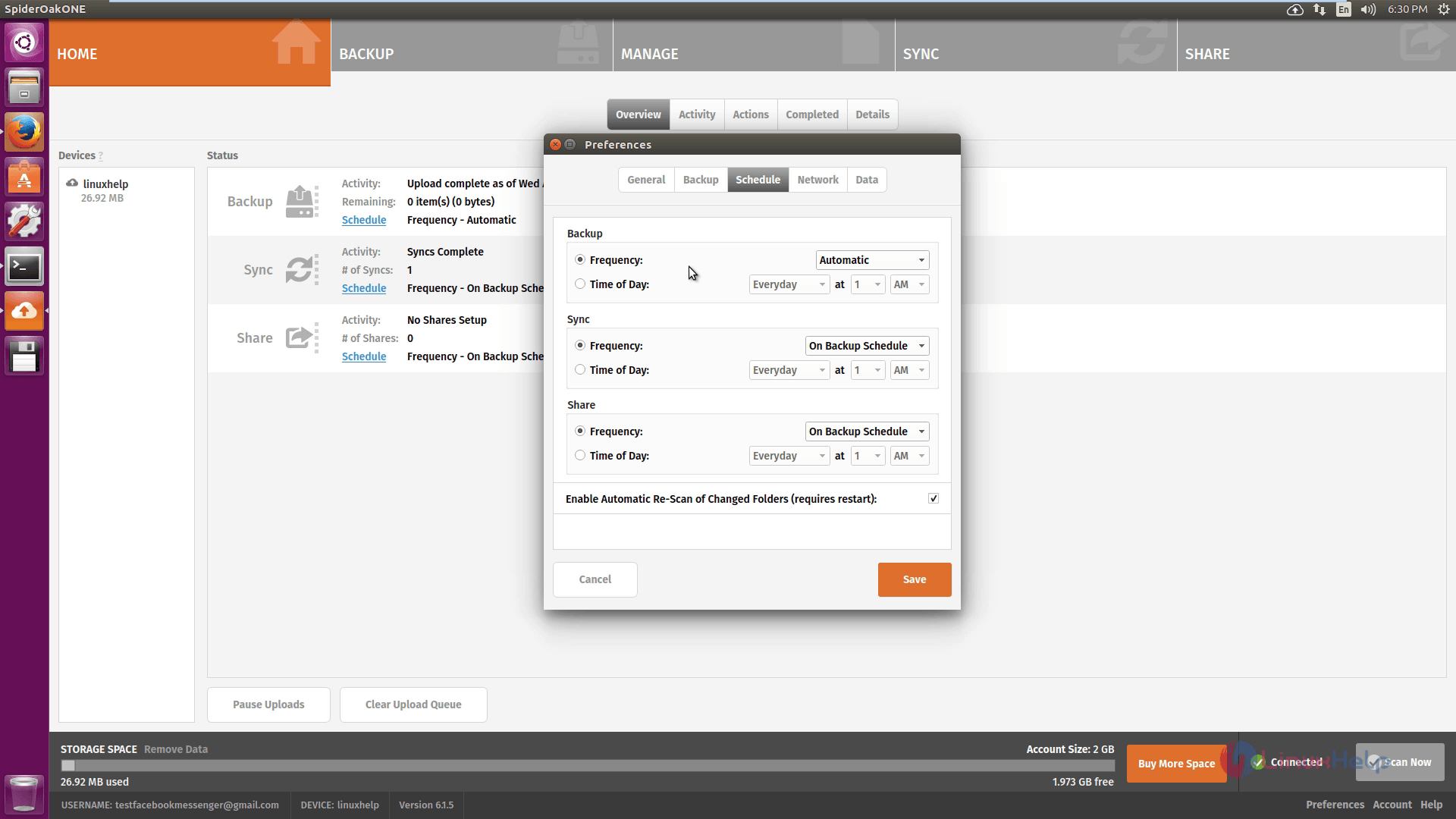
Backup schedules

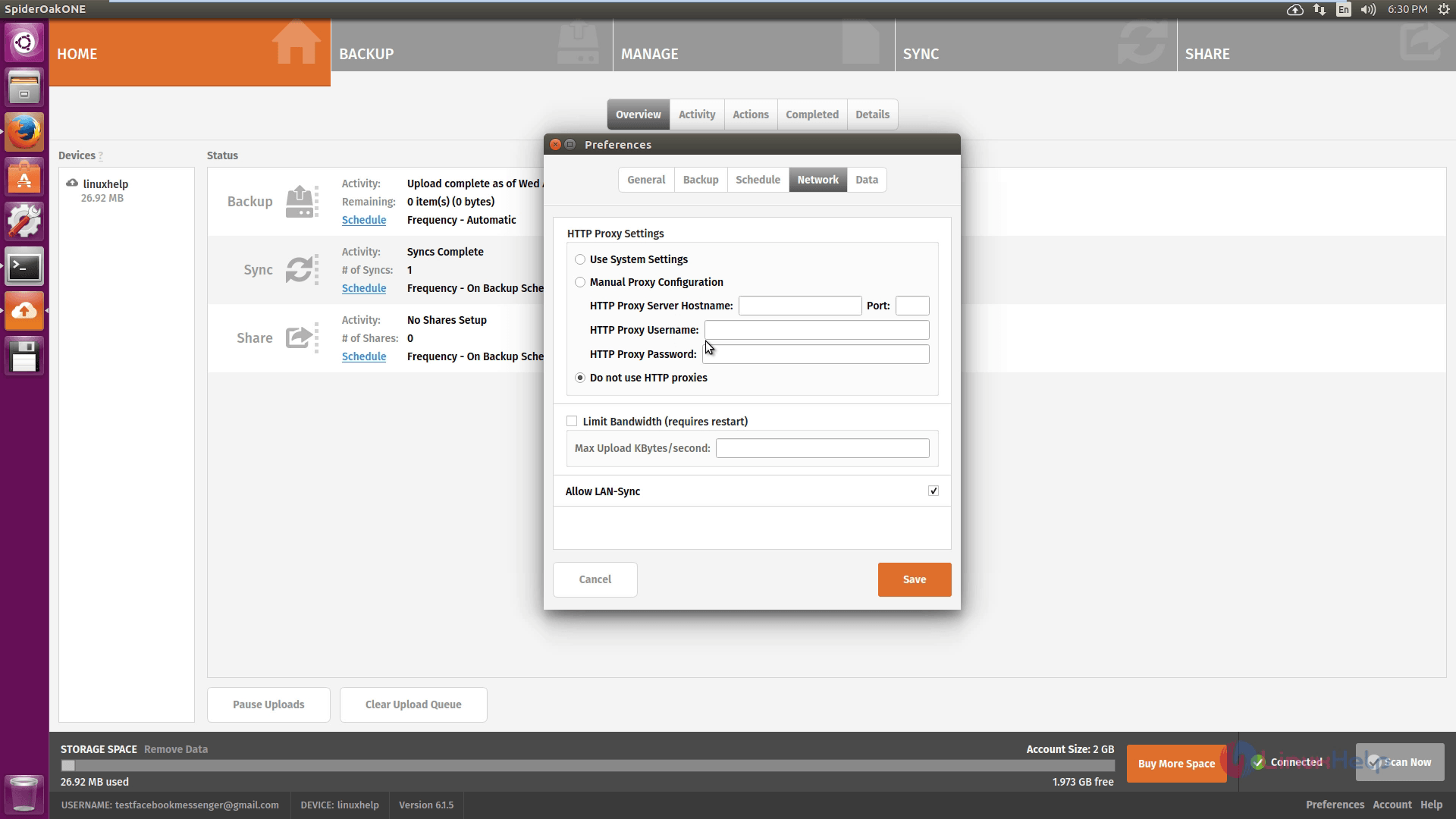
Network settings
 Network settings

To buy more storage space
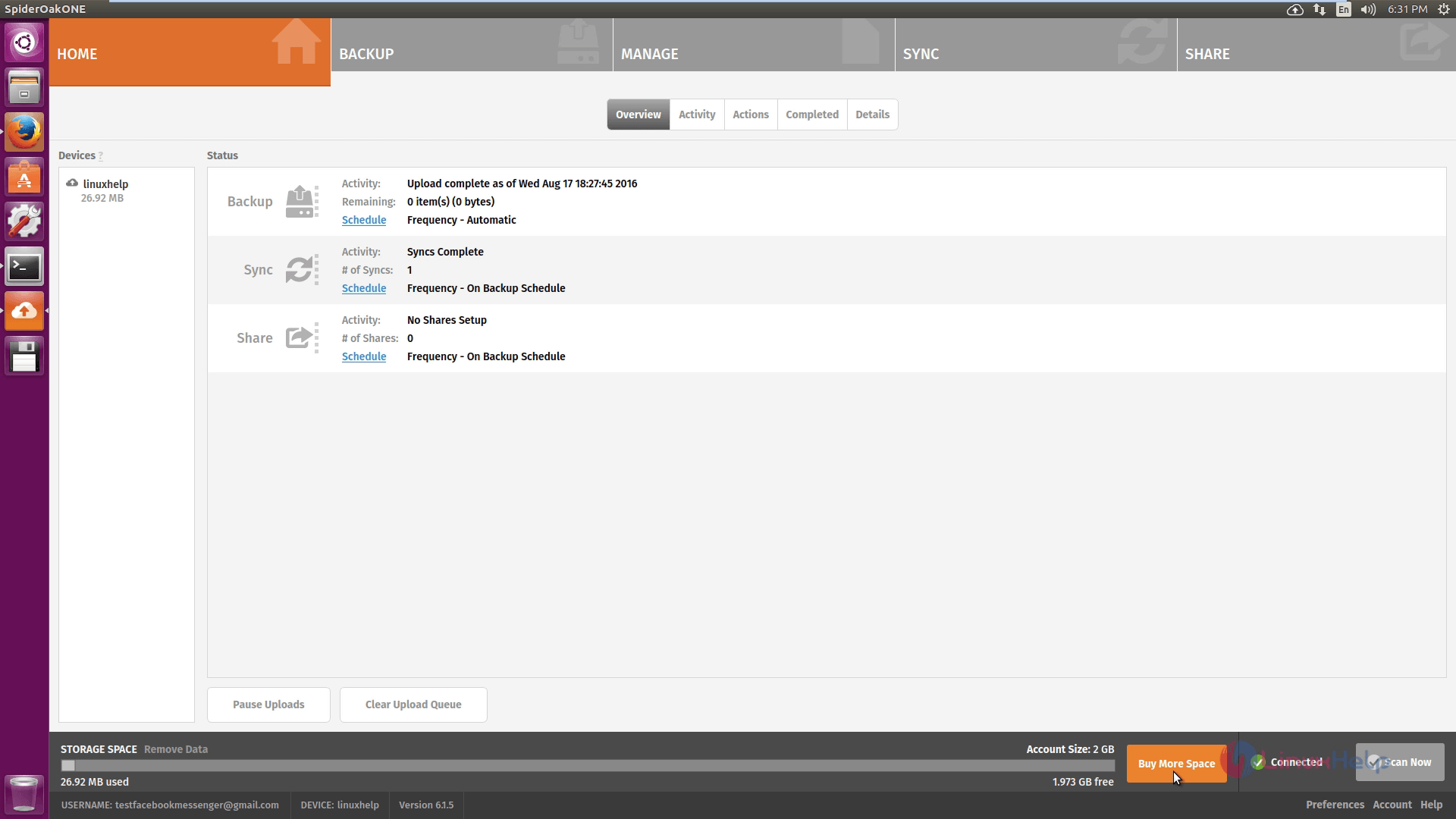
storage_space

Tags:
michael
Author: 

Comments ( 0 )

No comments available

Add a comment
{{postCtrl.cmtErrMsg}}

Frequently asked questions ( 5 )

Q

If its possible to install SpiderOak on Windows?

A

Yes, The SpiderOak can install on windows.

Q

What is the main terms using the SpiderOak?

A

SpiderOak is a free cloud storage service that automatically synchronize the data from the local machine to online cloud server. Users can also retrieve deleted files and folders from the bac

Q

What are the alternative tools for SpiderOAK?

A

Here I have to give some of the alternative tools for SpiderOAK,
BackBlaze,
DropBox,
Google drive,
Owncloud, etc.,

Q

What is uasbility for the SpiderOak?

A

The only way to get complete adoption is with a service that “just works” and “works everywhere”, which is why SpiderOak specializes in creating solutions that take the pain out of encryption software, regardless of the operating system.

Our apps are truly cross platform, so that you can access your data from anywhere.
You can share files and folders easily via our password protected ShareRooms, to make collaboration and distribution trivial.
Feel free to “set and forget” the SpiderOak backup client, so your files are backed up automatically from boot to power-off.

Q

What are the Privacy and Knowlagde privacy for SpiderOak?

A

SpiderOak has been building products on the principle of No Knowledge for over ten years. No Knowledge means we know nothing about the encrypted data you store on our servers. This unique design means nothing leaves your computer until after it is encrypted and is never decrypted until it is unlocked with your password on your computer. It’s not just “end to end encryption;” it’s a No Knowledge System.

Back To Top!
Rank
User
Points

Top Contributers

userNamenaveelansari
135850

Top Contributers

userNameayanbhatti
92510

Top Contributers

userNamehamzaahmed
32150

Top Contributers

1
userNamelinuxhelp
31040

Top Contributers

userNamemuhammadali
24500
Can you help Owen ?
How to add SSH key to my Gitlab account

I need to add the SSH key in my gitlab account. How to do so ????

Networking
  • Routing
  • trunk
  • Netmask
  • Packet Capture
  • domain
  • HTTP Proxy
Server Setup
  • NFS
  • KVM
  • Memory
  • Sendmail
  • WebDAV
  • LXC
Shell Commands
  • Cloud commander
  • Command line archive tools
  • last command
  • Shell
  • terminal
  • Throttle
Desktop Application
  • Linux app
  • Pithos
  • Retrospect
  • Scribe
  • TortoiseHg
  • 4Images
Monitoring Tool
  • Monit
  • Apache Server Monitoring
  • EtherApe 
  • Arpwatch Tool
  • Auditd
  • Barman
Web Application
  • Nutch
  • Amazon VPC
  • FarmWarDeployer
  • Rukovoditel
  • Mirror site
  • Chef
Contact Us | Terms of Use| Privacy Policy| Disclaimer
© 2025 LinuxHelp.com All rights reserved. Linux™ is the registered trademark of Linus Torvalds. This site is not affiliated with linus torvalds in any way.