How to install SteamOS on Ubuntu 17.04
To install SteamOS on Ubuntu 17.04
SteamOS is a Linux operating system, a fork of Debian Jessie and is specifically created to cater the needs of gamers who use Linux. It is built based on a solid Debian core and also optimizes it, hence gives you a living room experience. It is very simple to install SteamOS on Ubuntu 17.04 and this tutorial sheds light on it.
Installing SteamOS
The foremost thing to do before initiating your installation process is to update your repositores. Use the following command for the following purpose.
root@linuxhelp1:~# apt-get update
Get:1 http://security.ubuntu.com/ubuntu zesty-security InRelease [89.2 kB]
Hit:2 http://in.archive.ubuntu.com/ubuntu zesty InRelease
Get:3 http://in.archive.ubuntu.com/ubuntu zesty-updates InRelease [89.2 kB]
Get:4 http://security.ubuntu.com/ubuntu zesty-security/main amd64 Packages [75.5 kB]
Get:5 http://in.archive.ubuntu.com/ubuntu zesty-backports InRelease [89.2 kB]
Get:6 http://security.ubuntu.com/ubuntu zesty-security/main i386 Packages [73.8 kB]
Get:7 http://security.ubuntu.com/ubuntu zesty-security/main Translation-en [33.7 kB]
.
.
.
Get:27 http://in.archive.ubuntu.com/ubuntu zesty-updates/universe i386 Packages [63.5 kB]
Get:28 http://in.archive.ubuntu.com/ubuntu zesty-updates/universe amd64 Packages [63.6 kB]
Get:29 http://in.archive.ubuntu.com/ubuntu zesty-updates/universe Translation-en [36.2 kB]
Get:30 http://in.archive.ubuntu.com/ubuntu zesty-backports/main amd64 Packages [1,484 B]
Fetched 933 kB in 4s (210 kB/s)
Reading package lists... Done
Once it is done, you can install the SteamOS package as follows
root@linuxhelp1:~# apt-get install steam -y
Reading package lists... Done
Building dependency tree
Reading state information... Done
The following additional packages will be installed:
  gcc-6-base:i386 libc6:i386 libdrm-amdgpu1:i386 libdrm-intel1:i386 libdrm-nouveau2:i386 libdrm-radeon1:i386 libdrm2:i386 libedit2:i386 libelf1:i386 libexpat1:i386 libffi6:i386
  libgcc1:i386 libgl1-mesa-dri:i386 libgl1-mesa-glx:i386 libglapi-mesa:i386 libgpg-error0:i386 libllvm4.0:i386 libpciaccess0:i386 libsensors4:i386 libstdc++6:i386 libtinfo5:i386
  libtxc-dxtn-s2tc:i386 libudev1 libudev1:i386 libx11-6:i386 libx11-xcb1:i386 libxau6:i386 libxcb-dri2-0:i386 libxcb-dri3-0:i386 libxcb-glx0:i386 libxcb-present0:i386
  libxcb-sync1:i386 libxcb1:i386 libxdamage1:i386 libxdmcp6:i386 libxext6:i386 libxfixes3:i386 libxinerama1:i386 libxshmfence1:i386 libxss1:i386 libxxf86vm1:i386 udev zlib1g:i386
Suggested packages:
  glibc-doc:i386 locales:i386 lm-sensors:i386 steam-devices:i386
The following NEW packages will be installed:
.
.
.
Setting up libxxf86vm1:i386 (1:1.1.4-1) ...
Setting up libxinerama1:i386 (2:1.1.3-1) ...
Setting up libgl1-mesa-glx:i386 (17.0.3-1ubuntu1) ...
update-alternatives: using /usr/lib/i386-linux-gnu/mesa/ld.so.conf to provide /etc/ld.so.conf.d/i386-linux-gnu_GL.conf (i386-linux-gnu_gl_conf) in auto mode
Setting up steam:i386 (1:1.0.0.54+repack-2ubuntu5) ...
Processing triggers for initramfs-tools (0.125ubuntu9) ...
update-initramfs: Generating /boot/initrd.img-4.10.0-19-generic
Processing triggers for libc-bin (2.24-9ubuntu2) ...
After this stage, you need to download few Debian packages. Make use of the following command.
root@linuxhelp1:~# wget http://repo.steamstatic.com/steamos/pool/main/s/steamos-compositor/steamos-compositor_1.34+bsos1_amd64.deb http://repo.steamstatic.com/steamos/pool/main/s/steamos-modeswitch-inhibitor/steamos-modeswitch-inhibitor_1.10+bsos1_amd64.deb
--2017-06-15 10:17:40--  http://repo.steamstatic.com/steamos/pool/main/s/steamos-compositor/steamos-compositor_1.34+bsos1_amd64.deb
Resolving repo.steamstatic.com (repo.steamstatic.com)... 208.64.203.149
Connecting to repo.steamstatic.com (repo.steamstatic.com)|208.64.203.149|:80... connected.
HTTP request sent, awaiting response... 200 OK
Length: 28598 (28K) [application/x-debian-package]
Saving to: ‘ steamos-compositor_1.34+bsos1_amd64.deb’
steamos-compositor_1.34+bsos1_amd64.deb       100%[==============================================================================================> ]  27.93K  90.7KB/s    in 0.3s
2017-06-15 10:17:42 (90.7 KB/s) - ‘ steamos-compositor_1.34+bsos1_amd64.deb’  saved [28598/28598]
--2017-06-15 10:17:42--  http://repo.steamstatic.com/steamos/pool/main/s/steamos-modeswitch-inhibitor/steamos-modeswitch-inhibitor_1.10+bsos1_amd64.deb
Reusing existing connection to repo.steamstatic.com:80.
HTTP request sent, awaiting response... 200 OK
Length: 6700 (6.5K) [application/x-debian-package]
Saving to: ‘ steamos-modeswitch-inhibitor_1.10+bsos1_amd64.deb’
steamos-modeswitch-inhibitor_1.10+bsos1_amd64 100%[==============================================================================================> ]   6.54K  --.-KB/s    in 0.007s
2017-06-15 10:17:43 (963 KB/s) - ‘ steamos-modeswitch-inhibitor_1.10+bsos1_amd64.deb’  saved [6700/6700]
FINISHED --2017-06-15 10:17:43--
Total wall clock time: 2.5s
Downloaded: 2 files, 34K in 0.3s (110 KB/s)
root@linuxhelp1:~# wget ftp.fit.vutbr.cz/pub/systems/ubuntu/ubuntu/pool/universe/u/udev/libudev0_175-0ubuntu19_amd64.deb
--2017-06-15 10:18:06--  http://ftp.fit.vutbr.cz/pub/systems/ubuntu/ubuntu/pool/universe/u/udev/libudev0_175-0ubuntu19_amd64.deb
Resolving ftp.fit.vutbr.cz (ftp.fit.vutbr.cz)... 147.229.9.30
Connecting to ftp.fit.vutbr.cz (ftp.fit.vutbr.cz)|147.229.9.30|:80... connected.
HTTP request sent, awaiting response... 200 OK
Length: 27806 (27K) [application/x-debian-package]
Saving to: ‘ libudev0_175-0ubuntu19_amd64.deb’
libudev0_175-0ubuntu19_amd64.deb              100%[==============================================================================================> ]  27.15K   136KB/s    in 0.2s
2017-06-15 10:18:08 (136 KB/s) - ‘ libudev0_175-0ubuntu19_amd64.deb’  saved [27806/27806]
Once these packages are downloaded, you can install them by using the gdebi command. Use the following command to install those gdebi packages.
root@linuxhelp1:~# apt-get install gdebi -y
Reading package lists... Done
Building dependency tree
Reading state information... Done
The following NEW packages will be installed:
  gdebi
0 upgraded, 1 newly installed, 0 to remove and 102 not upgraded.
Need to get 23.5 kB of archives.
After this operation, 169 kB of additional disk space will be used.
Get:1 http://in.archive.ubuntu.com/ubuntu zesty/universe amd64 gdebi all 0.9.5.7+nmu1 [23.5 kB]
Fetched 23.5 kB in 2s (10.7 kB/s)
Selecting previously unselected package gdebi.
(Reading database ... 195286 files and directories currently installed.)
.
.
.
Processing triggers for bamfdaemon (0.5.3+17.04.20170406-0ubuntu1) ...
Rebuilding /usr/share/applications/bamf-2.index...
Processing triggers for man-db (2.7.6.1-2) ...
Setting up gdebi (0.9.5.7+nmu1) ...
You can now install those debian packages with the help of gdebi as follows.
root@linuxhelp1:~# gdebi libudev0_175-0ubuntu19_amd64.deb steamos-modeswitch-inhibitor_1.10+bsos1_amd64.deb steamos-compositor_1.34+bsos1_amd64.deb
Reading package lists... Done
Building dependency tree
Reading state information... Done
Reading state information... Done
udev library
 libudev provides a set of functions for accessing the udev database
 and querying sysfs.
Do you want to install the software package? [y/N]:y
Selecting previously unselected package libudev0:amd64.
(Reading database ... 195300 files and directories currently installed.)
Preparing to unpack libudev0_175-0ubuntu19_amd64.deb ...
Unpacking libudev0:amd64 (175-0ubuntu19) ...
Setting up libudev0:amd64 (175-0ubuntu19) ...
Processing triggers for libc-bin (2.24-9ubuntu2) ...
After completing all the steps above, you need to reboot your system.
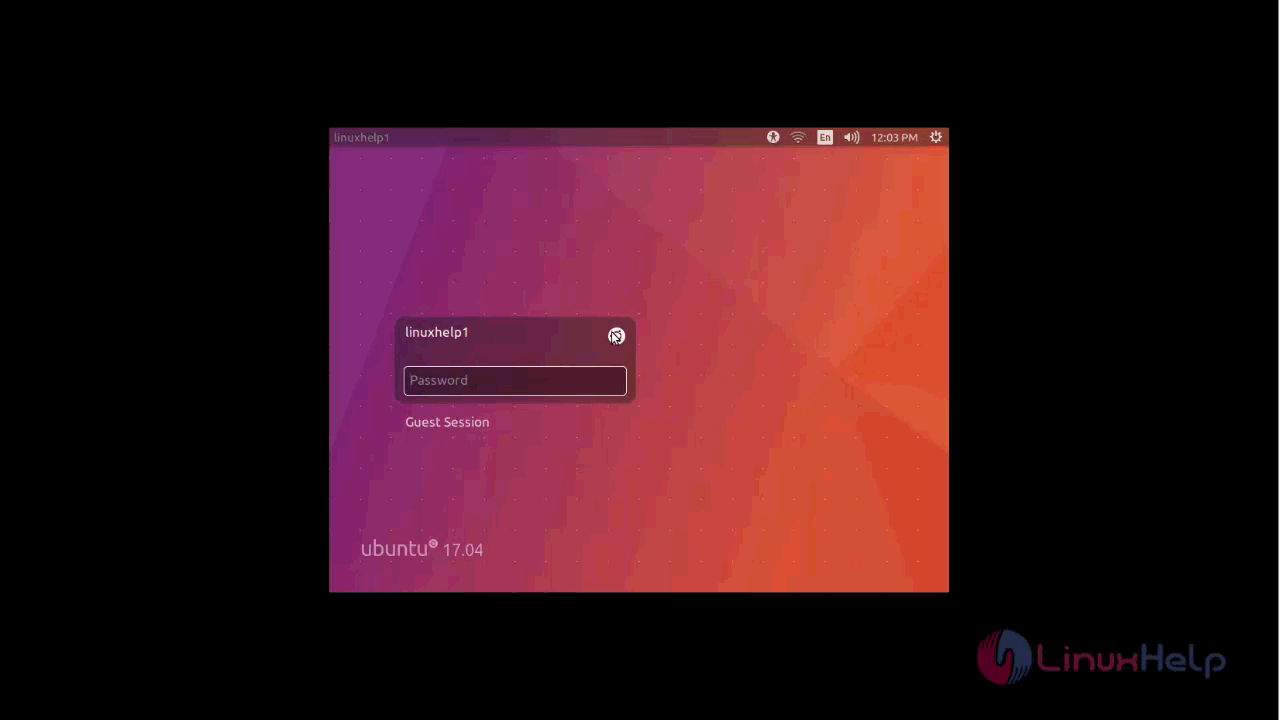
Once your login screen appears, choose SteamOS as a default desktop environment as the following image.
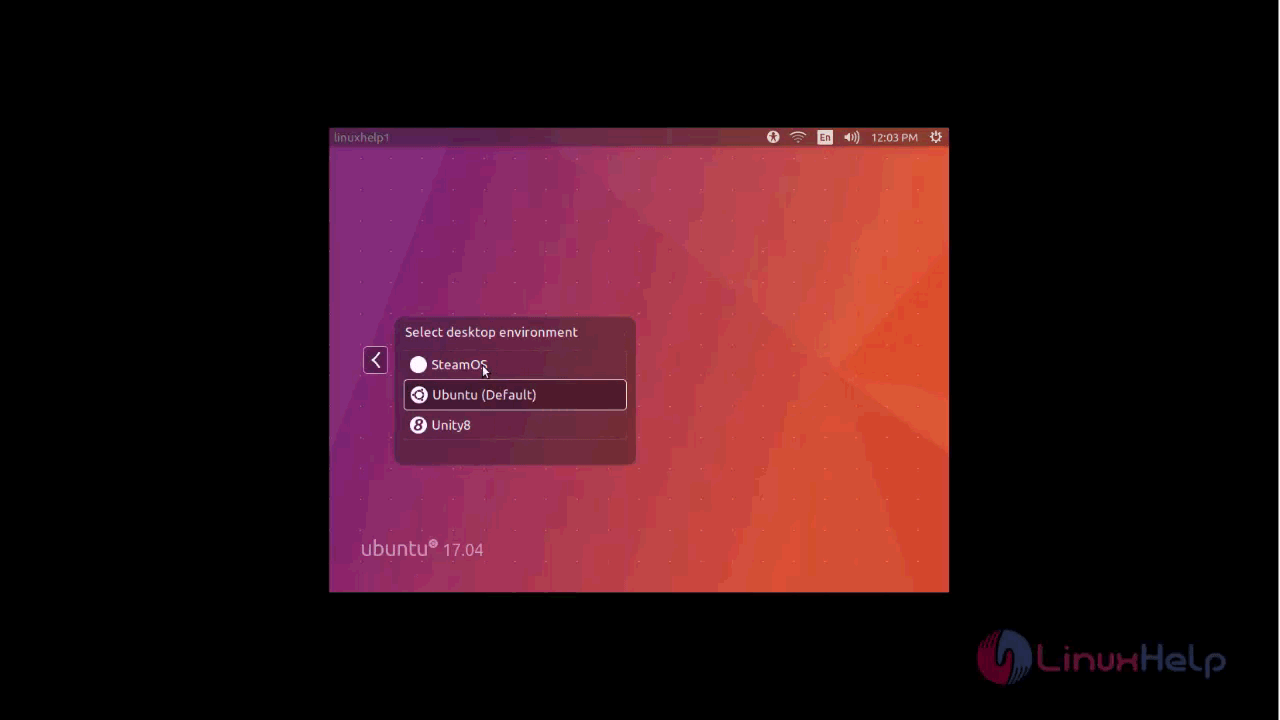
Select it, your SteamOS will start its updating process
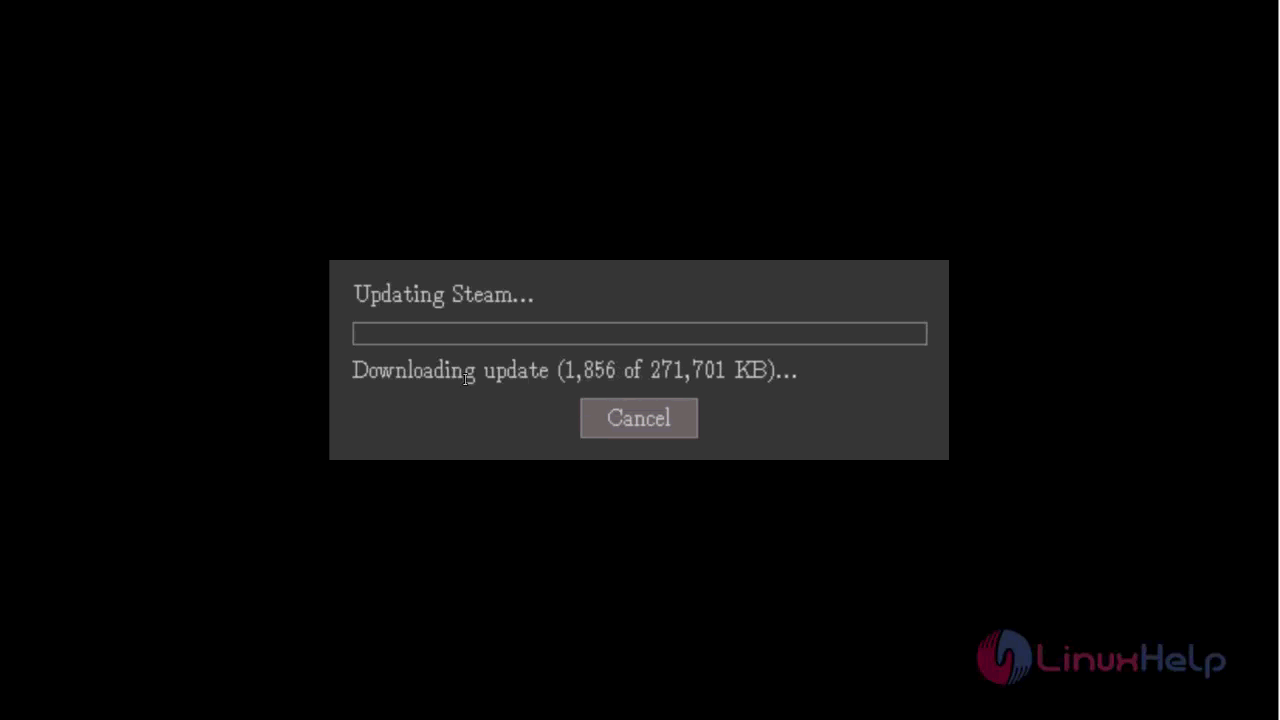
After the update, SteamOS login appears on screen. Login with your steam account, if you don’ t have any, create one on SteamOS' official website.
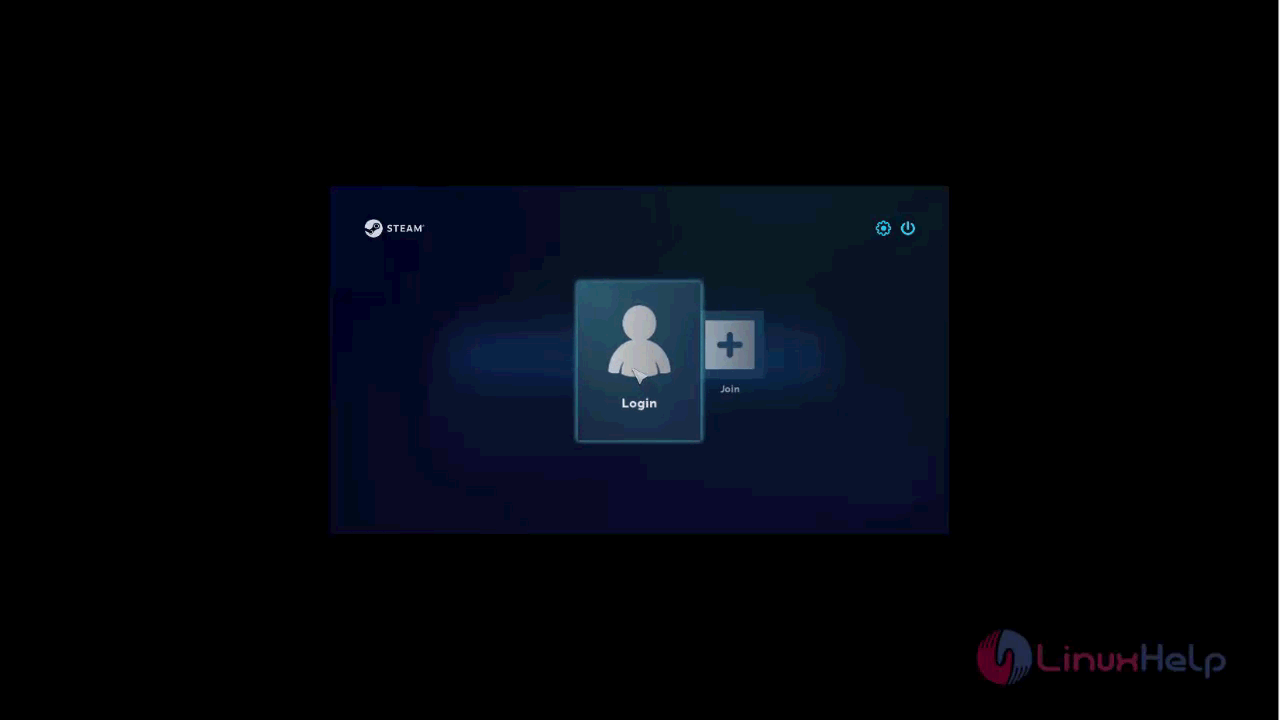
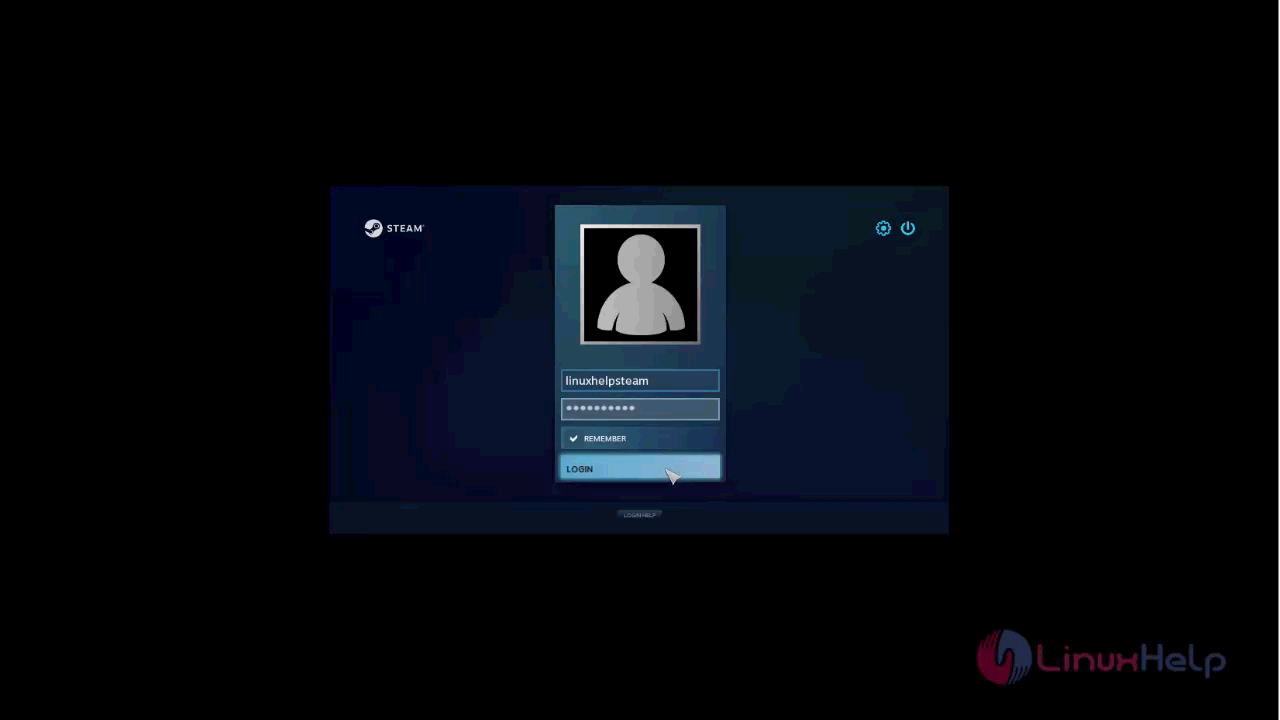
Once you log in, your screen appears as follows.
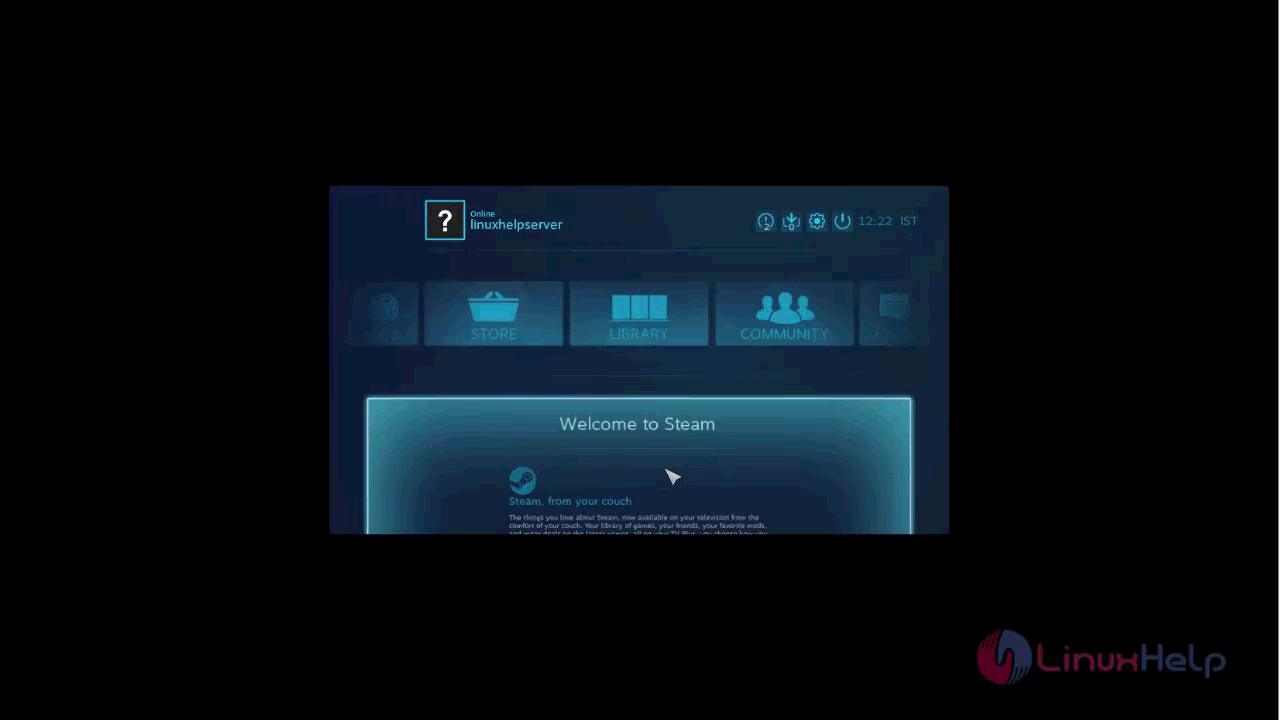
The complete installation was covered in the above steps. Once installed, you can use SteamOS to play games with living room experiance.
Comments ( 0 )
No comments available