• Categories
    Category
    {{ postCtrl.tags }}
    • {{ category.tag_type }}

      • {{tag.tag_name}}
      • View more
  • Categories
    Category
    {{ postCtrl.tags }}
    • {{ category.tag_type }}

      • {{tag.tag_name}}
      • View more
  • News
  • Tutorials
  • Forums
  • Tags
  • Users
Tutorial News Comments FAQ Related Articles

How to install Tea Editor on ParrotOs 3.9

{{postValue.id}}

To install Tea Editor on ParrotOs 3.9

Tea is open source text editor application written in C++ programming language. Its Graphical User Interface is developed in QT. It acts as a text editor and word processor for both Linux and Windows platforms. TEA is compact, configurable and is packed with so many handy features, and it consumes only about 500KB of memory. It is really so simple to install Tea editor and in this article the installation of Tea Editor on ParrotOS3.9 is covered.

Installing Tea Editor

To begin with the installation procedure, update your system by using the following command.

┌─[root@linuxhelp]─[~]
└──╼ # apt-get update
Get:1 http://deb.parrotsec.org/parrot stable InRelease [14.6 kB]
Get:2 http://deb.parrotsec.org/parrot stable/main amd64 Packages [16.3 MB]
Get:3 http://deb.parrotsec.org/parrot stable/contrib amd64 Packages [132 kB]   
Get:4 http://deb.parrotsec.org/parrot stable/non-free amd64 Packages [186 kB]  
Fetched 16.6 MB in 2min 19s (119 kB/s)                                         
Reading package lists... Done

And then, proceed with the installation of Tea Editor with the help of the following command.

┌─[root@linuxhelp]─[~]
└──╼ # apt-get install tea-data -y
Reading package lists... Done
Building dependency tree       
Reading state information... Done
The following additional packages will be installed:
  antiword libpoppler-qt5-1 libpoppler72 tea
.
.
.
Setting up antiword (0.37-11+b1) ...
Setting up libpoppler-qt5-1:amd64 (0.61.1-2) ...
Setting up tea (44.1.1-1) ...
Processing triggers for libc-bin (2.24-17) ...
Configuring sandbox profiles....
Sandbox profiles updated!

Once the application is installed, you shall launch it from the Applications menu on your ParrotOS. Go to Application and choose Accessories.
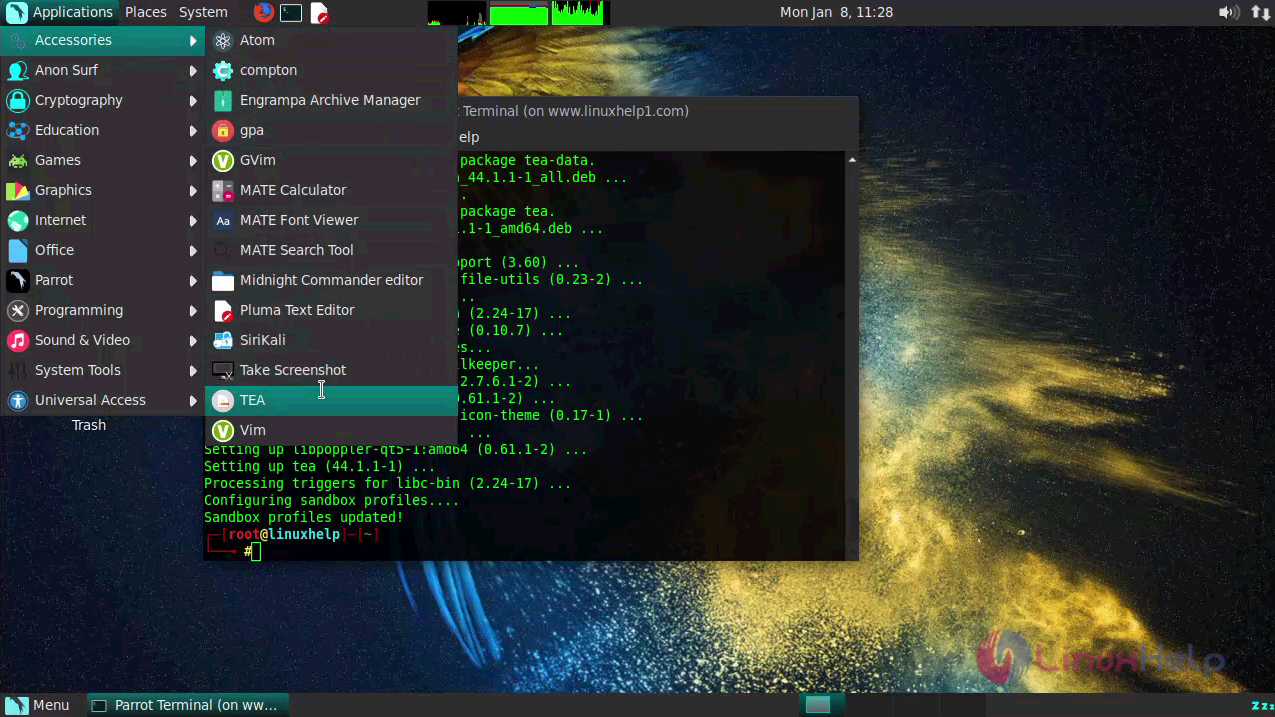
App

The Tea application appears on your screen.
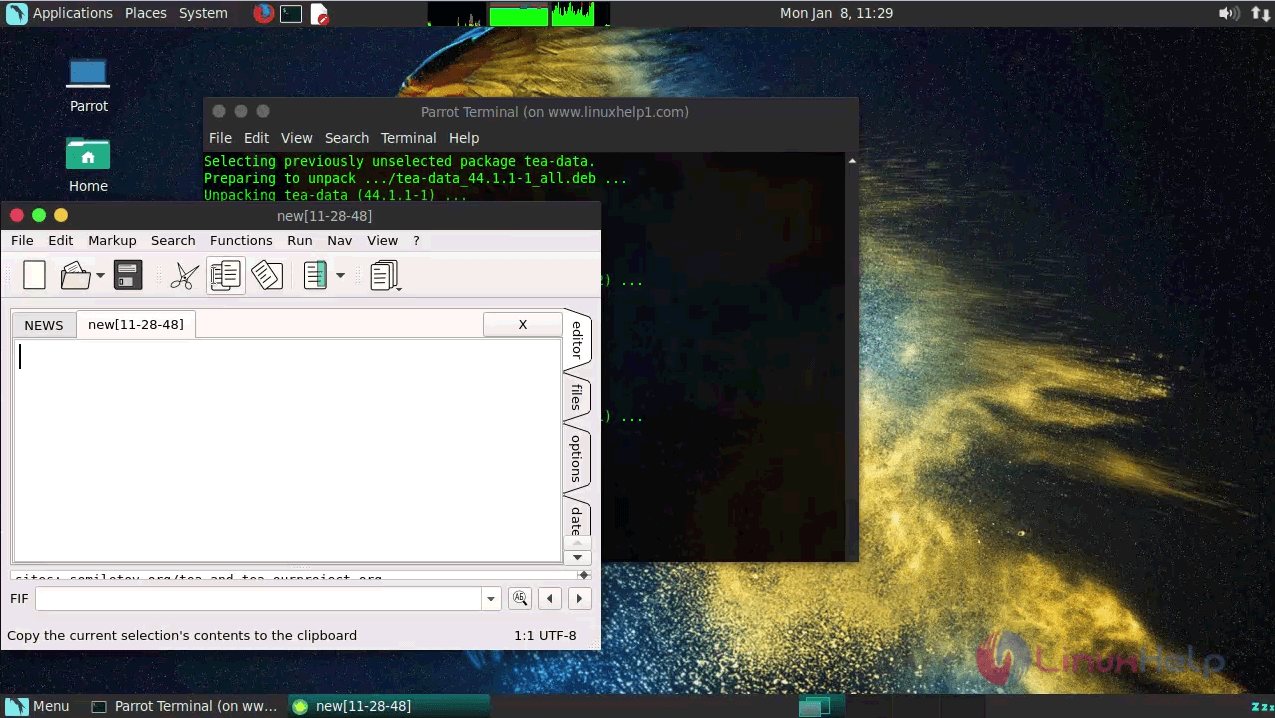
Accessories
Enjoy editing your text using the Tea Editor.

Tags:
gabriel
Author: 

Comments ( 0 )

No comments available

Add a comment
{{postCtrl.cmtErrMsg}}

Frequently asked questions ( 5 )

Q

What is Tea Editor on ubuntu?

A

Tea is open source application software, which is written in C++ programming language. Its Graphical User Interface is developed in QT. As a text editor and word processor for both Linux and Windows platforms.

Q

Whether can install Tea editor on MAC?

A

Yes, you can install Tea editor on MAC

Q

What are the Features available in Tea Editor?

A

Small and Lightweight.

Checks spelling mistakes.

Inbuilt calendar and organizer.

Inbuilt zip or unzip.

Supports different kinds of image formats.

Q

How To Install Tea Editor on ubuntu?

A

run the following command:

# apt-get install tea-data

Q

Is this work with windows?

A

TEA is a graphical text editor. Its name is an acronym for Text Editor of the Atomic Era. ... Later on, a version for Linux using GTK + was written, which made it possible to compile the program for both Windows and Linux

Back To Top!
Rank
User
Points

Top Contributers

userNamenaveelansari
135850

Top Contributers

userNameayanbhatti
92510

Top Contributers

userNamehamzaahmed
32150

Top Contributers

1
userNamelinuxhelp
31040

Top Contributers

userNamemuhammadali
24500
Can you help Sebastian ?
How to change non required to required field in SuiteCRM Custom/Default Modules

How to change not required to the required field in SuiteCRM Custom/Default Modules?

Networking
  • Routing
  • trunk
  • Netmask
  • Packet Capture
  • domain
  • HTTP Proxy
Server Setup
  • NFS
  • KVM
  • Memory
  • Sendmail
  • WebDAV
  • LXC
Shell Commands
  • Cloud commander
  • Command line archive tools
  • last command
  • Shell
  • terminal
  • Throttle
Desktop Application
  • Linux app
  • Pithos
  • Retrospect
  • Scribe
  • TortoiseHg
  • 4Images
Monitoring Tool
  • Monit
  • Apache Server Monitoring
  • EtherApe 
  • Arpwatch Tool
  • Auditd
  • Barman
Web Application
  • Nutch
  • Amazon VPC
  • FarmWarDeployer
  • Rukovoditel
  • Mirror site
  • Chef
Contact Us | Terms of Use| Privacy Policy| Disclaimer
© 2025 LinuxHelp.com All rights reserved. Linux™ is the registered trademark of Linus Torvalds. This site is not affiliated with linus torvalds in any way.