• Categories
    Category
    {{ postCtrl.tags }}
    • {{ category.tag_type }}

      • {{tag.tag_name}}
      • View more
  • Categories
    Category
    {{ postCtrl.tags }}
    • {{ category.tag_type }}

      • {{tag.tag_name}}
      • View more
  • News
  • Tutorials
  • Forums
  • Tags
  • Users
Tutorial News Comments FAQ Related Articles

How to install Tesseract OCR on Ubuntu 16.04

{{postValue.id}}

To install Tesser act OCR on Ubuntu 16.04

Tesseract is one of the most powerful open source OCR engine available today. OCR stands for Optical Character Recognition. This is the process of extracting texts from images.


Installing Tesseract

You shall begin the installation of Tesseract OCR by simply running the following command.

root@linuxhelp:~# apt-get install tesseract-ocr
Reading package lists... Done
Building dependency tree       
.
.
Processing triggers for libc-bin (2.23-0ubuntu3) ...

Once it is done, you need to install the language. Usually, the tesseract comes with the english pack by default if you want all the language packs to be downloaded, you can run the following command.

root@linuxhelp:~# apt-get install tesseract-ocr-all
With this, the Tesseract installation comes to an end. 

You should now install Imagemagick and for that you should run the following command.

root@linuxhelp:~# apt install imagemagick
Reading package lists... Done
Building dependency tree       
.
.
Setting up imagemagick-6.q16 (8:6.8.9.9-7ubuntu5.9) ...
Setting up imagemagick (8:6.8.9.9-7ubuntu5.9) ...


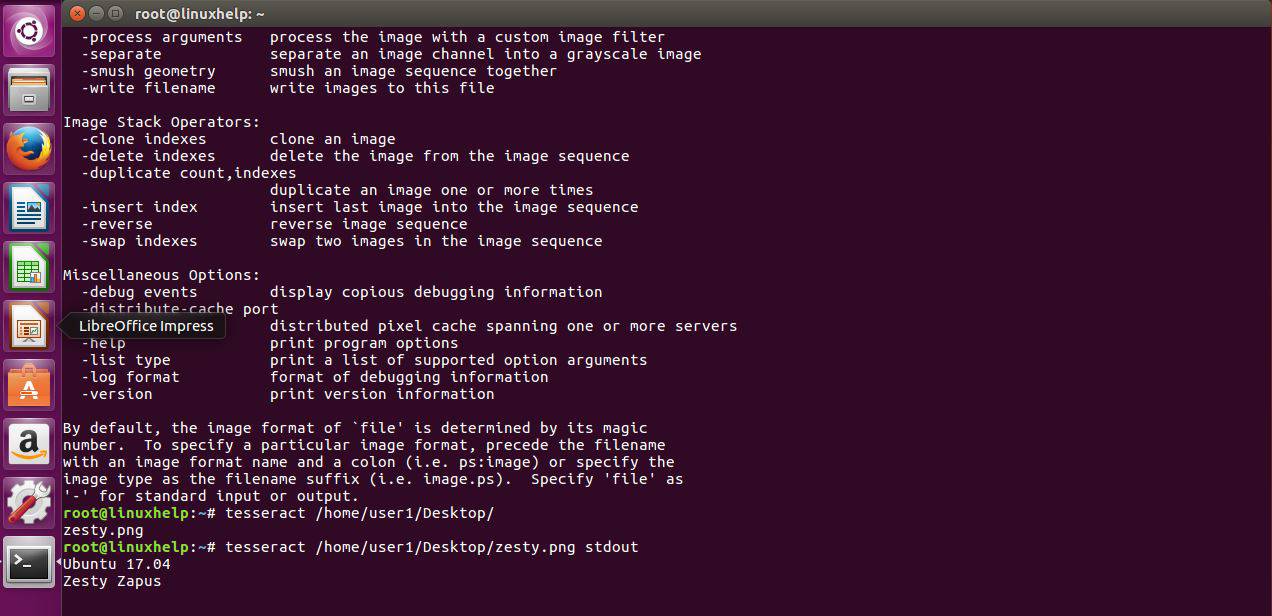
This tool is used from the command line using the convert command. To check the correct installation, run the following command and the output should be similar to the image below:

root@linuxhelp:~# convert &ndash h
Version: ImageMagick 6.8.9-9 Q16 x86_64 2017-07-31 http://www.imagemagick.org
Copyright: Copyright (C) 1999-2014 ImageMagick Studio LLC
.
.
mage type as the filename suffix (i.e. image.ps).  Specify ' file'  as
' -'  for standard input or output.

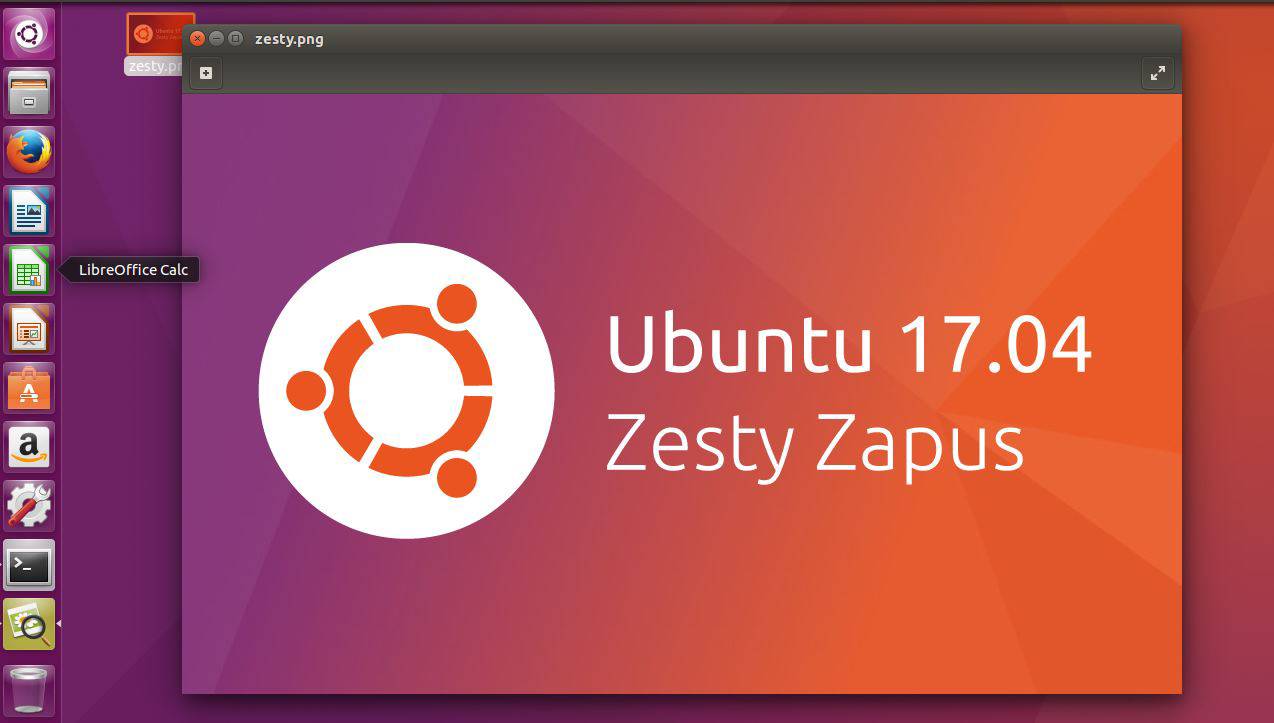
We shall now see about the usage of Tesseract. It is capable of taking images of many different formats like jpg, png, tiff, etc. and extract the text from it.
To get the output in the terminal, run the generic command with the path of the image

tesseract [image_path] stdout

root@linuxhelp:~# tesseract /home/user1/Desktop/zesty.png stdout
Ubuntu 17.04
Zesty Zapus

zesty
Zapus

With this, the method to install Tesseract OCT on Ubuntu 16.04 comes to an end.

Tags:
jacob
Author: 

Comments ( 0 )

No comments available

Add a comment
{{postCtrl.cmtErrMsg}}

Frequently asked questions ( 5 )

Q

What output formats can Tesseract produce?

A

The output formats are below txt pdf hocr Tsv

Q

How do I run Tesseract 4.0.0 from the command line?

A

tesseract --help will provide the most recent help information for the installed version.

Q

How do I improve OCR results?

A

You should note that in many cases, in order to get better OCR results, you'll need to improve the quality of the input image you are giving Tesseract.

Q

How can I make the error messages go to tesseract.log instead of stderr?

A

To restore the old behaviour of writing to tesseract.log instead of writing to the console window, you need a text file that contains this: debug_file tesseract.log call the file 'logfile'

Q

How can I suppress tesseract info line?

A

you can redirect stderr and stdout output to /dev/null. E.g.: tesseract phototest.tif phototest 1>/dev/null 2>&1 With tesseract 3.02 you can use config "quiet". E.g.: tesseract phototest.ti

Back To Top!
Rank
User
Points

Top Contributers

userNamenaveelansari
135850

Top Contributers

userNameayanbhatti
92510

Top Contributers

userNamehamzaahmed
32150

Top Contributers

1
userNamelinuxhelp
31040

Top Contributers

userNamemuhammadali
24500
Can you help Luk Van De Looverbosch ?
How to create a root ?

Hello,
How to create root@linuxhelp in Linux Mint 20.1 64-bit ?
Thanks in advance for your reply.
Best regards.

Networking
  • Routing
  • trunk
  • Netmask
  • Packet Capture
  • domain
  • HTTP Proxy
Server Setup
  • NFS
  • KVM
  • Memory
  • Sendmail
  • WebDAV
  • LXC
Shell Commands
  • Cloud commander
  • Command line archive tools
  • last command
  • Shell
  • terminal
  • Throttle
Desktop Application
  • Linux app
  • Pithos
  • Retrospect
  • Scribe
  • TortoiseHg
  • 4Images
Monitoring Tool
  • Monit
  • Apache Server Monitoring
  • EtherApe 
  • Arpwatch Tool
  • Auditd
  • Barman
Web Application
  • Nutch
  • Amazon VPC
  • FarmWarDeployer
  • Rukovoditel
  • Mirror site
  • Chef
Contact Us | Terms of Use| Privacy Policy| Disclaimer
© 2025 LinuxHelp.com All rights reserved. Linux™ is the registered trademark of Linus Torvalds. This site is not affiliated with linus torvalds in any way.