How to install Timeshift on Ubuntu 17.04
How to install Timeshift on Ubuntu 17.04.
Timeshift is a freeware application that restores the session you run to its previous state. It is capable of capturing your entire OS with all the contents in your home folder into a single snapshot, which includes all the configurations and customizations you made to your system. You can easily install Timeshift on Ubuntu 17.04, and this article covers the ground on the same process.
Installing Timeshift
It is very essential to add the necessary repository before you begin with your installation process.
root@linuxhelp:~# add-apt-repository ppa:teejee2008/ppa

 More info: https://launchpad.net/~teejee2008/+archive/ubuntu/ppa
Press [ENTER] to continue or ctrl-c to cancel adding it

gpg: keybox ' /tmp/tmprtol9aj3/pubring.gpg'  created
gpg: /tmp/tmprtol9aj3/trustdb.gpg: trustdb created
gpg: key B5B116B72D0F61F0: public key " Launchpad PPA for Tony George"  imported
gpg: no ultimately trusted keys found
gpg: Total number processed: 1
gpg:               imported: 1
OK
After that, you need to update the newly added repositories by running the following command.
root@linuxhelp:~# apt-get update
Hit:1 http://in.archive.ubuntu.com/ubuntu zesty InRelease
Hit:2 http://in.archive.ubuntu.com/ubuntu zesty-updates InRelease
Hit:3 http://security.ubuntu.com/ubuntu zesty-security InRelease
Get:4 http://ppa.launchpad.net/teejee2008/ppa/ubuntu zesty InRelease [15.4 kB]
Hit:5 http://in.archive.ubuntu.com/ubuntu zesty-backports InRelease
Get:6 http://ppa.launchpad.net/teejee2008/ppa/ubuntu zesty/main amd64 Packages [1,936 B]
Get:7 http://ppa.launchpad.net/teejee2008/ppa/ubuntu zesty/main i386 Packages [1,932 B]
Get:8 http://ppa.launchpad.net/teejee2008/ppa/ubuntu zesty/main Translation-en [980 B]
Fetched 20.2 kB in 2s (7,024 B/s)
Reading package lists... Done
After you are through with the above two steps, you can kick-start the installation of TimeShift by executing the following command.
root@linuxhelp:~# apt-get install timeshift -y
Reading package lists... Done
Building dependency tree
Reading state information... Done
The following NEW packages will be installed:
  timeshift
0 upgraded, 1 newly installed, 0 to remove and 278 not upgraded.
Need to get 480 kB of archives.
After this operation, 2,944 kB of additional disk space will be used.
Get:1 http://ppa.launchpad.net/teejee2008/ppa/ubuntu zesty/main amd64 timeshift amd64 17.2~429~ubuntu17.04.1 [480 kB]
Fetched 480 kB in 3s (140 kB/s)
Selecting previously unselected package timeshift.

..
.
.
.
Processing triggers for mime-support (3.60ubuntu1) ...
Processing triggers for desktop-file-utils (0.23-1ubuntu2) ...
Setting up timeshift (17.2~429~ubuntu17.04.1) ...
Processing triggers for bamfdaemon (0.5.3+17.04.20170406-0ubuntu1) ...
Rebuilding /usr/share/applications/bamf-2.index...
Processing triggers for man-db (2.7.6.1-2) ...
Processing triggers for gnome-menus (3.13.3-6ubuntu5) ...
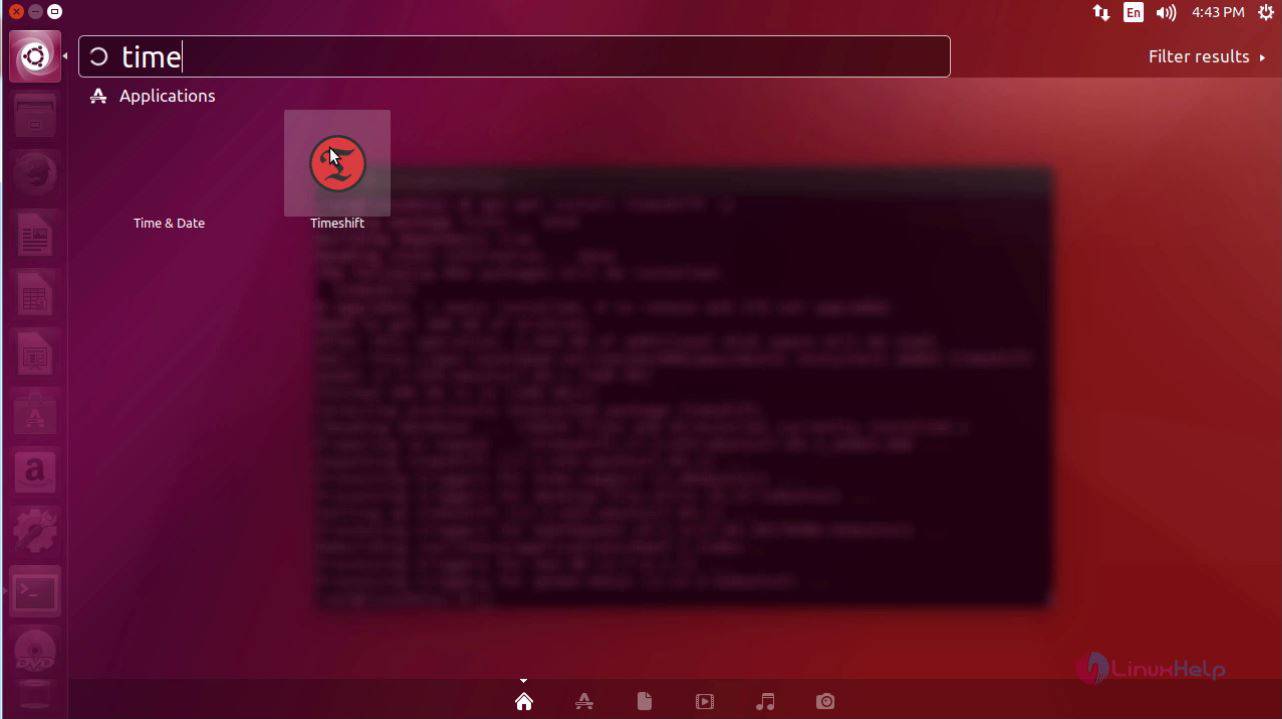
We are still not through with the installation process. So, lets open the application first.
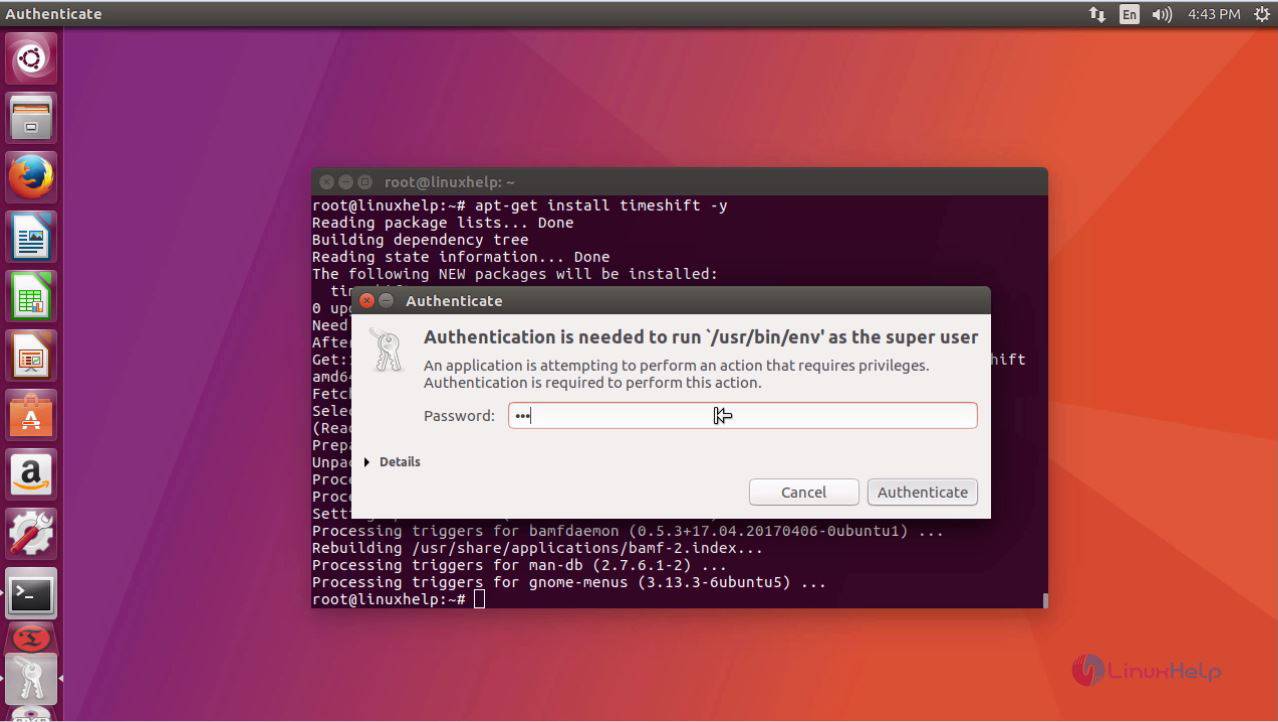
When the application is started, it is required to enter the credentials. So, enter the password and click on Authenticate.
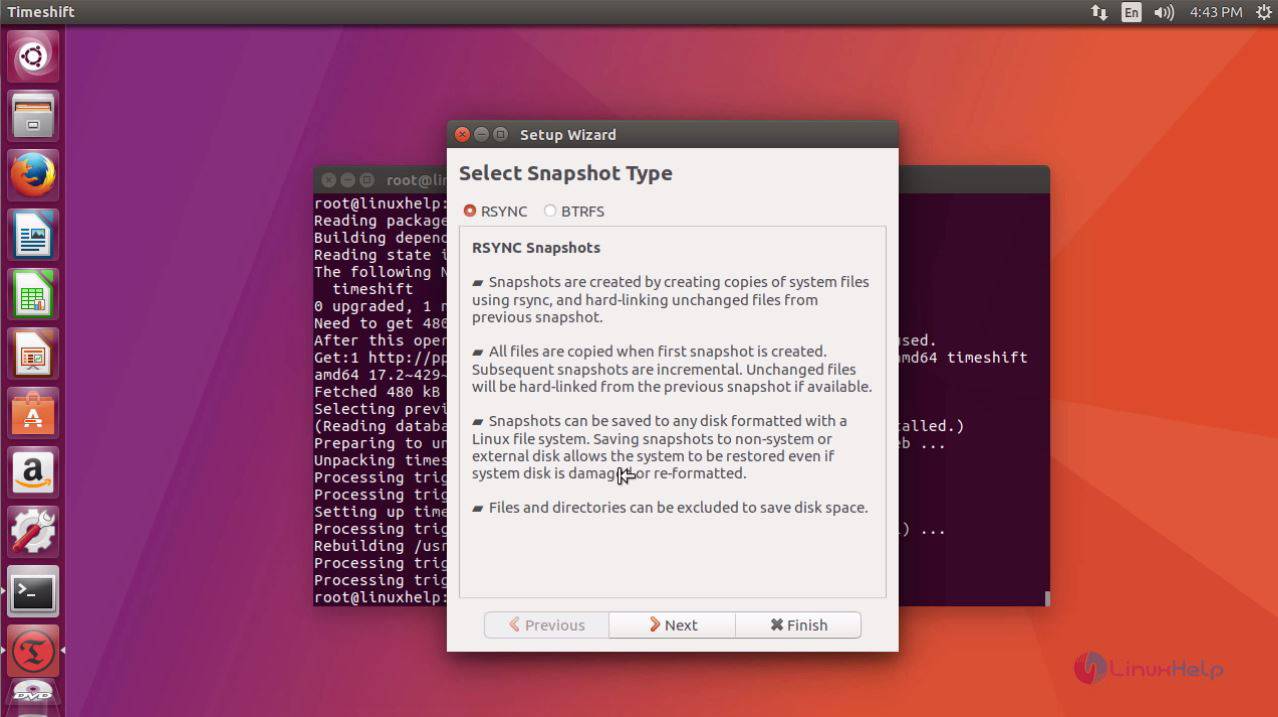
After that, you are required to select the Snapshot Type, so choose from the available options and click Next.
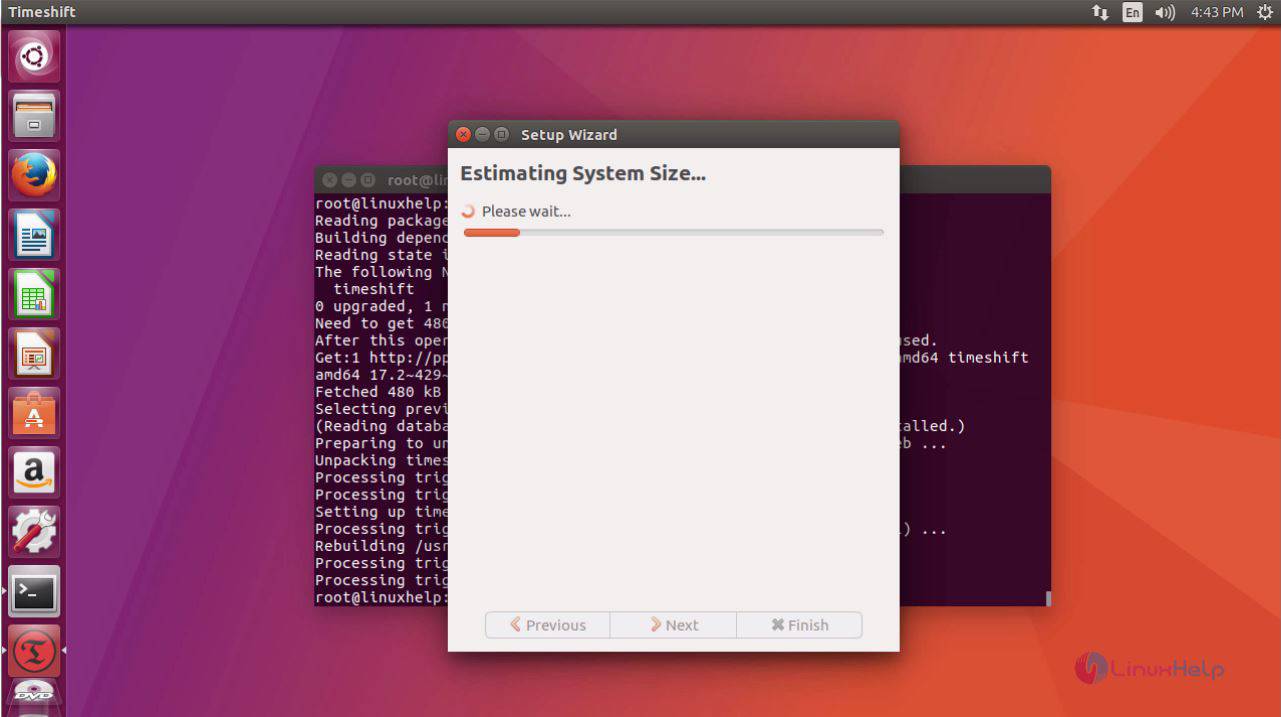
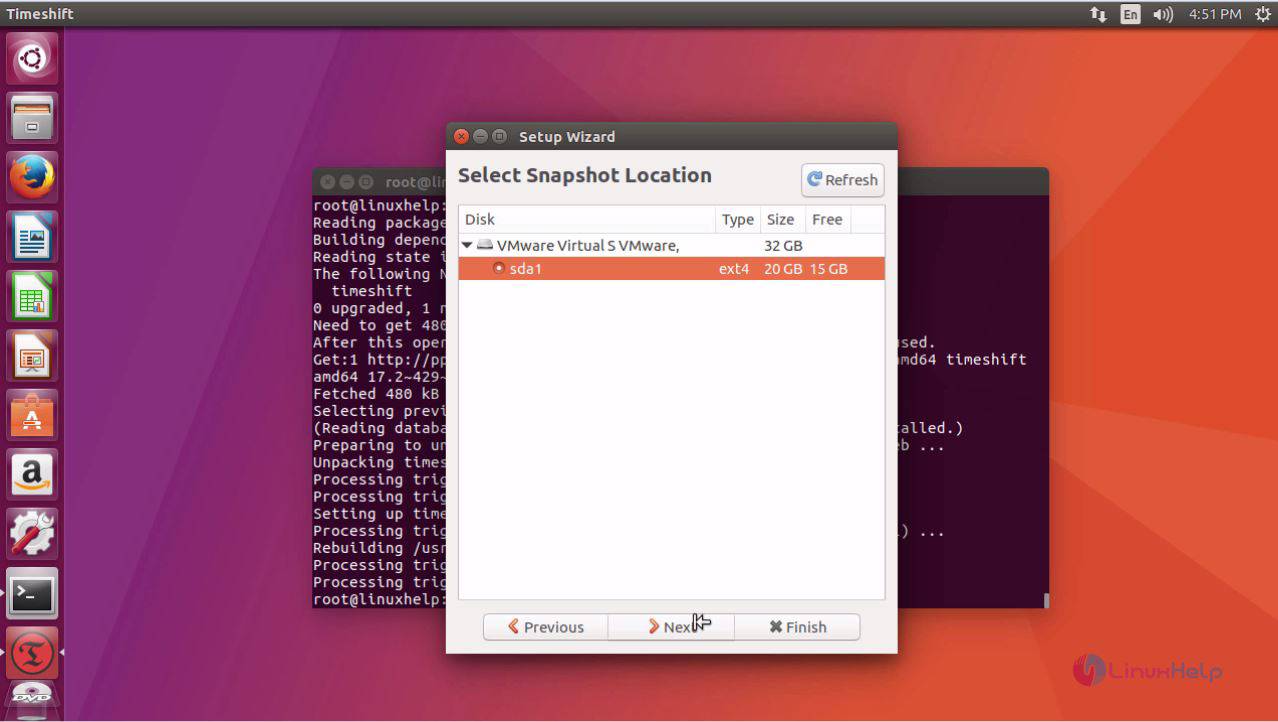
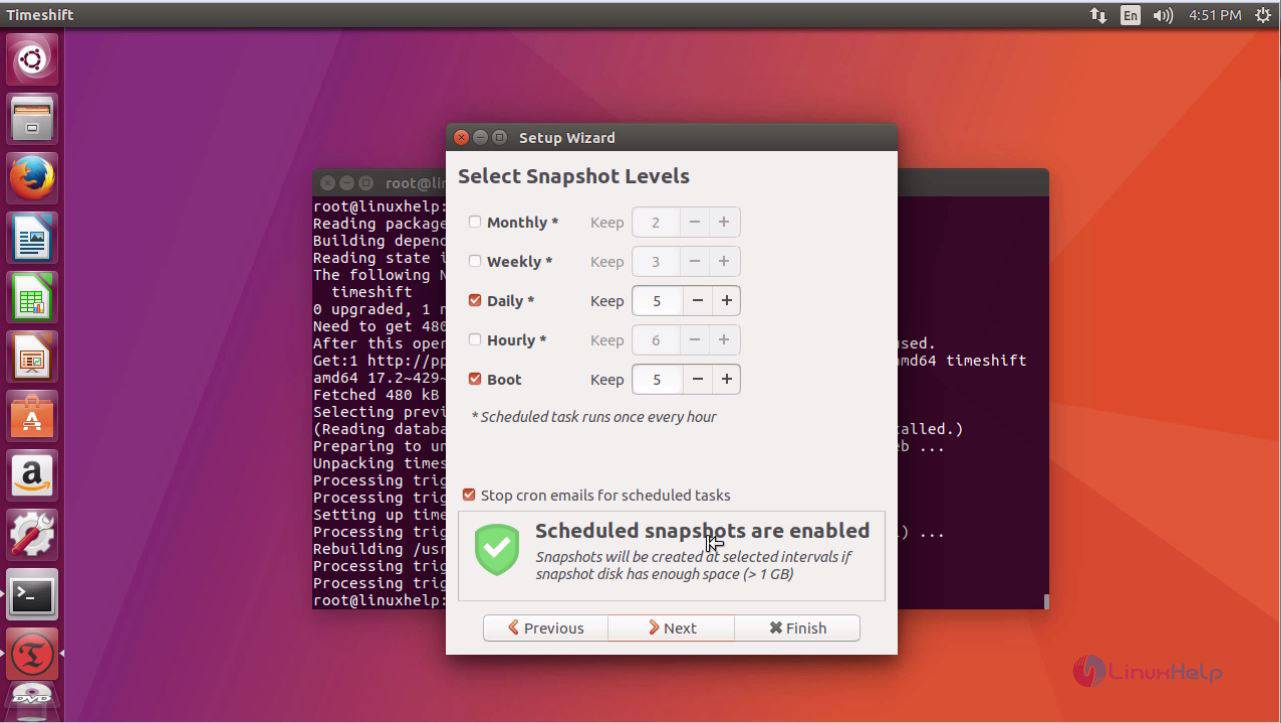
Once it is done, select the snapshot levels.
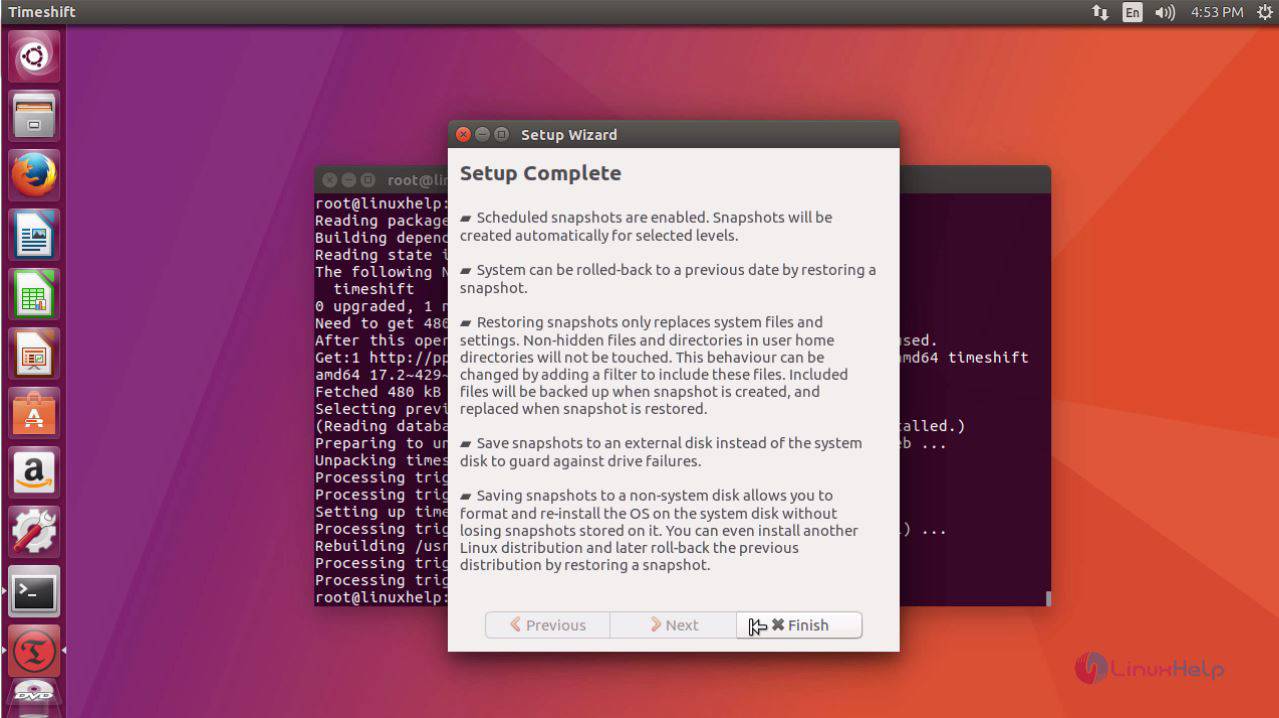
Click on Finish when the set is complete.
The Timeshift application now gets opened.
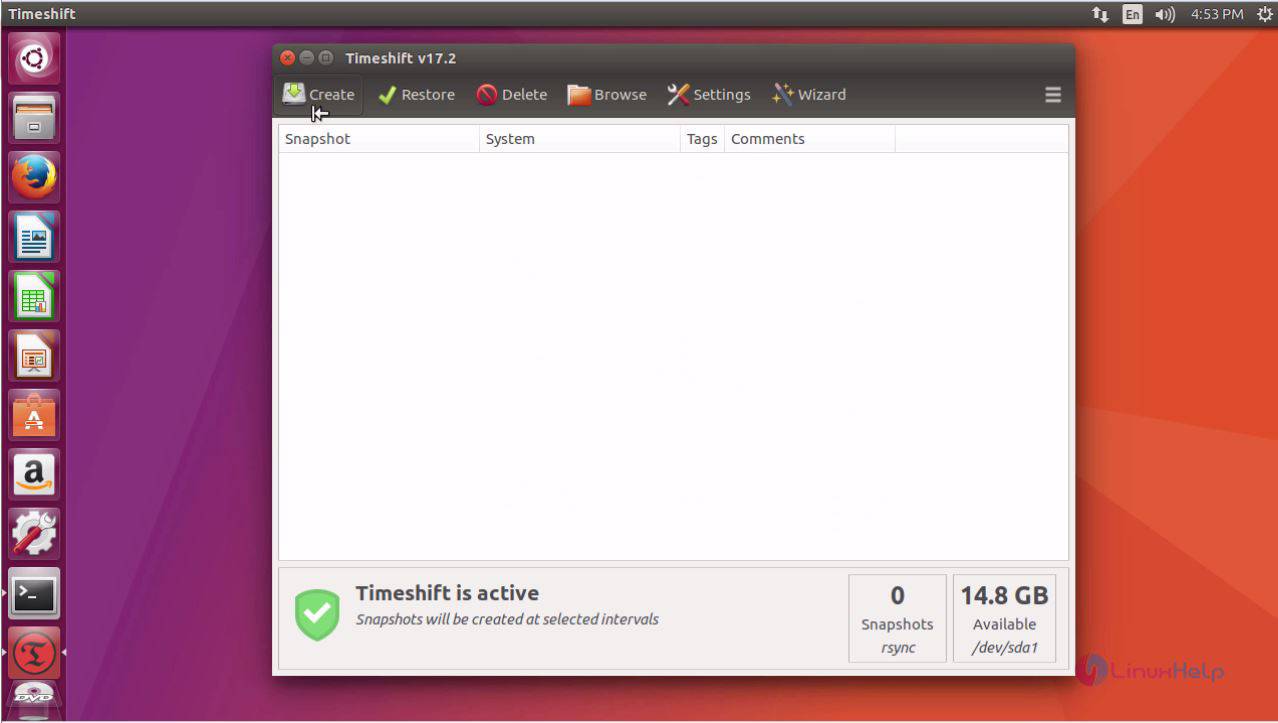
With this, the installation of Timeshift gets completed.
Comments ( 0 )
No comments available