How to install Tomatocart on linuxmint 18.3
To install Tomatocart on linuxmint 18.3
TomatoCart is a professional and innovative open source eCommerce solution. The back-end is an impressive desktop-like ExtJS-powered interface, offering significant usability improvements and user experience. It' s the most easy-to-use shopping cart. In this tutorial, we will cover the grounds on the installation of tomato crat on Linux mint 18.3
Pre-requirements
- Install LAMP (Apache, php7.0, MariaDB-server)
For MariaDB (create database, user and give privileges to the user)
- For PHP installation
  apt-get install python-software-properties
  add-apt-repository ppa:ondrej/php
  apt-get update
  apt-get install -y php5.6  php5.6-mysql php5.6-curl php5.6-xml  php5.6-mcrypt php5.6-gd
Installation
You have to download the Tomatocart package from the browser, using the following link.
https://sourceforge.net/projects/tomatocart/
After downloading, extract the downloaded package using unzip command
linuxhelp ~ # cd /home/user/Downloads/
linuxhelp Downloads # ls
TomatoCart-1.1.8.6.1.zip
linuxhelp Downloads # unzip TomatoCart-1.1.8.6.1.zip
Archive:  TomatoCart-1.1.8.6.1.zip
d22e3b3fb38ba24d84b7db57ee138e01322ef438
   creating: TomatoCart-v1-released-v1.1.8.6.1/
  inflating: TomatoCart-v1-released-v1.1.8.6.1/.htaccess
  inflating: TomatoCart-v1-released-v1.1.8.6.1/INSTALL.TXT
  inflating: TomatoCart-v1-released-v1.1.8.6.1/LICENSE.txt
  inflating: TomatoCart-v1-released-v1.1.8.6.1/README.md
  inflating: TomatoCart-v1-released-v1.1.8.6.1/RELEASE.txt
  inflating: TomatoCart-v1-released-v1.1.8.6.1/account.php
.
.
.
  inflating: TomatoCart-v1-released-v1.1.8.6.1/templates/glass_gray/stylesheet.css
  inflating: TomatoCart-v1-released-v1.1.8.6.1/templates/glass_gray/template.php
   creating: TomatoCart-v1-released-v1.1.8.6.1/templates/system/
   creating: TomatoCart-v1-released-v1.1.8.6.1/templates/system/images/
  inflating: TomatoCart-v1-released-v1.1.8.6.1/templates/system/images/tomatocart.ico
  inflating: TomatoCart-v1-released-v1.1.8.6.1/templates/system/offline.php
  inflating: TomatoCart-v1-released-v1.1.8.6.1/templates/system/stylesheet.css
Next, rename the extracted tomatocart directory
linuxhelp Downloads # ls
TomatoCart-1.1.8.6.1.zip  TomatoCart-v1-released-v1.1.8.6.1
linuxhelp Downloads # mv TomatoCart-v1-released-v1.1.8.6.1/ TomatoCart
linuxhelp Downloads # ls
TomatoCart  TomatoCart-1.1.8.6.1.zip
And then you have to move the tomatocart directory to the /var/www/html directory
linuxhelp Downloads # mv TomatoCart /var/www/html/
Now go to HTML directory
linuxhelp Downloads # cd /var/www/html/
linuxhelp html # ls
index.html  TomatoCart/
Next, you have to change ownership and permission for the file as follows
linuxhelp html # chown -R www-data:www-data TomatoCart/ chmod -R 775 TomatoCart/
And then configure a virtual host for tomatocart. by creating a tomatocart.conf file as follows
linuxhelp TomatoCart # vim /etc/apache2/sites-available/tomatocart.conf
[...]
< virtualhost *:80>
servername www.linuxhelp1.com
Documentroot /var/www/html/TomatoCart
< Directory /var/www/html/TomatoCart>
AllowOverride all
order allow,deny
allow from all
< /Directory>
< /virtualhost>
[..]
Next, enable the tomatocart.conf file
linuxhelp TomatoCart # a2ensite tomatocart.conf
Enabling site tomatocart.
To activate the new configuration, you need to run
  service apache2 reload
After that, you have to make an entry to the host' s file as follows
linuxhelp TomatoCart# vim /etc/hosts
< give your ip address>    < give your domain name>
Finally, you need to restart your Apache web server to make the changes effect
linuxhelp TomatoCart # systemctl restart apache2.service
After restarting apache server proceed for the further installation graphically from the browser, by navigating to http://local ip or domain name
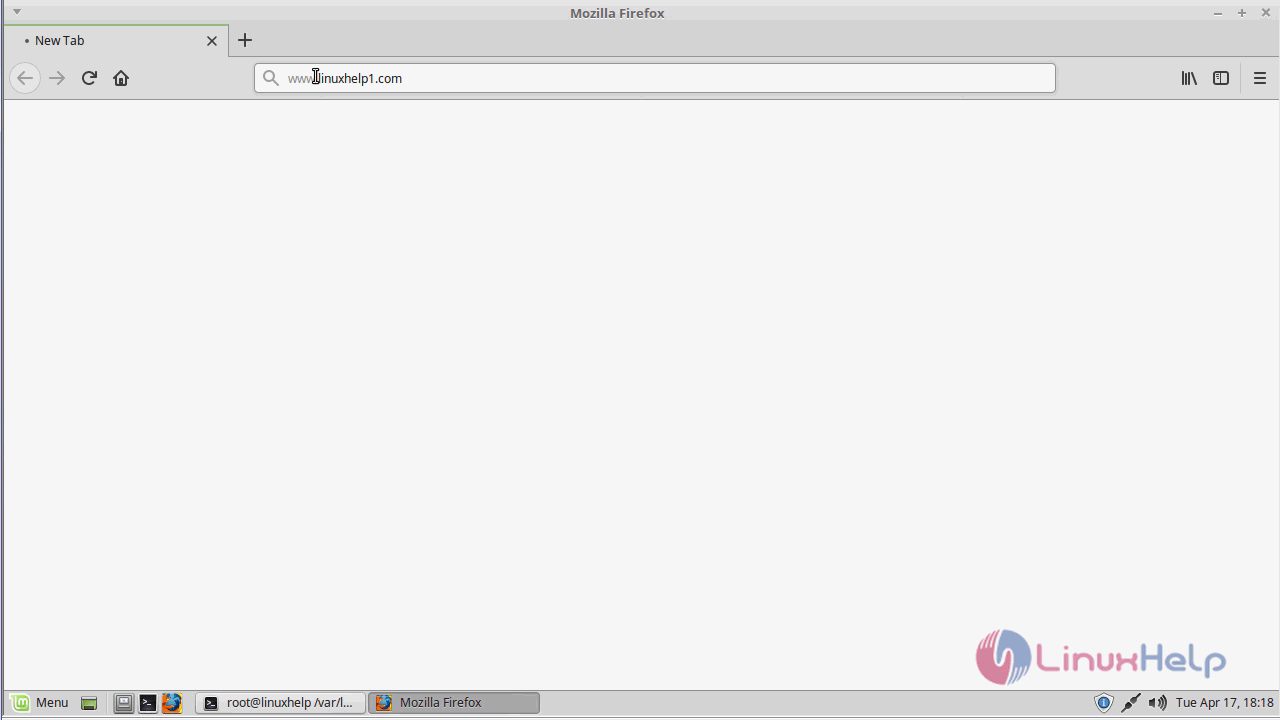
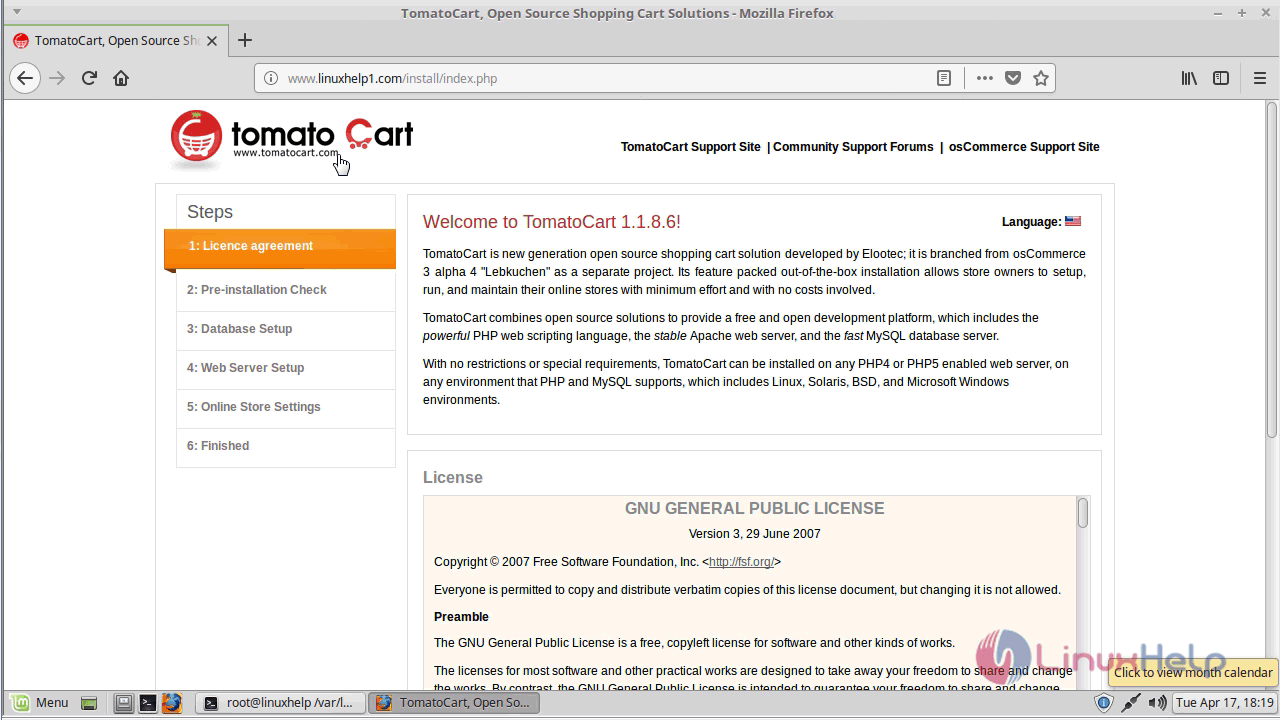
Now the installation wizard will appear where you need to start with accepting the terms and condition
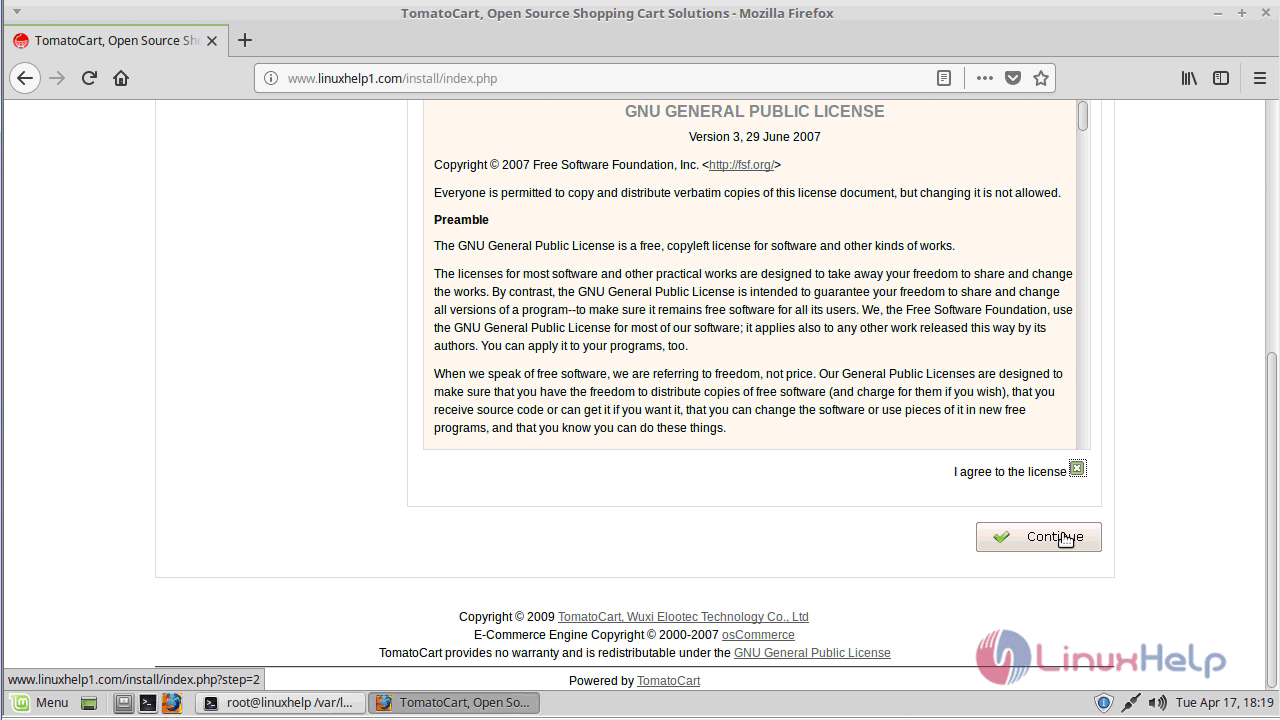
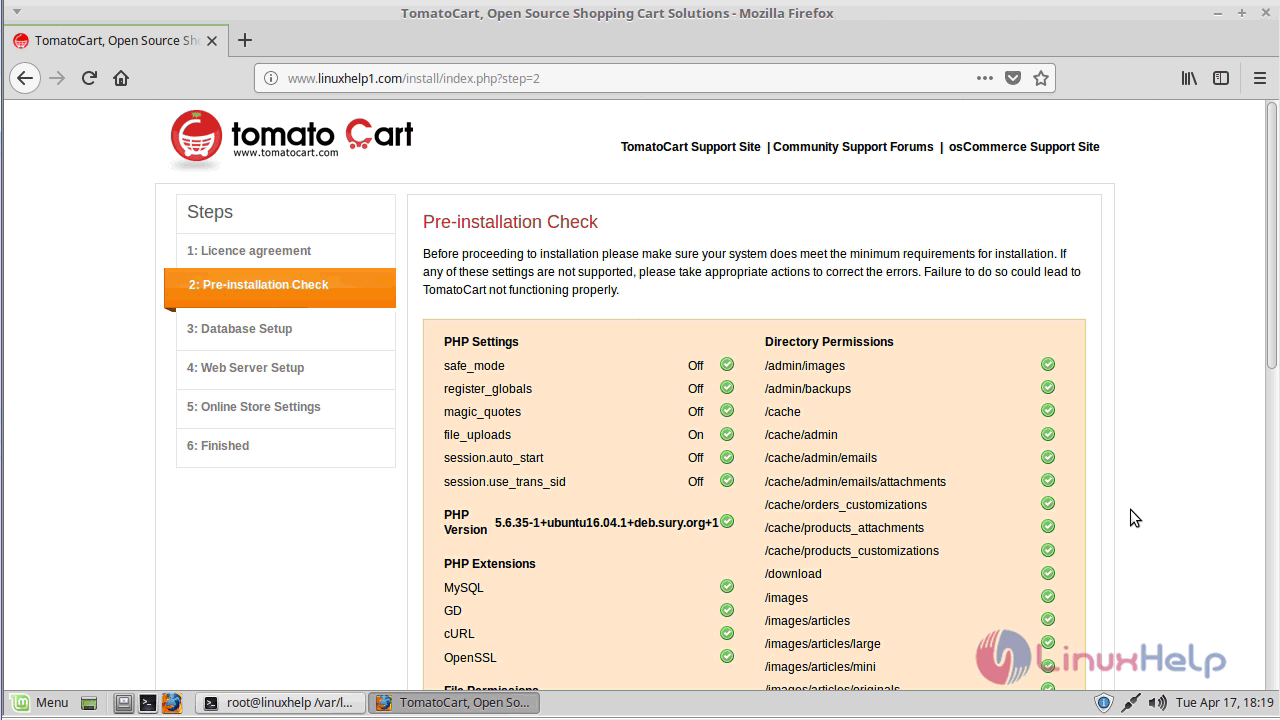
Now it will show pre-installation check. once done click and continue.
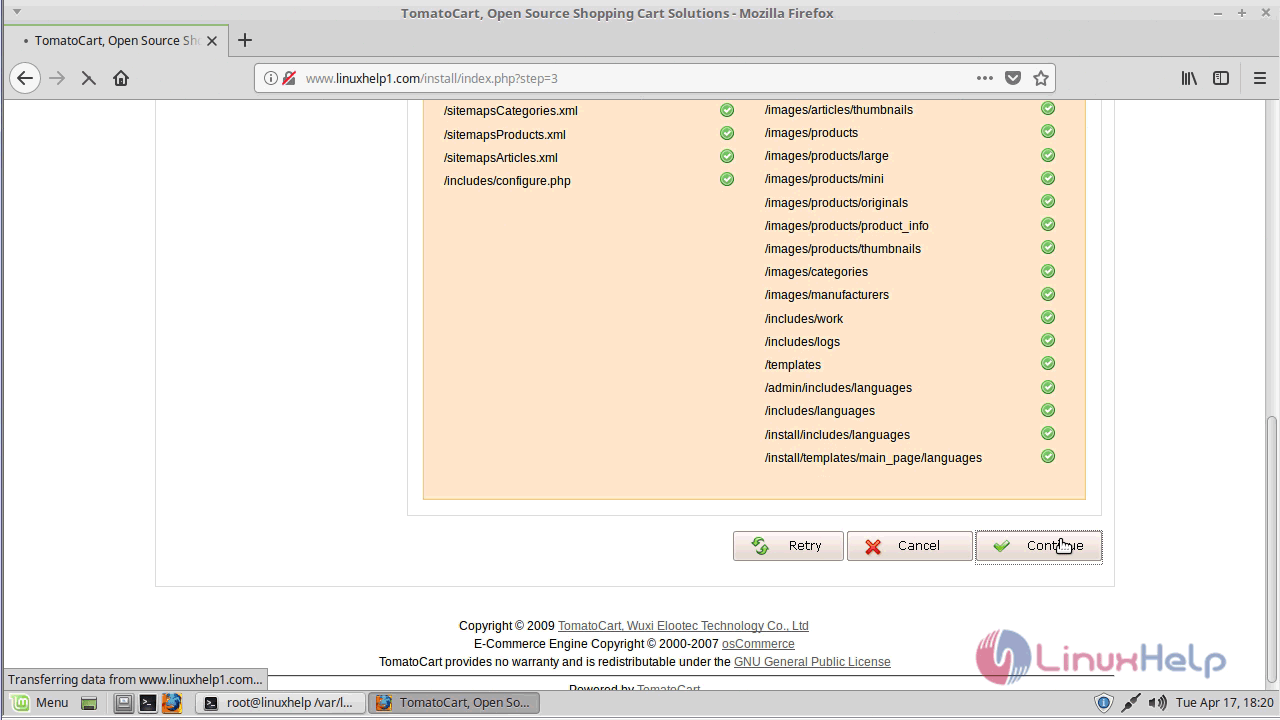
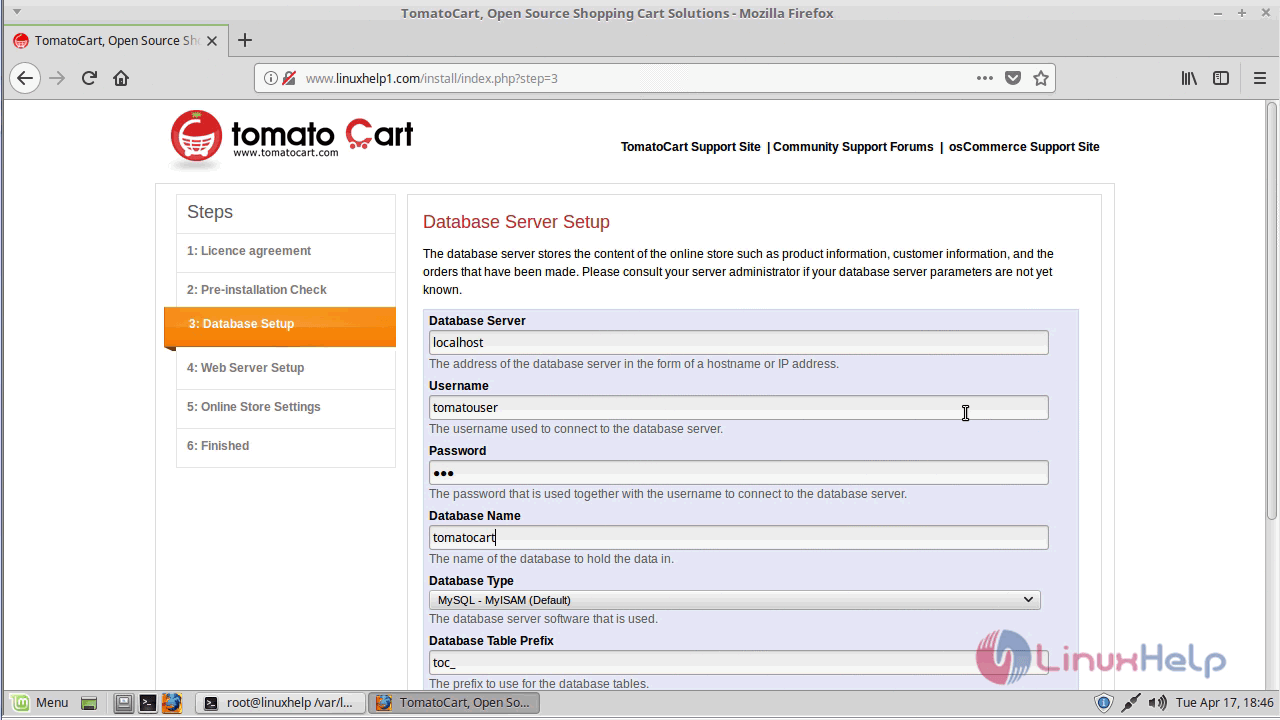
next, configure the database setup and proceed further.
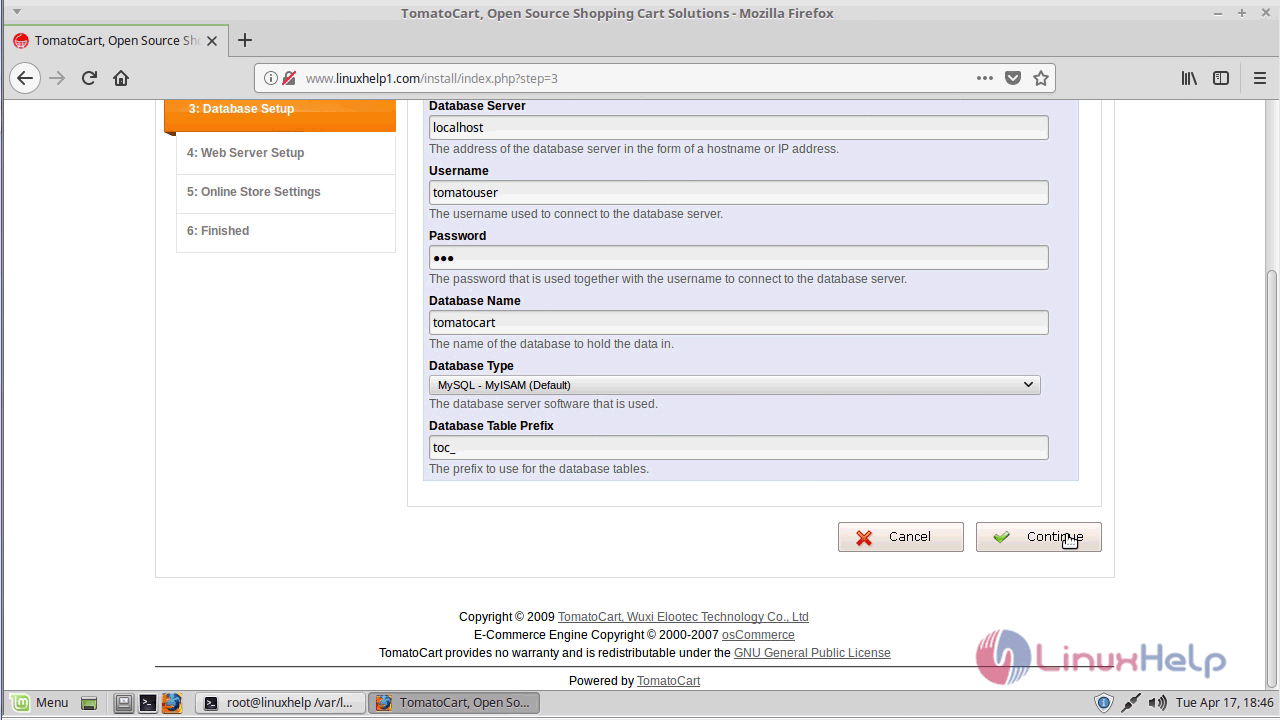
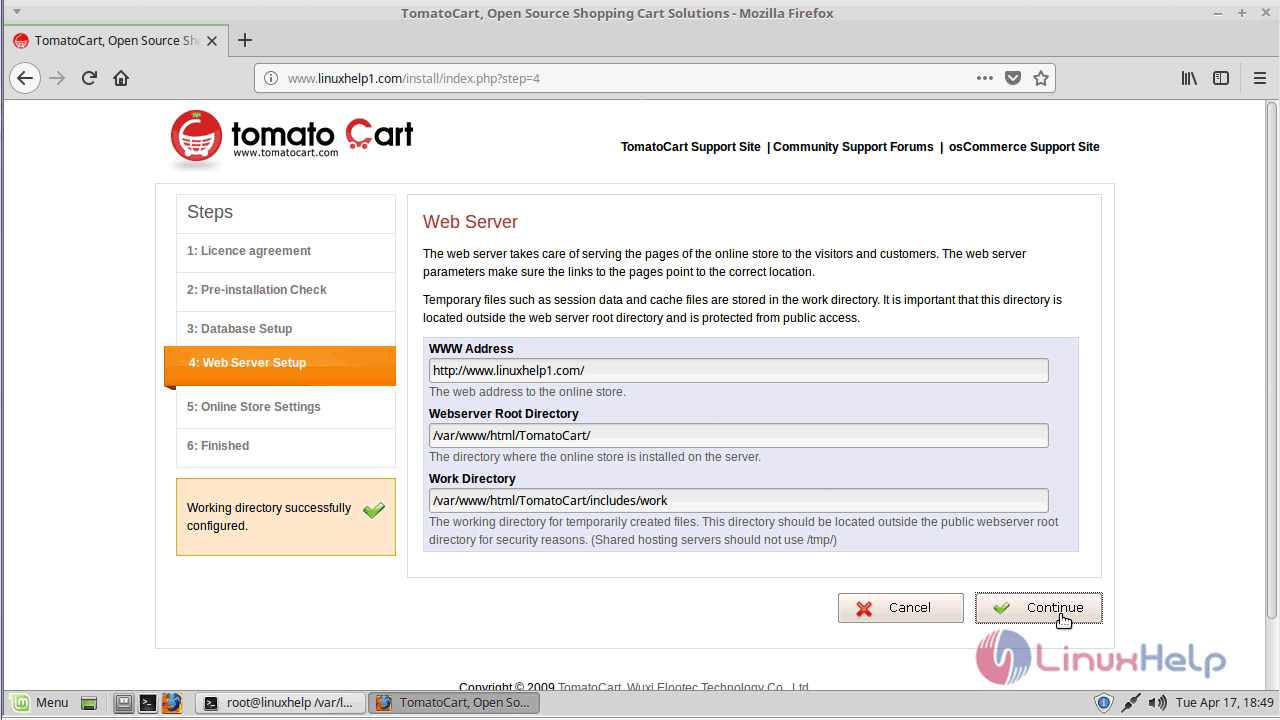
Now configure the server setup and click continue.
Next, configure your store settings and click continue to proceed further
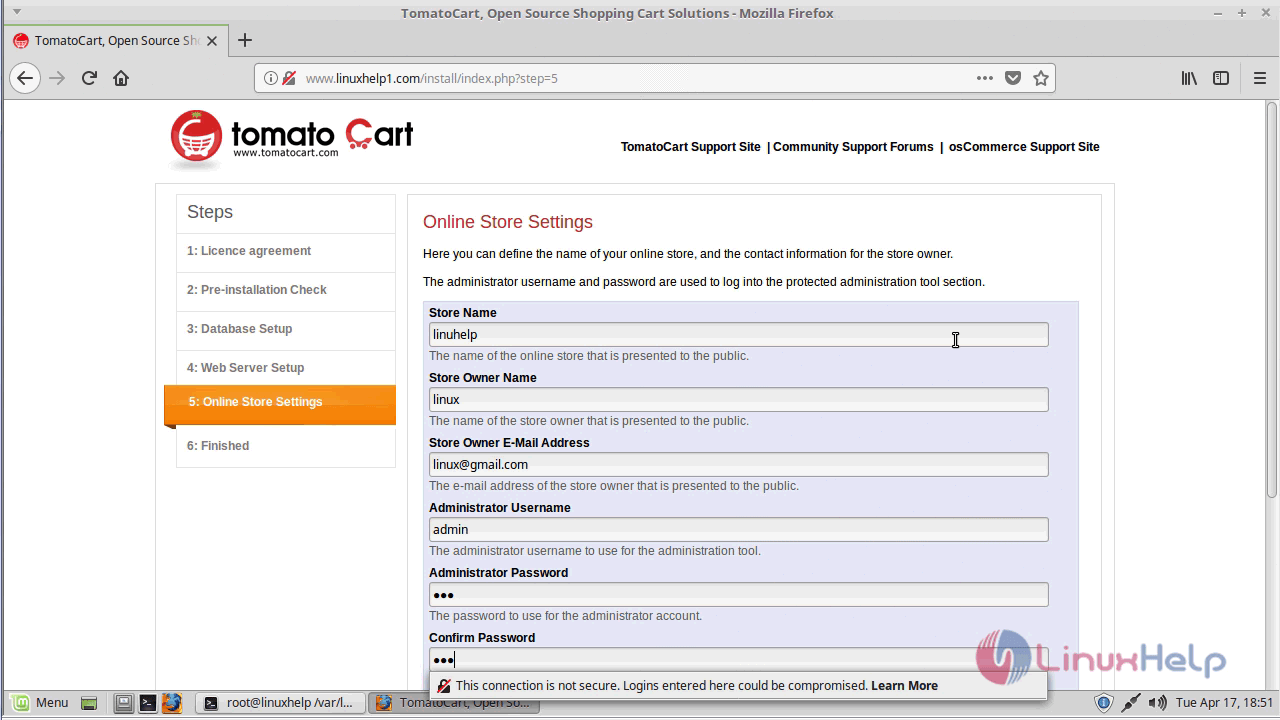
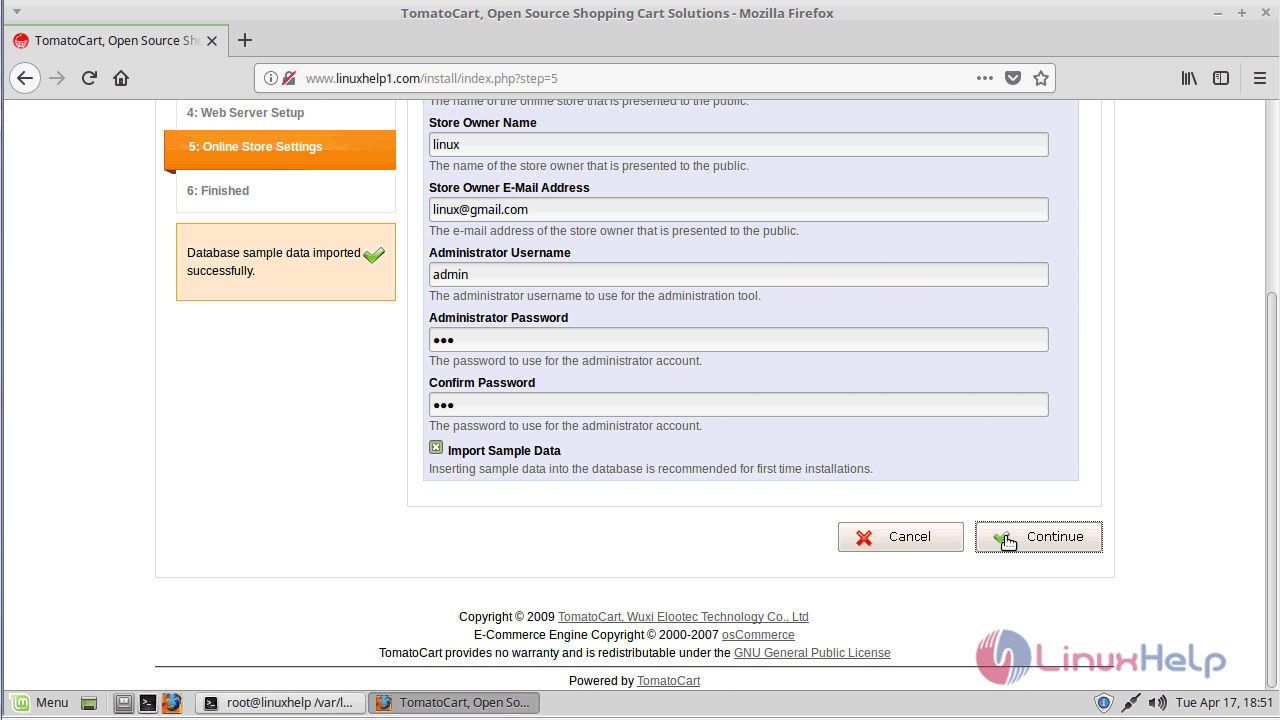
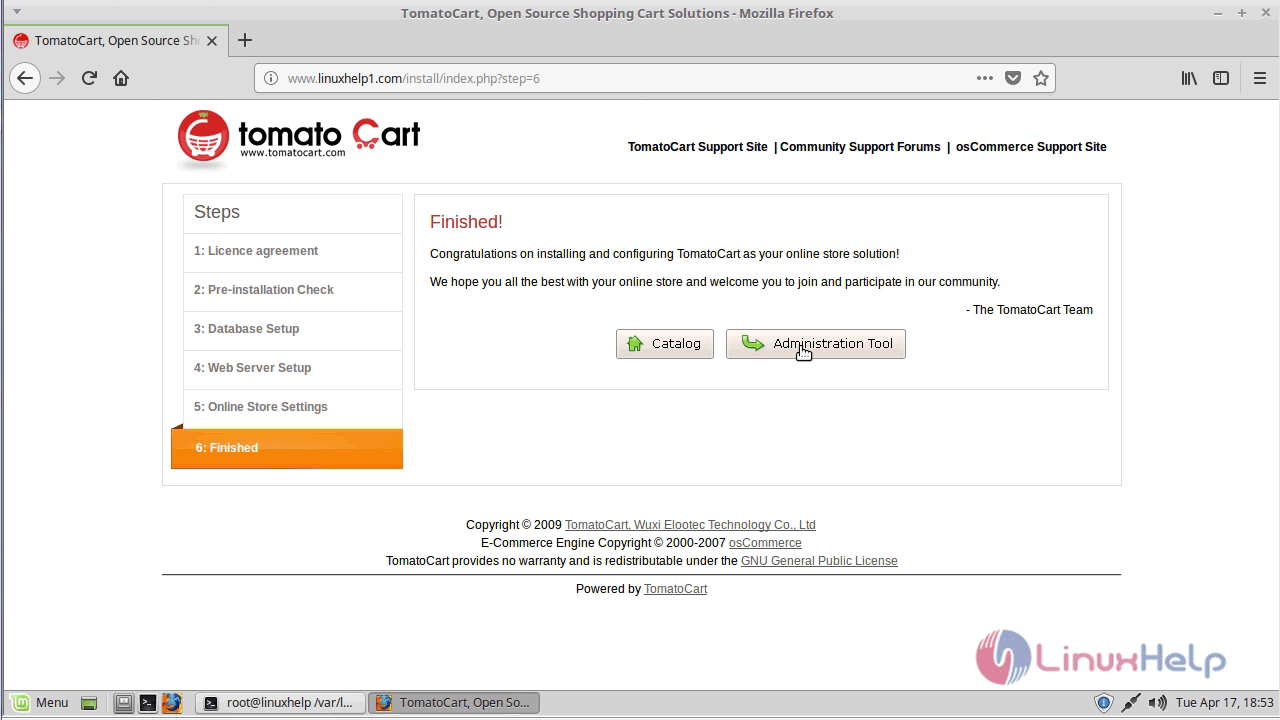
Once the configuration is done, it will show the finished installation status. If you want login your admin page click administration tool
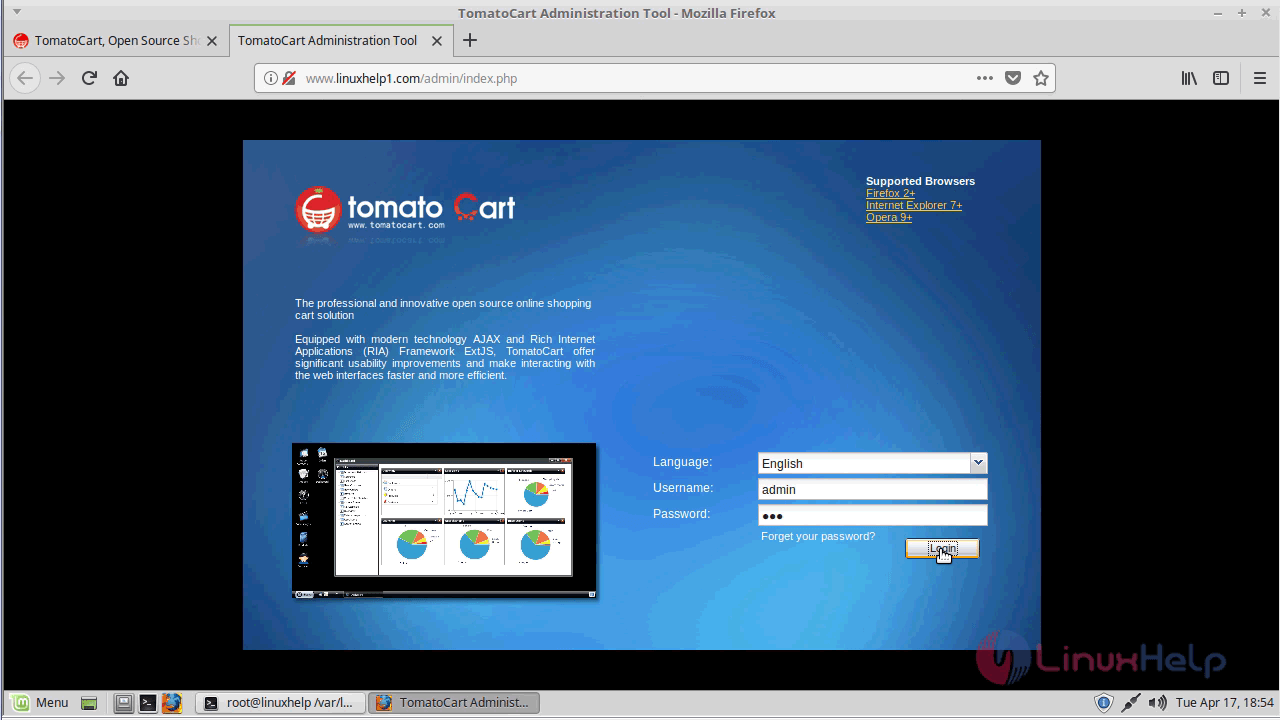
Now, you will the admin login page. Use the admin credentials to log in
On successful login, you will see the admin dashboard of tomatocart as shown below
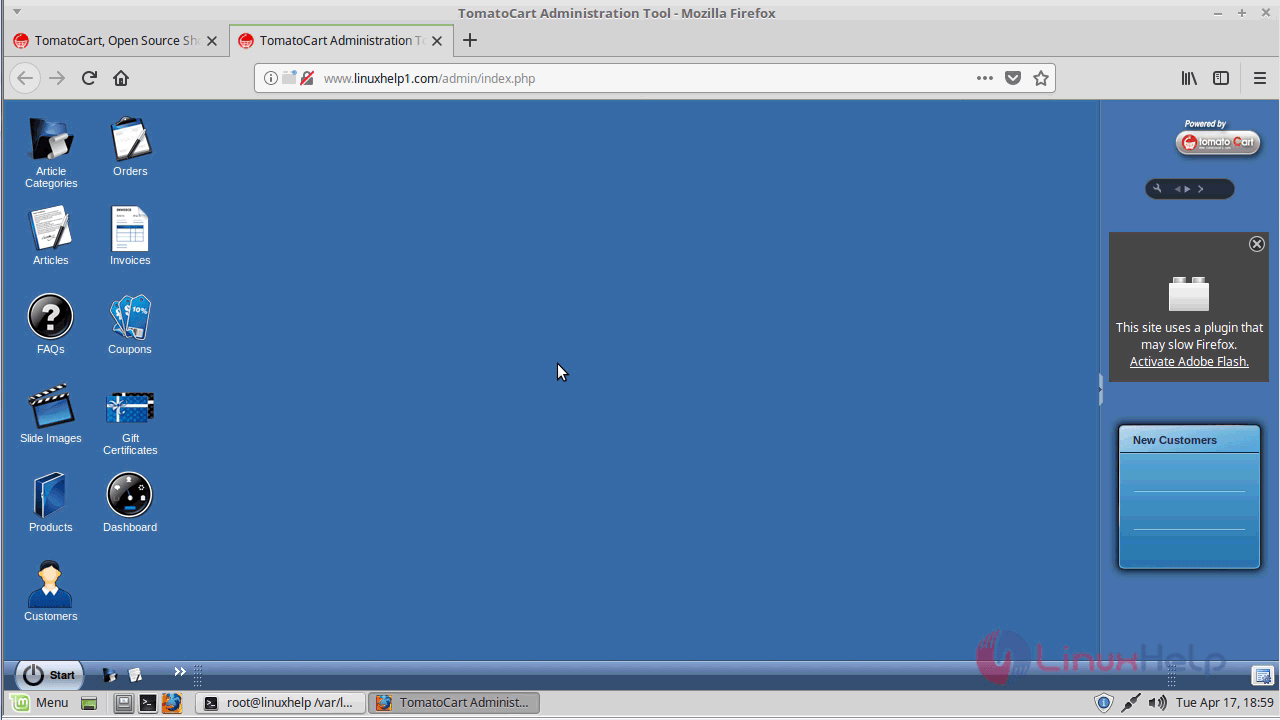
With this, the method to install Tomatocart on linux mint 18.3 comes to an end.
Comments ( 0 )
No comments available